> ## Documentation Index
> Fetch the complete documentation index at: https://docs.superjoin.ai/llms.txt
> Use this file to discover all available pages before exploring further.
# AI Copilot Quickstart
> Let's help you install and start using Superjoin's AI Copilot in under a minute!
Here's the step-by-step guide to Install Superjoin's AI Copilot on Google Sheets.
Open from Google Drive or type `sheets.new` in a new Google Chrome tab.
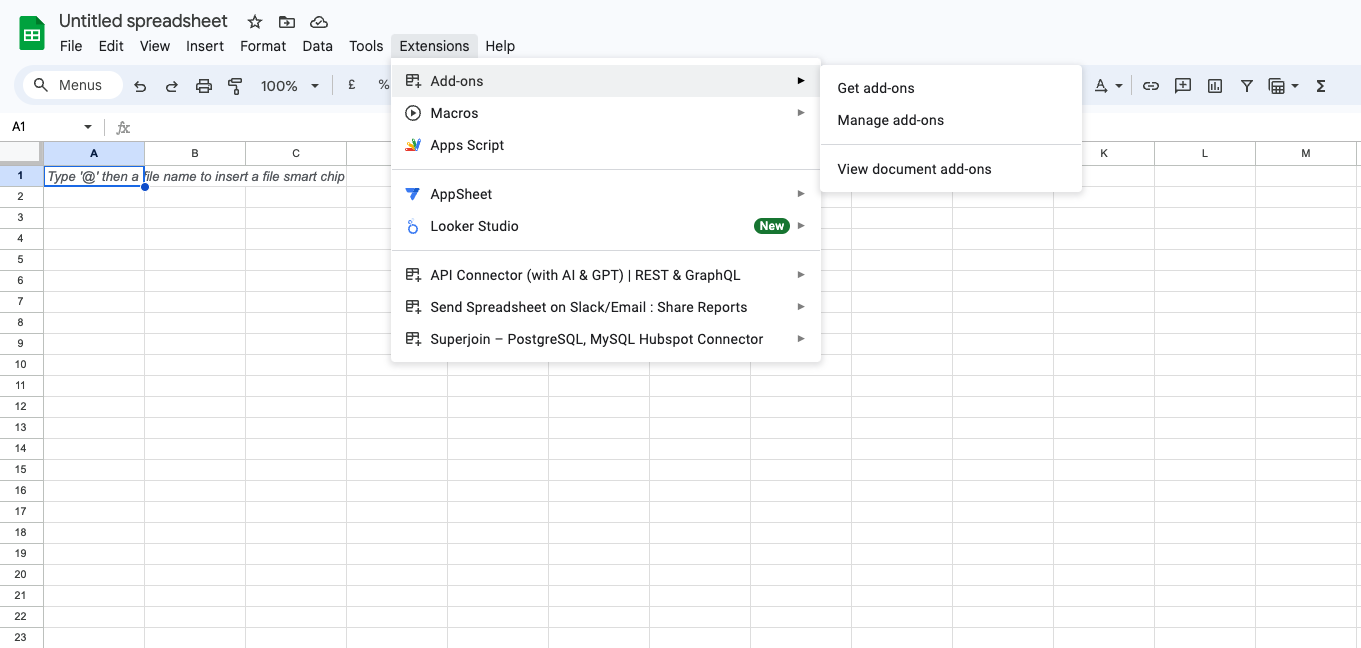
Click on `Extensions` from the Google Sheets menu.
Select `Add-ons` and choose `Get add-ons`. This action will redirect you to the Google Workspace Marketplace.
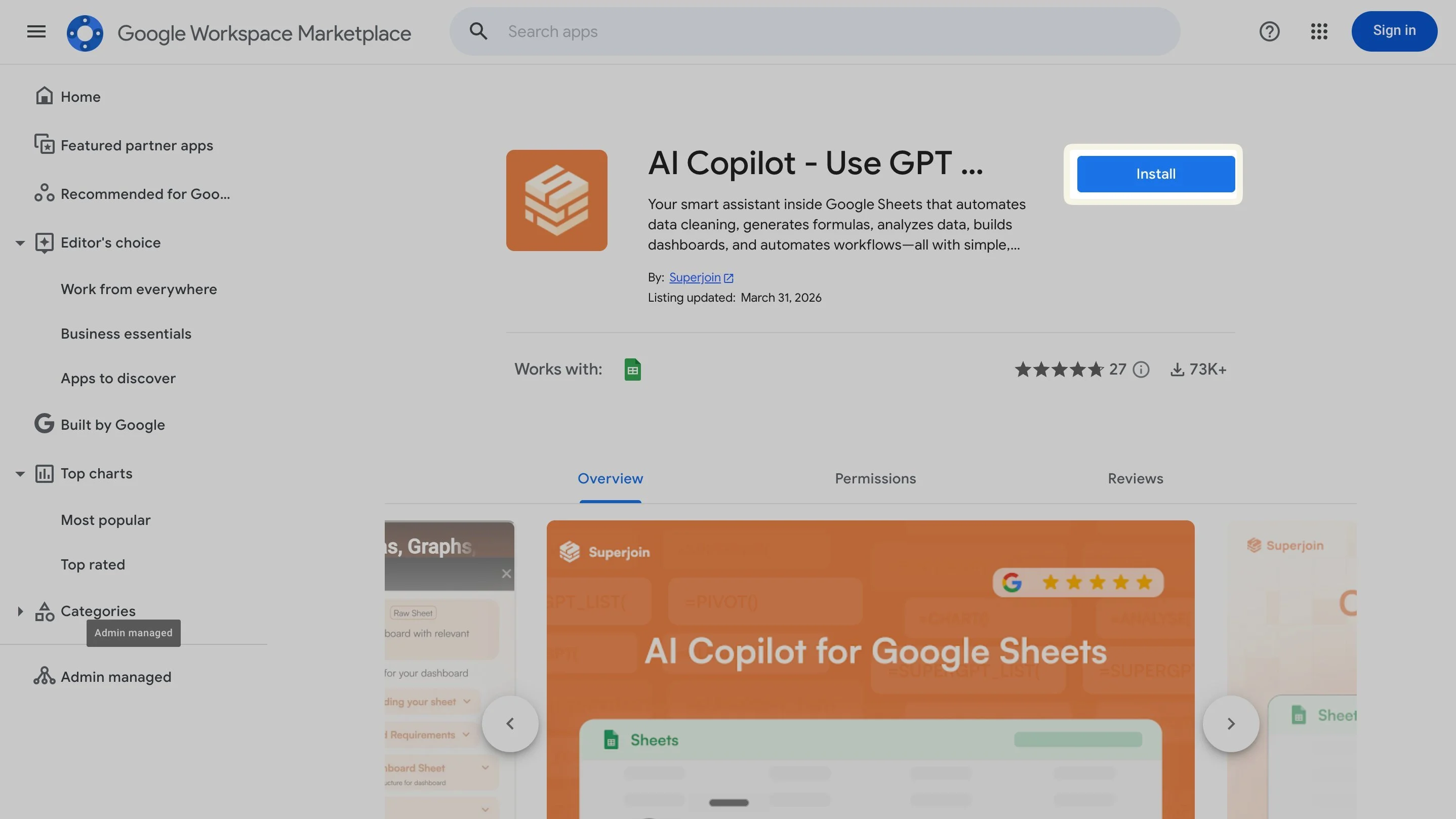
 In the Google Workspace Marketplace pop-up window, search for "Superjoin".
Open the `AI Copilot – Use GPT / Gemini on Google Sheets` listing and click the blue `Install` button. Approve the permissions to finish.
**Note:** For the best experience, install Superjoin where there's only a single account is logged in the Chrome profile.
In the Google Workspace Marketplace pop-up window, search for "Superjoin".
Open the `AI Copilot – Use GPT / Gemini on Google Sheets` listing and click the blue `Install` button. Approve the permissions to finish.
**Note:** For the best experience, install Superjoin where there's only a single account is logged in the Chrome profile.
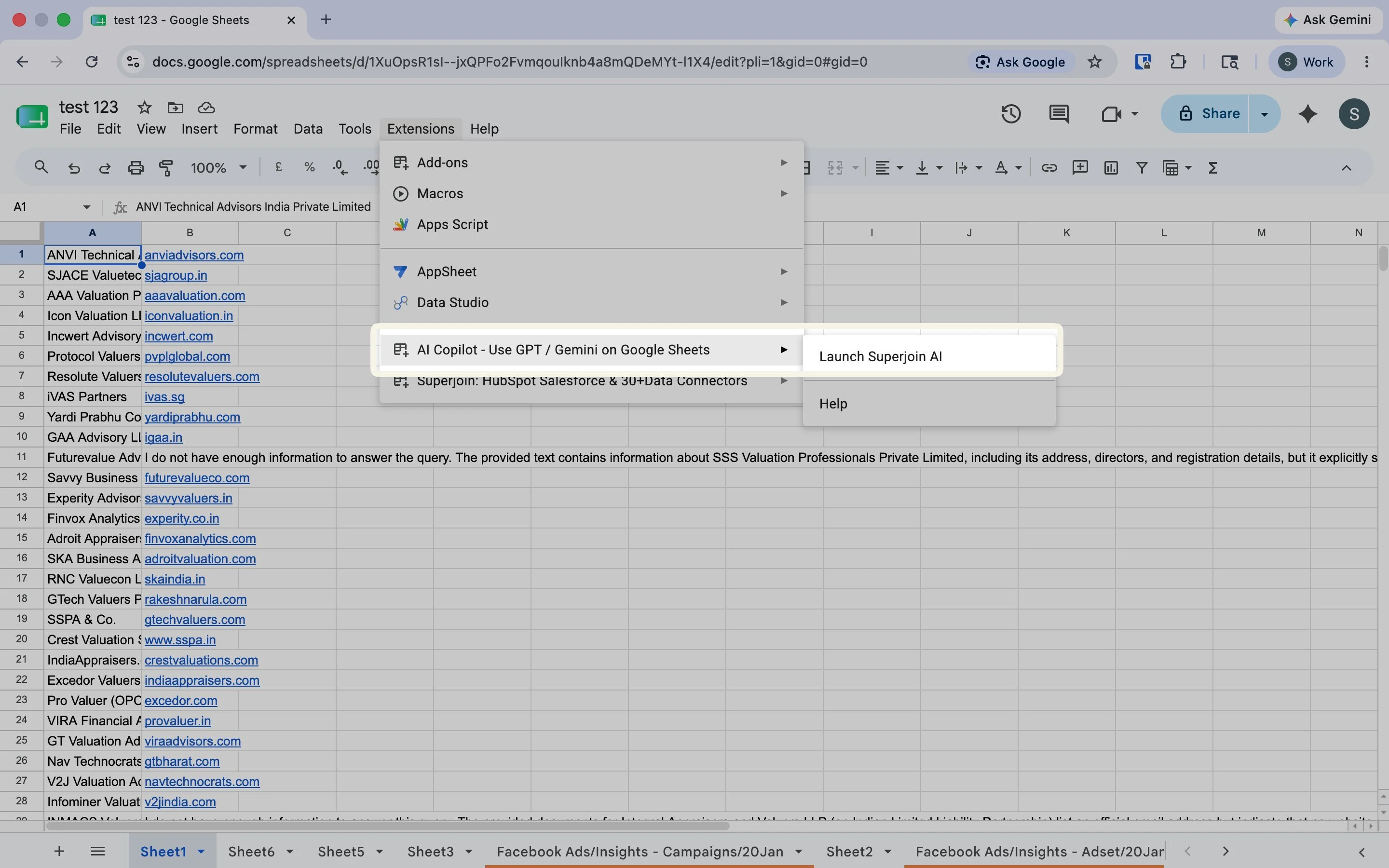
 Once installed, navigate back to the `Extensions` menu tab in Google Sheets.
Hover over `AI Copilot – Use GPT / Gemini on Google Sheets` and click `Launch Superjoin AI`.
Once installed, navigate back to the `Extensions` menu tab in Google Sheets.
Hover over `AI Copilot – Use GPT / Gemini on Google Sheets` and click `Launch Superjoin AI`.
 Superjoin now runs as a side panel on the right of your screen. Type a request to get started.
 In cases where only "Help" is visible after clicking on `Extensions`, refresh your Google Sheet and wait for some time. Sometimes it takes
over a minute to load. If you are still facing the issue, email us at [support@superjoin.ai](mailto:support@superjoin.ai).
If you're looking to import or export data, try out our [Data Connectors](quickstart) to sync live data between your Spreadsheets and 40+ sources.
## What you can do with AI Copilot
Skip the manual work — just describe what you need in plain English and let the AI Copilot handle it right inside your Spreadsheets!
Describe what you want in plain English and let Copilot write complex formulas for you.
Fix date formats, standardize values, and tidy up messy data in seconds.
Turn raw data into dashboards, charts, and trackers automatically.
Ask questions about your data and get instant answers and insights.
In cases where only "Help" is visible after clicking on `Extensions`, refresh your Google Sheet and wait for some time. Sometimes it takes
over a minute to load. If you are still facing the issue, email us at [support@superjoin.ai](mailto:support@superjoin.ai).
If you're looking to import or export data, try out our [Data Connectors](quickstart) to sync live data between your Spreadsheets and 40+ sources.
## What you can do with AI Copilot
Skip the manual work — just describe what you need in plain English and let the AI Copilot handle it right inside your Spreadsheets!
Describe what you want in plain English and let Copilot write complex formulas for you.
Fix date formats, standardize values, and tidy up messy data in seconds.
Turn raw data into dashboards, charts, and trackers automatically.
Ask questions about your data and get instant answers and insights.