> ## Documentation Index
> Fetch the complete documentation index at: https://docs.superjoin.ai/llms.txt
> Use this file to discover all available pages before exploring further.
# Model Control Protocol (MCP) for Copilot
> Discover how to integrate and use the Model Control Protocol (MCP) with your Copilot, enabling seamless interaction with external tools and services.
Only available on Google Sheets
# Superjoin MCP Integration Guide
Unlock the power of AI agents with the Model Control Protocol (MCP)! 🚀 MCP is an open standard that enables AI models to securely connect with external tools, APIs, and data sources. With MCP, your Copilot can perform complex tasks, access real-time information, and interact with various services directly from your workflow.
## Overview
Superjoin's Sheets Copilot supports Model Context Protocol (MCP) integration, allowing you to connect to external data sources and services directly from Google Sheets. This powerful feature enables you to pull data, perform complex analysis, and execute operations without leaving your spreadsheet environment.
## Getting Started
### Step 1: Install Superjoin
Follow the quickstart guide to Install and Launch Superjoin 🚀
Install Superjoin in under a minute and start pulling your data instantly.
### Step 2: Access Sheets Copilot
1. Open your Google Sheets document
2. Navigate to **Extensions** in the menu bar
3. Select **Superjoin** from the extensions list
4. The Sheets Copilot interface will open
## Setting Up MCP Connections
### Step 3: Add a New Connection
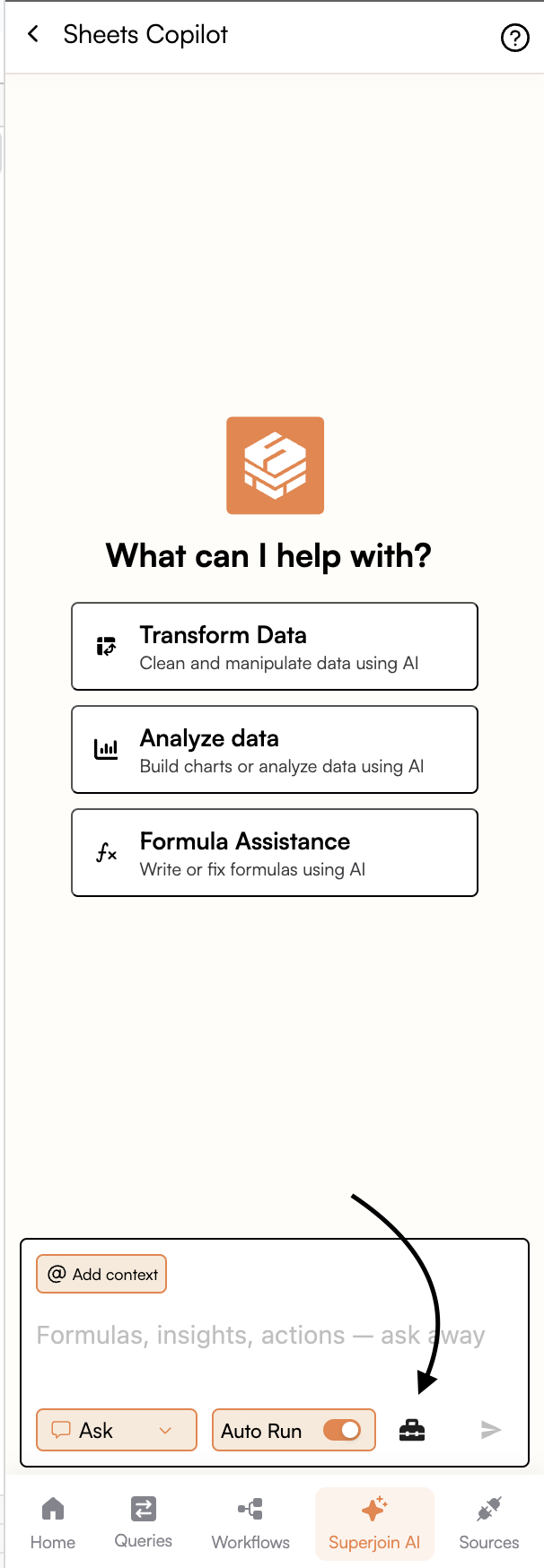
1. In the Copilot interface, look for the `Toolbox` icon
2. Click on **Plugins** or the connection management area
3. Select **Add Connection** tab
4. You'll see a connection setup form
 ### Step 4: Configure Connection Details
Fill in the required connection information:
### Step 4: Configure Connection Details
Fill in the required connection information:
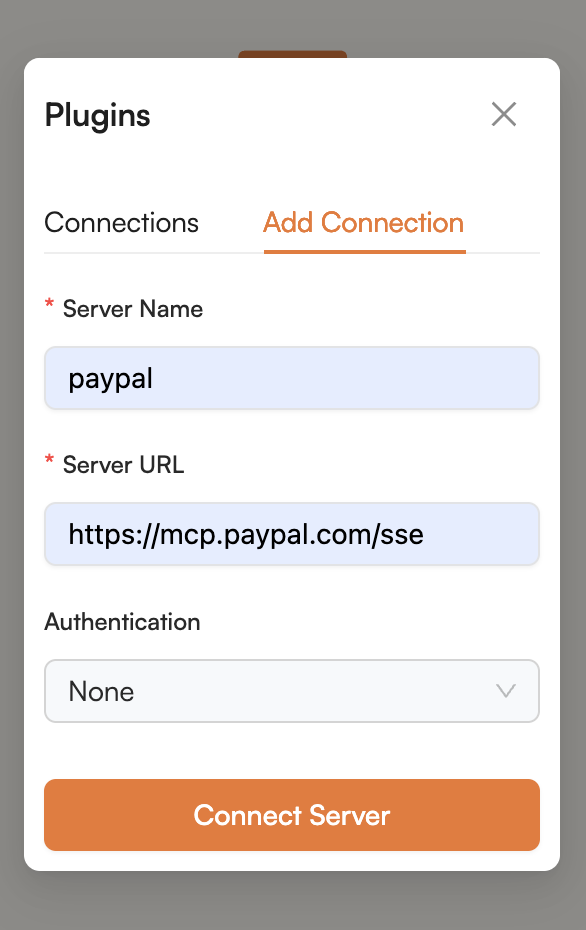 #### Server Name
* Enter a descriptive name for your connection (e.g., "paypal", "salesforce", "github")
* This name will help you identify the connection later
#### Server URL
* Enter the complete MCP server URL
* Example: `https://mcp.paypal.com/sse`
* Ensure the URL is correct and accessible
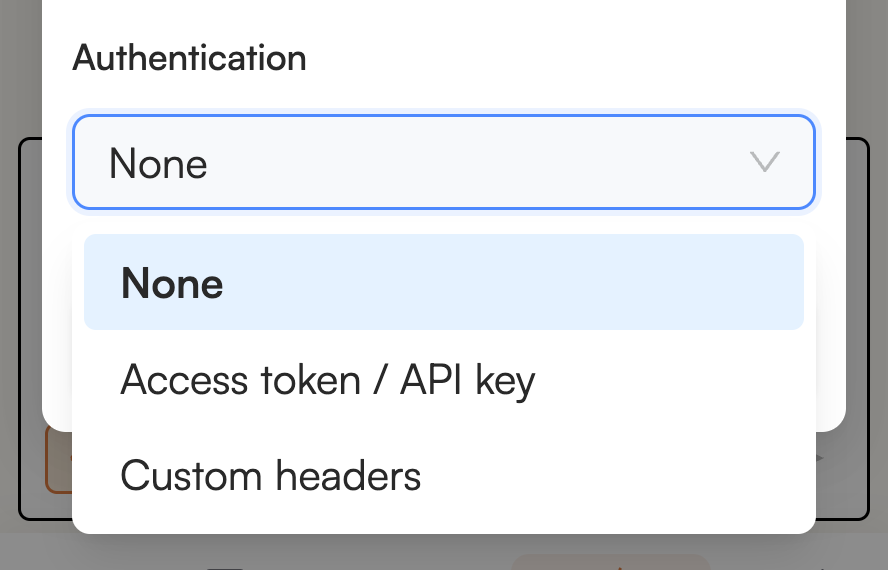
#### Authentication
Choose from multiple authentication methods:
We also allow connecting to servers which support OAuth 2.1 authentication
methods
#### Server Name
* Enter a descriptive name for your connection (e.g., "paypal", "salesforce", "github")
* This name will help you identify the connection later
#### Server URL
* Enter the complete MCP server URL
* Example: `https://mcp.paypal.com/sse`
* Ensure the URL is correct and accessible
#### Authentication
Choose from multiple authentication methods:
We also allow connecting to servers which support OAuth 2.1 authentication
methods
 ### Step 5: Connect to Server
1. After filling in all required fields, click **Connect Server**
2. The system will attempt to establish a connection - In case of Oauth, it may redirect you to a different page.
3. Upon successful connection, you'll see a green indicator next to your connection
4. Your connection will appear in the **Connections** tab with its status
### Step 6: Managing Connections
### Step 5: Connect to Server
1. After filling in all required fields, click **Connect Server**
2. The system will attempt to establish a connection - In case of Oauth, it may redirect you to a different page.
3. Upon successful connection, you'll see a green indicator next to your connection
4. Your connection will appear in the **Connections** tab with its status
### Step 6: Managing Connections
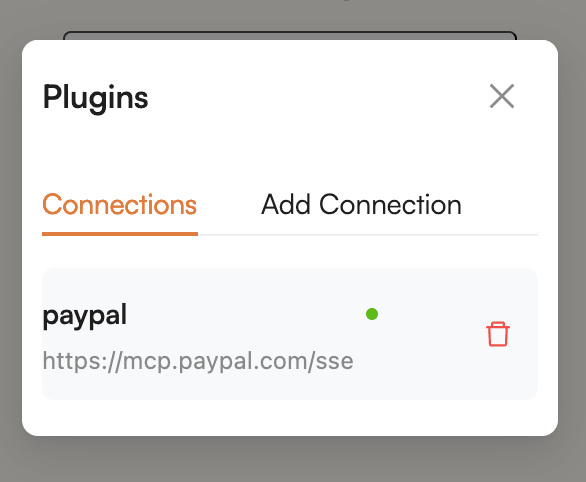 * **View Connections**: Switch to the **Connections** tab to see all active connections
* **Connection Status**: Green dot indicates active connection
* **Delete Connection**: Use the trash icon to remove connections you no longer need
* **Multiple Connections**: You can connect to multiple MCP servers simultaneously
## Using MCP in Your Workflow
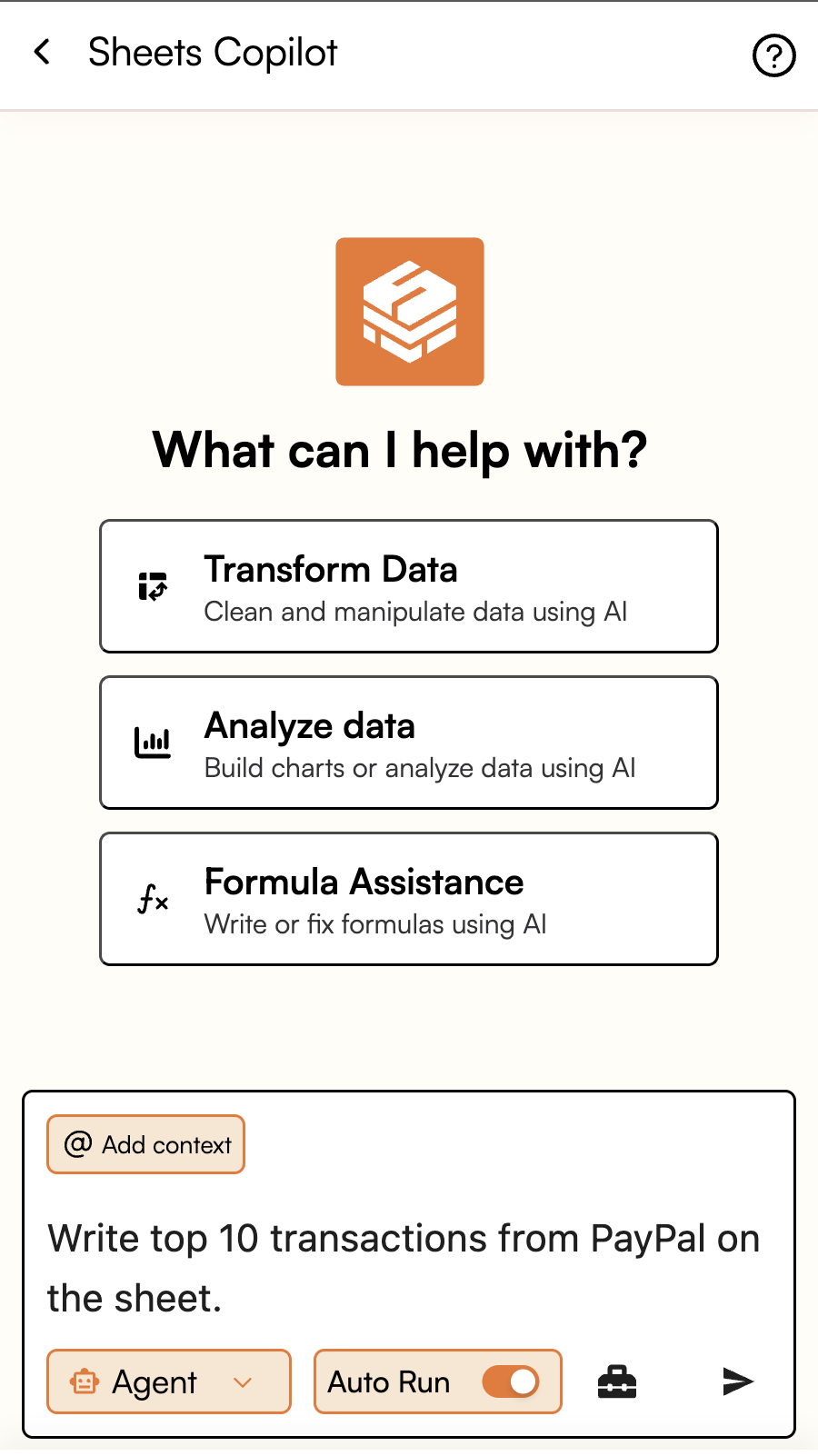
### Practical Example: PayPal Transaction Data
* **View Connections**: Switch to the **Connections** tab to see all active connections
* **Connection Status**: Green dot indicates active connection
* **Delete Connection**: Use the trash icon to remove connections you no longer need
* **Multiple Connections**: You can connect to multiple MCP servers simultaneously
## Using MCP in Your Workflow
### Practical Example: PayPal Transaction Data
 ### Advanced Usage Patterns
#### Multi-Source Data Integration
```
"Pull sales data from Salesforce and payment data from PayPal, then create a reconciliation report"
```
#### Real-time Analysis
```
"Get the latest customer support tickets from Zendesk and analyze sentiment trends"
```
#### Automated Reporting
```
"Fetch monthly revenue data from Stripe and create a financial dashboard with charts"
```
## Security
* **Never share connection credentials**: Each user should set up their own connections
* **Use least privilege**: Only grant necessary permissions when setting up OAuth
* **Regular cleanup**: Remove unused connections to maintain security hygiene
## Troubleshooting
### Common Connection Issues
* Verify the server URL is correct and accessible - Check authentication
credentials - Ensure your network allows connections to the MCP server
{" "}
* Verify API keys or tokens are valid and not expired - Check if the service
requires specific scopes or permissions - For OAuth, try re-authorizing the
connection
* Confirm the MCP server supports the requested operation - Check if you
have necessary permissions to access the requested data - Verify the query
syntax matches the server's expected format
## Conclusion
Superjoin's MCP integration transforms Google Sheets into a powerful data analysis and operations center. By connecting to external services through MCP, you can build sophisticated workflows without complex integrations or leaving your familiar spreadsheet environment.
The combination of natural language queries, multiple authentication methods, and real-time data access makes it an ideal solution for teams that need flexible, powerful data tools with minimal technical overhead.
### Advanced Usage Patterns
#### Multi-Source Data Integration
```
"Pull sales data from Salesforce and payment data from PayPal, then create a reconciliation report"
```
#### Real-time Analysis
```
"Get the latest customer support tickets from Zendesk and analyze sentiment trends"
```
#### Automated Reporting
```
"Fetch monthly revenue data from Stripe and create a financial dashboard with charts"
```
## Security
* **Never share connection credentials**: Each user should set up their own connections
* **Use least privilege**: Only grant necessary permissions when setting up OAuth
* **Regular cleanup**: Remove unused connections to maintain security hygiene
## Troubleshooting
### Common Connection Issues
* Verify the server URL is correct and accessible - Check authentication
credentials - Ensure your network allows connections to the MCP server
{" "}
* Verify API keys or tokens are valid and not expired - Check if the service
requires specific scopes or permissions - For OAuth, try re-authorizing the
connection
* Confirm the MCP server supports the requested operation - Check if you
have necessary permissions to access the requested data - Verify the query
syntax matches the server's expected format
## Conclusion
Superjoin's MCP integration transforms Google Sheets into a powerful data analysis and operations center. By connecting to external services through MCP, you can build sophisticated workflows without complex integrations or leaving your familiar spreadsheet environment.
The combination of natural language queries, multiple authentication methods, and real-time data access makes it an ideal solution for teams that need flexible, powerful data tools with minimal technical overhead.