> ## Documentation Index
> Fetch the complete documentation index at: https://docs.superjoin.ai/llms.txt
> Use this file to discover all available pages before exploring further.
# Can't See Filter Options for Fields
> Understanding why certain field filters are unavailable in Superjoin and how to work around this limitation
## I can't see an option to filter a field. Why?
When working with Superjoin to import data from HubSpot into Google Sheets, it's common to wonder why certain filter options are missing for some fields. This FAQ explains the underlying reasons and guides you on what to expect.
**Quick answer:** Filter options are only available for your primary object, not secondary objects in associations.
## Why can't I add filters to certain fields?
In Superjoin, the ability to filter data depends on how your objects (such as Contacts or Deals) are associated during the import process.
### How object associations work:
When you set up the import, you select a **primary object** (for example, Contacts).
You can associate it with a **secondary object** (such as Deals).
**Filters are only available for the primary object.** This means if Contacts is the primary object and Deals is secondary, you can only use filter options for Contact properties—not for Deal properties.
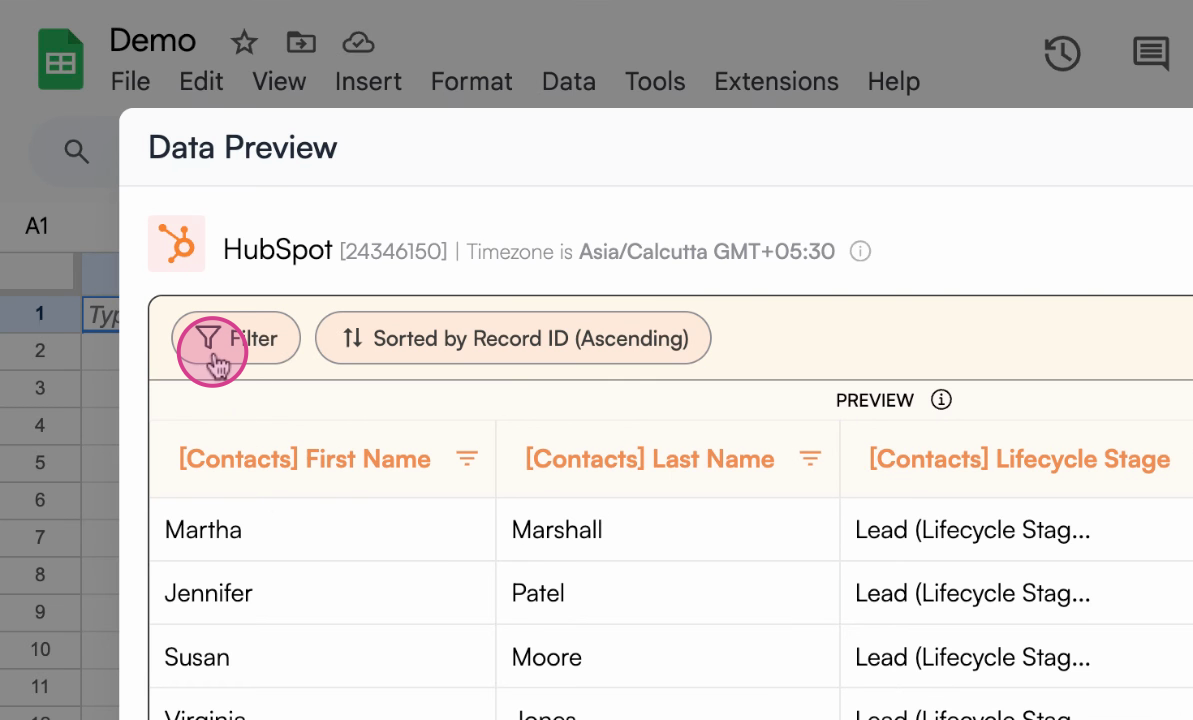 The association of Contacts (primary object) with Deals (secondary object) in Superjoin. This association controls which properties can be filtered.
## Where do I see which filters are available?
Once you set your associations, the filter dropdown will display all available filter options for your primary object only. Filters for secondary object fields will not appear.
### How to identify available filters:
1. **Look at your filter dropdown** - It will show only primary object properties
2. **Check your object hierarchy** - Primary objects have full filtering capabilities
3. **Understand the limitation** - Secondary objects cannot be filtered directly
The association of Contacts (primary object) with Deals (secondary object) in Superjoin. This association controls which properties can be filtered.
## Where do I see which filters are available?
Once you set your associations, the filter dropdown will display all available filter options for your primary object only. Filters for secondary object fields will not appear.
### How to identify available filters:
1. **Look at your filter dropdown** - It will show only primary object properties
2. **Check your object hierarchy** - Primary objects have full filtering capabilities
3. **Understand the limitation** - Secondary objects cannot be filtered directly
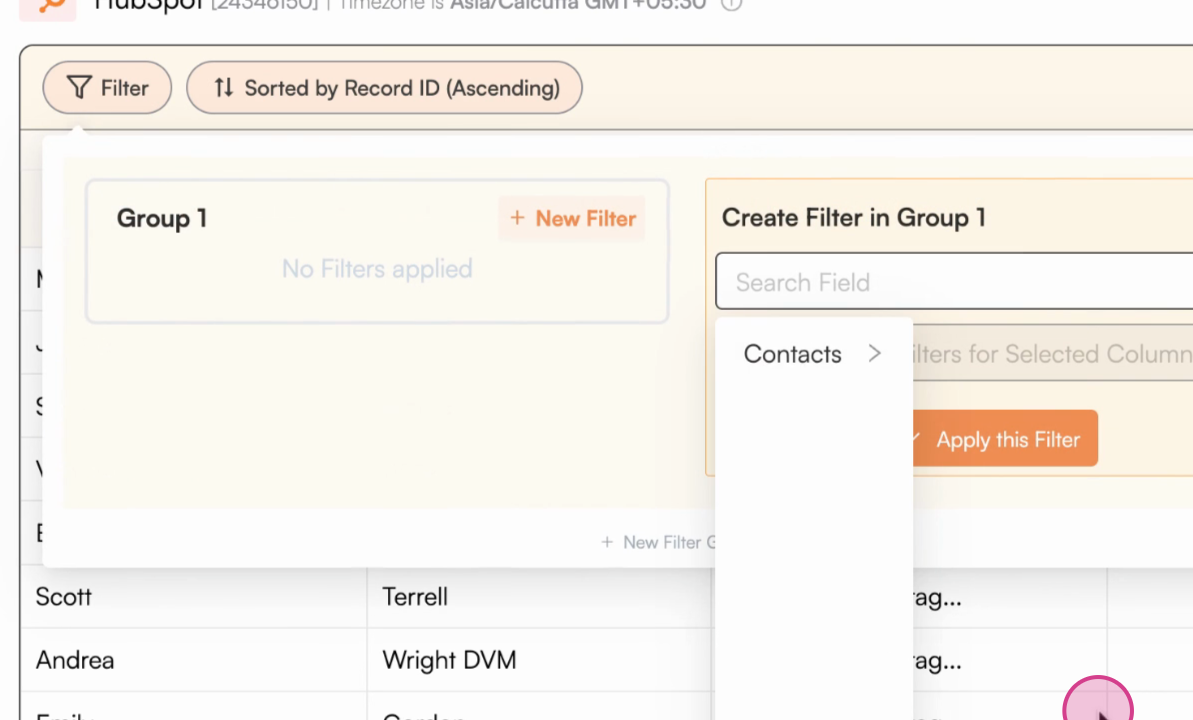 The available filter options for the primary object (Contacts) in Superjoin. This screen illustrates that only primary object filters are accessible.
## What can I do if I need to filter based on a secondary object's fields?
**Important:** You cannot filter secondary objects directly. You'll need to restructure your import setup.
### Solutions to consider:
To filter by properties from a secondary object, change your primary object selection during setup.
Consider making the field you want to filter by part of your primary object.
Create a separate import with the desired object as primary to access its filter options.
**Pro tip:** Plan your object hierarchy carefully before setting up your import to ensure you can filter on the fields you need most.
***
## Summary & Best Practices
* Only primary objects have filter options
* Plan your object hierarchy before importing
* Check filter dropdown to see available options
* Change primary object if you need different filters
* Create separate imports for different filtering needs
* Restructure your data associations as needed
### Key Takeaways
* **Primary objects** = Full filtering capabilities
* **Secondary objects** = No direct filtering
* **Plan ahead** = Choose your primary object based on your filtering needs
* **Be flexible** = You can always restructure your import setup
***
**Need help with object associations?** Contact Superjoin support with details about your filtering requirements so they can assist you with the best setup approach.
The available filter options for the primary object (Contacts) in Superjoin. This screen illustrates that only primary object filters are accessible.
## What can I do if I need to filter based on a secondary object's fields?
**Important:** You cannot filter secondary objects directly. You'll need to restructure your import setup.
### Solutions to consider:
To filter by properties from a secondary object, change your primary object selection during setup.
Consider making the field you want to filter by part of your primary object.
Create a separate import with the desired object as primary to access its filter options.
**Pro tip:** Plan your object hierarchy carefully before setting up your import to ensure you can filter on the fields you need most.
***
## Summary & Best Practices
* Only primary objects have filter options
* Plan your object hierarchy before importing
* Check filter dropdown to see available options
* Change primary object if you need different filters
* Create separate imports for different filtering needs
* Restructure your data associations as needed
### Key Takeaways
* **Primary objects** = Full filtering capabilities
* **Secondary objects** = No direct filtering
* **Plan ahead** = Choose your primary object based on your filtering needs
* **Be flexible** = You can always restructure your import setup
***
**Need help with object associations?** Contact Superjoin support with details about your filtering requirements so they can assist you with the best setup approach.