> ## Documentation Index
> Fetch the complete documentation index at: https://docs.superjoin.ai/llms.txt
> Use this file to discover all available pages before exploring further.
# How to add teammates to Superjoin?
> Step-by-step guide to add teammates to Superjoin
Below are the instructions to buy paid licenses for your teammates. If they'd like to buy licenses themselves, they can do so by following [these steps](/faqs/how-to-purchase-superjoin-paid-plans). You can understand Superjoin's team sharing features in detail [here](/features/org-sharing).
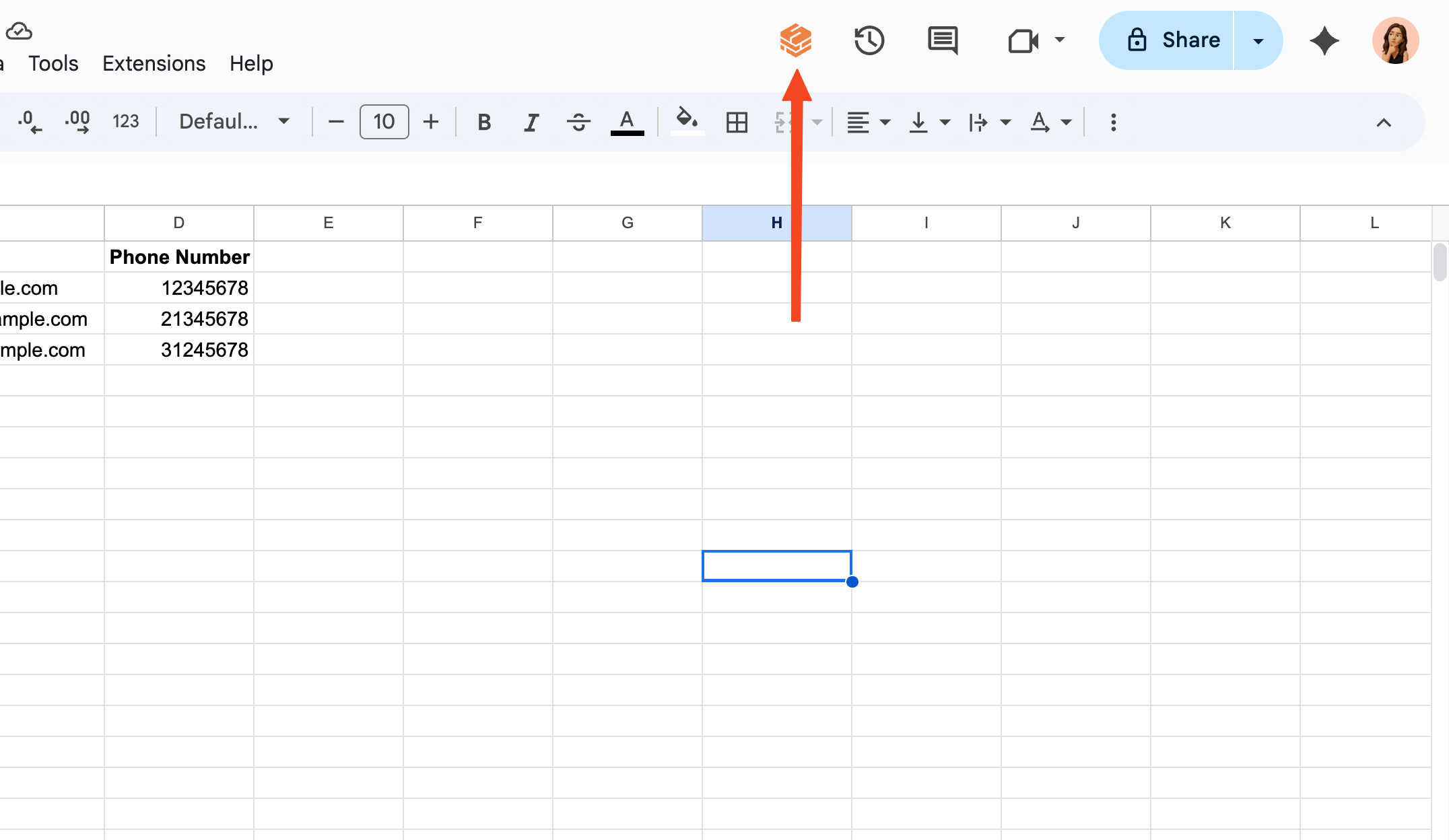
Open Superjoin by clicking on the icon that is on the top right of your Google Sheets.
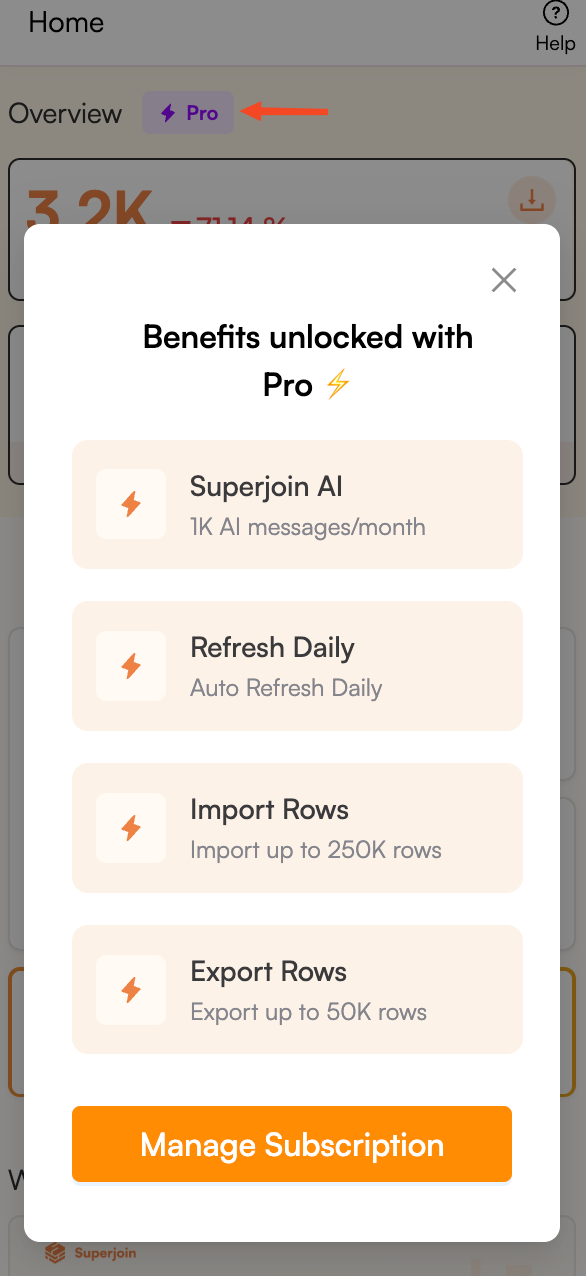
 Click the purple button on the top of the screen that shows your current plan and click on "Manage Subscription" button.
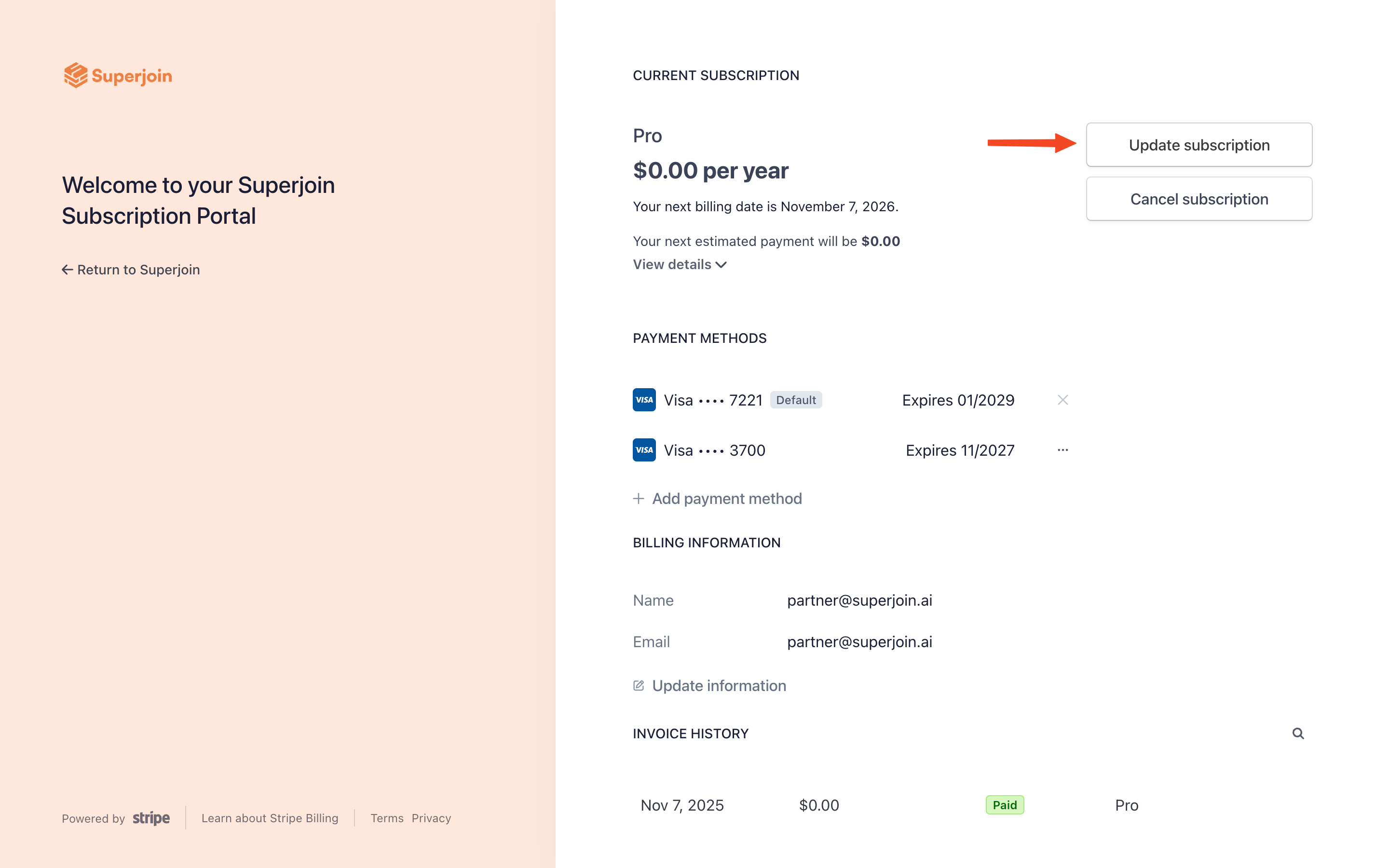
 Click the "Update subscription" button on the top right of the screen.
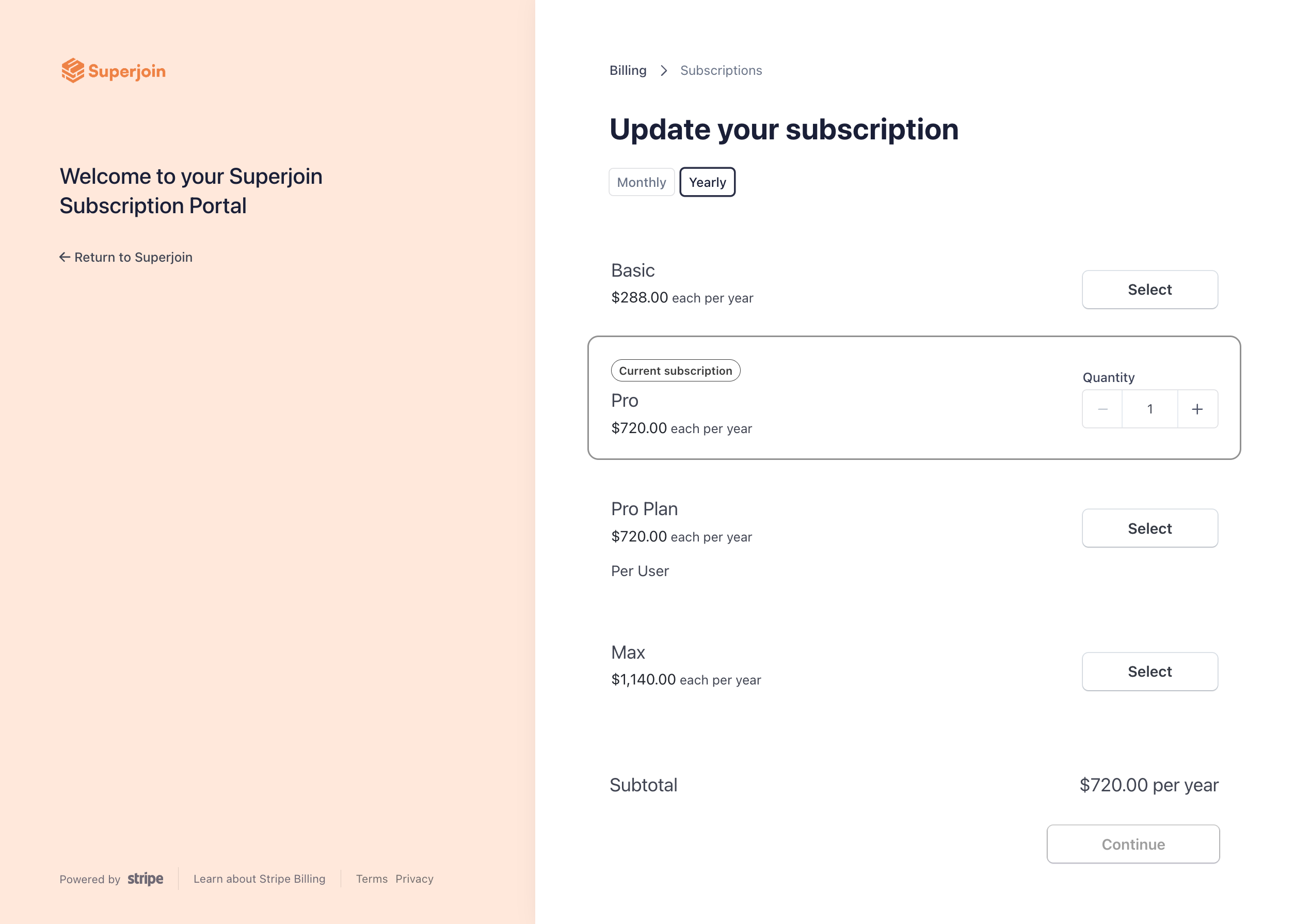
 Click on the + button next to the desired plan and set the number to be as many members that you are purchasing superjoin for; then click on "Continue".
 Ask your teammates to install Superjoin on their Google Sheets and launch it once.
Once you have purchased additional seats, reach out to Superjoin Support via [support@superjoin.ai](mailto:support@superjoin.ai) and provide them with the email addresses of the teammates you want to add to your Superjoin account. We will activate your teammates' paid licenses promptly.
Congratulations! You have successfully added teammates to your Superjoin account and can now collaborate effectively.
Ask your teammates to install Superjoin on their Google Sheets and launch it once.
Once you have purchased additional seats, reach out to Superjoin Support via [support@superjoin.ai](mailto:support@superjoin.ai) and provide them with the email addresses of the teammates you want to add to your Superjoin account. We will activate your teammates' paid licenses promptly.
Congratulations! You have successfully added teammates to your Superjoin account and can now collaborate effectively.