> ## Documentation Index
> Fetch the complete documentation index at: https://docs.superjoin.ai/llms.txt
> Use this file to discover all available pages before exploring further.
# How to Sort Imported Data in Superjoin?
> Step-by-step guide to customize the sort order of your imported data in Google Sheets using Superjoin
## How do I sort imported data in Superjoin?
Superjoin makes it easy to control the order of your imported data directly within Google Sheets. This feature is especially helpful when you need your rows organized by creation date, last update, or any other field that matters most for your workflow. Whether you're managing new leads, syncing updates, or preparing data for reporting, sorting data on import helps keep everything organized and actionable.
**Quick answer:** You can customize the sort order of your records from the Data Preview interface by selecting a sort field (like Created At or Last Modified At) and choosing ascending or descending order.
***
## What You'll Achieve
You'll learn how to customize the sort order of your records—such as contacts—from HubSpot (or other connected data sources) using Superjoin's import interface. This ensures you always see data in the order that's most relevant to your needs.
Sorting is available for all data objects including Contacts, Companies, Deals, and any other supported objects from your connected data sources.
***
## How to Sort Your Imported Data
When you import data using Superjoin, you'll land in the **Data Preview** section. By default, Superjoin sorts your records by `record ID`. This is a unique number assigned to each record by HubSpot to help you identify individual rows.
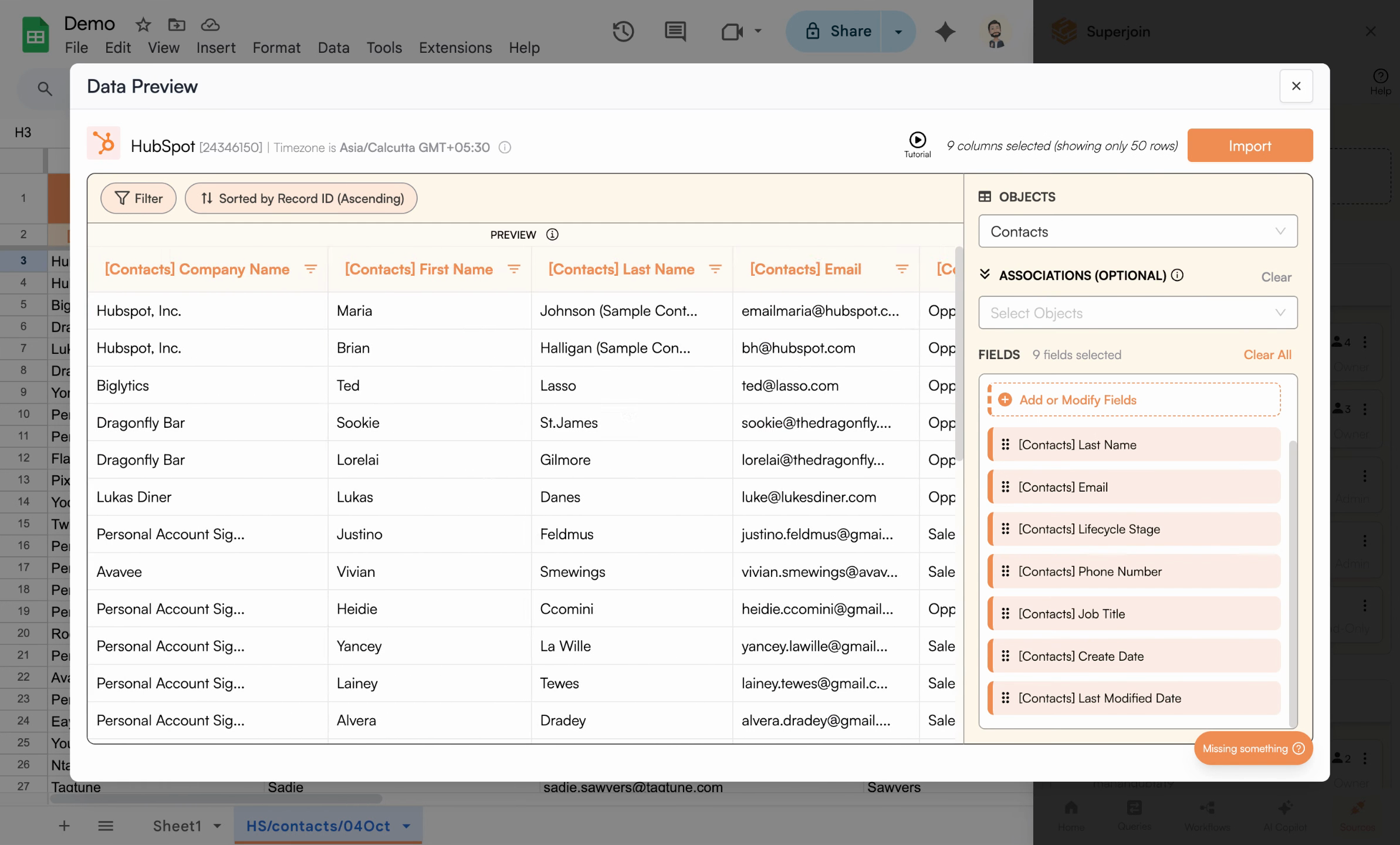 The Data Preview panel automatically displays imported records, initially sorted by record ID.
Sorting by record ID may not always match how you want to review or process your data.
If you'd like to change the sort order, head to the sorting options within the preview panel. For example, if you want the most recently created contacts at the top of your sheet:
* Find the sort controls (usually above your data preview)
* Select the **sort by** field
The Data Preview panel automatically displays imported records, initially sorted by record ID.
Sorting by record ID may not always match how you want to review or process your data.
If you'd like to change the sort order, head to the sorting options within the preview panel. For example, if you want the most recently created contacts at the top of your sheet:
* Find the sort controls (usually above your data preview)
* Select the **sort by** field
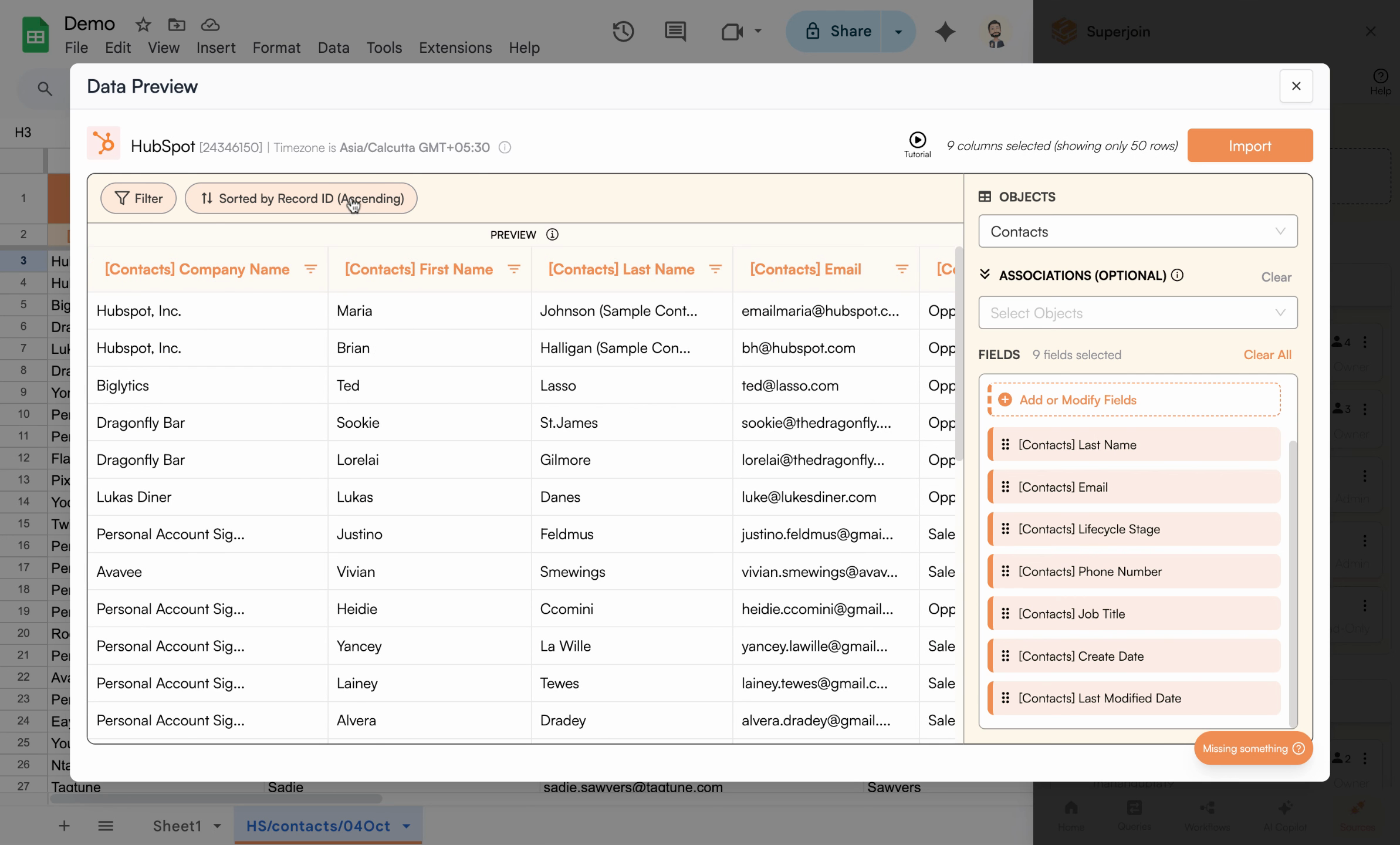 Click the sort field dropdown to select another sorting option.
From the dropdown, choose a field such as **Created At**. This will allow you to sort your data based on when each record was added.
Click the sort field dropdown to select another sorting option.
From the dropdown, choose a field such as **Created At**. This will allow you to sort your data based on when each record was added.
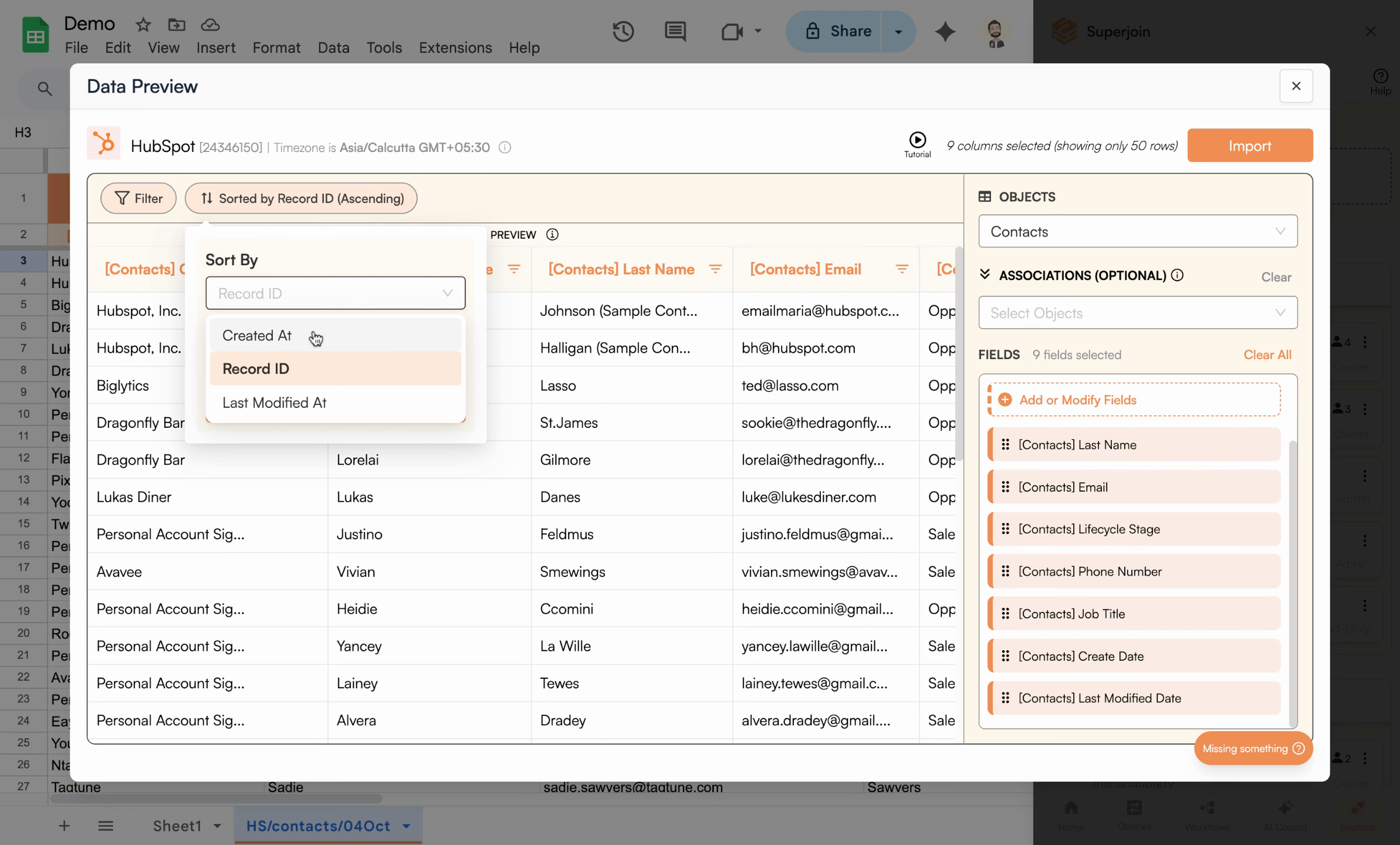 The sort by options include Created At, record ID, and Last Modified At — pick what best matches your workflow.
Next, set the direction for your sort:
* **Ascending** places older records or earliest created contacts first (top to bottom)
* **Descending** puts the newest contacts or latest records at the top
The sort by options include Created At, record ID, and Last Modified At — pick what best matches your workflow.
Next, set the direction for your sort:
* **Ascending** places older records or earliest created contacts first (top to bottom)
* **Descending** puts the newest contacts or latest records at the top
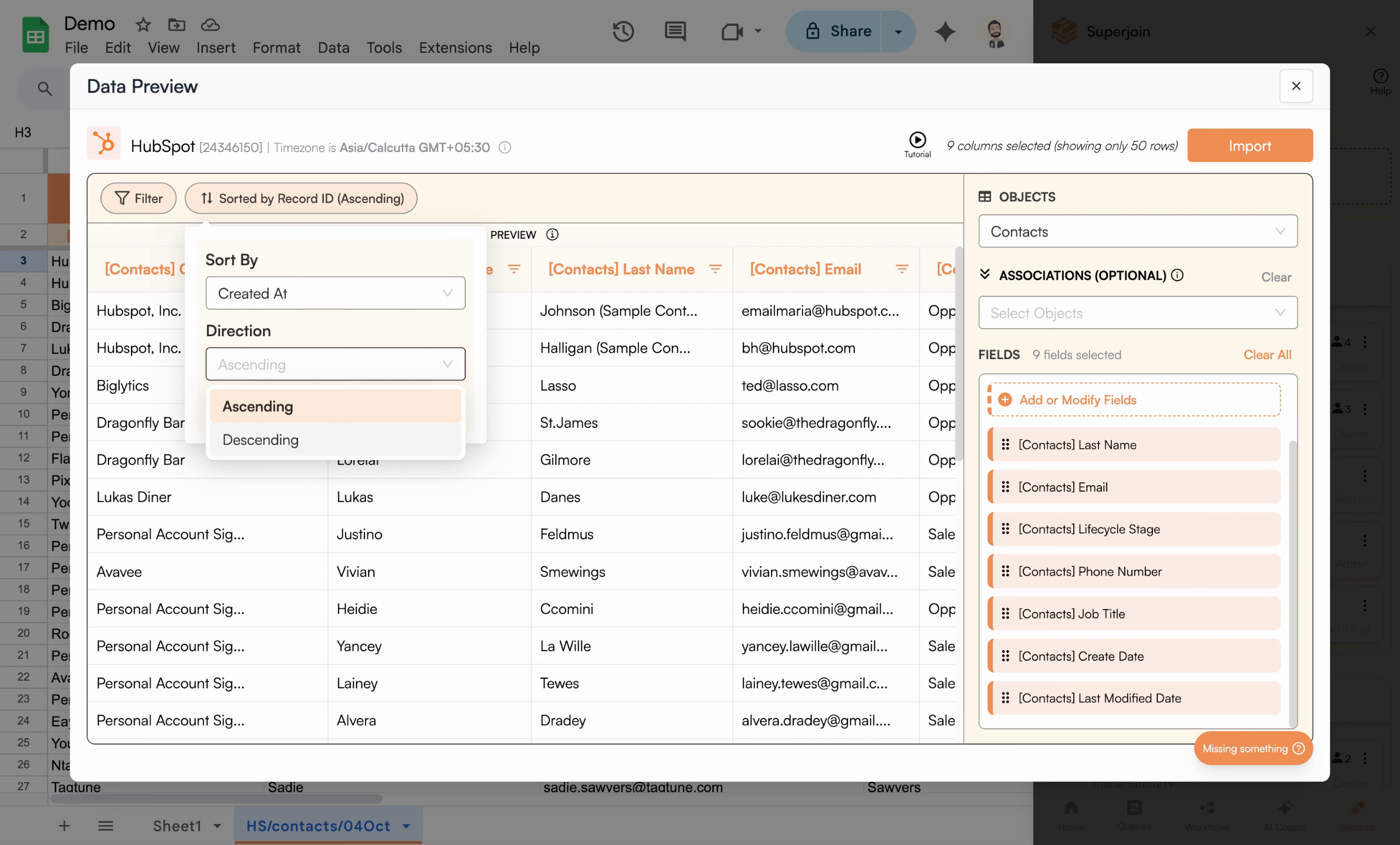 Select ascending or descending—descending shows your latest records first.
Once you select your sort criteria and direction, Superjoin instantly updates your data preview to reflect your choice, ensuring you see exactly what will be imported.
You're not limited to just creation date or record ID—you can also sort by **Last Modified At** if you need to review the most recently updated records first.
* Pick **Last Modified At** from the sort dropdown
* Select your preferred order
Select ascending or descending—descending shows your latest records first.
Once you select your sort criteria and direction, Superjoin instantly updates your data preview to reflect your choice, ensuring you see exactly what will be imported.
You're not limited to just creation date or record ID—you can also sort by **Last Modified At** if you need to review the most recently updated records first.
* Pick **Last Modified At** from the sort dropdown
* Select your preferred order
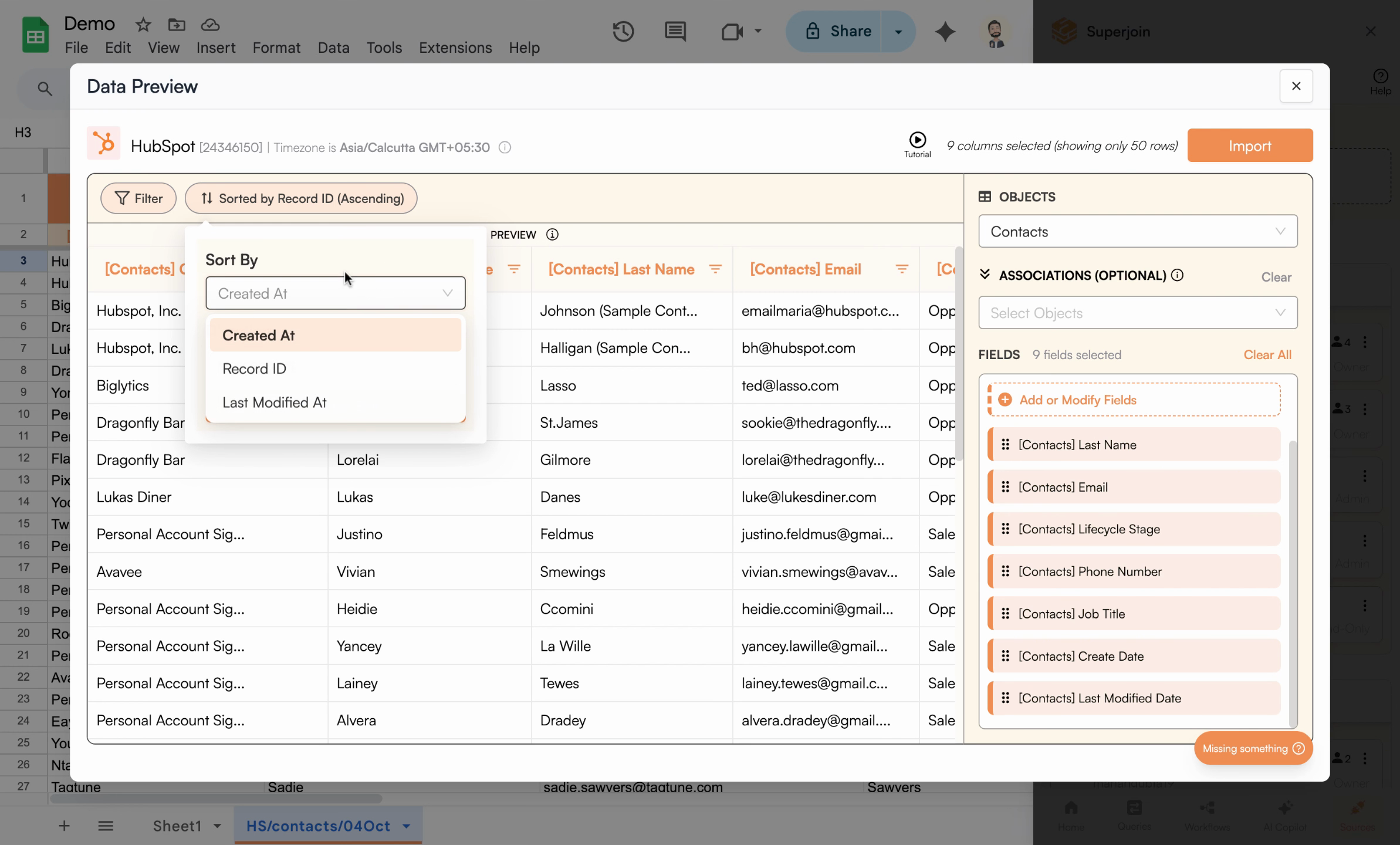 Sort options—like Last Modified At—help you focus on recently updated records.
Once applied, your preview updates once again:
Sort options—like Last Modified At—help you focus on recently updated records.
Once applied, your preview updates once again:
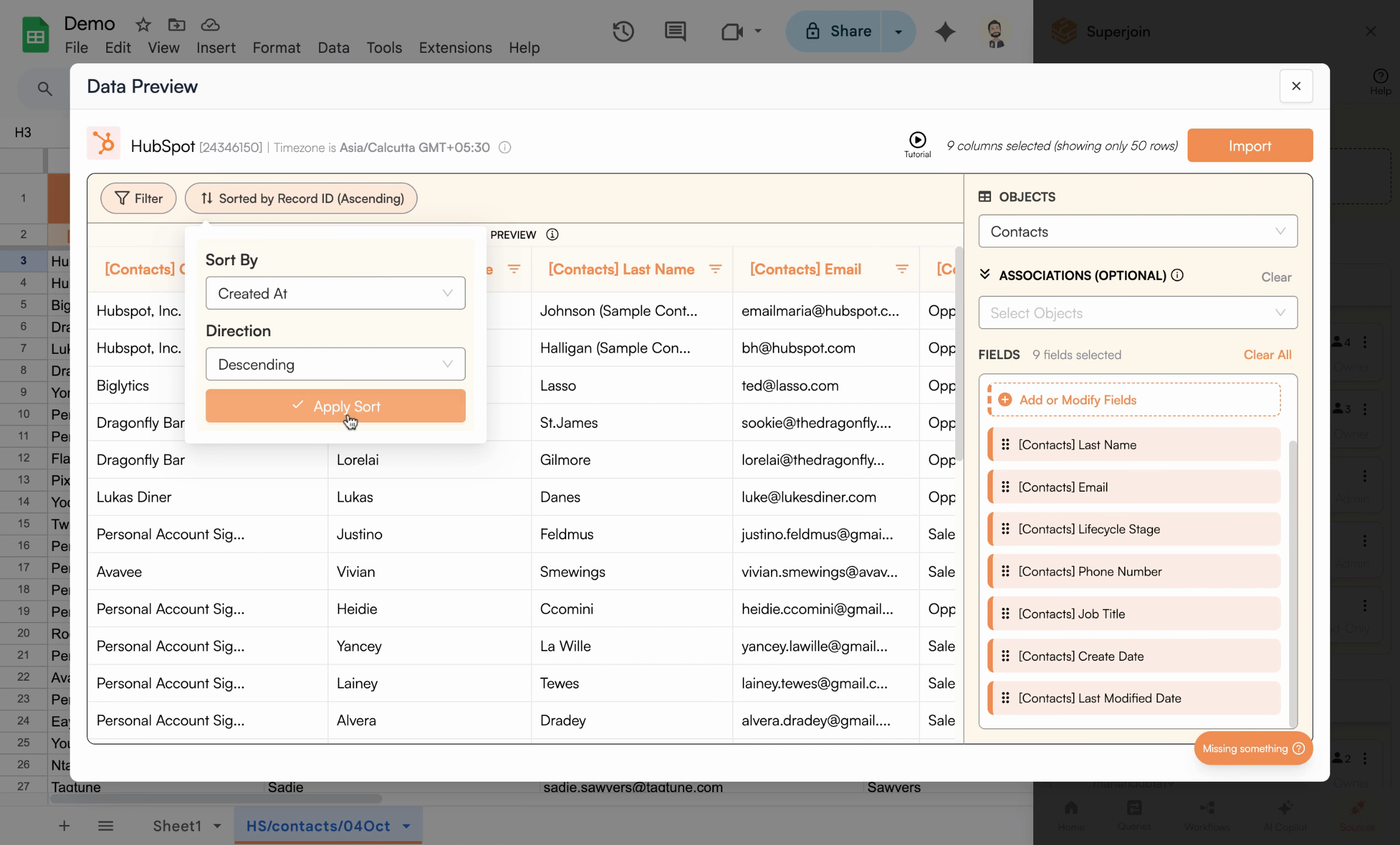 Preview updates to reflect sorting by the chosen field, helping ensure the right data appears in your Sheet.
You can repeat these steps for any object (such as Contacts, Companies, or Deals) Superjoin supports:
Preview updates to reflect sorting by the chosen field, helping ensure the right data appears in your Sheet.
You can repeat these steps for any object (such as Contacts, Companies, or Deals) Superjoin supports:
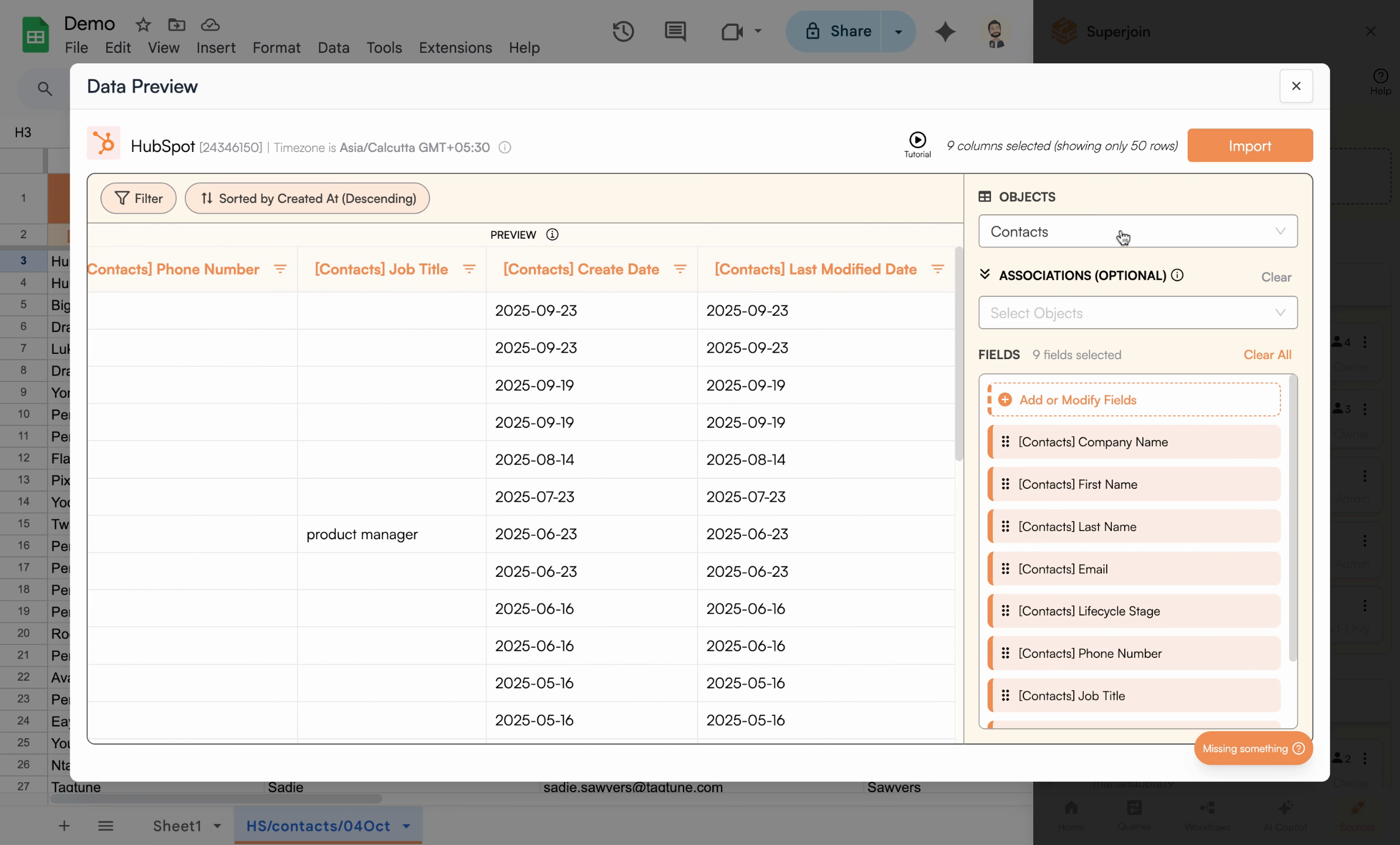 Sorting is available for all data objects—just choose your field and order.
Customizing sort order helps support downstream workflows. For instance, if you want new contacts to always appear at the bottom of your sheet (useful for data entry or automated processes):
* Set the sort field to **Created At**
* Choose **Ascending** order (oldest at the top, newest at the bottom)
Sorting is available for all data objects—just choose your field and order.
Customizing sort order helps support downstream workflows. For instance, if you want new contacts to always appear at the bottom of your sheet (useful for data entry or automated processes):
* Set the sort field to **Created At**
* Choose **Ascending** order (oldest at the top, newest at the bottom)
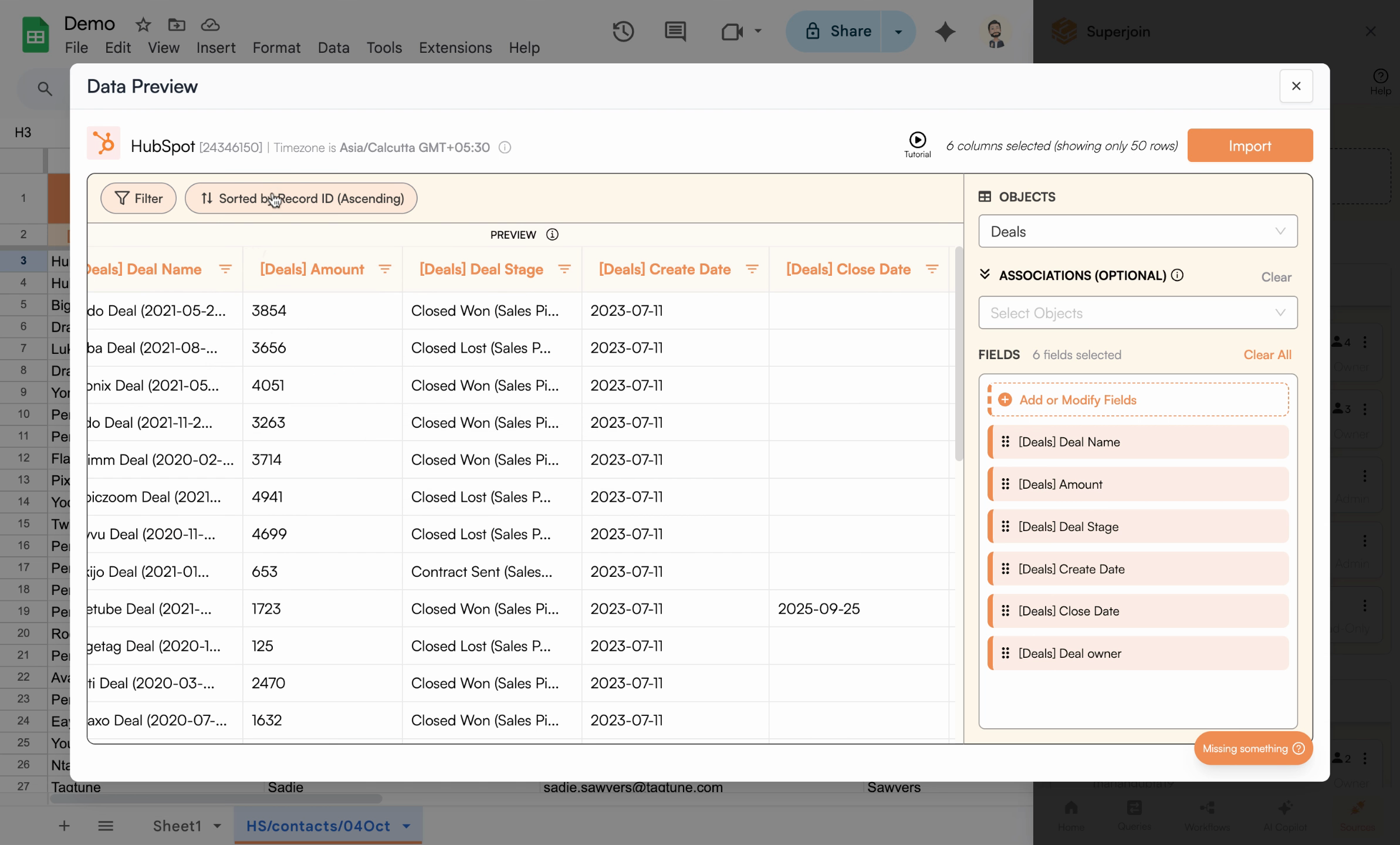 Sorting by Created At in Ascending order ensures new rows are always at the bottom.
Your preview now mirrors how you want your Sheet to look, with sorted rows ready for import into Google Sheets.
**Workflow tip:** Ascending order is ideal when you have automations or formulas at the bottom of your sheet that process new data as it arrives.
***
## Common Sorting Options
Sort by when records were first created. Perfect for tracking new leads or entries chronologically.
Sort by the most recent updates. Ideal for monitoring changes and recent activity.
Sort by unique record identifiers. Useful for maintaining consistent record order across refreshes.
***
## Summary & Next Steps
Congratulations! You've customized the sort order for your imports in Superjoin. Now, your contacts, deals, or any data synced from HubSpot and other tools will be structured exactly how you want them in Sheets. This is ideal for reporting, workflow automation, or simply making your data easier to work with.
**Pro tip:** Your sort configuration is saved with your import and will be applied automatically every time the data refreshes, ensuring consistent order across all updates.
### What to Explore Next
* **Filtering** - Combine sorting with filters to get precisely the data you need in the right order
* **Field Mapping** - Customize which fields are imported and how they're labeled
* **Live Sync** - Set up automatic refreshes to keep your sorted data always up-to-date
***
**Need help with sorting?** Contact Superjoin support with details about your specific sorting requirements and they can assist you with the best configuration.
Sorting by Created At in Ascending order ensures new rows are always at the bottom.
Your preview now mirrors how you want your Sheet to look, with sorted rows ready for import into Google Sheets.
**Workflow tip:** Ascending order is ideal when you have automations or formulas at the bottom of your sheet that process new data as it arrives.
***
## Common Sorting Options
Sort by when records were first created. Perfect for tracking new leads or entries chronologically.
Sort by the most recent updates. Ideal for monitoring changes and recent activity.
Sort by unique record identifiers. Useful for maintaining consistent record order across refreshes.
***
## Summary & Next Steps
Congratulations! You've customized the sort order for your imports in Superjoin. Now, your contacts, deals, or any data synced from HubSpot and other tools will be structured exactly how you want them in Sheets. This is ideal for reporting, workflow automation, or simply making your data easier to work with.
**Pro tip:** Your sort configuration is saved with your import and will be applied automatically every time the data refreshes, ensuring consistent order across all updates.
### What to Explore Next
* **Filtering** - Combine sorting with filters to get precisely the data you need in the right order
* **Field Mapping** - Customize which fields are imported and how they're labeled
* **Live Sync** - Set up automatic refreshes to keep your sorted data always up-to-date
***
**Need help with sorting?** Contact Superjoin support with details about your specific sorting requirements and they can assist you with the best configuration.