> ## Documentation Index
> Fetch the complete documentation index at: https://docs.superjoin.ai/llms.txt
> Use this file to discover all available pages before exploring further.
# Derived Columns
> Derived columns are custom columns that you create within your Superjoin reports by applying formulas to your existing data. They allow you to manipulate and transform your data without altering the original dataset, enabling dynamic calculations and insights.
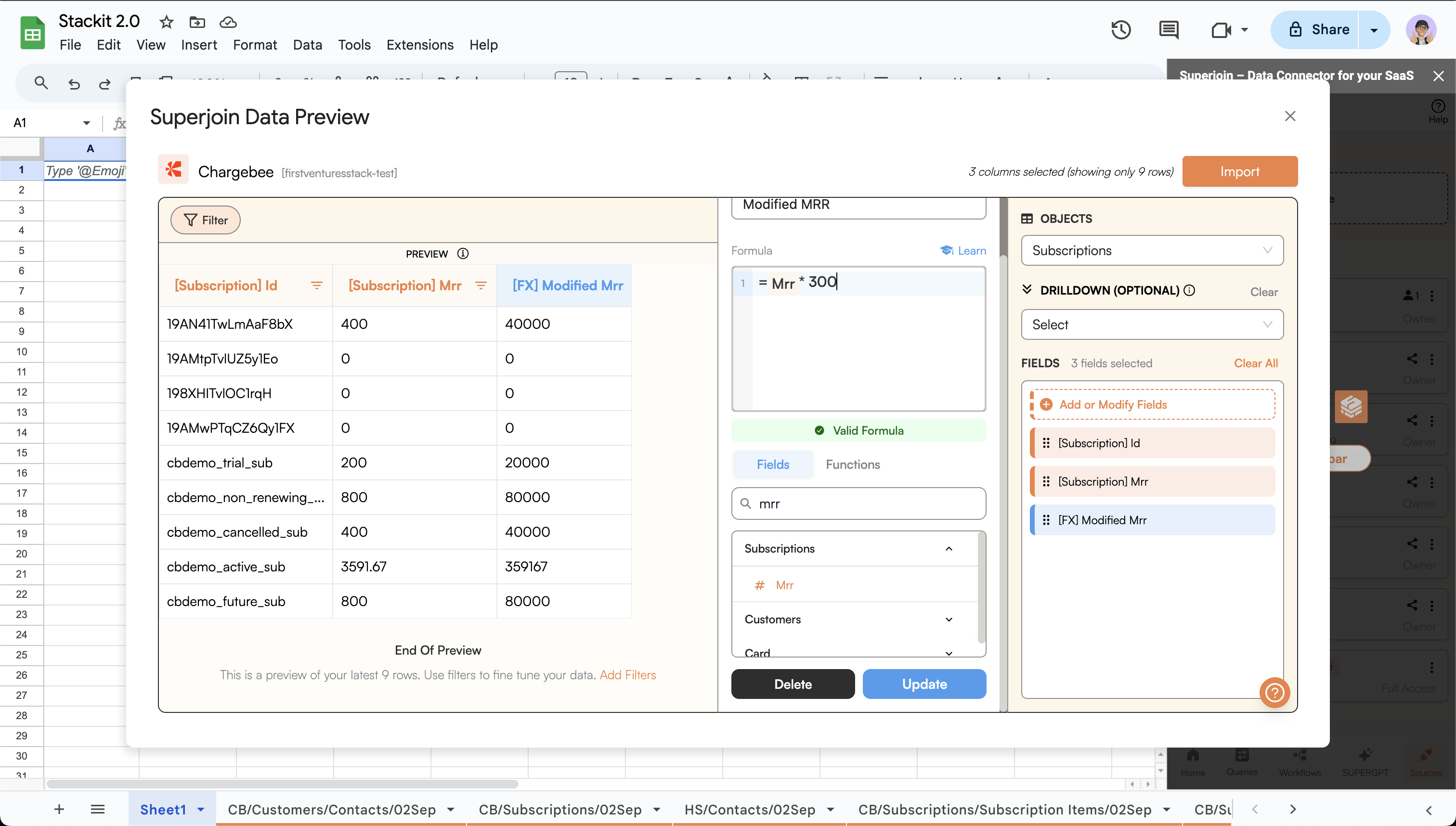 ## **Benefits of Derived Columns**
Tailor your metrics to meet specific business needs.
Enhance your data by combining columns or applying calculations.
Perform calculations in real-time as your data updates.
Ensure that everyone in your organization uses the same formulae and calculations for uniform reporting.
## Steps to create calculated fields / derived columns ✨
Ensure Superjoin is installed and working before following the rest of the guide.
If you already have your desired source connected:
* Go to the `Sources` tab.
* Click on the desired source.
* After clicking on the desired source, if you get an option to import / export the data, choose `Import`.
If you need to setup a new integration, please follow the integration guide for the integration of your choice. You can find the guides for various integrations on the sidebar or on the integrations summary page.
Now you should see the `data preview` screen.
Derived columns is only supported in our Chargebee and HubSpot Data Connector. If you wish to use this feature in any other integration, please write to us at [support@superjoin.ai](mailto:support@superjoin.ai).
## **Benefits of Derived Columns**
Tailor your metrics to meet specific business needs.
Enhance your data by combining columns or applying calculations.
Perform calculations in real-time as your data updates.
Ensure that everyone in your organization uses the same formulae and calculations for uniform reporting.
## Steps to create calculated fields / derived columns ✨
Ensure Superjoin is installed and working before following the rest of the guide.
If you already have your desired source connected:
* Go to the `Sources` tab.
* Click on the desired source.
* After clicking on the desired source, if you get an option to import / export the data, choose `Import`.
If you need to setup a new integration, please follow the integration guide for the integration of your choice. You can find the guides for various integrations on the sidebar or on the integrations summary page.
Now you should see the `data preview` screen.
Derived columns is only supported in our Chargebee and HubSpot Data Connector. If you wish to use this feature in any other integration, please write to us at [support@superjoin.ai](mailto:support@superjoin.ai).
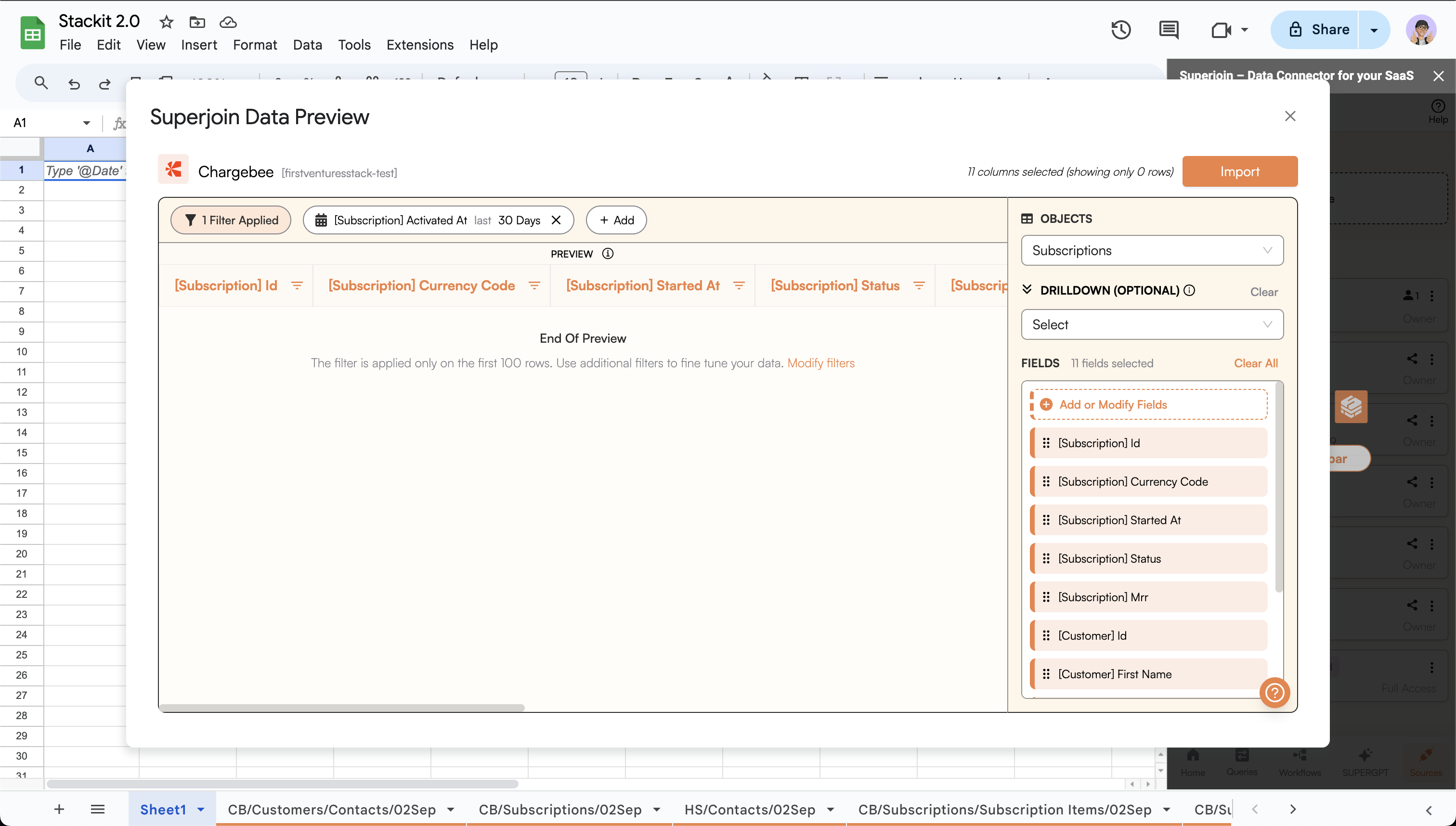 Click on the `Add or Modify Fields` button. This will open a sidebar where you can add / modify fields, and create calculated field(s) (derived columns).
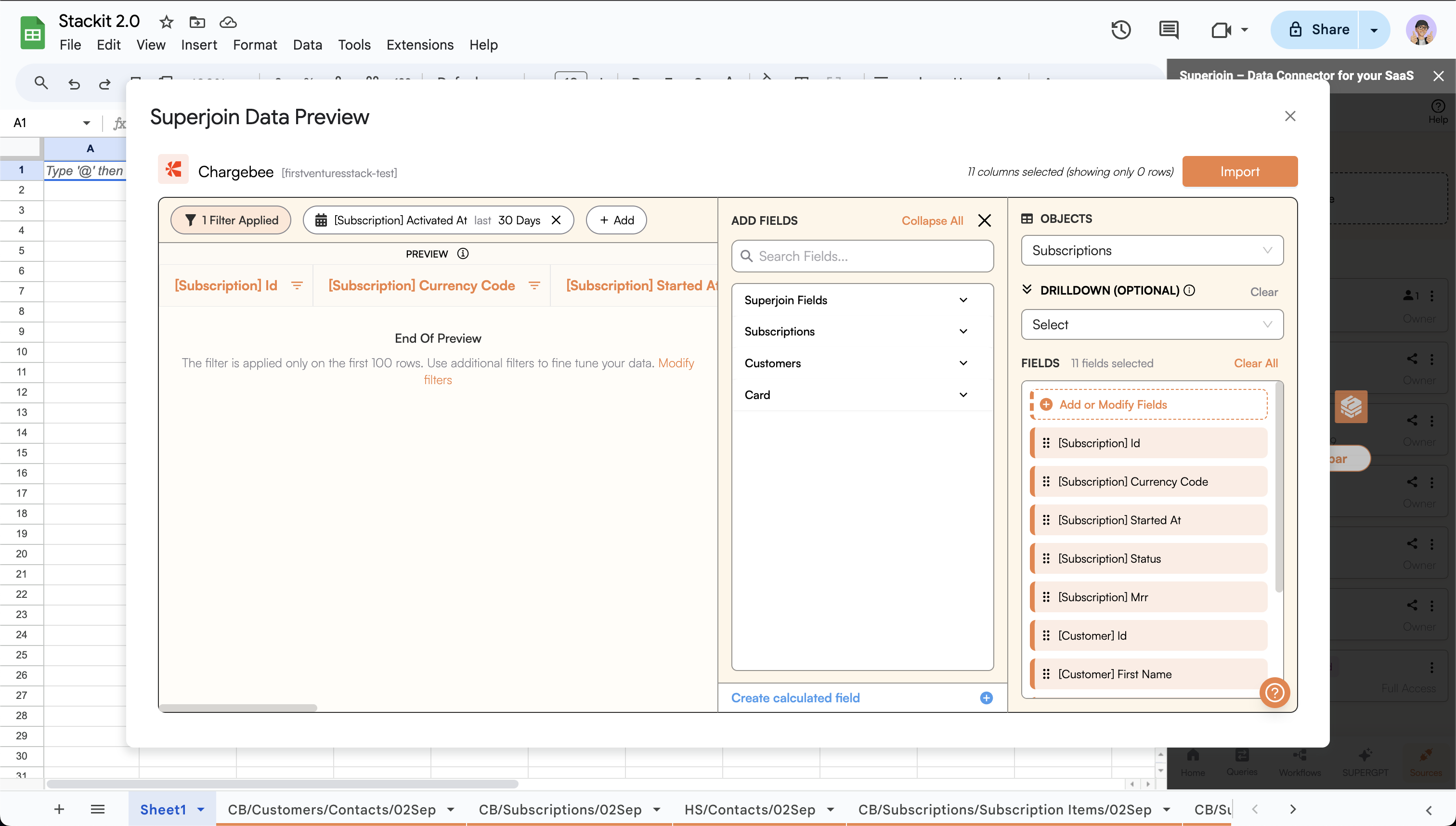 * Click on `Create calculated field` button.
* Enter the `Field name`, this will be the name for the newly generated column.
* Write a formula in the `Formula` section. You can use the `Fields` & `Functions` tab to search for and select the fields and functions, respectively.
* Once ready, click on `Add Field`.
* Click on `Create calculated field` button.
* Enter the `Field name`, this will be the name for the newly generated column.
* Write a formula in the `Formula` section. You can use the `Fields` & `Functions` tab to search for and select the fields and functions, respectively.
* Once ready, click on `Add Field`.
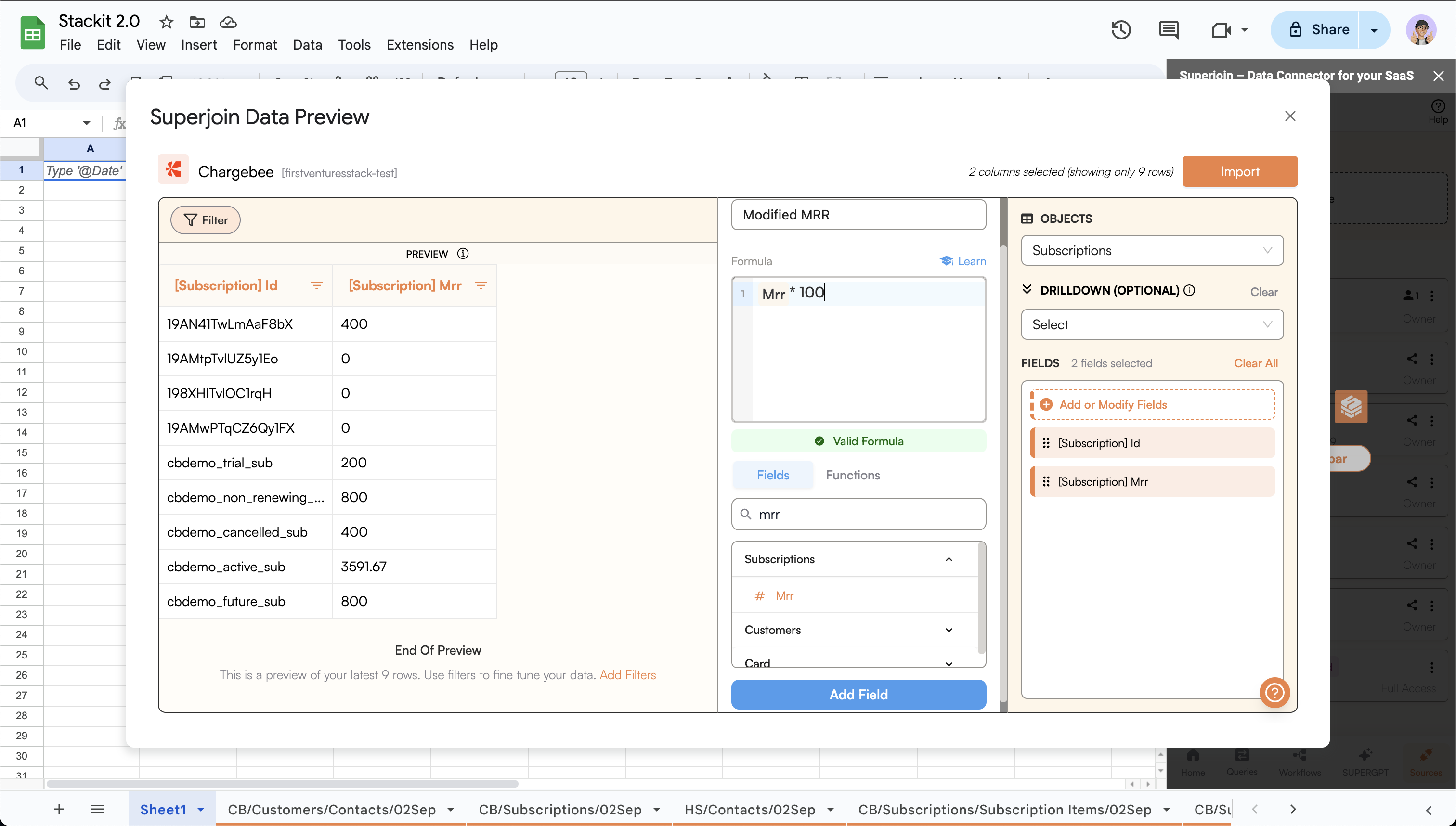 After adding the field, the derived column would be visible as the last column in the preview.
You can add more derived columns.
After adding the field, the derived column would be visible as the last column in the preview.
You can add more derived columns.
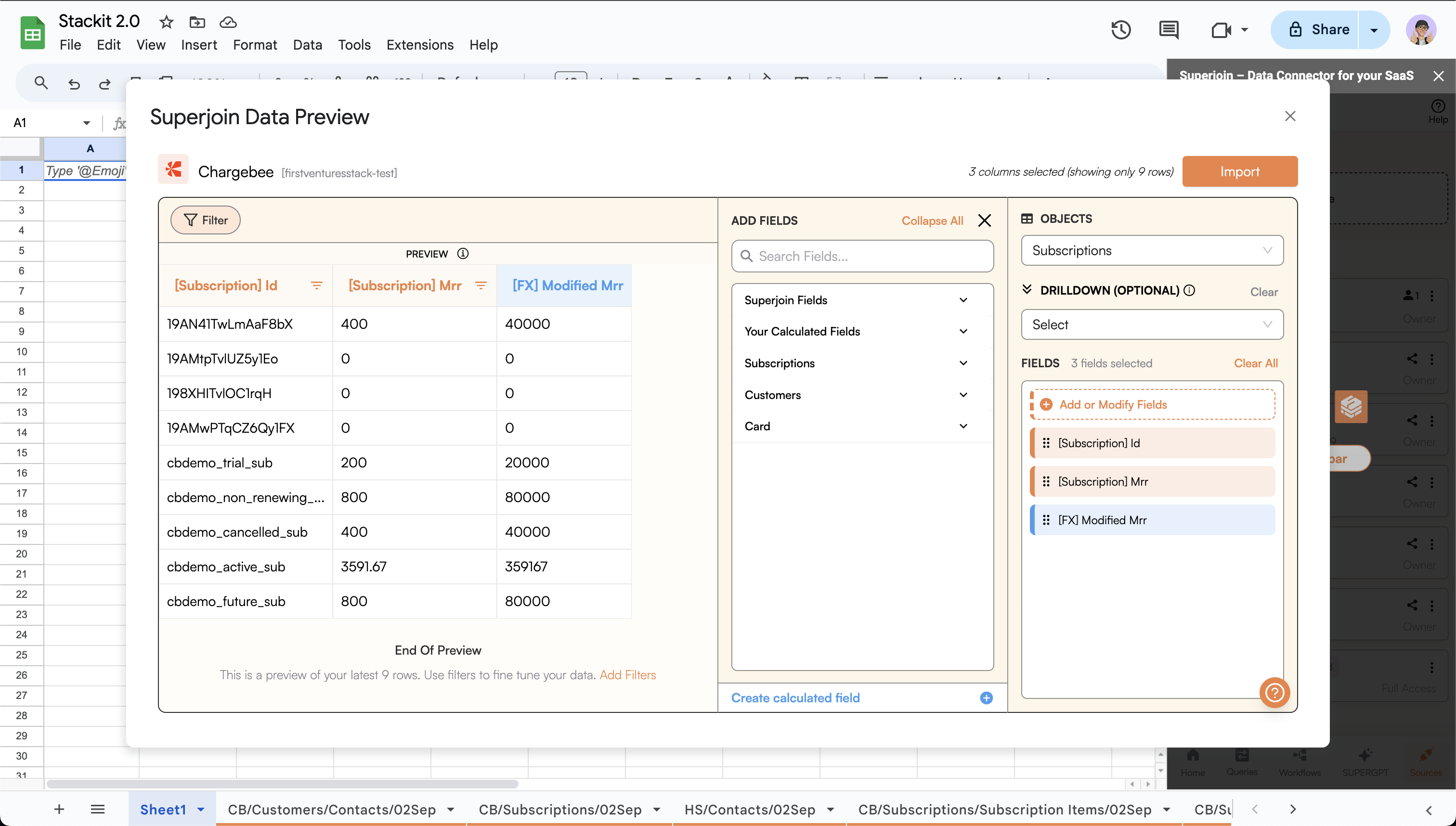 * In the `Add Fields` section, click on `Your Calculated Fields` to expand it if not already.
* Hover over the desired derived column title under the `Your Calculated Fields` to see an Edit option (Pencil Icon).
* Click on the Edit option (Pencil icon) to edit the formula.
You can click `Delete` to delete the calculated field.
* In the `Add Fields` section, click on `Your Calculated Fields` to expand it if not already.
* Hover over the desired derived column title under the `Your Calculated Fields` to see an Edit option (Pencil Icon).
* Click on the Edit option (Pencil icon) to edit the formula.
You can click `Delete` to delete the calculated field.
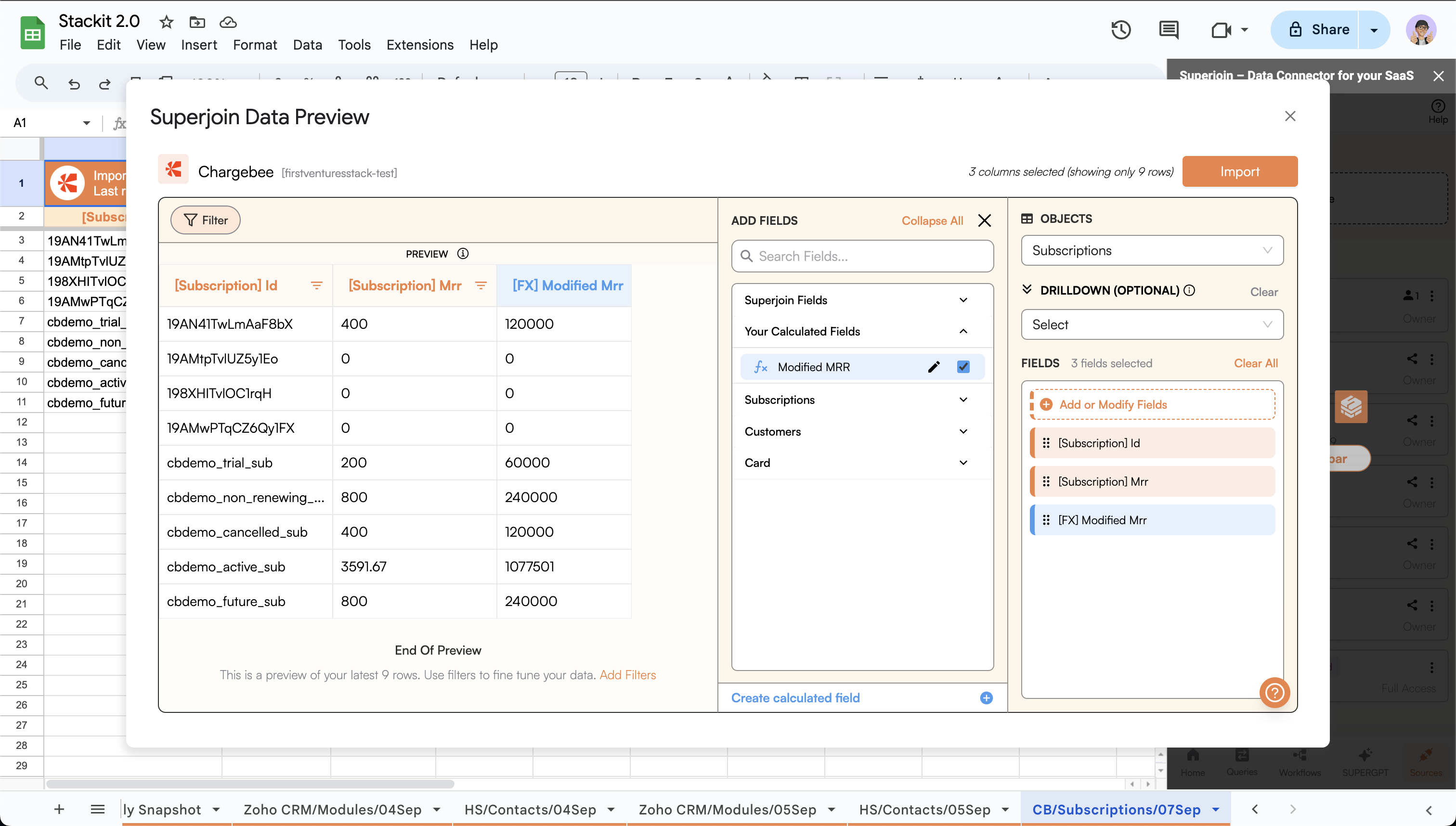 * Modify the formula as per needed.
* Click `Update` to update the derived column.
* Click `Delete` to delete the derived column.
The calculated field should now have updated.
The column will no longer exist if you chose to `Delete` the column.
* Modify the formula as per needed.
* Click `Update` to update the derived column.
* Click `Delete` to delete the derived column.
The calculated field should now have updated.
The column will no longer exist if you chose to `Delete` the column.
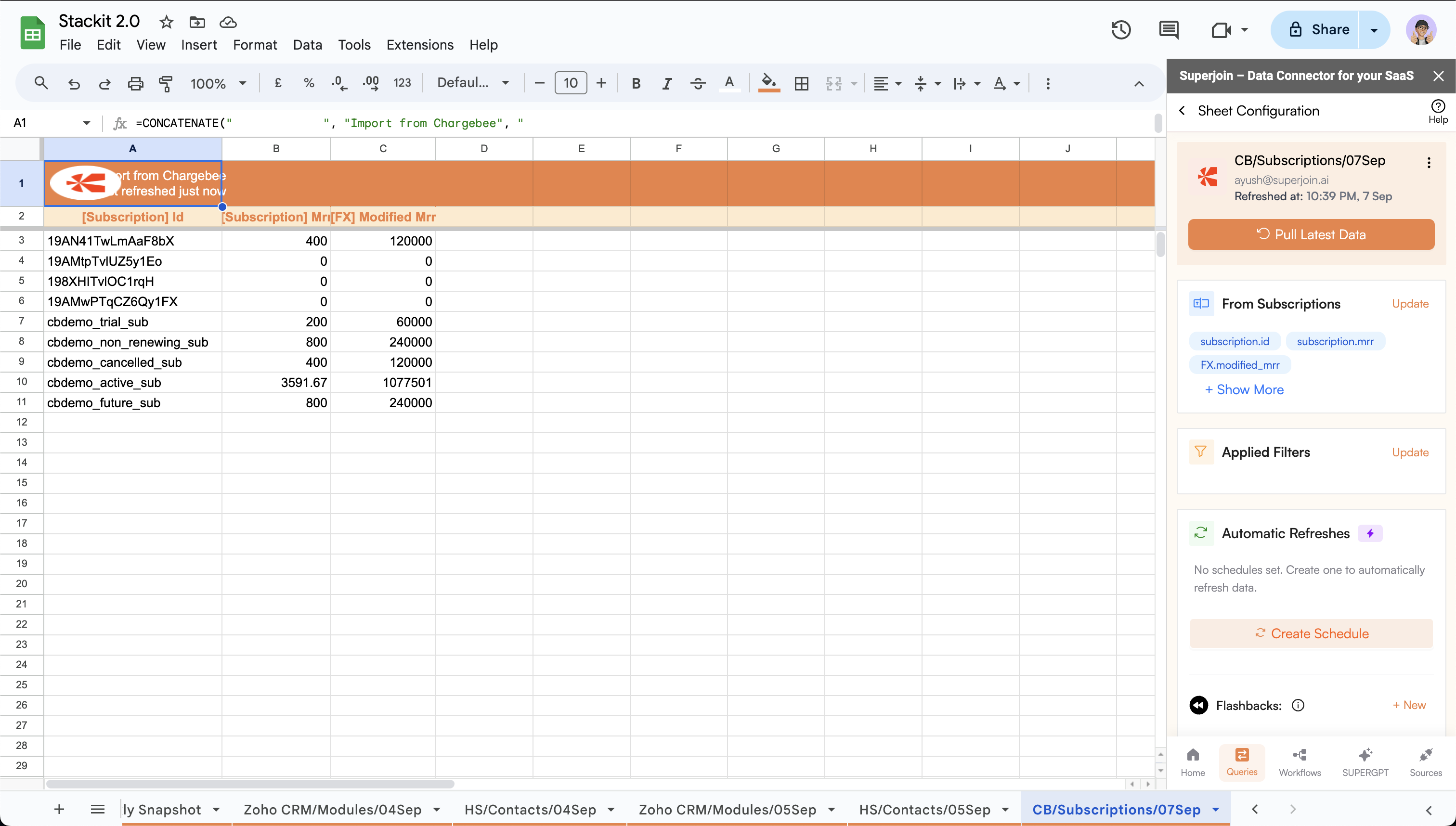
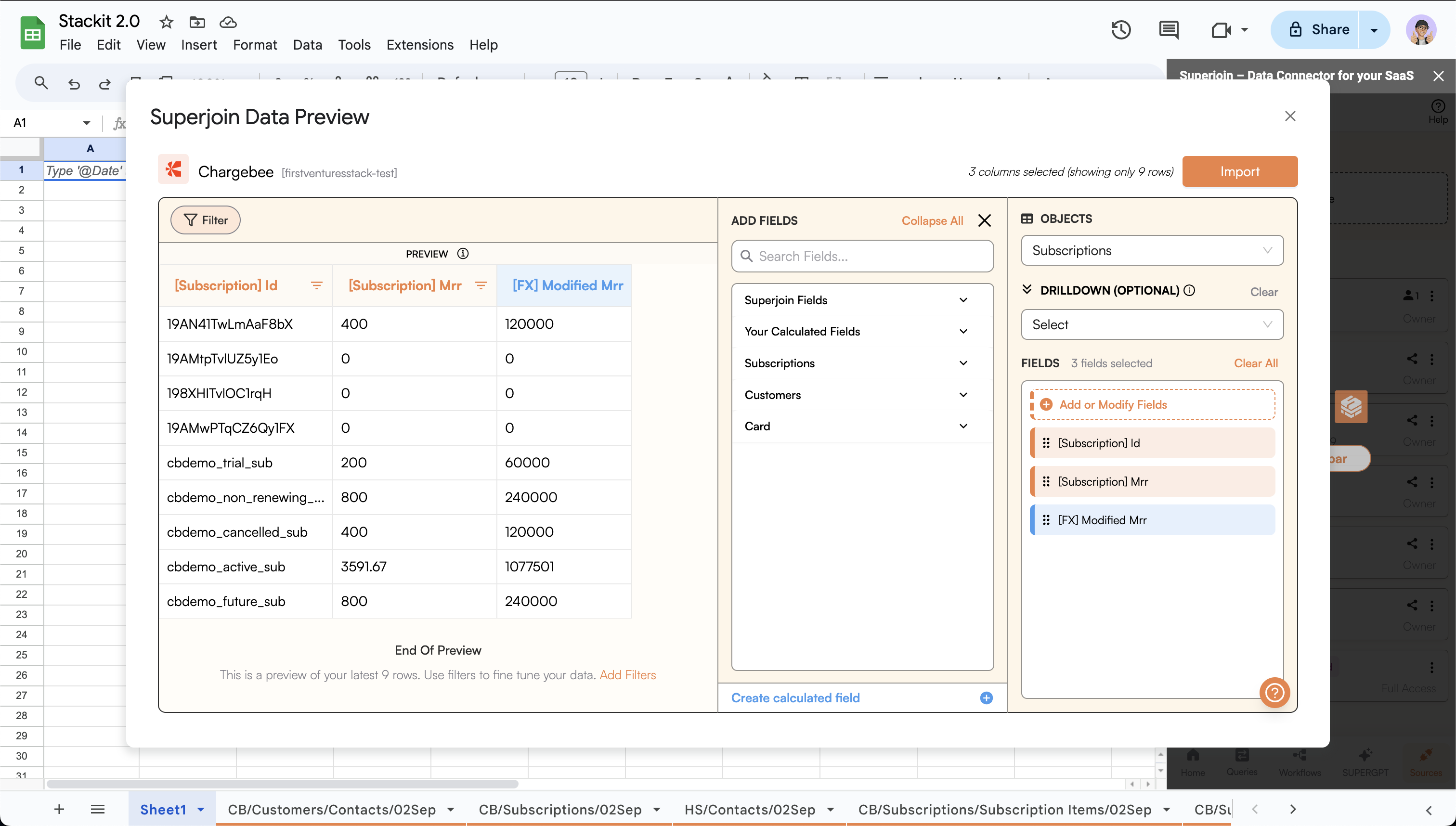 Click on `Import` to import the data to a Google Sheet along with the derived column.
 ## **Formula Glossary**
Explore a comprehensive list of operators and functions to enhance your derived columns. The glossary includes essential mathematical, string, date, and logical functions, along with examples to help you create powerful formulae in Superjoin.
## **Formula Glossary**
Explore a comprehensive list of operators and functions to enhance your derived columns. The glossary includes essential mathematical, string, date, and logical functions, along with examples to help you create powerful formulae in Superjoin.