> ## Documentation Index
> Fetch the complete documentation index at: https://docs.superjoin.ai/llms.txt
> Use this file to discover all available pages before exploring further.
# Flashbacks
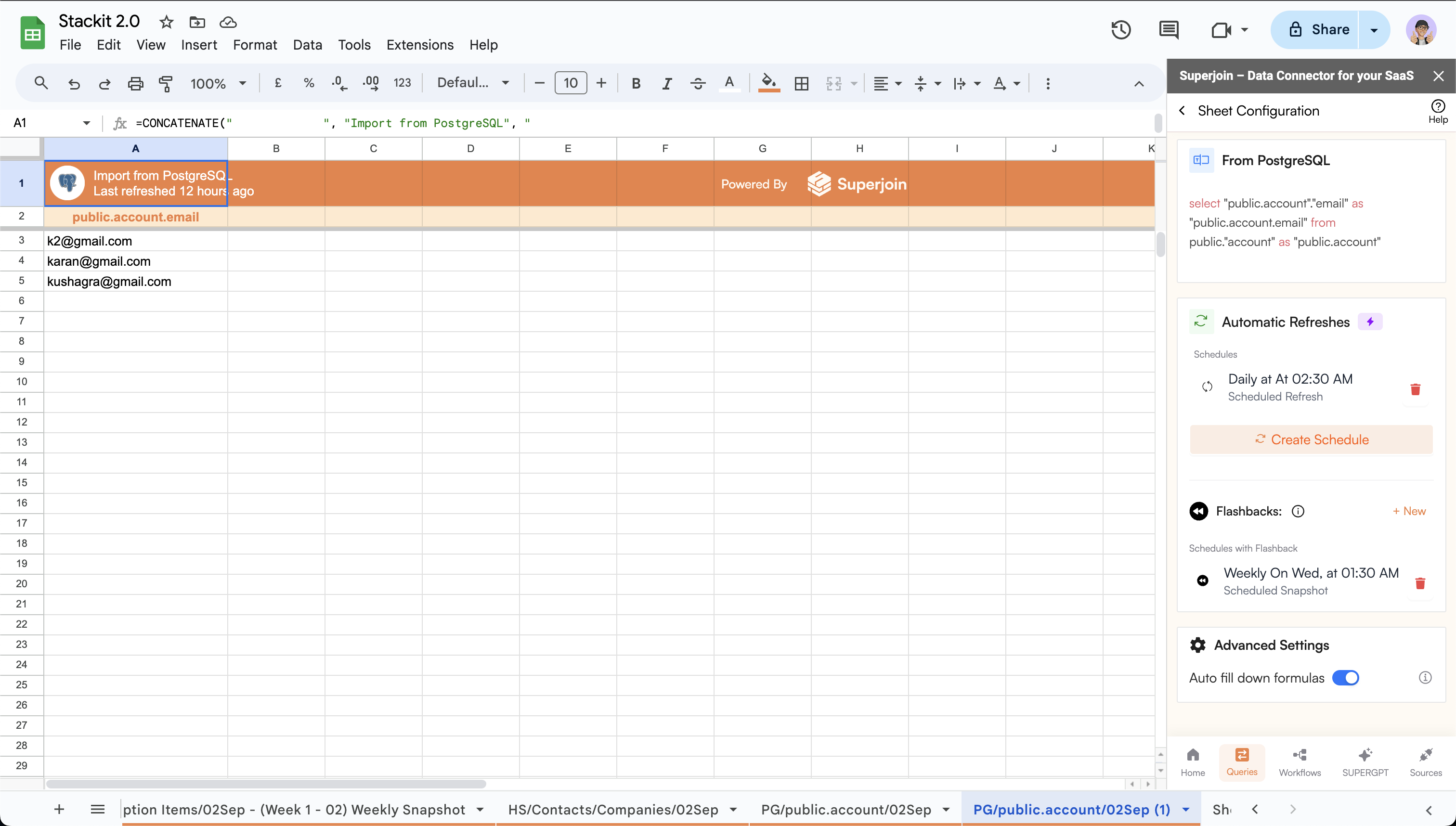
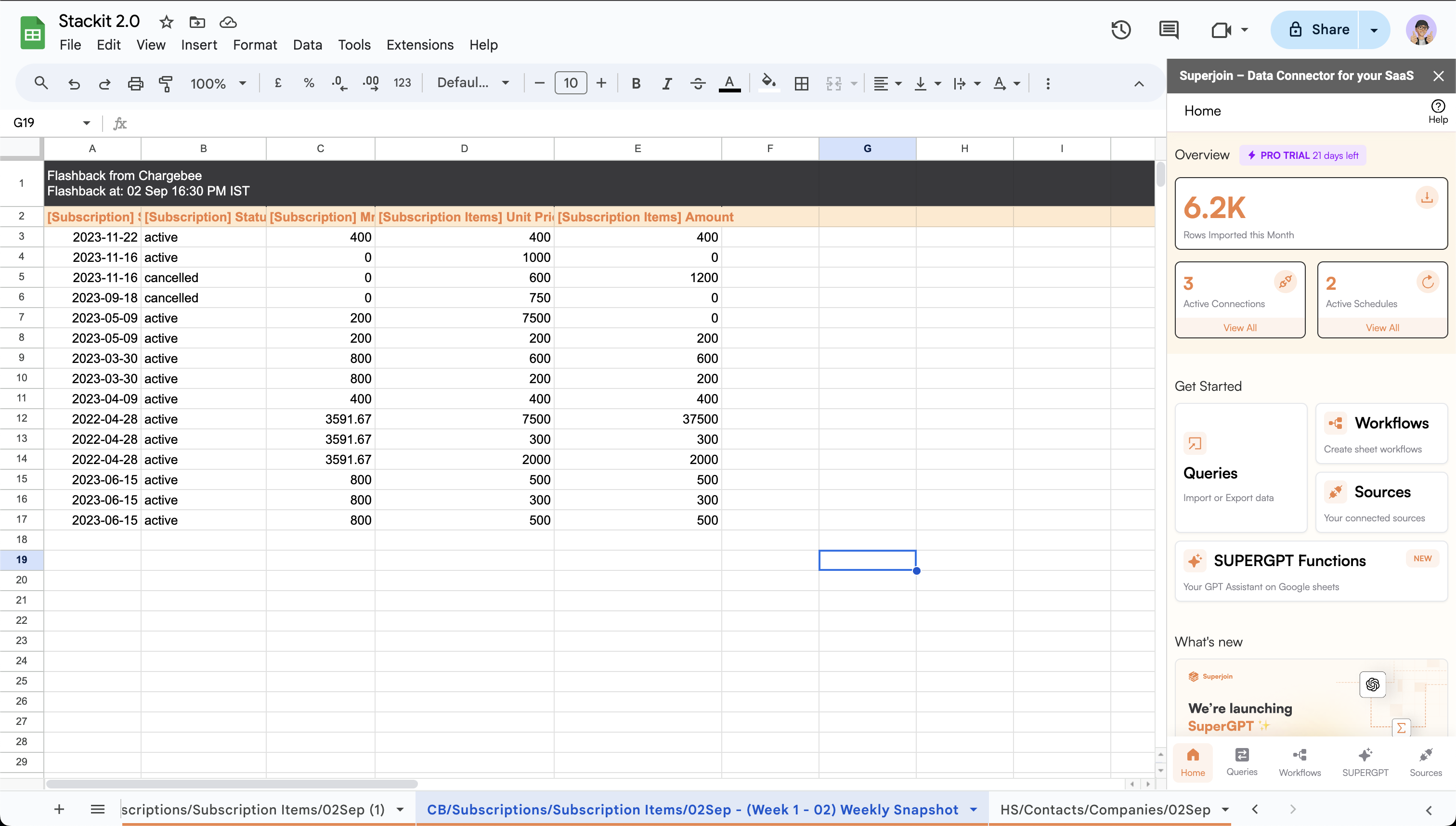
> Superjoin’s Flashbacks feature allows you to automate the creation of static data sheets on a weekly or monthly basis. This tool refreshes your data and stores it in a new static sheet according to your schedule. Follow the steps to configure and schedule Flashbacks to ensure your data is continuously updated and organized, making your data management and reporting tasks more efficient and systematic.
Only available on Google Sheets
## Follow the quickstart guide to get started with Superjoin 🚀
Install Superjoin in under a minute and start pulling your data instantly.
We've listed down common issues that you might face & how to fix it.
## Steps to create a flashback ✨
Ensure Superjoin is installed and working before following the rest of the
guide.
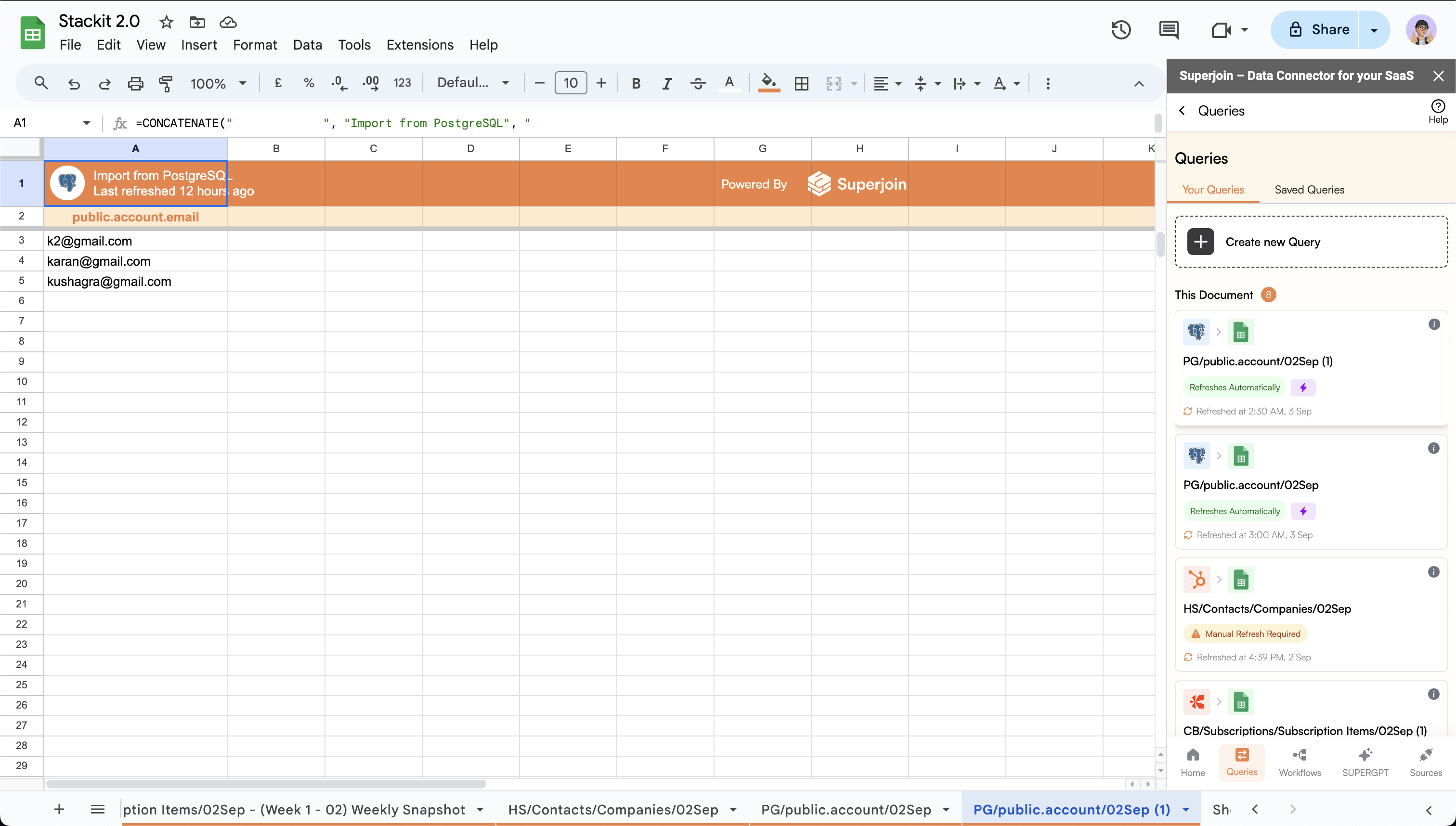
Click on the `Queries` tab. This will open the queries page in the sidebar.
 Click on the desired query which you wish to create a flashback for.
You can use the Queries tab in the documentation to set-up queries.
Click on the desired query which you wish to create a flashback for.
You can use the Queries tab in the documentation to set-up queries.
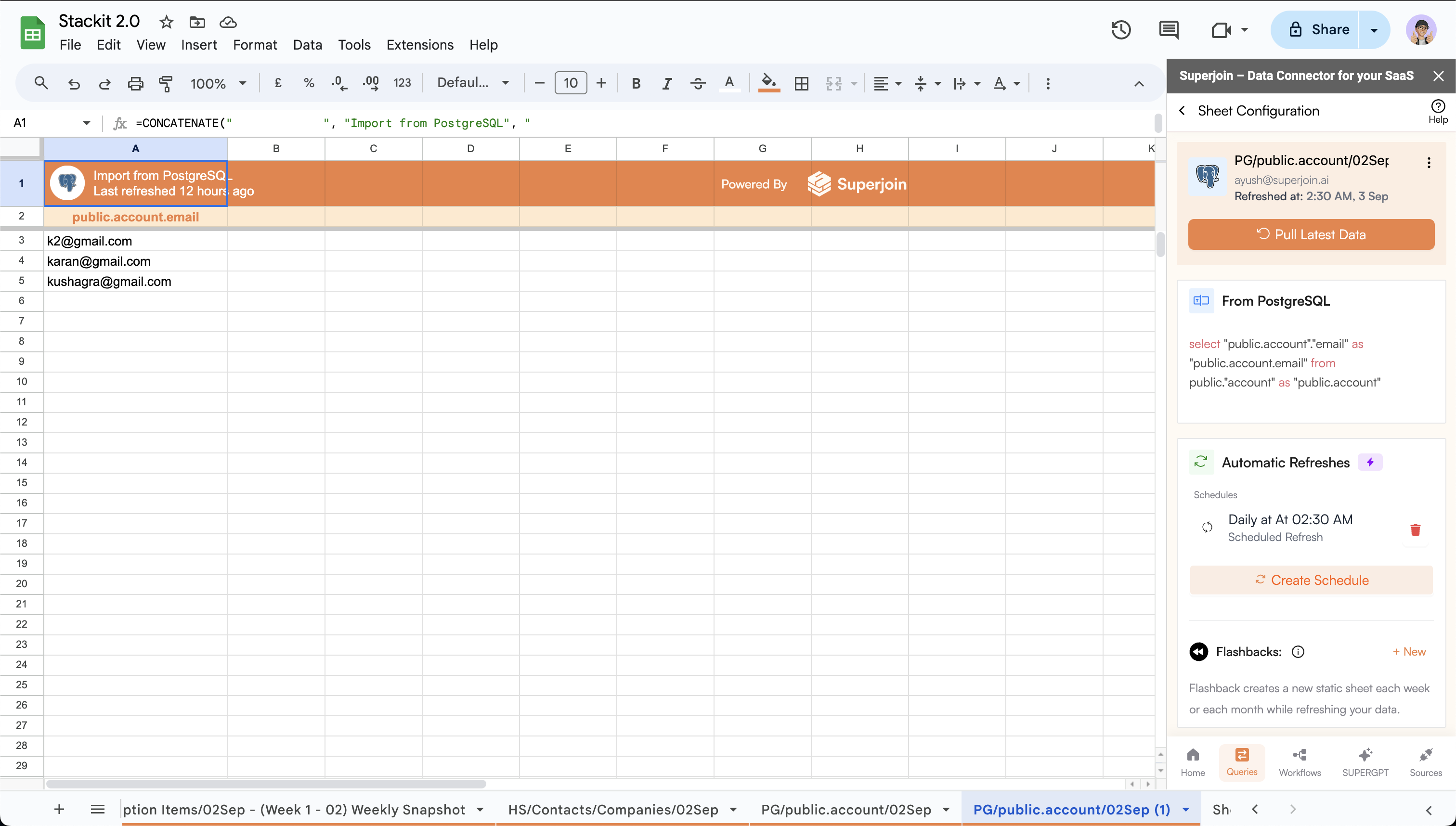
 Click on `+ New` button in the `Flashback` card.
 * You can choose to create a flashback on a `weekly` or `monthly` basis.
* If `weekly`, select the desired `day of the week` and `time of the day`.
* If `monthly`, select the desired `date of the month` and `time of the day`.
**Advanced option (Optional):**
* Refresh mode provides the option to `append` or `replace` the data.
* **Append:** Appends the modified and new rows to the existing sheet.
* **Replace:** Replaces the modified rows and adds new rows to the existing sheet.
* You can choose to create a flashback on a `weekly` or `monthly` basis.
* If `weekly`, select the desired `day of the week` and `time of the day`.
* If `monthly`, select the desired `date of the month` and `time of the day`.
**Advanced option (Optional):**
* Refresh mode provides the option to `append` or `replace` the data.
* **Append:** Appends the modified and new rows to the existing sheet.
* **Replace:** Replaces the modified rows and adds new rows to the existing sheet.
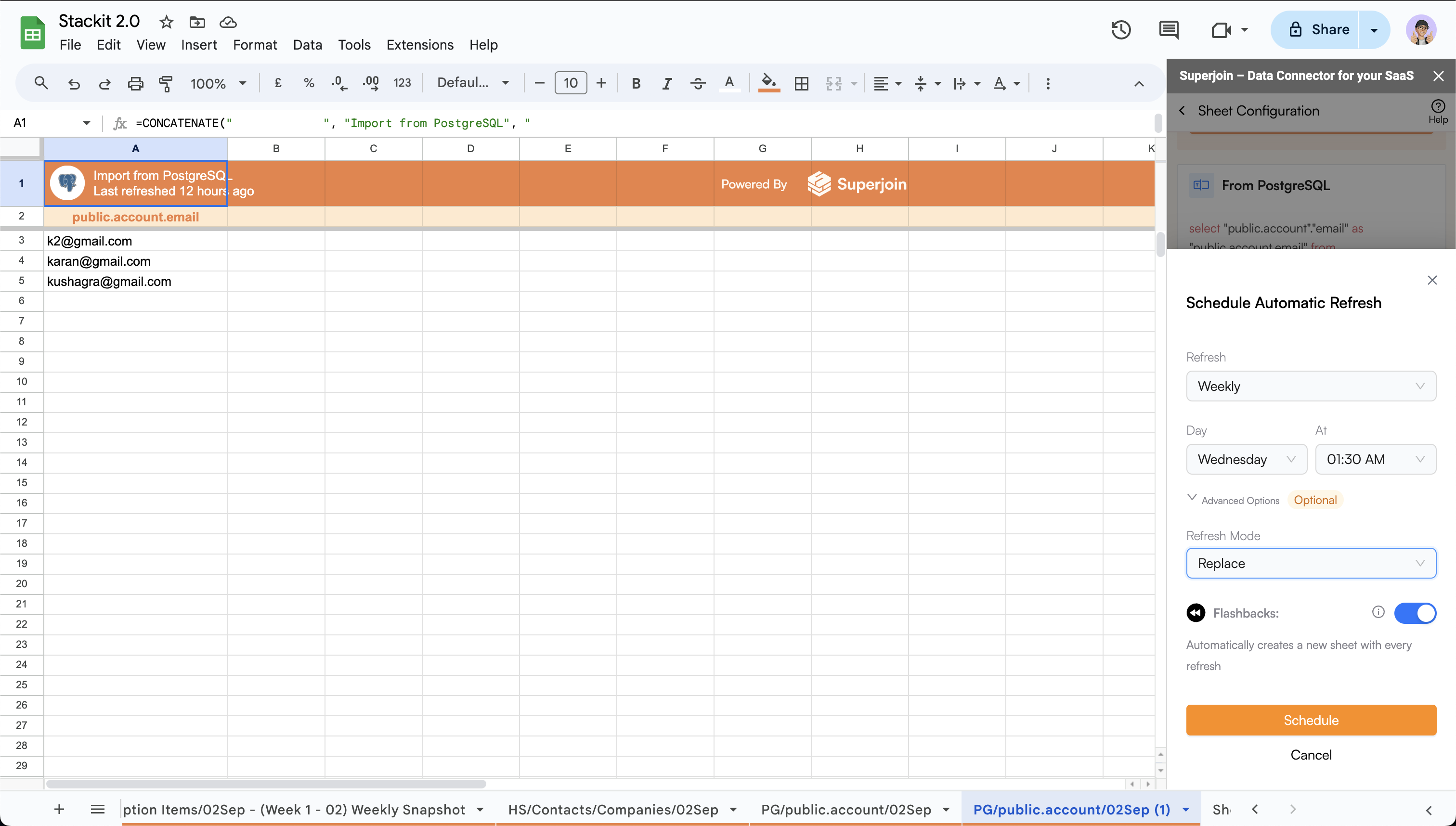 * Click on `Schedule` to schedule the flashback using the desired config.
* New schedule will be displayed in the `Flashbacks` card.
* Click on `Schedule` to schedule the flashback using the desired config.
* New schedule will be displayed in the `Flashbacks` card.