> ## Documentation Index
> Fetch the complete documentation index at: https://docs.superjoin.ai/llms.txt
> Use this file to discover all available pages before exploring further.
# Formula Auto Filldown
Only available on Google Sheets
### Introduction
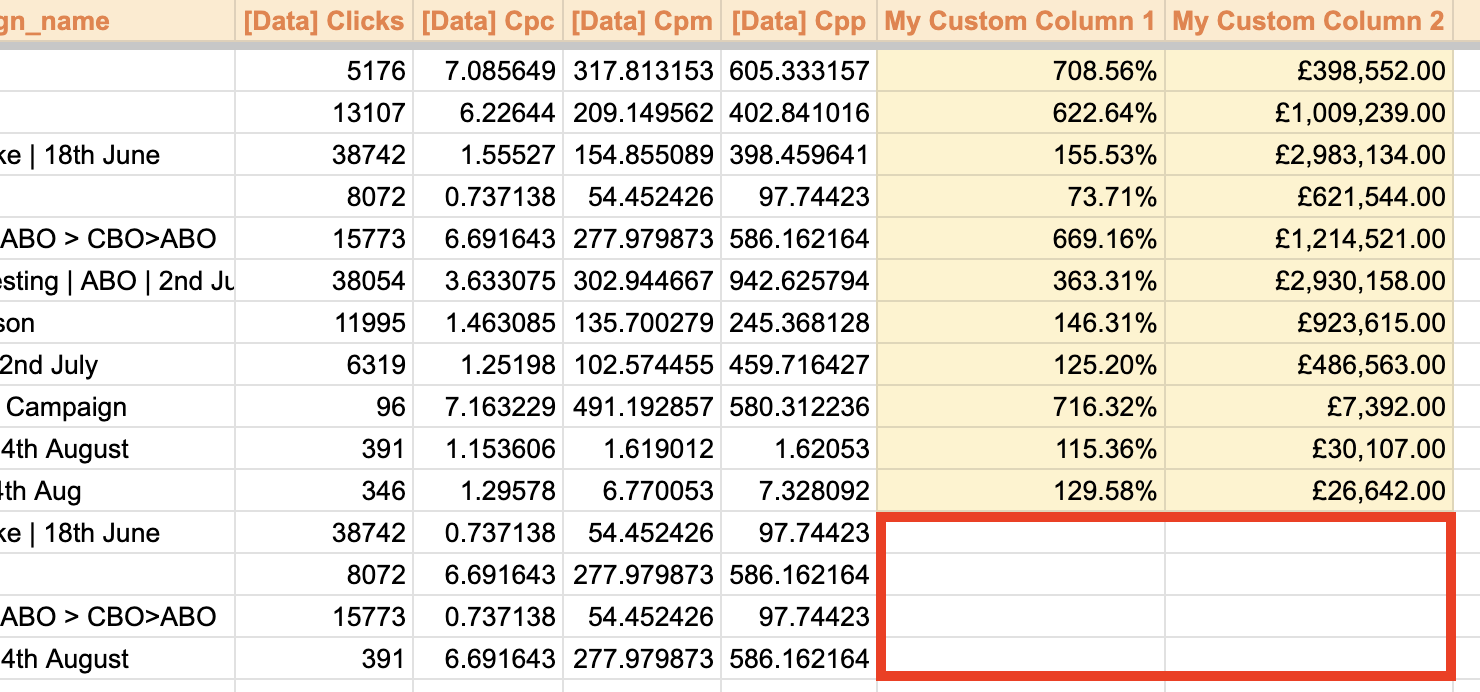
Formula filldown automatically populates any formulas that you have in the spreadsheet in the immediate right columns of the imported data every time you refresh the data.
This saves you the time (and hassle) of manually going into your spreadsheet and copying your formula(s) down the row(s) manually.
 ## How to use Formula filldown
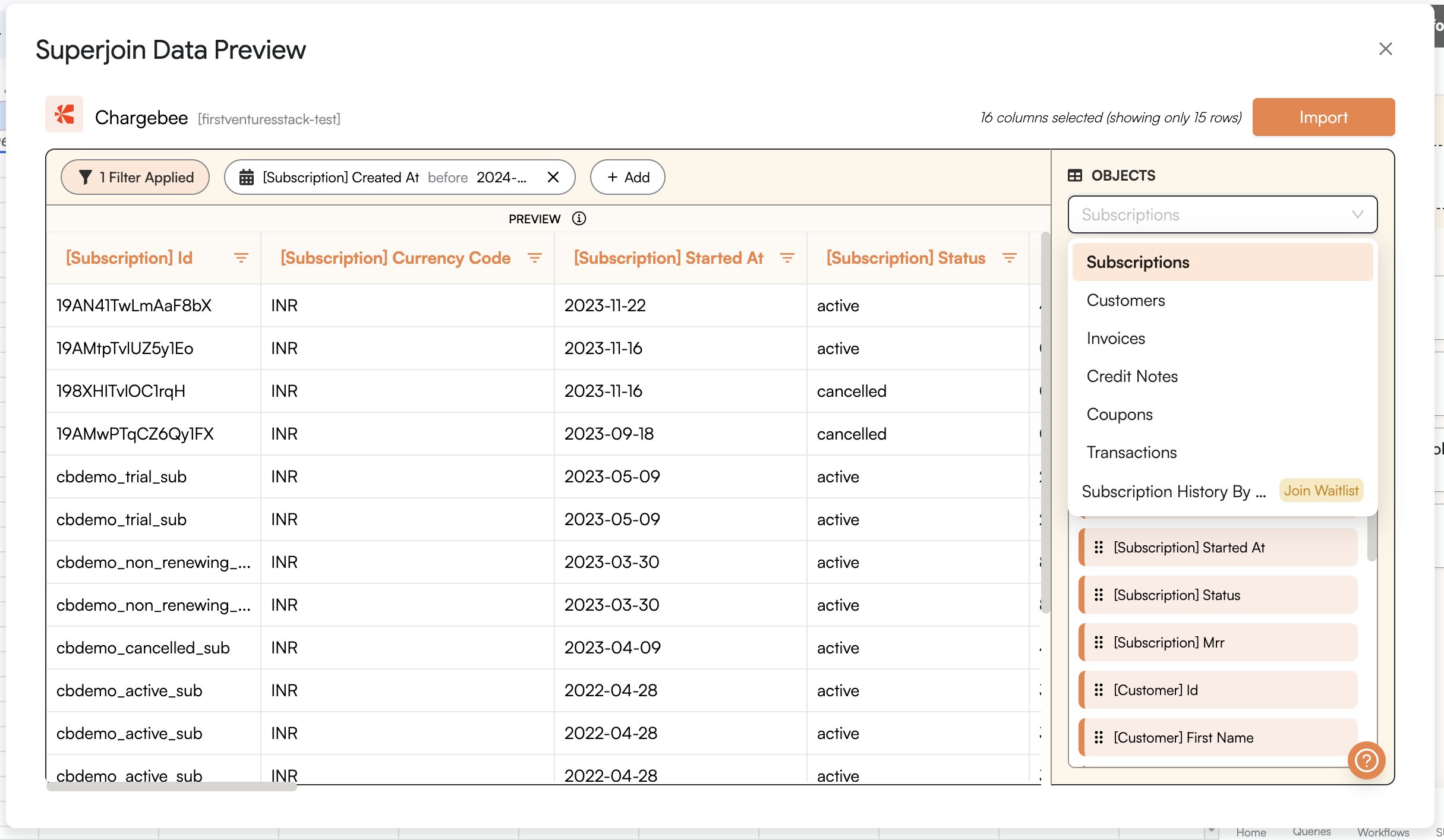
Use Superjoin to import data from your preferred source. Navigate to the `Sources` tab in the Superjoin sidebar, and connect to your
desired data source (e.g., HubSpot, Salesforce, etc). Click on import data (in data preview) and wait for your data to be populated on
Google sheet.
## How to use Formula filldown
Use Superjoin to import data from your preferred source. Navigate to the `Sources` tab in the Superjoin sidebar, and connect to your
desired data source (e.g., HubSpot, Salesforce, etc). Click on import data (in data preview) and wait for your data to be populated on
Google sheet.
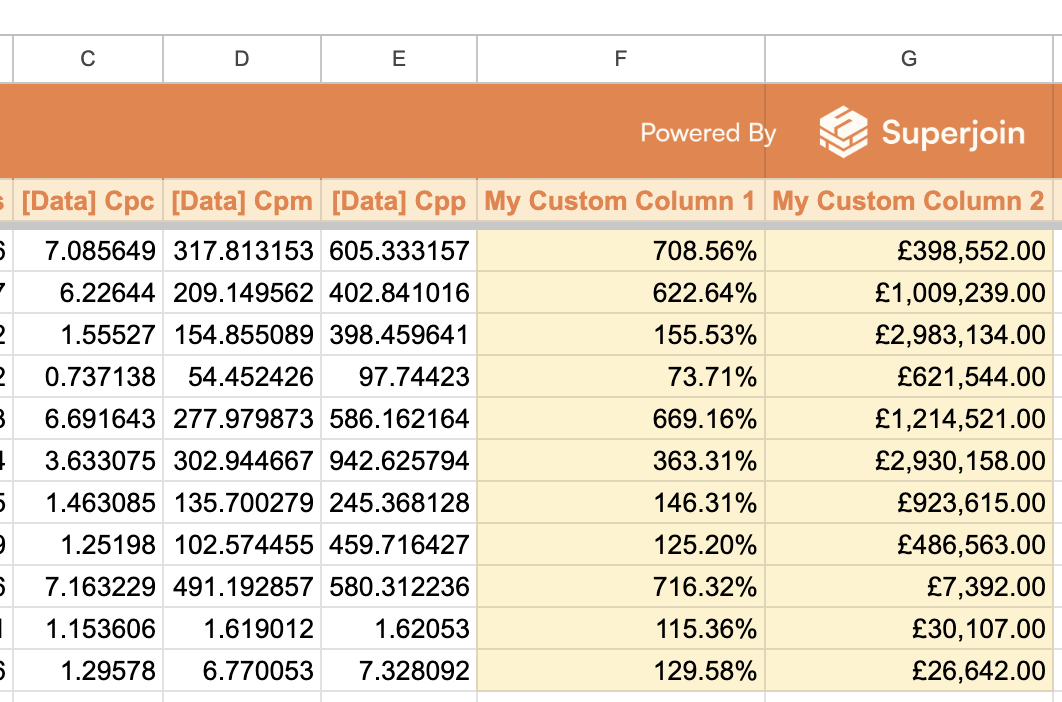
 Open the sheet where you'd like to import data. Ensure that any formulas you want to apply to imported data are in the columns immediately
next to the imported data.
Open the sheet where you'd like to import data. Ensure that any formulas you want to apply to imported data are in the columns immediately
next to the imported data.
 When you refresh the data, the formula you placed in the immediate next column will automatically populate down the rows of your imported
data during every refresh. No need to manually copy formulas anymore!
**Note:** Ensure the column with the formula is directly adjacent to the imported data, as the filldown only works for immediate
columns.
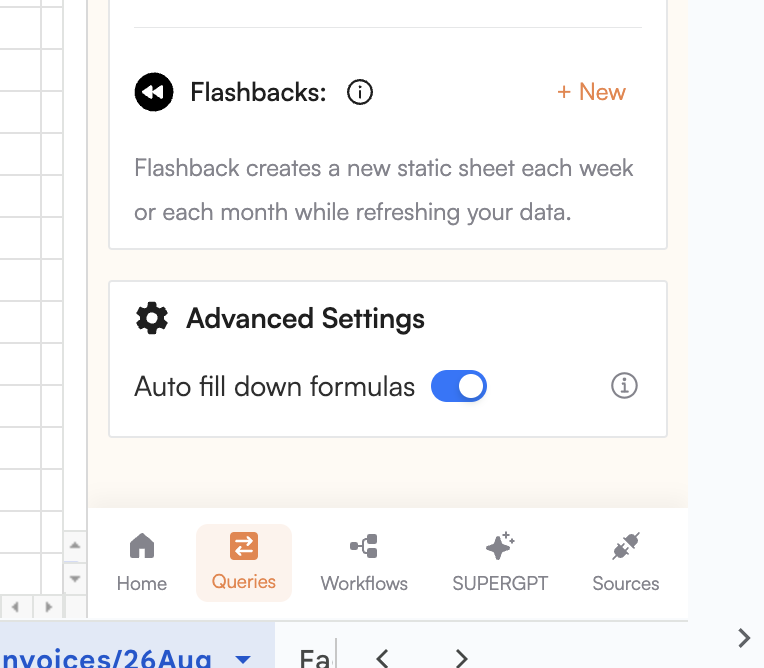
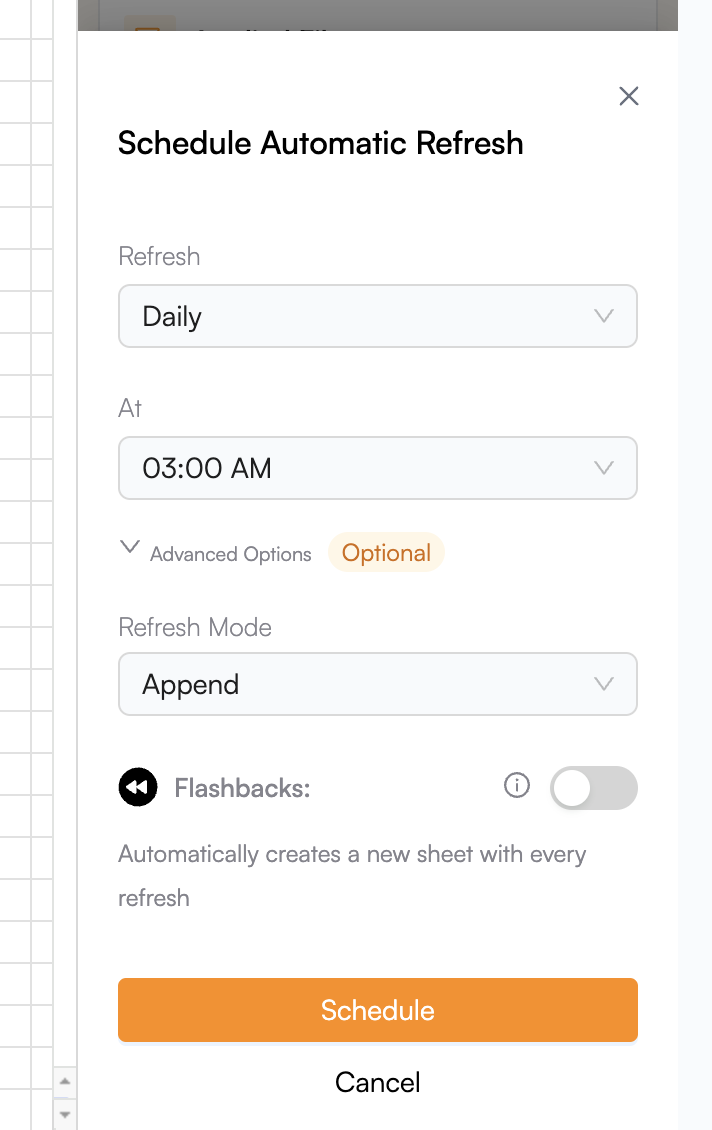
To automatically refresh your data and keep your formulas updated, you can schedule a refresh in Superjoin. Navigate to the `Schedule`
option and set a daily, weekly, or monthly refresh. Make sure to keep the Formula Auto-filldown mode on.
When you refresh the data, the formula you placed in the immediate next column will automatically populate down the rows of your imported
data during every refresh. No need to manually copy formulas anymore!
**Note:** Ensure the column with the formula is directly adjacent to the imported data, as the filldown only works for immediate
columns.
To automatically refresh your data and keep your formulas updated, you can schedule a refresh in Superjoin. Navigate to the `Schedule`
option and set a daily, weekly, or monthly refresh. Make sure to keep the Formula Auto-filldown mode on.
 ##
##
 After the refresh, verify that your formulas have populated correctly in the new rows of the data, ensuring your spreadsheet stays up to
date.
***
## Frequently Asked Questions
**Q. Can I write formula on a column which is not the immediate column?**
No, if there is a gap between the imported data and the column with the formula, the formula will not be applied. Formulae filldown only works for columns immediately adjacent to the imported data.
**Q. Will it work if the formula is not on the first row of the data?**
Yes, the formula will still be applied even if it’s not in the first row. As long as the formula is in the column immediately next to the imported data, it will fill down through all the rows below it.
**Q. What happens when I have multiple columns that have formula?**
Superjoin will fill down all formulas in the immediate adjacent columns. If there are multiple formulas in the columns directly next to the data, they will all be applied during the refresh, maintaining the order of your data structure.
**Q. What is the behaviour when I setup a refresh schedule?**
You have the functionality to choose whether you wish to activate Formula filldown with the refresh schedule when you step up a schedule. With Formula filldown, all adjacent formulas will populate automatically with each data refresh, ensuring that your formulas always stay up-to-date.
After the refresh, verify that your formulas have populated correctly in the new rows of the data, ensuring your spreadsheet stays up to
date.
***
## Frequently Asked Questions
**Q. Can I write formula on a column which is not the immediate column?**
No, if there is a gap between the imported data and the column with the formula, the formula will not be applied. Formulae filldown only works for columns immediately adjacent to the imported data.
**Q. Will it work if the formula is not on the first row of the data?**
Yes, the formula will still be applied even if it’s not in the first row. As long as the formula is in the column immediately next to the imported data, it will fill down through all the rows below it.
**Q. What happens when I have multiple columns that have formula?**
Superjoin will fill down all formulas in the immediate adjacent columns. If there are multiple formulas in the columns directly next to the data, they will all be applied during the refresh, maintaining the order of your data structure.
**Q. What is the behaviour when I setup a refresh schedule?**
You have the functionality to choose whether you wish to activate Formula filldown with the refresh schedule when you step up a schedule. With Formula filldown, all adjacent formulas will populate automatically with each data refresh, ensuring that your formulas always stay up-to-date.