> ## Documentation Index
> Fetch the complete documentation index at: https://docs.superjoin.ai/llms.txt
> Use this file to discover all available pages before exploring further.
# Create custom SQL queries
> Learn how to create custom queries in Superjoin with a comprehensive guide. This section covers various methods, including writing SQL queries, using the Visual SQL Builder, and generating queries with AI. Follow the step-by-step instructions to import and manage your data effectively, ensuring a smooth setup and optimal data analysis.
Only available on Google Sheets
## Follow the quickstart guide to get started with Superjoin 🚀
Install Superjoin in under a minute and start pulling your data instantly.
We've listed down common issues that you might face & how to fix it.
## Steps to create queries ✨
Ensure Superjoin is installed and working before following the rest of the
guide.
Click on the `Sources` tab. This will open the sources page in the sidebar.
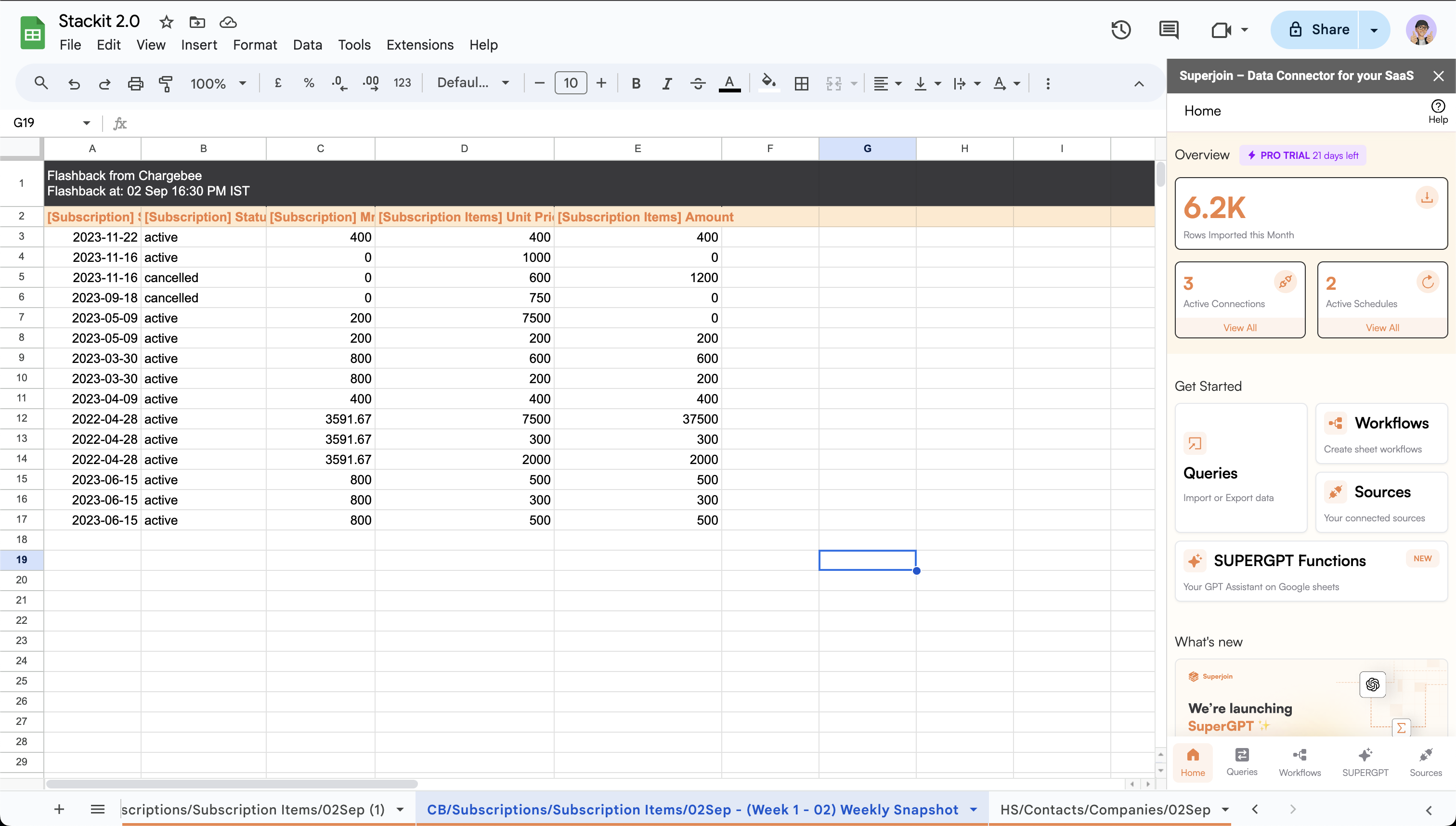 Click on the desired source which you wish to create a query for.
You can use the [Integrations](/integrations/summary) tab in the documentation to set-up an integration.
Click on the desired source which you wish to create a query for.
You can use the [Integrations](/integrations/summary) tab in the documentation to set-up an integration.
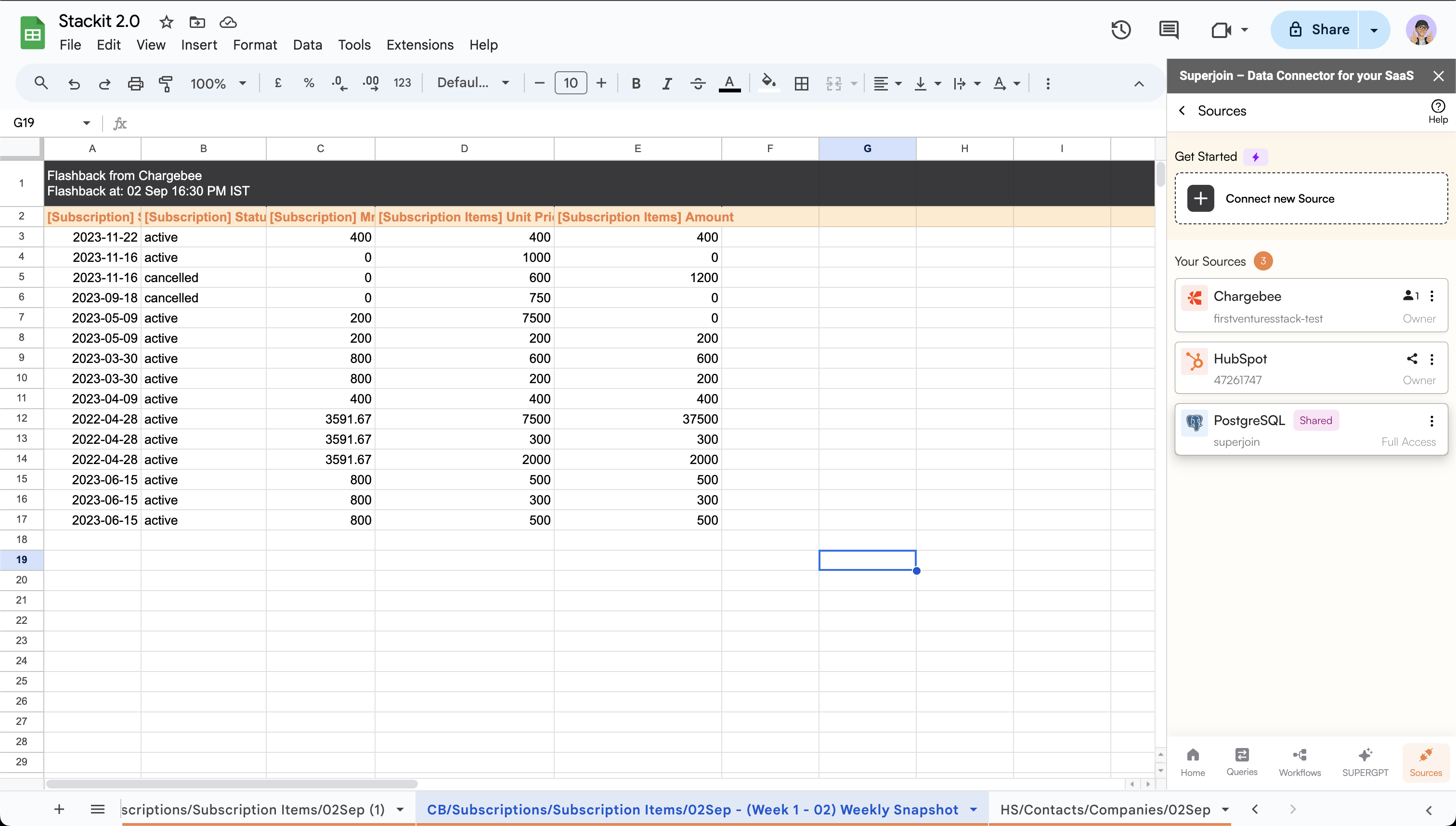 Click on `Create new import` button.
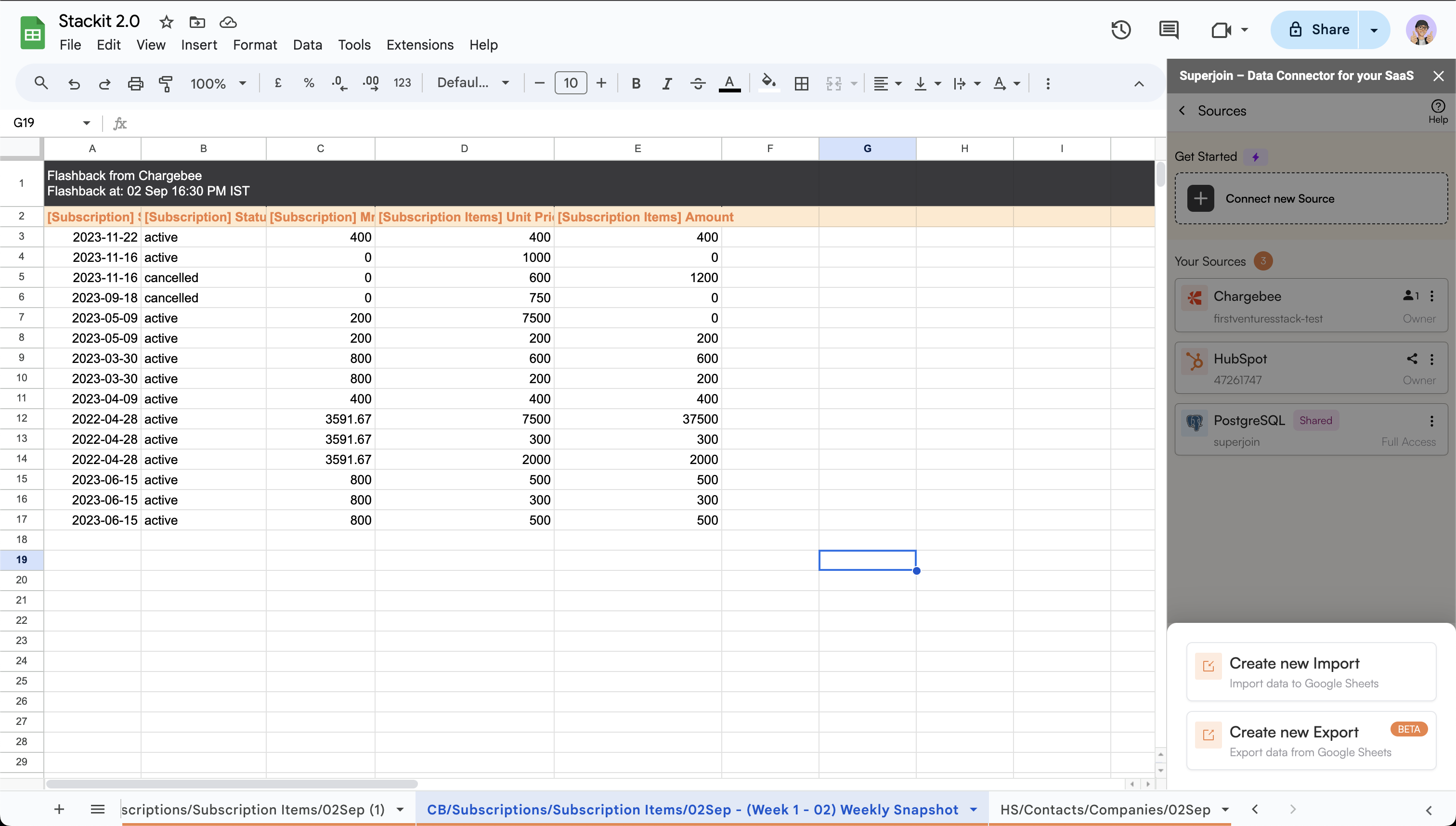 Choose between three query methods through which you would like to import your data.
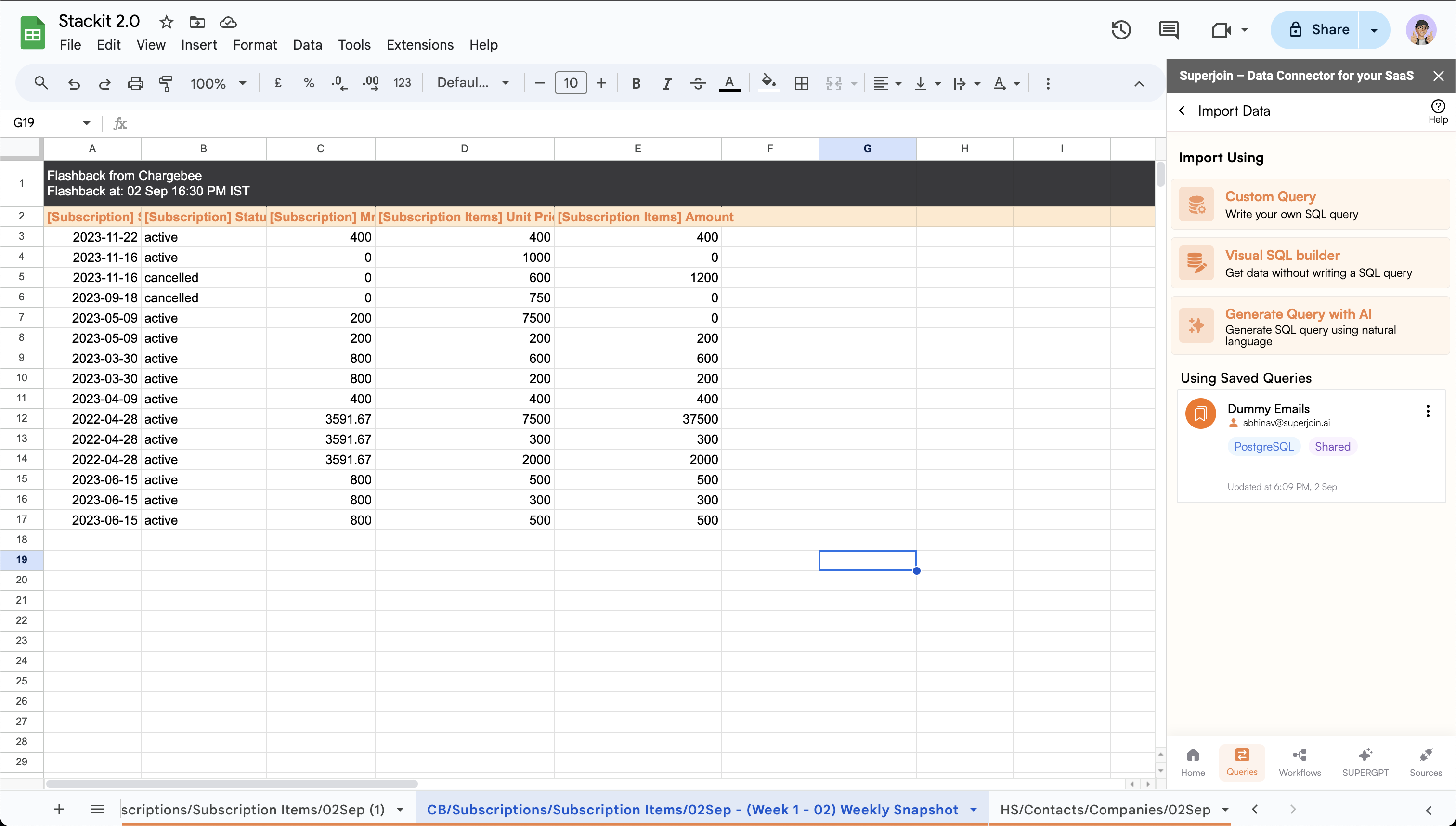 * Click on `Custom Query` to use the custom query method.
* Enter the desired SQL query in the text area.
* Click on `Run Query` to preview the data.
* Click on `Custom Query` to use the custom query method.
* Enter the desired SQL query in the text area.
* Click on `Run Query` to preview the data.
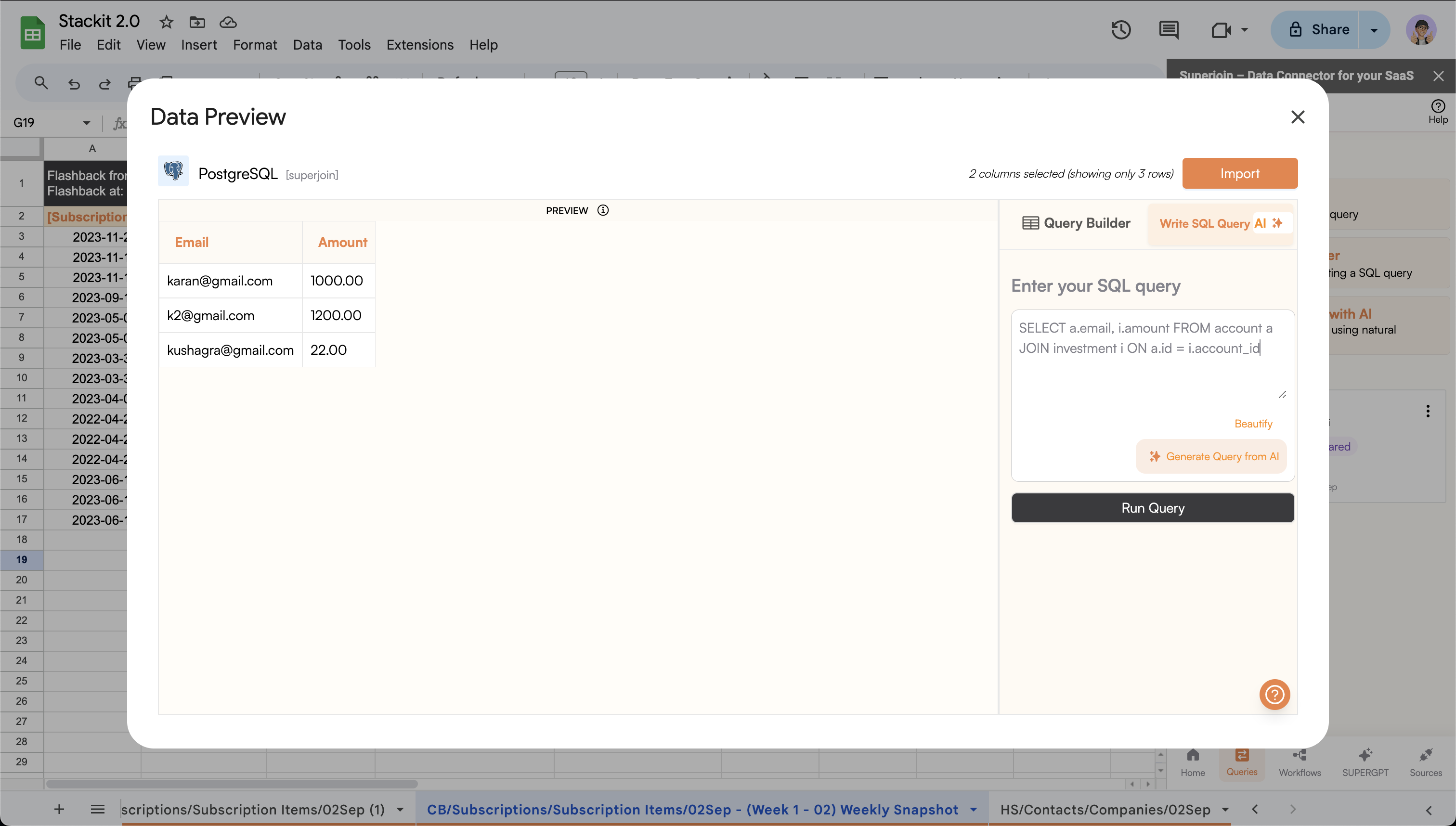 * Click on `Visual SQL Builder` to use the visual SQL builder.
* Select a table and its desired columns to import.
* Click on `Visual SQL Builder` to use the visual SQL builder.
* Select a table and its desired columns to import.
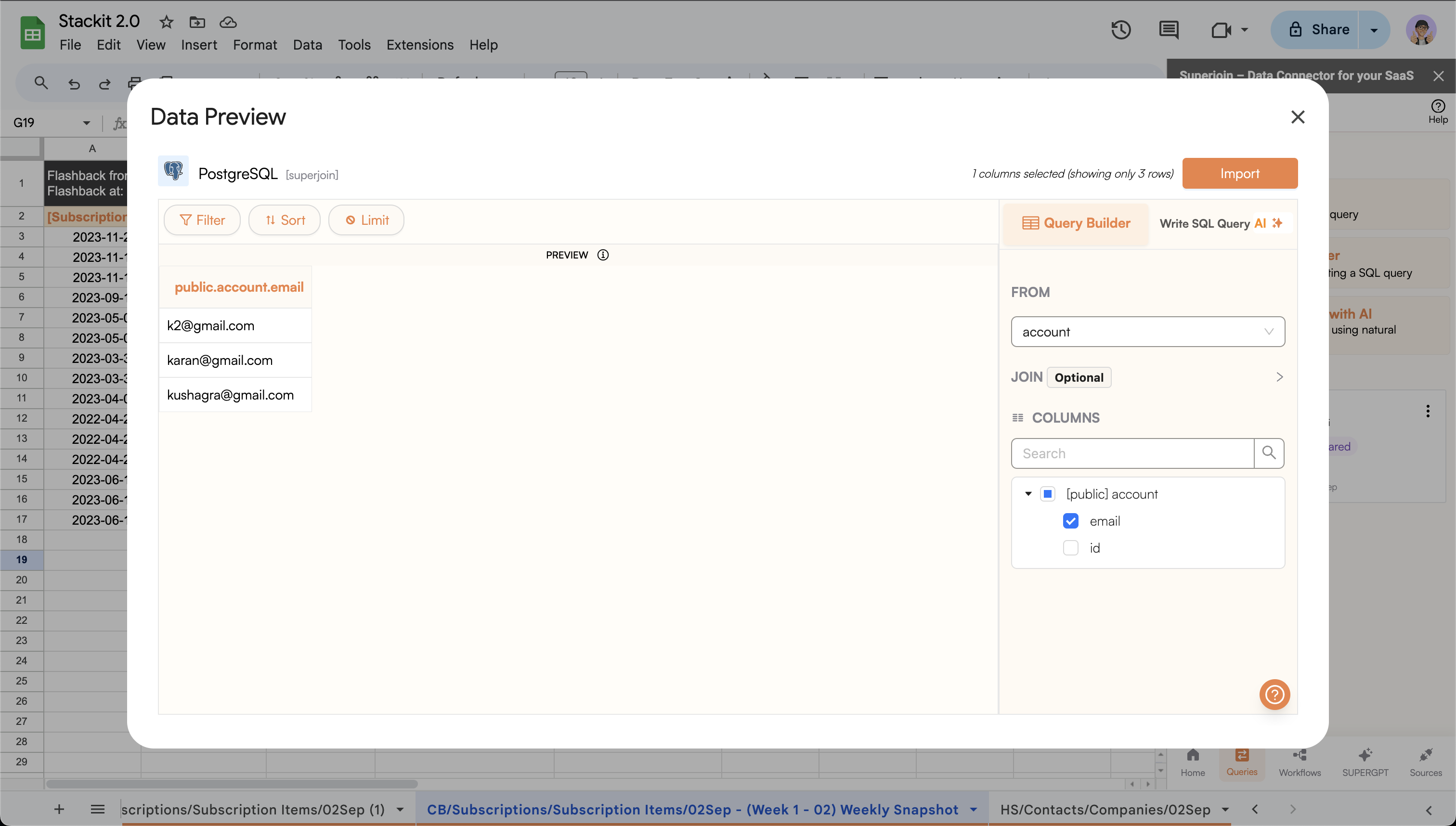 Here, you can use a combination of columns from different tables to get the desired output.
E.g., Here we are trying to use the `id` from the `account` columns to fetch the `email` and `amount` from the
`account` and `investment` columns, respectively.
Here, you can use a combination of columns from different tables to get the desired output.
E.g., Here we are trying to use the `id` from the `account` columns to fetch the `email` and `amount` from the
`account` and `investment` columns, respectively.
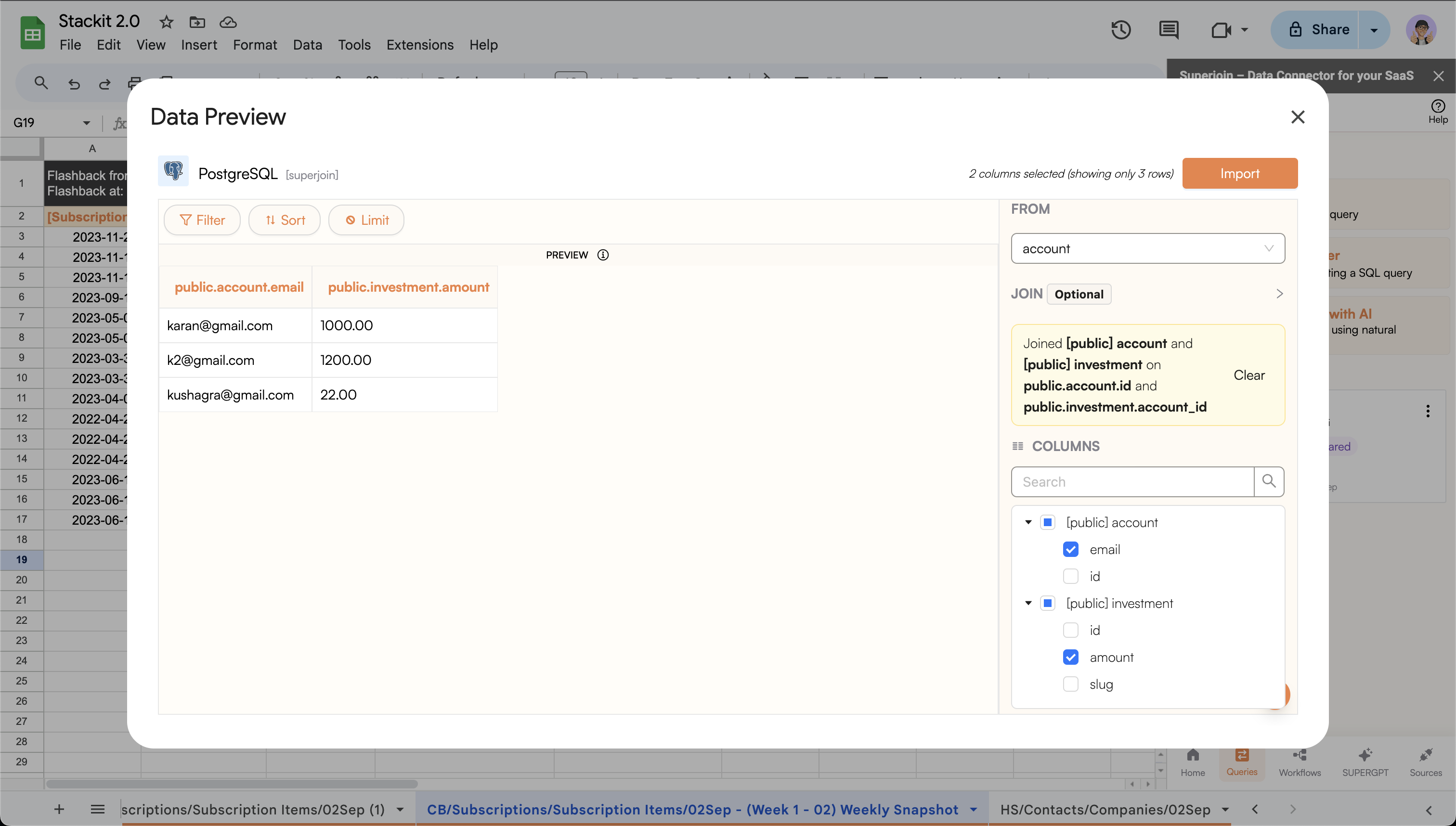 * Click on `Generate Query with AI` to generate a query for your data using AI.
* In the text area, type the desired prompt to generate a query for your data.
* Click on `Generate Query`.
* Click on `Run Query` to run the generated query.
* Click on `Generate Query with AI` to generate a query for your data using AI.
* In the text area, type the desired prompt to generate a query for your data.
* Click on `Generate Query`.
* Click on `Run Query` to run the generated query.
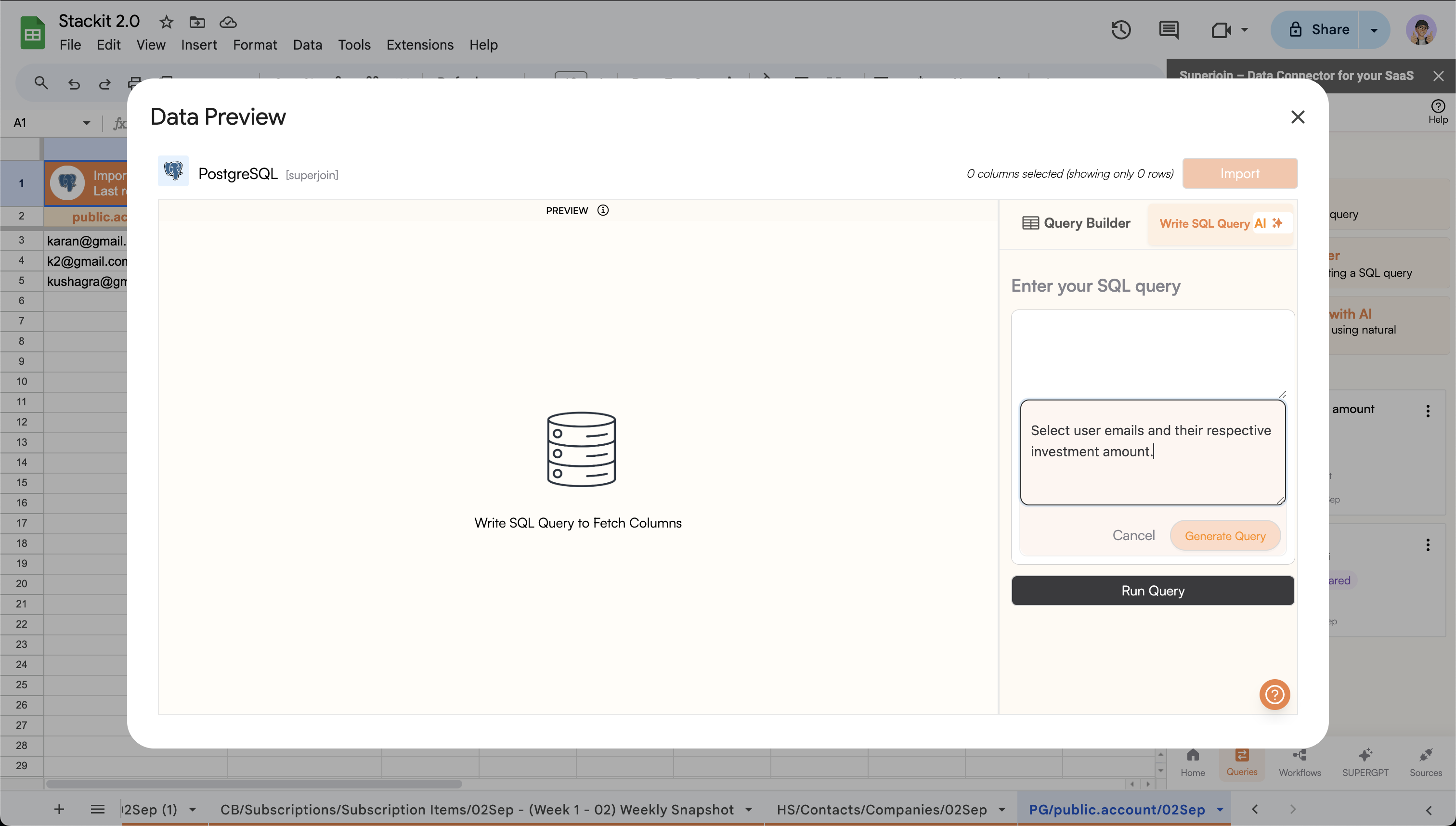 Click on `Import` to import the data and wait for the data to be imported (optionally, create a refresh schedule).
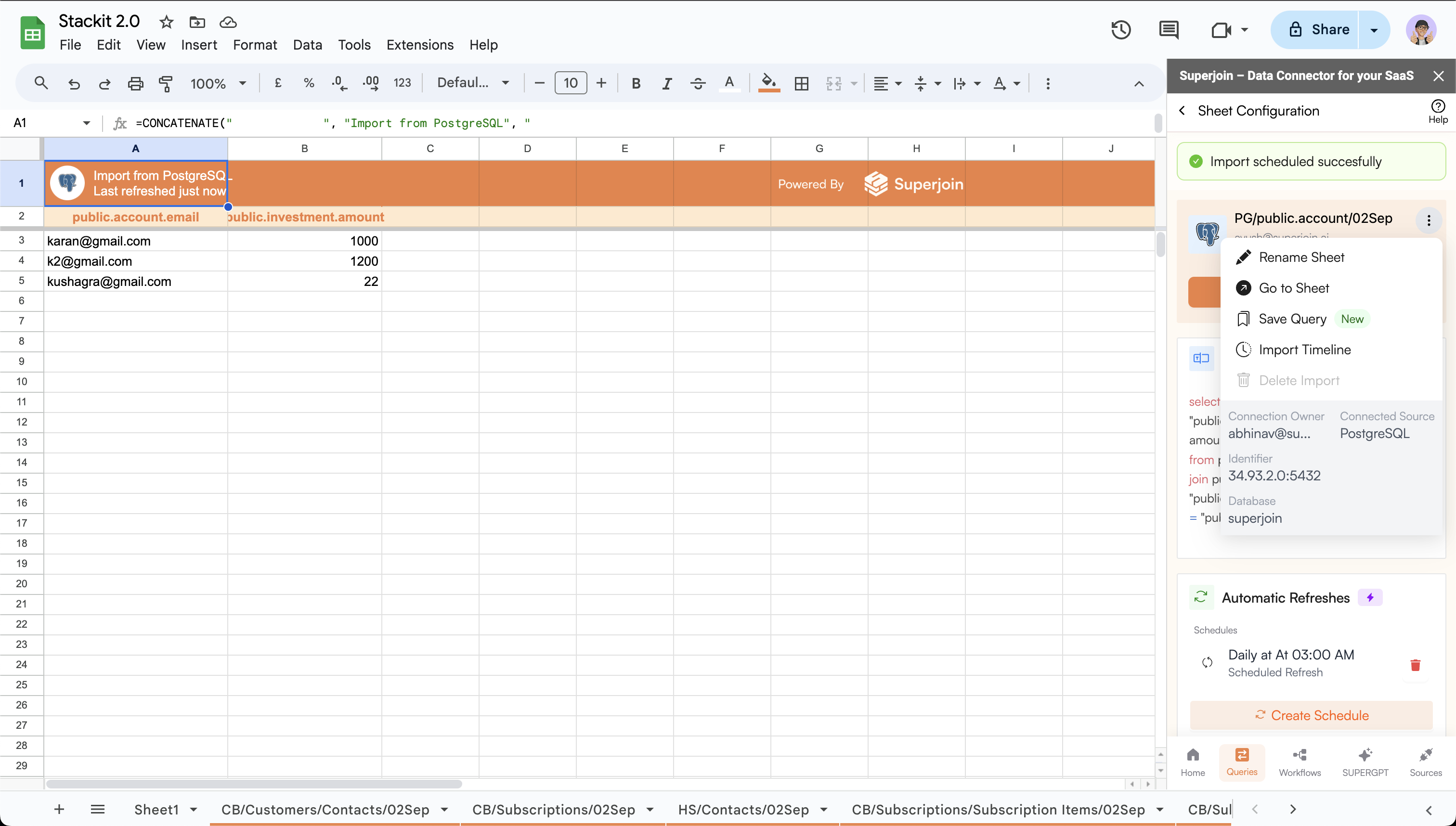
* Click on the `3 dots` button on the top right corner of the desired query.
* Click on `Save Query`.
Click on `Import` to import the data and wait for the data to be imported (optionally, create a refresh schedule).
* Click on the `3 dots` button on the top right corner of the desired query.
* Click on `Save Query`.
 Fill in the `Name` and `Description (Optional)` of the query.
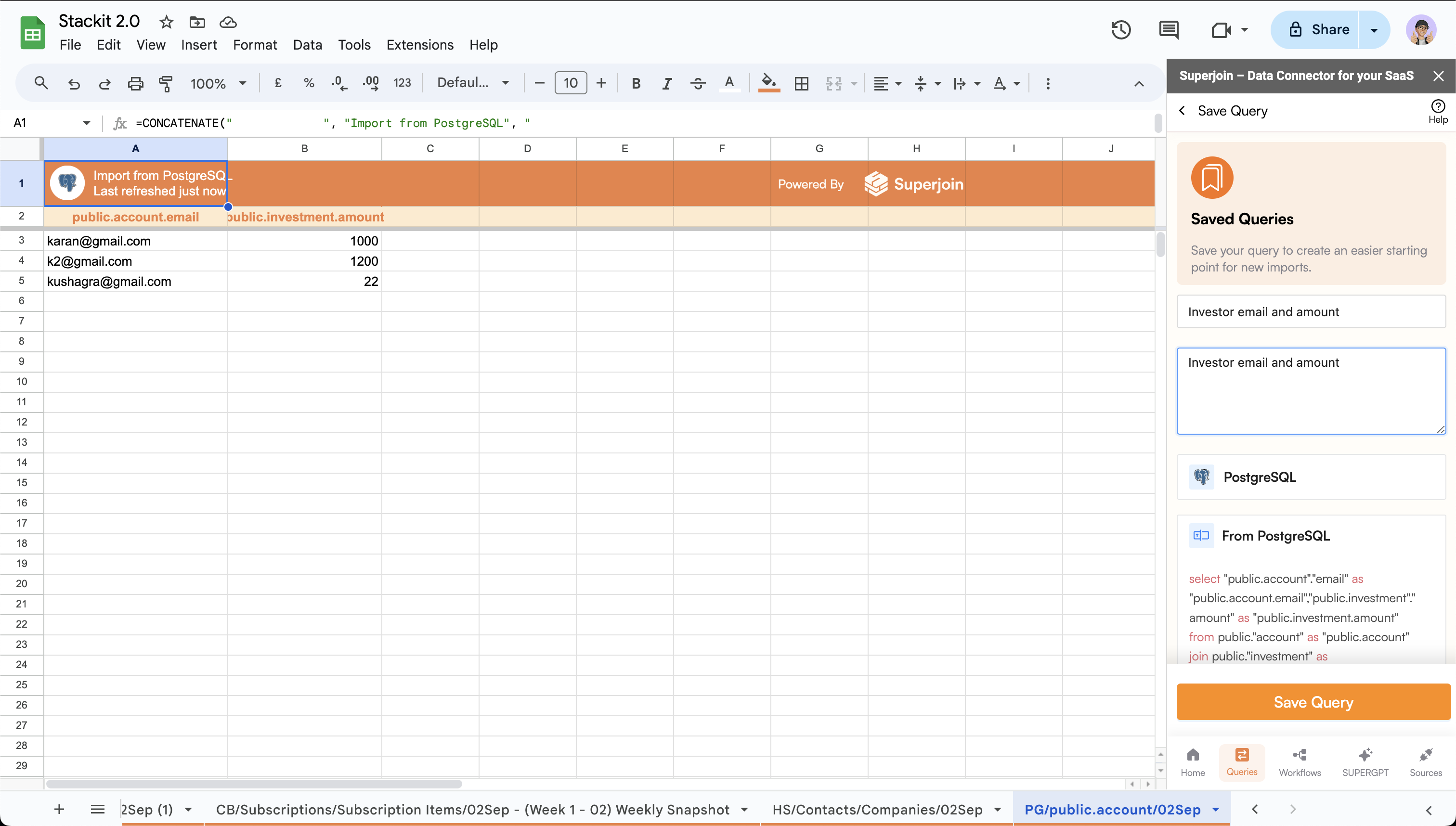 Click on the `Save Query` button to save the query.