> ## Documentation Index
> Fetch the complete documentation index at: https://docs.superjoin.ai/llms.txt
> Use this file to discover all available pages before exploring further.
# Share custom SQL queries
> Easily share your custom queries with team members using Superjoin. This guide walks you through the process of sharing saved queries, including inviting users by email and managing access. Follow the steps to ensure your queries are accessible to your team, facilitating collaboration and efficient data analysis.
Only available on Google Sheets
## Follow the quickstart guide to get started with Superjoin 🚀
Install Superjoin in under a minute and start pulling your data instantly.
We've listed down common issues that you might face & how to fix it.
## Steps to share queries ✨
Ensure Superjoin is installed and working before following the rest of the
guide.
In the `Queries` tab, click on the `Saved Queries` button.
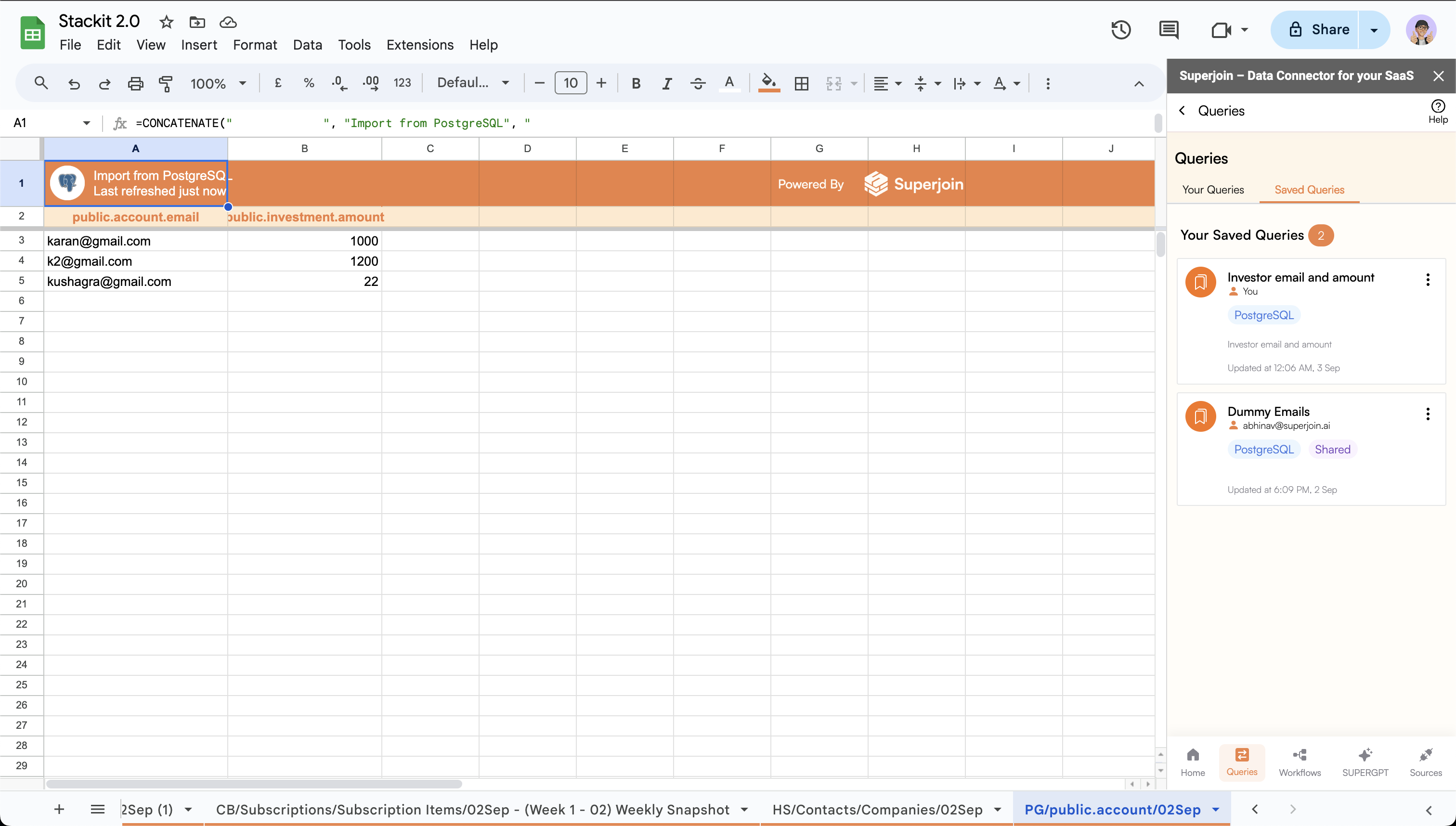 * Click on the `3 dots` button on the top right corner of the desired query.
* Click on `Share Query`.
* Click on the `3 dots` button on the top right corner of the desired query.
* Click on `Share Query`.
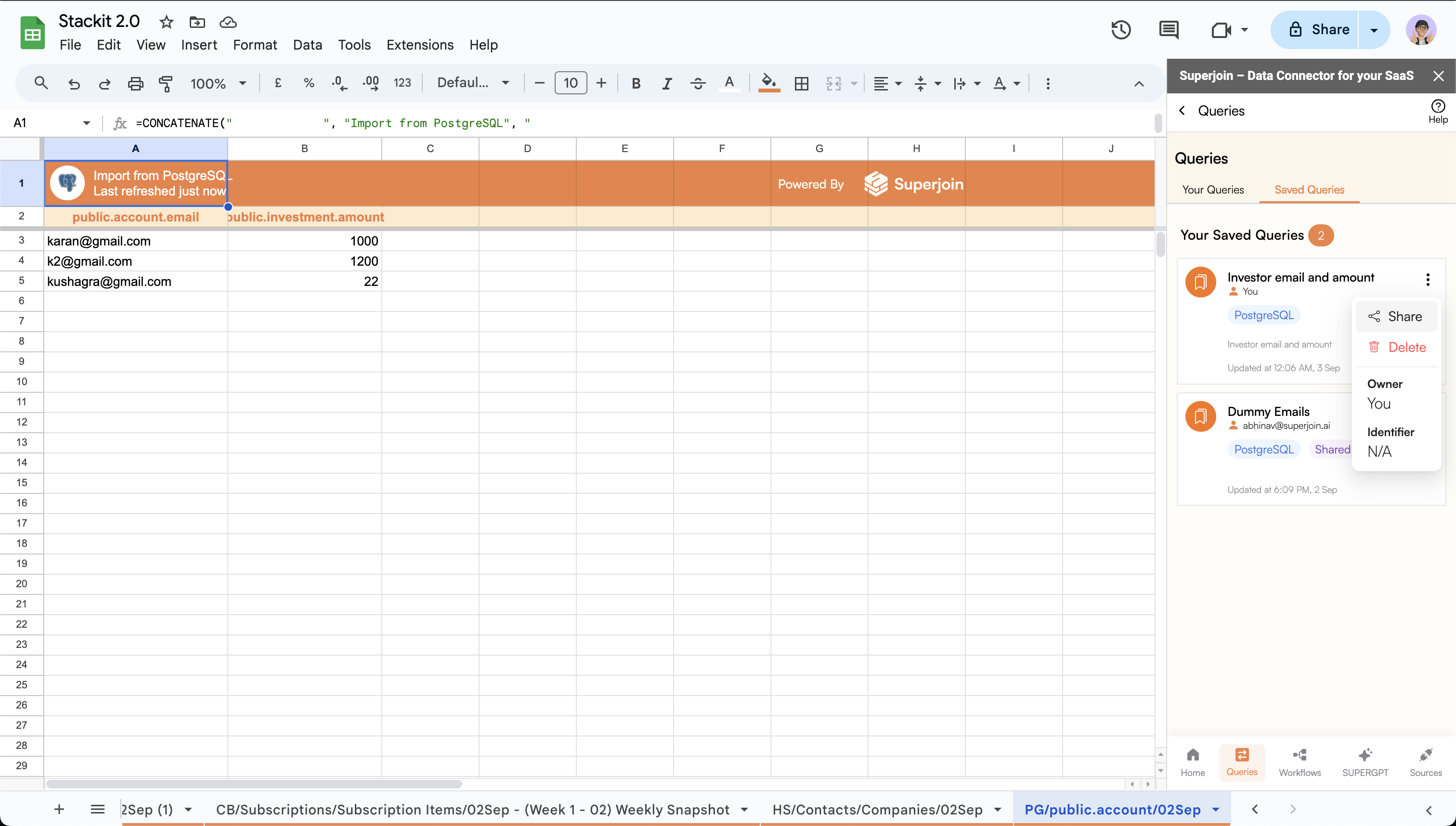 * Enter the email addresses of the users you wish to share the query with.
* After entering the email addresses, click on the `Invite` button to add the users to the list.
* Enter the email addresses of the users you wish to share the query with.
* After entering the email addresses, click on the `Invite` button to add the users to the list.
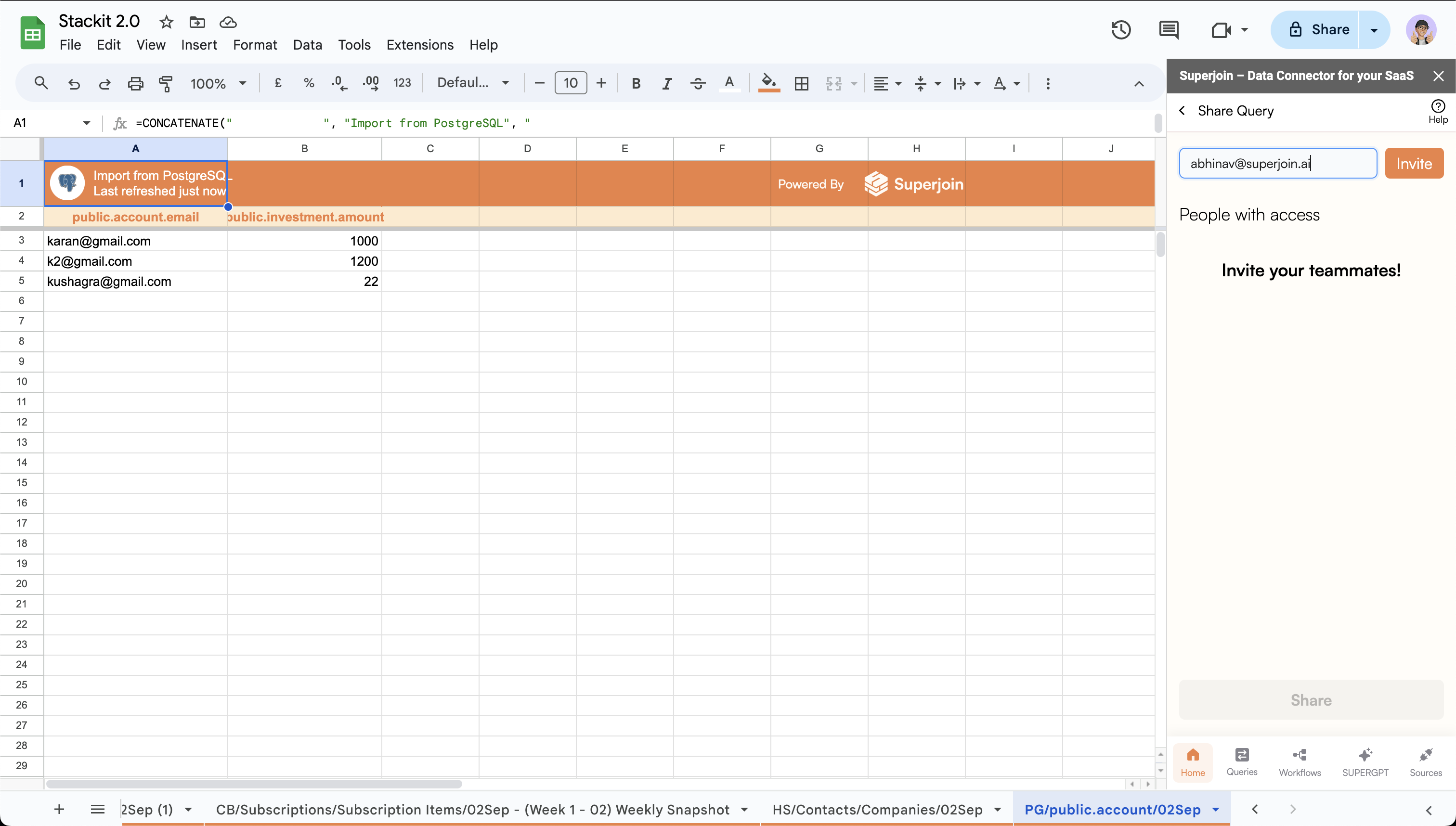 * You can manage the access of the users by selecting the option next to their email address.
Available options:
* `Edit`: Can only run and see output of query and edit the saved query itself.
User in `Edit` mode will receive Full-Access to the underlying database if not already.
* `Run`: Can only run and see output of query.
User in `Run` mode will receive Limited-Access to the underlying database if not already.
Click the `Remove` button to remove a user from the list.
* You can manage the access of the users by selecting the option next to their email address.
Available options:
* `Edit`: Can only run and see output of query and edit the saved query itself.
User in `Edit` mode will receive Full-Access to the underlying database if not already.
* `Run`: Can only run and see output of query.
User in `Run` mode will receive Limited-Access to the underlying database if not already.
Click the `Remove` button to remove a user from the list.
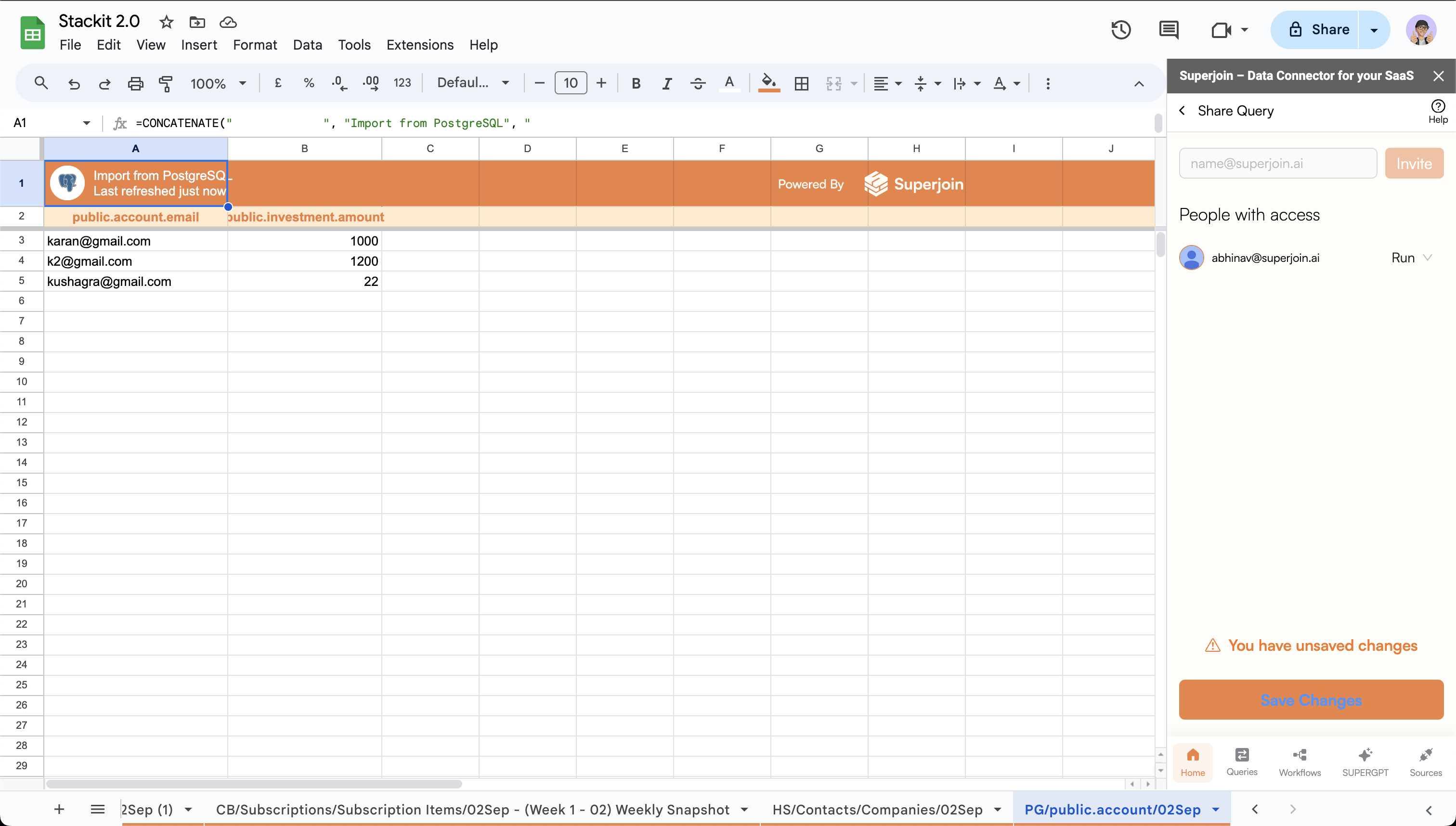
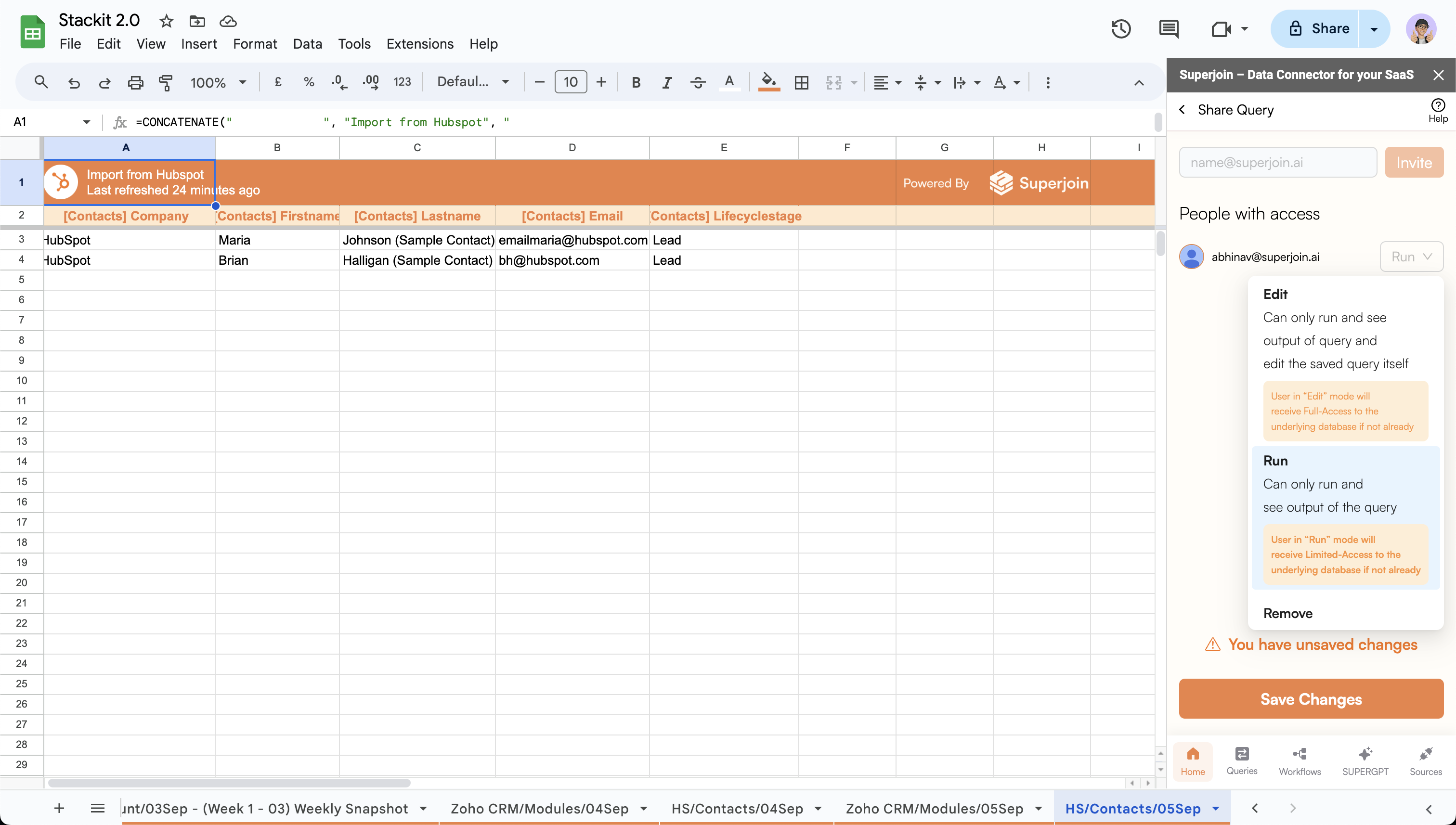 Click on the `Save Changes` button to invite users to the query.