> ## Documentation Index
> Fetch the complete documentation index at: https://docs.superjoin.ai/llms.txt
> Use this file to discover all available pages before exploring further.
# Share Connection with Your Teammates
> Sharing a source connection in Superjoin allows you to collaborate with others by granting access to your data sources. This feature is useful for teams or projects where multiple users need to interact with the same data sources.
## How Team Sharing Works
Unlike traditional user management systems (like HubSpot or Intercom), Superjoin doesn't have centralized account management. **Each teammate is an independent user** with their own Superjoin installation.
When you share a connection, you're granting access to that resource within their own instance—not adding them to a shared account.
**Workspaces & Visibility**
Users with the same email domain (e.g., `@company.com`) are automatically grouped into the same workspace.
**Key Point:** Being in the same workspace lets you **see** teammates' queries on shared sheets, but you **cannot interact with them** (refresh, edit, or export) unless the source connection is explicitly shared with you.
👀 Visibility ≠ Access
**Prerequisites Before Sharing**
Your teammates must have:
1. Superjoin installed on Google Sheets or Microsoft Excel
2. Launched Superjoin at least once to set up their account
Without these, they won't be able to access shared connections.
## Permission Levels
Choose the right access level based on what your teammate needs to do:
| Action | Read-Only | Read-Write | Full/Admin |
| -------------- | --------- | ---------- | ---------- |
| Refresh only | ✓ | ✓ | ✓ |
| Edit an import | ⛔ | ⛔ | ✓ |
| Export only | ⛔ | ✓ | ✓ |
| Edit an export | ⛔ | ⛔ | ✓ |
## Steps to share source connection ✨
Ensure Superjoin is installed and working before following the rest of the guide.
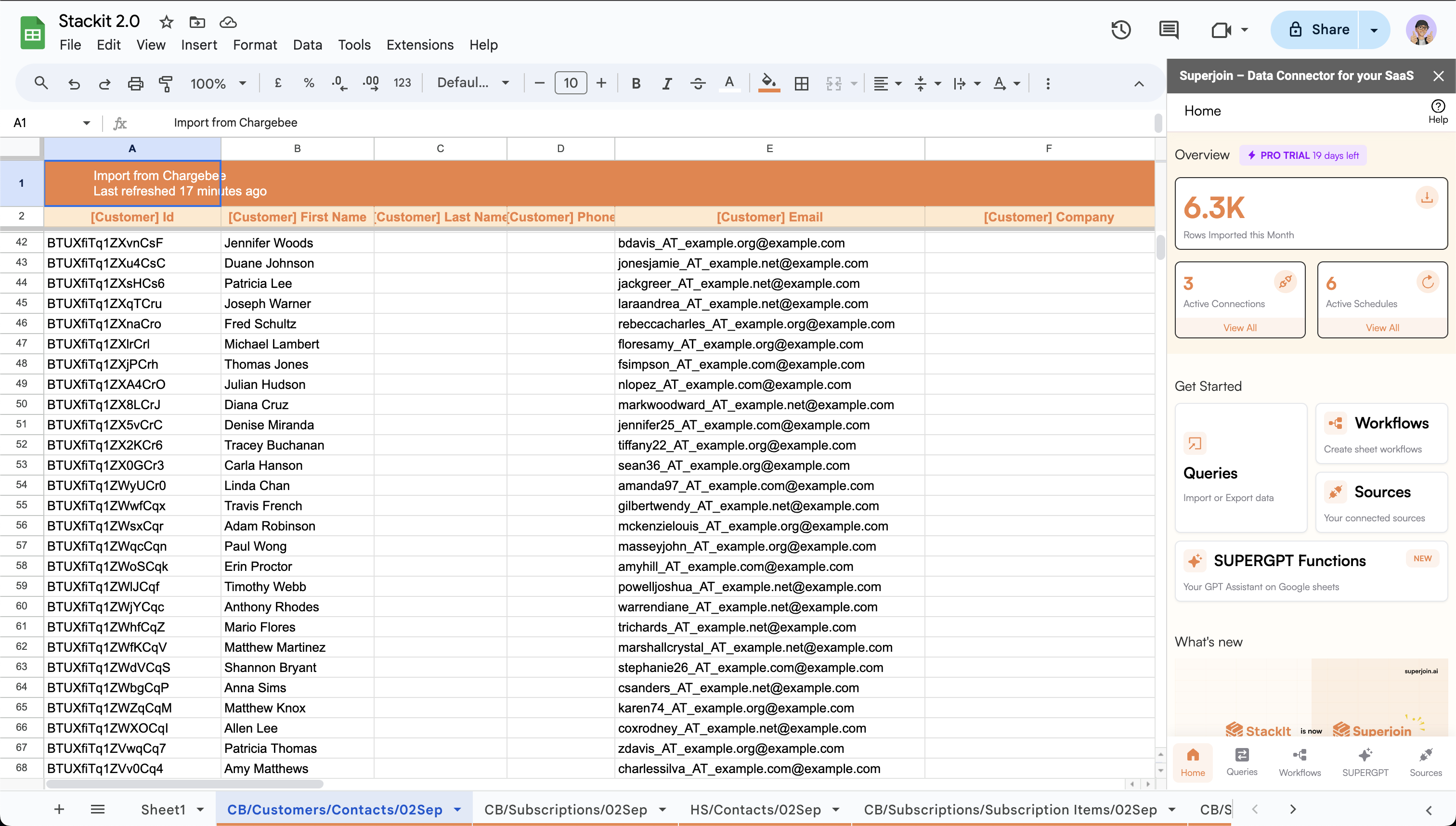
Go to the `Sources` page by clicking on the `Sources` button in the `Get Started` section or by clicking on the `Sources` tab on the bottom of the sidebar.
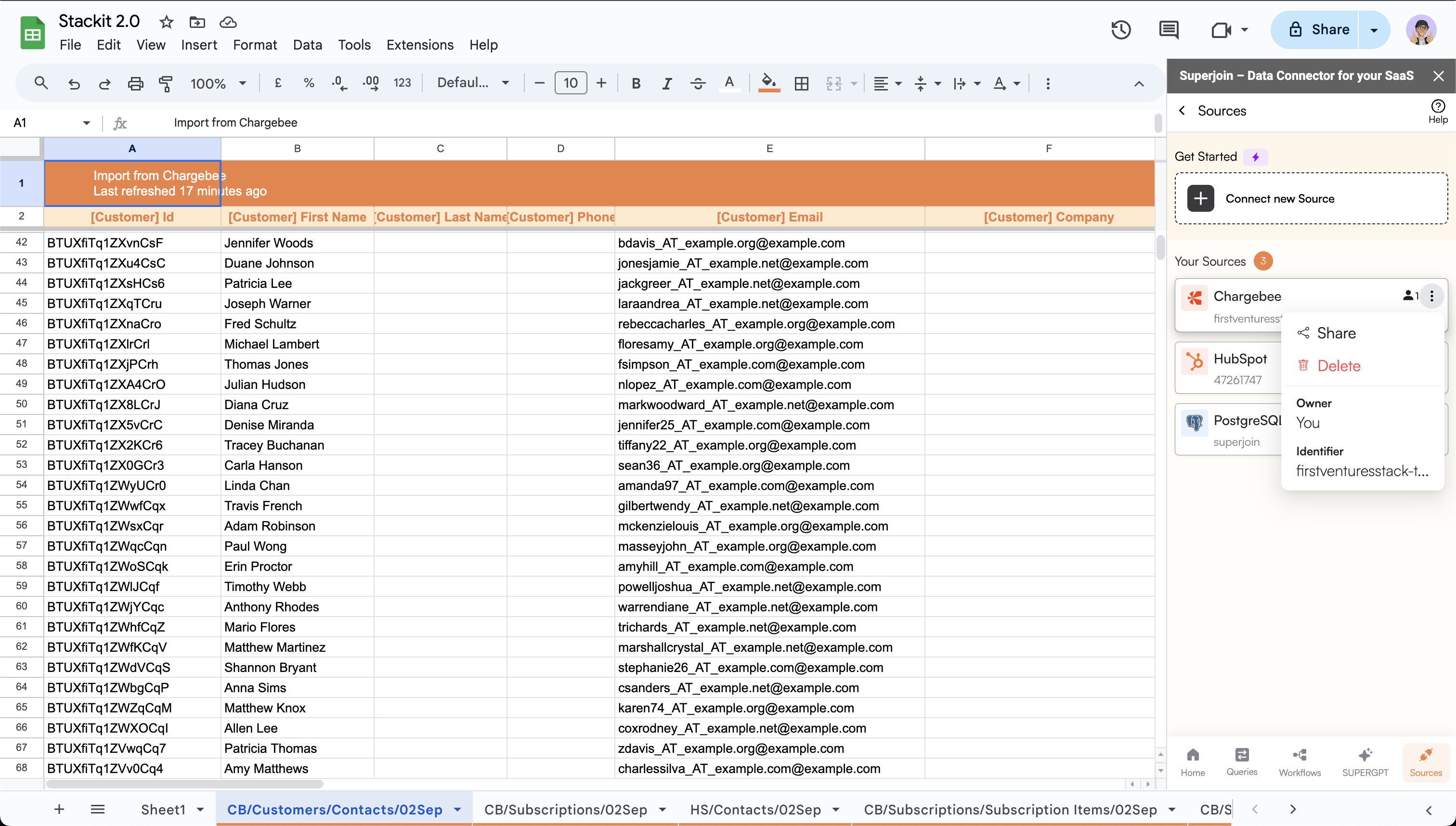
 * Click on the `3 dots` button on the top right corner of the desired source.
* Click on `Share`.
* Click on the `3 dots` button on the top right corner of the desired source.
* Click on `Share`.
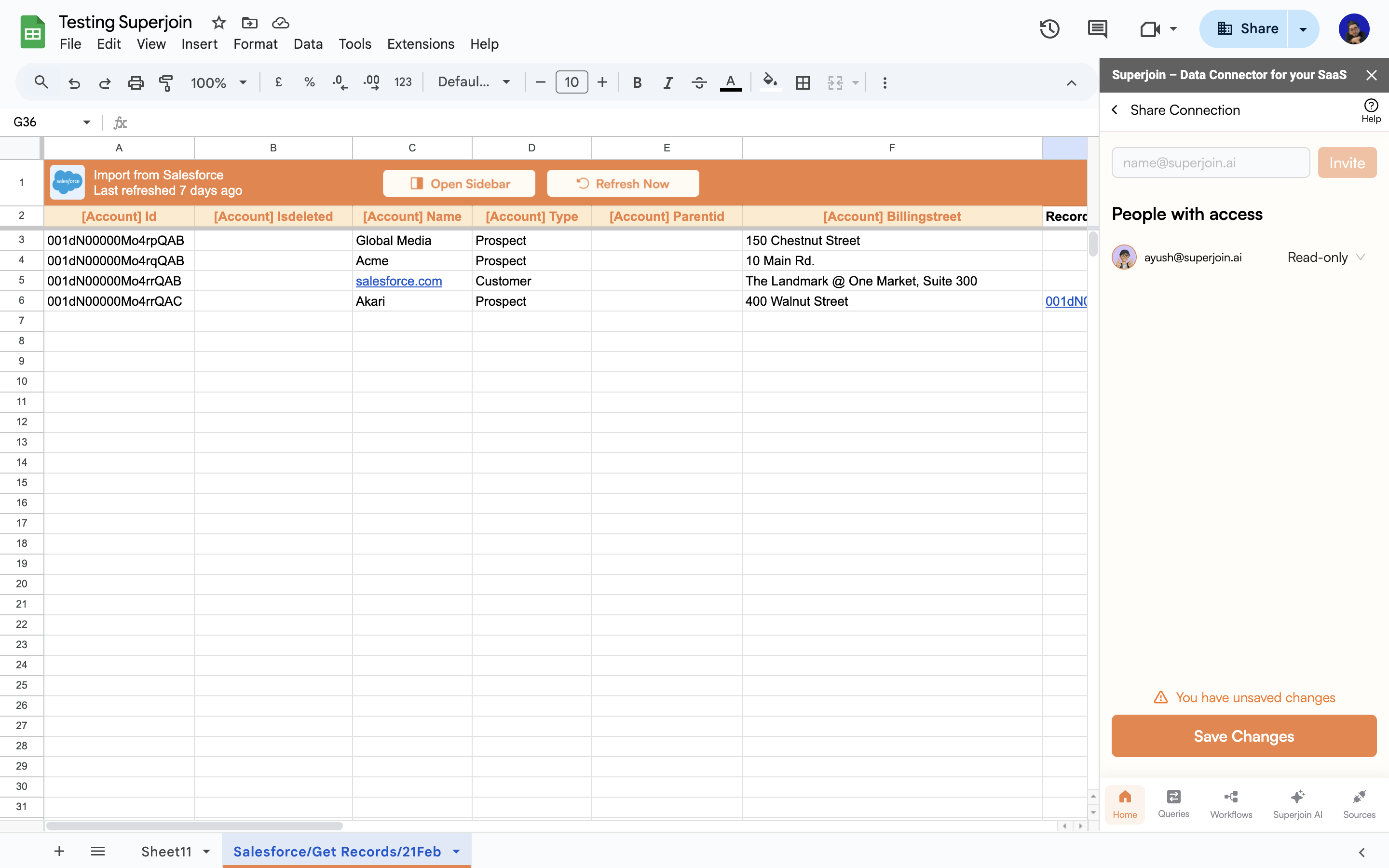
 * Enter the email addresses of the users you wish to share the source connection with.
* After entering the email addresses, click on the `Invite` button to add the users to the list.
* Enter the email addresses of the users you wish to share the source connection with.
* After entering the email addresses, click on the `Invite` button to add the users to the list.
 Select the access level for each user from the dropdown next to their email address:
* **Admin** — Full access to create, modify, and run imports/exports
* **Read-Write** — Can refresh imports and run exports (no editing)
* **Read-Only** — Can only refresh existing imports
You can click `Remove` to revoke access for any user.
Select the access level for each user from the dropdown next to their email address:
* **Admin** — Full access to create, modify, and run imports/exports
* **Read-Write** — Can refresh imports and run exports (no editing)
* **Read-Only** — Can only refresh existing imports
You can click `Remove` to revoke access for any user.
 Click `Save Changes` to finalize and share the connection with your teammates.
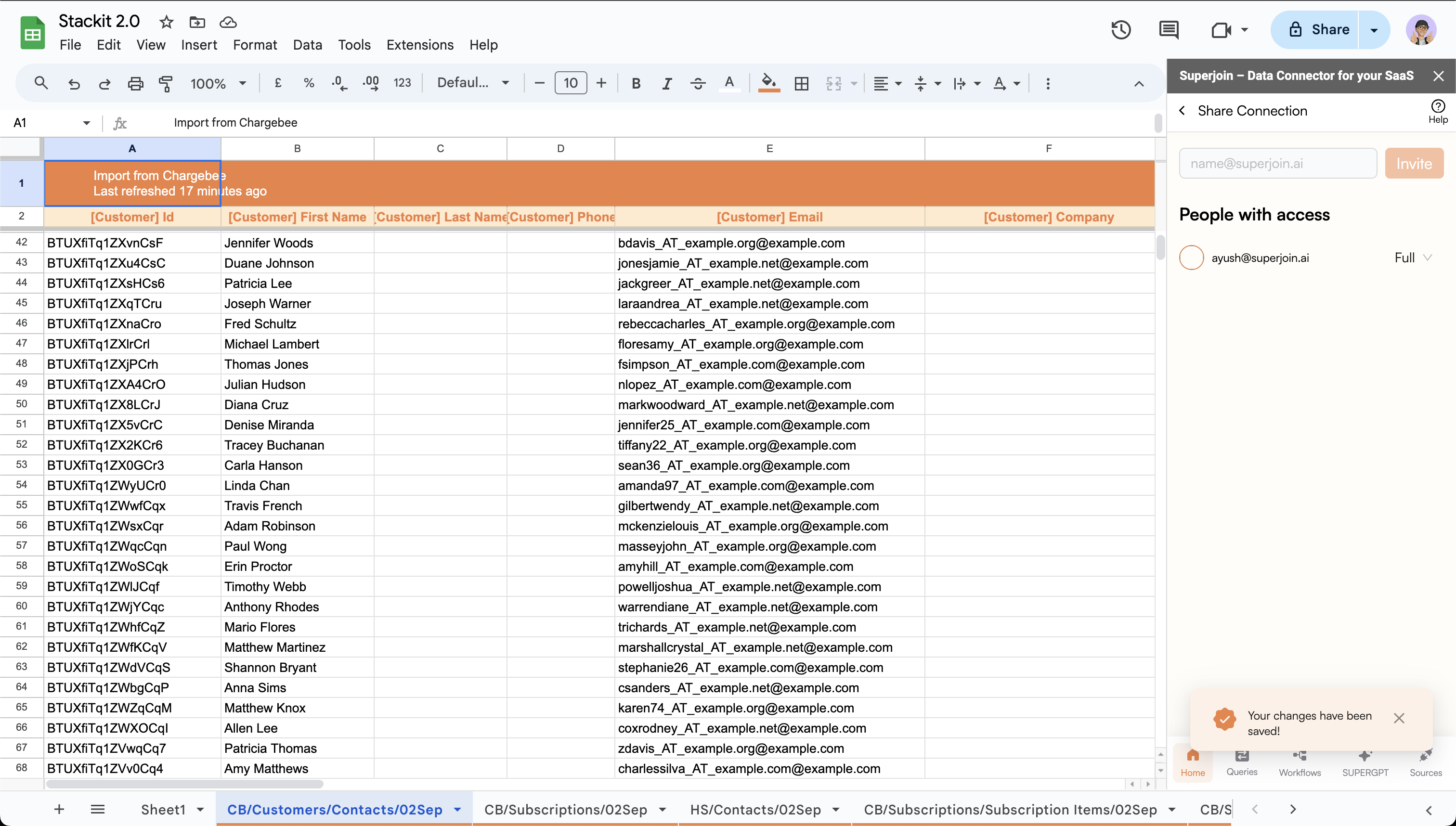 Ensure Superjoin is installed and working before following the rest of the guide.
Go to the `Sources` page by clicking on the `Sources` button in the `Get Started` section or by clicking on the `Sources` tab on the bottom of the sidebar.
Ensure Superjoin is installed and working before following the rest of the guide.
Go to the `Sources` page by clicking on the `Sources` button in the `Get Started` section or by clicking on the `Sources` tab on the bottom of the sidebar.
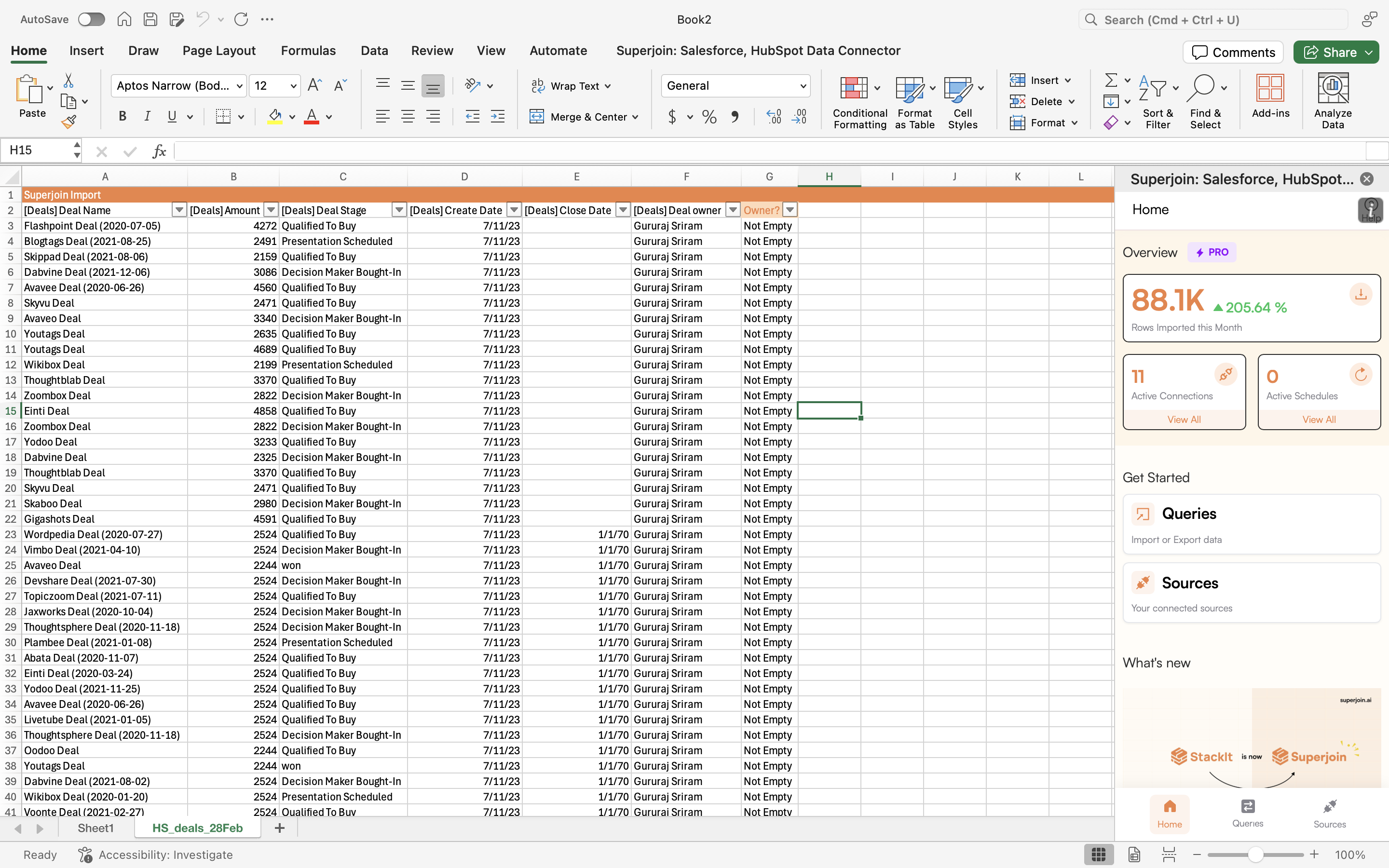 Click on the `Share` logo that's on the right side of your desired connection.
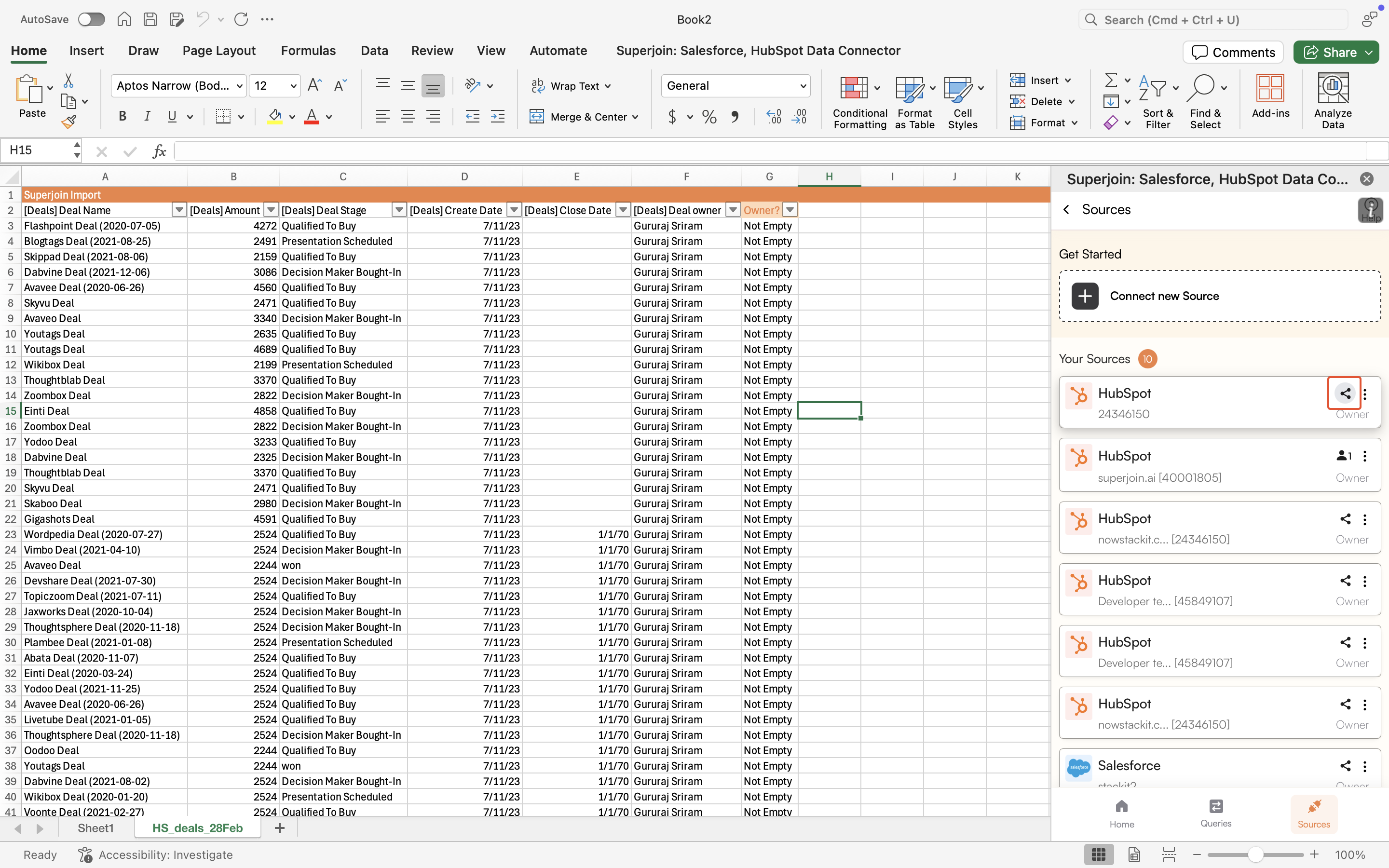 * Enter the email addresses of the users you wish to share the source connection with.
* After entering the email addresses, click on the `Invite` button to add the users to the list.
* Enter the email addresses of the users you wish to share the source connection with.
* After entering the email addresses, click on the `Invite` button to add the users to the list.
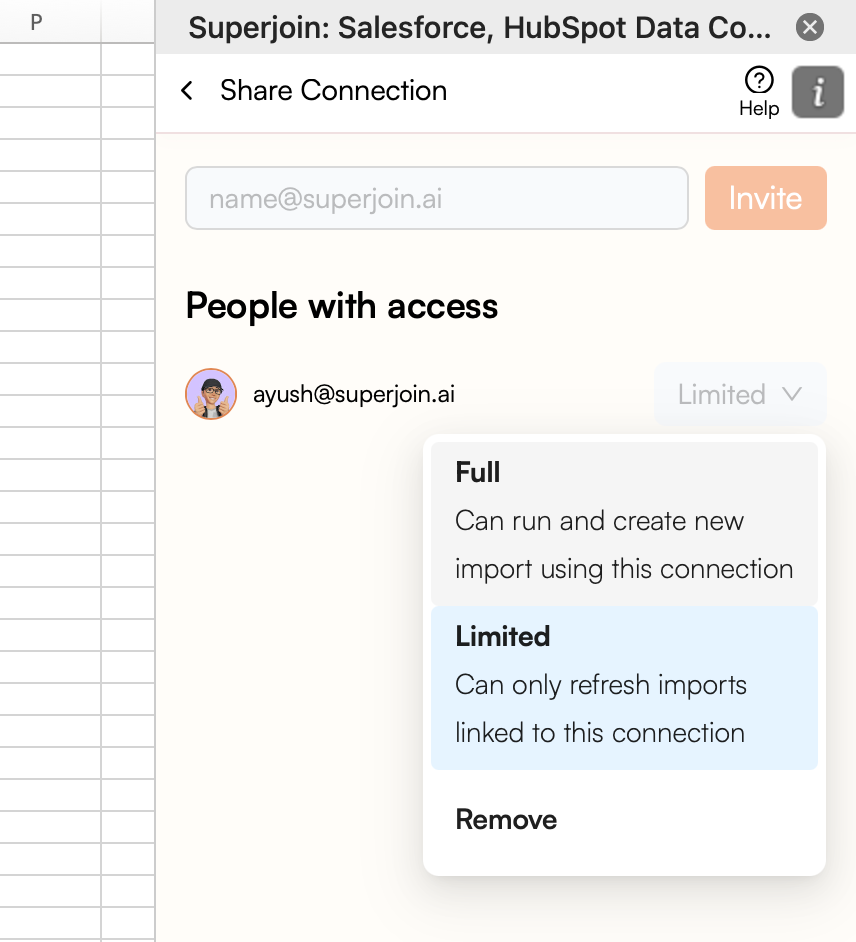
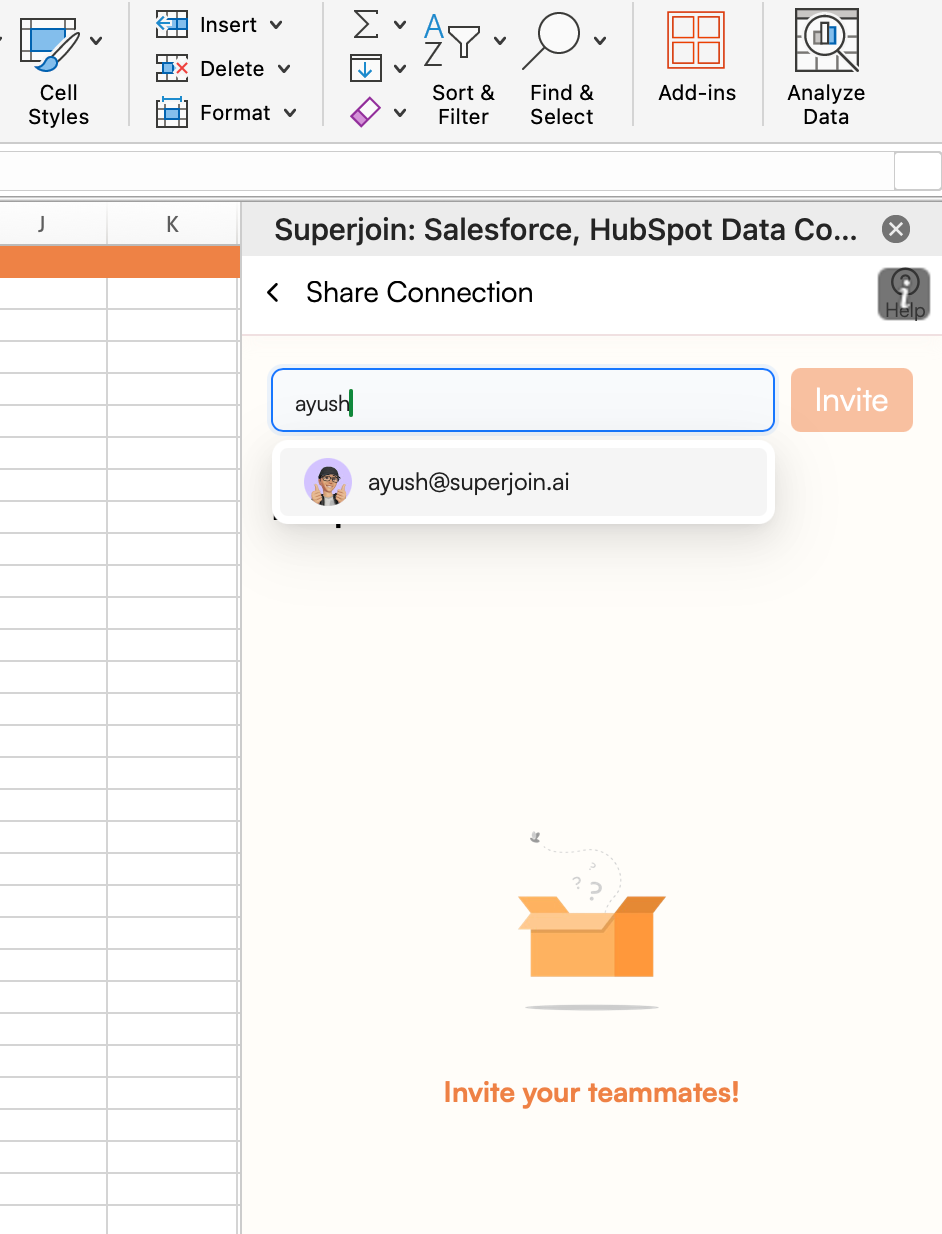 Select the access level for each user from the dropdown next to their email address:
* **Full** — Can create, modify, and run imports/exports
* **Limited** — Can only refresh existing imports
You can click `Remove` to revoke access for any user.
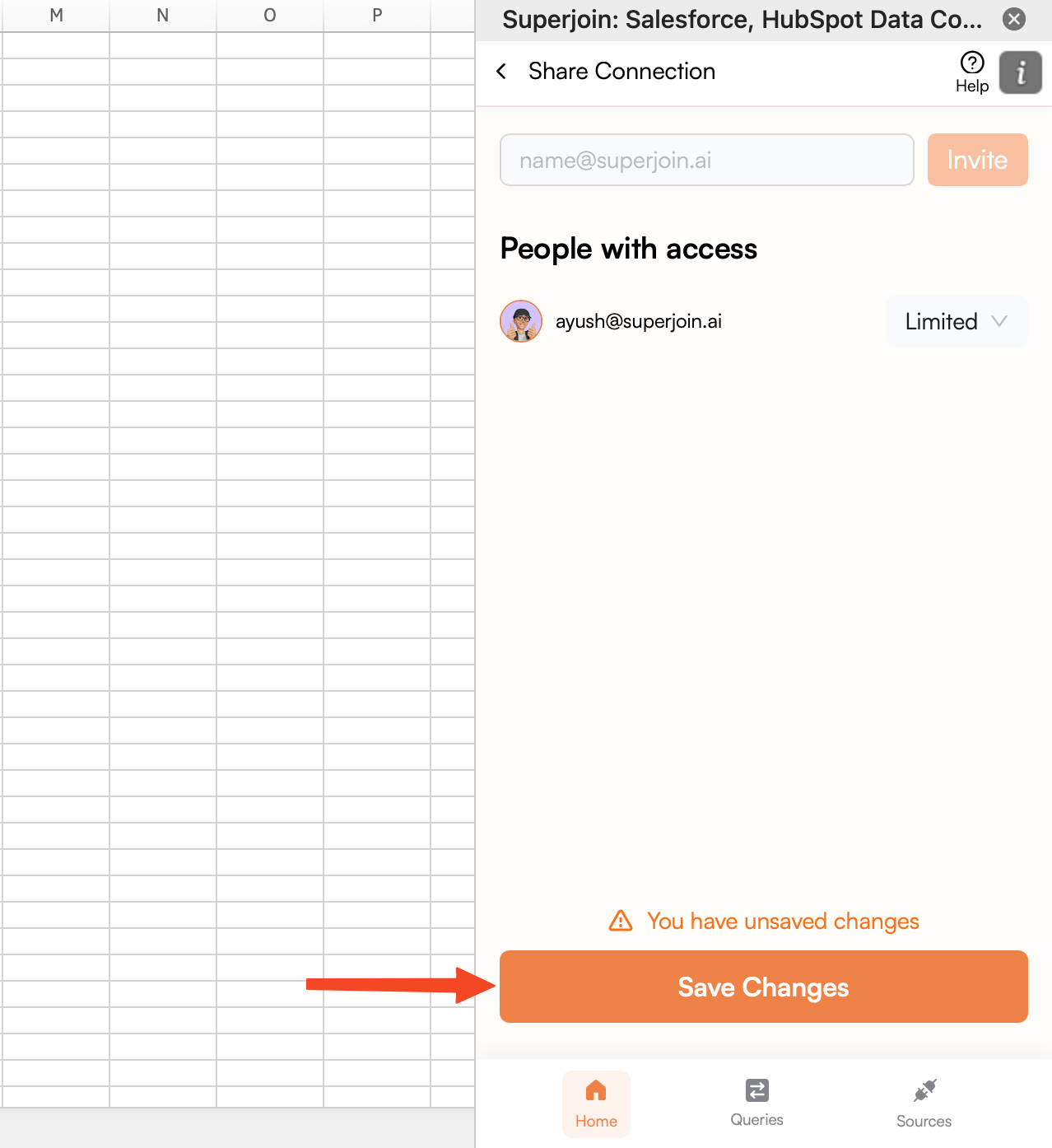
Click `Save Changes` to finalize and share the connection with your teammates.
Select the access level for each user from the dropdown next to their email address:
* **Full** — Can create, modify, and run imports/exports
* **Limited** — Can only refresh existing imports
You can click `Remove` to revoke access for any user.
Click `Save Changes` to finalize and share the connection with your teammates.
 ***
## Related Resources
Learn how to share saved custom SQL queries with teammates.
New to Superjoin? Get started in under a minute.
***
## Related Resources
Learn how to share saved custom SQL queries with teammates.
New to Superjoin? Get started in under a minute.