> ## Documentation Index
> Fetch the complete documentation index at: https://docs.superjoin.ai/llms.txt
> Use this file to discover all available pages before exploring further.
# How to acquire Freshsales Credentials?
> Proceed with the outlined steps to acquire Freshsales credentials.
## Step-by-step walkthrough: How to obtain Freshsales credentials
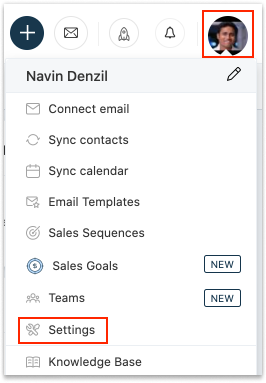
Click the Profile icon and select Settings. The Personal Settings page appears.
 Click the `API SETTINGS` tab.
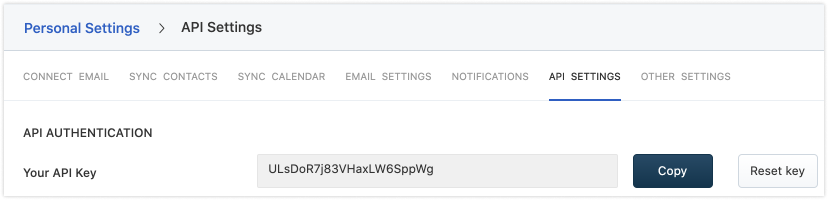
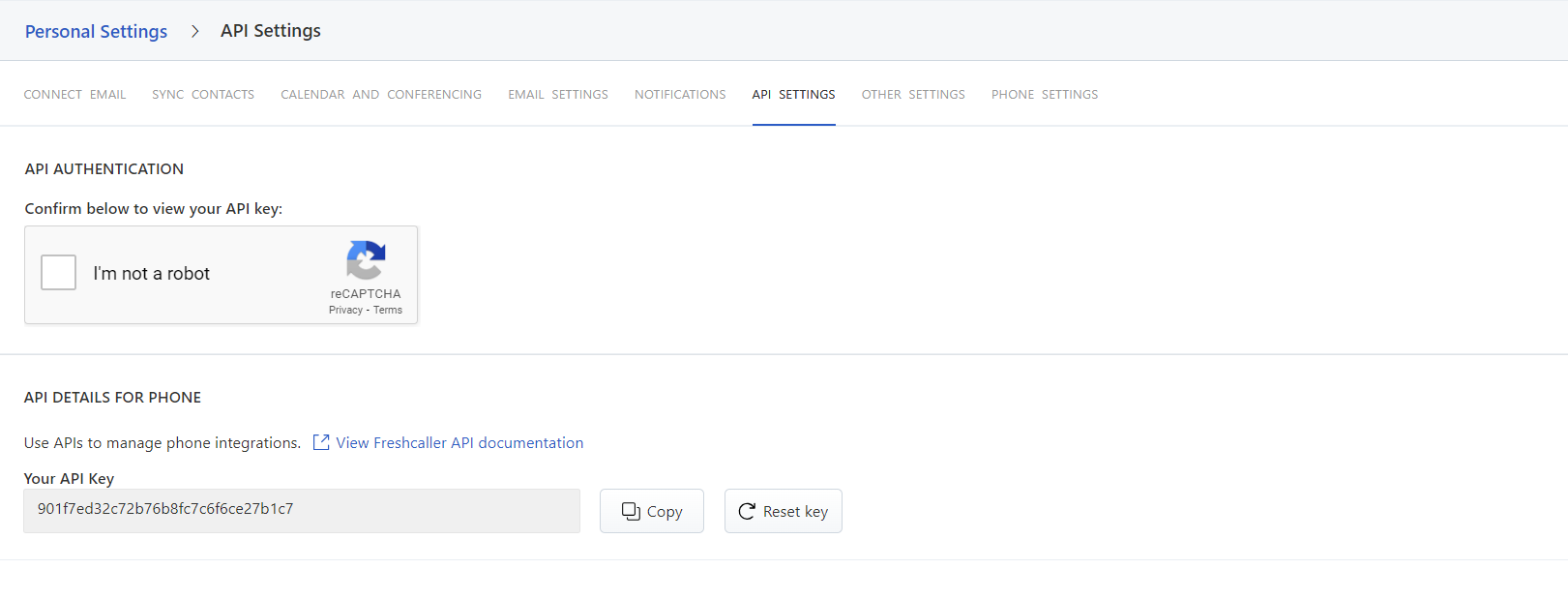 You can find the API key provided to you in the field Your API key. Click Copy to copy the key to your clipboard.
 For more details, use Freshsales Documentation:
[https://crmsupport.freshworks.com/en/support/solutions/articles/50000002503-how-to-find-my-api-key-](https://crmsupport.freshworks.com/en/support/solutions/articles/50000002503-how-to-find-my-api-key-)
## Setting up Freshsales
Head over to the Freshsales overview page to get a step by step guide to connect.
For more details, use Freshsales Documentation:
[https://crmsupport.freshworks.com/en/support/solutions/articles/50000002503-how-to-find-my-api-key-](https://crmsupport.freshworks.com/en/support/solutions/articles/50000002503-how-to-find-my-api-key-)
## Setting up Freshsales
Head over to the Freshsales overview page to get a step by step guide to connect.