> ## Documentation Index
> Fetch the complete documentation index at: https://docs.superjoin.ai/llms.txt
> Use this file to discover all available pages before exploring further.
# How to acquire Jira API token?
> Proceed with the outlined steps to acquire Jira API token.
## Step-by-step walkthrough: How to obtain JIRA API token
Log in to [https://id.atlassian.com/manage-profile/security/api-tokens](https://id.atlassian.com/manage-profile/security/api-tokens).
Click Create API token.
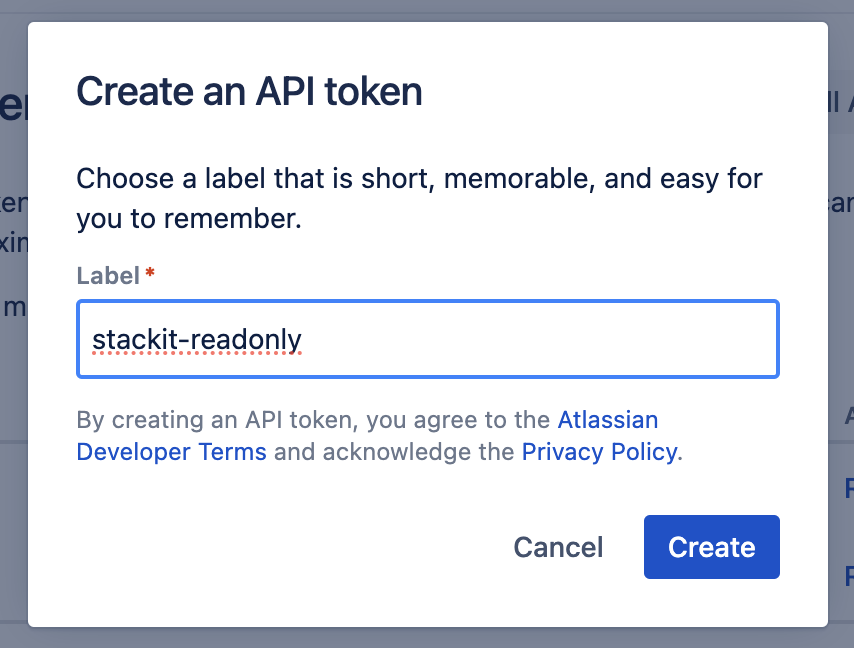
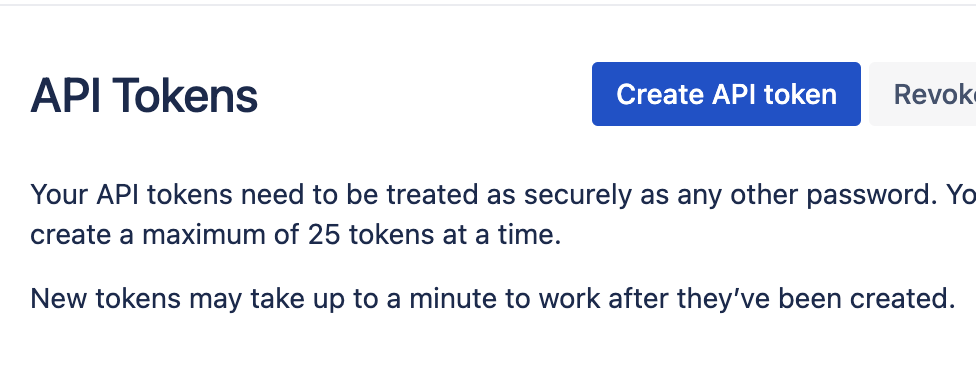 From the dialog that appears, enter a memorable and concise Label for your token and click Create.
 Click Copy to clipboard, then paste the token in the above section.
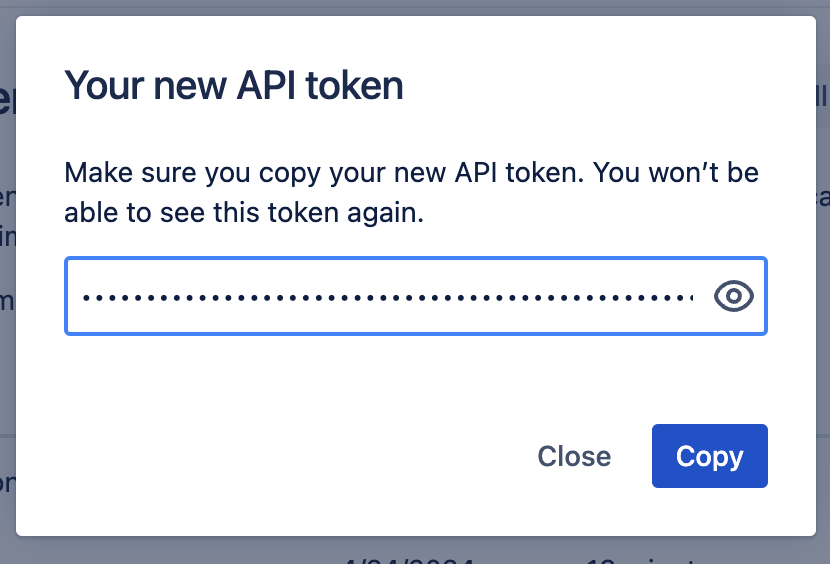 **Note:** Please note that it isn't possible to view the token after closing the creation dialog.
For more details, use JIRA Documentation: [https://support.atlassian.com/atlassian-account/docs/manage-api-tokens-for-your-atlassian-account/](https://support.atlassian.com/atlassian-account/docs/manage-api-tokens-for-your-atlassian-account/)
## Setting up Jira
Head over to the Jira overview page to get a step by step guide to connect.
**Note:** Please note that it isn't possible to view the token after closing the creation dialog.
For more details, use JIRA Documentation: [https://support.atlassian.com/atlassian-account/docs/manage-api-tokens-for-your-atlassian-account/](https://support.atlassian.com/atlassian-account/docs/manage-api-tokens-for-your-atlassian-account/)
## Setting up Jira
Head over to the Jira overview page to get a step by step guide to connect.