> ## Documentation Index
> Fetch the complete documentation index at: https://docs.superjoin.ai/llms.txt
> Use this file to discover all available pages before exploring further.

# Connect Linkedin account to Google Sheets

> Easily link your LinkedIn account to Google Sheets with Superjoin for seamless data integration and automatic updates.

## Step-by-step walkthrough: How to connect Linkedin Ads to Google Sheets

<iframe width="560" height="415" src="https://www.youtube.com/embed/McBmK091fb0?si=5SWs29ujefoAA_mT" title="Pull data from Linkedin Ads to Google Sheets" frameBorder="0" allow="accelerometer; autoplay; clipboard-write; encrypted-media; gyroscope; picture-in-picture; web-share" allowFullScreen style={{ width: "100%", borderRadius: "0.5rem" }} />

<Steps titleSize="h2">
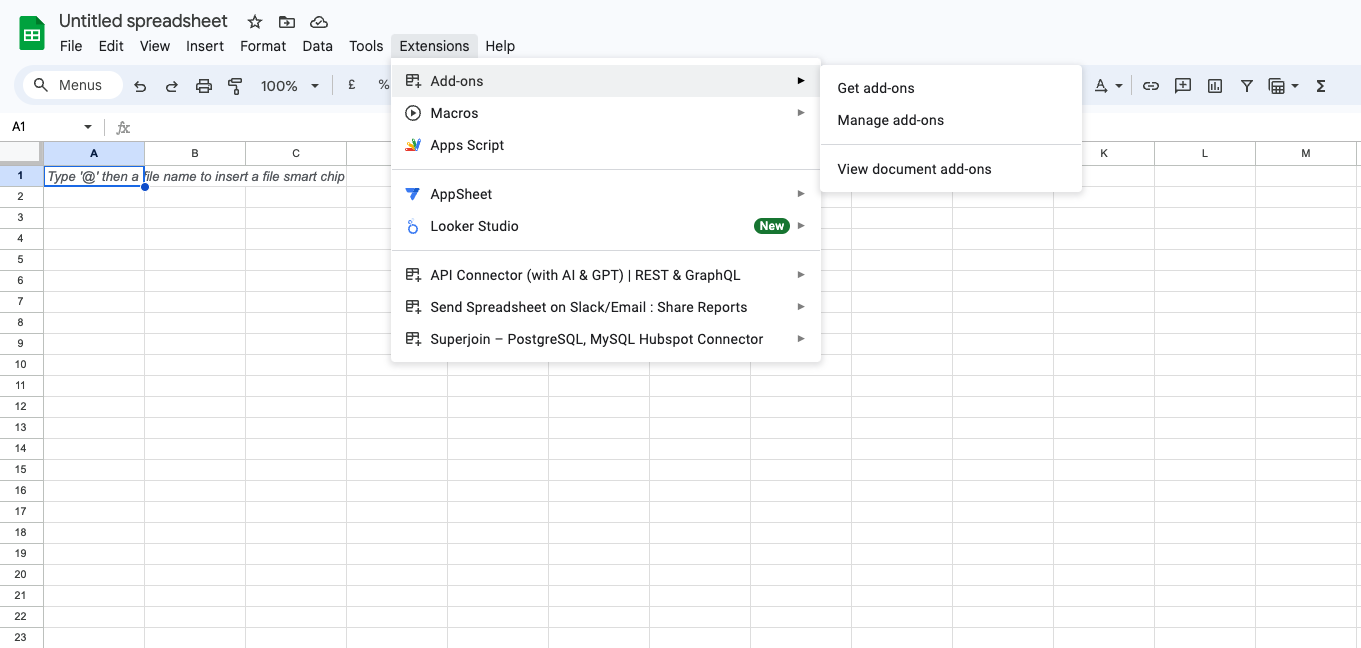
  <Step title="Get Add-ons">
    Select `Add-ons` and choose `Get Add-ons`. This action will redirect you to the Google Workspace Marketplace.

    <Frame>
      <img src="https://mintcdn.com/superjoin/YLExbgl86h2tZ50q/images/getaddons.png?fit=max&auto=format&n=YLExbgl86h2tZ50q&q=85&s=ba23d07d1410cd3afb25454c5581cc85" width="1361" height="648" data-path="images/getaddons.png" />
    </Frame>
  </Step>

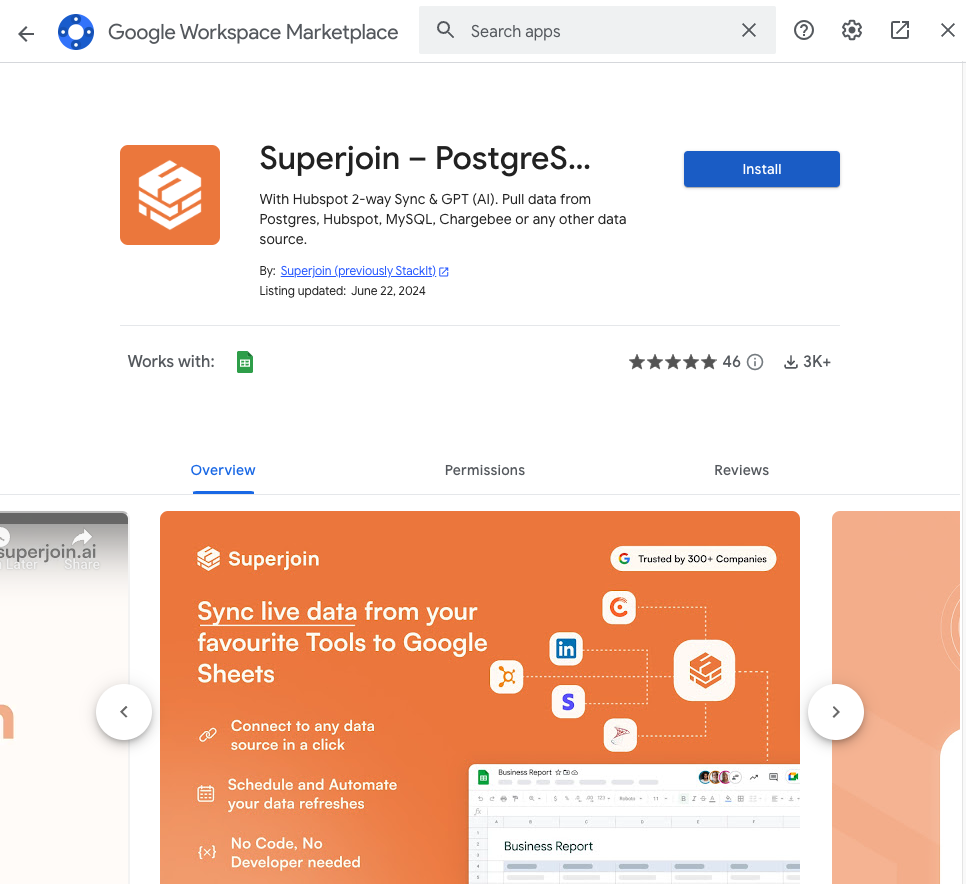
  <Step title="Search Superjoin">In the Google Workspace Marketplace pop-up window, search for "Superjoin".</Step>

  <Step title="Click on Install">
    Click on `Extensions` from the Google Sheets menu.
    <Note>**Note:** For the best experience, install Superjoin where there's only a single account is logged in the Chrome profile.</Note>

    <Frame>
      <img src="https://mintcdn.com/superjoin/gjRFjFkthepgDSdX/images/marketplace.png?fit=max&auto=format&n=gjRFjFkthepgDSdX&q=85&s=8b32a5ed819c10448985a7e3df6f7731" width="966" height="884" data-path="images/marketplace.png" />
    </Frame>
  </Step>

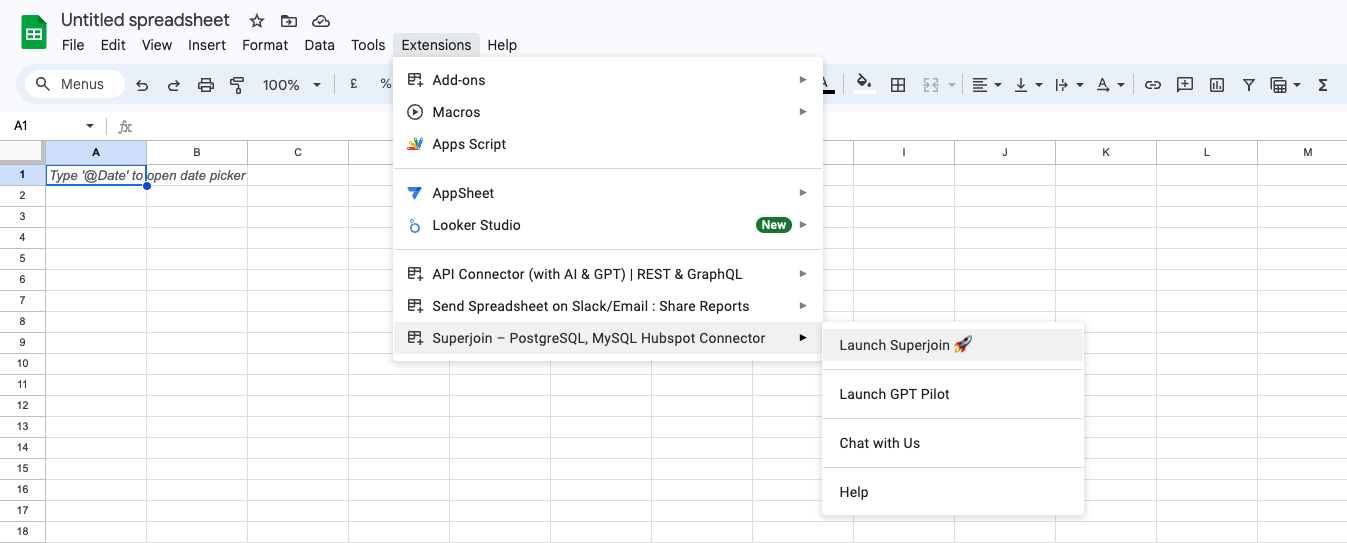
  <Step title="Launch Superjoin">
    Once installed, navigate back to the `Extensions` menu tab in Google Sheets. Launch Superjoin from here. You should now see Superjoin running as a side panel on the right side of your screen.

    <Frame>
      <img src="https://mintcdn.com/superjoin/gjRFjFkthepgDSdX/images/launchstackit.png?fit=max&auto=format&n=gjRFjFkthepgDSdX&q=85&s=14e2ecb541402cb914b79951a8faff16" width="1347" height="543" data-path="images/launchstackit.png" />
    </Frame>
  </Step>

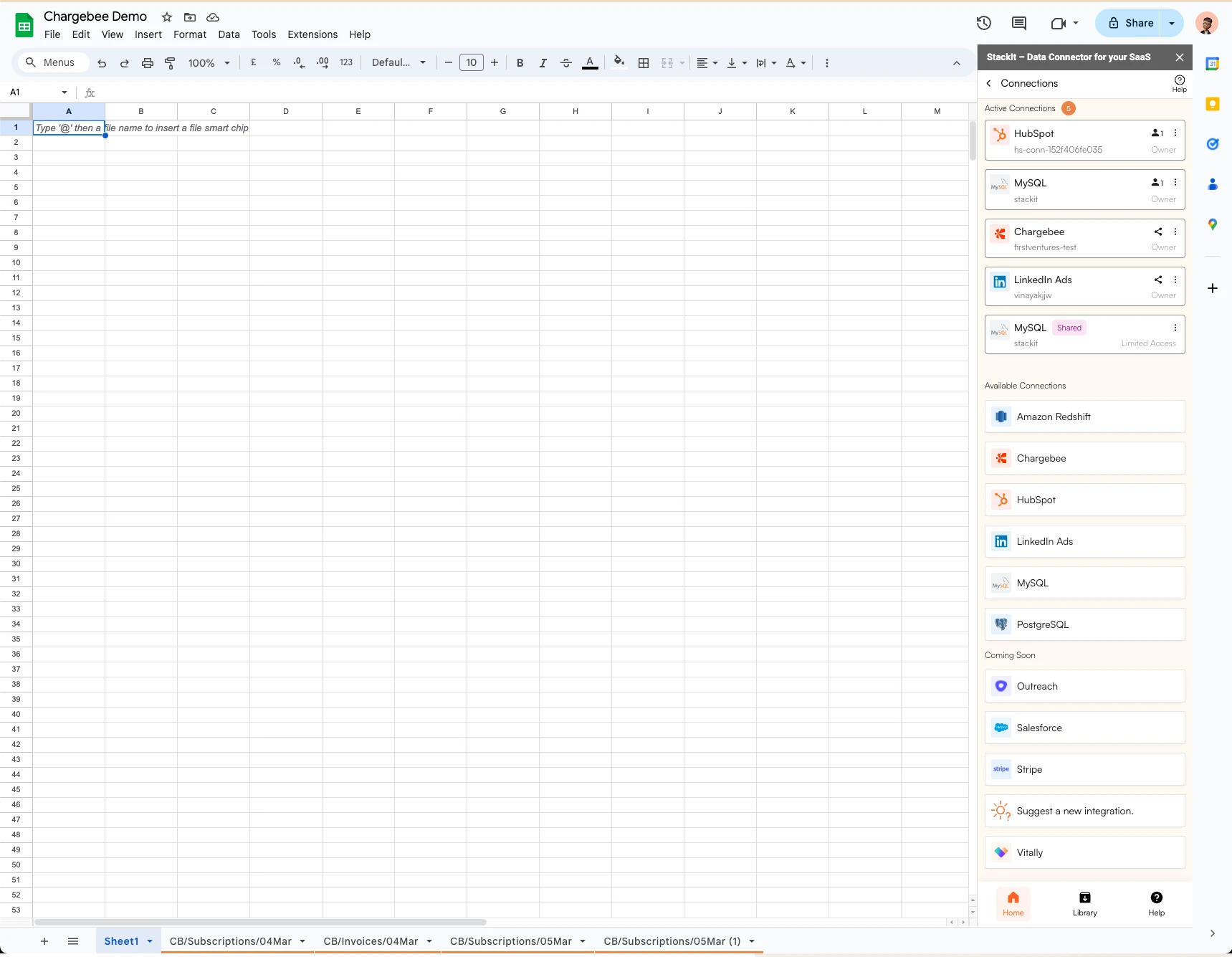
  <Step title="Pick Linkedin Ads">
    Select Linkedin Ads from the list of available data sources.

    <Frame>
      <img src="https://mintcdn.com/superjoin/tR1QsuikxI8kxuAE/images/cb-step4.webp?fit=max&auto=format&n=tR1QsuikxI8kxuAE&q=85&s=011751cef75bebdf4a049e40c1c5a60a" width="1719" height="1335" data-path="images/cb-step4.webp" />
    </Frame>
  </Step>

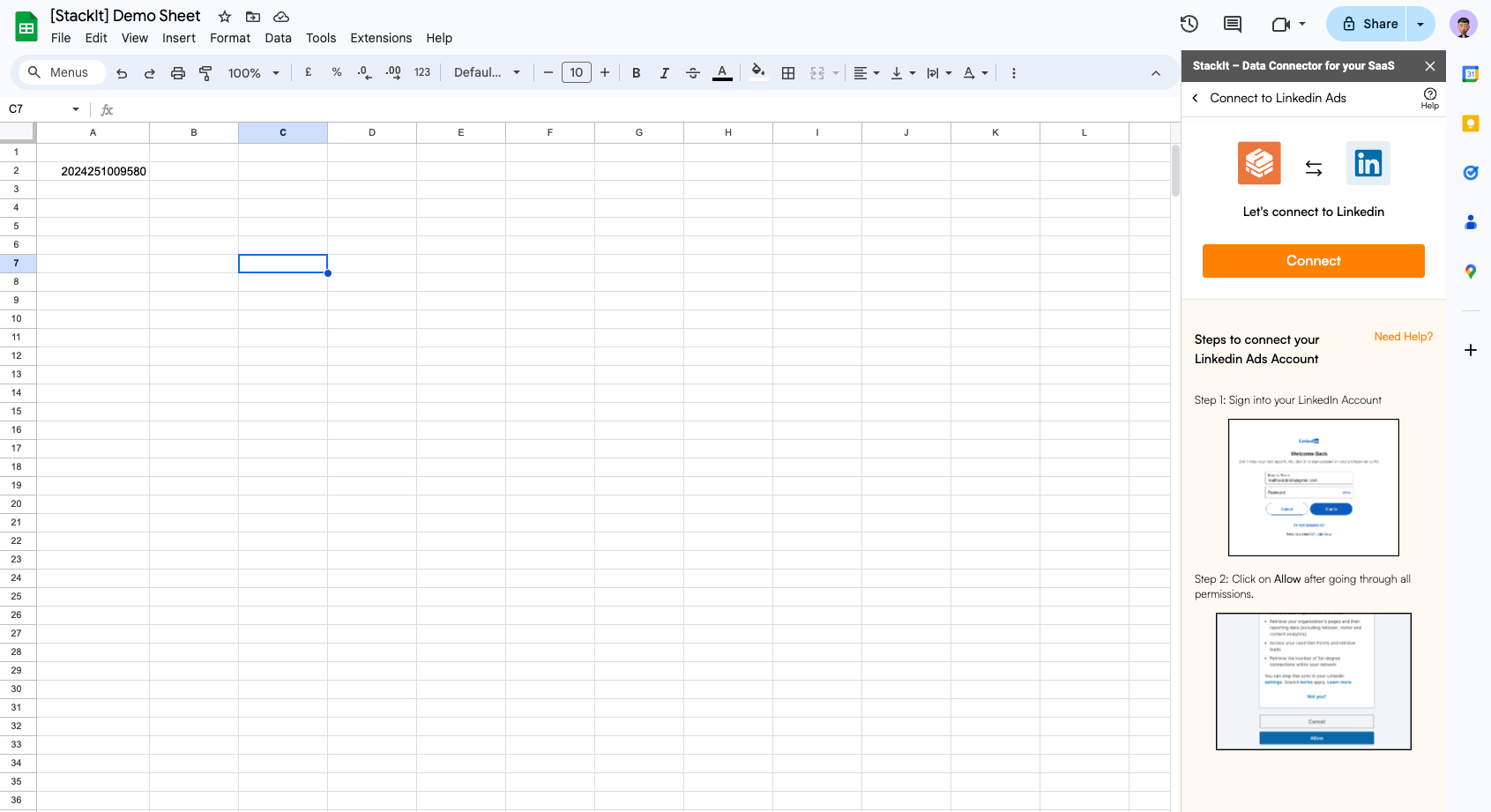
  <Step title="Connect your account">
    Connect your Linkedin Ads account. Go through all the directions and prompts to connect your Linkedin Ads account to Google Sheets.

    <Frame>
      <img src="https://mintcdn.com/superjoin/gjRFjFkthepgDSdX/images/linkedin/lads-step5.png?fit=max&auto=format&n=gjRFjFkthepgDSdX&q=85&s=34999684c95701f331bff286dfc0d712" width="1691" height="921" data-path="images/linkedin/lads-step5.png" />
    </Frame>
  </Step>

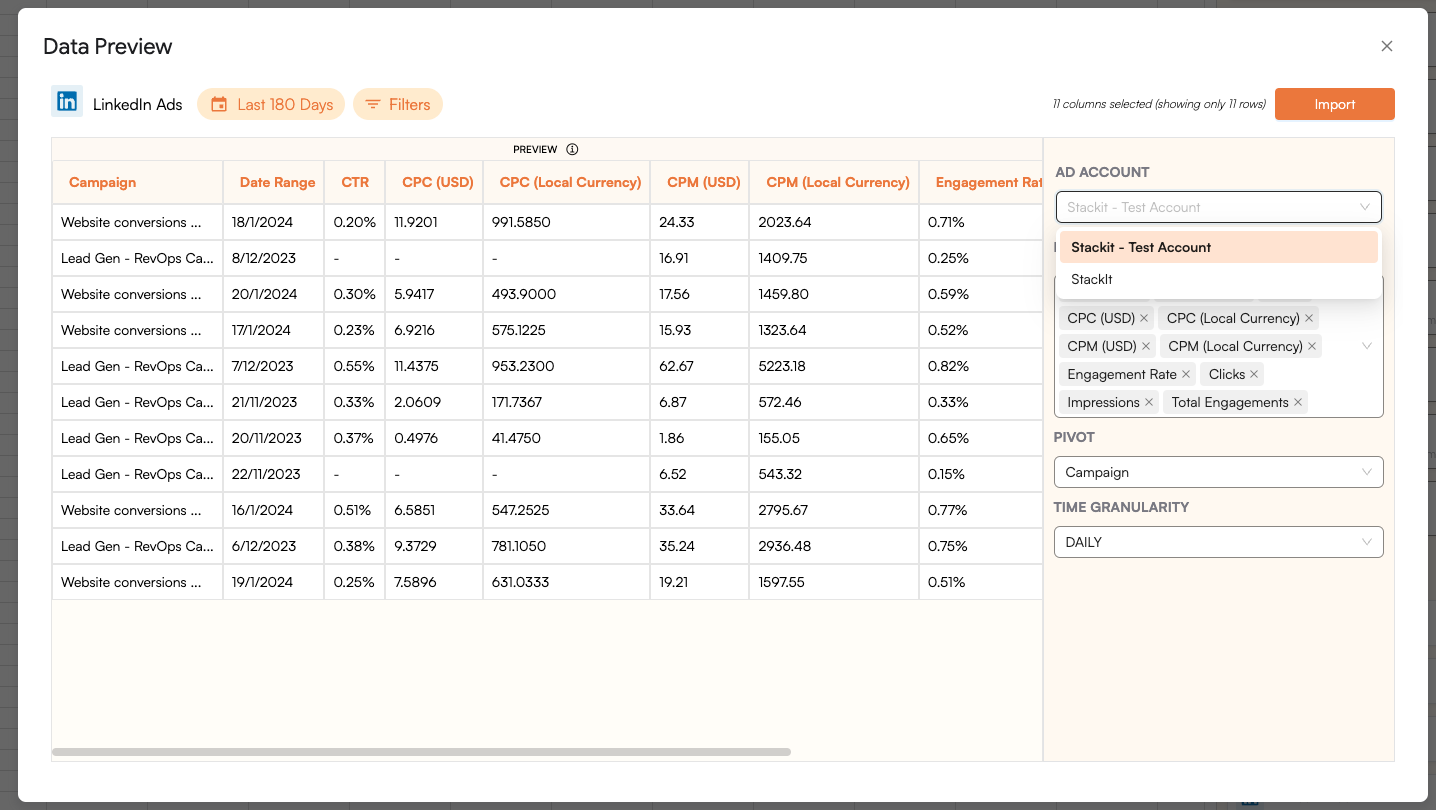
  <Step title="Select your Ad Account, Metrics & Pivots">
    Now select the Ad Account along with the metrics and pivots that you wish to apply to bring into Google Sheets.

    <Frame>
      <img src="https://mintcdn.com/superjoin/gjRFjFkthepgDSdX/images/linkedin/lads-step7.png?fit=max&auto=format&n=gjRFjFkthepgDSdX&q=85&s=4e02d281ed5082c2b9685dc427894a01" width="1436" height="810" data-path="images/linkedin/lads-step7.png" />
    </Frame>
  </Step>

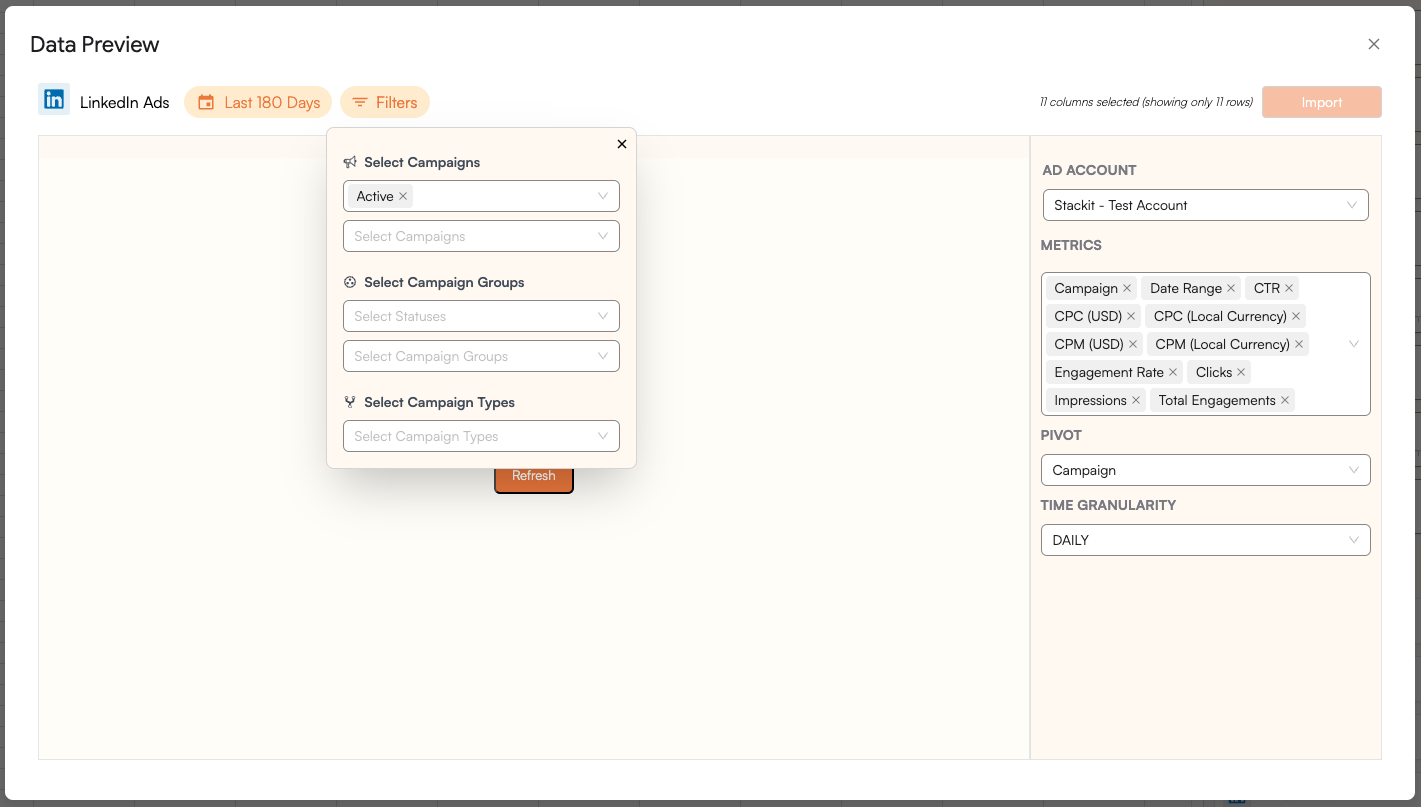
  <Step title="Select filters">
    Select the filters that you want to apply in order to filter down the data that you want to work on.

    <Frame>
      <img src="https://mintcdn.com/superjoin/gjRFjFkthepgDSdX/images/linkedin/lads-step8.png?fit=max&auto=format&n=gjRFjFkthepgDSdX&q=85&s=14dc882bd72b0bd2c6d63b78fb6ab6ac" width="1421" height="807" data-path="images/linkedin/lads-step8.png" />
    </Frame>
  </Step>

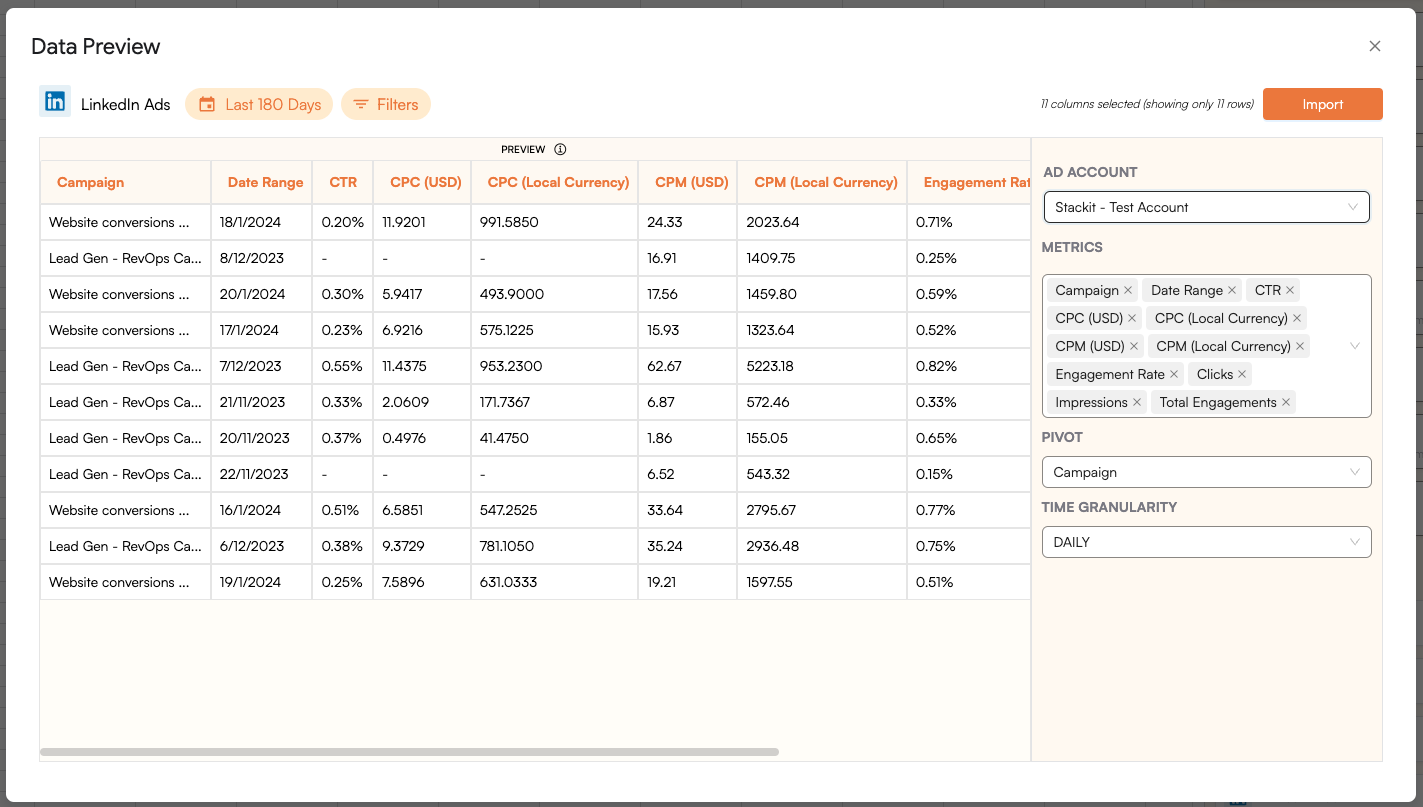
  <Step title="Click Import">
    Now simply click on the "import" button to bring this selected data into your Google Sheets.

    <Frame>
      <img src="https://mintcdn.com/superjoin/gjRFjFkthepgDSdX/images/linkedin/lads-step6.png?fit=max&auto=format&n=gjRFjFkthepgDSdX&q=85&s=4b28405906d41a5efec795b3b8d3f2ab" width="1423" height="807" data-path="images/linkedin/lads-step6.png" />
    </Frame>
  </Step>

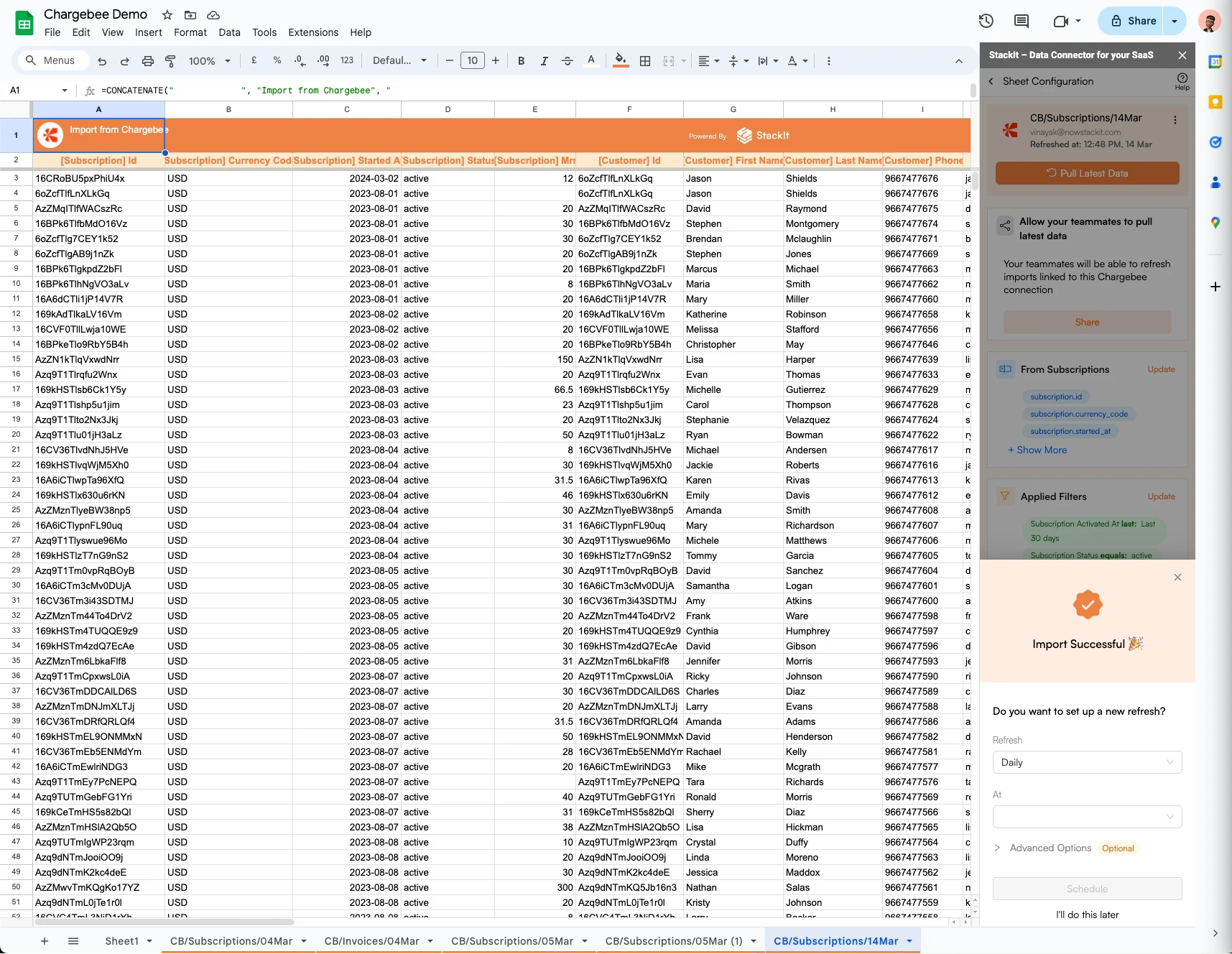
  <Step title="Data pulled! Setup a auto-refresh schedule.">
    Superjoin lets you refresh your imported data instantly with one click or set it to auto-refresh on a pre-set schedule. This way, you won’t need to manually update your Linkedin Ads data in Google Sheets to reflect changes from the source.

    <Frame>
      <img src="https://mintcdn.com/superjoin/tR1QsuikxI8kxuAE/images/chargebee/cb-step8.webp?fit=max&auto=format&n=tR1QsuikxI8kxuAE&q=85&s=caec06891dad2e5f06cc8405b080a503" width="1715" height="1328" data-path="images/chargebee/cb-step8.webp" />
    </Frame>
  </Step>
</Steps>

### Why use Superjoin’s Google Sheets-Linkedin Integration?

<CardGroup cols={2}>
  <Card title="Quick and Easy Integration" icon="plug" iconType="duotone">
    We've meticulously organized the data points to ensure easy accessibility in a format you're already familiar with.
  </Card>

  <Card title="Preview your imports visually" icon="magnifying-glass" iconType="duotone">
    Get a sneak peek of your data. Select columns, apply filters & limits as per your need before importing.
  </Card>

  <Card title="Automatic Refreshes" icon="rotate" iconType="duotone">
    Enjoy one-click refreshes or schedule regular updates to ensure your sheets are always up to date.
  </Card>

  <Card title="Power of Google Sheets" icon="table-cells" iconType="duotone">
    Benefit from Google Sheets' collaborative data analysis & other powerful capabilities.
  </Card>
</CardGroup>