> ## Documentation Index
> Fetch the complete documentation index at: https://docs.superjoin.ai/llms.txt
> Use this file to discover all available pages before exploring further.
# How to acquire Shopify API token?
> Proceed with the outlined steps to acquire Shopify API token.
## Step-by-step walkthrough: How to get Shopify API token
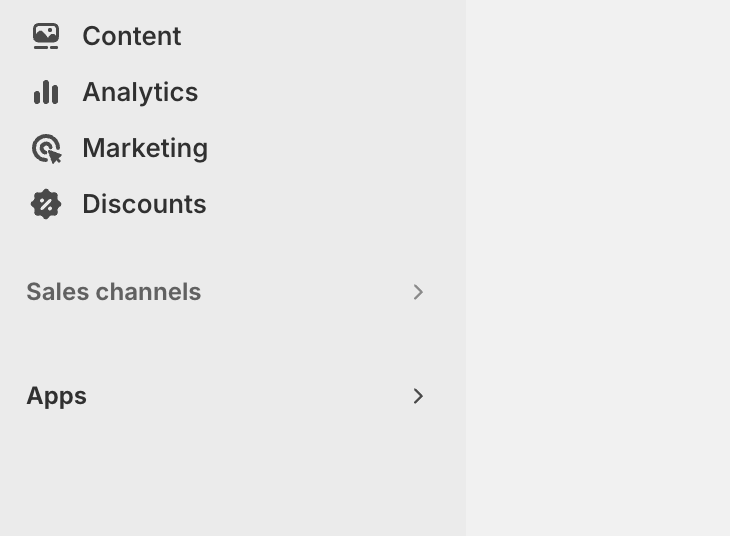
Log in to your Shopify account. In the dashboard, click on apps.
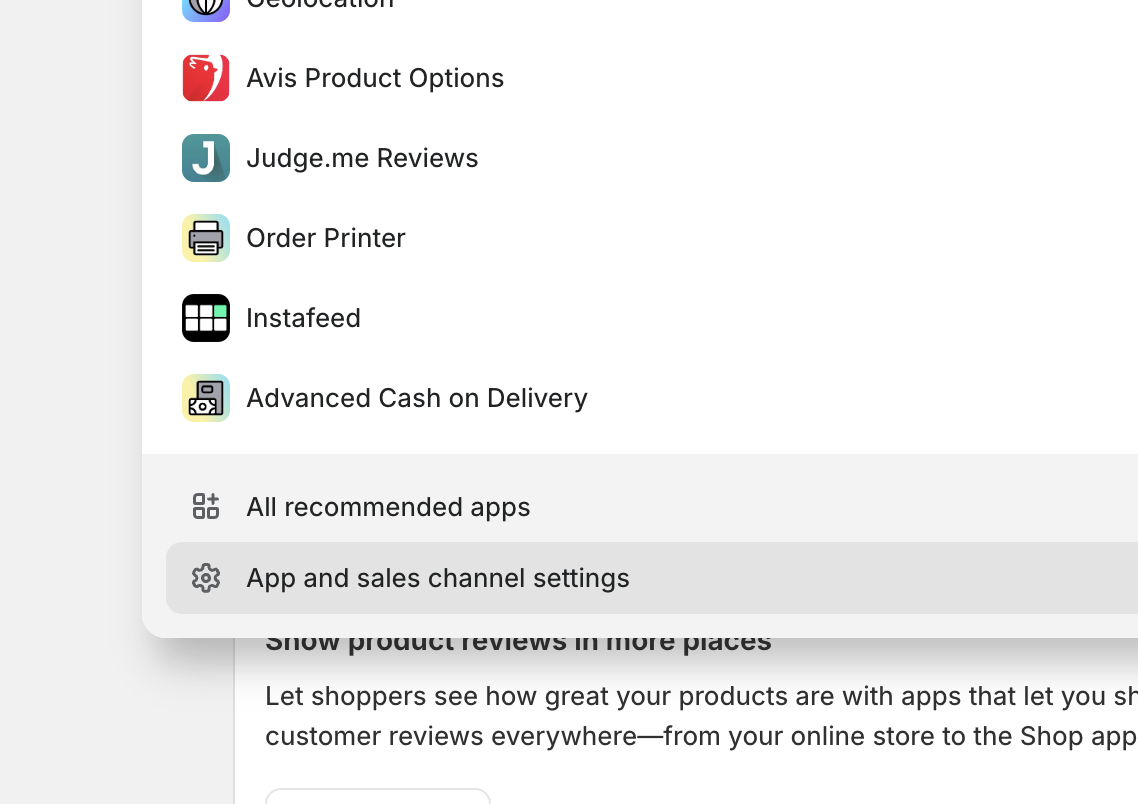
 In the dashboard, navigate to Settings > App and sales channels.
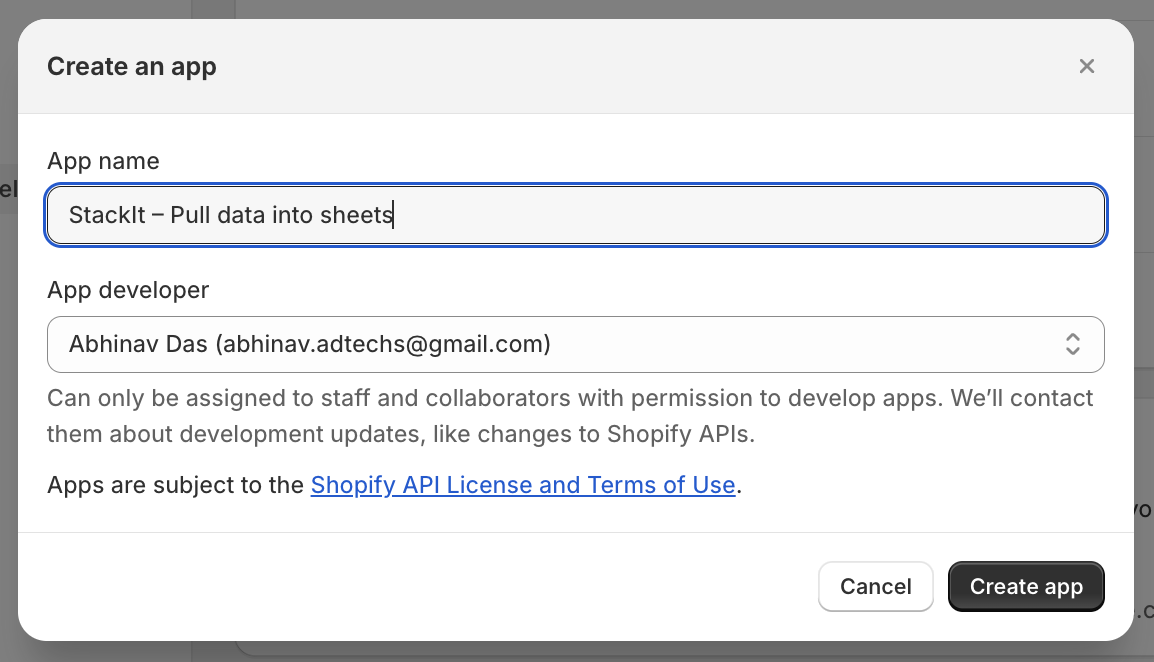
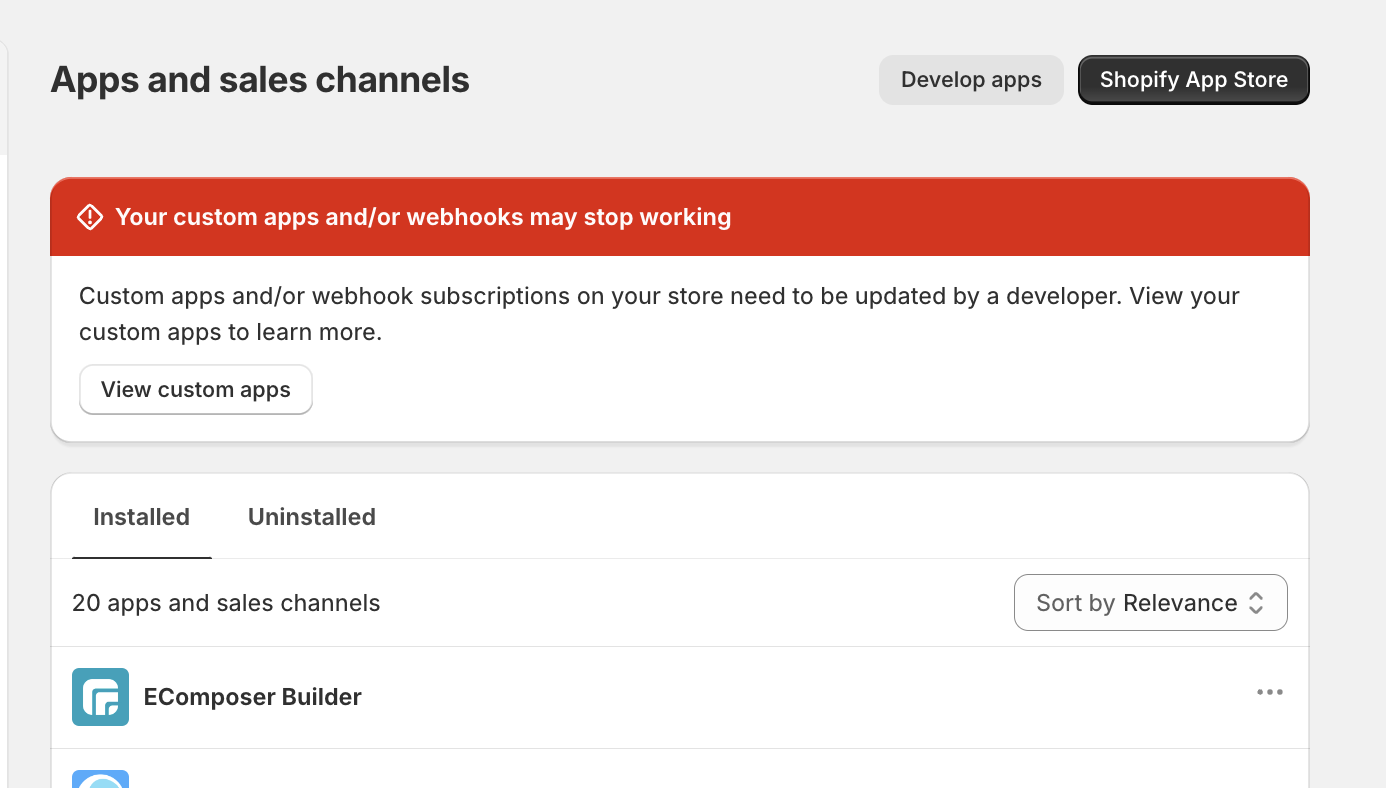 Select a name for your new app.
 Grant access to the scopes mentioned in the next step. Only select scopes prefixed with read\_, not write\_ (e.g. read\_locations,read\_price\_rules, etc ).
Add the following scopes to your custom app to ensure Superjoin can sync all available data: `read_analytics`, `read_assigned_fulfillment_orders`, `read_content`, `read_customers`, `read_discounts`, `read_draft_orders`, `read_fulfillments`, `read_gdpr_data_request`, `read_gift_cards`, `read_inventory`, `read_legal_policies`, `read_locations`, `read_locales`, `read_marketing_events`, `read_merchant_managed_fulfillment_orders`, `read_online_store_pages`, `read_order_edits`, `read_orders`, `read_price_rules`, `read_product_listings`, `read_products`, `read_publications`, `read_reports`, `read_resource_feedbacks`, `read_script_tags`, `read_shipping`, `read_shopify_payments_accounts`, `read_shopify_payments_bank_accounts`, `read_shopify_payments_disputes`, `read_shopify_payments_payouts`, `read_themes`, `read_third_party_fulfillment_orders`, `read_translations`
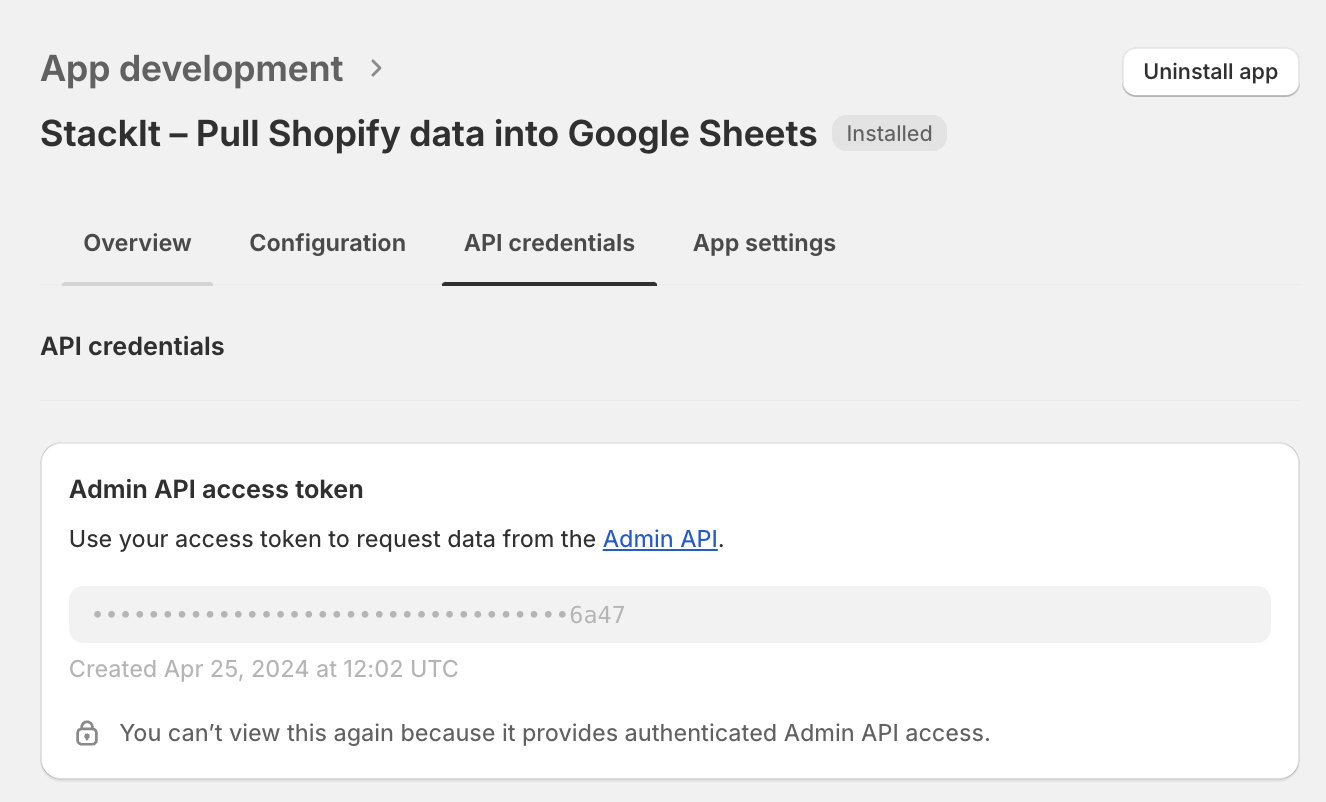
Click Install app to give this app access to your data. Once installed, go to API Credentials to copy the Admin API Access Token.
Grant access to the scopes mentioned in the next step. Only select scopes prefixed with read\_, not write\_ (e.g. read\_locations,read\_price\_rules, etc ).
Add the following scopes to your custom app to ensure Superjoin can sync all available data: `read_analytics`, `read_assigned_fulfillment_orders`, `read_content`, `read_customers`, `read_discounts`, `read_draft_orders`, `read_fulfillments`, `read_gdpr_data_request`, `read_gift_cards`, `read_inventory`, `read_legal_policies`, `read_locations`, `read_locales`, `read_marketing_events`, `read_merchant_managed_fulfillment_orders`, `read_online_store_pages`, `read_order_edits`, `read_orders`, `read_price_rules`, `read_product_listings`, `read_products`, `read_publications`, `read_reports`, `read_resource_feedbacks`, `read_script_tags`, `read_shipping`, `read_shopify_payments_accounts`, `read_shopify_payments_bank_accounts`, `read_shopify_payments_disputes`, `read_shopify_payments_payouts`, `read_themes`, `read_third_party_fulfillment_orders`, `read_translations`
Click Install app to give this app access to your data. Once installed, go to API Credentials to copy the Admin API Access Token.
 For more details, use shopify Documentation: [https://shopify.dev/docs/api/usage/authentication](https://shopify.dev/docs/api/usage/authentication)
## Setting up Shopify
Head over to the Shopify overview page to get a step by step guide to connect.
For more details, use shopify Documentation: [https://shopify.dev/docs/api/usage/authentication](https://shopify.dev/docs/api/usage/authentication)
## Setting up Shopify
Head over to the Shopify overview page to get a step by step guide to connect.