> ## Documentation Index
> Fetch the complete documentation index at: https://docs.superjoin.ai/llms.txt
> Use this file to discover all available pages before exploring further.
# Connect your Shopify to Google Sheets
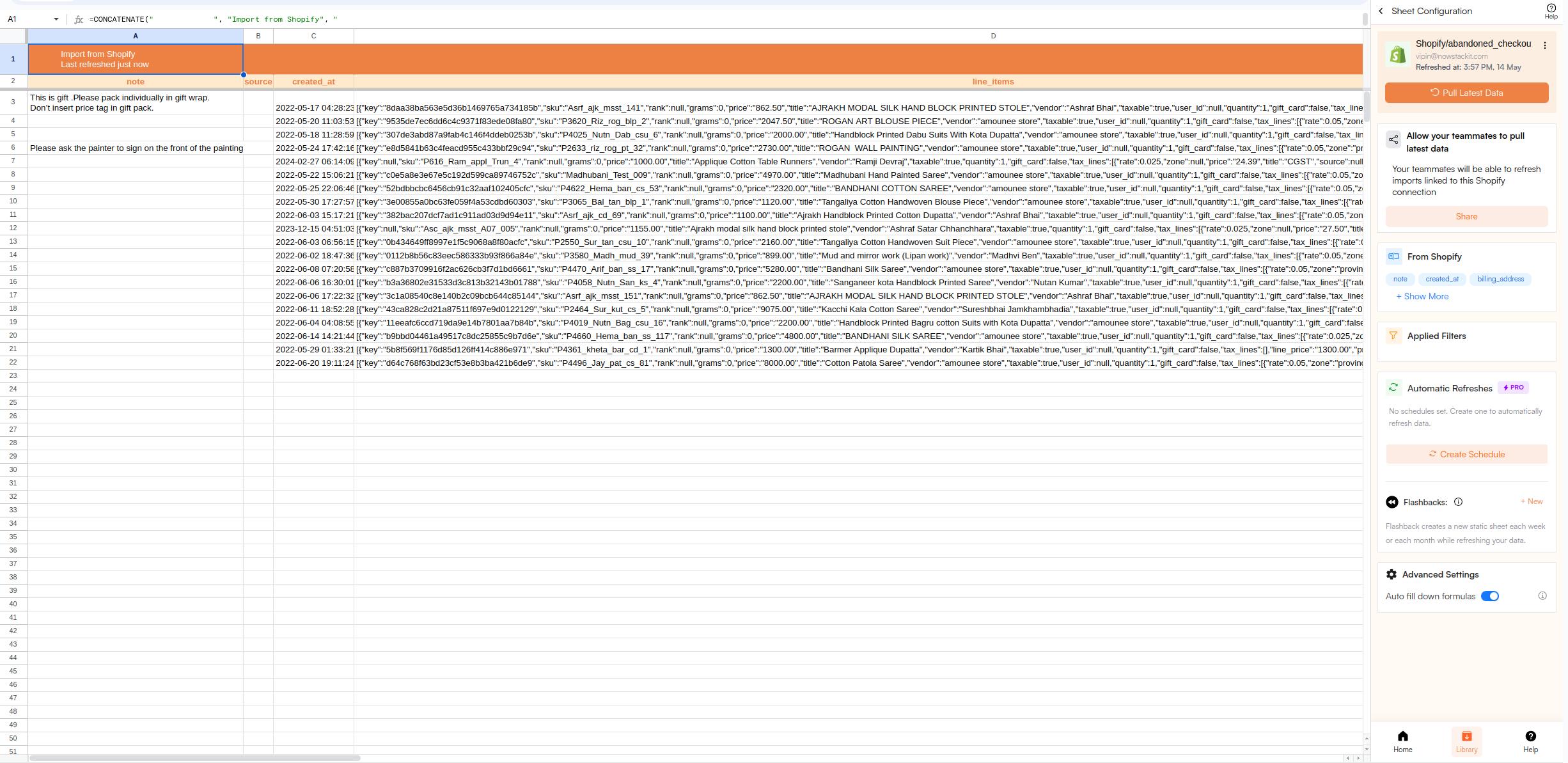
> Easily import your Shopify ecommerce data into Google Sheets for comprehensive sales analysis and reporting.
### Why use Superjoin’s Google Sheets-Shopify Integration?
We've meticulously organized the data points to ensure easy accessibility in a format you're already familiar with.
Get a sneak peek of your data. Select columns, apply filters & limits as per your need before importing.
Enjoy one-click refreshes or schedule regular updates to ensure your sheets are always up to date.
Benefit from Google Sheets' collaborative data analysis & other powerful capabilities.
## Step-by-step walkthrough: How to connect Shopify to Google Sheets.
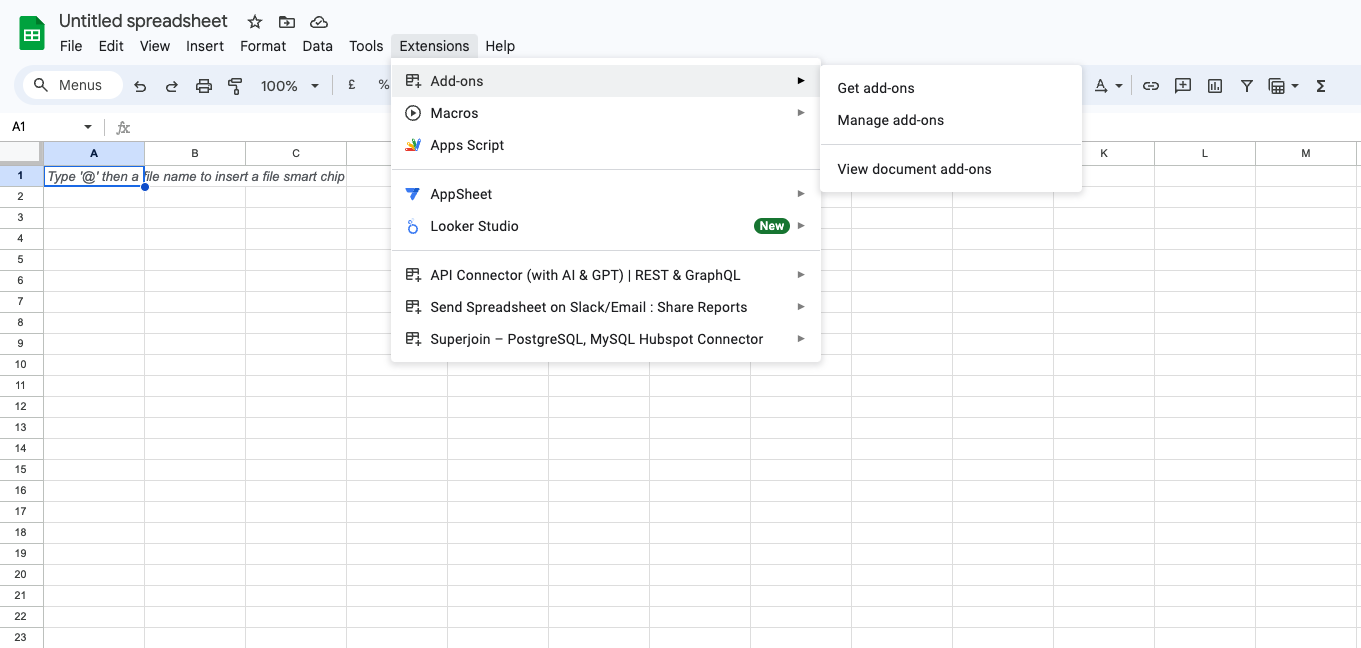
Select `Add-ons` and choose `Get Add-ons`. This action will redirect you to the Google Workspace Marketplace.
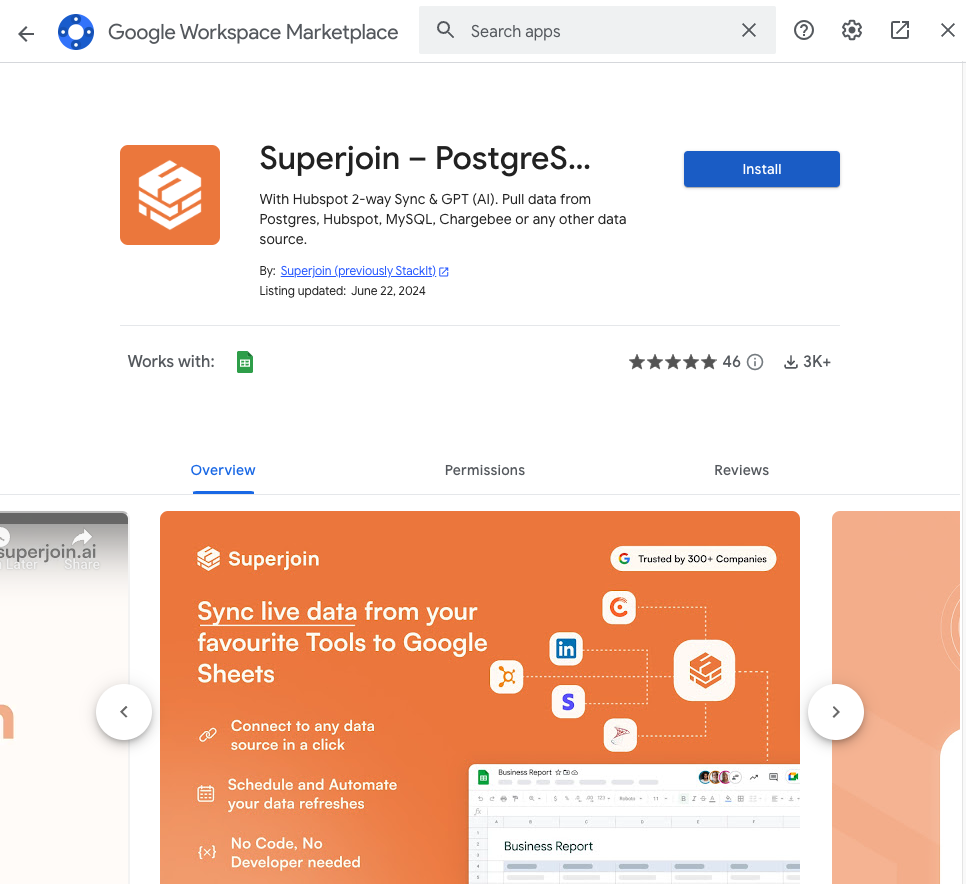
 In the Google Workspace Marketplace pop-up window, search for "Superjoin".
Click on `Extensions` from the Google Sheets menu.
**Note:** For the best experience, install Superjoin where there's only a single account is logged in the Chrome profile.
In the Google Workspace Marketplace pop-up window, search for "Superjoin".
Click on `Extensions` from the Google Sheets menu.
**Note:** For the best experience, install Superjoin where there's only a single account is logged in the Chrome profile.
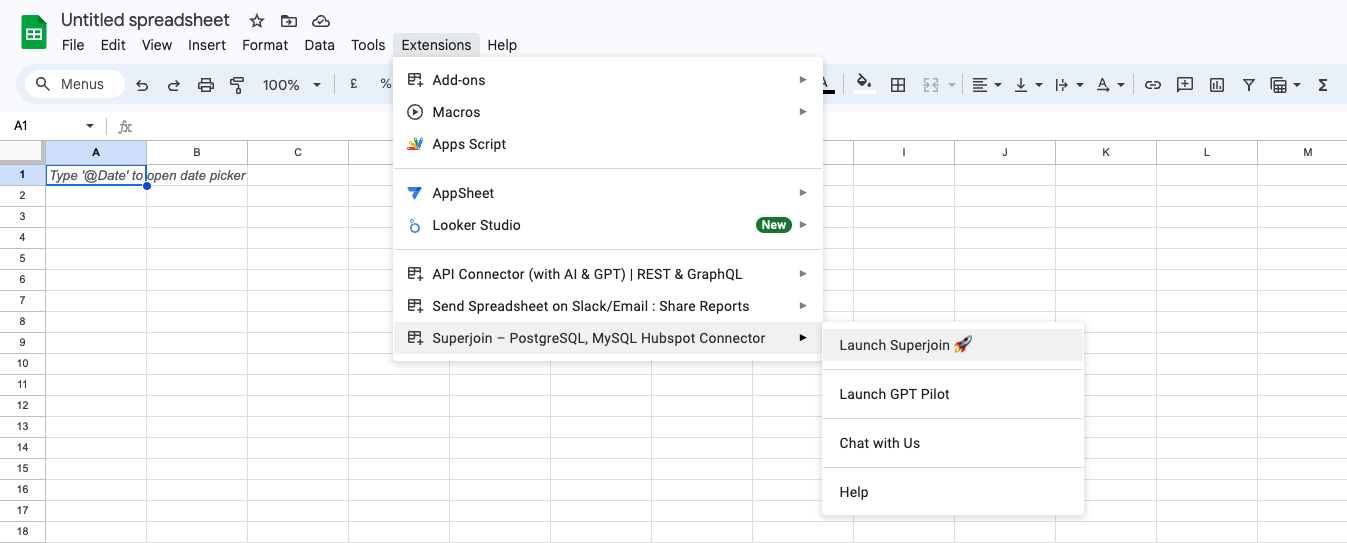
 Once installed, navigate back to the `Extensions` menu tab in Google Sheets. Launch Superjoin from here. You should now see Superjoin running as a side panel on the right side of your screen.
 Select Shopify from the list of available data sources.
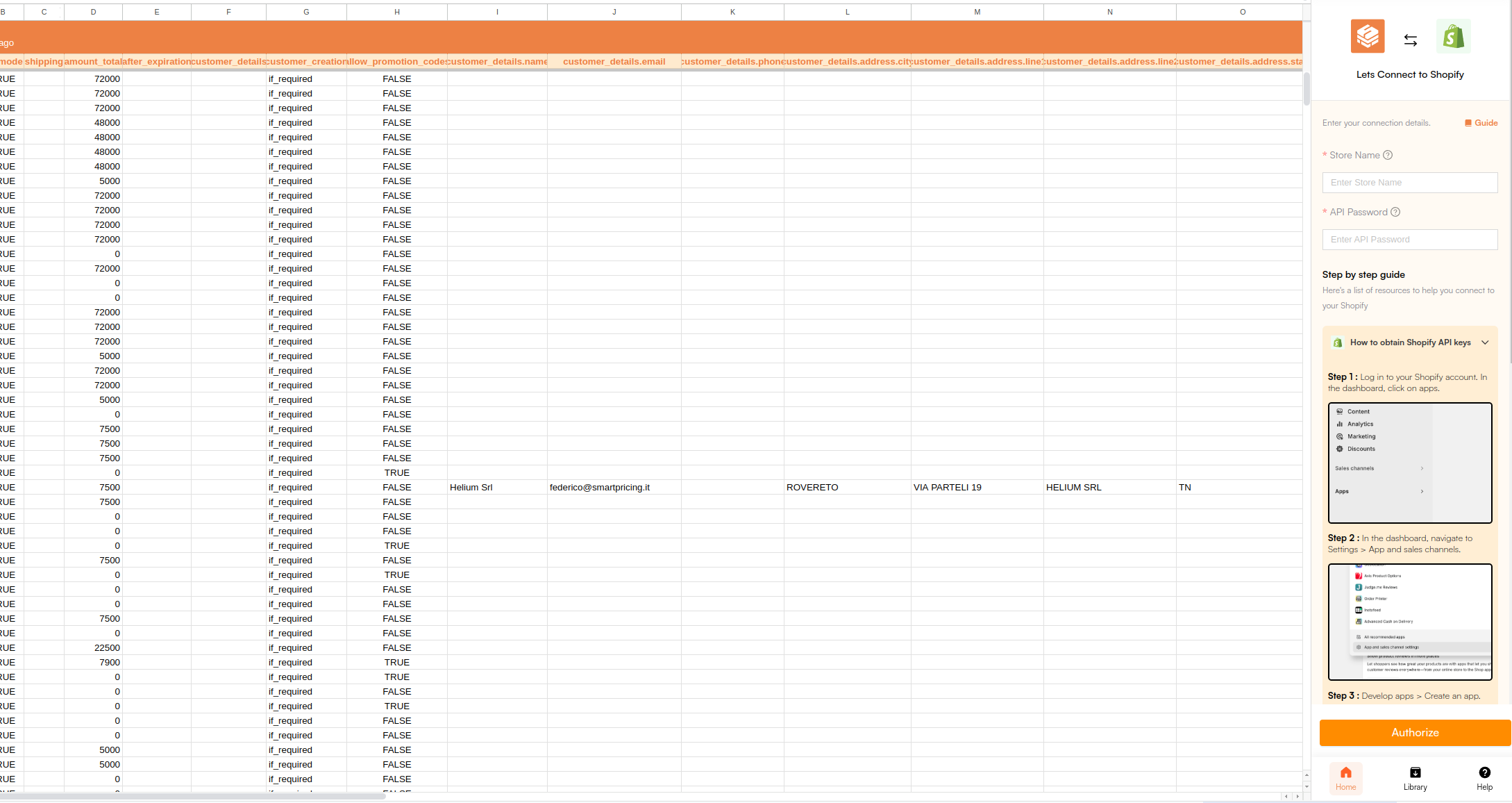
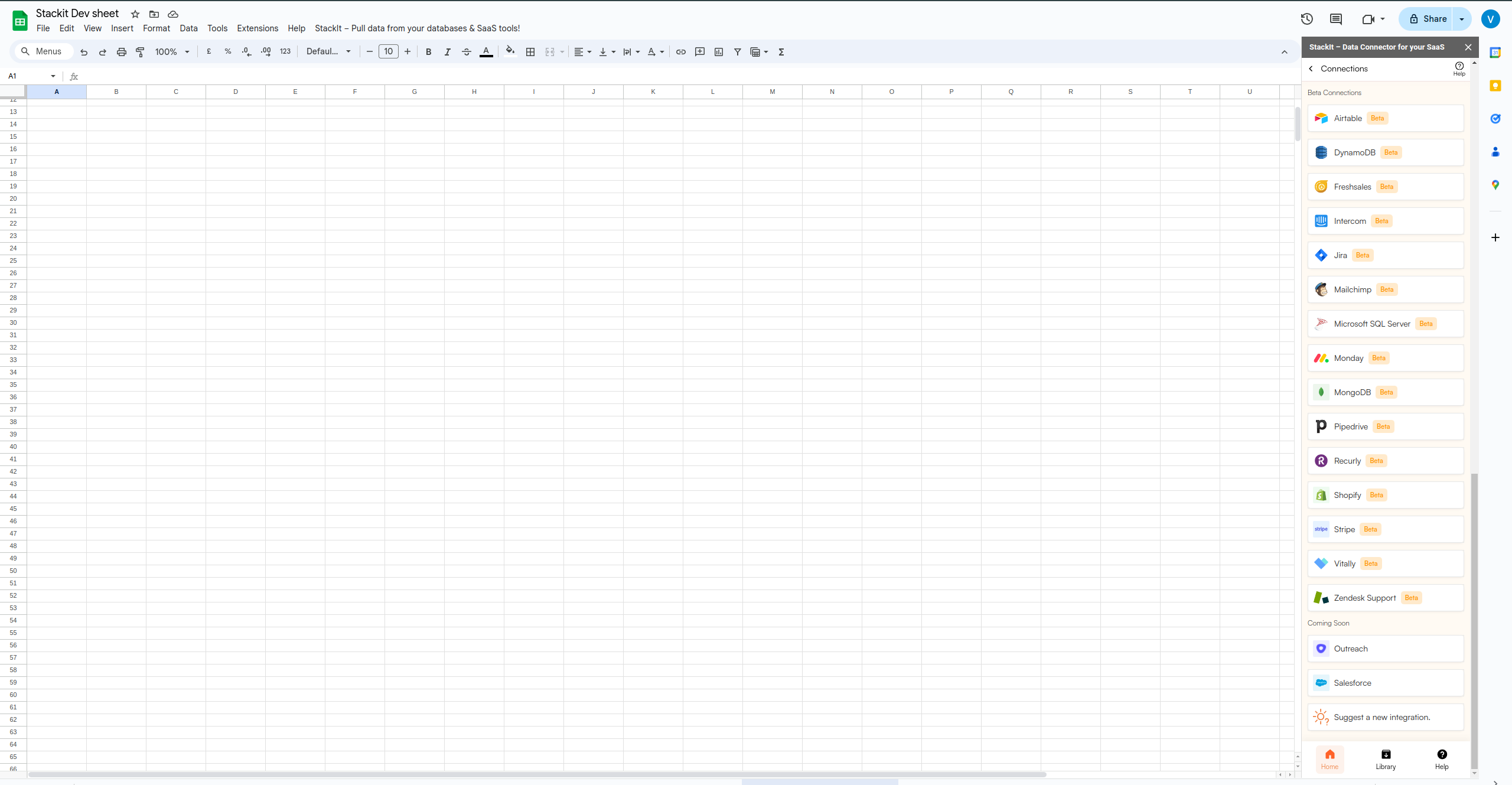 Connect your Shopify account. Go through all the directions and prompts to connect your Shopify account to Google Sheets.
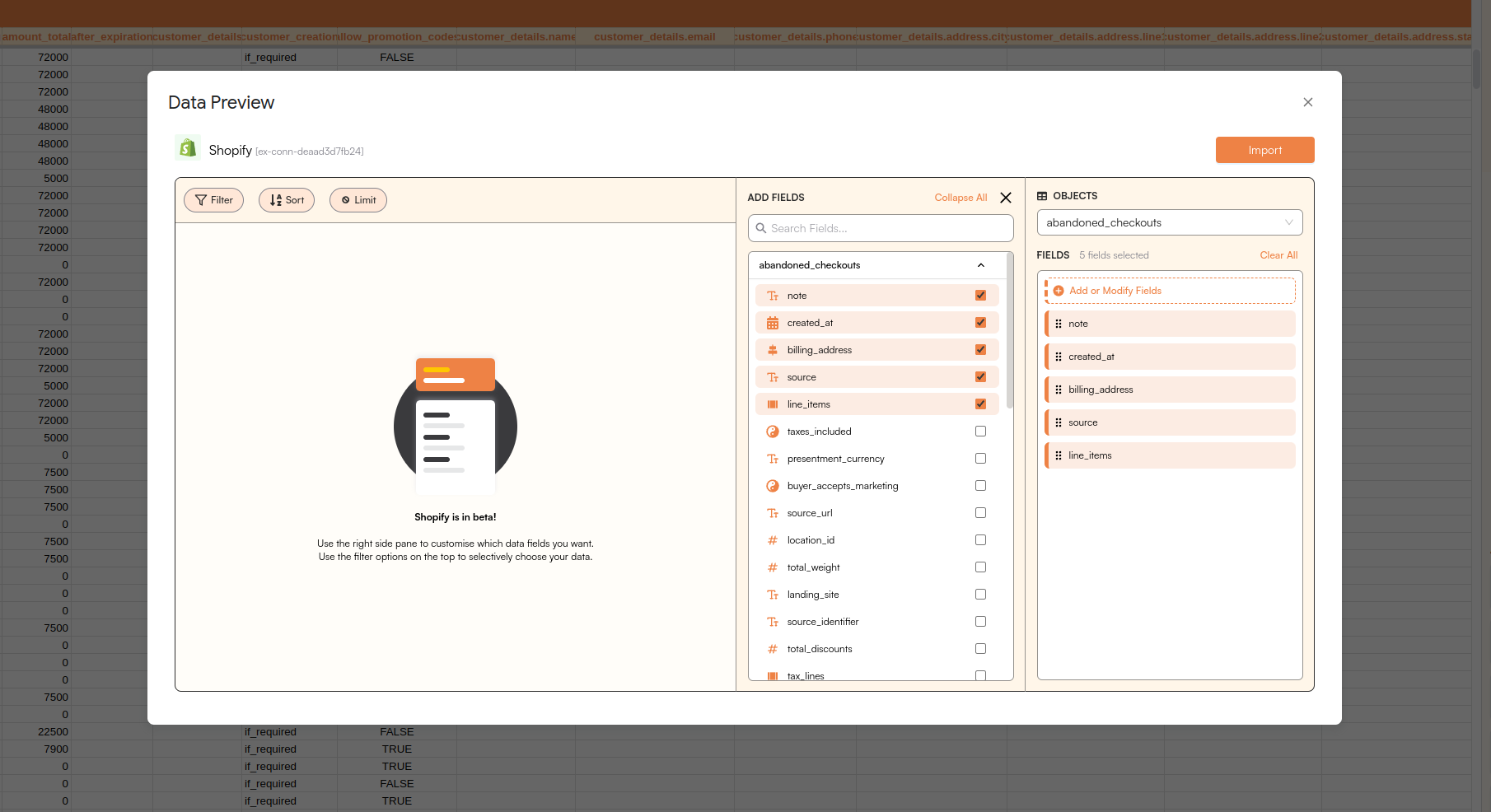
 Now select the objects from the list you want to import from.
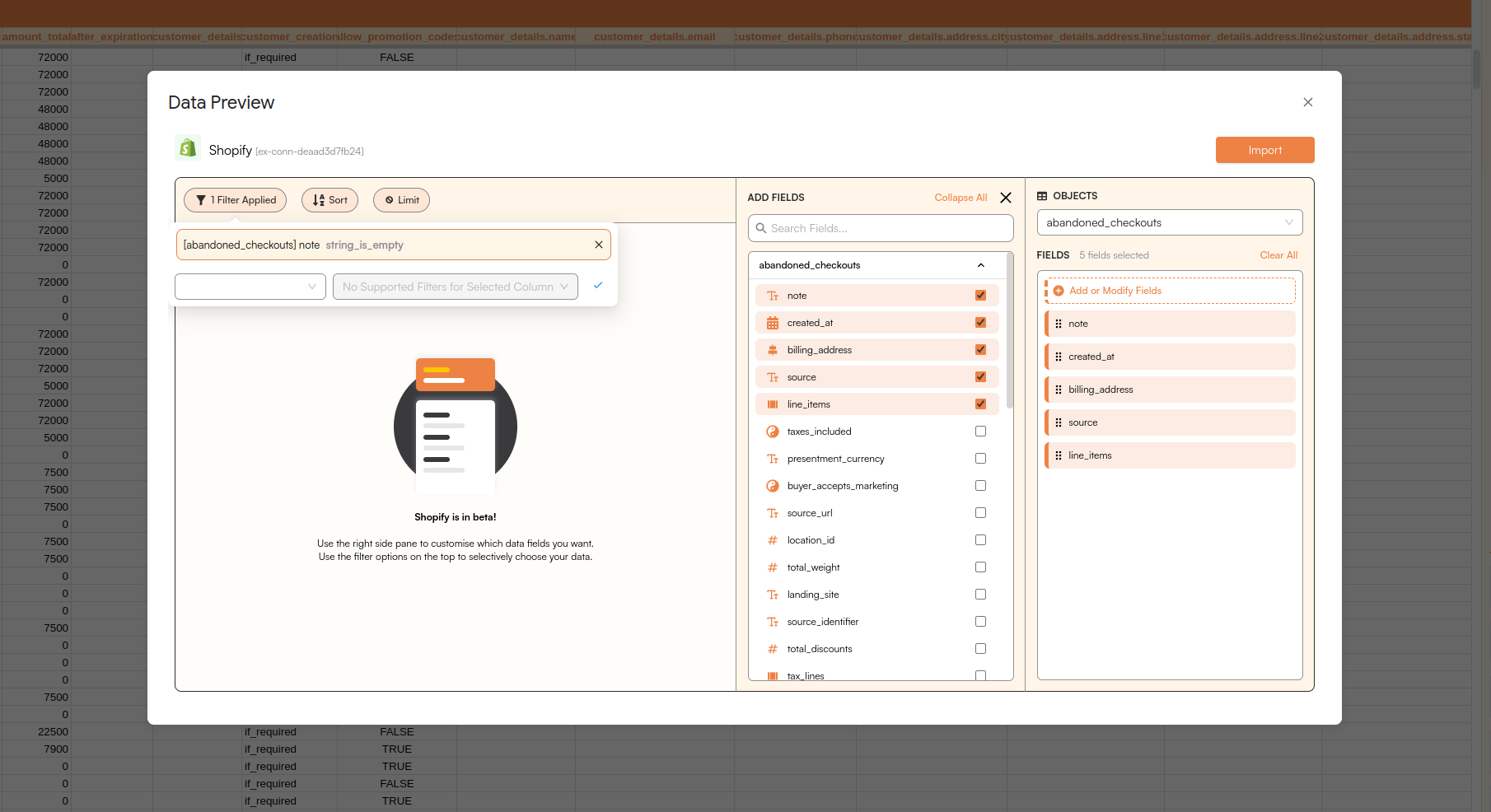
 Select the filters that you want to apply in order to filter down the data that you want to work on.
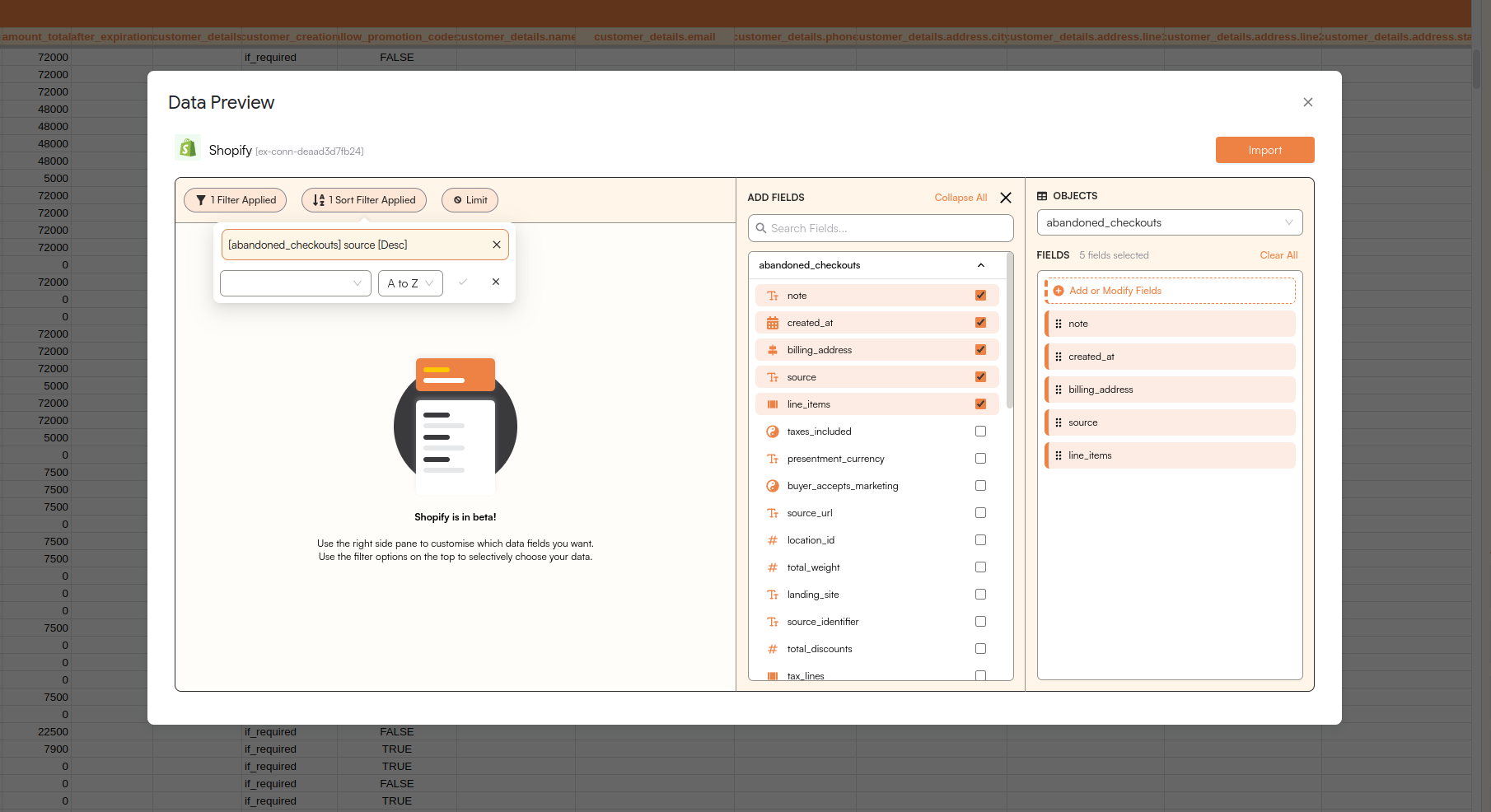
 Select the items that you want to sort.
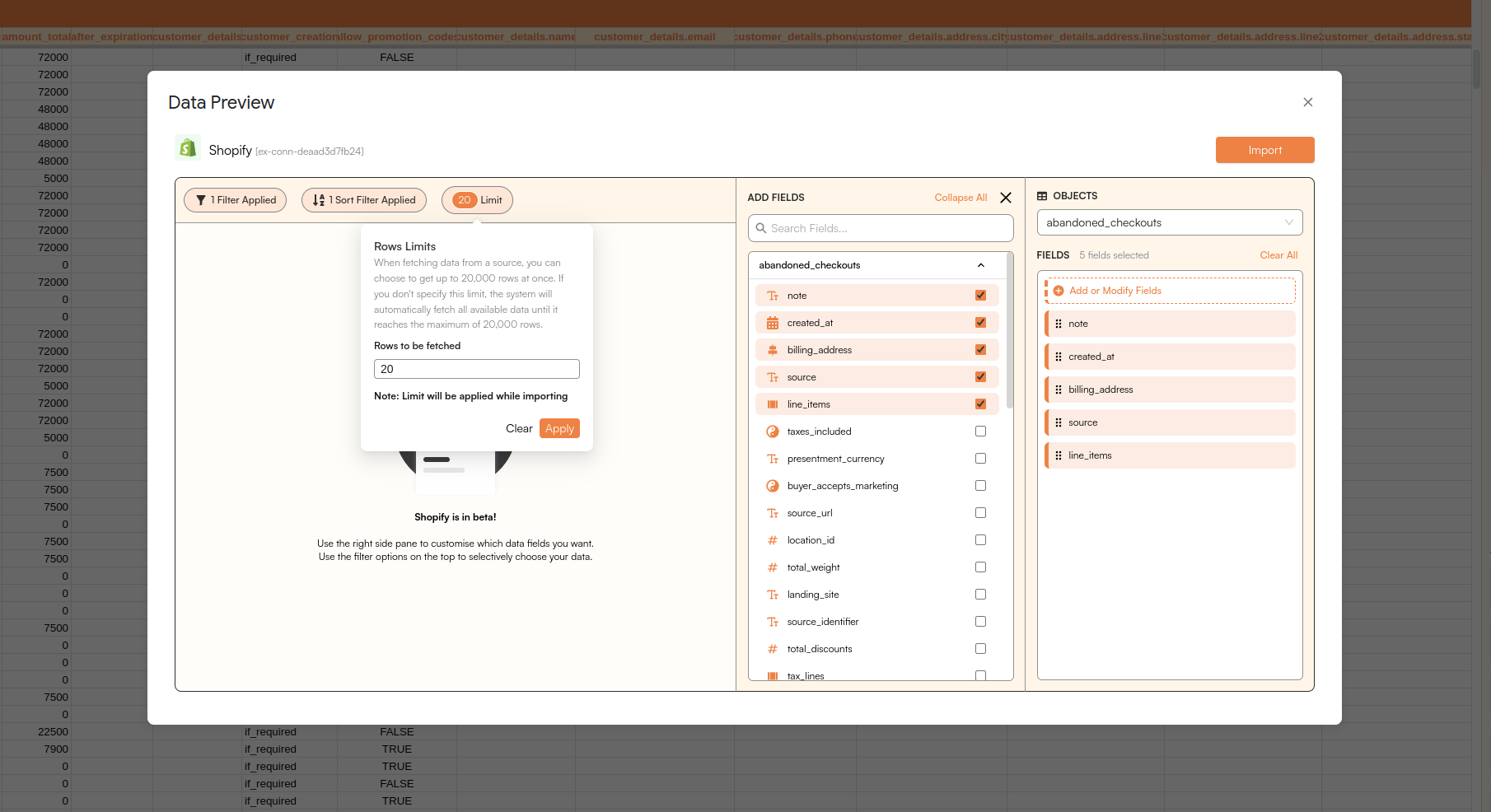
 Now simply Enter the Limit of rows you want to write on Google Sheet.
 Now simply click on the "import" button to bring this selected data into your Google Sheets.
Superjoin lets you refresh your imported data instantly with one click or set it to auto-refresh on a pre-set schedule. This way, you won’t need to manually update your Shopify data in Google Sheets to reflect changes from the source.
Now simply click on the "import" button to bring this selected data into your Google Sheets.
Superjoin lets you refresh your imported data instantly with one click or set it to auto-refresh on a pre-set schedule. This way, you won’t need to manually update your Shopify data in Google Sheets to reflect changes from the source.