> ## Documentation Index
> Fetch the complete documentation index at: https://docs.superjoin.ai/llms.txt
> Use this file to discover all available pages before exploring further.

# How to find API key in Chargebee

> Step-by-step guide to obtain or generate Chargebee API key

<Steps>
  <Step title="Login to Chargebee">
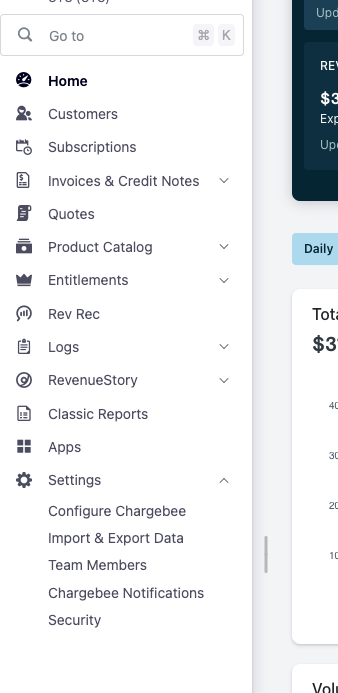
    On the left side menu, Go to settings and choose Configure Chargebee
    <Frame>
      <img src="https://mintcdn.com/superjoin/tR1QsuikxI8kxuAE/images/chargebee/cb-keys-step1.png?fit=max&auto=format&n=tR1QsuikxI8kxuAE&q=85&s=ad478dbc27d50e4ca80375fc68cb42cd" width="338" height="693" data-path="images/chargebee/cb-keys-step1.png" />
    </Frame>
  </Step>

  <Step title="Open API Keys">
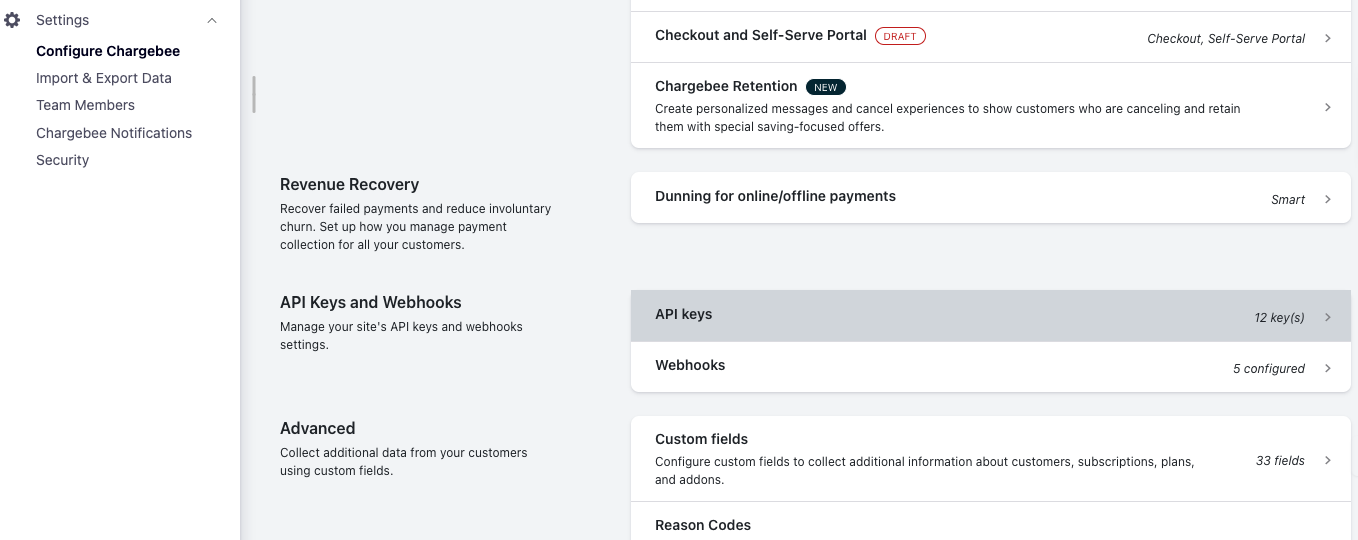
    Scroll down in Settings and select `API Keys` under `API Keys and Webhooks`.
    <Frame>
      <img src="https://mintcdn.com/superjoin/tR1QsuikxI8kxuAE/images/chargebee/cb-keys-step2.png?fit=max&auto=format&n=tR1QsuikxI8kxuAE&q=85&s=1335aa65acb4188e99053567238da6ca" width="1358" height="540" data-path="images/chargebee/cb-keys-step2.png" />
    </Frame>
  </Step>

  <Step title="Create a Key">
    <Frame>
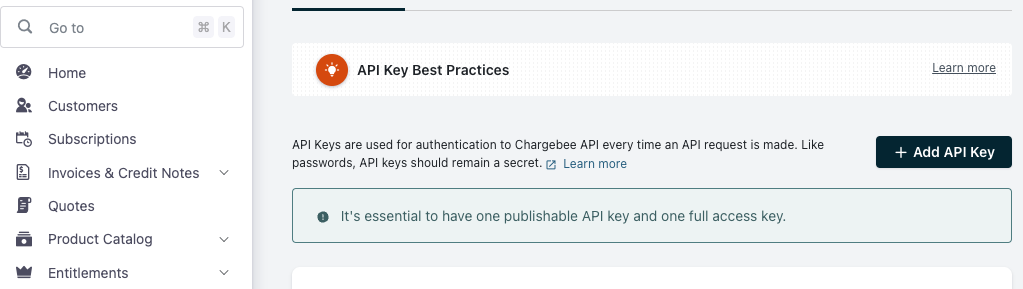
      <img src="https://mintcdn.com/superjoin/tR1QsuikxI8kxuAE/images/chargebee/cb-keys-step3.png?fit=max&auto=format&n=tR1QsuikxI8kxuAE&q=85&s=e9a0cde955d41fa942ccfe8fdeb21c1b" width="1023" height="289" data-path="images/chargebee/cb-keys-step3.png" />
    </Frame>

    <Frame>
      <img src="https://mintcdn.com/superjoin/tR1QsuikxI8kxuAE/images/chargebee/cb-keys-step4.png?fit=max&auto=format&n=tR1QsuikxI8kxuAE&q=85&s=f30f0b593b8a95dd6455f5f1bb4e77b0" width="860" height="460" data-path="images/chargebee/cb-keys-step4.png" />
    </Frame>
  </Step>

  <Step title="Read-only key">
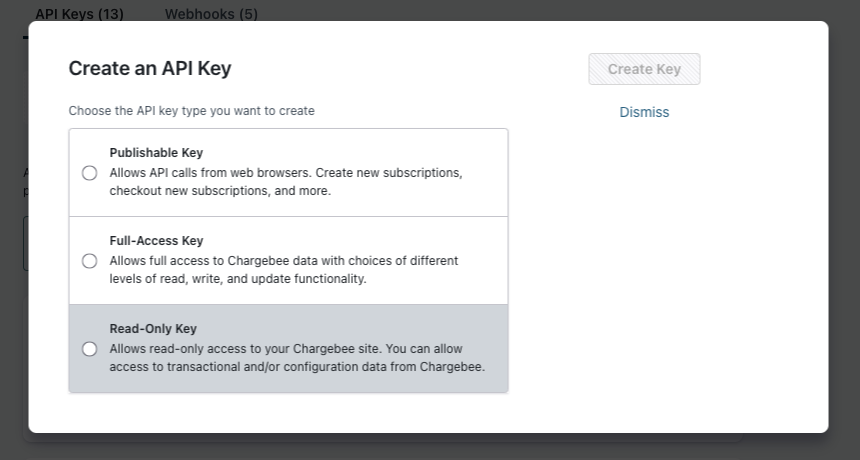
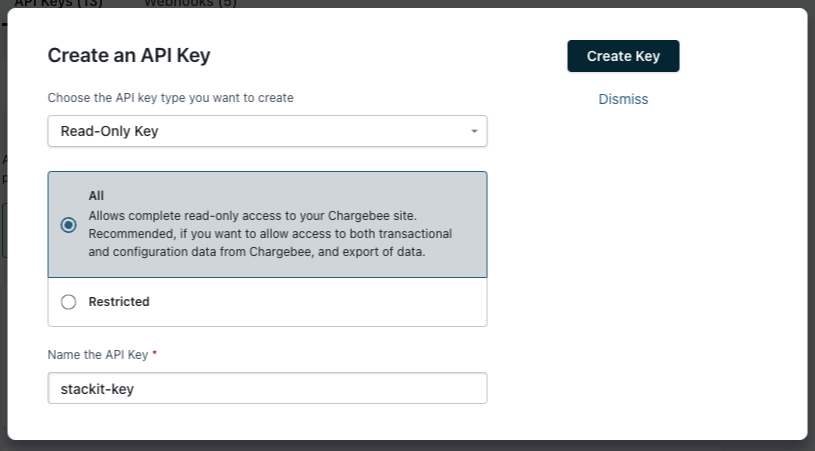
    Select a read-only key and name the key for eg `superjoin-key`. Click on `Create Key`.
    <Frame>
      <img src="https://mintcdn.com/superjoin/tR1QsuikxI8kxuAE/images/chargebee/cb-keys-step5.png?fit=max&auto=format&n=tR1QsuikxI8kxuAE&q=85&s=1ac62de65b374ca6cf0b9c40f4b74f0f" width="815" height="451" data-path="images/chargebee/cb-keys-step5.png" />
    </Frame>
  </Step>

  <Step title="Obtain site-name">
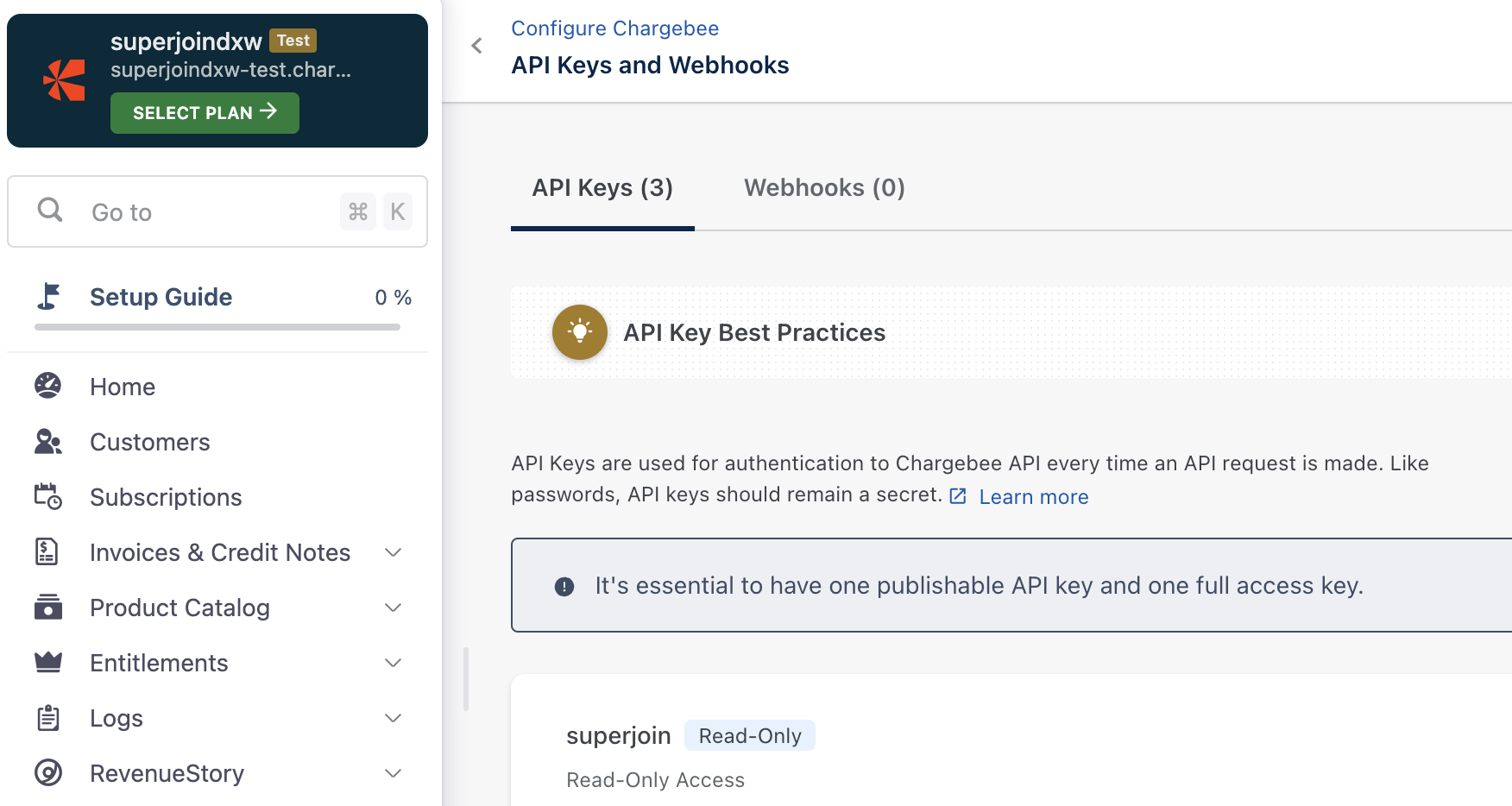
    Obtain the site-name from the top right section of your chargebee dashboard. In the screenshot, it is `superjoindxw-test`. It can also be found in your site URL, which is the part of the URL before `.chargebee.com`.
    <Frame>
      <img src="https://mintcdn.com/superjoin/tR1QsuikxI8kxuAE/images/chargebee/cb-keys-step6.png?fit=max&auto=format&n=tR1QsuikxI8kxuAE&q=85&s=2508d695ea6c1f04c6e0ce315567983c" width="1752" height="934" data-path="images/chargebee/cb-keys-step6.png" />
    </Frame>
  </Step>
</Steps>

<CardGroup cols={1}>
  <Card title="Official Chargebee docs" icon="key" iconType="duotone" href="https://www.chargebee.com/docs/2.0/api_keys.html">
    Here's the official Chargebee Documentation to get API keys
  </Card>
</CardGroup>