> ## Documentation Index
> Fetch the complete documentation index at: https://docs.superjoin.ai/llms.txt
> Use this file to discover all available pages before exploring further.
# How to Acquire MongoDB Credentials?
> Proceed with the outlined steps to acquire MongoDB credentials.
## Step-by-step walkthrough: How to obtain MongoDB credentials
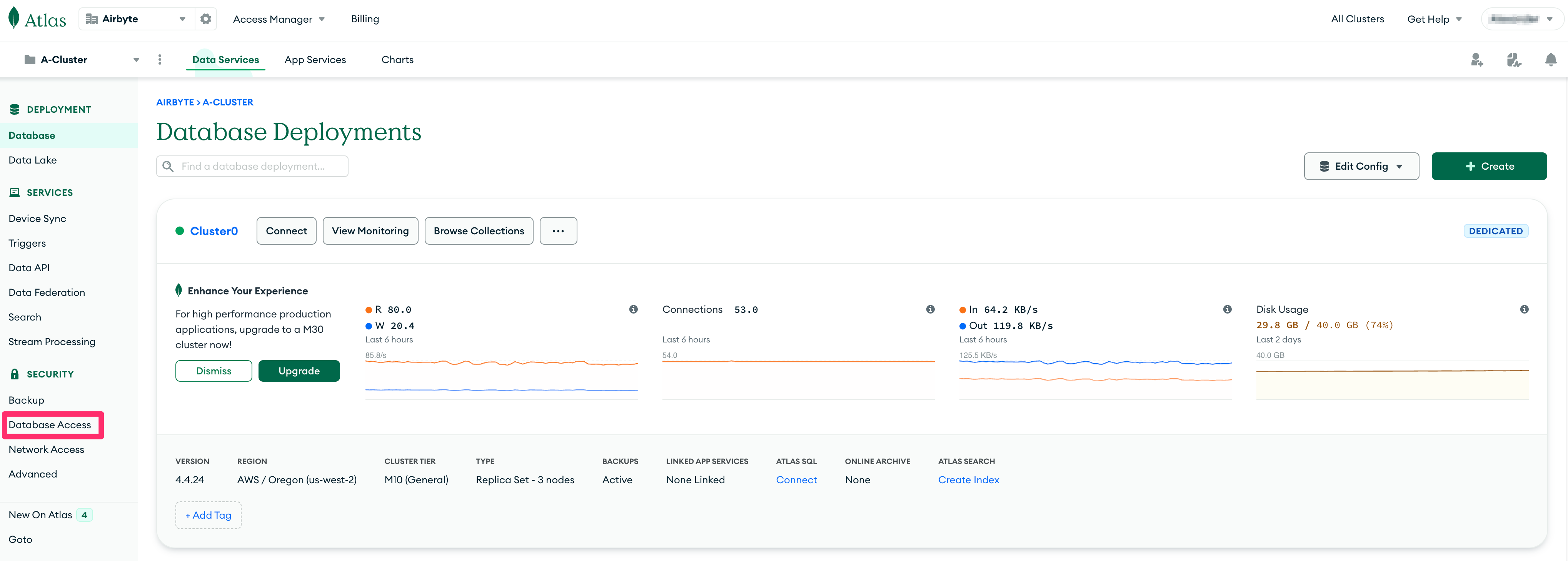
From the dashboard, click on `Database Access` under `Security`
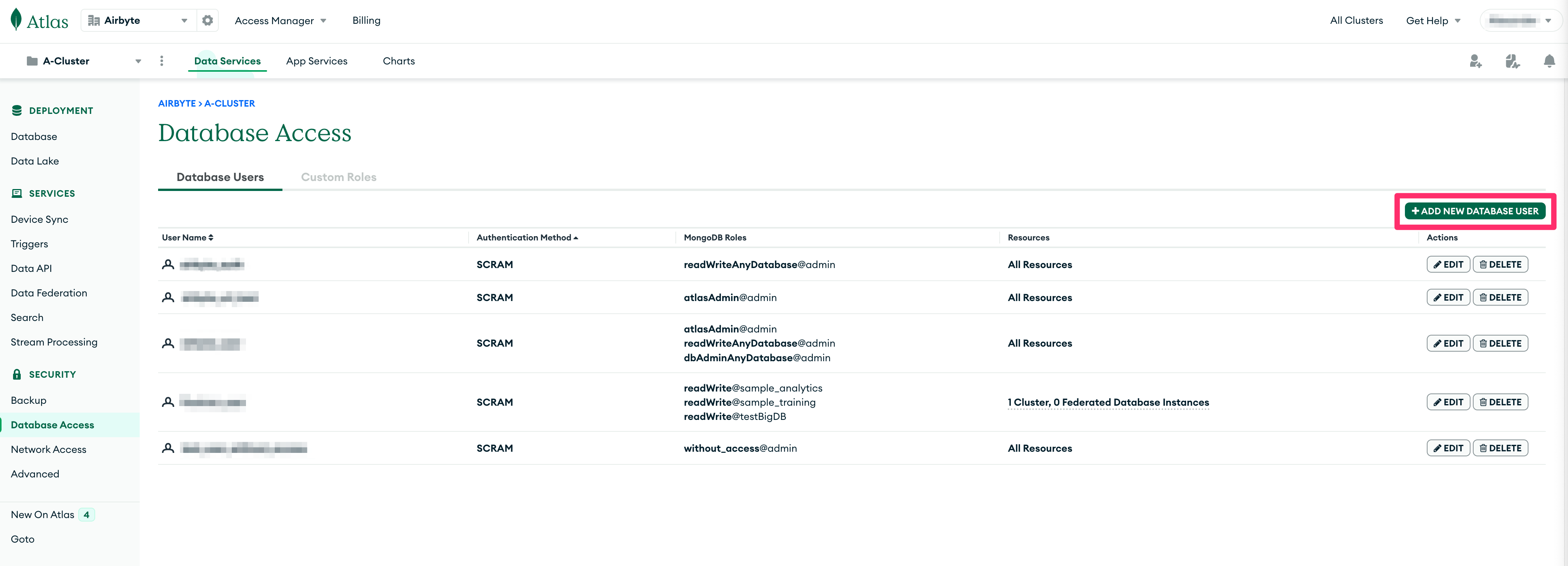
 Click on the `+ ADD NEW DATABASE USER` button.
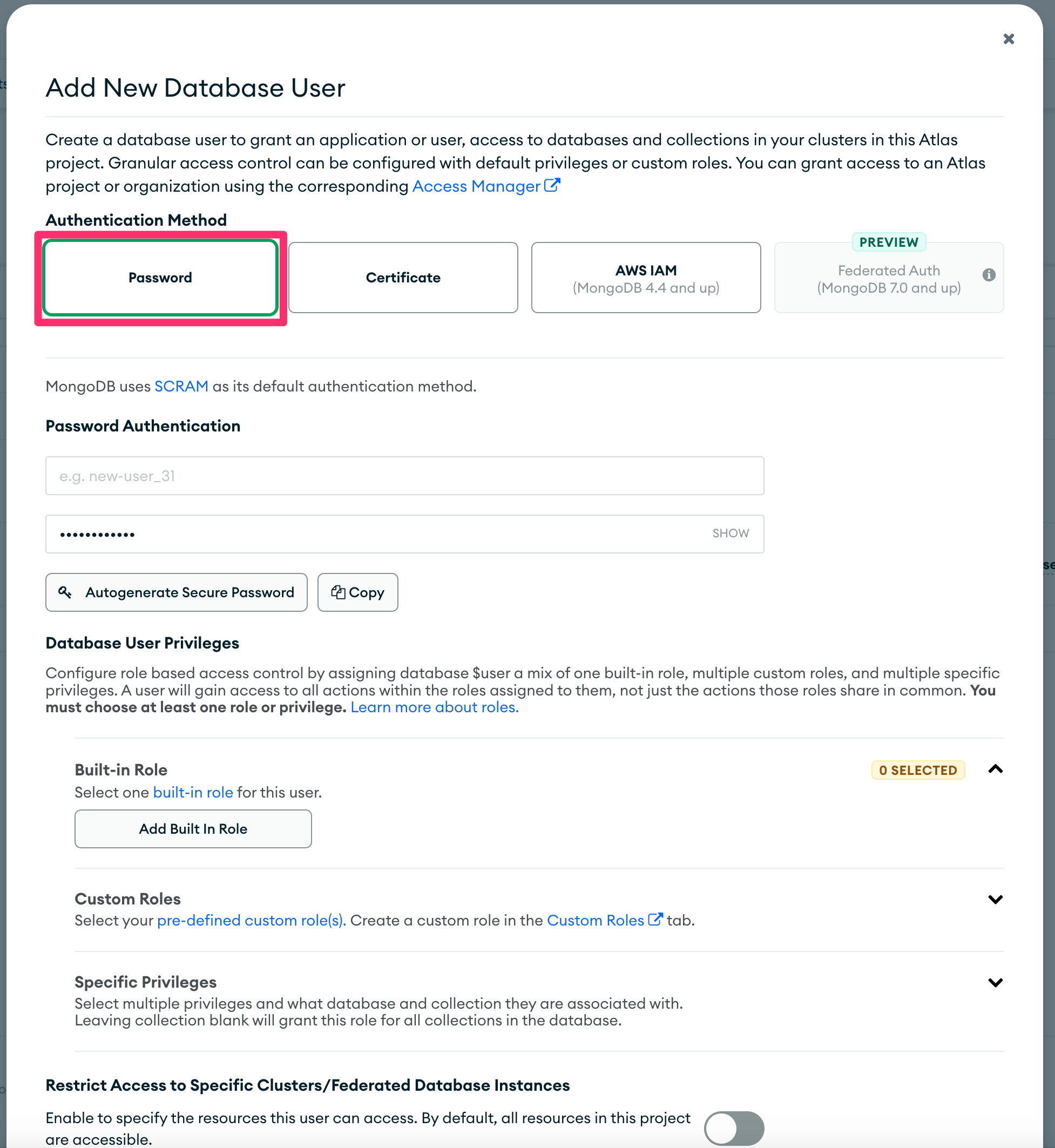
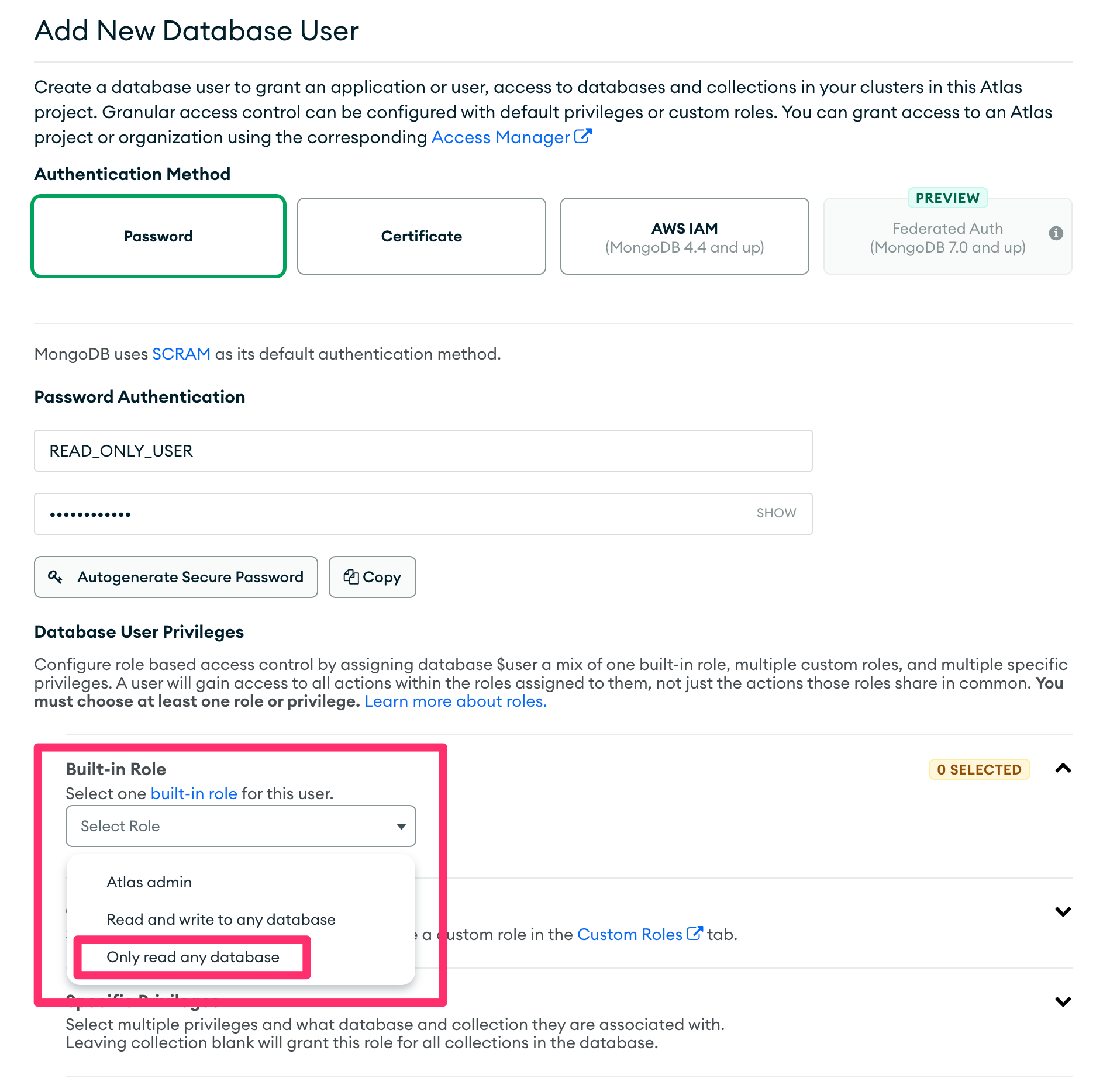
 On the `Add new Database User` modal dialog, choose `Password` for the `Authentication Method`.
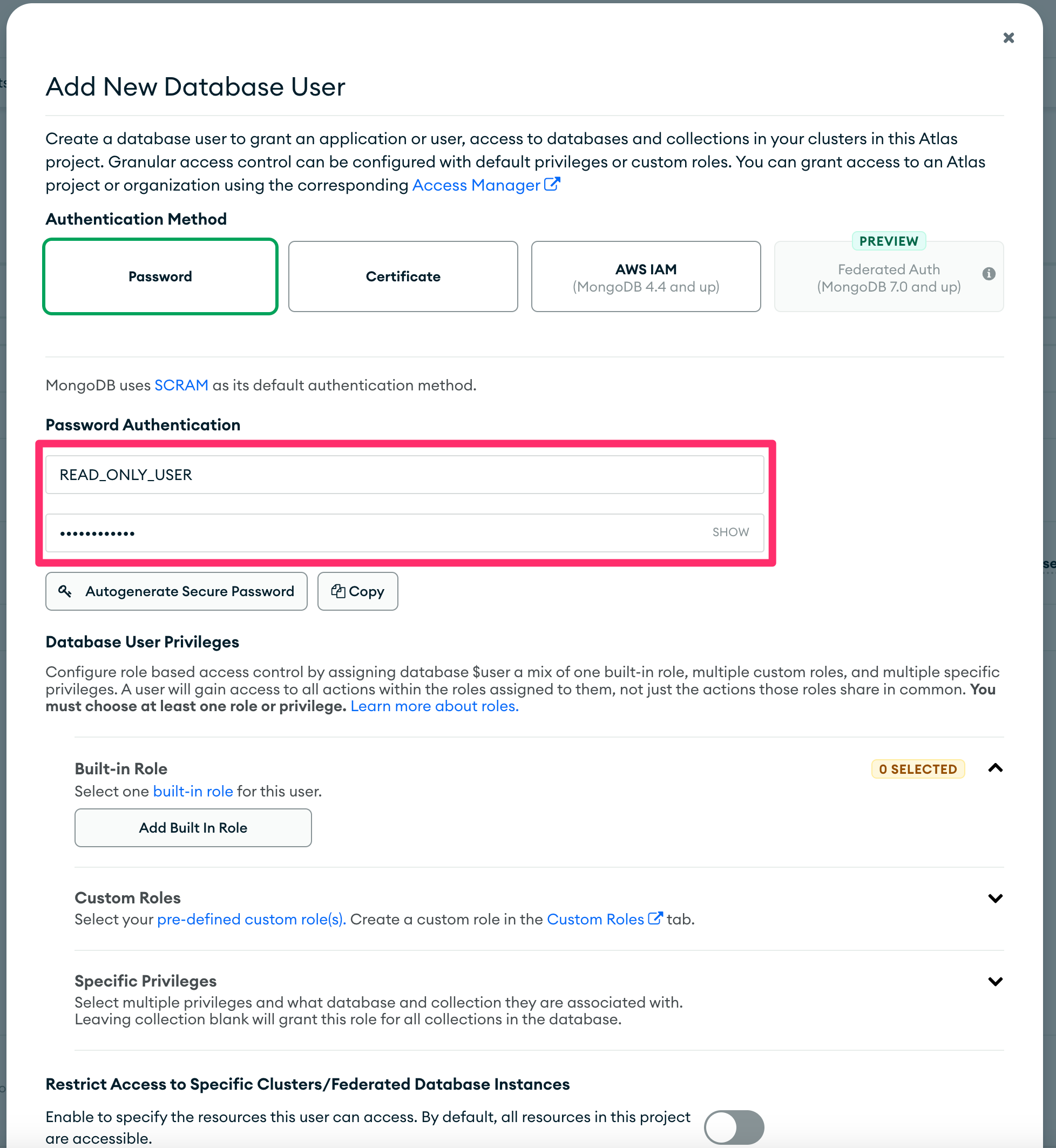
 In the `Password Authentication` section, set the username to READ\_ONLY\_USER in the first text box and set a password in the second text box.
 Under `Database User Privileges`, click on `Select one built-in role for this user` under `Built-in Role` and choose `Only read any database`.
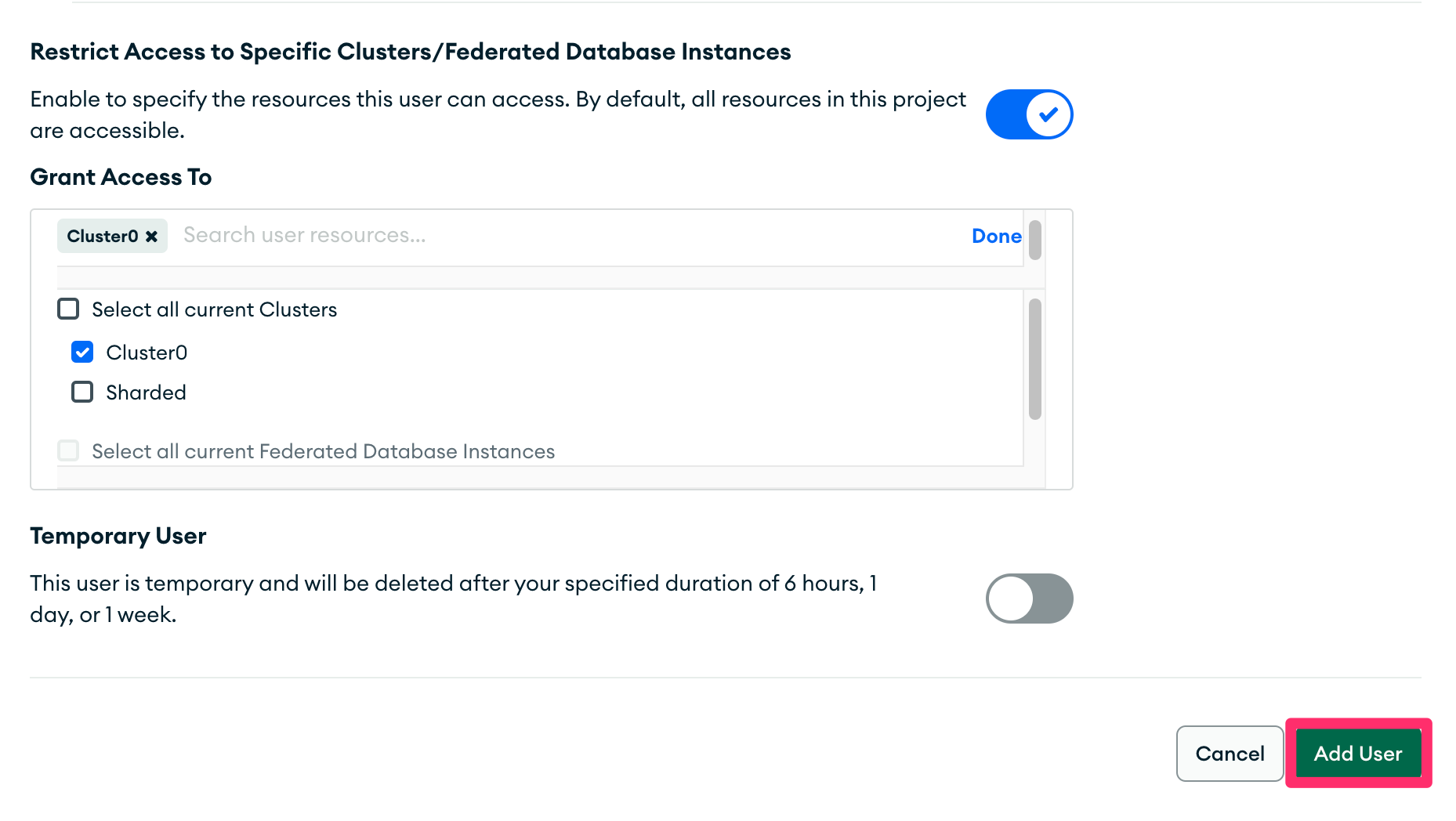
 Enable `Restrict Access to Specific Clusters/Federated Database instances` and enable only those clusters/database that you wish to replicate.
 Click on `Add User` at the bottom to save the user.
 ## Setting up MongoDB
Head over to the MongoDB page to get a step by step guide to connect.
## Setting up MongoDB
Head over to the MongoDB page to get a step by step guide to connect.