> ## Documentation Index
> Fetch the complete documentation index at: https://docs.superjoin.ai/llms.txt
> Use this file to discover all available pages before exploring further.
# Connect your PayPal to Google Sheets
> Effortlessly connect PayPal to Google Sheets in a few clicks using Superjoin
### Why use Superjoin's Google Sheets-PayPal Integration?
We've meticulously organized the data points to ensure easy accessibility in a format you're already familiar with.
Get a sneak peek of your data. Select columns, apply filters & limits as per
your need before importing.
Enjoy one-click refreshes or schedule regular updates to ensure your sheets
are always up to date.
Benefit from Google Sheets' collaborative data analysis & other powerful
capabilities.
## Step-by-step walkthrough: How to connect PayPal to Google Sheets
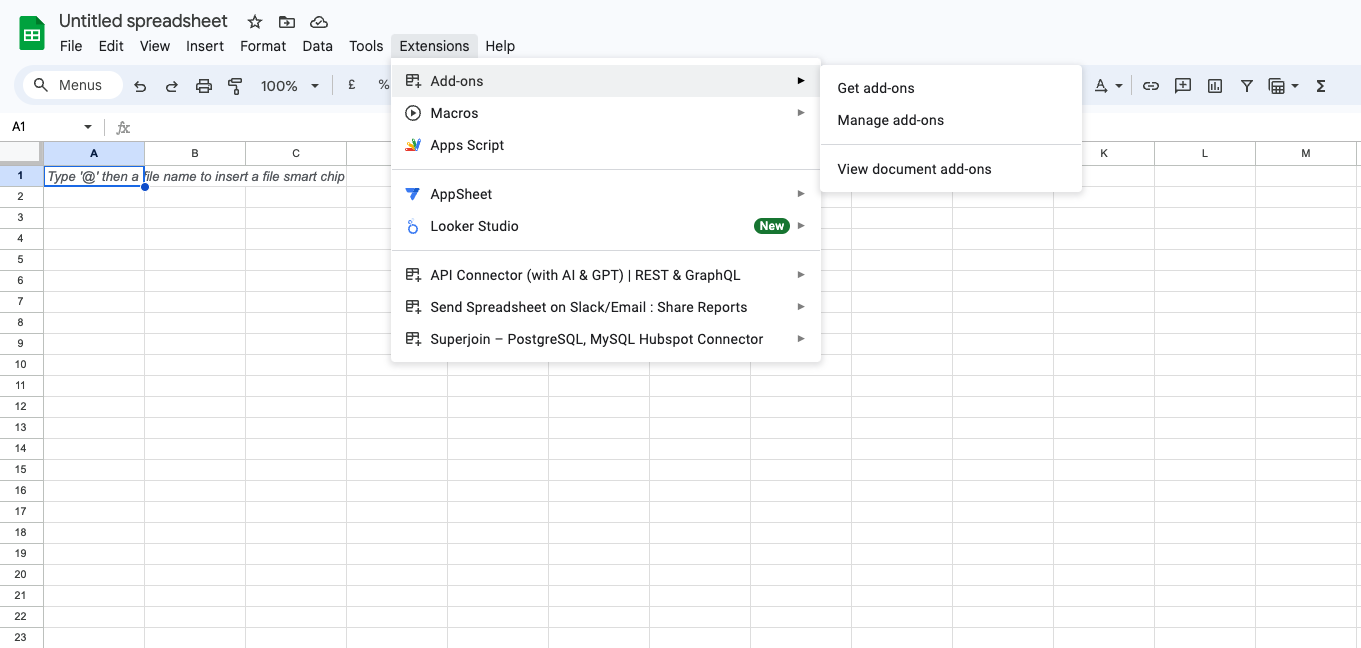
Head over to `Extensions` , select `Add-ons` and choose `Get Add-ons`. This action will redirect you to the Google Workspace Marketplace.
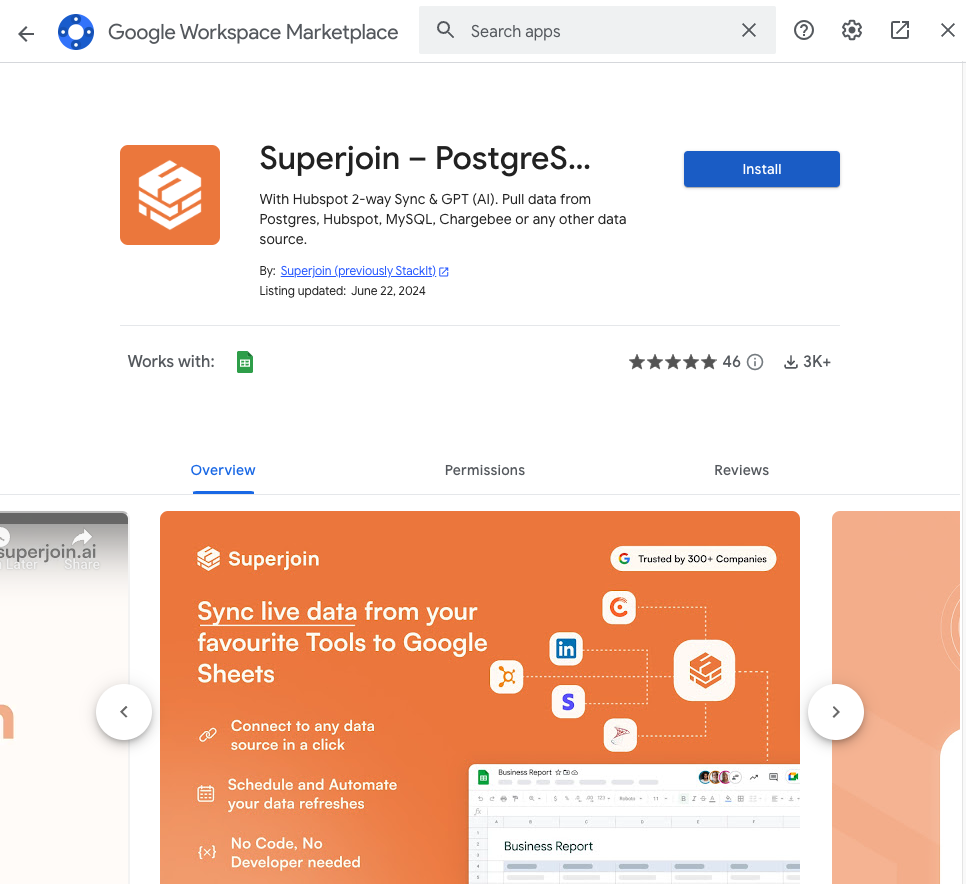
 In the Google Workspace Marketplace pop-up window, search for "Superjoin".
Click on the `Install` button to install Superjoin.
**Note:** For the best experience, install Superjoin where there's only a single account is logged in the Chrome profile.
In the Google Workspace Marketplace pop-up window, search for "Superjoin".
Click on the `Install` button to install Superjoin.
**Note:** For the best experience, install Superjoin where there's only a single account is logged in the Chrome profile.
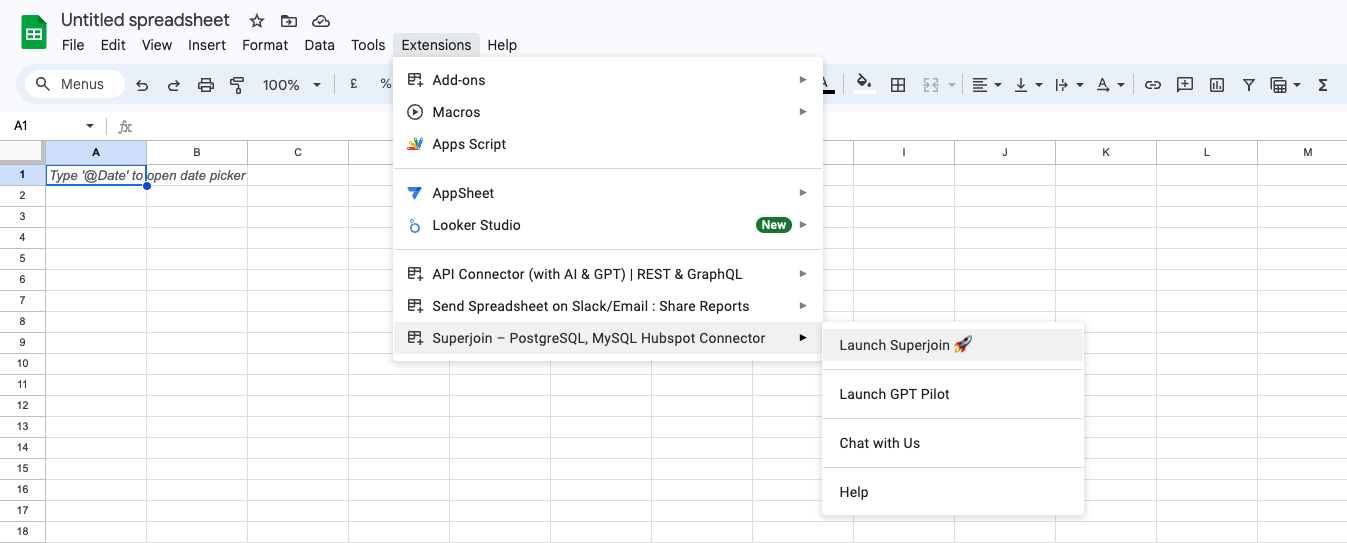
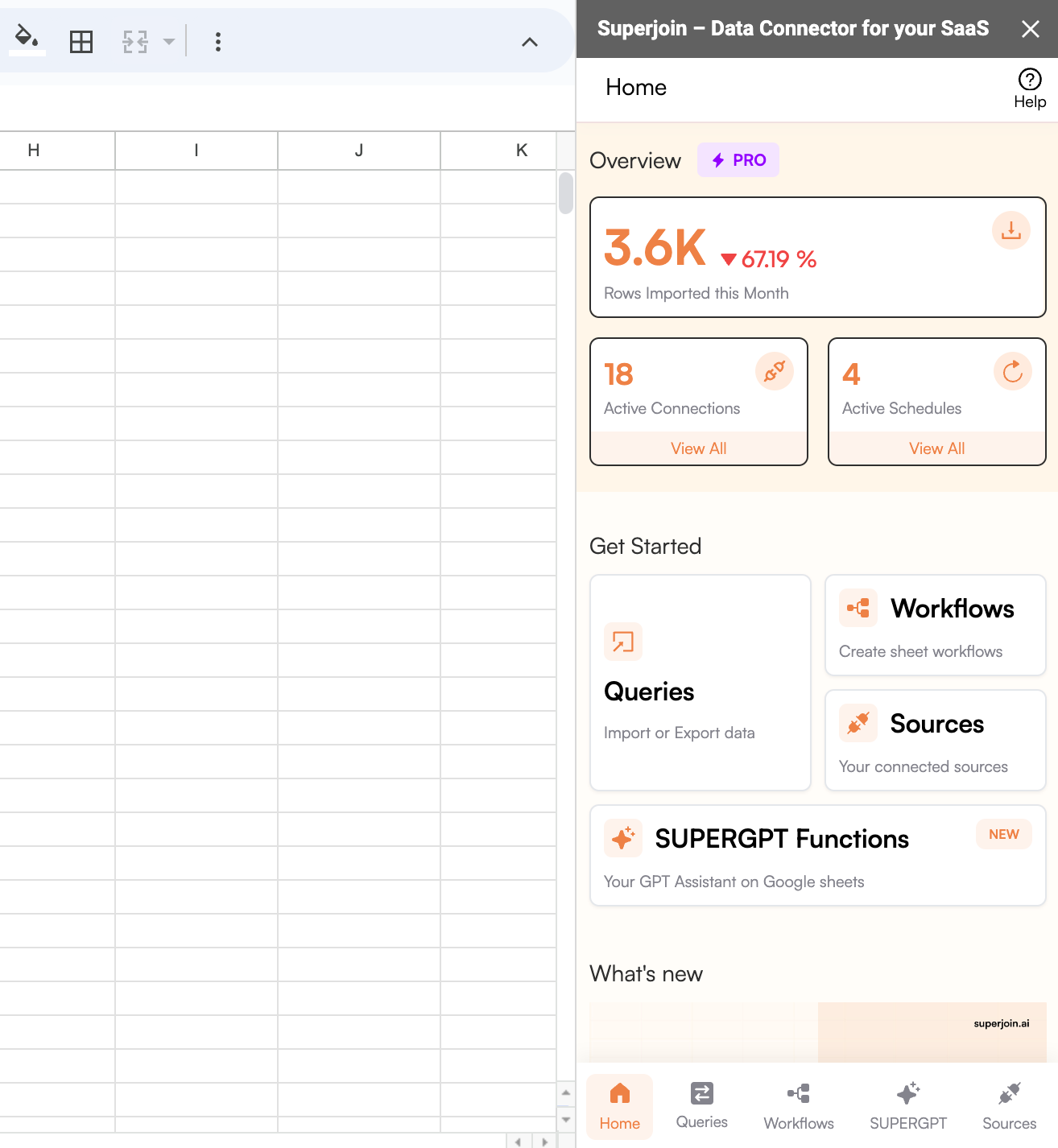
 Once installed, navigate back to the `Extensions` menu tab in Google Sheets. Launch Superjoin from here. You should now see Superjoin running as a side panel on the right side of your screen.
 To begin, you can navigate to `Queries` , choose to `Create new query`.
 Navigate to `Sources`, select `Connect to a new source` and search for `PayPal`.
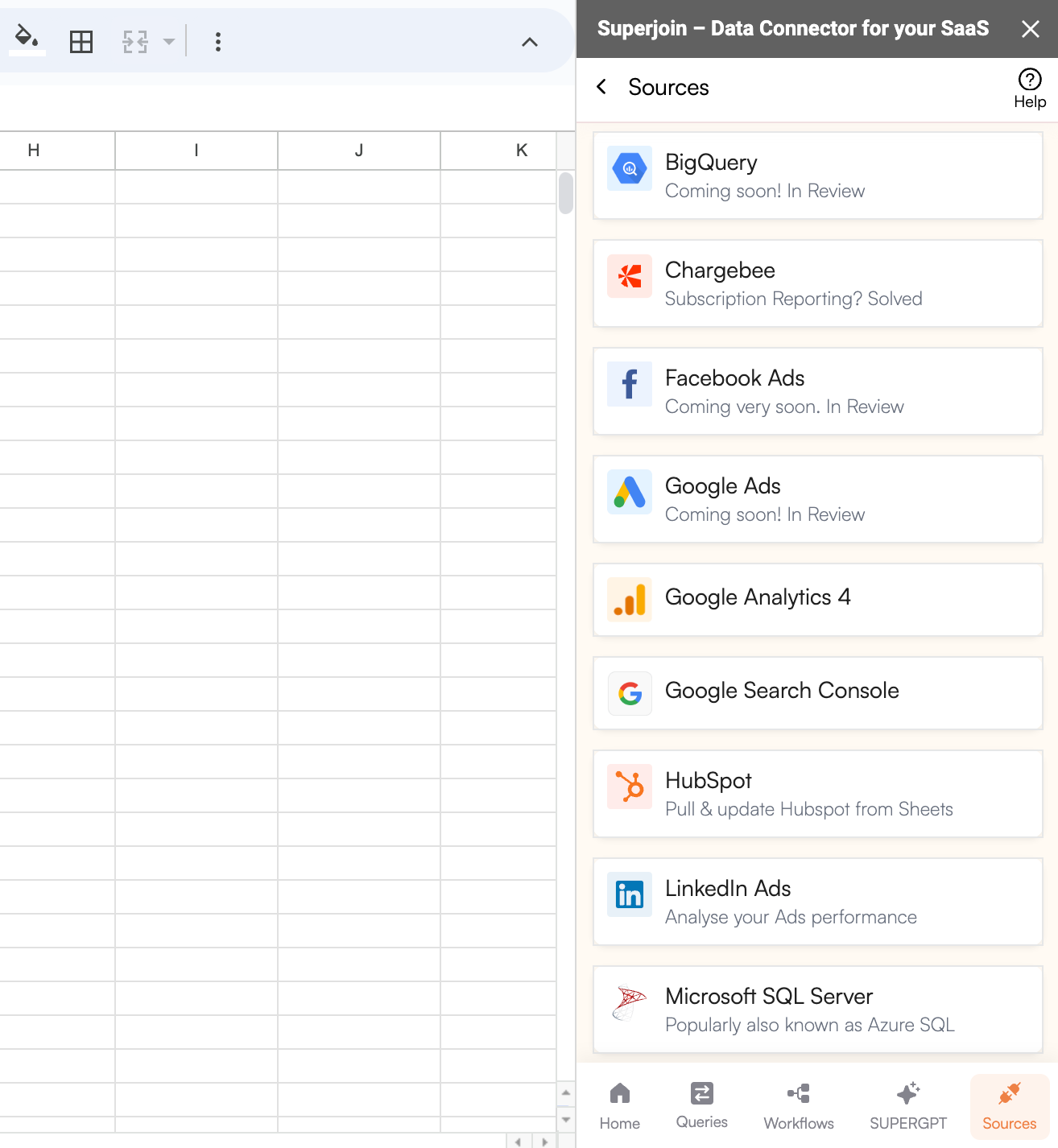
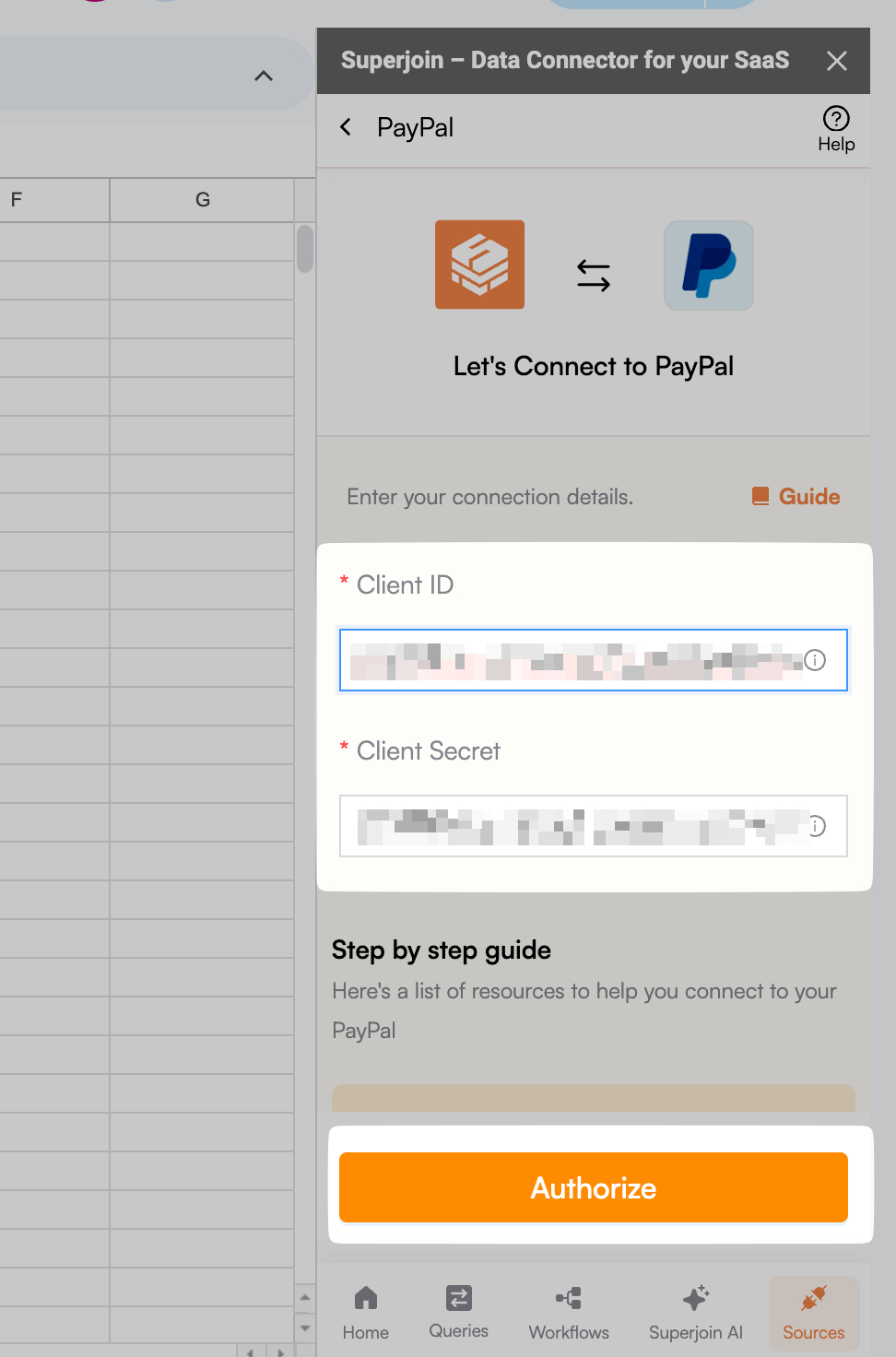
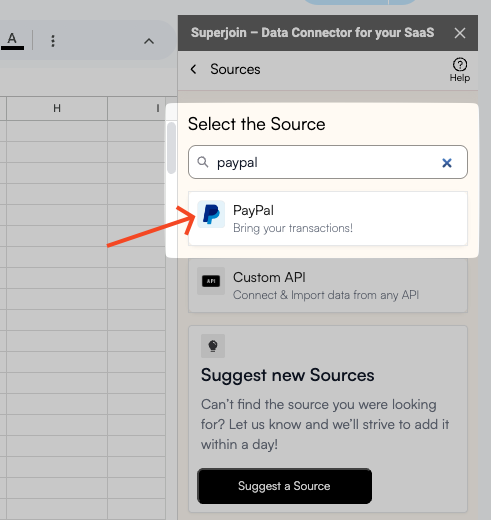 Add Client Id and Client Secret, then Click on the `Connect` button and follow the on-screen instructions to link your PayPal account.
Step-by-step guide to obtain or generate PayPal API credentials
Add Client Id and Client Secret, then Click on the `Connect` button and follow the on-screen instructions to link your PayPal account.
Step-by-step guide to obtain or generate PayPal API credentials
 After connecting your account, a data preview window will appear, allowing you to modify your `Objects` (like Transactions, Payments, Invoices, etc.) and apply various `Filters` to refine your data.
Select the date range for which you want to import the transaction or payment data.
Add/modify the data fields you want to import. You can select specific transaction details like Date, Amount, Description, Status, and more. The `Fields` you selected should start showing up in the data preview section.
You can filter your PayPal data based on:
* Transaction types (sales, refunds, transfers)
* Date range
* Payment status
* Amount range
* Currency
You can sort your data by date, amount, or other fields, and set a row limit to control how many transactions are imported.
After previewing the data, click on `Import` and wait for a few seconds. This action transfers all selected PayPal transaction data into your Google Sheets.
You can schedule a `Refresh` to automatically update your data daily, weekly, or monthly at a specific time. This is particularly useful for keeping your PayPal transaction data up-to-date for regular financial reporting.
##### Hope this guide helped you connect PayPal to Google Sheets using Superjoin.
##### If you have any questions or need further assistance, please don't hesitate to reach out to our support team at [support@superjoin.ai](mailto:support@superjoin.ai). Thank you!
After connecting your account, a data preview window will appear, allowing you to modify your `Objects` (like Transactions, Payments, Invoices, etc.) and apply various `Filters` to refine your data.
Select the date range for which you want to import the transaction or payment data.
Add/modify the data fields you want to import. You can select specific transaction details like Date, Amount, Description, Status, and more. The `Fields` you selected should start showing up in the data preview section.
You can filter your PayPal data based on:
* Transaction types (sales, refunds, transfers)
* Date range
* Payment status
* Amount range
* Currency
You can sort your data by date, amount, or other fields, and set a row limit to control how many transactions are imported.
After previewing the data, click on `Import` and wait for a few seconds. This action transfers all selected PayPal transaction data into your Google Sheets.
You can schedule a `Refresh` to automatically update your data daily, weekly, or monthly at a specific time. This is particularly useful for keeping your PayPal transaction data up-to-date for regular financial reporting.
##### Hope this guide helped you connect PayPal to Google Sheets using Superjoin.
##### If you have any questions or need further assistance, please don't hesitate to reach out to our support team at [support@superjoin.ai](mailto:support@superjoin.ai). Thank you!