> ## Documentation Index
> Fetch the complete documentation index at: https://docs.superjoin.ai/llms.txt
> Use this file to discover all available pages before exploring further.
# How to Troubleshoot your PostgreSQL Connection?
> A comprehensive guide to diagnosing and resolving common PostgreSQL connection issues while connecting PostgreSQL and Google Sheets using Superjoin.
Error Message: Please make sure that your database is running and you have whitelisted all three of our IP address (3.6.225.10, 13.205.69.7, 13.204.201.25)
### Action Steps
Check Database Server: Ensure that your PostgreSQL server is actively running.Modify your PostgreSQL settings to include the IP addresses (3.6.225.10, 13.205.69.7, 13.204.201.25) in the whitelist, which may involve adjusting the pg\_hba.conf file or firewall settings. More information on whitelisting hereIf you've tried the above steps and still facing issues, don't hesitate to contact us at [support@superjoin.ai](mailto:support@superjoin.ai). We will respond immediately.
Error Message: Unable to connect to the database, please make sure that your database URL is correct.
### Action Steps
Double-check the database URL in your connection settings to ensure it is correct and properly formatted.If you've tried the above steps and still facing issues, don't hesitate to contact us at [support@superjoin.ai](mailto:support@superjoin.ai). We will respond immediately.
Error Message: Incorrect database credentials. Please verify the username and password.
### Action Steps
Make sure that the username and password in your connection settings are accurate and correspond to what is configured on your PostgreSQL server.
If necessary, reset the password for the user in PostgreSQL and update it in your connection settings.
Learn how to create a new user in PostgreSQL to provide appropriate read only access.
If you've tried the above steps and still facing issues, don't hesitate to contact us at [support@superjoin.ai](mailto:support@superjoin.ai). We will respond immediately.
Error Message: Database does not exist. Please verify the database name.
Confirm that the database name in your connection settings matches an existing database on your PostgreSQL server. This common issue occurs when the database name is misspelled or the database was not created. Here's the command: `\l`If you've tried the above steps and still facing issues, don't hesitate to contact us at [support@superjoin.ai](mailto:support@superjoin.ai). We will respond immediately.
Error Message: Connection attempt timed out. Please try again later.
### Action Steps
Check if the PostgreSQL server is operational and not undergoing maintenance or downtime which could impede connections. Ensure that the IP addresses (3.6.225.10, 13.205.69.7, 13.204.201.25) is added to the whitelist in your PostgreSQL settings, which may include modifying the pg\_hba.conf file or adjusting firewall settings to allow the connection.If you've tried the above steps and still facing issues, don't hesitate to contact us at [support@superjoin.ai](mailto:support@superjoin.ai). We will respond immediately.
Error Message: Connection timeout exceeded. Please verify the host and port details.
### Action Steps
Double-check that the host and port information in your connection settings are correct and that the PostgreSQL server is actively listening on that host and port. Check to see if any firewall configurations are blocking the connection to the specified port. Confirm that the IP addresses (3.6.225.10, 13.205.69.7, 13.204.201.25) is whitelisted within your PostgreSQL settings, possibly requiring changes to the pg\_hba.conf file or firewall configurations.If you've tried the above steps and still facing issues, don't hesitate to contact us at [support@superjoin.ai](mailto:support@superjoin.ai). We will respond immediately.
Error Message: Maximum connection limit reached. Please try again later
### Action Steps
Review the current connections to your PostgreSQL server and close any that are unused or stale to free up space for new connections. Consider adjusting the max\_connections setting in your postgresql.conf file to increase the number of allowable concurrent connections, ensuring your server is equipped to handle the additional load.If you've tried the above steps and still facing issues, don't hesitate to contact us at [support@superjoin.ai](mailto:support@superjoin.ai). We will respond immediately.
Error Message: Unable to connect to the database. Please make sure that you have whitelisted all three of our IP address (3.6.225.10, 13.205.69.7, 13.204.201.25)
### Action Steps
Double-check your PostgreSQL configurations to ensure all three of our IP addresses (3.6.225.10, 13.205.69.7, 13.204.201.25) are properly whitelisted. This may require adjustments in the pg\_hba.conf file or firewall settings to allow the connection. More on this hereIf you've tried the above steps and still facing issues, don't hesitate to contact us at [support@superjoin.ai](mailto:support@superjoin.ai). We will respond immediately.
Error Message: An unknown error occurred while connecting to the database
### Action Steps
Examine the PostgreSQL server logs for any clues or additional details regarding the error.If you've tried the above steps and still facing issues, don't hesitate to contact us at [support@superjoin.ai](mailto:support@superjoin.ai). We will respond immediately.
Error Message: Unable to connect to the database. Please make sure that your database URL is correct
### Action Steps
Double-check the host entered in your connection settings to ensure it matches the server where your PostgreSQL database resides.If you've tried the above steps and still facing issues, don't hesitate to contact us at [support@superjoin.ai](mailto:support@superjoin.ai). We will respond immediately.
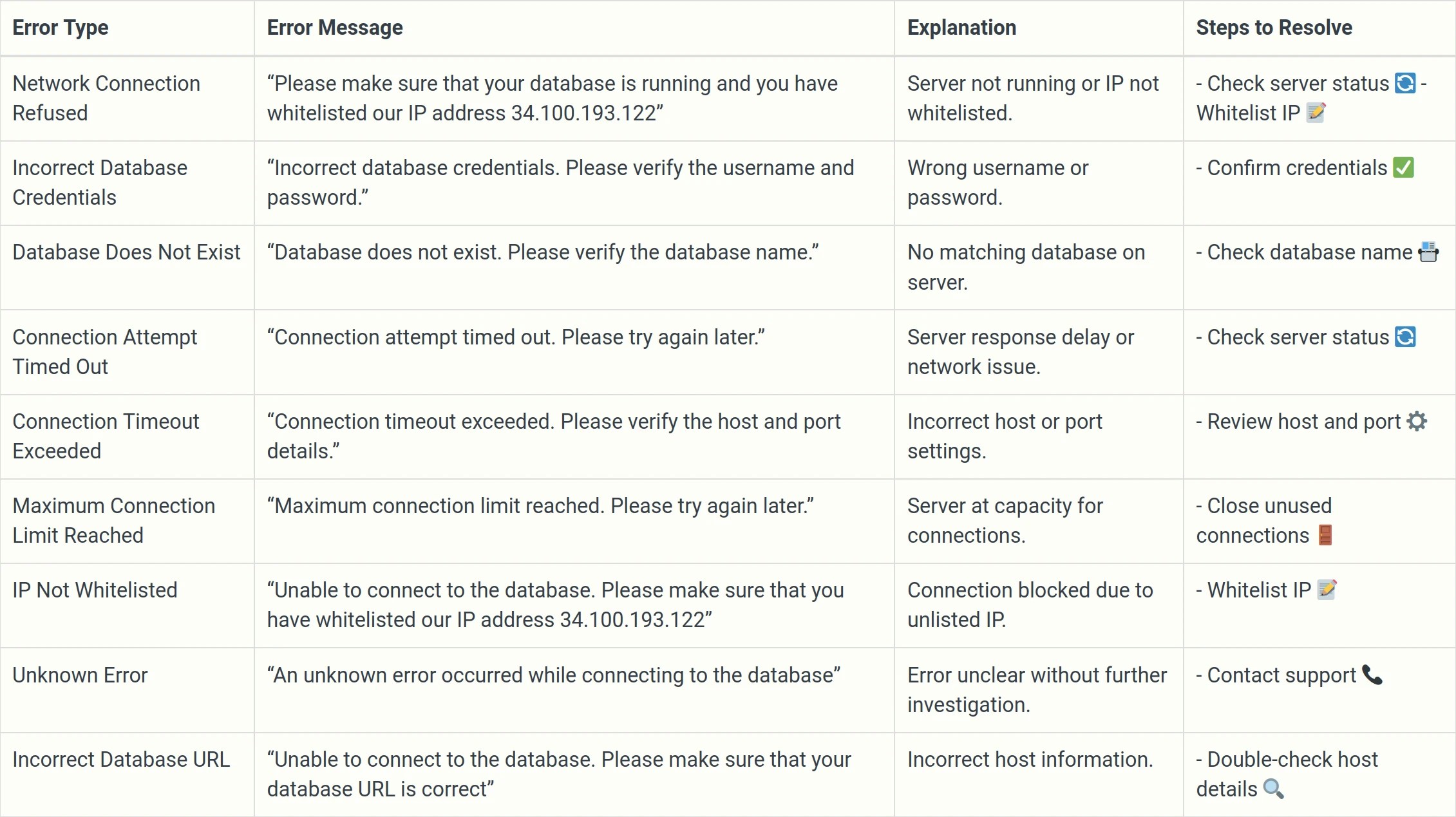
## Summarising all the errors that you could face while connecting to your PostgreSQL DB