> ## Documentation Index
> Fetch the complete documentation index at: https://docs.superjoin.ai/llms.txt
> Use this file to discover all available pages before exploring further.

# Connect your AWS RDS Database to Google Sheets

> Quickly link your AWS RDS database to Google Sheets for hassle-free data integration and visualization.

Superjoin has revolutionized the way organizations connect to RDS databases, offering secure and efficient connection solutions. This guide will walk you through setting up a connection with Superjoin, ensuring you can leverage the full capabilities of Superjoin with your MySQL database. 🚀

## Step-by-step walkthrough: How to connect RDS to Google Sheets

<iframe width="560" height="415" src="https://www.youtube.com/embed/m5muhl6xODY?si=hvT-fb_7WXsmQZrk" title="Pull data from RDS to Google Sheets" frameBorder="0" allow="accelerometer; autoplay; clipboard-write; encrypted-media; gyroscope; picture-in-picture; web-share" allowFullScreen style={{ width: "100%", borderRadius: "0.5rem" }} />

<Steps titleSize="h2">
  <Step title="Launch Superjoin">
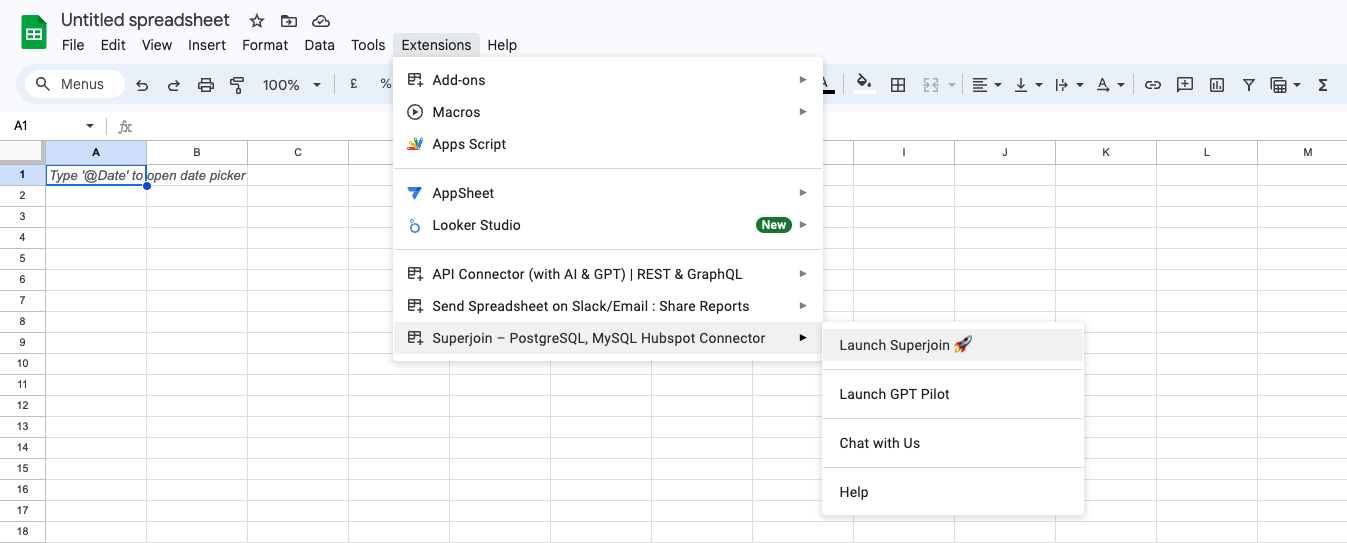
    Once Superjoin is installed, navigate to the `Extensions` menu tab in Google Sheets. Launch Superjoin from here. You should now see Superjoin running as a side panel on the right side of your screen.

    <Frame>
      <img src="https://mintcdn.com/superjoin/gjRFjFkthepgDSdX/images/launchstackit.png?fit=max&auto=format&n=gjRFjFkthepgDSdX&q=85&s=14e2ecb541402cb914b79951a8faff16" width="1347" height="543" data-path="images/launchstackit.png" />
    </Frame>
  </Step>

  <Step title="Pick MySQL">
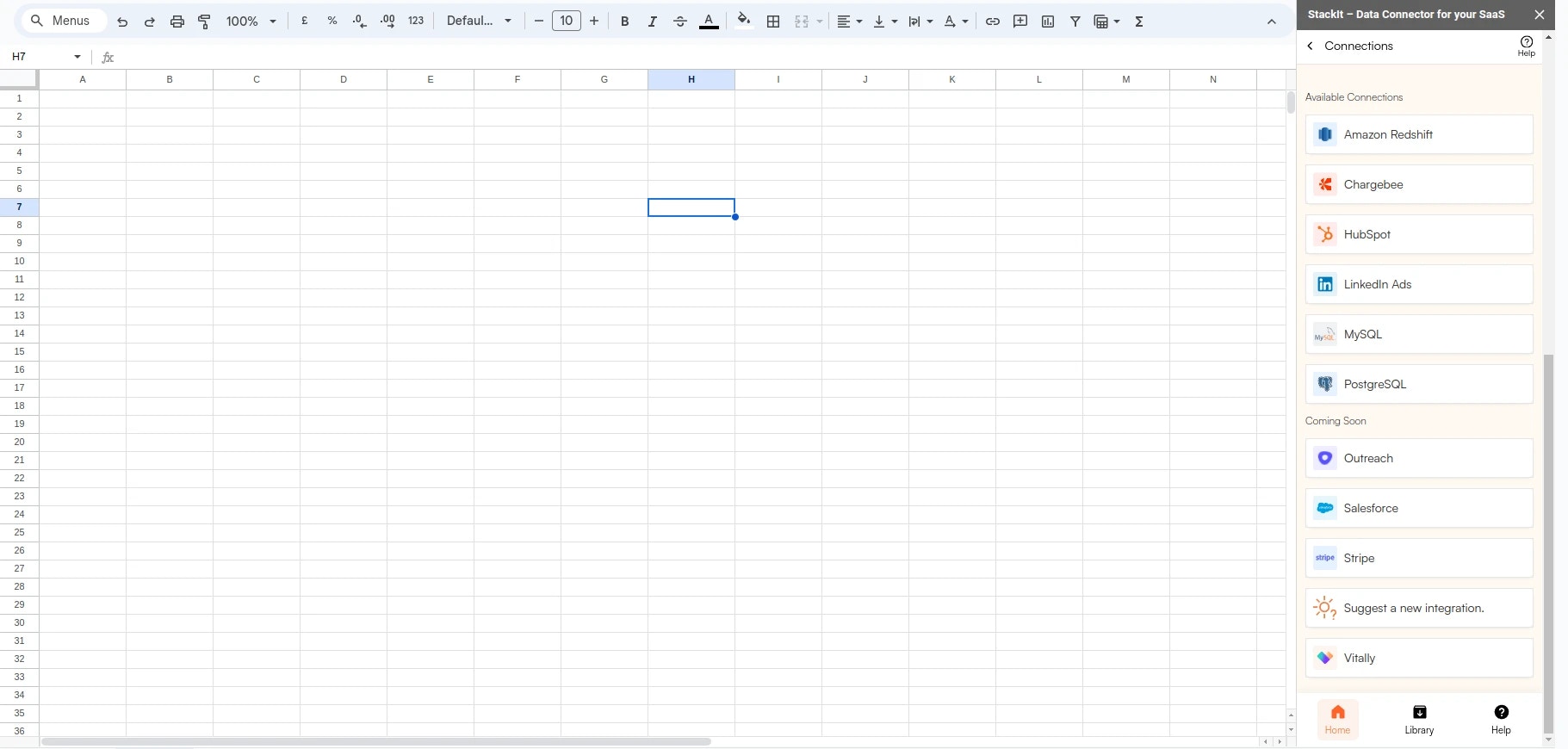
    Select MySQL (for RDS as well) from the list of available data sources.

    <Frame>
      <img src="https://mintcdn.com/superjoin/95T8cmea616drJuC/images/mysql/ms-step2.webp?fit=max&auto=format&n=95T8cmea616drJuC&q=85&s=5137dae9dc53eb1d88167b978e1ec98c" width="1821" height="870" data-path="images/mysql/ms-step2.webp" />
    </Frame>
  </Step>

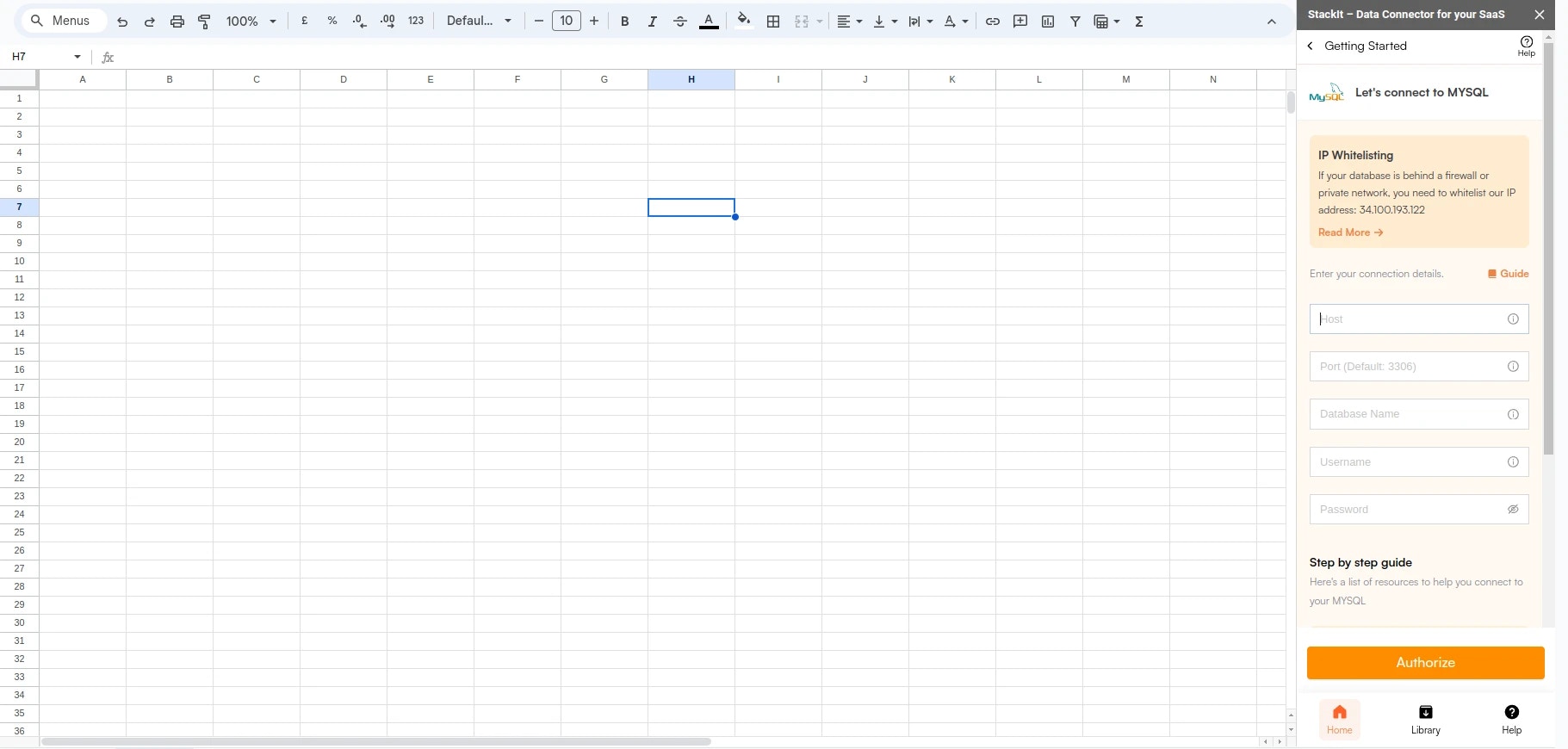
  <Step title="Connect your MySQL Database">
    Enter your connection credentials.

    | Field    | Description                                               | Example                                                   |
    | -------- | --------------------------------------------------------- | --------------------------------------------------------- |
    | Host     | This will be the endpoint of your RDS instance.           | your-db-instance.123456789012.us-east-1.rds.amazonaws.com |
    | Port     | Use the specific port for your MySQL database.            | Default is 3306                                           |
    | Database | Specify the name of the database you want to query.       | initialdatabase                                           |
    | User     | Enter the username for connecting to your MySQL database. | admin or user123                                          |
    | Password | Provide the password corresponding to the specified user. | password123                                               |

    <Note>
      For using AWS RDS (Relational Database Service), you will typically gather the same types of credentials. However, the process may include some AWS-specific steps.
    </Note>

    <Note>
      If you're connecting to a PostgreSQL RDS instance which is running
      PostgreSQL version 15 or higher, you must enable the enforce SSL toggle beflow the
      password field.
    </Note>

    <Frame>
      <img src="https://mintcdn.com/superjoin/95T8cmea616drJuC/images/mysql/ms-step3.webp?fit=max&auto=format&n=95T8cmea616drJuC&q=85&s=b8b0b907b03582e7a097d866419f95ff" width="1821" height="870" data-path="images/mysql/ms-step3.webp" />
    </Frame>
  </Step>

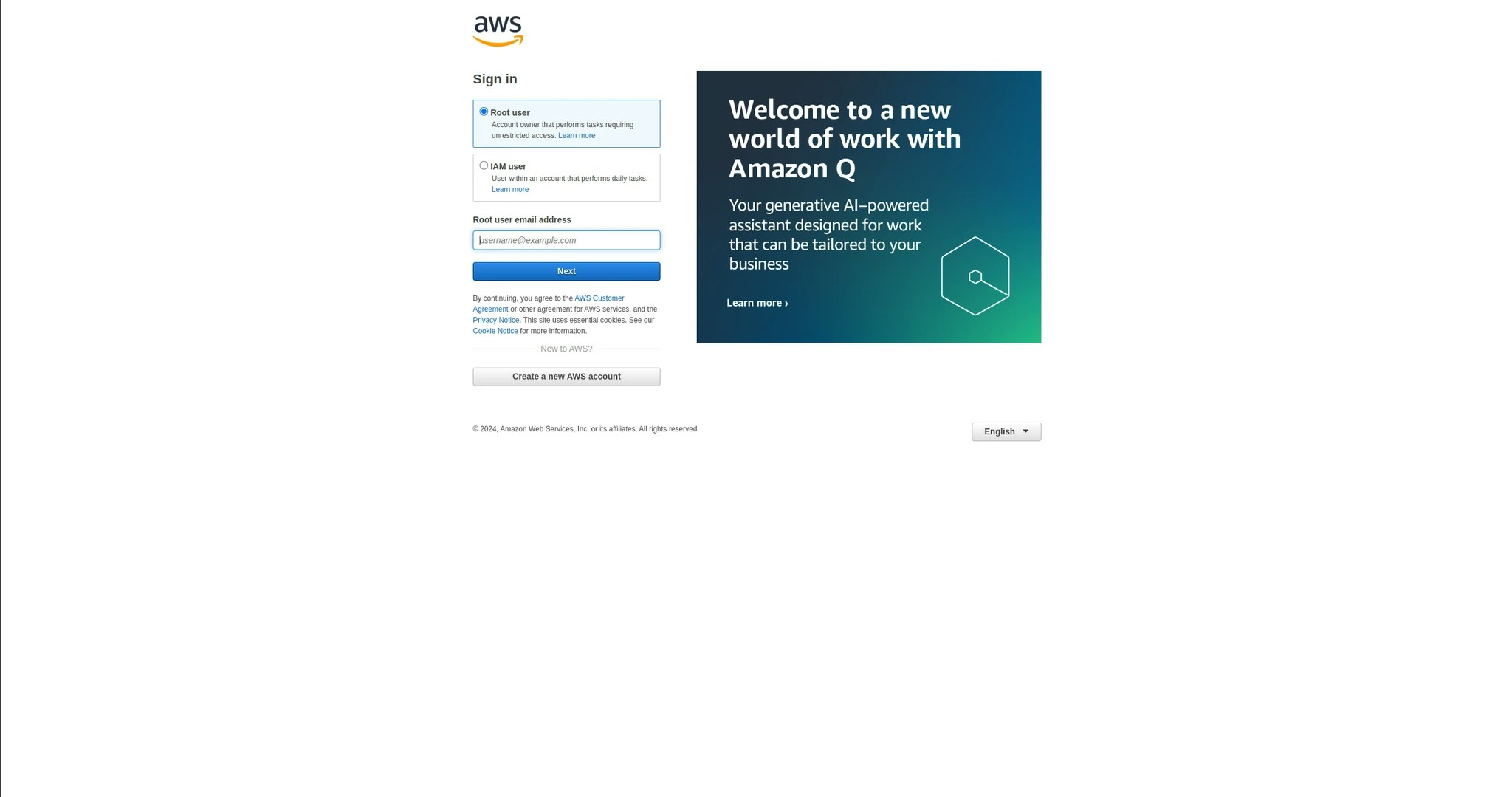
  <Step title="Login to AWS">
    Log in to the AWS Management Console.

    <Frame>
      <img src="https://mintcdn.com/superjoin/95T8cmea616drJuC/images/rds/rds-step3.webp?fit=max&auto=format&n=95T8cmea616drJuC&q=85&s=f43b9829d5effc66686222ebbebf95eb" width="2048" height="1079" data-path="images/rds/rds-step3.webp" />
    </Frame>
  </Step>

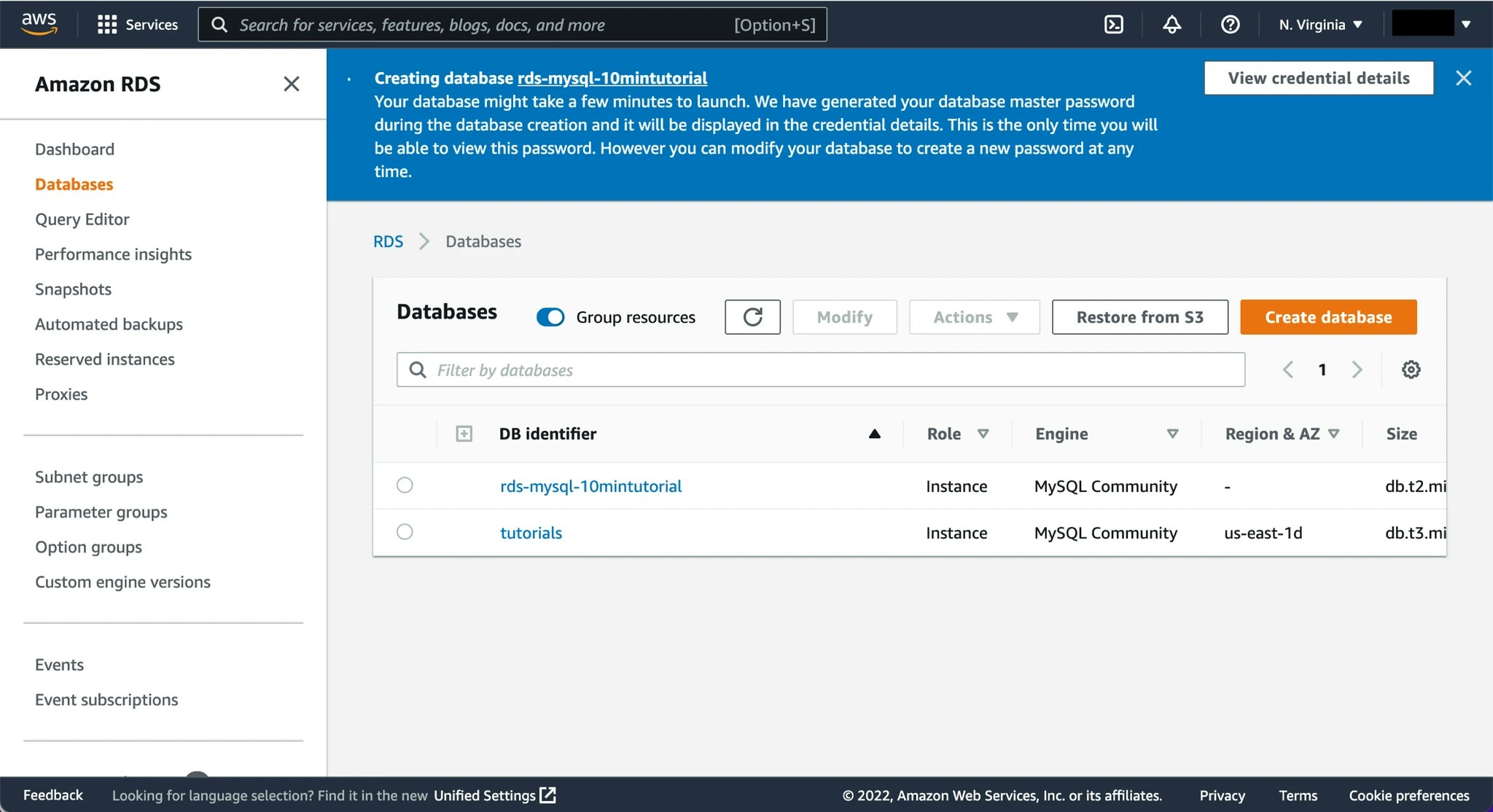
  <Step title="Navigate to RDS">
    Navigate to the RDS dashboard and select your database instance.

    <Frame>
      <img src="https://mintcdn.com/superjoin/95T8cmea616drJuC/images/rds/rds-step4.webp?fit=max&auto=format&n=95T8cmea616drJuC&q=85&s=ab2d58f6b8fc959fc77d1180693a20b9" width="2048" height="1114" data-path="images/rds/rds-step4.webp" />
    </Frame>
  </Step>

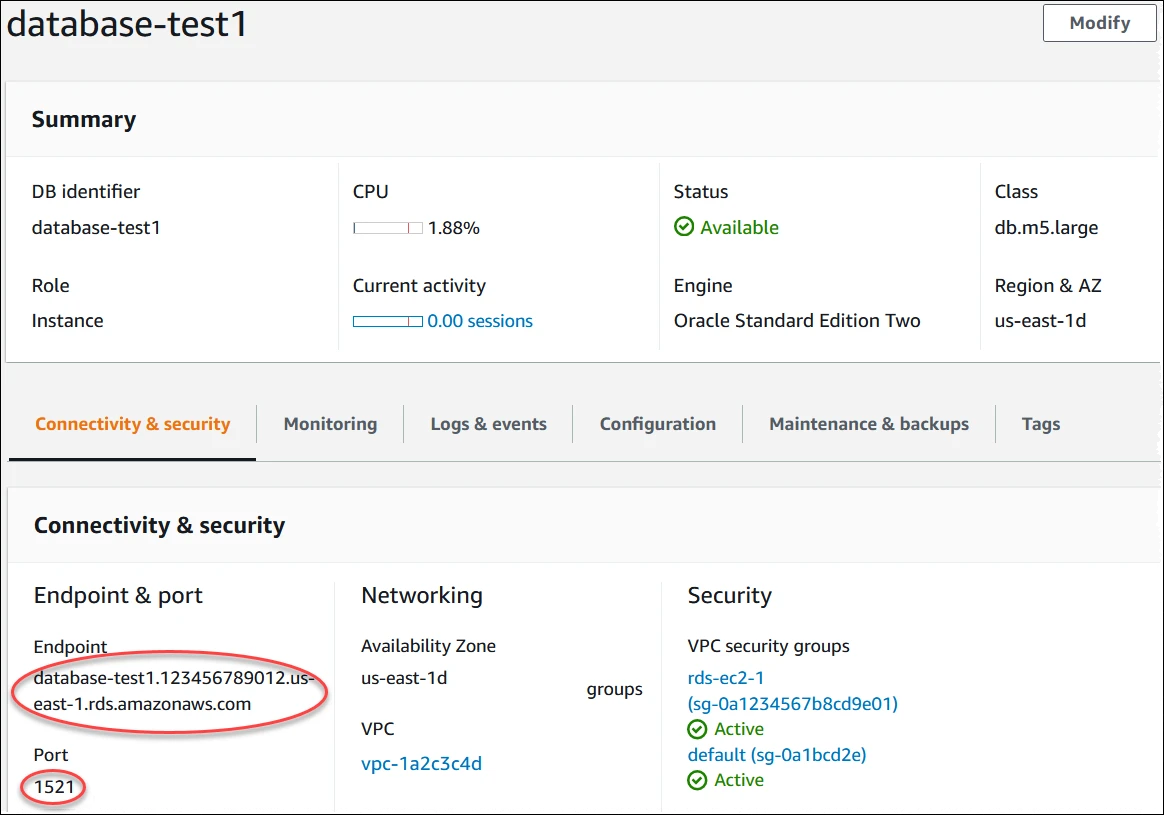
  <Step title="Identify endpoint (host) & port">
    Under the 'Connectivity & Security' section, find the 'Endpoint' and 'Port' information.

    <Frame>
      <img src="https://mintcdn.com/superjoin/95T8cmea616drJuC/images/rds/rds-step5.webp?fit=max&auto=format&n=95T8cmea616drJuC&q=85&s=f464bc659000906e04659ff54e366df1" width="1164" height="815" data-path="images/rds/rds-step5.webp" />
    </Frame>
  </Step>

  <Step title="Connect to your RDS Database">
    Click "Authorize" to establish the connection. Superjoin will open the Data Preview upon successful creation, allowing you to start querying your database.
    <Frame>
      <img src="https://mintcdn.com/superjoin/95T8cmea616drJuC/images/mysql/ms-step3.webp?fit=max&auto=format&n=95T8cmea616drJuC&q=85&s=b8b0b907b03582e7a097d866419f95ff" width="1821" height="870" data-path="images/mysql/ms-step3.webp" />
    </Frame>
  </Step>
</Steps>