> ## Documentation Index
> Fetch the complete documentation index at: https://docs.superjoin.ai/llms.txt
> Use this file to discover all available pages before exploring further.
# How to Whitelist an IP Address in RedShift Server?
> A guide to whitelist Superjoin's IP address in your RedShift server to connect RedShift to Google Sheets using Superjoin.
Superjoin’s IP Addresses are (3.6.225.10, 13.205.69.7, 13.204.201.25). Whitelist these IP Addresses in your database and allow TCP/IP connection from this IP in your
firewall.
If you're not hands-on with database management, contacting your IT admin is the best approach
Share Superjoin's IP addresses (3.6.225.10, 13.205.69.7, 13.204.201.25) with your admin.
Ask them to whitelist all three IP Addresses for your database access.
Once whitelisted, connect your database in your Superjoin account to confirm everything is set up correctly.
If you've tried the above steps and still facing issues, don't hesitate to contact us at [support@superjoin.ai](mailto:support@superjoin.ai). We will respond immediately.
If you're ready to handle this yourself, here’s how you can whitelist IP addresses for MySQL.
## Solutions
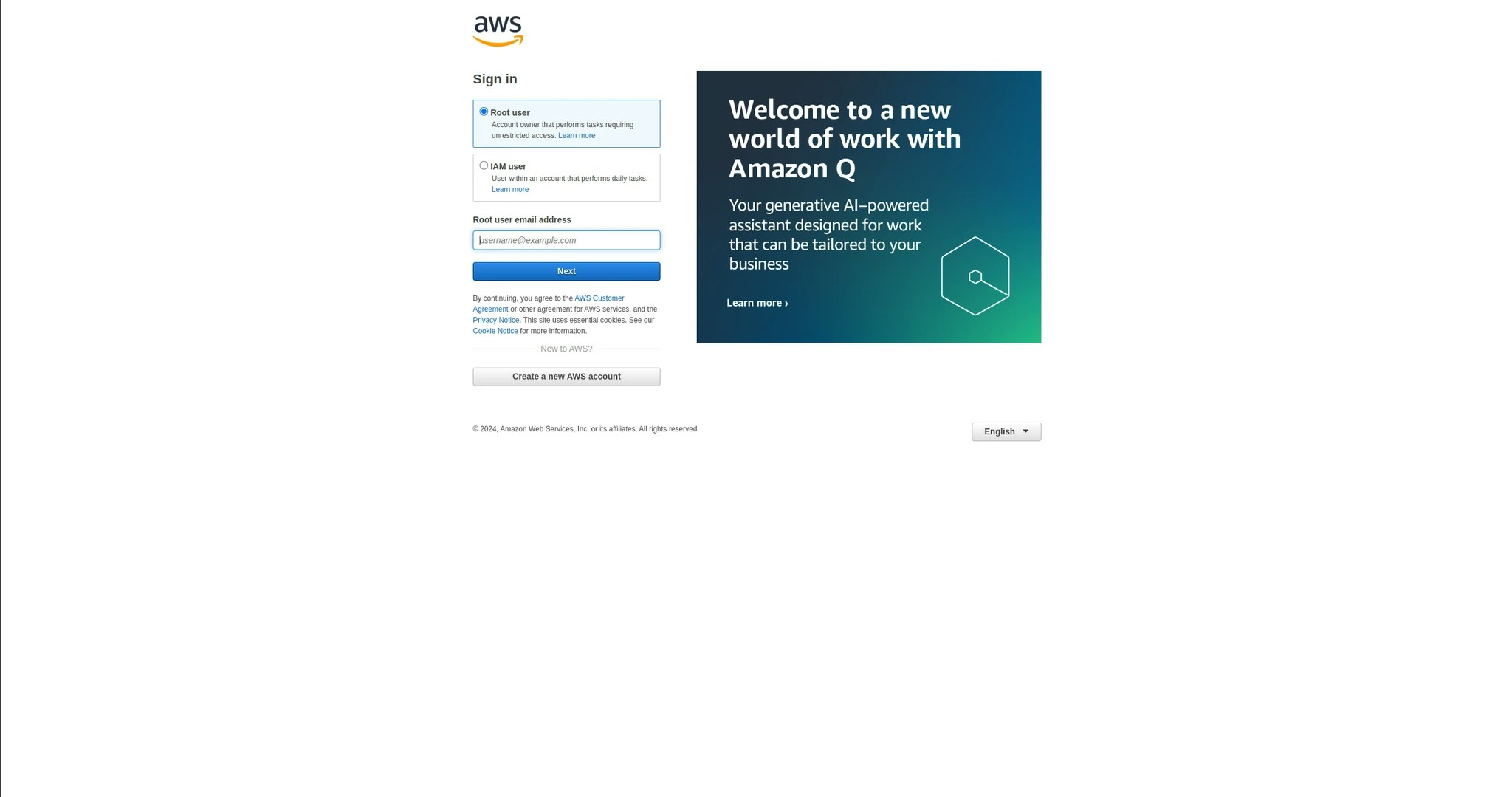
Log in to the AWS Management Console.
 Navigate to DB Instances and select your instance.
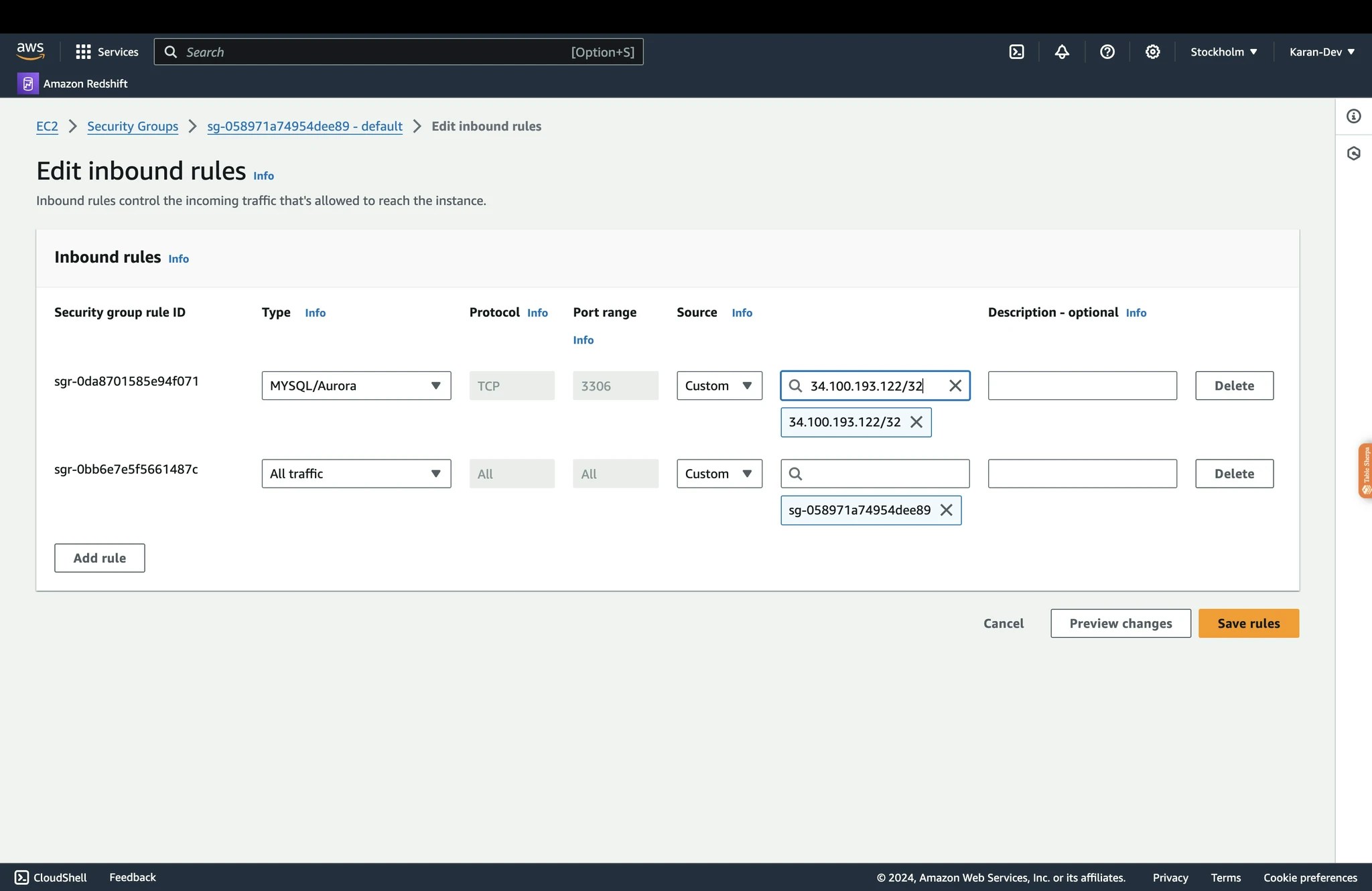
Choose the security group and edit the inbound rules. Add new rules for the IP Adresses `3.6.225.10`, `13.205.69.7`, `13.204.201.25` and save.
Navigate to DB Instances and select your instance.
Choose the security group and edit the inbound rules. Add new rules for the IP Adresses `3.6.225.10`, `13.205.69.7`, `13.204.201.25` and save.
 If you've tried the above steps and still facing issues, don't hesitate to contact us at [support@superjoin.ai](mailto:support@superjoin.ai). We will respond immediately.