> ## Documentation Index
> Fetch the complete documentation index at: https://docs.superjoin.ai/llms.txt
> Use this file to discover all available pages before exploring further.

# Quickstart

> Let's help you install and start using Superjoin in under a minute!

<Tabs>
  <Tab title="Install on Google Sheets">
    Here's the step-by-step guide to Install Superjoin on Google Sheets.

    <Steps titleSize="h2">
      <Step title="Open Google Sheets">Open from Google Drive or type `sheets.new` in a new Google Chrome tab.</Step>
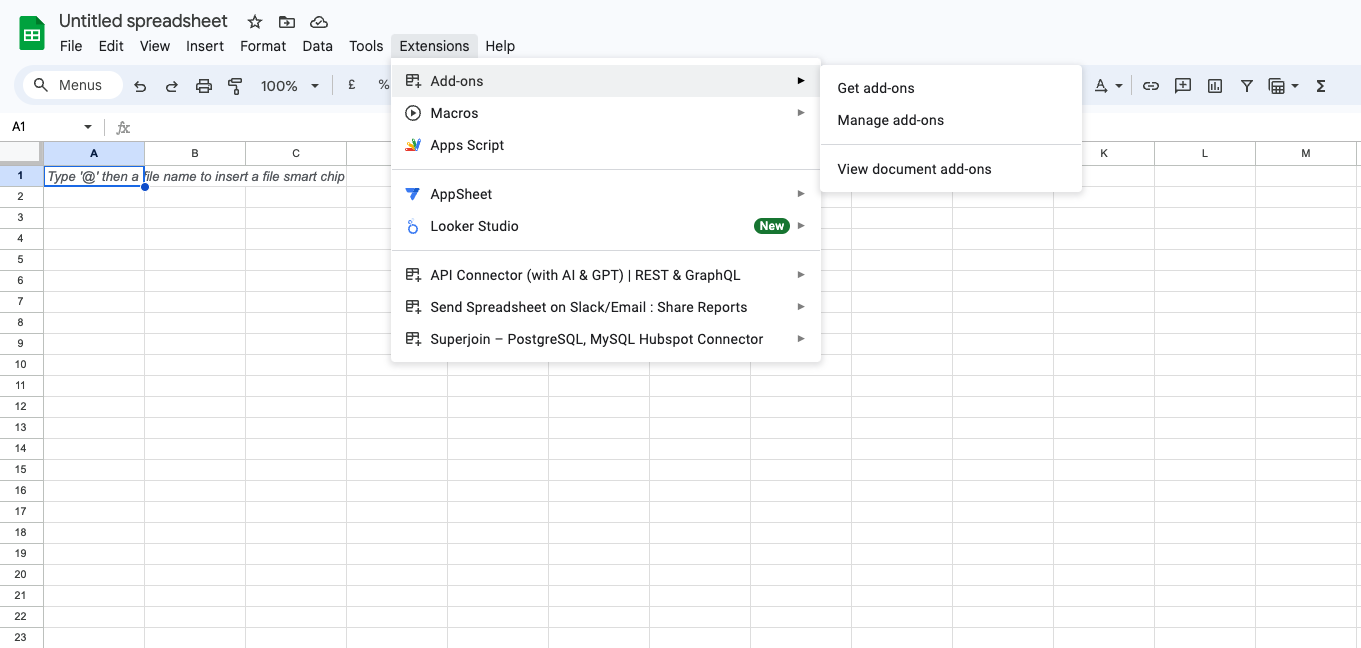
      <Step title="Launch Extensions">Click on `Extensions` from the Google Sheets menu.</Step>

      <Step title="Get Add-ons">
        Select `Add-ons` and choose `Get Add-ons`. This action will redirect you to the Google Workspace Marketplace.

        <Frame>
          <img src="https://mintcdn.com/superjoin/YLExbgl86h2tZ50q/images/getaddons.png?fit=max&auto=format&n=YLExbgl86h2tZ50q&q=85&s=ba23d07d1410cd3afb25454c5581cc85" width="1361" height="648" data-path="images/getaddons.png" />
        </Frame>
      </Step>

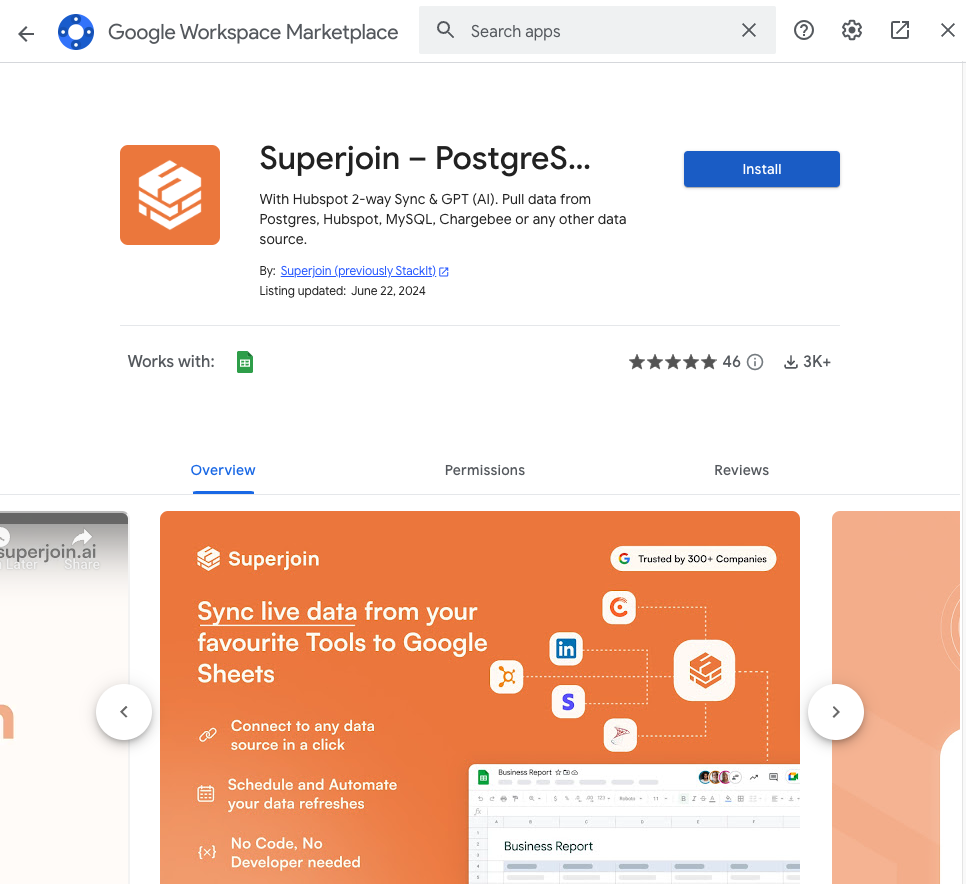
      <Step title="Search Superjoin">In the Google Workspace Marketplace pop-up window, search for "Superjoin".</Step>

      <Step title="Click on Install">
        Click on `Extensions` from the Google Sheets menu.
        <Note>**Note:** For the best experience, install Superjoin where there's only a single account is logged in the Chrome profile.</Note>

        <Frame>
          <img src="https://mintcdn.com/superjoin/gjRFjFkthepgDSdX/images/marketplace.png?fit=max&auto=format&n=gjRFjFkthepgDSdX&q=85&s=8b32a5ed819c10448985a7e3df6f7731" width="966" height="884" data-path="images/marketplace.png" />
        </Frame>
      </Step>

      <Step title="Back to Sheets">
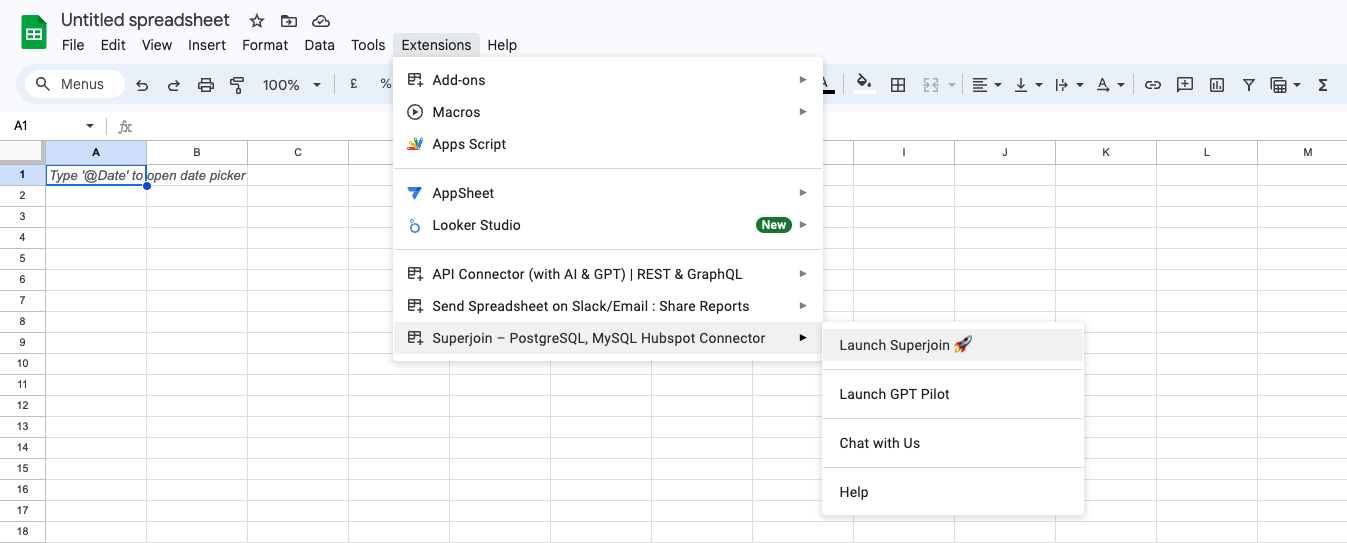
        Once installed, navigate back to the `Extensions` menu tab in Google Sheets.
      </Step>

      <Step title="Last Step!">
        Launch Superjoin from there. You should now see Superjoin running as a side panel on the right side of your screen.

        <Frame>
          <img src="https://mintcdn.com/superjoin/gjRFjFkthepgDSdX/images/launchstackit.png?fit=max&auto=format&n=gjRFjFkthepgDSdX&q=85&s=14e2ecb541402cb914b79951a8faff16" width="1347" height="543" data-path="images/launchstackit.png" />
        </Frame>
      </Step>
    </Steps>

    <Note>
      In cases where only "Help" is visible after clicking on `Extensions`, refresh your Google Sheet and wait for some time. Sometimes it takes
      over a minute to load. If you are still facing the issue, email us at [support@superjoin.ai](mailto:support@superjoin.ai).
    </Note>
  </Tab>

  <Tab title="Install on Microsoft Excel">
    Here's the step-by-step guide to Install Superjoin on Microsoft Excel.

    <Steps titleSize="h2">
      <Step title="Open Microsoft Excel">Open your desktop app or paste this link `www.microsoft365.com/launch/Excel` in a new tab in your browser.</Step>

      <Step title="Create a new Workbook">
        Click on the `Blank workbook` option that's on top of the window.

        <Frame>
          <img src="https://mintcdn.com/superjoin/95T8cmea616drJuC/images/open-new-excel-workbook.png?fit=max&auto=format&n=95T8cmea616drJuC&q=85&s=168acac825b6839633354a4839c2ec3e" width="2880" height="1800" data-path="images/open-new-excel-workbook.png" />
        </Frame>
      </Step>

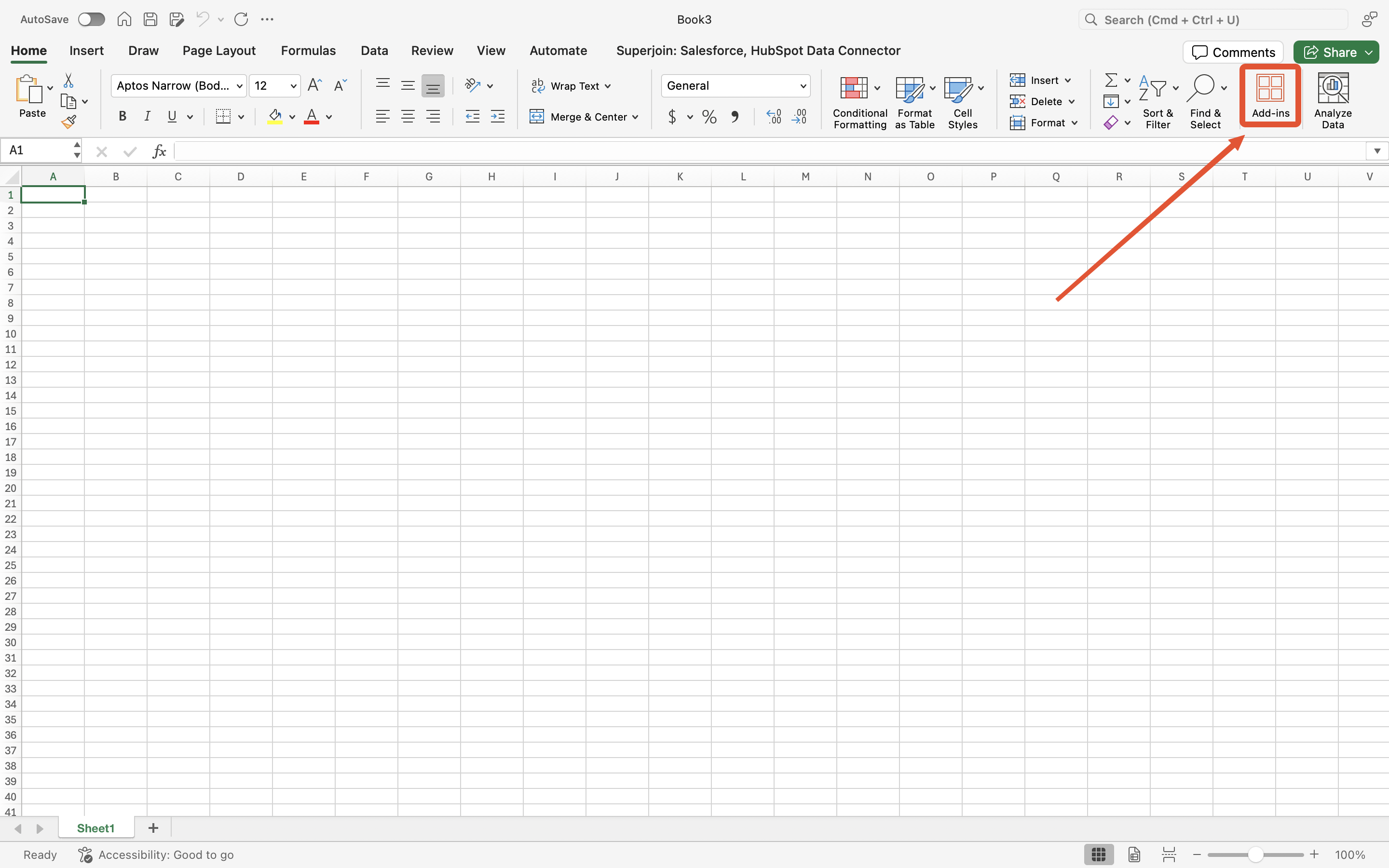
      <Step title="Launch Add-ins">
        Click on `Add-ins` on the right side of the Excel toolbar.

        <Frame>
          <img src="https://mintcdn.com/superjoin/YLExbgl86h2tZ50q/images/get-addins.png?fit=max&auto=format&n=YLExbgl86h2tZ50q&q=85&s=9a602917c1d56ab7f30977dc0f467293" width="2880" height="1800" data-path="images/get-addins.png" />
        </Frame>
      </Step>

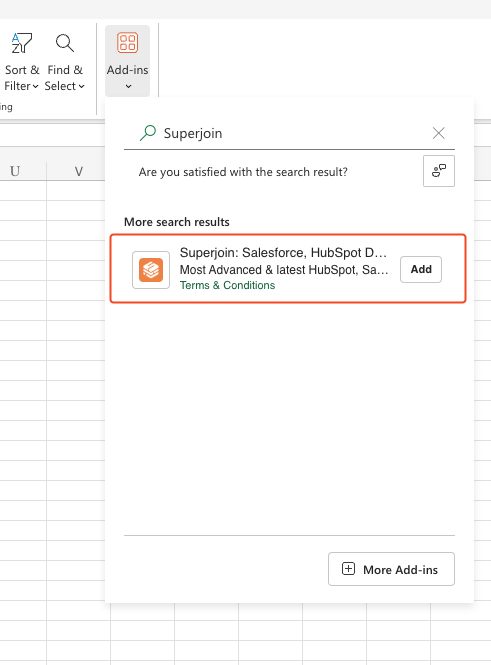
      <Step title="Get Add-in">
        Click on the searchbar and type "Superjoin". The results would show our add-in under the `More search results` section.

        <Frame>
          <img src="https://mintcdn.com/superjoin/Fj1m3rGY5-lshl-N/images/excel-addin.png?fit=max&auto=format&n=Fj1m3rGY5-lshl-N&q=85&s=2eaebe9dbede327814e129893f551325" width="491" height="665" data-path="images/excel-addin.png" />
        </Frame>
      </Step>

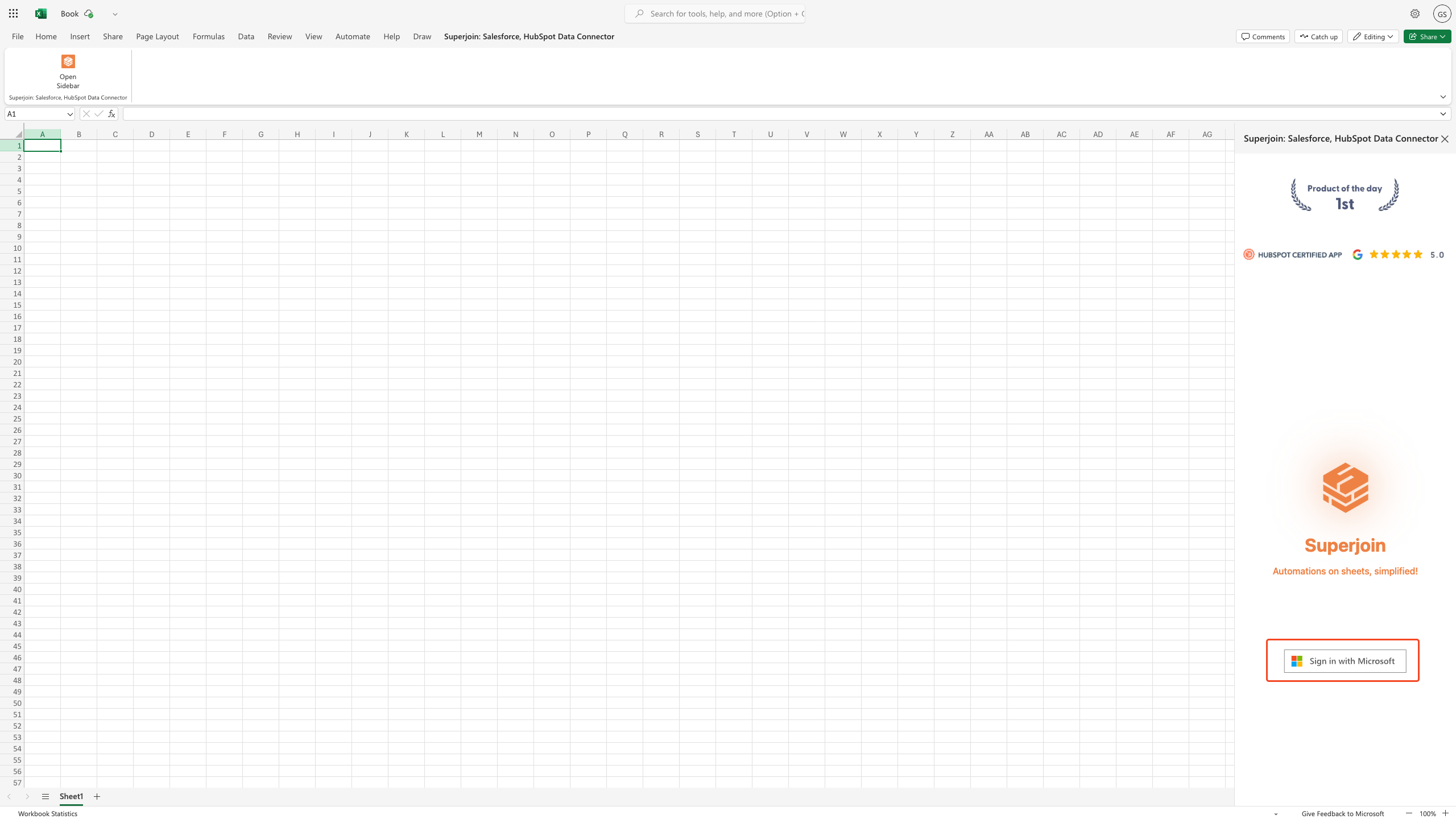
      <Step title="Authenticate with your Microsoft Account">
        Once Superjoin launches as a side panel, just click on `Sign in with Microsoft` and follow the steps to authenticate your Microsoft Office account with Superjoin.

        <Frame>
          <img src="https://mintcdn.com/superjoin/Fj1m3rGY5-lshl-N/images/excel-auth.png?fit=max&auto=format&n=Fj1m3rGY5-lshl-N&q=85&s=052b68df7e66f275c750ff01d446ac50" width="2560" height="1440" data-path="images/excel-auth.png" />
        </Frame>
      </Step>

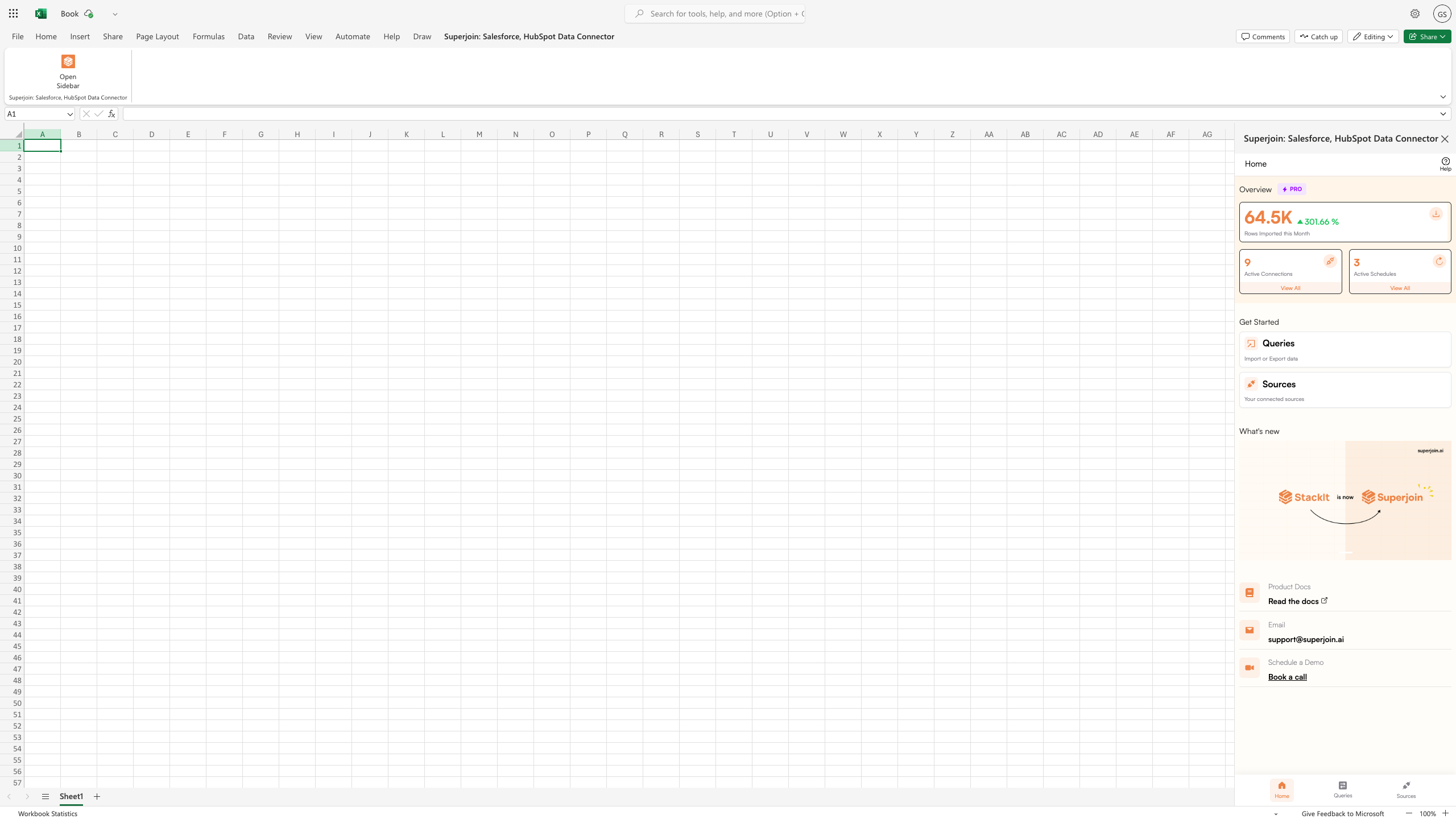
      <Step title="You're all set!">
        You should now see Superjoin running as a side panel on the right side of your screen.

        <Frame>
          <img src="https://mintcdn.com/superjoin/Fj1m3rGY5-lshl-N/images/excel-superjoin.png?fit=max&auto=format&n=Fj1m3rGY5-lshl-N&q=85&s=ec2d8be38abd9d4fa3fcb9b4fca35788" width="2560" height="1440" data-path="images/excel-superjoin.png" />
        </Frame>
      </Step>
    </Steps>
  </Tab>

  <Tab title="Install on Chrome Extension">
    ## What is Superjoin?

    Superjoin is an AI-powered assistant and data integration tool designed for Google Sheets users. It lets you:

    * Connect Google Sheets live to apps like HubSpot, Stripe, and Salesforce
    * Automate data sync between sources and your spreadsheets
    * Use AI to help with data cleaning, dashboard creation, analysis, and formula writing—all with natural language commands

    Whether you're a marketer, analyst, or operations pro, Superjoin is built to help you automate repetitive spreadsheet tasks and work smarter inside Sheets.

    ***

    ## Watch the Demo

    <iframe width="100%" height="400" src="https://www.youtube.com/embed/oy17zpesubk" title="Superjoin Chrome Extension Demo" frameborder="0" allow="accelerometer; autoplay; clipboard-write; encrypted-media; gyroscope; picture-in-picture" allowfullscreen />

    ***

    ## Installing Superjoin in Google Sheets

    <Steps titleSize="h3">
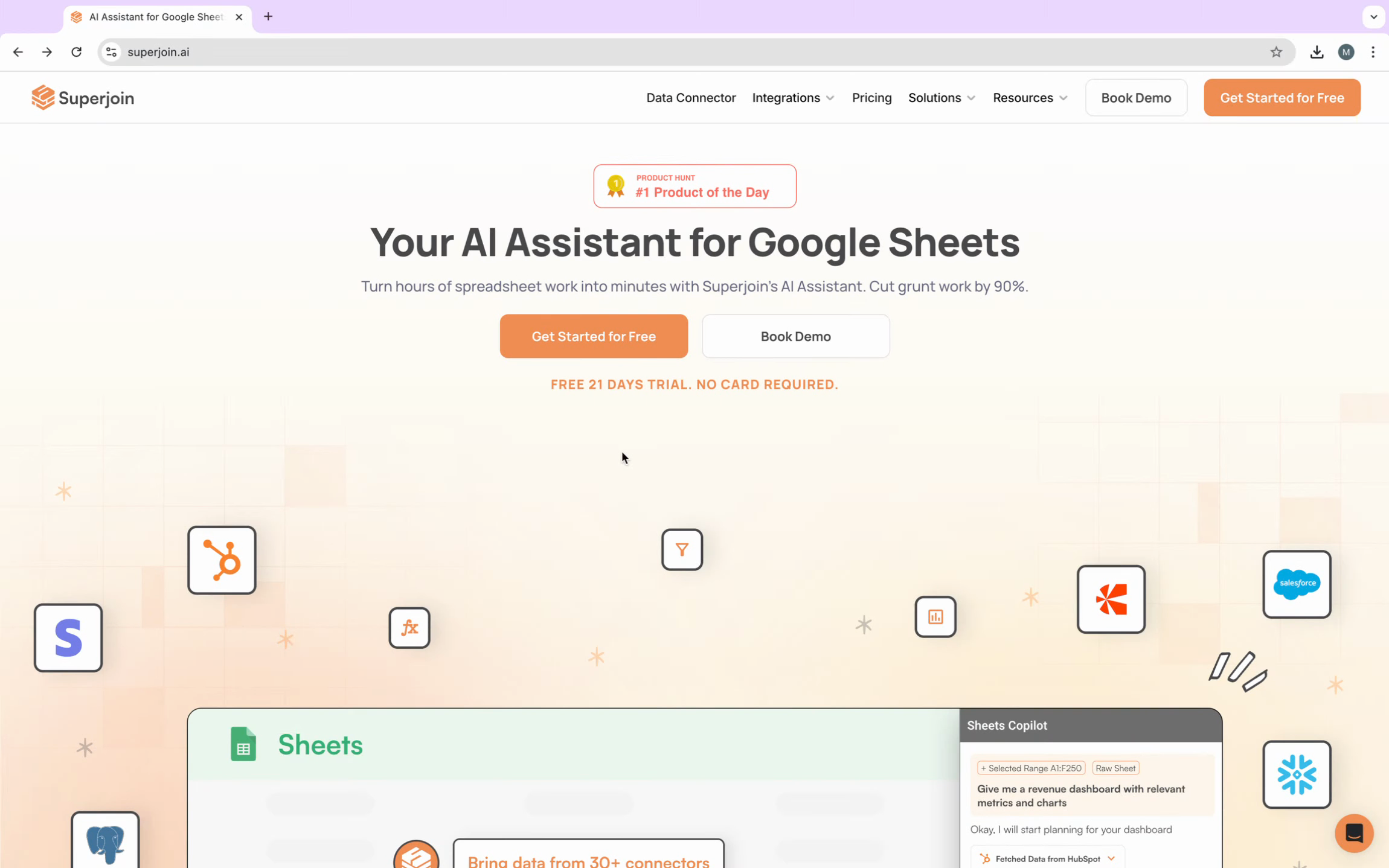
      <Step title="Visit the Superjoin Website">
        Go to the official [Superjoin AI website](https://www.superjoin.ai).

        <Frame>
          <img src="https://usercontent.in.prod.clueso.io/6b101750-ec89-4e66-83bb-0b9079219f65/9e72c72a-e59f-407c-b180-a7b9e2d86b2c/dd690ef8-28b4-4586-a0be-c750a63c0f17/images/80d1a741-8afa-488e-95cd-c1348add10ff.png" />
        </Frame>
      </Step>

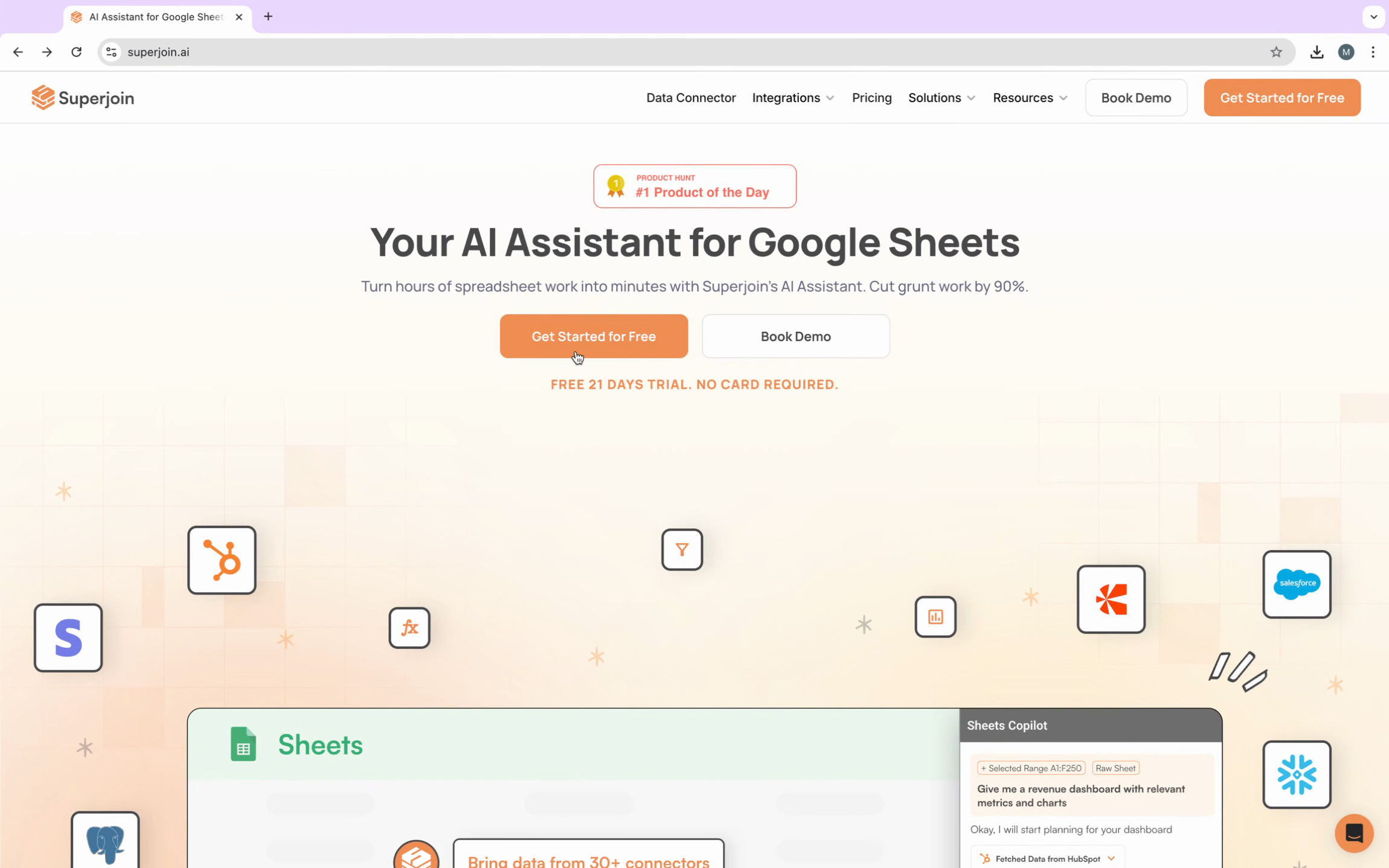
      <Step title="Start Installation">
        Click the **Get Started for Free** button to begin the setup.

        <Frame>
          <img src="https://usercontent.in.prod.clueso.io/6b101750-ec89-4e66-83bb-0b9079219f65/9e72c72a-e59f-407c-b180-a7b9e2d86b2c/dd690ef8-28b4-4586-a0be-c750a63c0f17/images/455d85a9-aedc-4f98-b45f-d0b2209444e4.png" />
        </Frame>

        This takes you to the Chrome Web Store.

        <Note>Superjoin is a Chrome extension and requires a Chromium-based browser (like Chrome or Edge). It does not work on Safari or Firefox.</Note>
      </Step>

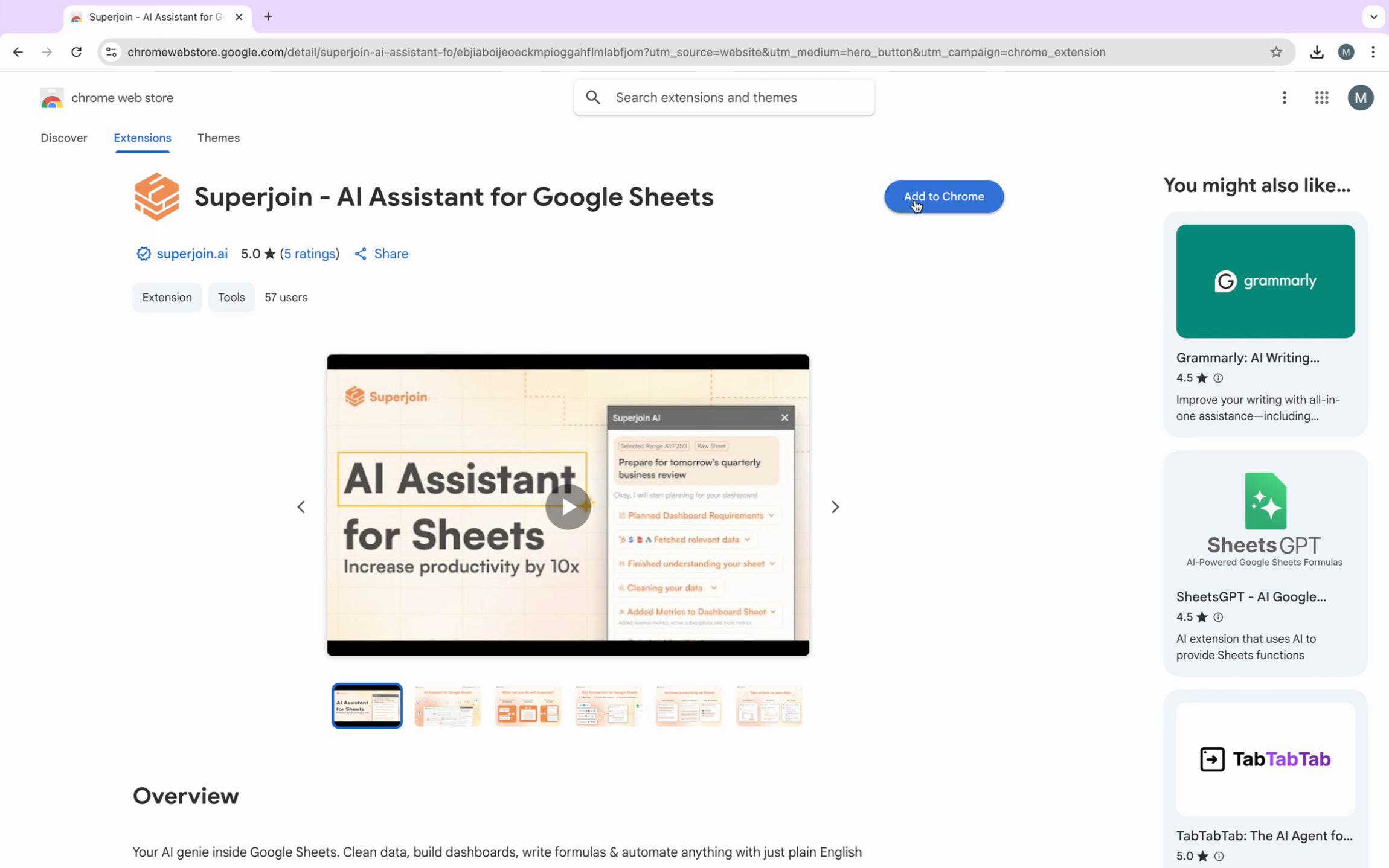
      <Step title="Add to Chrome">
        Click **Add to Chrome** to install the extension.

        <Frame>
          <img src="https://usercontent.in.prod.clueso.io/6b101750-ec89-4e66-83bb-0b9079219f65/9e72c72a-e59f-407c-b180-a7b9e2d86b2c/dd690ef8-28b4-4586-a0be-c750a63c0f17/images/cb274e31-5fde-45cc-a2fb-bfff7341e332.png" />
        </Frame>

        Once installed, you'll be directed to a login page.
      </Step>

      <Step title="Sign In with Google">
        Sign in with your Google account—the same one you use for Google Sheets. Superjoin works only in Google Sheets environments.
      </Step>

      <Step title="Grant Permissions">
        Approve all necessary permissions for Superjoin to operate. This allows integration between your Sheets and external services.

        Once complete, Superjoin is installed and ready to use.
      </Step>
    </Steps>

    ***

    ## Connecting Superjoin to Your Google Sheet

    You can use Superjoin on a brand new or an existing Google Sheet.

    <Steps titleSize="h3">
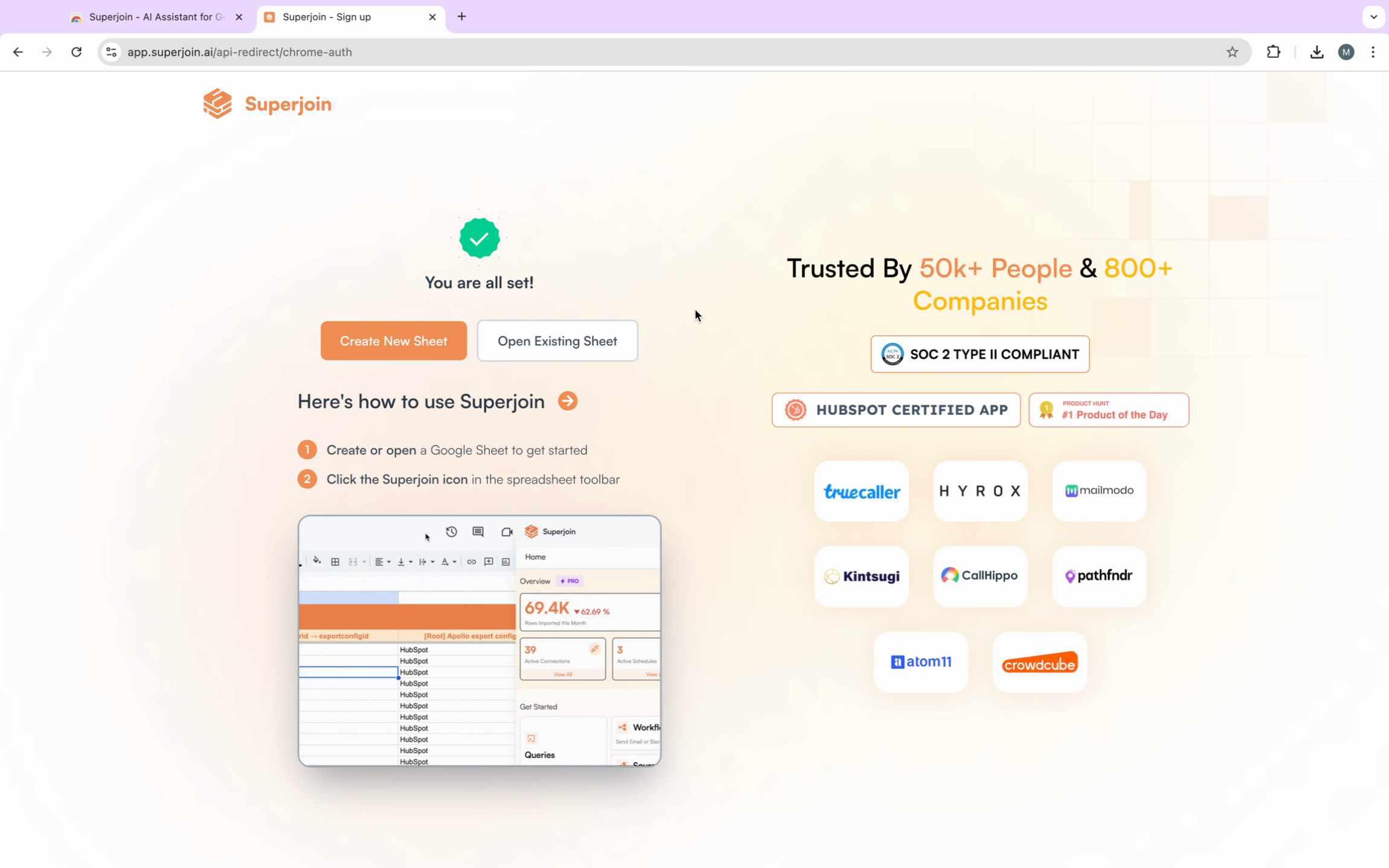
      <Step title="Launch a Sheet">
        Open Google Sheets and either:

        * Start a new sheet, or
        * Open an existing sheet where you want to use Superjoin

        <Frame>
          <img src="https://usercontent.in.prod.clueso.io/6b101750-ec89-4e66-83bb-0b9079219f65/9e72c72a-e59f-407c-b180-a7b9e2d86b2c/dd690ef8-28b4-4586-a0be-c750a63c0f17/images/31a45e19-257d-472a-bb1e-3beca8c93574.png" />
        </Frame>

        If you're starting new, click the appropriate button in Superjoin to launch a blank Google Sheet.

        <Frame>
          <img src="https://usercontent.in.prod.clueso.io/6b101750-ec89-4e66-83bb-0b9079219f65/9e72c72a-e59f-407c-b180-a7b9e2d86b2c/dd690ef8-28b4-4586-a0be-c750a63c0f17/images/805c0184-3901-4447-b268-d47ac7ccf0b6.png" />
        </Frame>

        <Tip>You must have **editor access** on the sheet. Superjoin will not function with view-only permissions.</Tip>
      </Step>

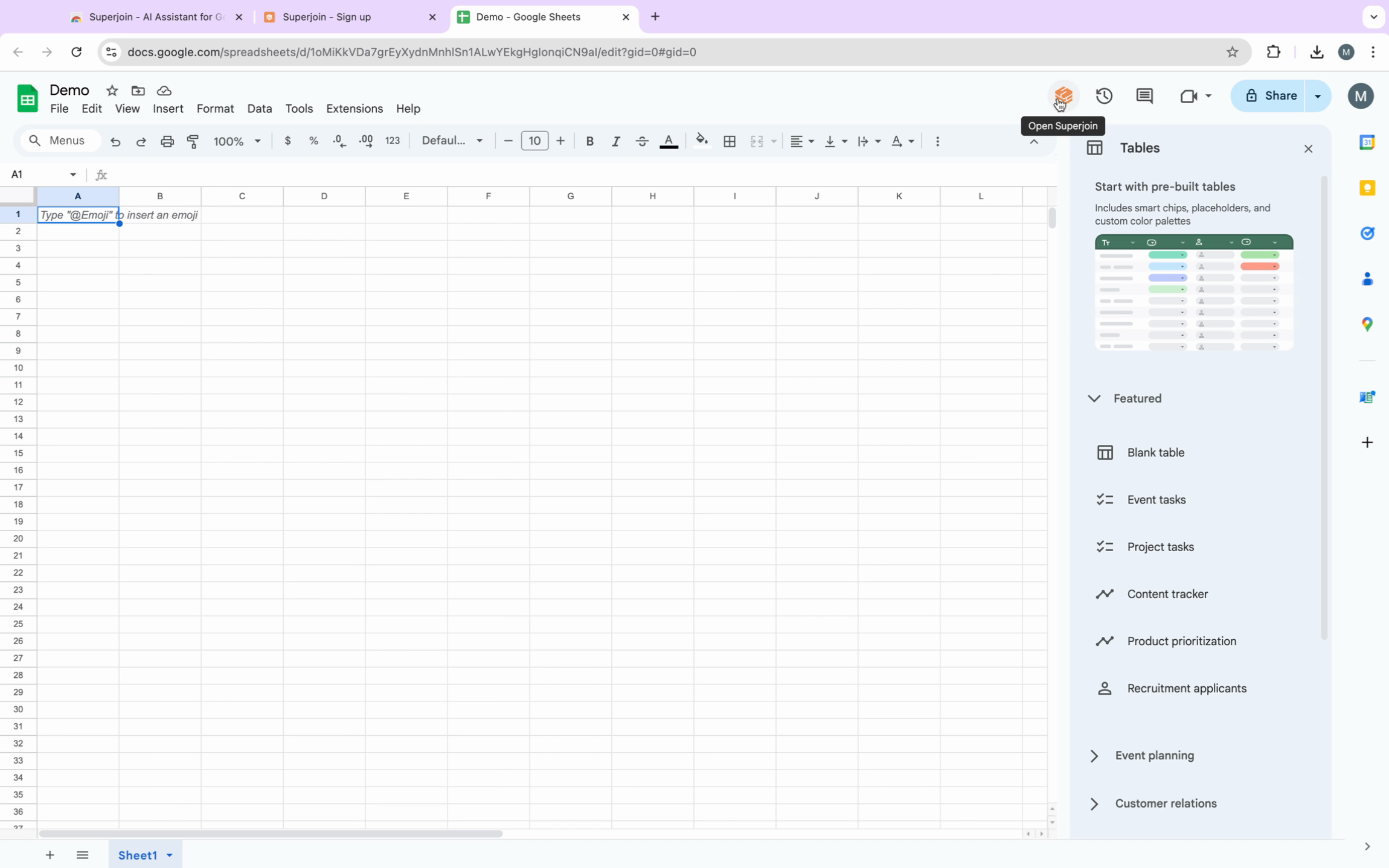
      <Step title="Locate Superjoin in the Sidebar">
        Once your sheet is open and you have the correct access, you'll see Superjoin listed in your sidebar.

        <Frame>
          <img src="https://usercontent.in.prod.clueso.io/6b101750-ec89-4e66-83bb-0b9079219f65/9e72c72a-e59f-407c-b180-a7b9e2d86b2c/dd690ef8-28b4-4586-a0be-c750a63c0f17/images/0655ce66-cd54-4b9e-ac12-aff7a58c5983.png" />
        </Frame>
      </Step>

      <Step title="Open Superjoin">
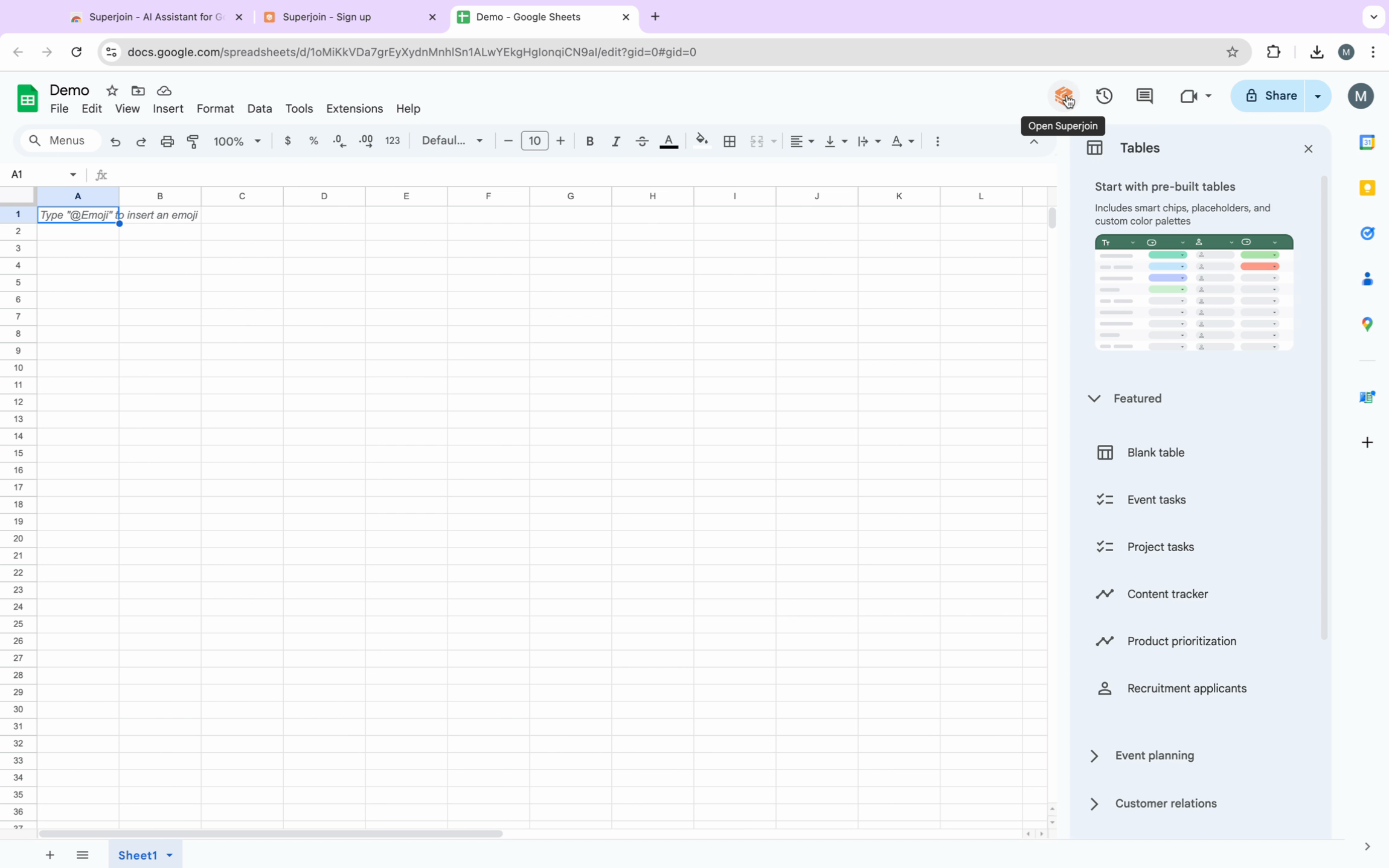
        Click on Superjoin in the sidebar to load its features and tools.

        <Frame>
          <img src="https://usercontent.in.prod.clueso.io/6b101750-ec89-4e66-83bb-0b9079219f65/9e72c72a-e59f-407c-b180-a7b9e2d86b2c/dd690ef8-28b4-4586-a0be-c750a63c0f17/images/59722128-9e8d-4eb1-ac0d-777daafa7426.png" />
        </Frame>
      </Step>
    </Steps>

    ***

    ## Getting Started with Superjoin's AI and Data Sync Features

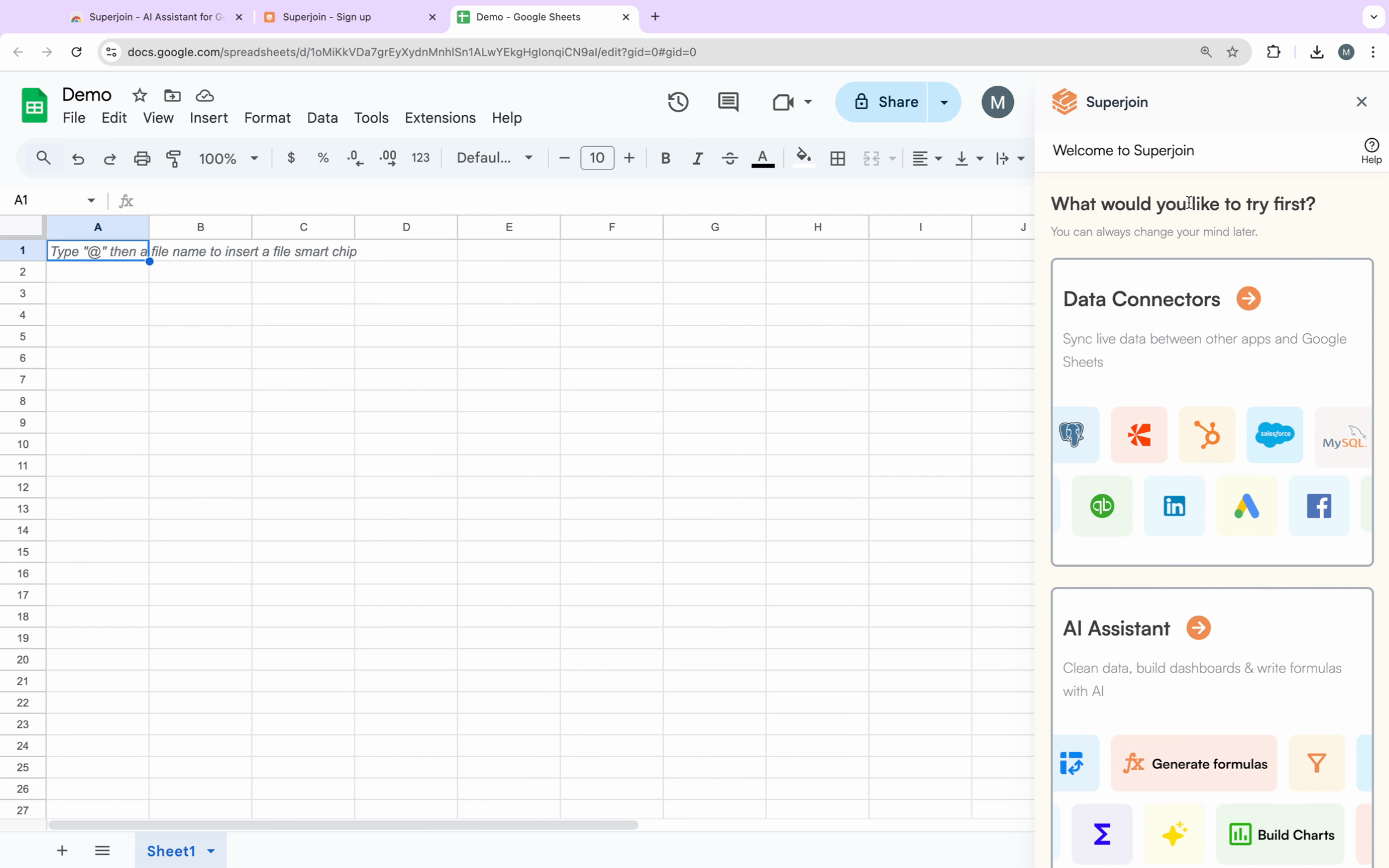
    When Superjoin opens, you'll see its two core feature sets:

    * **Data Connectors**: Sync live data in and out of spreadsheet tables from sources like HubSpot, Stripe, and Salesforce.
    * **AI Assistant**: Your Sheets copilot for data cleaning, dashboard creation, and writing advanced formulas—using plain language commands.

    <Frame>
      <img src="https://usercontent.in.prod.clueso.io/6b101750-ec89-4e66-83bb-0b9079219f65/9e72c72a-e59f-407c-b180-a7b9e2d86b2c/dd690ef8-28b4-4586-a0be-c750a63c0f17/images/0939042f-7d1c-4194-a963-668fe6df6e58.png" />
    </Frame>

    <Steps titleSize="h3">
      <Step title="Choose a Feature">
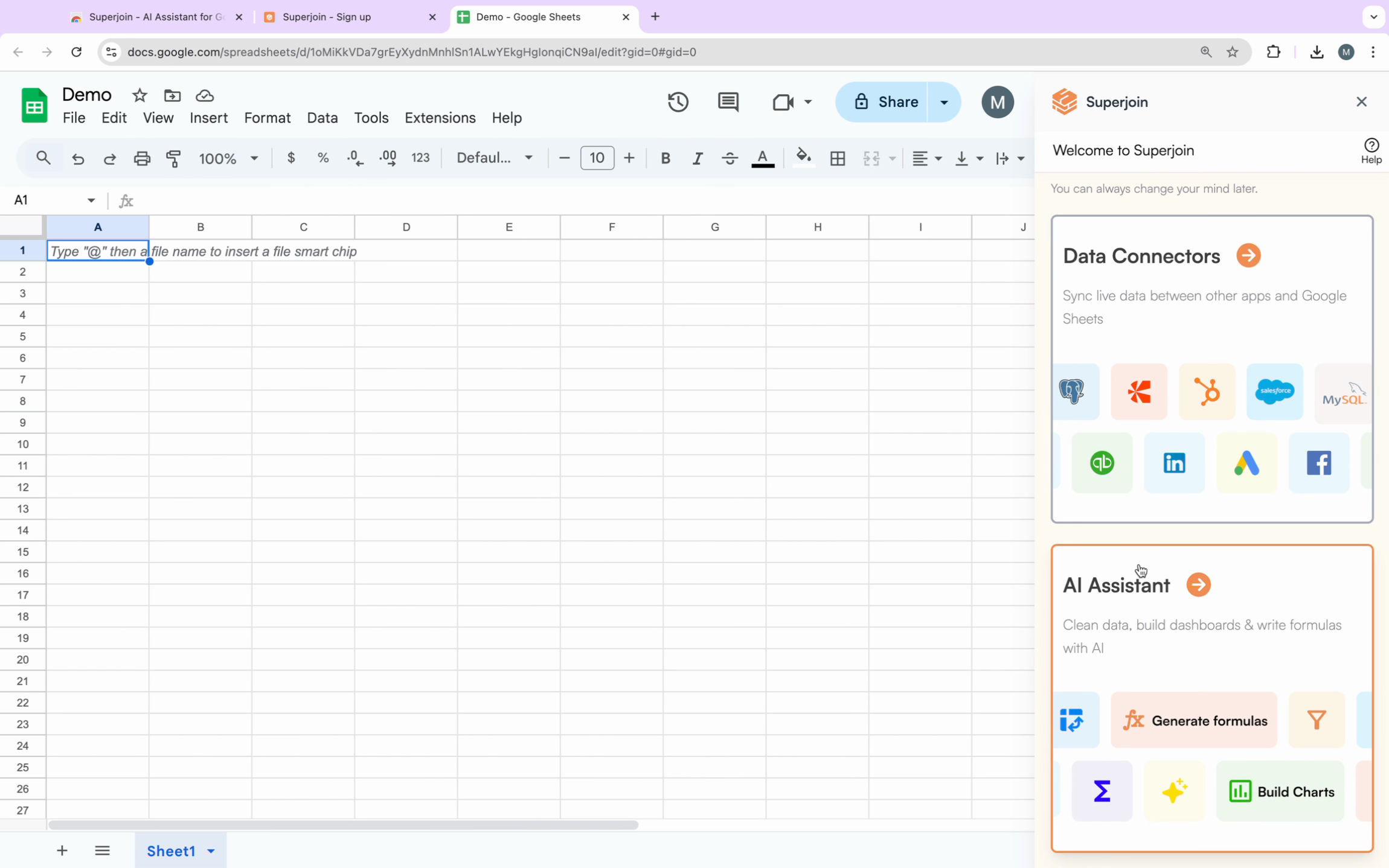
        Select either **Data Connectors** or **AI Assistant** depending on what you want to accomplish today.

        For example, click **AI Assistant** for help with formulas or dashboards. You can explore both the features later in the app.

        <Frame>
          <img src="https://usercontent.in.prod.clueso.io/6b101750-ec89-4e66-83bb-0b9079219f65/9e72c72a-e59f-407c-b180-a7b9e2d86b2c/dd690ef8-28b4-4586-a0be-c750a63c0f17/images/2c900961-f4d1-4b1b-942f-c17692c9a89c.png" />
        </Frame>
      </Step>

      <Step title="Complete Onboarding">
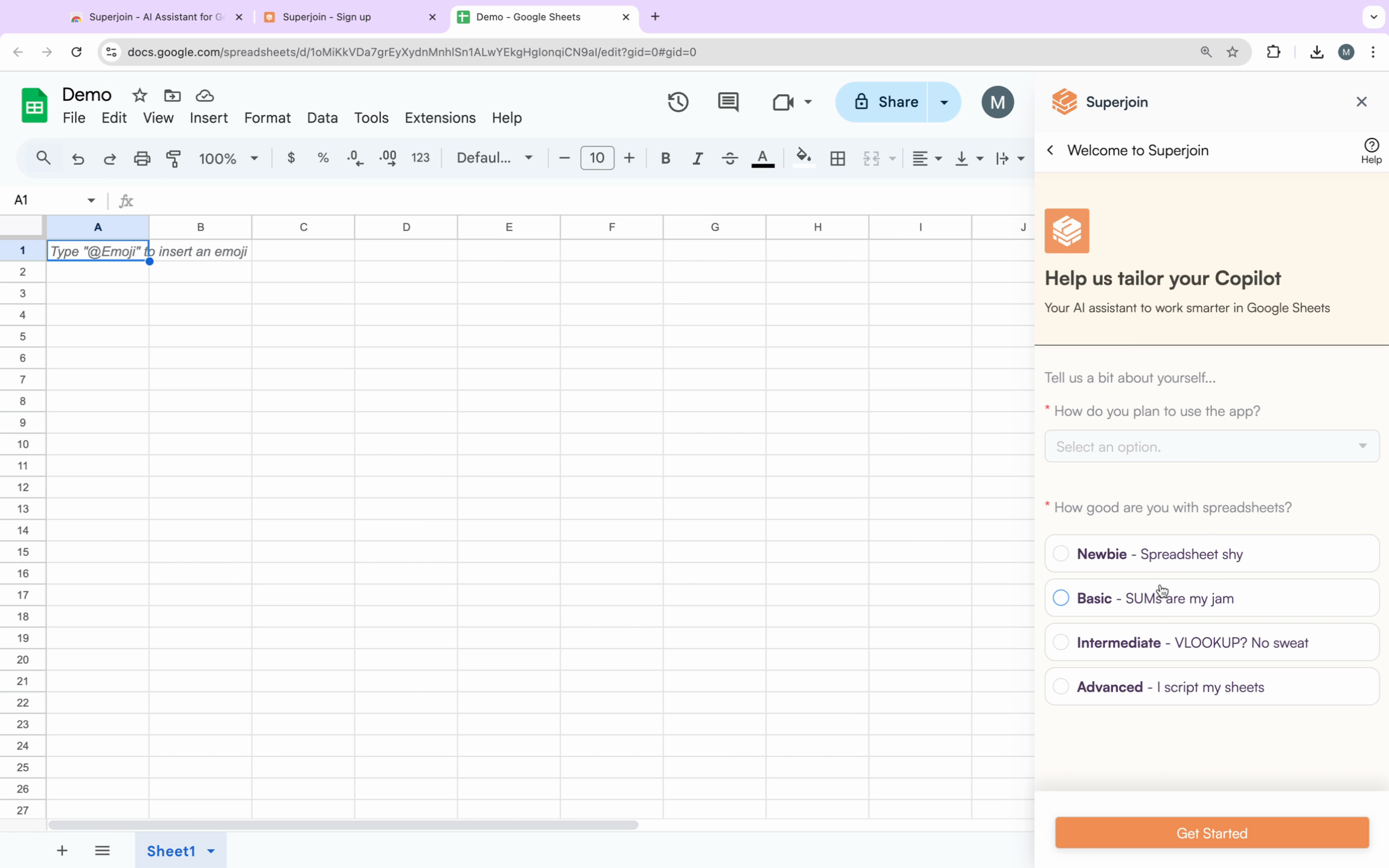
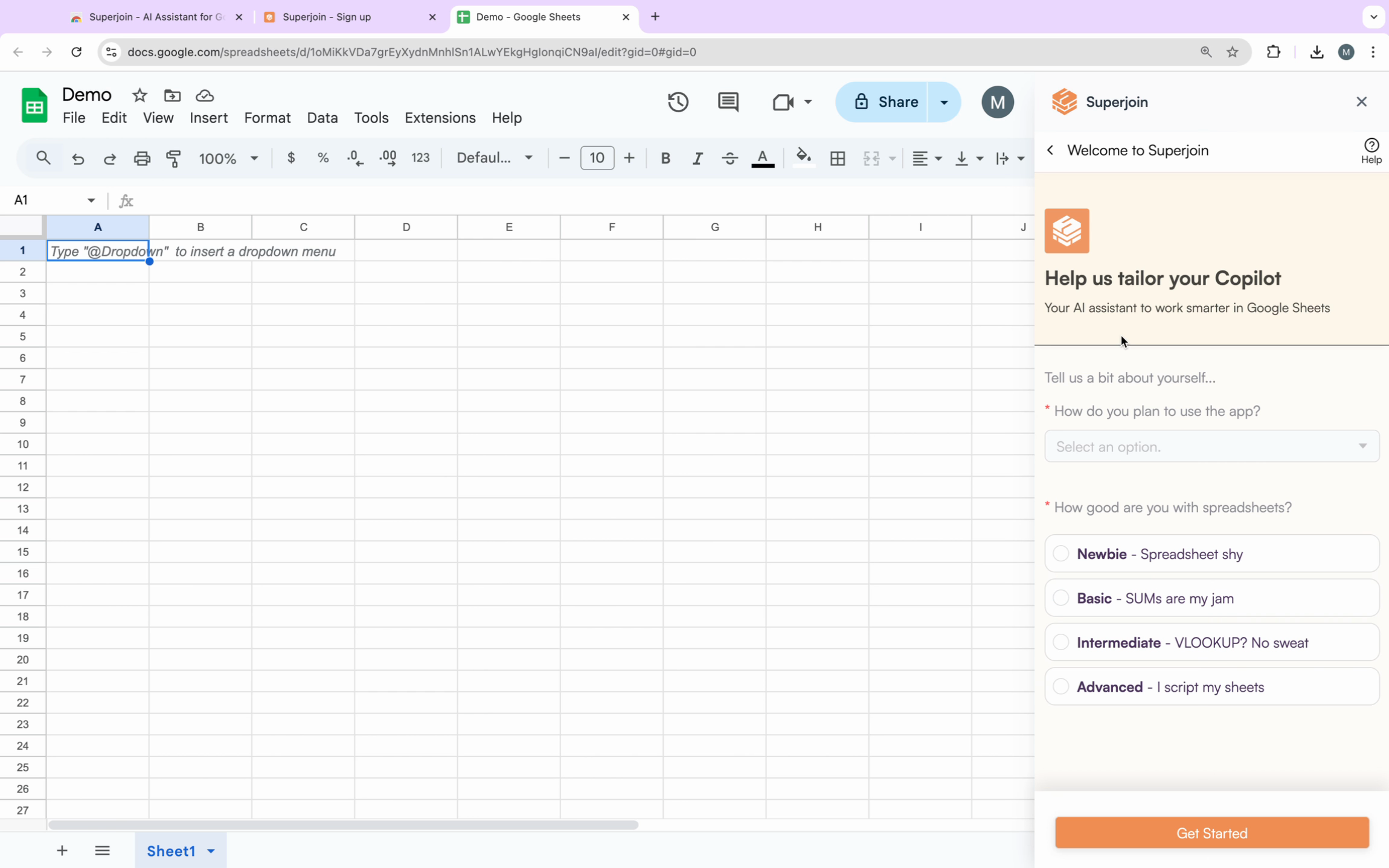
        You'll be prompted with a quick onboarding form to tailor the assistant to your needs.

        <Frame>
          <img src="https://usercontent.in.prod.clueso.io/6b101750-ec89-4e66-83bb-0b9079219f65/9e72c72a-e59f-407c-b180-a7b9e2d86b2c/dd690ef8-28b4-4586-a0be-c750a63c0f17/images/300bc3c6-e2b0-4672-a83a-0058a4265049.png" />
        </Frame>

        Fill out the form and click **Get Started**.

        <Frame>
          <img src="https://usercontent.in.prod.clueso.io/6b101750-ec89-4e66-83bb-0b9079219f65/9e72c72a-e59f-407c-b180-a7b9e2d86b2c/dd690ef8-28b4-4586-a0be-c750a63c0f17/images/69f2bca9-33f3-48d1-8b19-25b094bb2011.png" />
        </Frame>
      </Step>

      <Step title="Explore the Superjoin Home and Navigation">
        After onboarding, access the Superjoin home screen by clicking the home button.

        This navigation page is your starting point—choose to use AI features for sheet automation, or connect new data sources for syncing.
      </Step>
    </Steps>

    ***

    ## Frequently Asked Questions

    <AccordionGroup>
      <Accordion title="Which browsers are compatible with Superjoin?">
        Superjoin requires Chrome or a Chromium-based browser (like Chrome or Edge). It does not work on Safari or Firefox.
      </Accordion>

      <Accordion title="Which Google account should I use to sign in?">
        Always sign in with the Google account connected to your Google Sheets. This ensures seamless integration between Superjoin and your spreadsheets.
      </Accordion>

      <Accordion title="What permissions do I need on my Google Sheet?">
        You must have editor (not view-only) access for Superjoin to work. View-only permissions will not allow Superjoin to function properly.
      </Accordion>

      <Accordion title="Can I switch between AI Assistant and Data Connectors?">
        Yes! You can swap between AI Assistant and Data Connectors at any time from within the sidebar, depending on what you want to accomplish.
      </Accordion>
    </AccordionGroup>

    ***

    ## Next Steps and Use Cases

    You've now installed Superjoin, connected it to your Google Sheets, and explored its AI and data sync capabilities. You're ready to:

    * Automate live data imports from tools like HubSpot or Stripe
    * Use the AI Assistant for cleaning, analyzing, and visualizing data
    * Streamline manual spreadsheet processes and save hours every week

    Explore Superjoin's advanced workflows—like building live dashboards, creating automated reports, or syncing two-way data with external services—for even more powerful productivity gains inside Google Sheets.
  </Tab>
</Tabs>

<Tip>
  If you are looking for a step-by-step guide to Import or Export data from a specific Data source, navigate to that Data Source from the
  left side list under the section named Integrations.
</Tip>

## Features Overview

Save hours of manual work by instantly connecting your SaaS data to Spreadsheets automatically!

<CardGroup cols={2}>
  <Card title="Connect your data" icon="plug" iconType="duotone">
    Connect to multiple sources and pull data in just one click.
  </Card>

  <Card title="Setup refresh schedules" icon="rotate" iconType="duotone">
    Set up schedules to automatically update Sheets with the latest data.
  </Card>

  <Card title="Automate your Reports" icon="chart-area" iconType="duotone">
    Draw insights from user interactions with your documentation.
  </Card>

  <Card title="Share it with your teammates" icon="building" iconType="duotone">
    Keep your docs on your own website's subdomain.
  </Card>
</CardGroup>