> ## Documentation Index
> Fetch the complete documentation index at: https://docs.superjoin.ai/llms.txt
> Use this file to discover all available pages before exploring further.
# Automating Sequential Data Refreshes in Superjoin Workflows
> This guide walks you through building a workflow in Superjoin to automate sequential data refreshes.
## Demo
Demo: Build a dynamic dashboard in Google Sheets with Superjoin
This walkthrough sets up a monthly refresh in a Chargebee MRR dashboard where one sheet updates only after another—preventing inconsistencies from unsynchronized refreshes.
## Why sequential refreshes?
When sheets depend on one another—such as an Active Subscription sheet that relies on an Existing Data sheet—refreshing both at the same time or out of sequence can create inaccuracies. By automating refreshes sequentially, Superjoin ensures your dependent data stays consistent and reliable, even if the first refresh requires multiple attempts.
## Prerequisites
Have the dashboard installed in Google Sheets and connected to Superjoin.
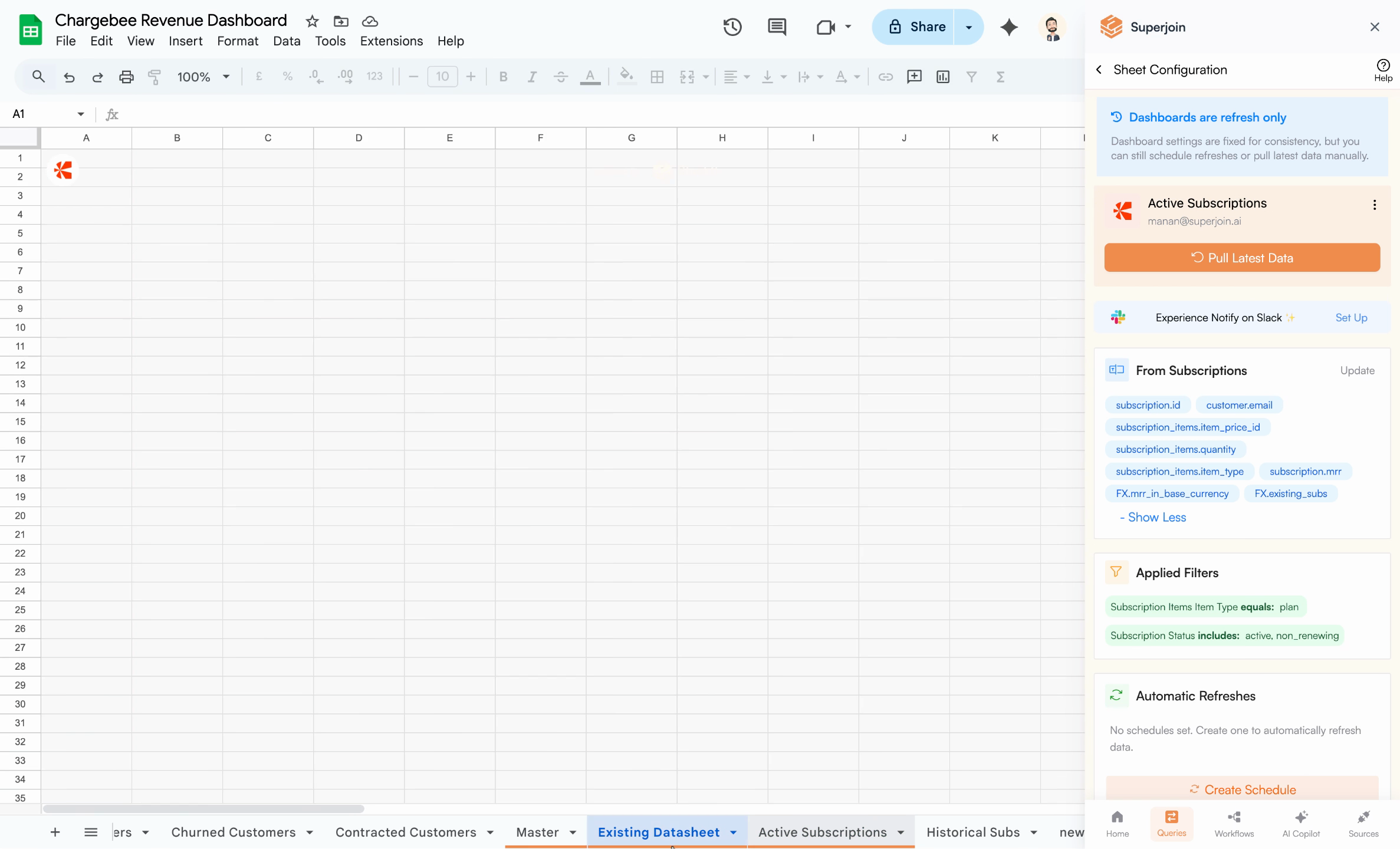
1. Existing Data (Chargebee) 2) Active Subscription (Chargebee)
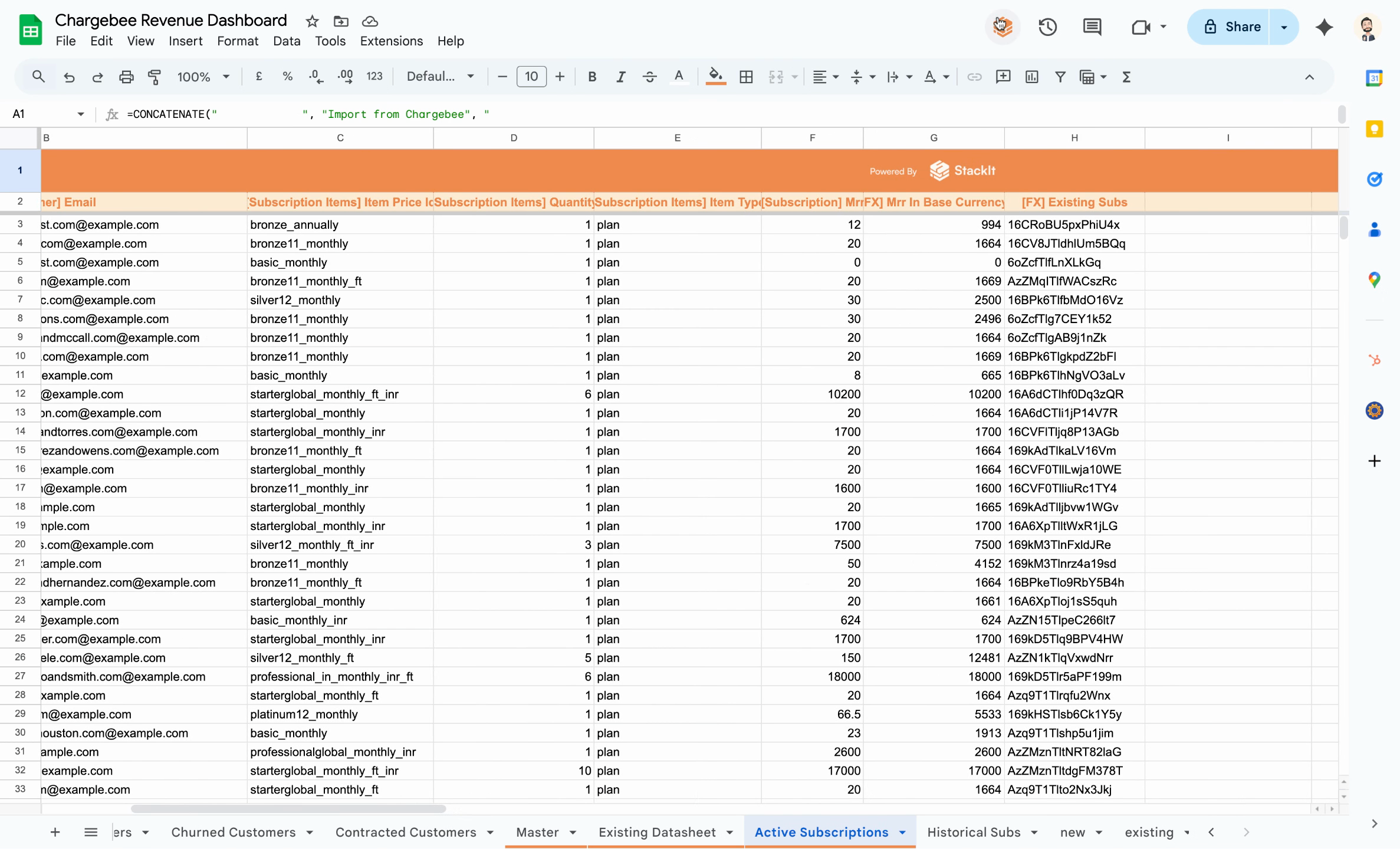
In the Active Subscription sheet, there's a copied column named existing subs used to cross-reference subscription IDs.
The 'existing subs' column in the Active Subscription sheet
## Understand the dependency
The Active Subscription sheet uses a lookup to check whether a subscription ID exists in the Existing Data sheet.
The formula cross-references the Existing Data sheet for matches
Because of this formula, the Active Subscription sheet depends on the Existing Data sheet. Sequence matters for accuracy.
## Why not just time buffer?
The Active Subscription sheet must refresh after the Existing Data sheet refreshes. Scheduling the refreshes 30–60 minutes apart is unreliable—if the first refresh fails and retries, the second could run too soon.
Superjoin Workflows provide true sequence control: each step runs only after the previous completes successfully, with built‑in retries.
## Build the workflow
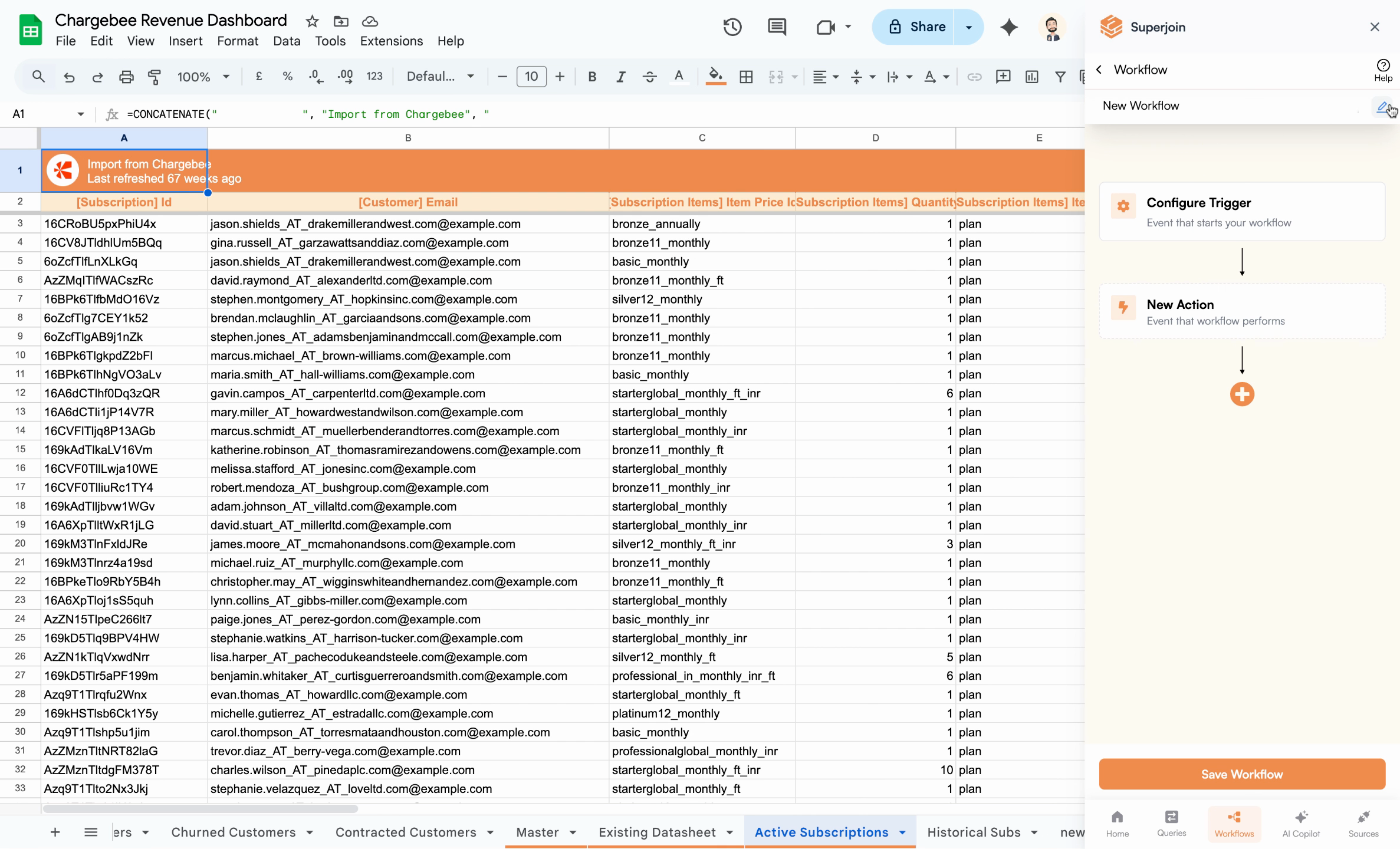
In Superjoin, open Workflows in the sidebar and click Create New Workflow.
Start a new workflow
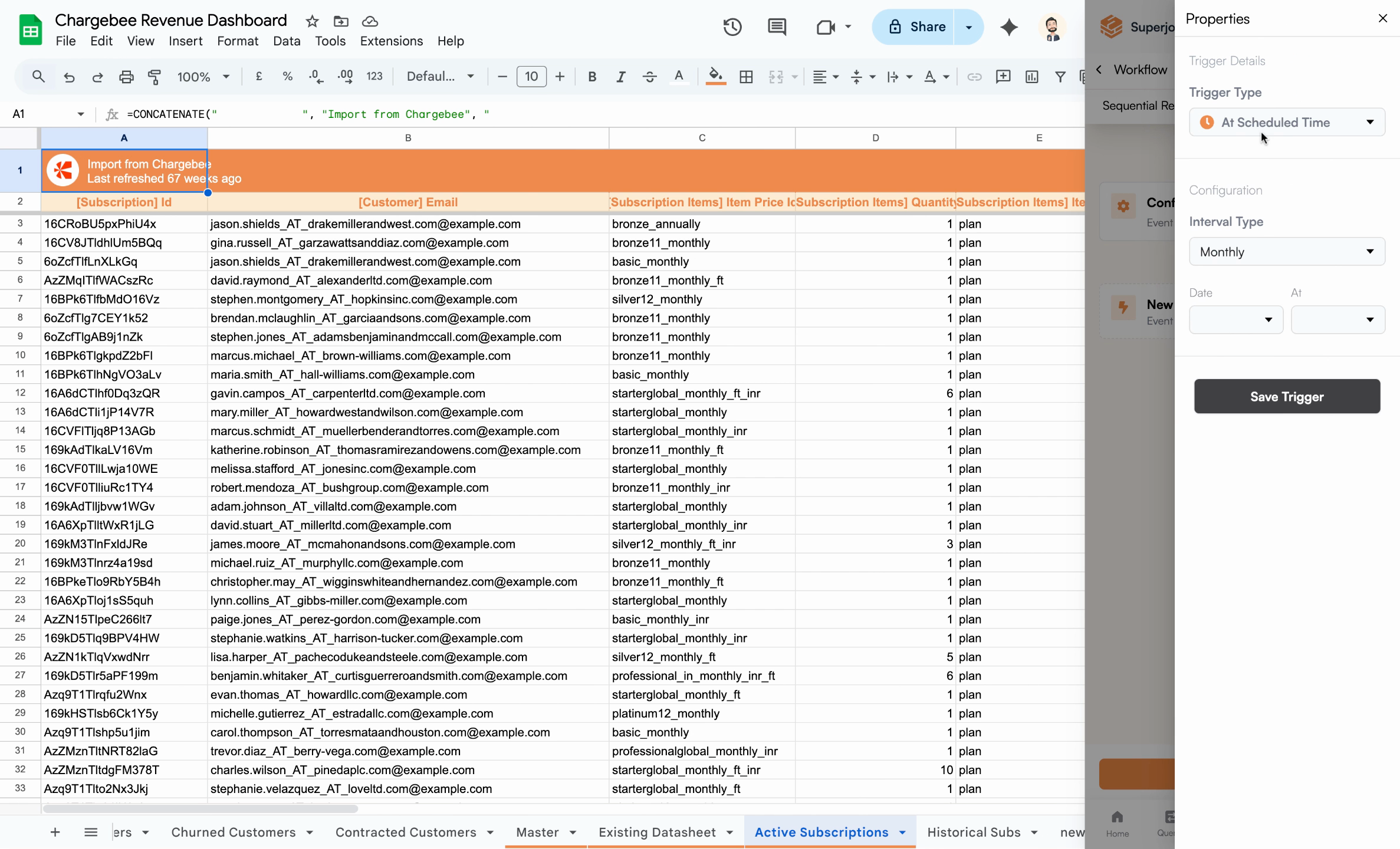
Choose when the workflow starts. For this example, select Scheduled Time and set it to run monthly.
Select a trigger type
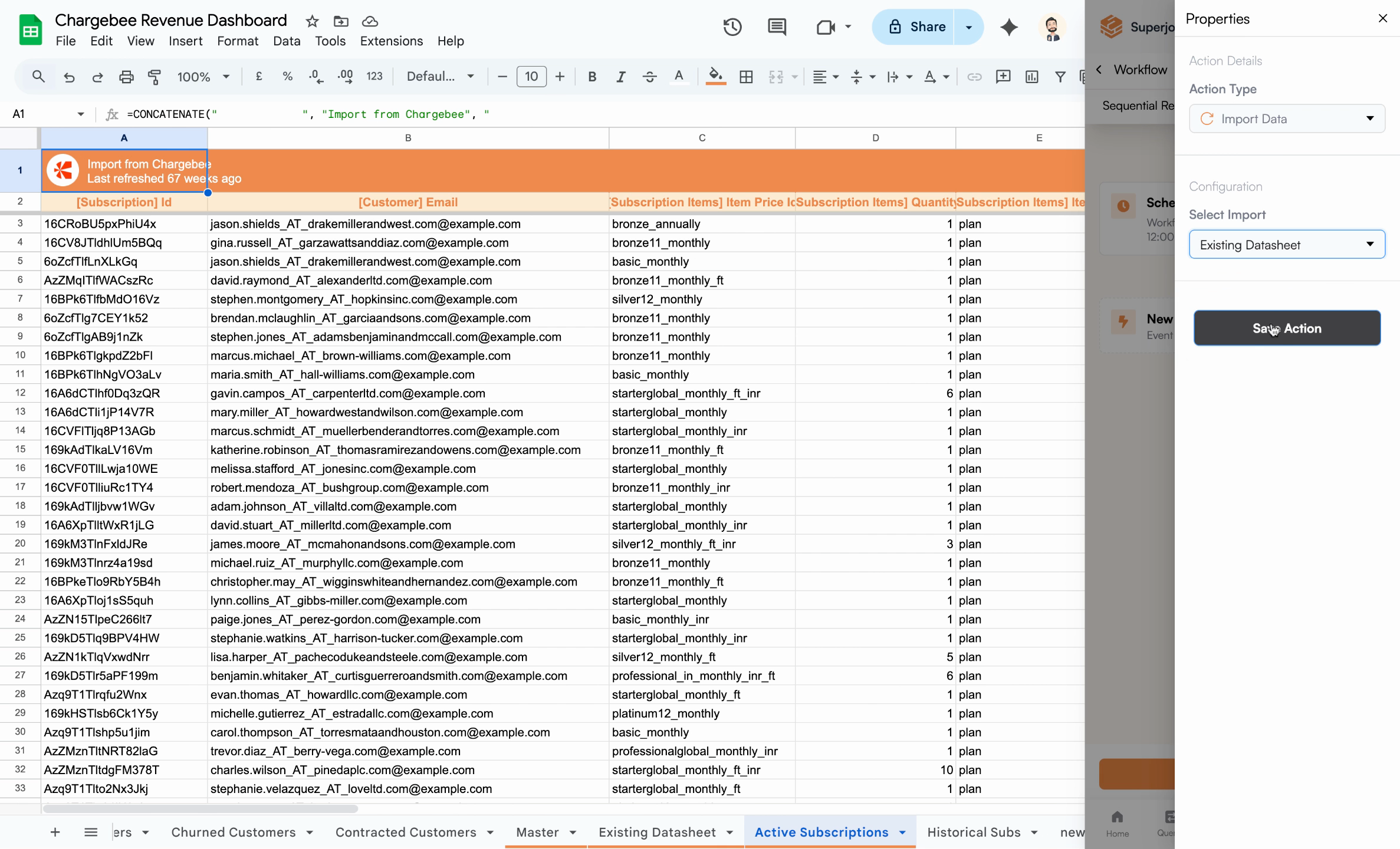
Add your first action: Import Data for the Existing Data sheet. Save the action.
Completed sequential workflow
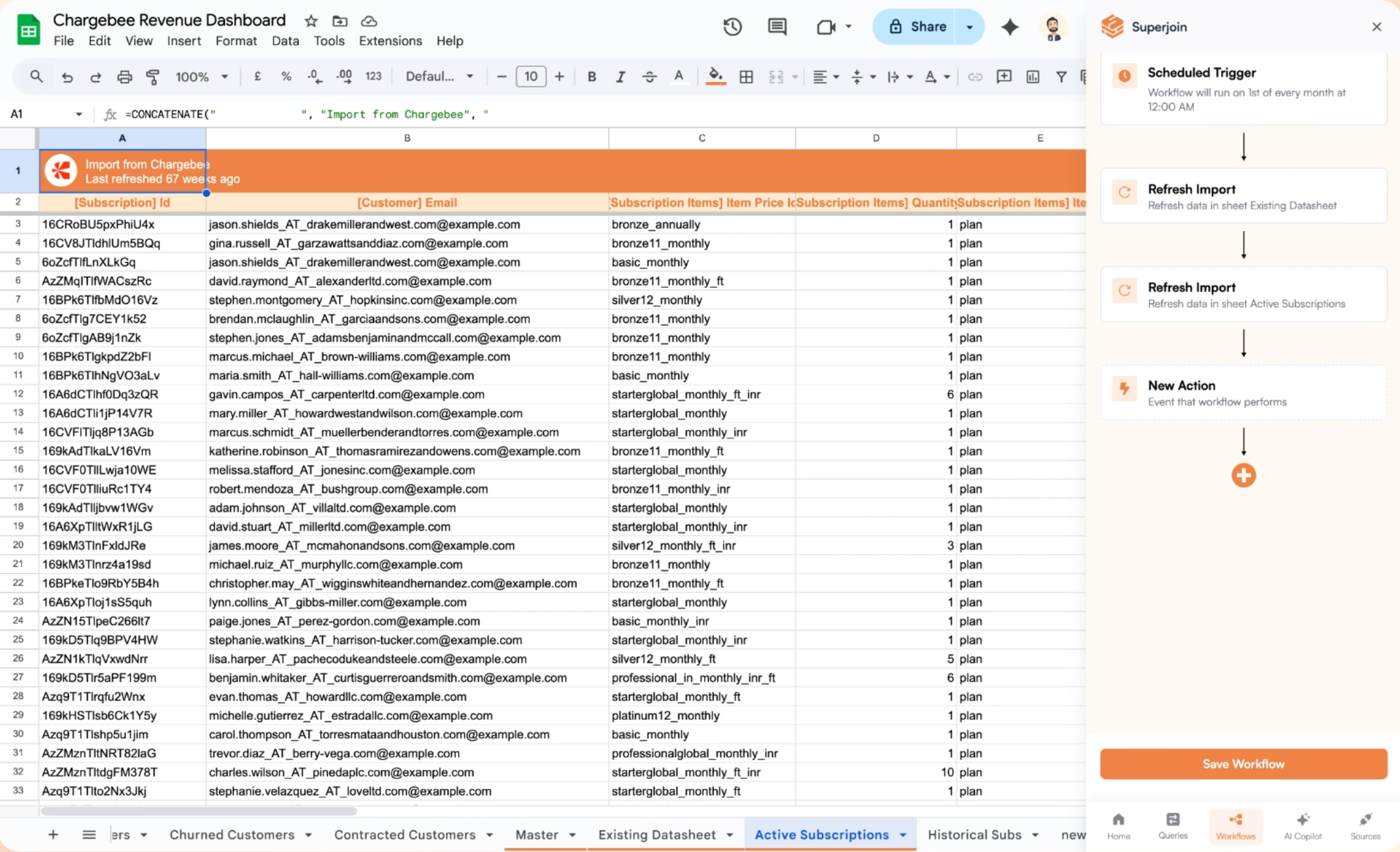
Then add a second Import Data action targeting the Active Subscription sheet.
Your workflow now triggers monthly at 12am, first refreshing the Existing Data sheet, then—only after success—refreshing the Active Subscription sheet. This sequencing prevents mismatches and ensures accurate reporting.
Completed sequential workflow
## Next steps
* Configure notifications or exports after refreshes
* Explore error handling and alerts for greater reliability
* Browse other workflow patterns in the docs
With Superjoin Workflows, you’re a few clicks away from dependable, automated spreadsheet data syncs.