> ## Documentation Index
> Fetch the complete documentation index at: https://docs.superjoin.ai/llms.txt
> Use this file to discover all available pages before exploring further.
# Building Time Trends in Google Sheets with Superjoin
> Capture historical metrics in Google Sheets using Superjoin Workflows and Apps Script to build reliable time series.
This guide helps you automate daily snapshots of key metrics so you can analyze day-over-day, week-over-week, and month-over-month trends—without manual copying.
## Demo
Build a dynamic dashboard in Google Sheets with Superjoin
***
## Why capture time trends?
When working with live dashboards in Superjoin, data reflects the current state—making it impossible to retrieve metrics from previous days. Capturing daily snapshots lets you:
* Analyze day-over-day, week-over-week, and month-over-month changes
* Build historical trend lines
* Eliminate manual copy-pasting
***
## Prerequisites
Superjoin is installed and your sheet is connected with at least one import set to refresh (manual, scheduled, or via workflow).
***
## Overview of the approach
Keep your Superjoin import(s) refreshing to power formulas.
Centralize key metrics in a middle-layer sheet with formulas.
Use a workflow + script to paste values into a trends sheet.
***
## Step-by-step
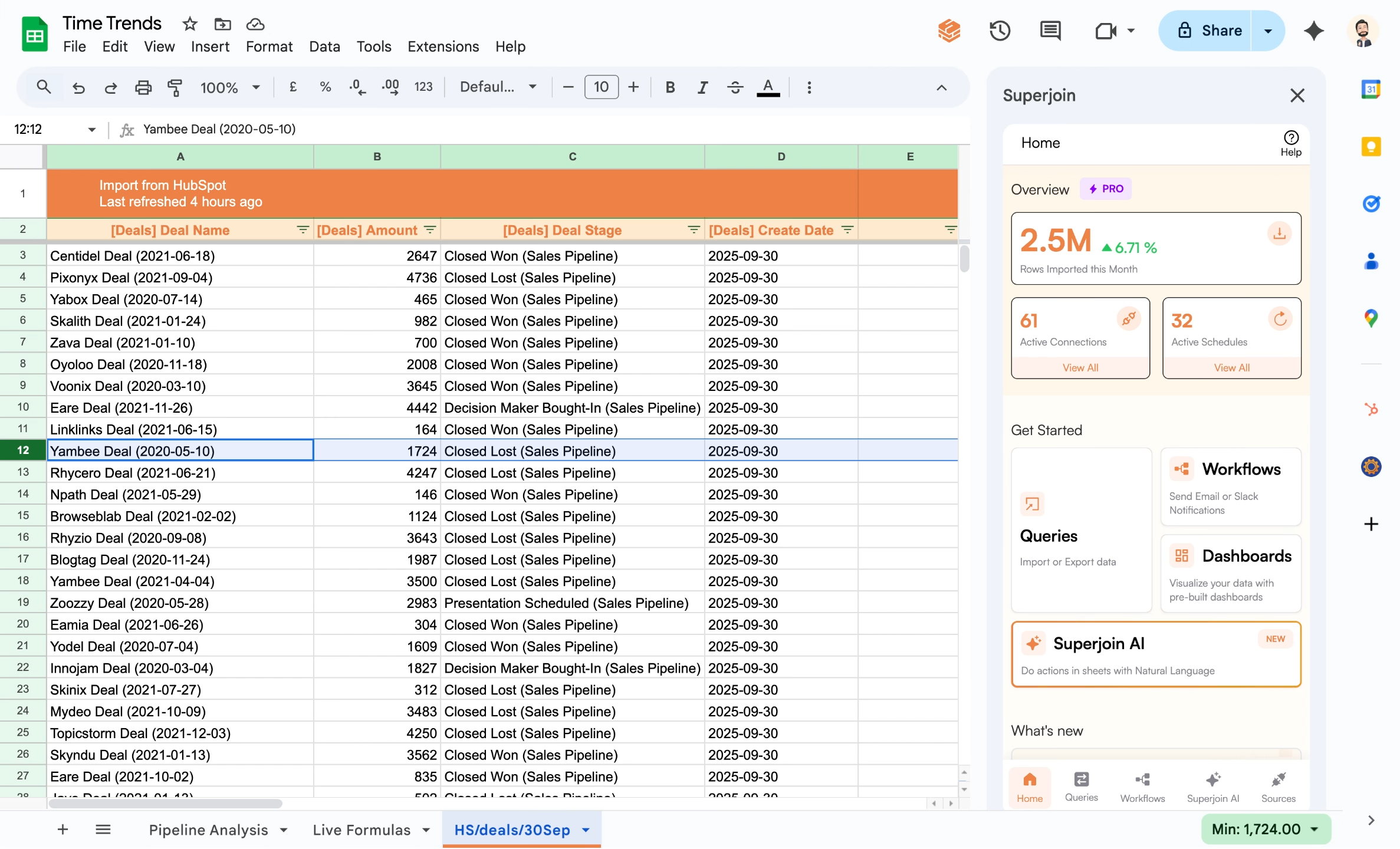
You should have a Superjoin sheet with live data being refreshed daily, weekly, or monthly. This data represents the state as of when it was last refreshed.
Pipeline metrics in Google Sheets live-updating with Superjoin integration
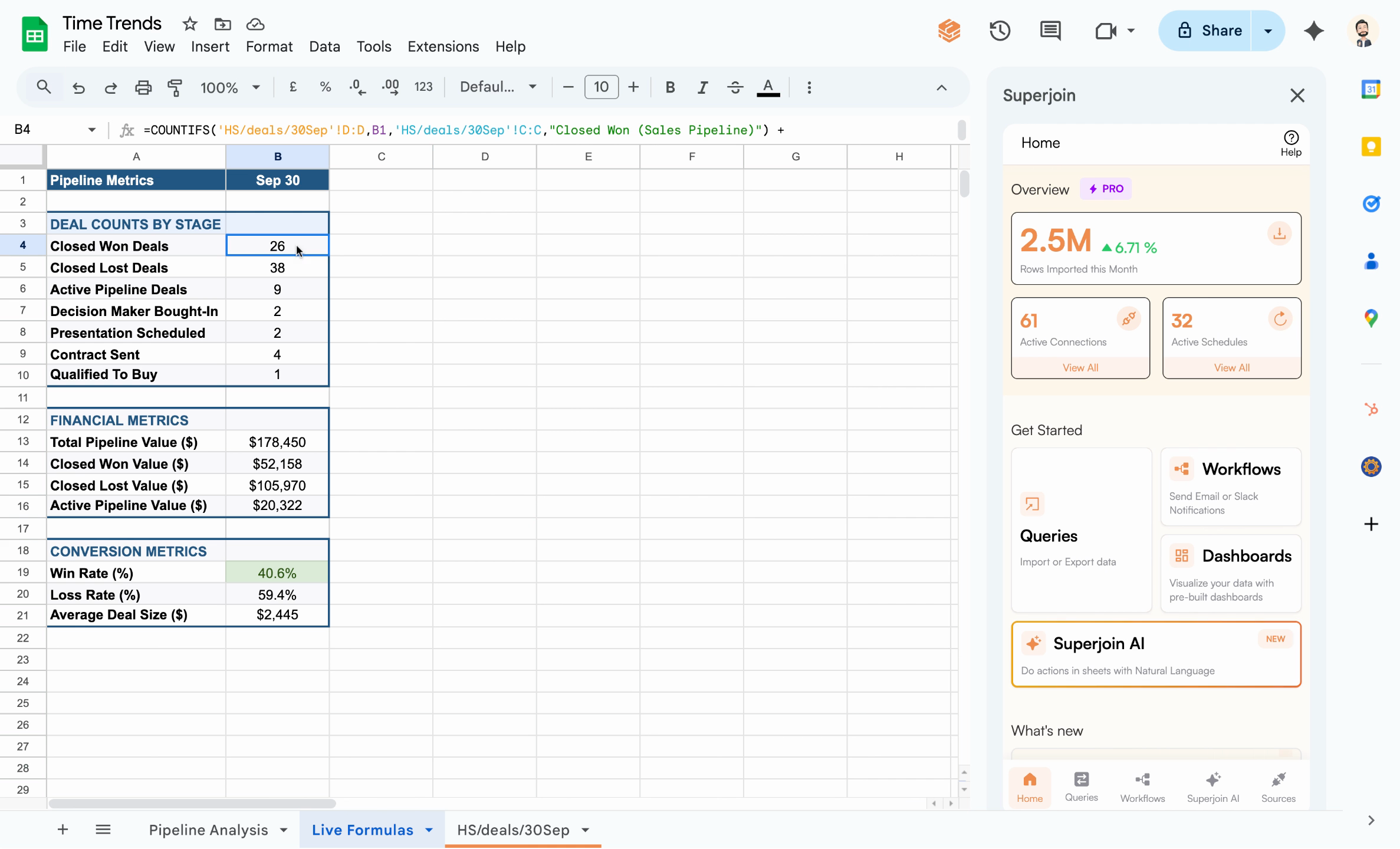
Establish a separate middle-layer sheet to contain key metric formulas. This acts as a staging area for daily captures before values are overwritten by fresh data. These formulas dynamically reference your Superjoin sheet and stay up-to-date as new data comes in.
Middle-layer sheet containing live formula outputs
Because these formulas are live, yesterday's values are lost after each update. We'll capture values before they refresh.
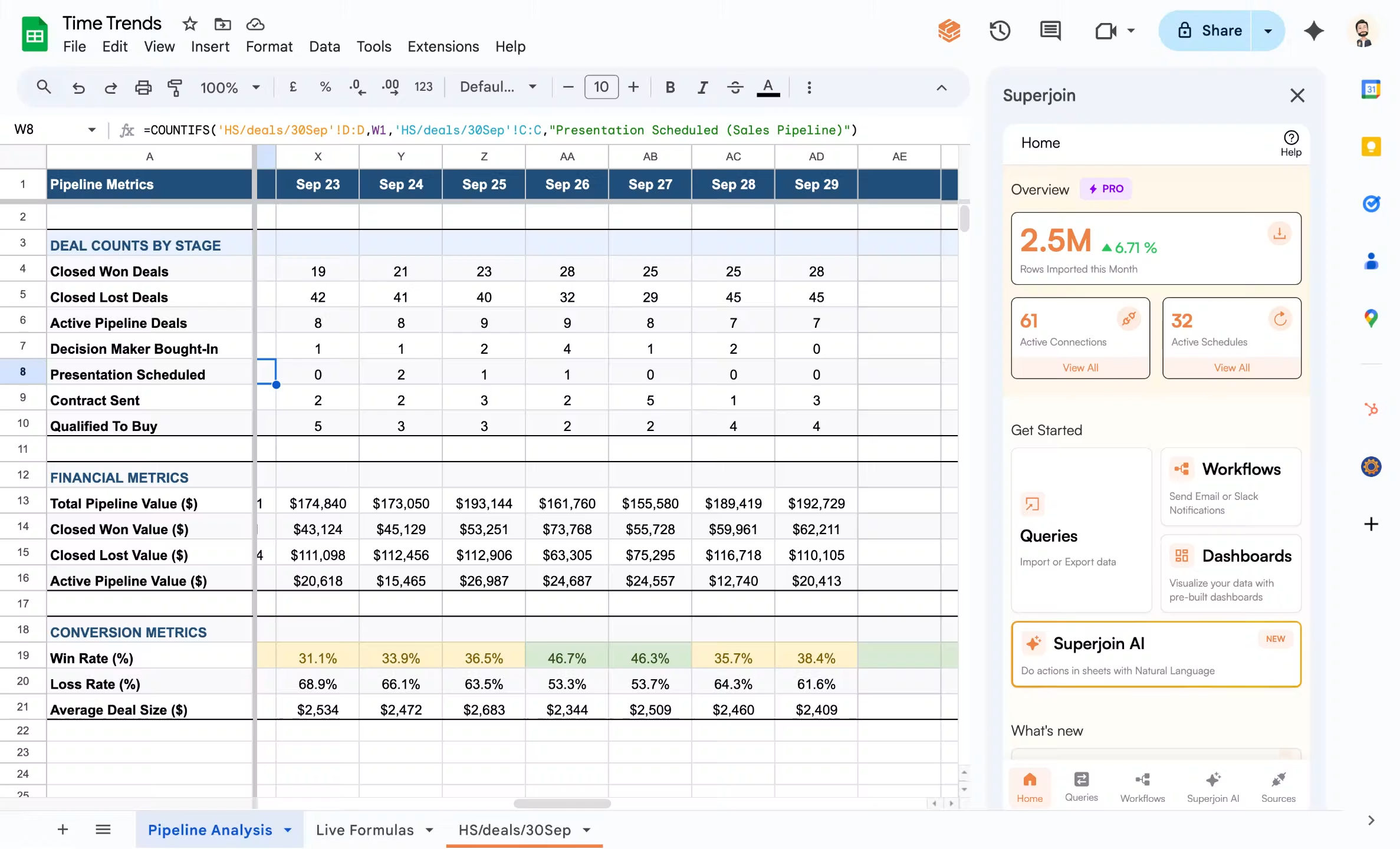
Set up a final trends or analysis sheet to collect daily snapshots. You'll automate copying values—not formulas—here, ensuring each day's state is preserved after each refresh.
Today's calculated metrics, ready for capture
Manually copying data every day is laborious and risks missing updates. Instead, leverage Superjoin Workflows and Google Sheets Apps Script to schedule and automate the capture process.
Click Workflows in Superjoin to get started.
Superjoin sidebar showing the Workflows option
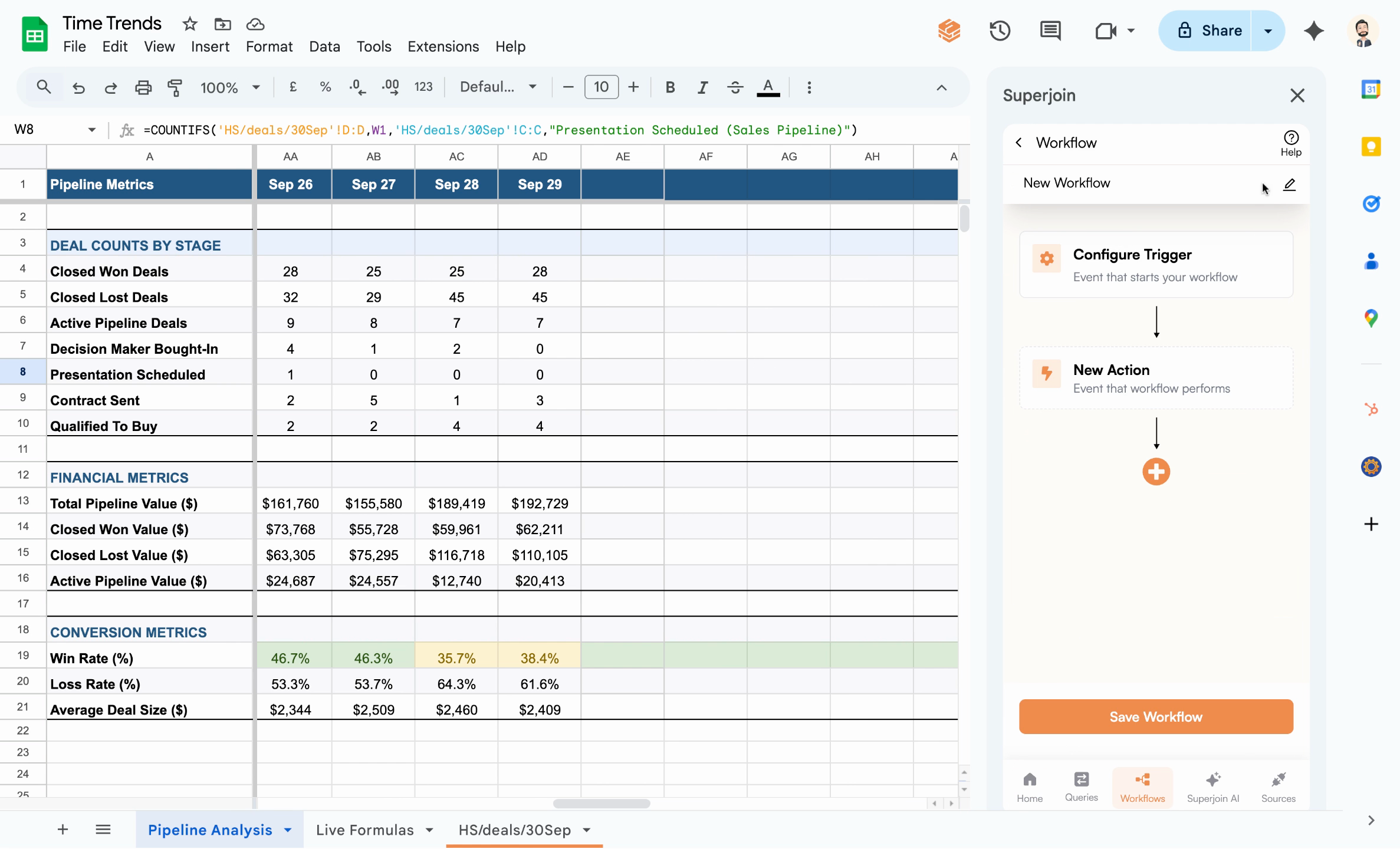
Click Create New Workflow and name it "Day on Day Trends" for easy identification.
Workflow creation dialog, ready to be named and configured
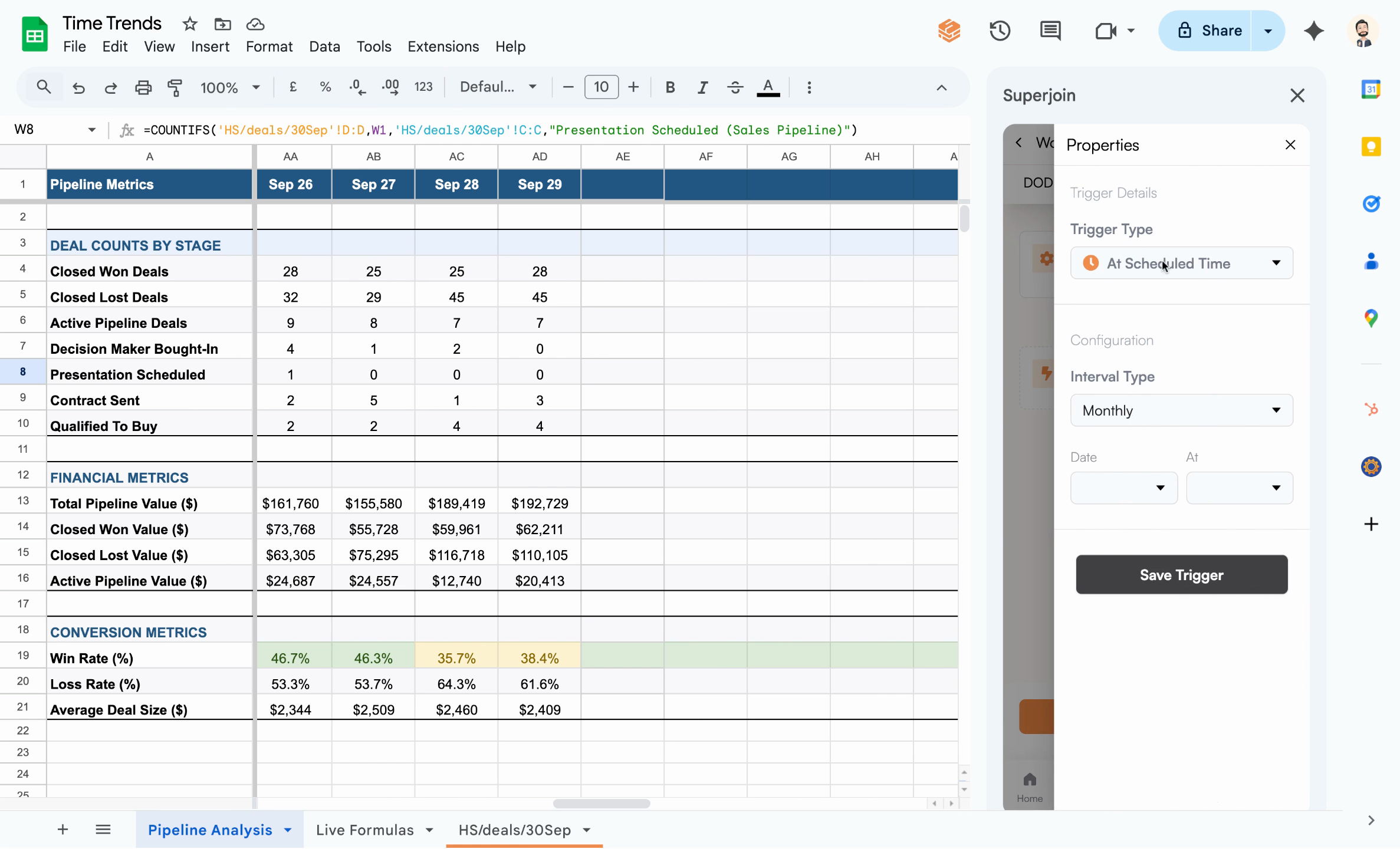
Set a Trigger to run every day at a chosen time (e.g., 9am). This ensures your snapshot is taken before live data changes.
Scheduled trigger set up for daily automation
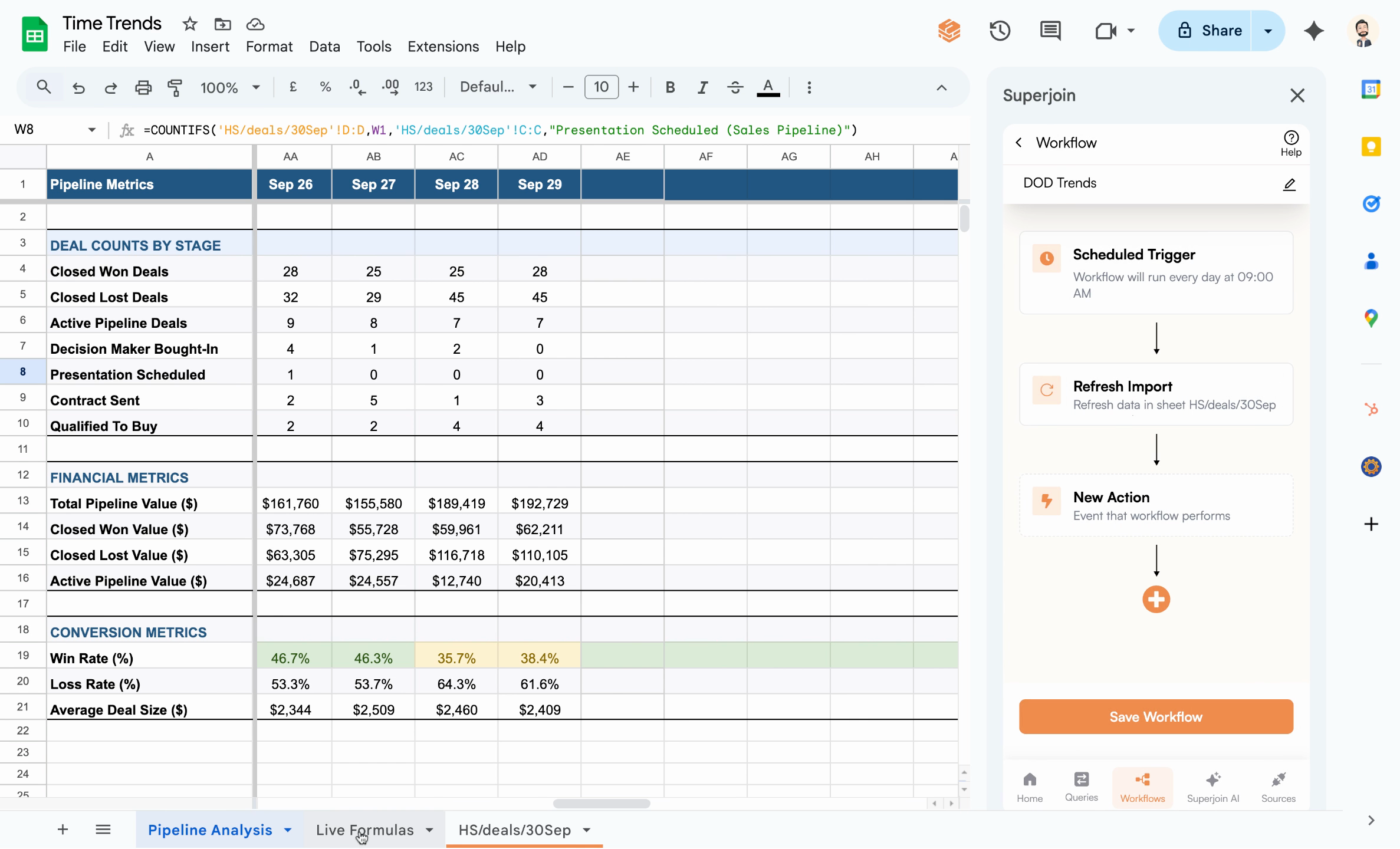
After the trigger, add an action to Refresh your connected data source (e.g., the "HubSpot" sheet), ensuring live data and formulas are up-to-date for today’s metrics.
Refresh the HubSpot sheet and update live formulas
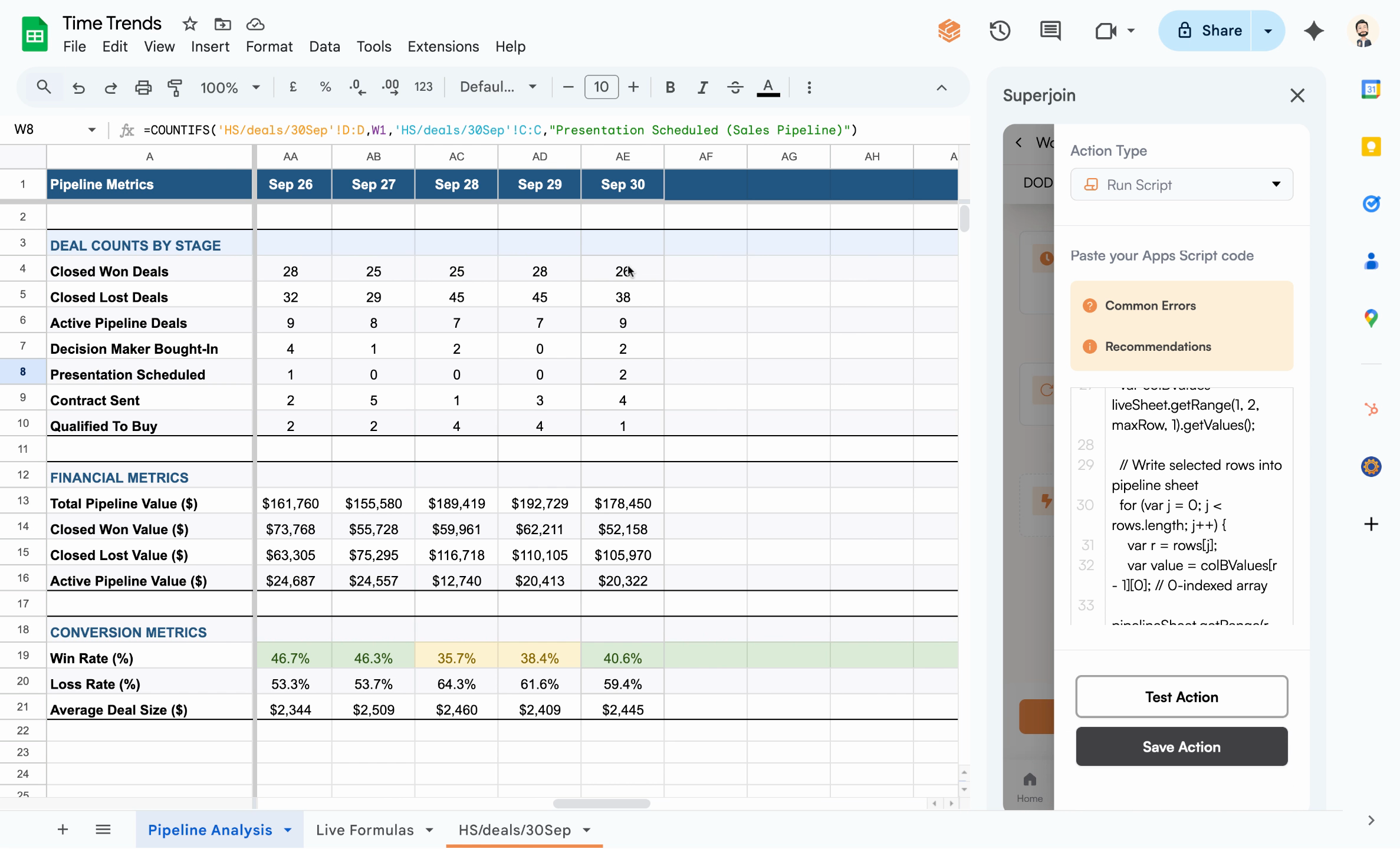
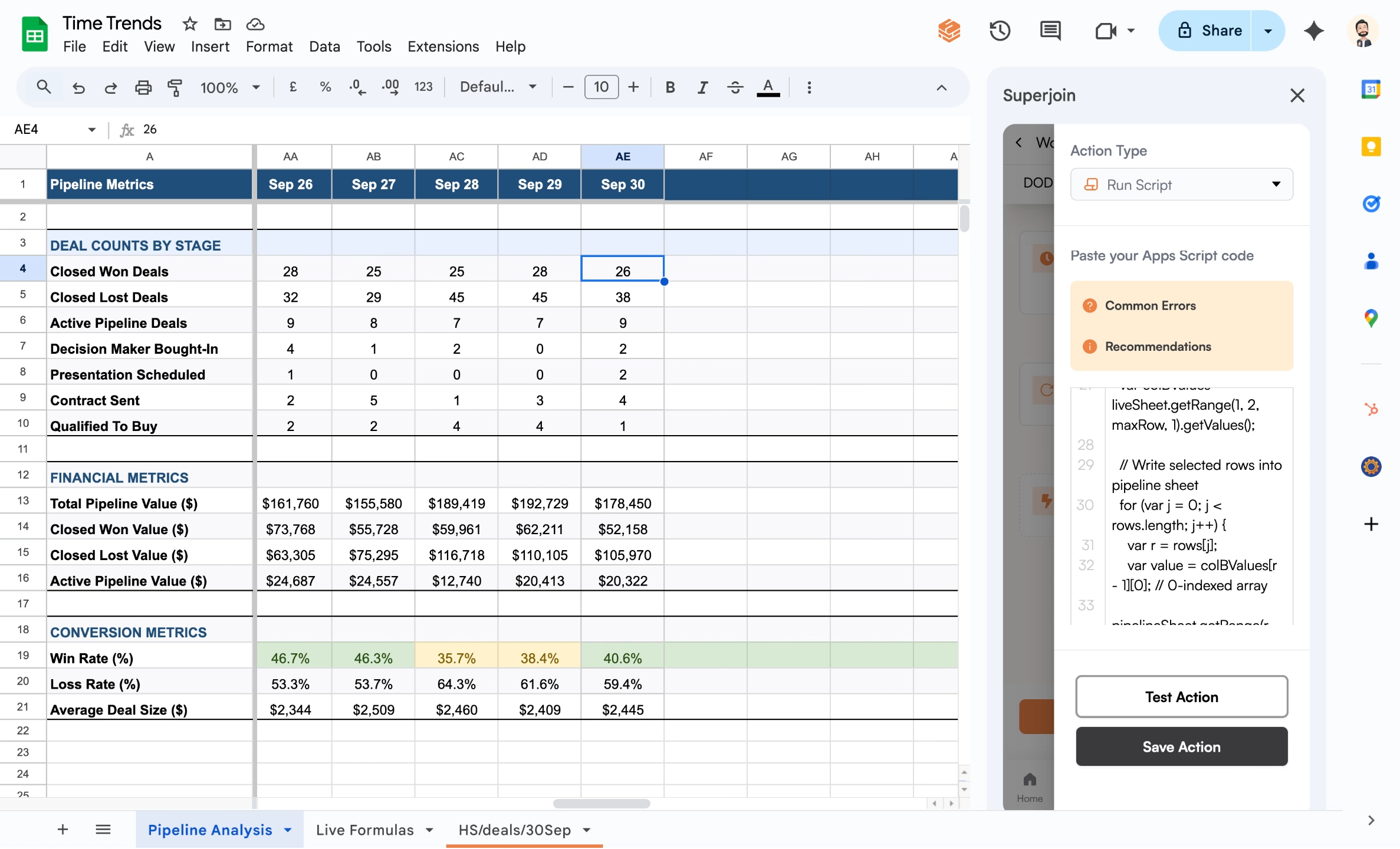
Add a Run Script action to execute a Google Apps Script that copies today’s values (not formulas) from your intermediate formulas sheet into the analysis/trend sheet.
You can use Superjoin AI to generate the Apps Script. Click Test Action to verify.It’s critical to paste values only—referencing formulas will result in dynamic updates, not historical snapshots.Sample Apps Script: copy values from selected rows to the next empty column
```javascript filename="script.gs" Sample Script theme={null}
/***** ULTRA-SIMPLE SNAPSHOT (values → last column) *****
* How to use:
* 1) Extensions → Apps Script → paste this, Save.
* 2) Click ▶️ Run once (authorize if asked).
* 3) Run again to append the snapshot.
********************************************************/
/******** SETTINGS (edit these) ********/
var SOURCE_SHEET_NAME = 'Live Formulas'; // where data lives
var TARGET_SHEET_NAME = 'Pipeline Analysis'; // where to paste
var HEADER_CELL_A1 = 'B1'; // header cell to copy
var SOURCE_COLUMN = 2; // 2 = column B
var ROWS_TO_COPY = [4,5,6,7,8,9,10,13,14,15,16,19,20,21];
/****************************************/
function appendSnapshotRun() {
// If you see "getActive not supported", replace the next line with:
// var ss = SpreadsheetApp.openById('PUT_SPREADSHEET_ID_HERE');
var ss = SpreadsheetApp.getActiveSpreadsheet();
var src = ss.getSheetByName(SOURCE_SHEET_NAME);
var dst = ss.getSheetByName(TARGET_SHEET_NAME);
if (!src) throw new Error('Missing source sheet: ' + SOURCE_SHEET_NAME);
if (!dst) throw new Error('Missing target sheet: ' + TARGET_SHEET_NAME);
// Next empty column on target
var destCol = dst.getLastColumn() + 1;
if (destCol < 1) destCol = 1;
// Header (value only)
var headerVal = src.getRange(HEADER_CELL_A1).getValue();
dst.getRange(1, destCol).setValue(headerVal);
// Read needed values from the source column in one go
var maxRow = _maxRow(ROWS_TO_COPY);
var colVals = src.getRange(1, SOURCE_COLUMN, maxRow, 1).getValues(); // 2D
// Paste values into the last column at chosen rows
for (var i = 0; i < ROWS_TO_COPY.length; i++) {
var r = ROWS_TO_COPY[i];
if (r > 0) {
var v = colVals[r - 1][0];
dst.getRange(r, destCol).setValue(v);
}
}
Logger.log('Done! Snapshot pasted into column ' + destCol + ' of "' + TARGET_SHEET_NAME + '".');
}
/* Helper */
function _maxRow(arr) {
var m = 0;
for (var i = 0; i < arr.length; i++) if (+arr[i] > m) m = +arr[i];
return m;
}
```
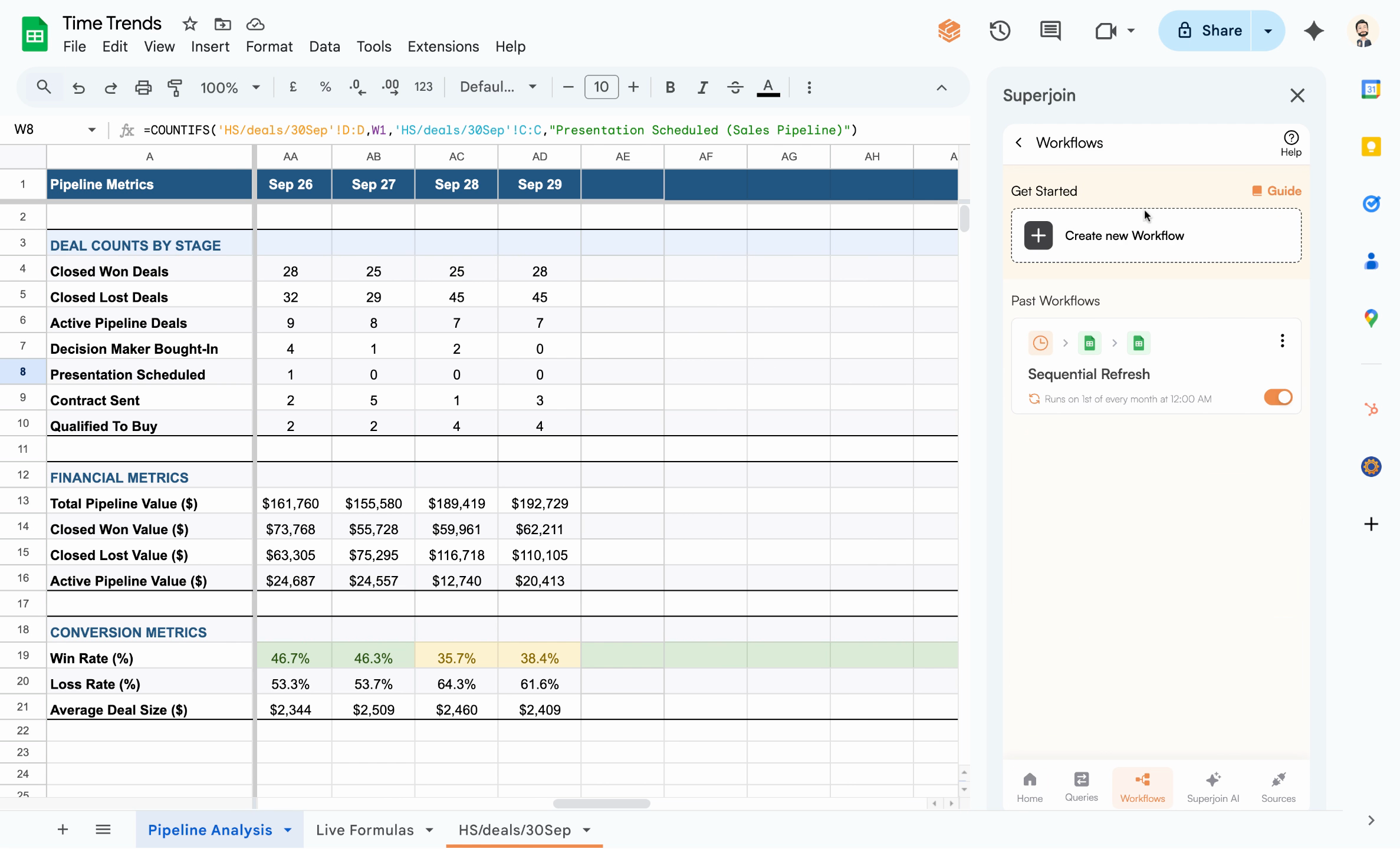
Resulting analysis sheet after the script—values are pasted, not formulas
Click Save Action and then Save Workflow to finalize your automation. Your routine will now run daily, refreshing data and archiving each snapshot for seamless trend analysis.
Workflow successful and ready for daily execution
***
## What’s next?
You now have an automated day-over-day trend system in Google Sheets powered by Superjoin. Every morning, your trend sheet will be updated automatically with the latest metrics, letting you analyze historical trends without manual work.
* Set up email reports using Scheduled Reports
* Extend your workflow to capture other key metrics
* Visualize your trends with chart recommendations