> ## Documentation Index
> Fetch the complete documentation index at: https://docs.superjoin.ai/llms.txt
> Use this file to discover all available pages before exploring further.
# Import Companies from HubSpot to Google Sheets
> Step-by-step guide to import companies from HubSpot into Google Sheets using Superjoin
This guide walks you through importing company data from HubSpot directly into Google Sheets using Superjoin. This workflow is perfect for marketing and sales teams who need up-to-date HubSpot company records in their spreadsheets for reporting, analysis, or automation—without any manual CSV exports or record limits. By the end, you'll have a scheduled report in Sheets that stays synced with your HubSpot Companies data, filtered exactly as you need.
## Open Superjoin and Navigate to Sources
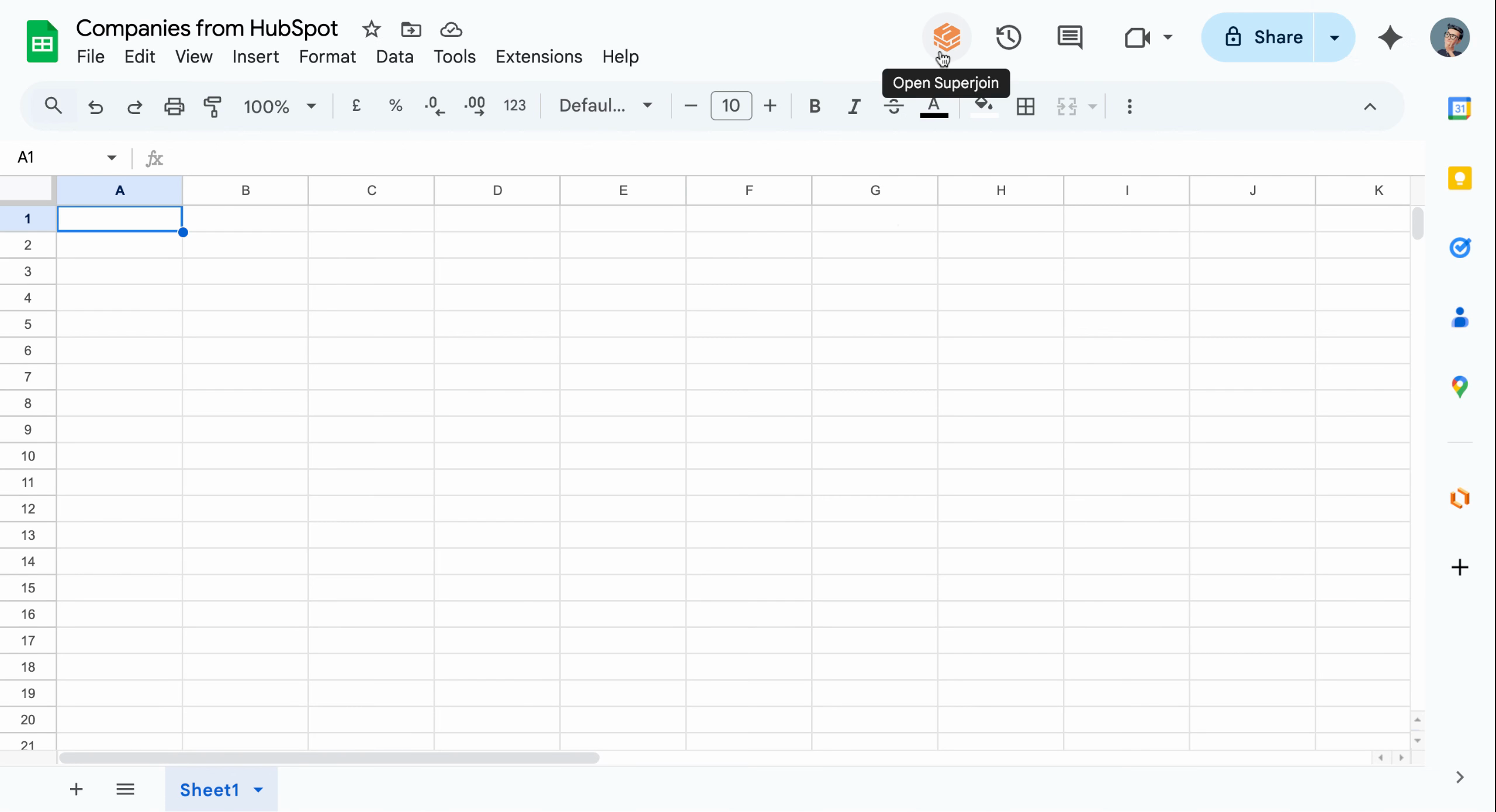
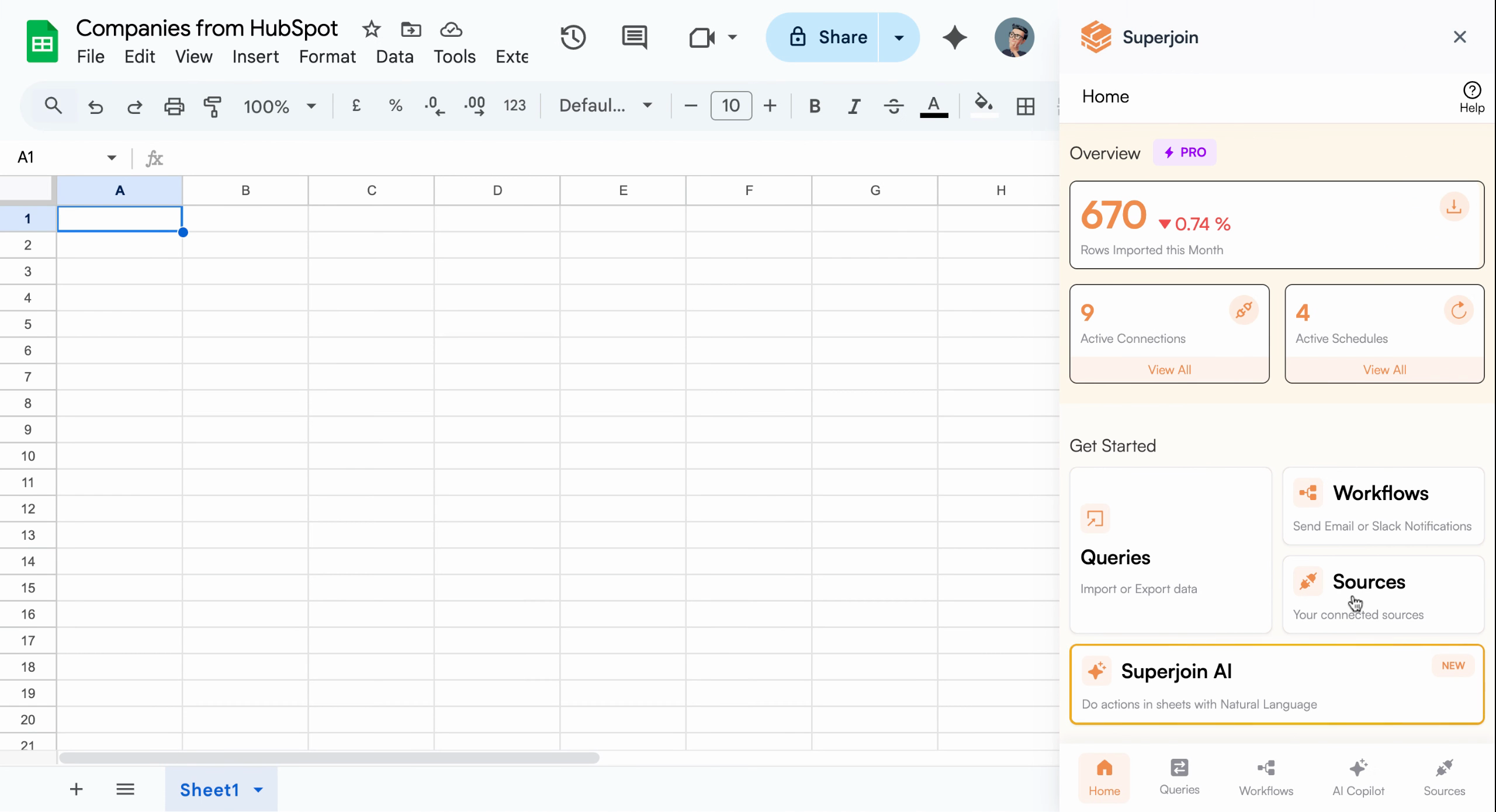
Start by opening the Superjoin add-on in your Google Sheets. In the sidebar, navigate to the **Sources** section where you manage all your data connections—like HubSpot, Salesforce, or Stripe.
 ## Choose Your HubSpot Data Source
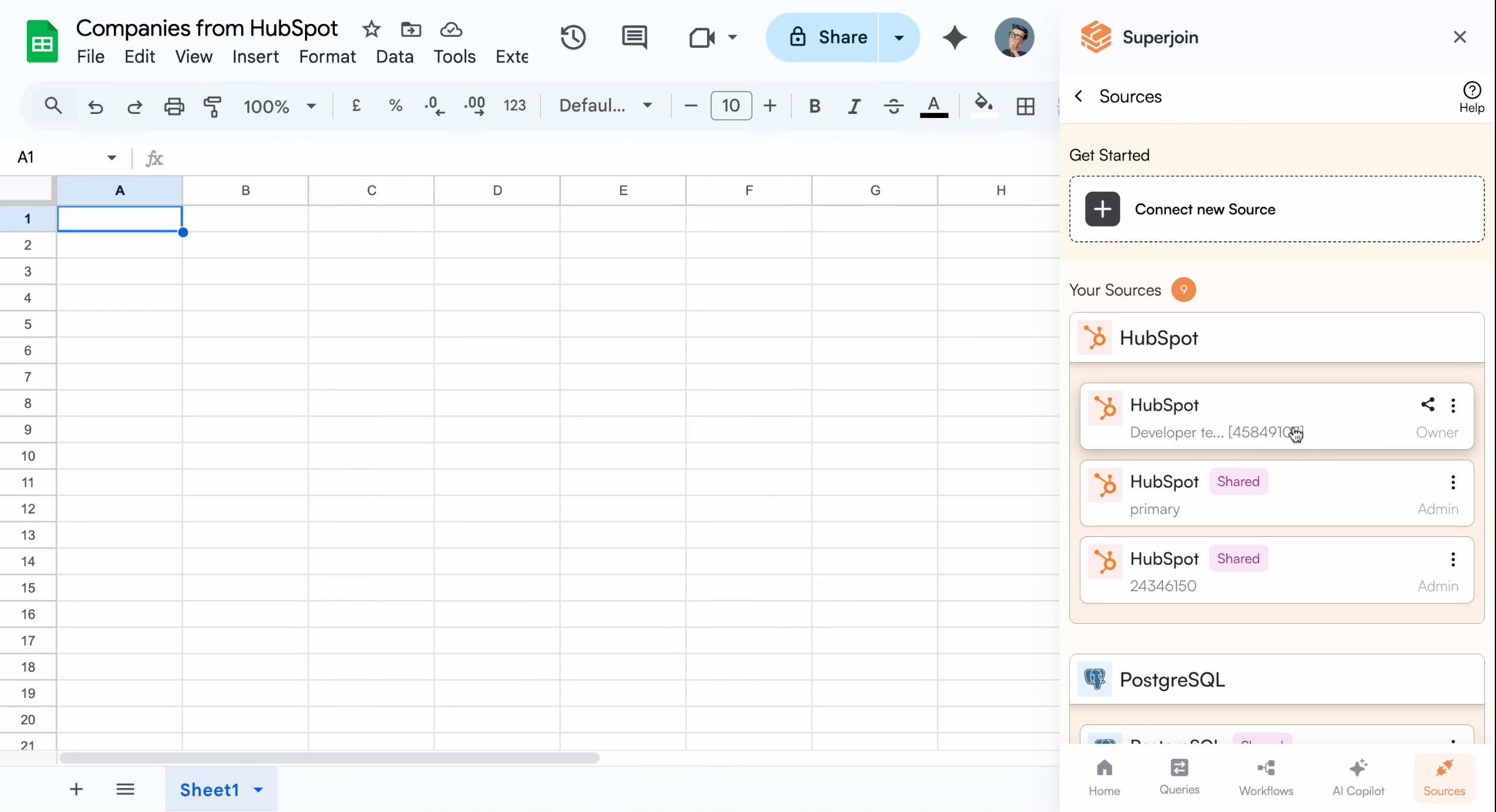
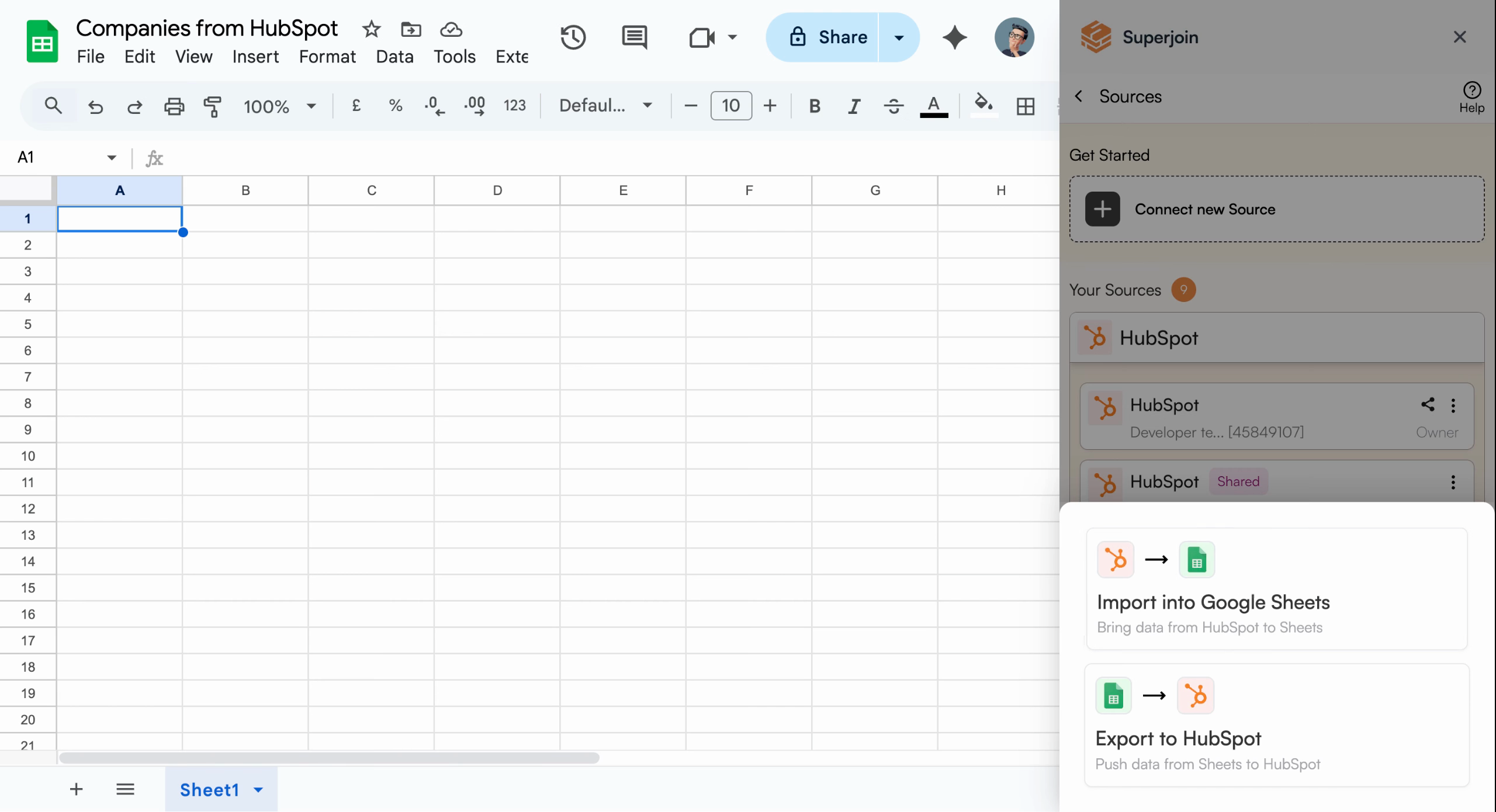
From the list of connected sources, select your active **HubSpot** connection. Once selected, click **Import into Google Sheets** to begin the data import process.
## Choose Your HubSpot Data Source
From the list of connected sources, select your active **HubSpot** connection. Once selected, click **Import into Google Sheets** to begin the data import process.
 If you don't see your HubSpot source, you may need to connect it first through
the Superjoin setup.
## Preview and Configure Your Data
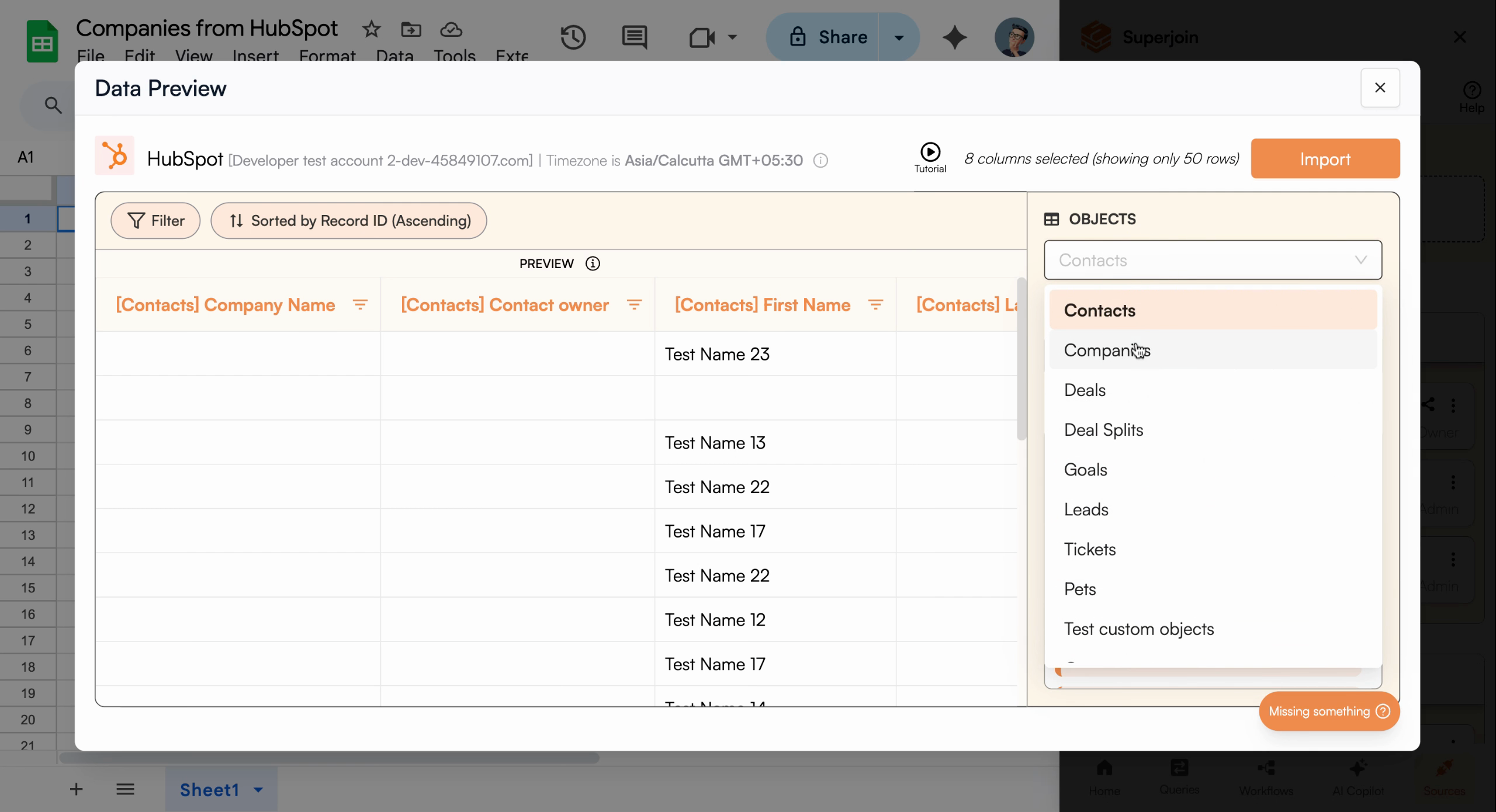
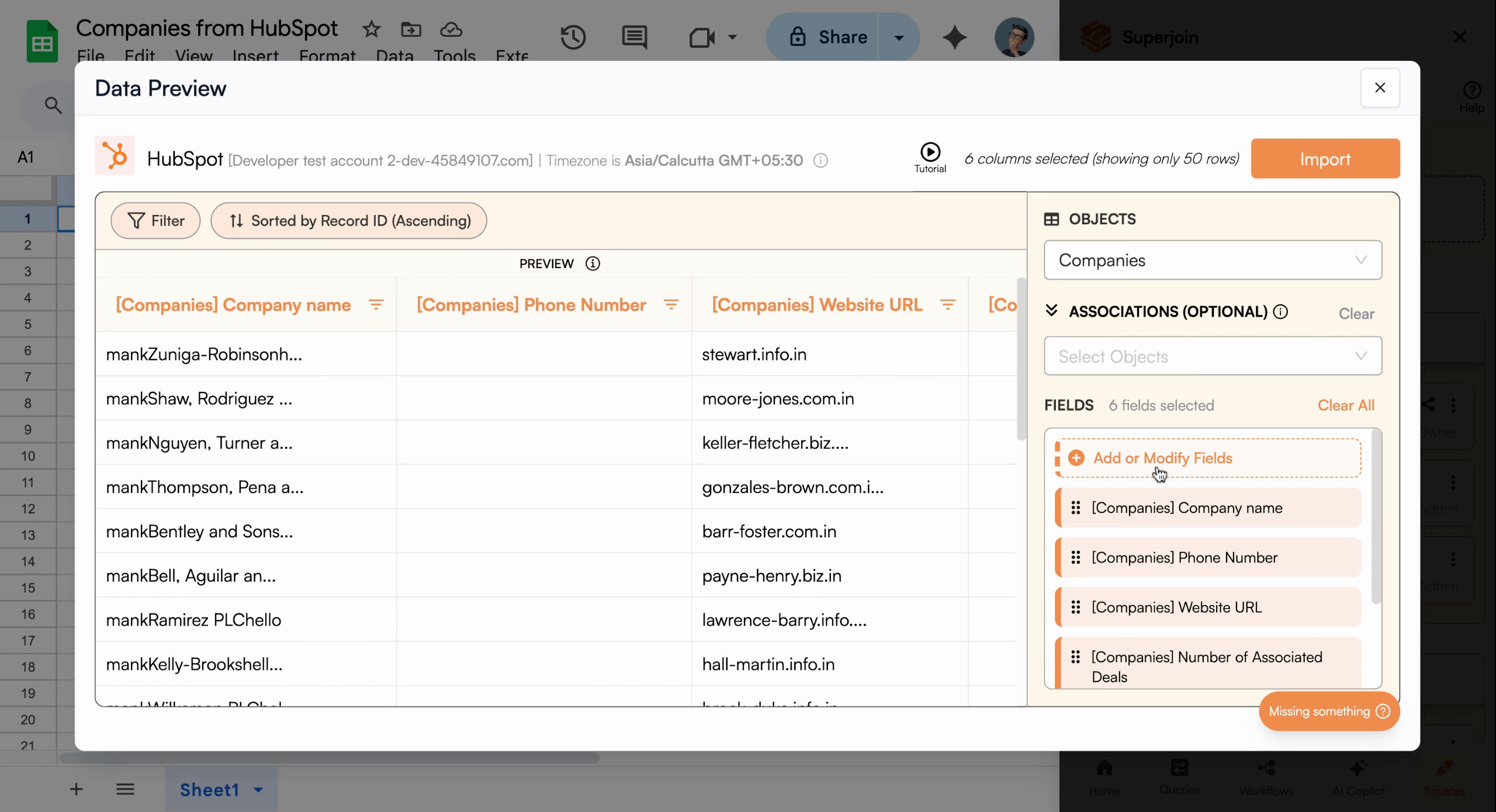
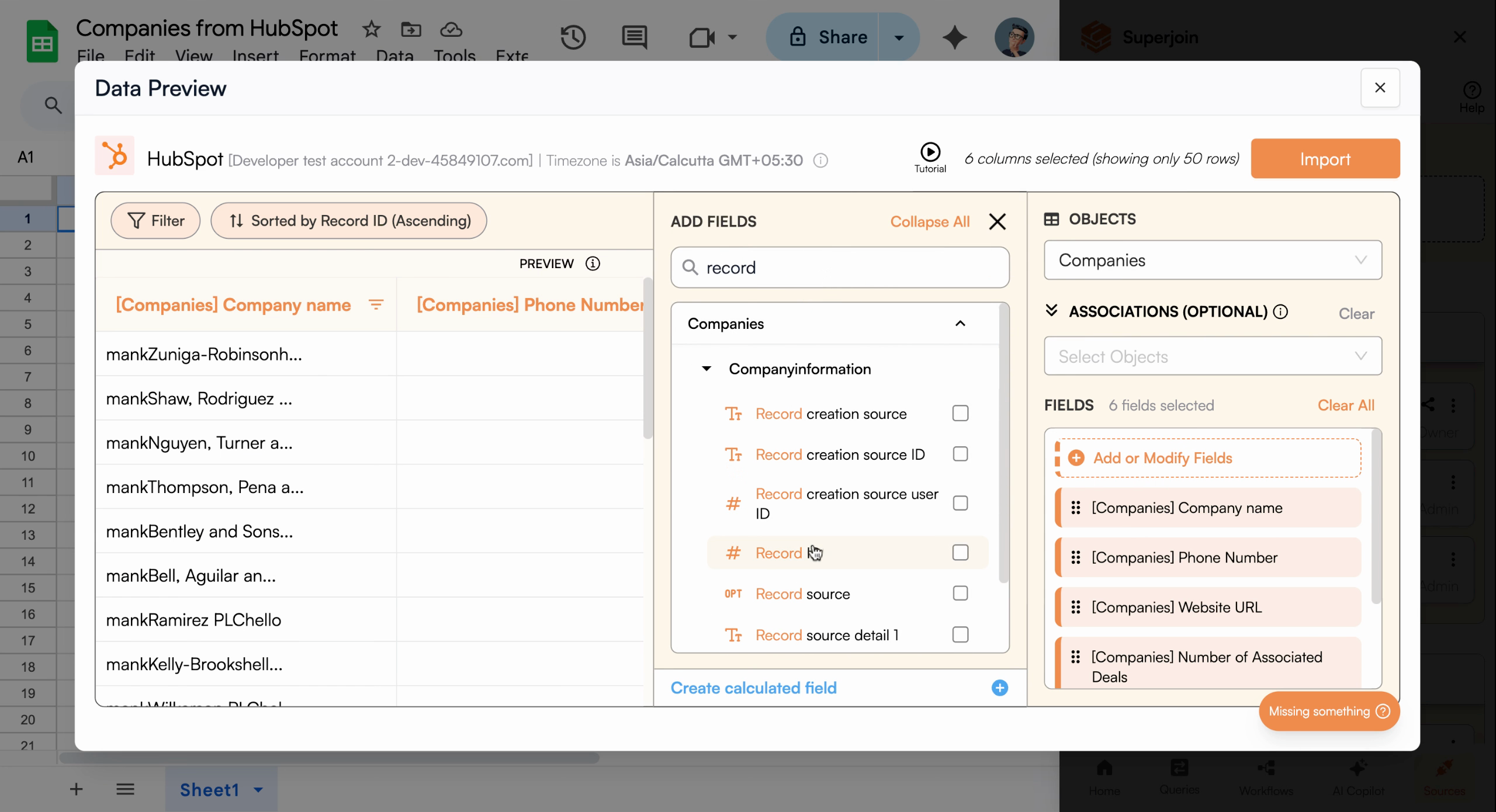
A Data Preview pane appears, allowing you to pick which data object you want, choose specific fields to import, and add filters to narrow down your results. Select the object **Companies**, then add the **Record ID** field to ensure you include unique identifiers for each company.
If you don't see your HubSpot source, you may need to connect it first through
the Superjoin setup.
## Preview and Configure Your Data
A Data Preview pane appears, allowing you to pick which data object you want, choose specific fields to import, and add filters to narrow down your results. Select the object **Companies**, then add the **Record ID** field to ensure you include unique identifiers for each company.
 Only select the fields you need to keep your sheet clean and maintain fast
performance.
## Apply Filters to Refine Your Import
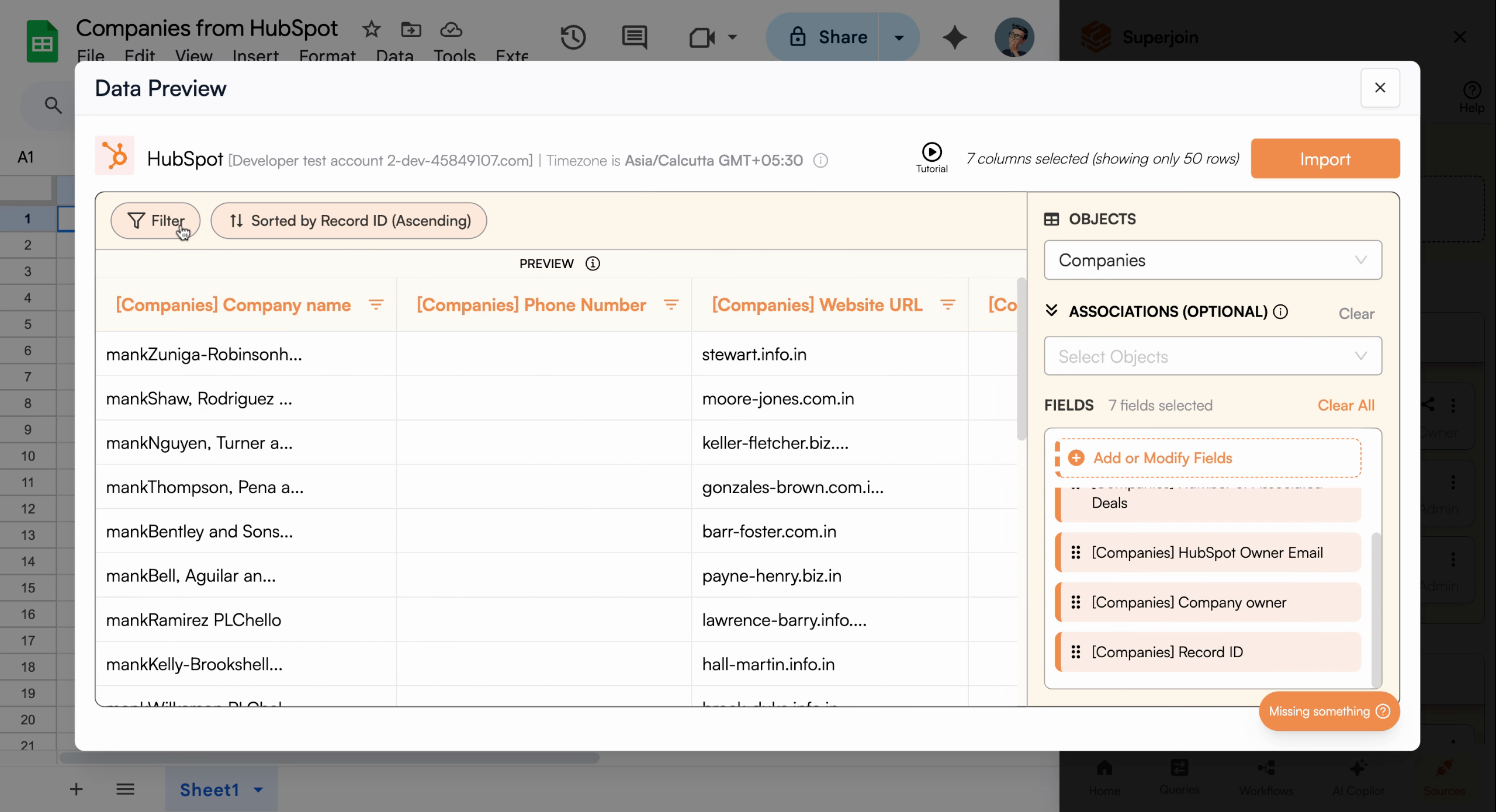
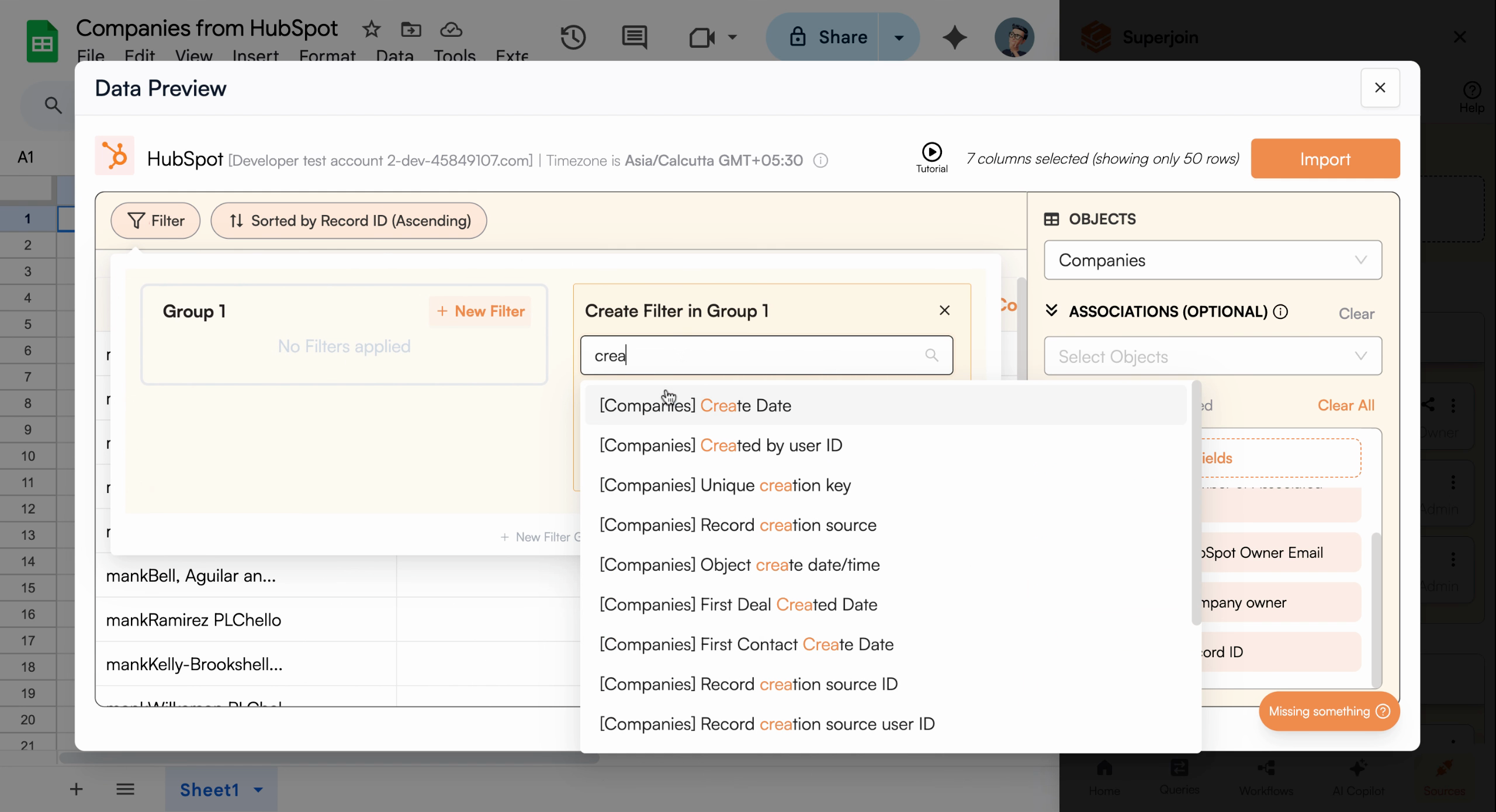
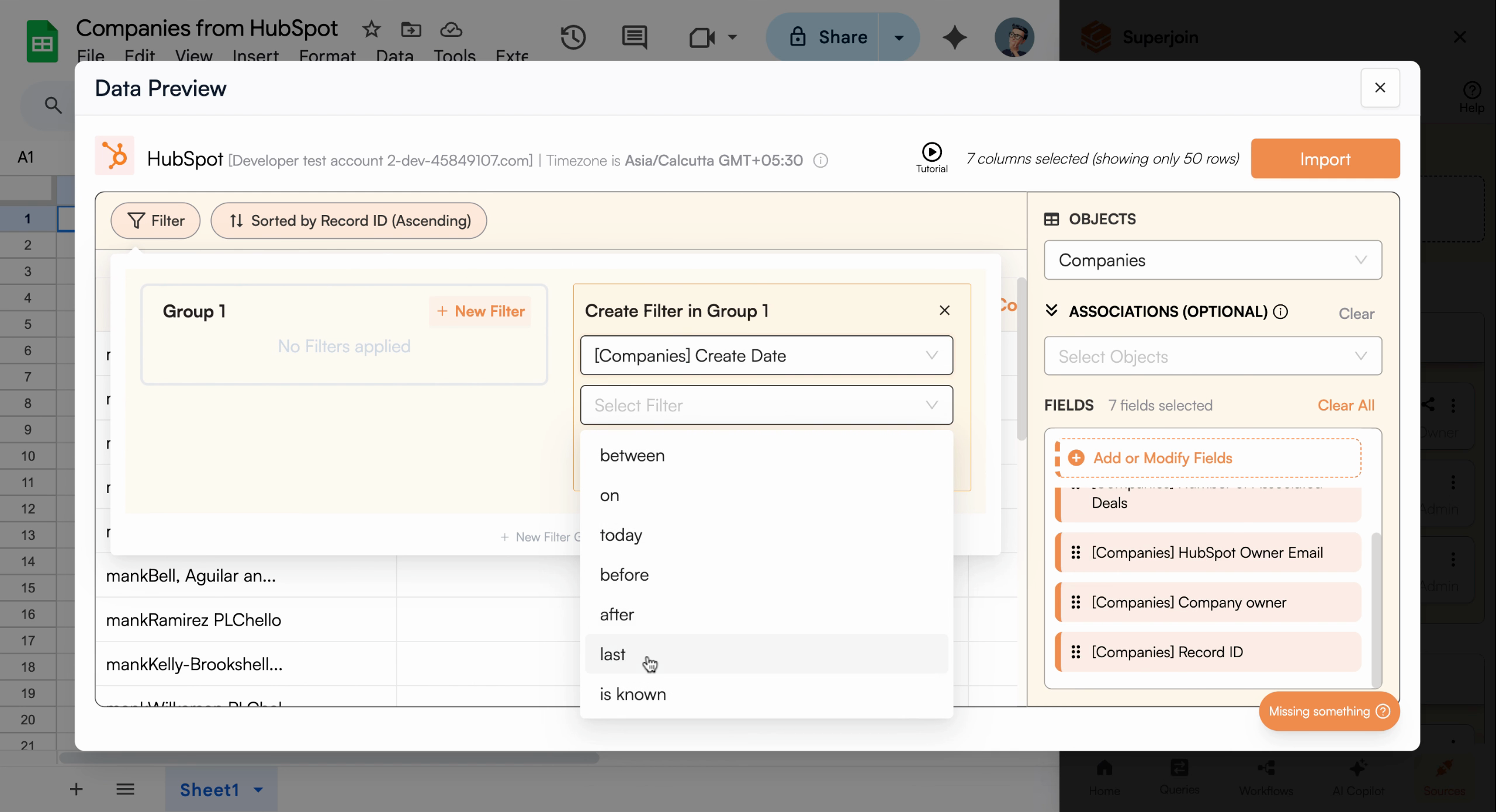
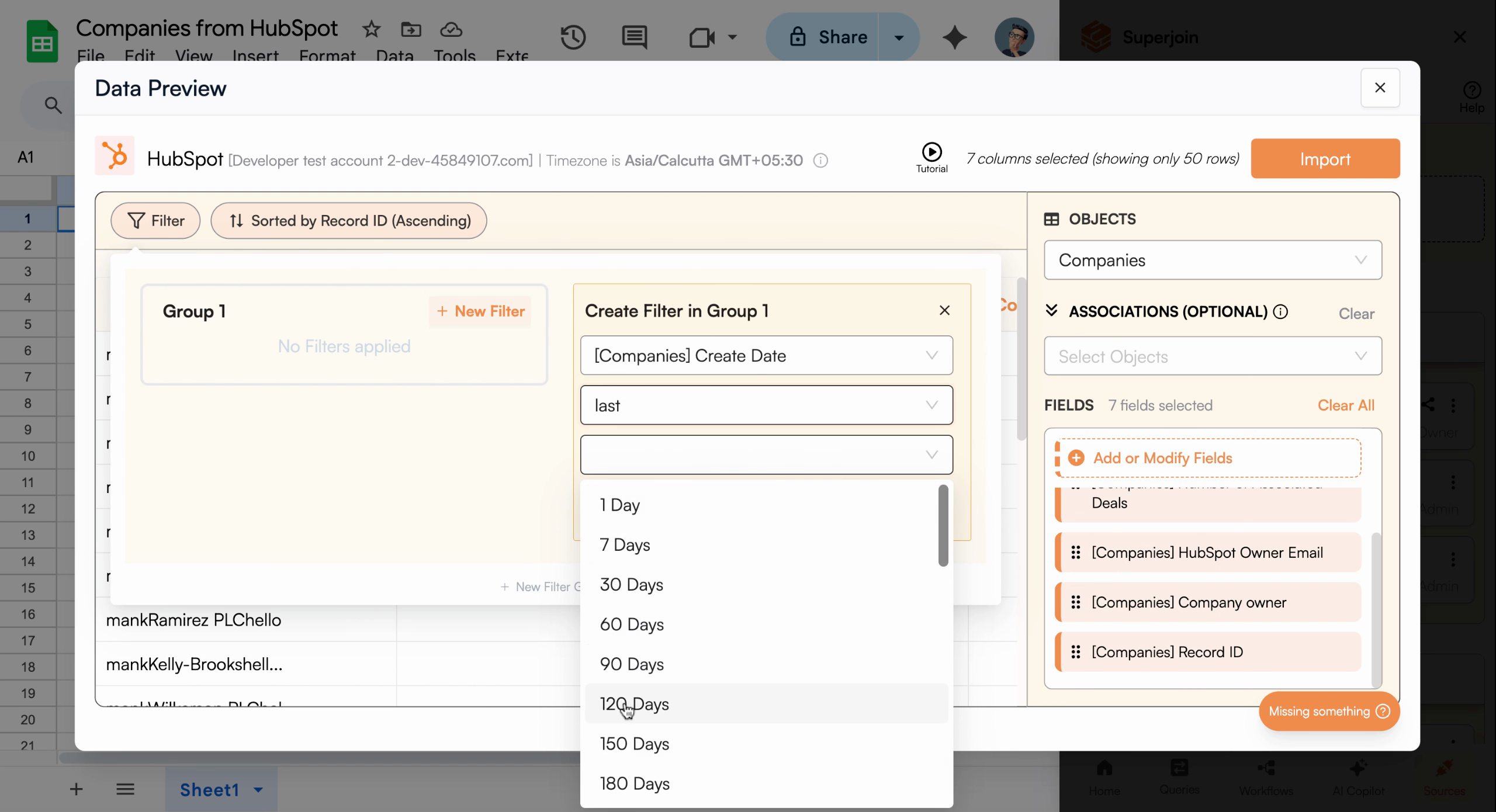
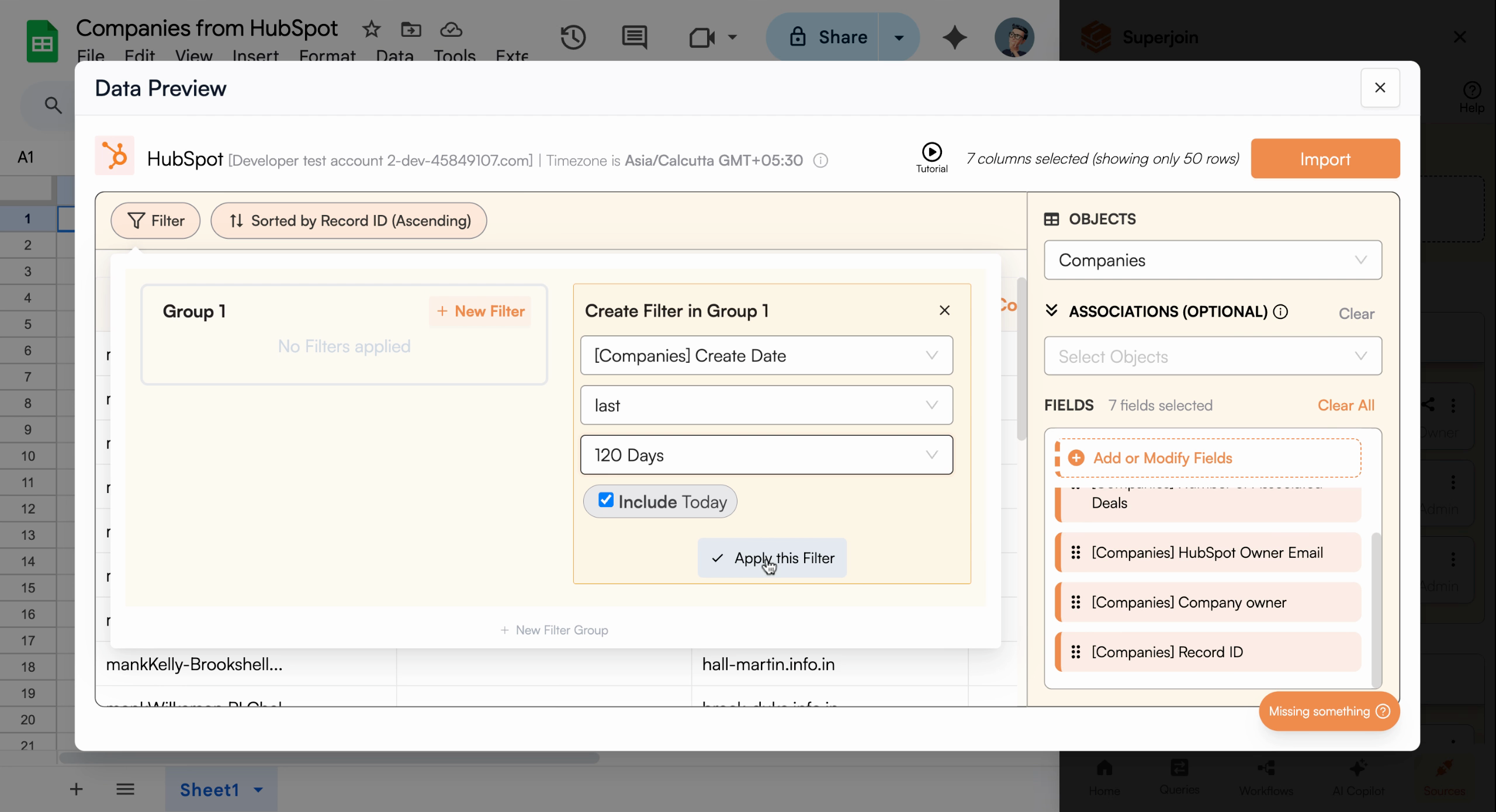
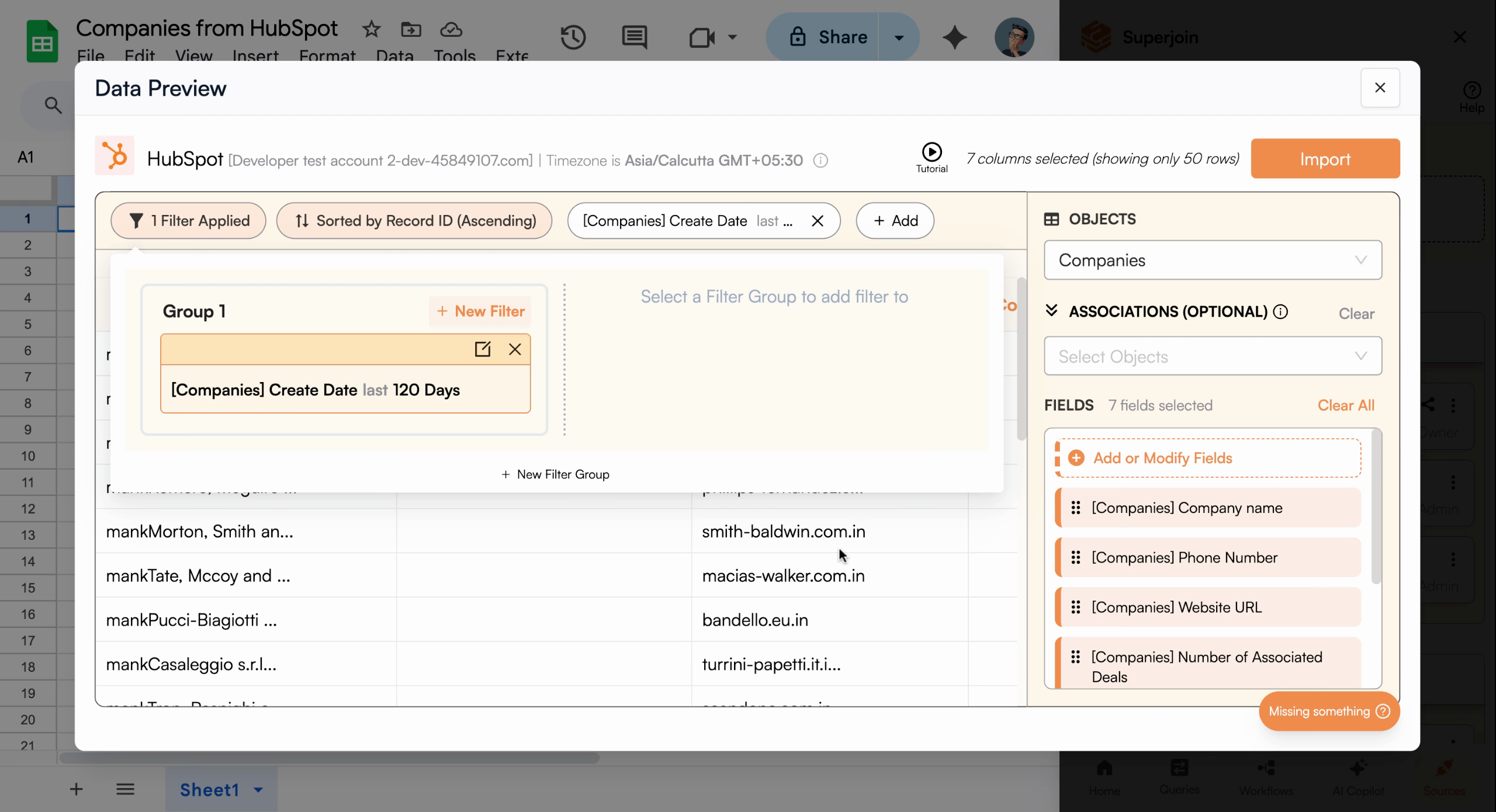
Switch to the **Filter** tab to set up custom filters. For example, you can import only companies added in the last 120 days by filtering on the **Create date** field with the condition "in the last 120 days." Apply your filter to preview the exact rows Superjoin will import.
Only select the fields you need to keep your sheet clean and maintain fast
performance.
## Apply Filters to Refine Your Import
Switch to the **Filter** tab to set up custom filters. For example, you can import only companies added in the last 120 days by filtering on the **Create date** field with the condition "in the last 120 days." Apply your filter to preview the exact rows Superjoin will import.
 Once ready, click **Apply Filter** to lock in your criteria.
 ## Import and Name Your Data
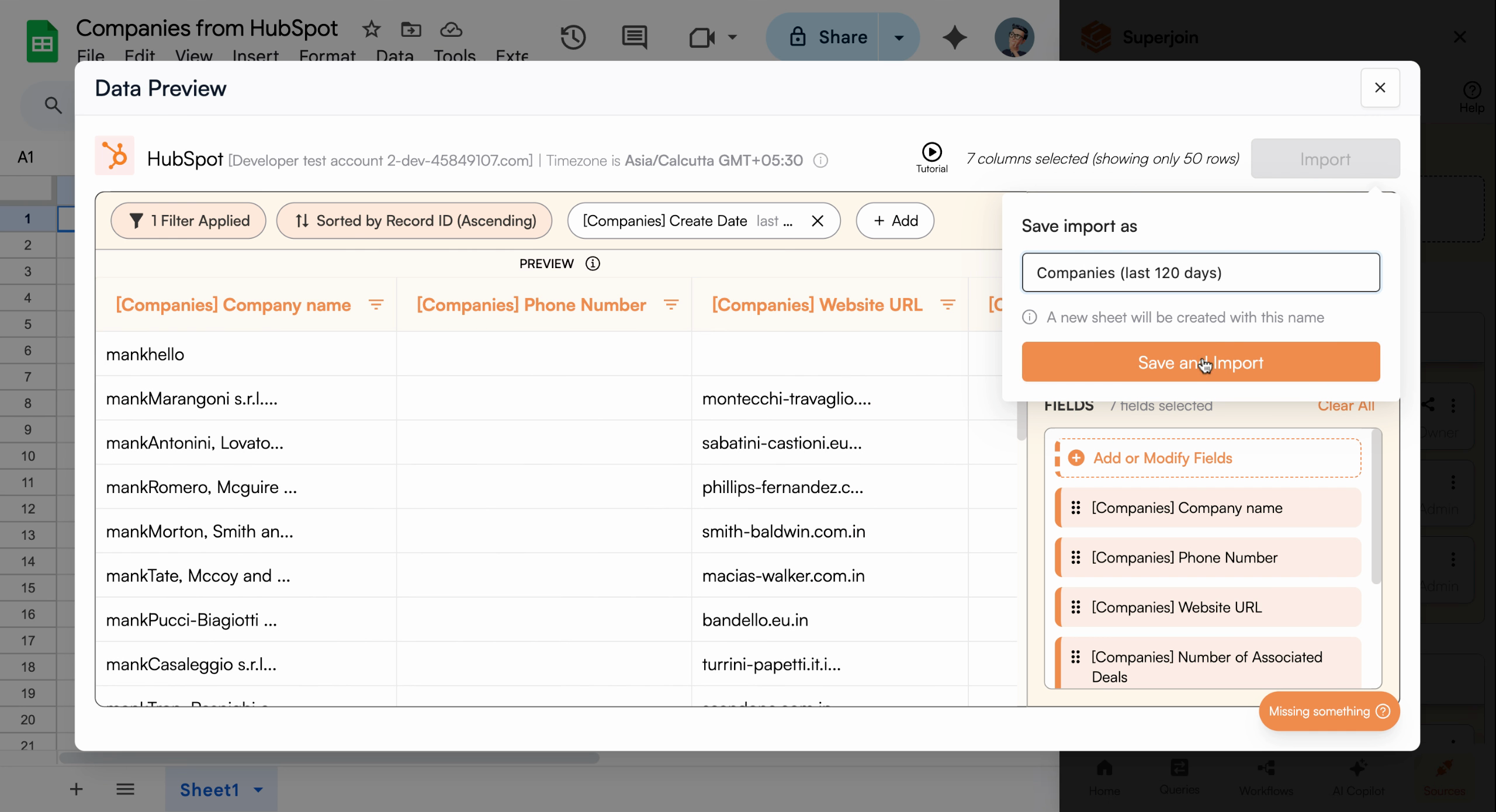
Click **Import** to start pulling the filtered companies data into your spreadsheet. Give the import a descriptive name, such as "companies last 120 days," so you can easily identify it later.
## Import and Name Your Data
Click **Import** to start pulling the filtered companies data into your spreadsheet. Give the import a descriptive name, such as "companies last 120 days," so you can easily identify it later.
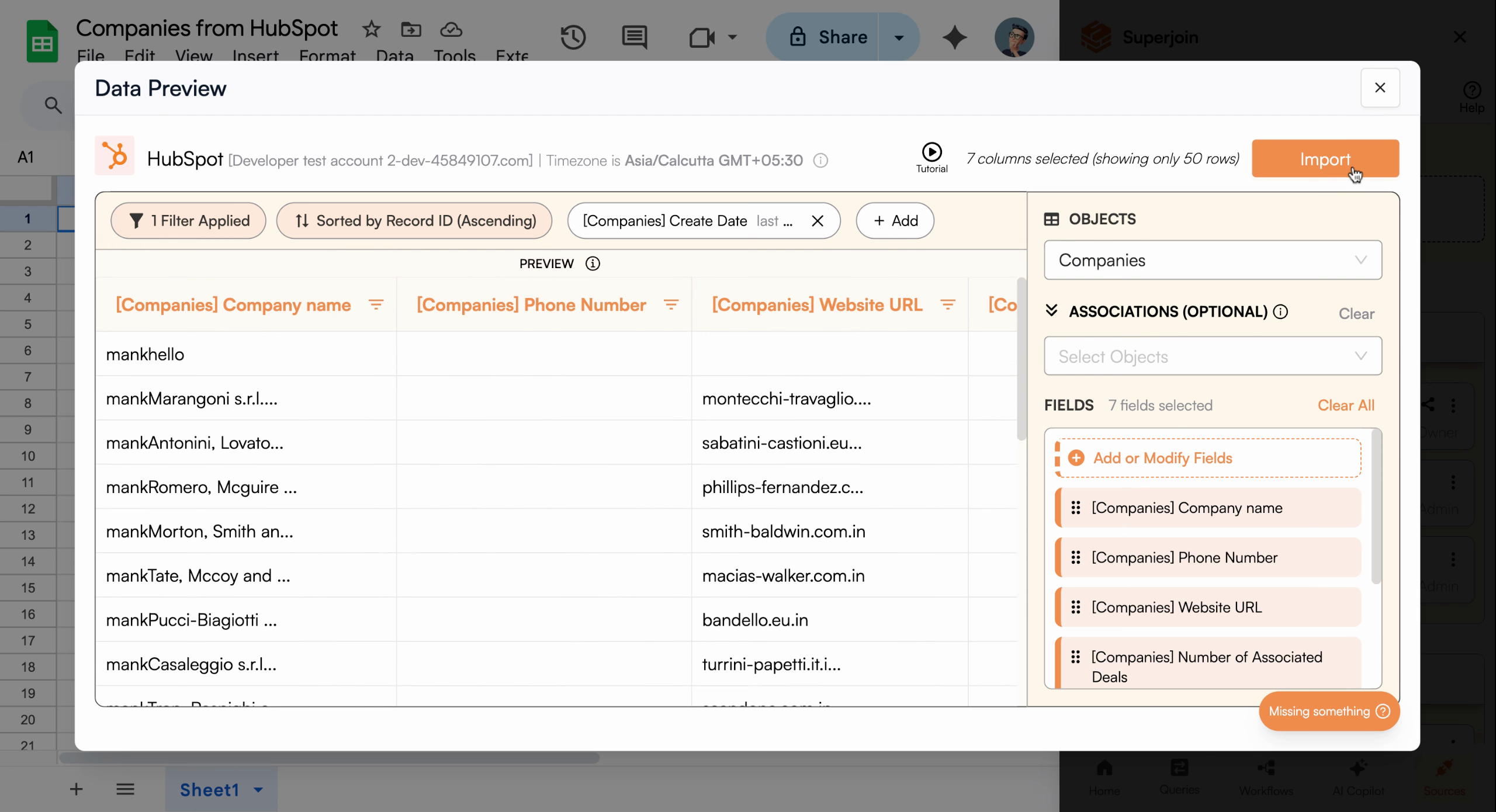
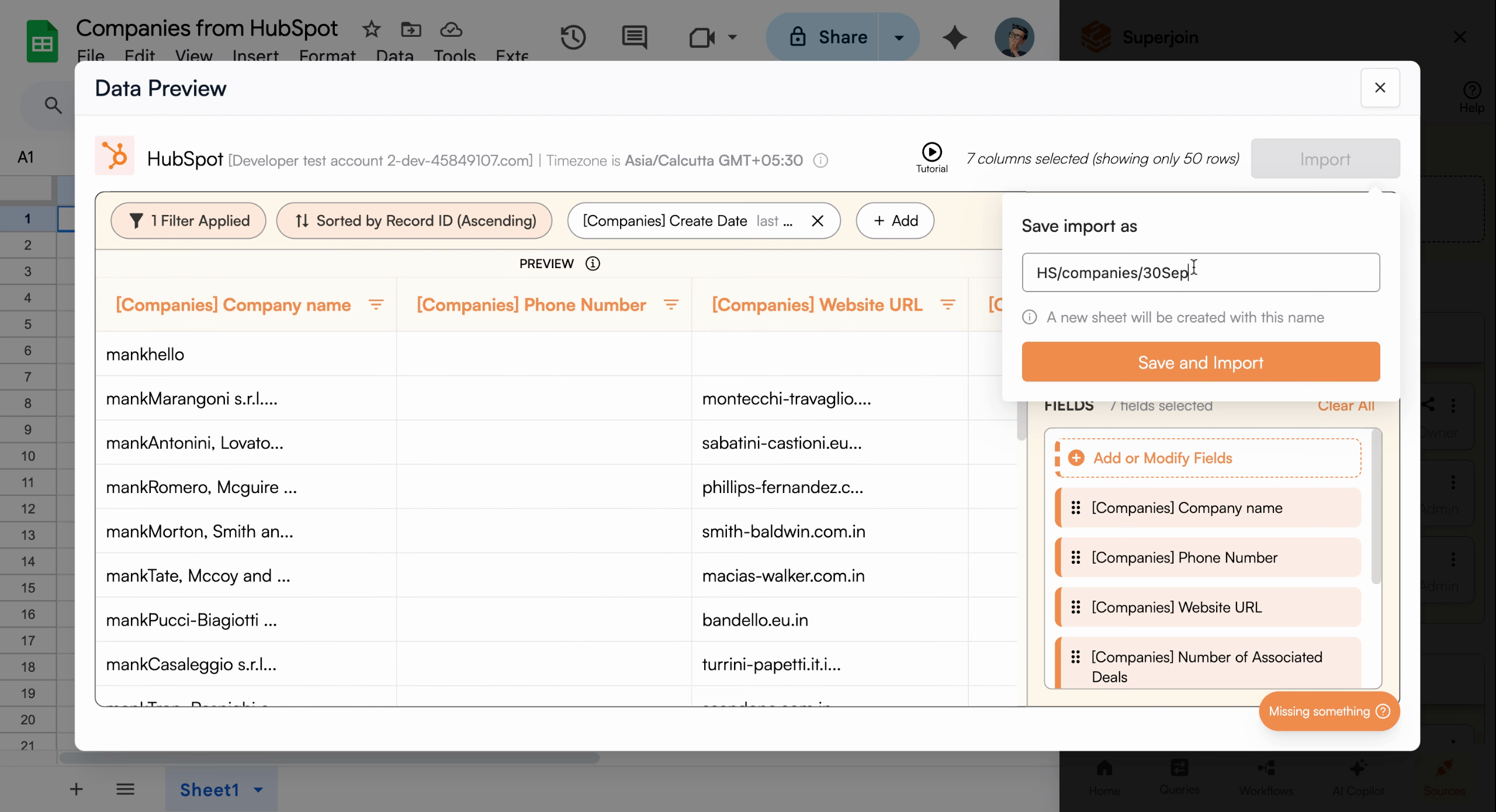 Once you've named it, click **Save**.
 Superjoin bypasses HubSpot's usual 10,000 record limit, allowing you to import
up to 200,000 company records at once.
If you need to stop the import at any time, simply click **Cancel import**.
Superjoin bypasses HubSpot's usual 10,000 record limit, allowing you to import
up to 200,000 company records at once.
If you need to stop the import at any time, simply click **Cancel import**.
 ## Set Up Automatic Refresh Scheduling
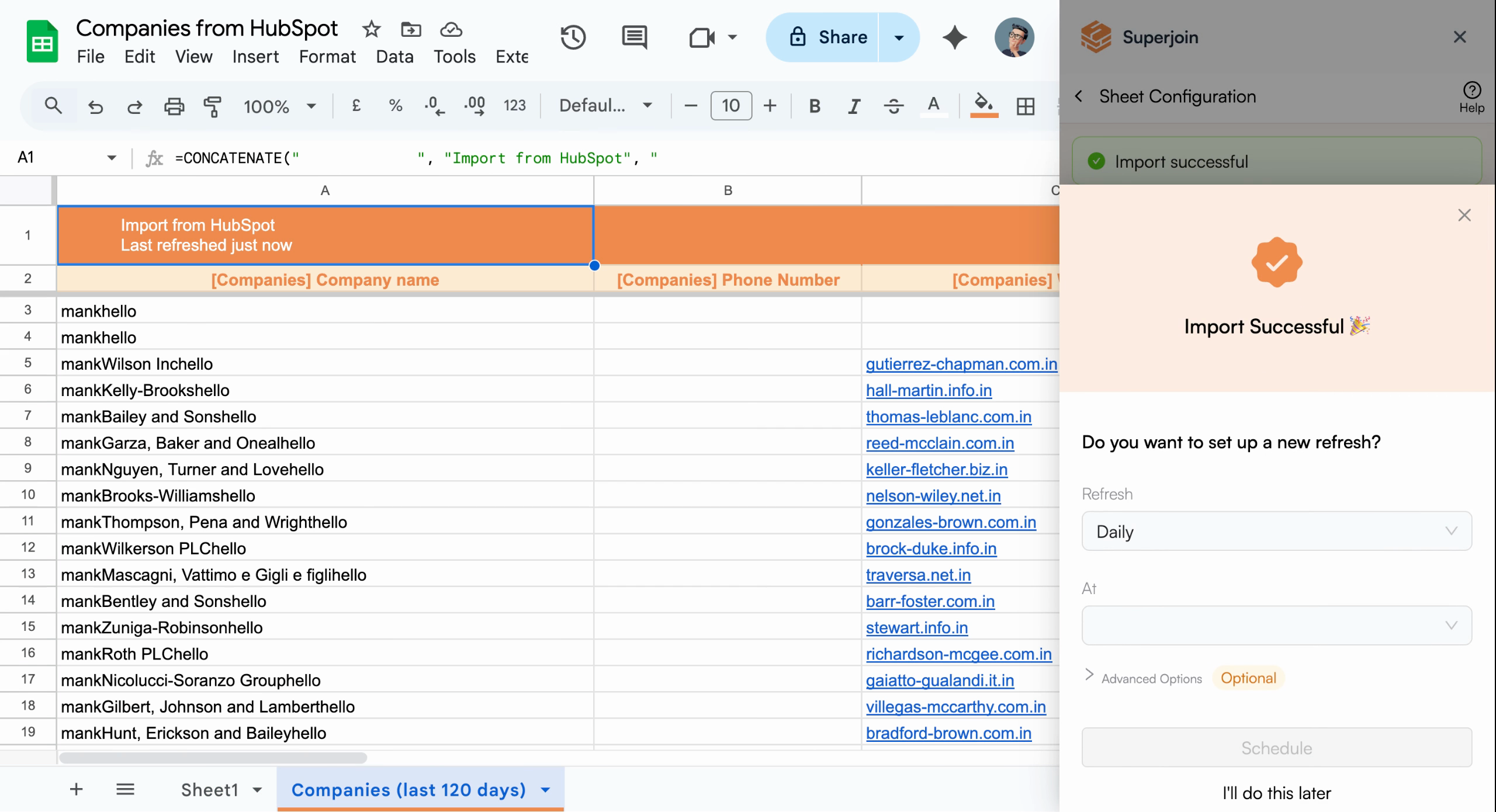
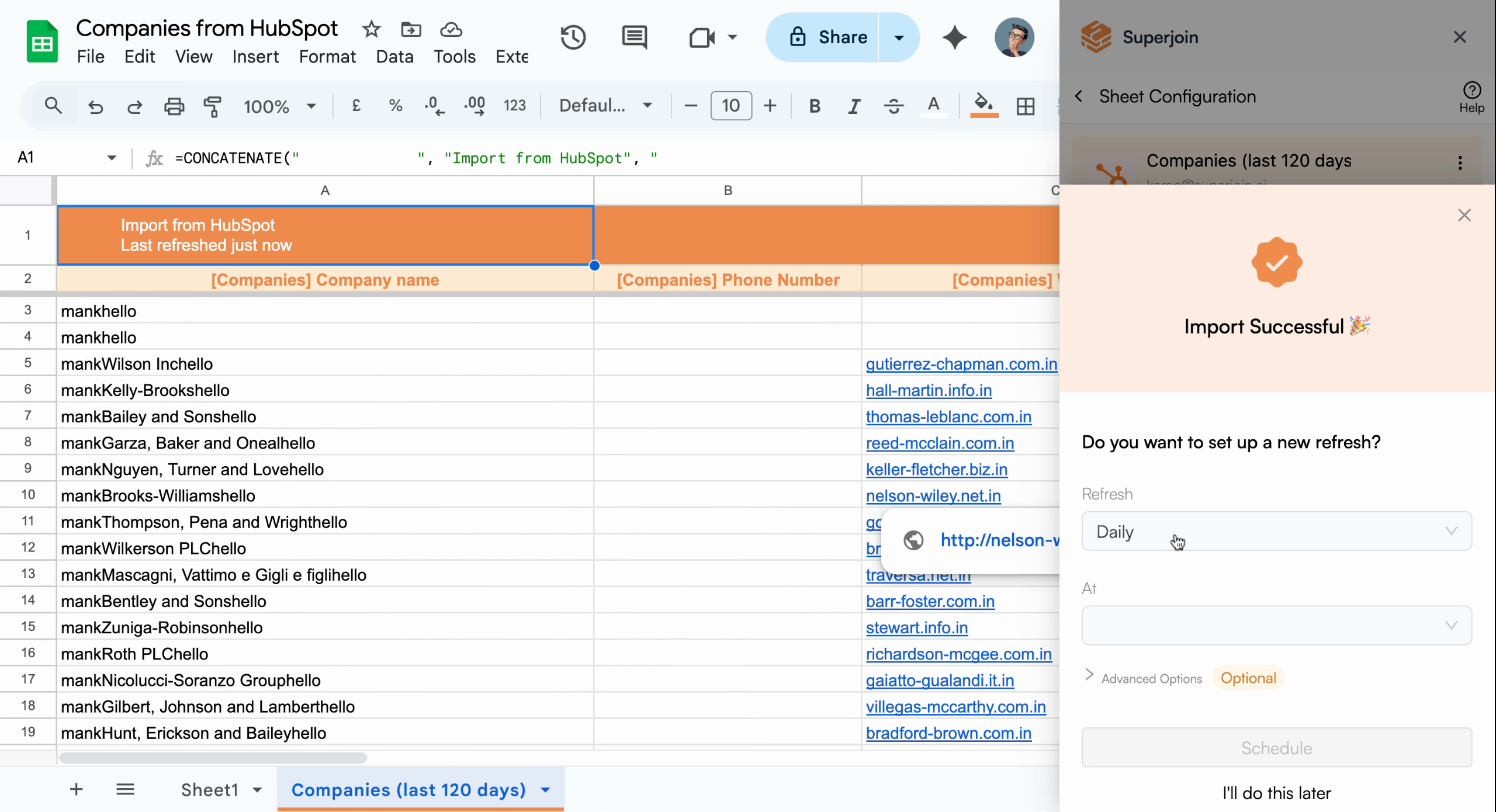
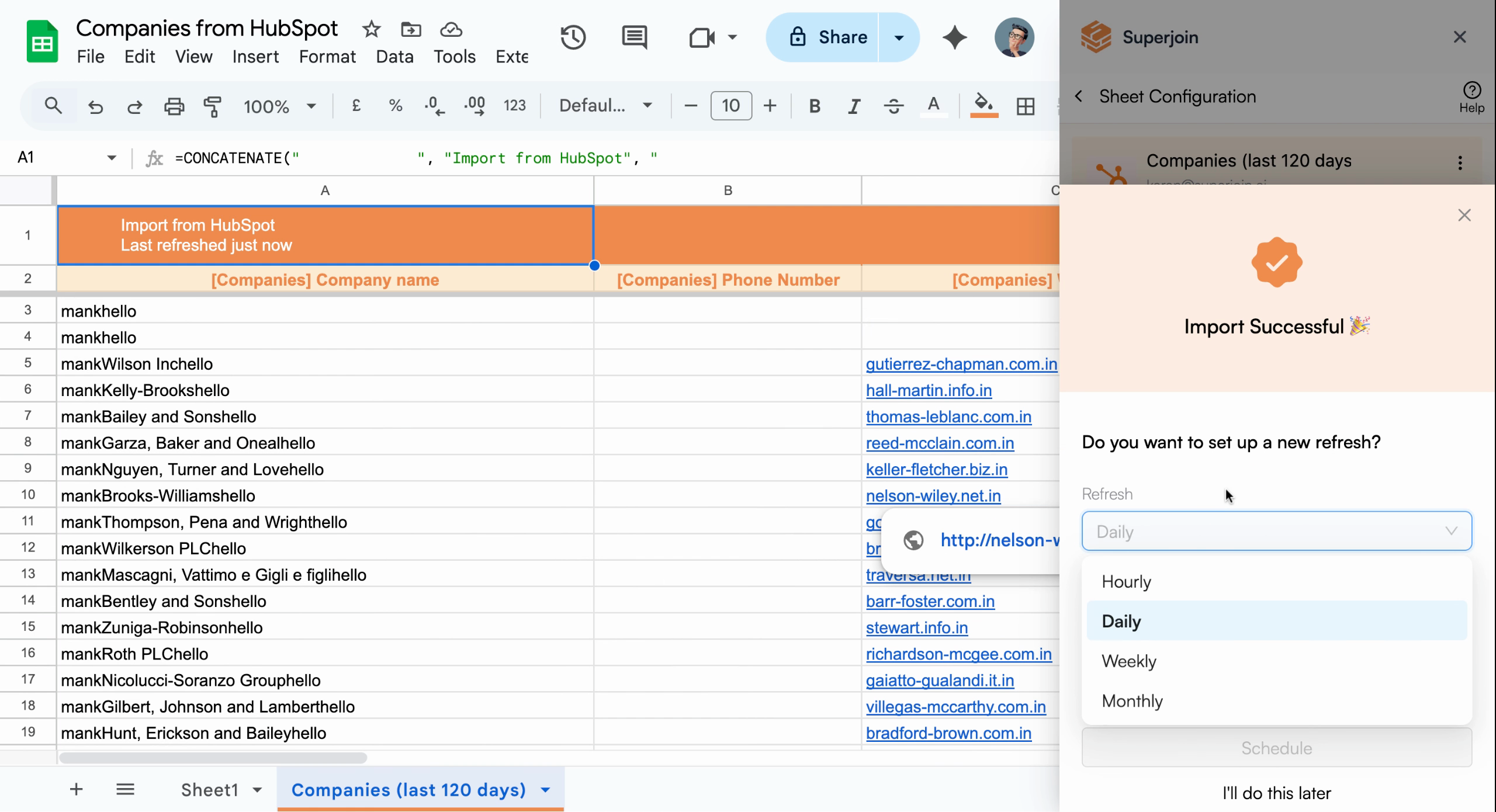
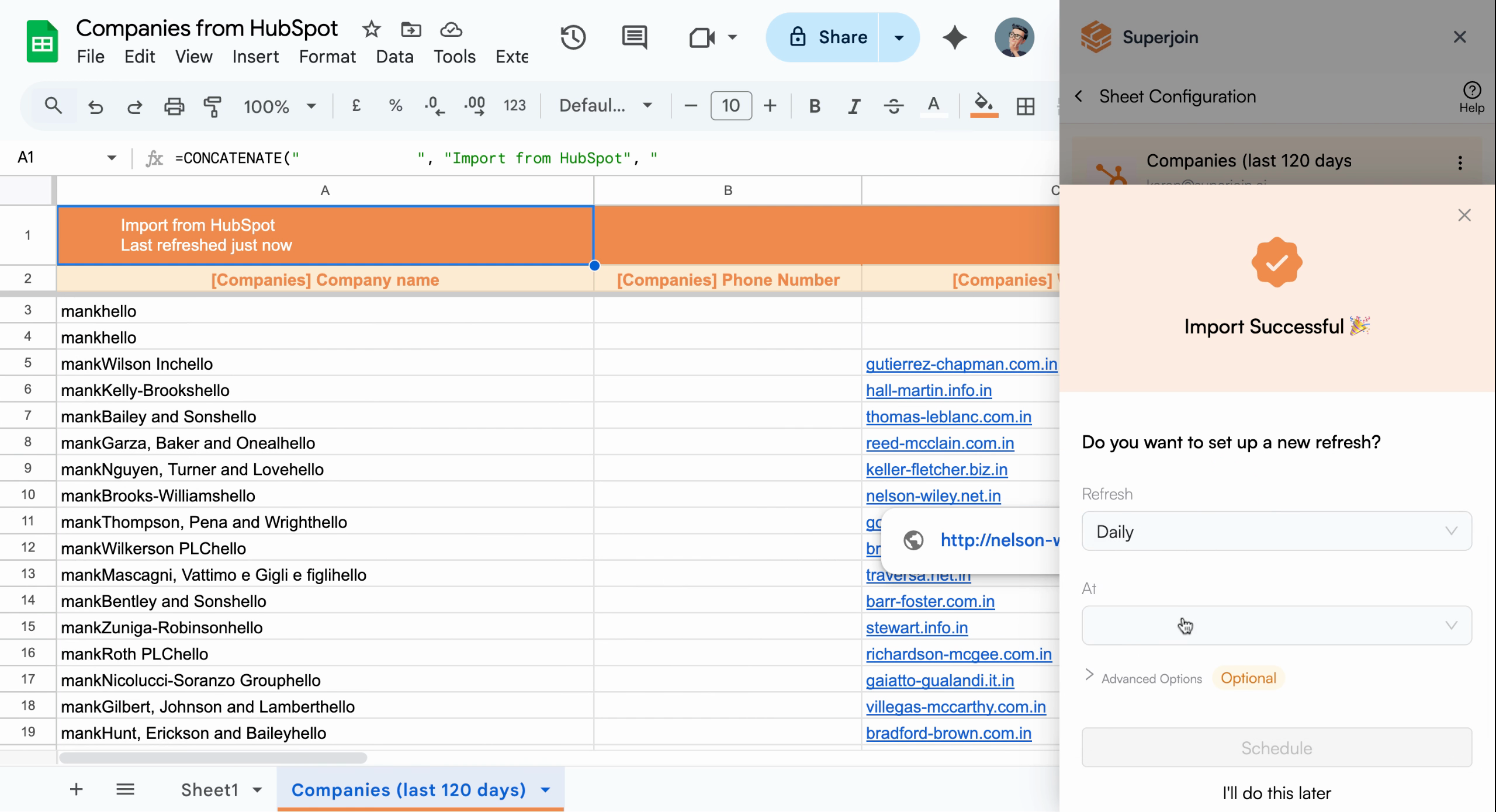
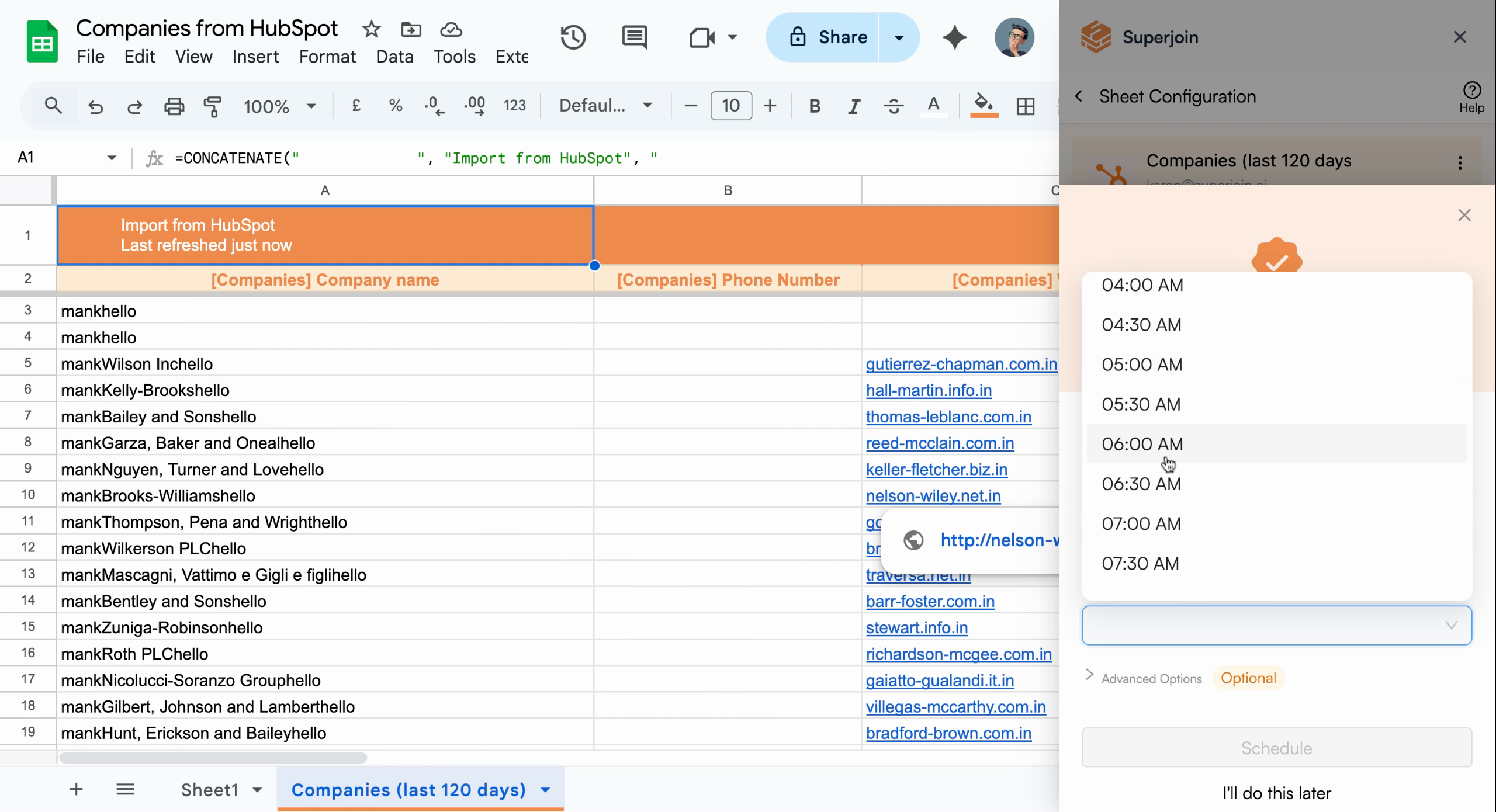
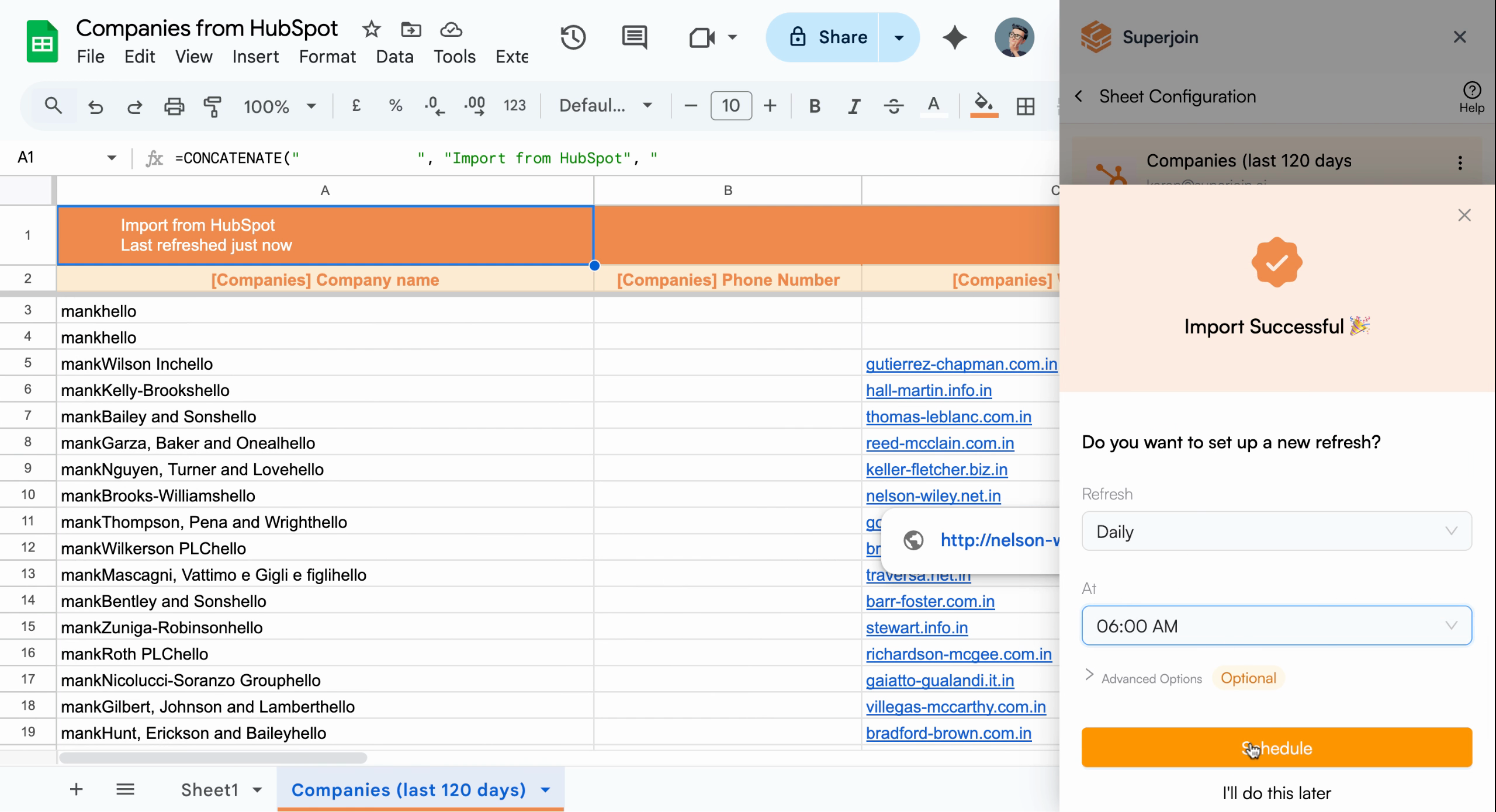
To keep your report constantly updated, use Superjoin's scheduling feature. You can refresh data hourly, daily, weekly, or monthly depending on your needs. For example, to update your company report every day at 6:00 AM, select **daily** and choose **6:00 AM** as the time, then click **Schedule** to activate auto-refresh.
## Set Up Automatic Refresh Scheduling
To keep your report constantly updated, use Superjoin's scheduling feature. You can refresh data hourly, daily, weekly, or monthly depending on your needs. For example, to update your company report every day at 6:00 AM, select **daily** and choose **6:00 AM** as the time, then click **Schedule** to activate auto-refresh.
 Your Google Sheet now has an always-current HubSpot Companies report, updated
automatically per your schedule.
Your Google Sheet now has an always-current HubSpot Companies report, updated
automatically per your schedule.