> ## Documentation Index
> Fetch the complete documentation index at: https://docs.superjoin.ai/llms.txt
> Use this file to discover all available pages before exploring further.

# Import Contacts from HubSpot to Google Sheets

> Step-by-step guide to import contacts from HubSpot into Google Sheets using Superjoin

This guide demonstrates how to import contacts from your HubSpot account into Google Sheets using Superjoin. This workflow is ideal for marketers, sales teams, and anyone who needs real-time HubSpot contact data in their spreadsheets. You'll learn how to import, filter, and schedule automatic updates for your customer data.

## Open the Superjoin Sidebar

Start by opening the Superjoin sidebar in Google Sheets by clicking the Superjoin icon in your Google Sheets interface.
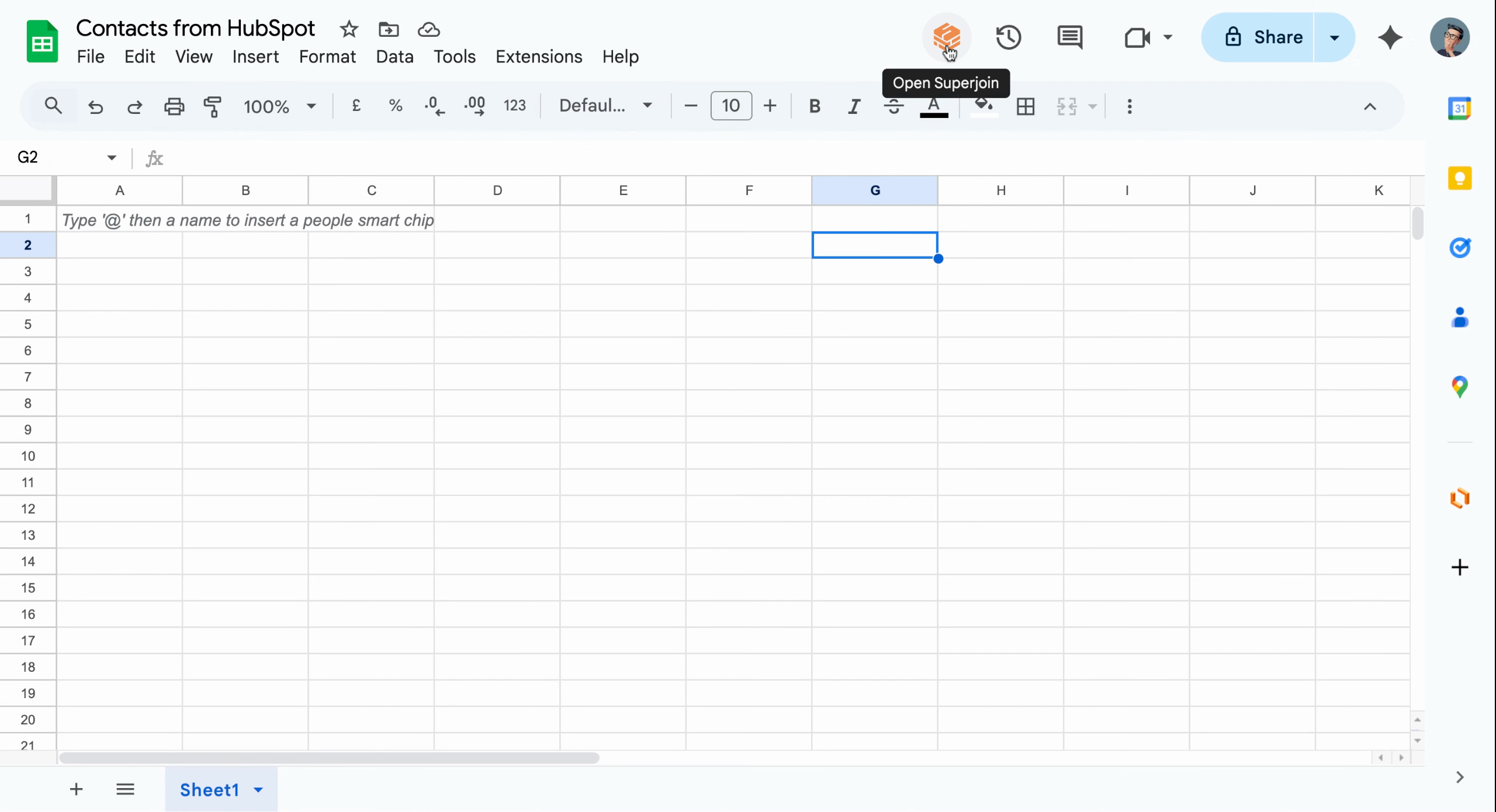
<Frame caption="The Superjoin icon launches the sidebar directly inside Google Sheets">
  <img src="https://usercontent.in.prod.clueso.io/6b101750-ec89-4e66-83bb-0b9079219f65/784c6119-c5df-4e17-a493-777cba102cd6/b56edd1d-4e3b-49ee-9321-5b0bb55ac8a8/images/087daa8e-1462-476e-a1cf-682a00cfb4a6.png" alt="Superjoin icon in Google Sheets toolbar" />
</Frame>

## Locate Your HubSpot Source

Navigate to the **Sources** section in the sidebar. You'll see your connected HubSpot account listed here.
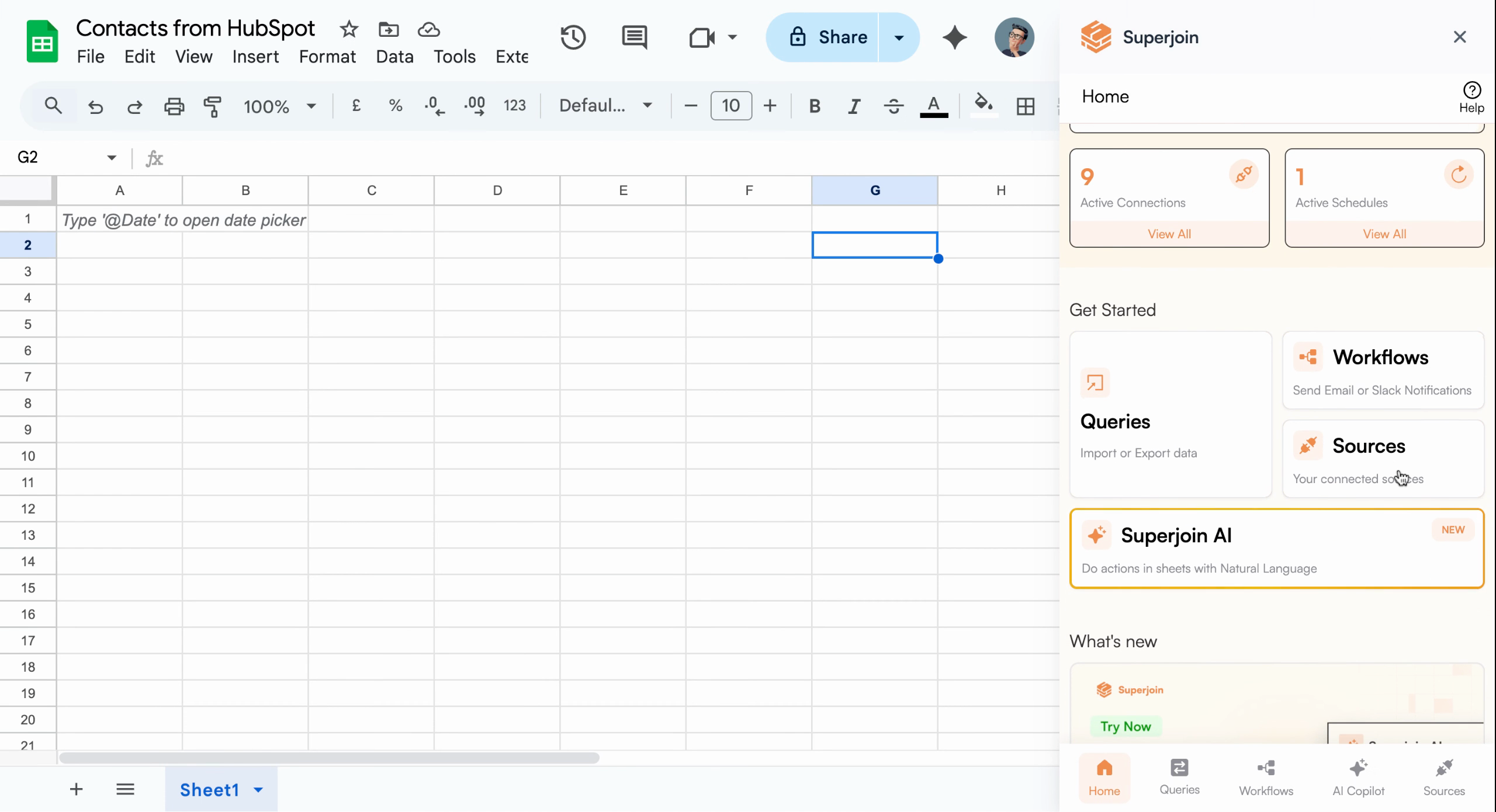
<Frame caption="Connected data sources appear in this section for quick access">
  <img src="https://usercontent.in.prod.clueso.io/6b101750-ec89-4e66-83bb-0b9079219f65/784c6119-c5df-4e17-a493-777cba102cd6/b56edd1d-4e3b-49ee-9321-5b0bb55ac8a8/images/98fa556c-a53b-4c36-ac67-ab56c59759e1.png" alt="Sources section showing connected HubSpot account" />
</Frame>

## Open Data Preview

Click on your **HubSpot** source, then select **Import into Google Sheets** from the available options.
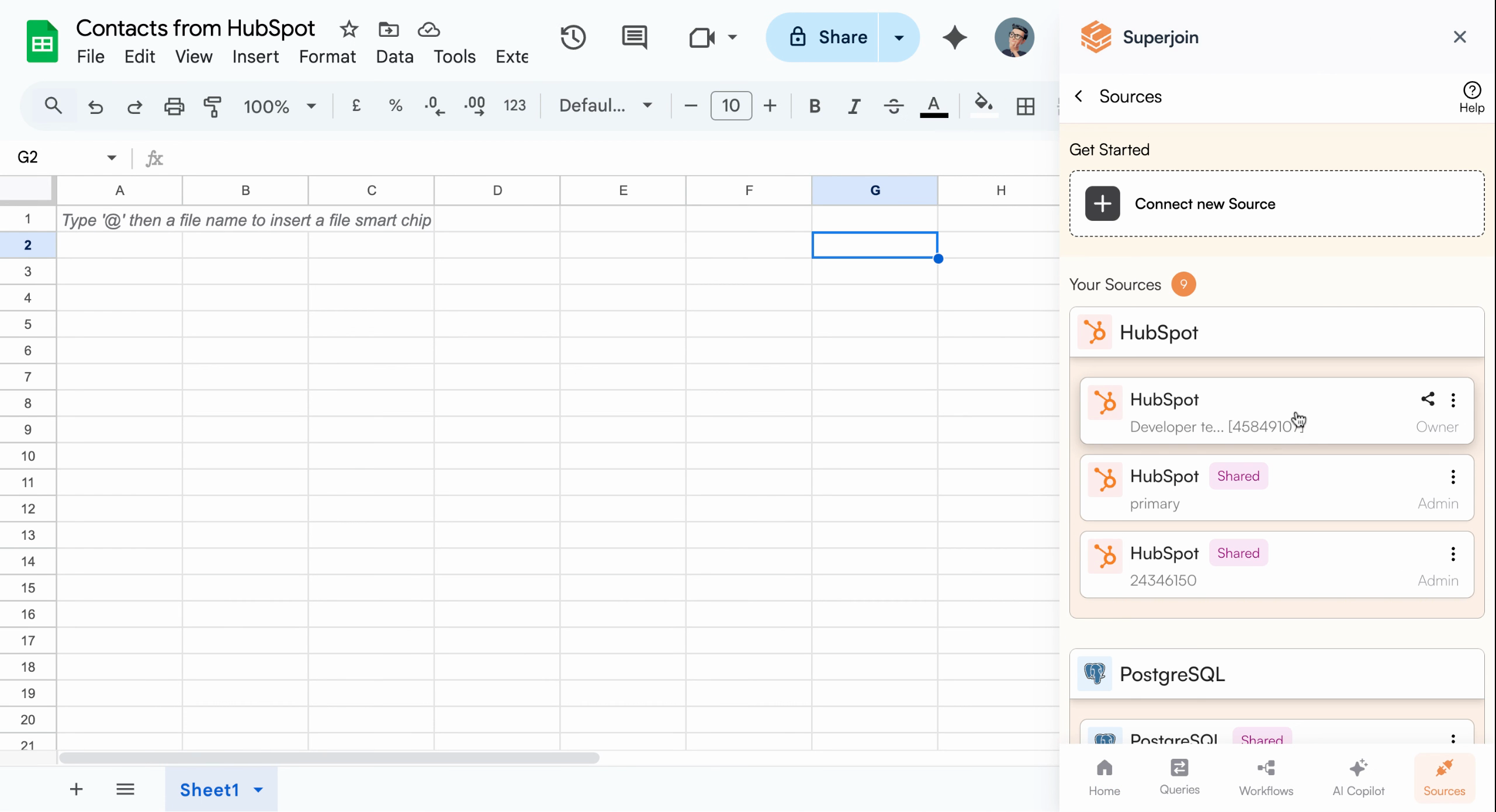
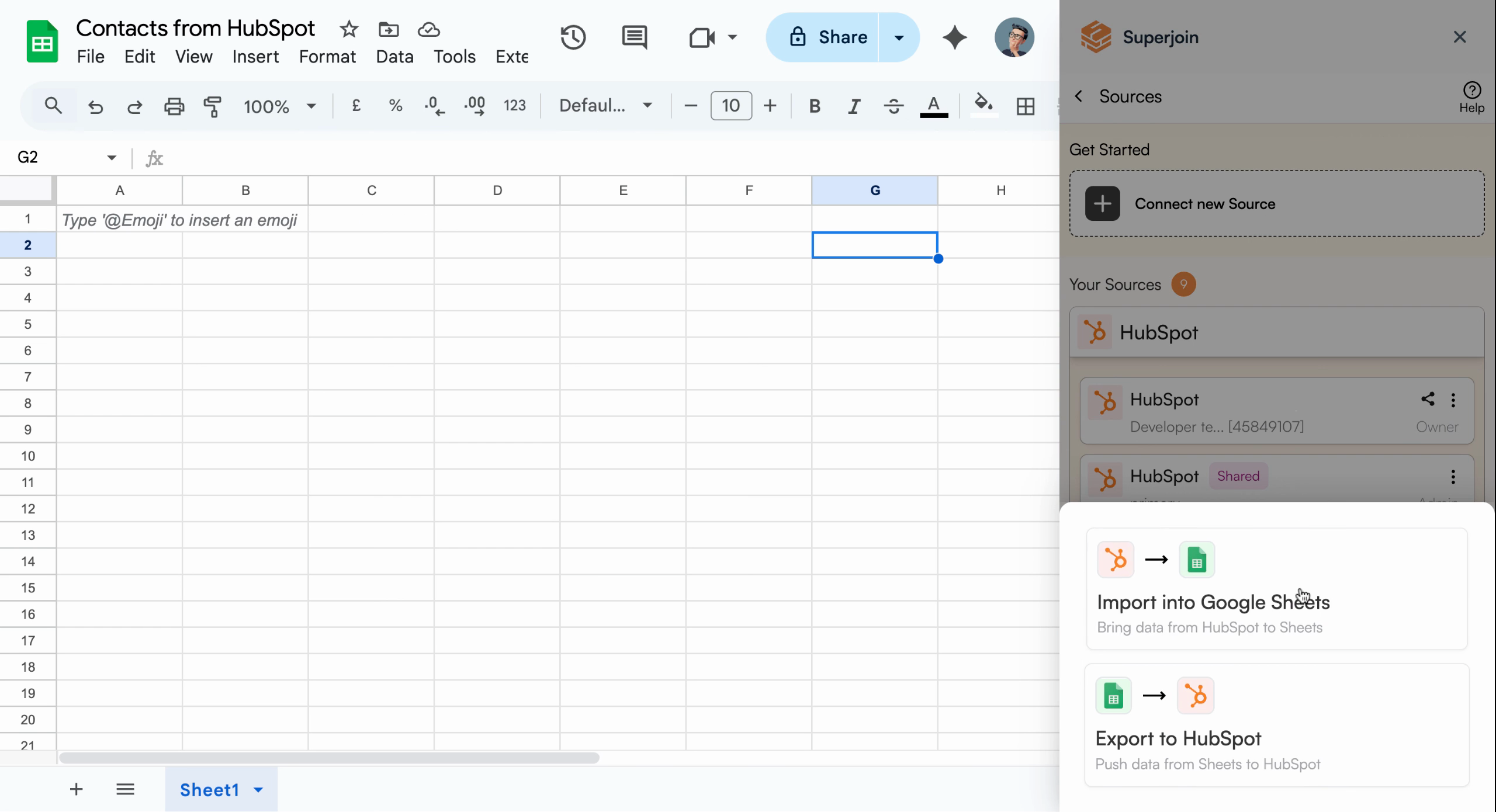
<Frame caption="Select your HubSpot source to start setting up an import">
  <img src="https://usercontent.in.prod.clueso.io/6b101750-ec89-4e66-83bb-0b9079219f65/784c6119-c5df-4e17-a493-777cba102cd6/b56edd1d-4e3b-49ee-9321-5b0bb55ac8a8/images/dbdcbd3e-b102-4f7f-92cd-a76fc2dc6c8f.png" alt="HubSpot source selected in Superjoin sidebar" />
</Frame>

<Frame caption="Choose Import into Google Sheets to continue">
  <img src="https://usercontent.in.prod.clueso.io/6b101750-ec89-4e66-83bb-0b9079219f65/784c6119-c5df-4e17-a493-777cba102cd6/b56edd1d-4e3b-49ee-9321-5b0bb55ac8a8/images/99dff34b-3c6c-4745-a3db-2ef63a6cdf81.png" alt="Import into Google Sheets option highlighted" />
</Frame>

## Select Data to Import

A data preview modal will open, allowing you to configure which HubSpot data to import. Select **Contacts** as the object type.
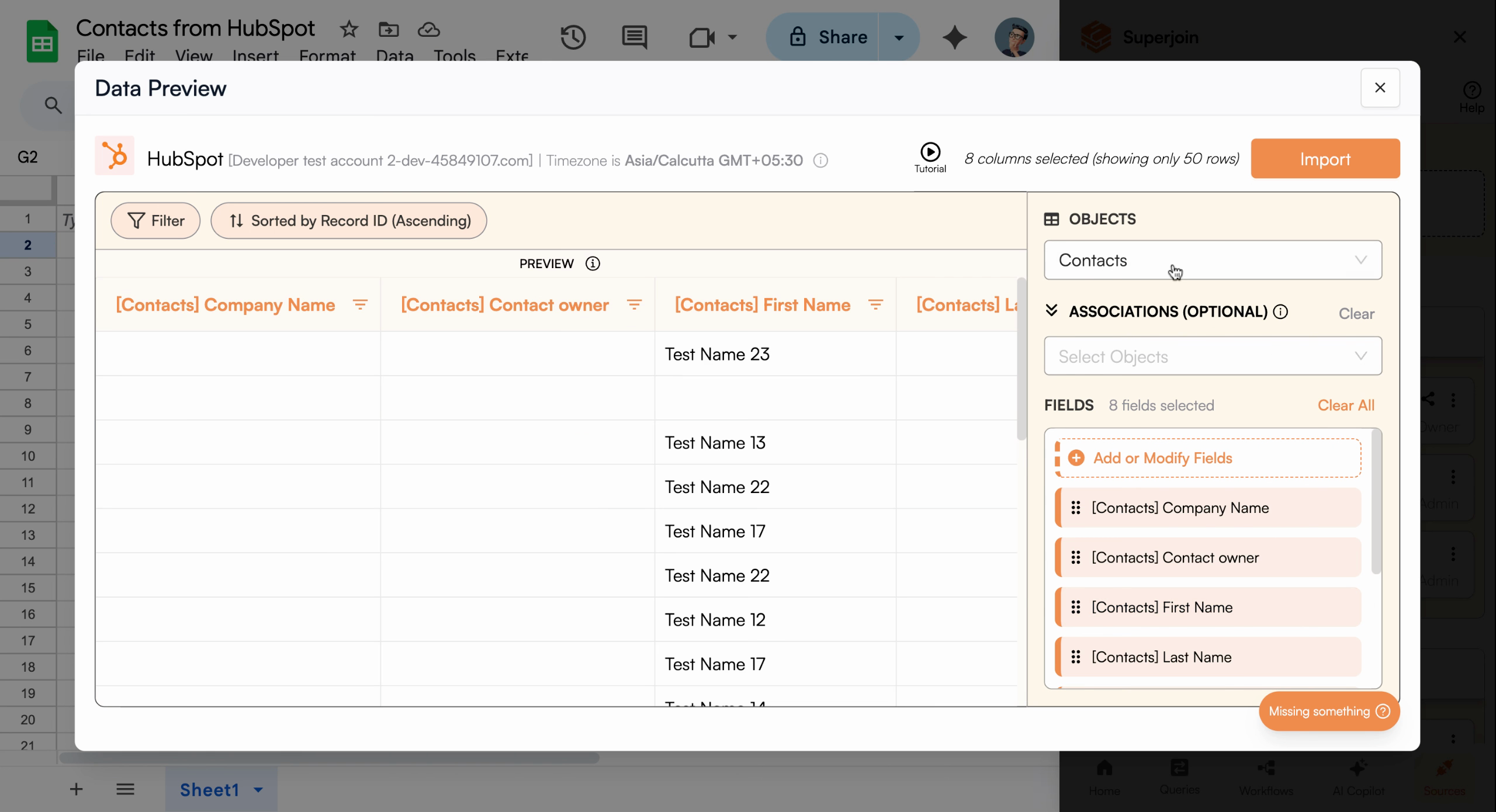
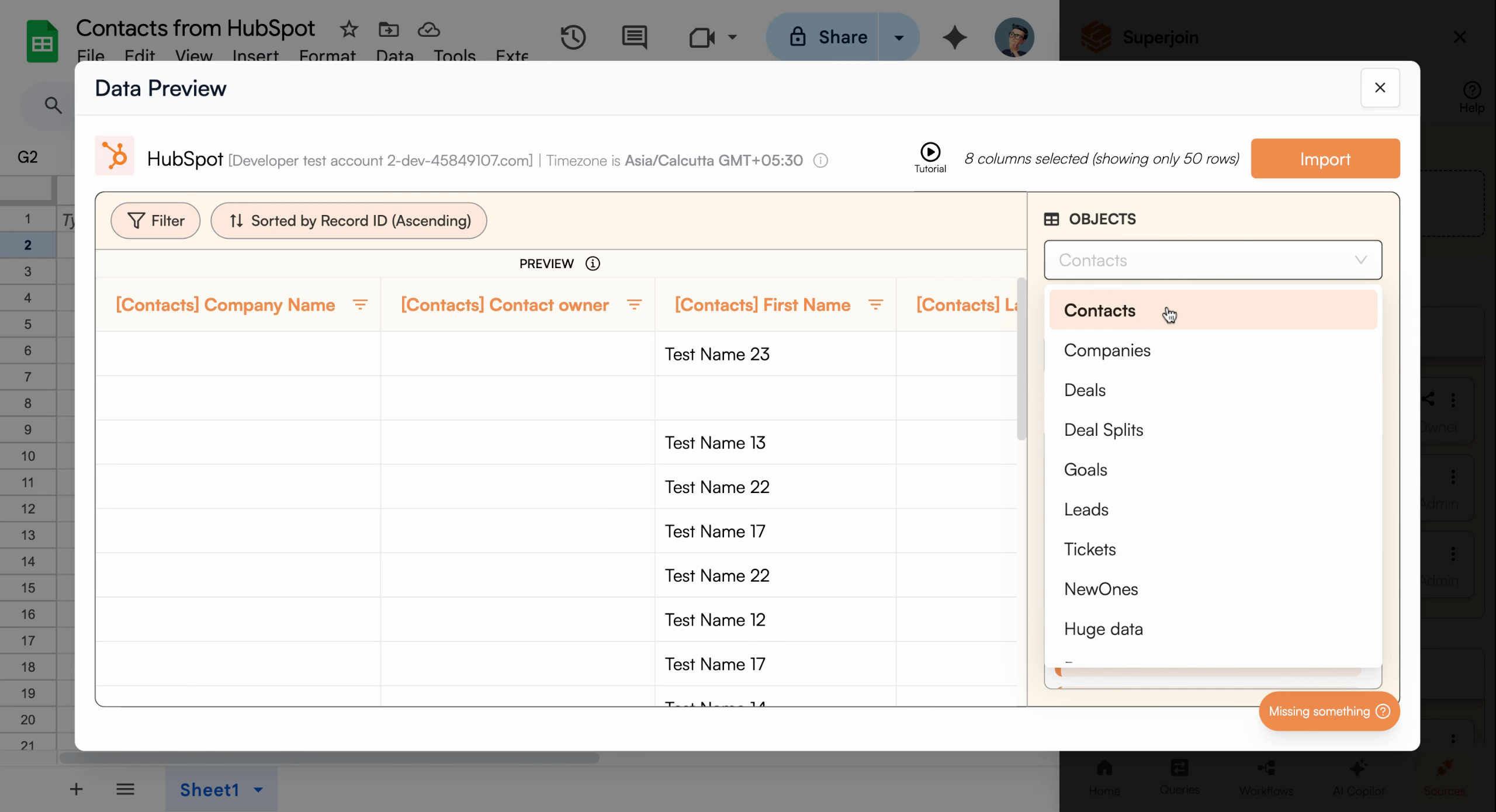
<Frame caption="Ensure Contacts is chosen to import people records from HubSpot">
  <img src="https://usercontent.in.prod.clueso.io/6b101750-ec89-4e66-83bb-0b9079219f65/784c6119-c5df-4e17-a493-777cba102cd6/b56edd1d-4e3b-49ee-9321-5b0bb55ac8a8/images/144fbf23-5fbf-40fd-991a-e0130968d1f3.png" alt="Object selection dropdown showing Contacts" />
</Frame>

<Frame>
  <img src="https://usercontent.in.prod.clueso.io/6b101750-ec89-4e66-83bb-0b9079219f65/784c6119-c5df-4e17-a493-777cba102cd6/b56edd1d-4e3b-49ee-9321-5b0bb55ac8a8/images/4a1ad5b9-9d9f-467d-b5d0-4f3c9e3a9361.png" alt="Contacts object type selected in data preview" />
</Frame>

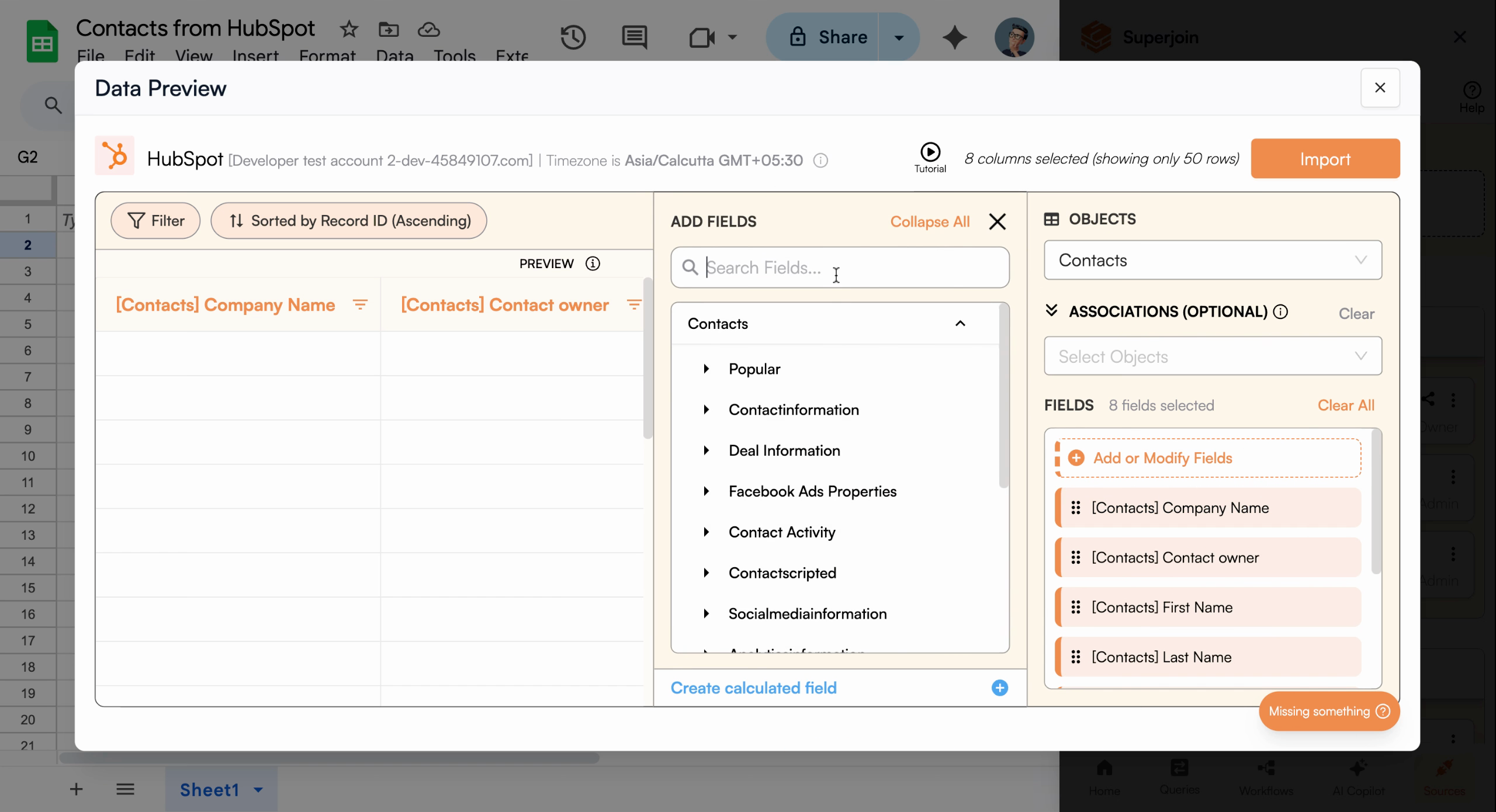
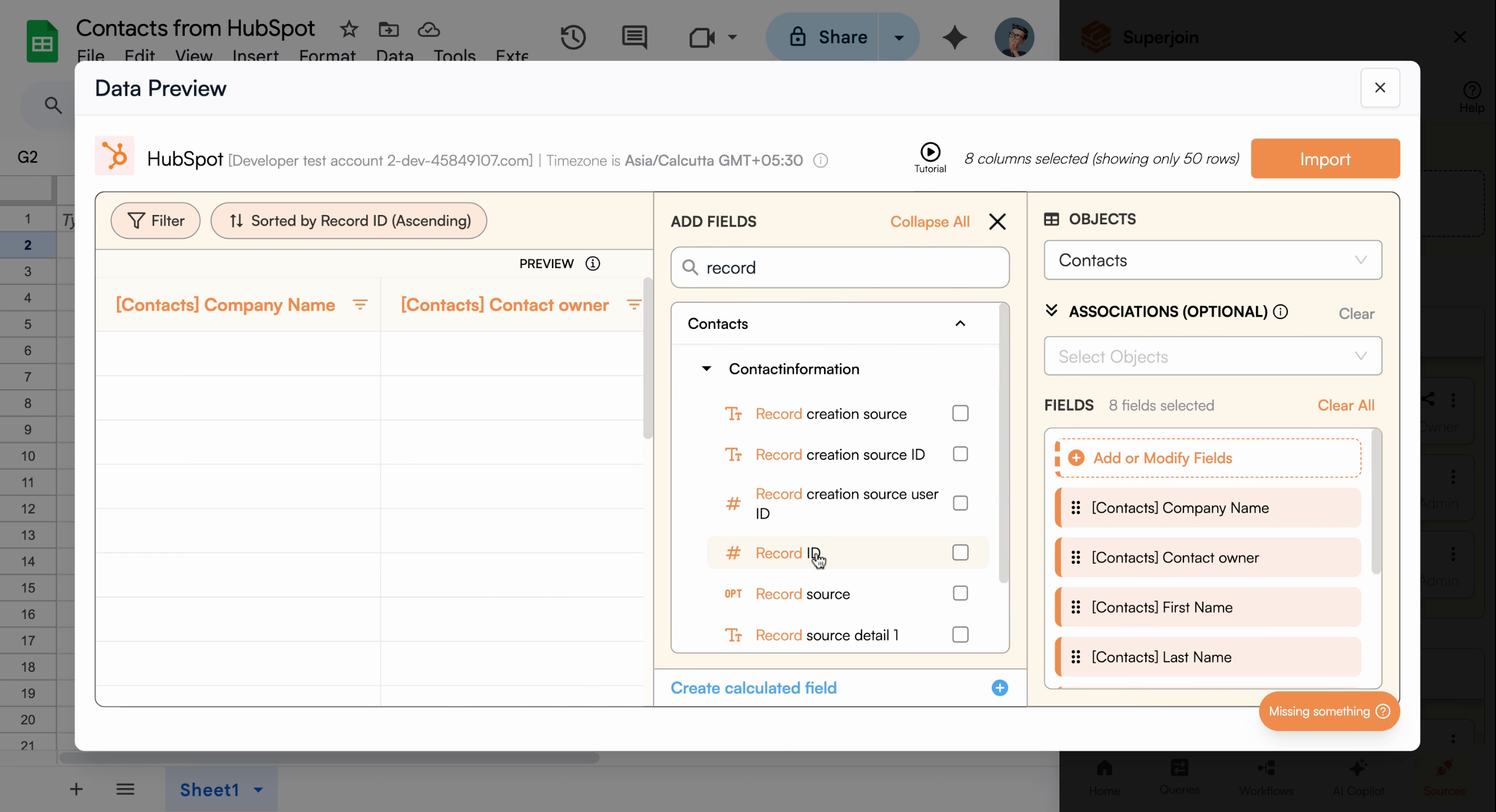
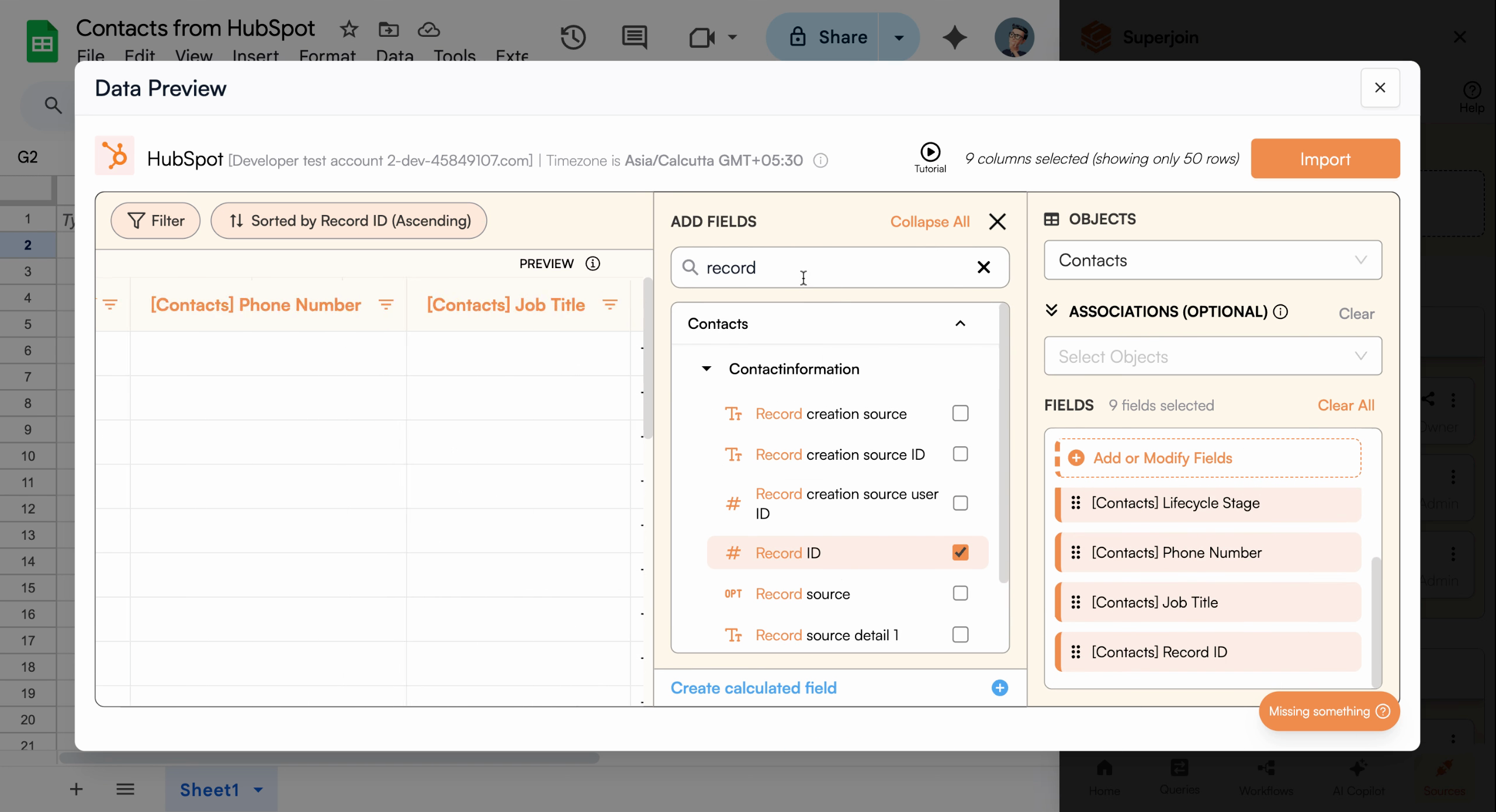
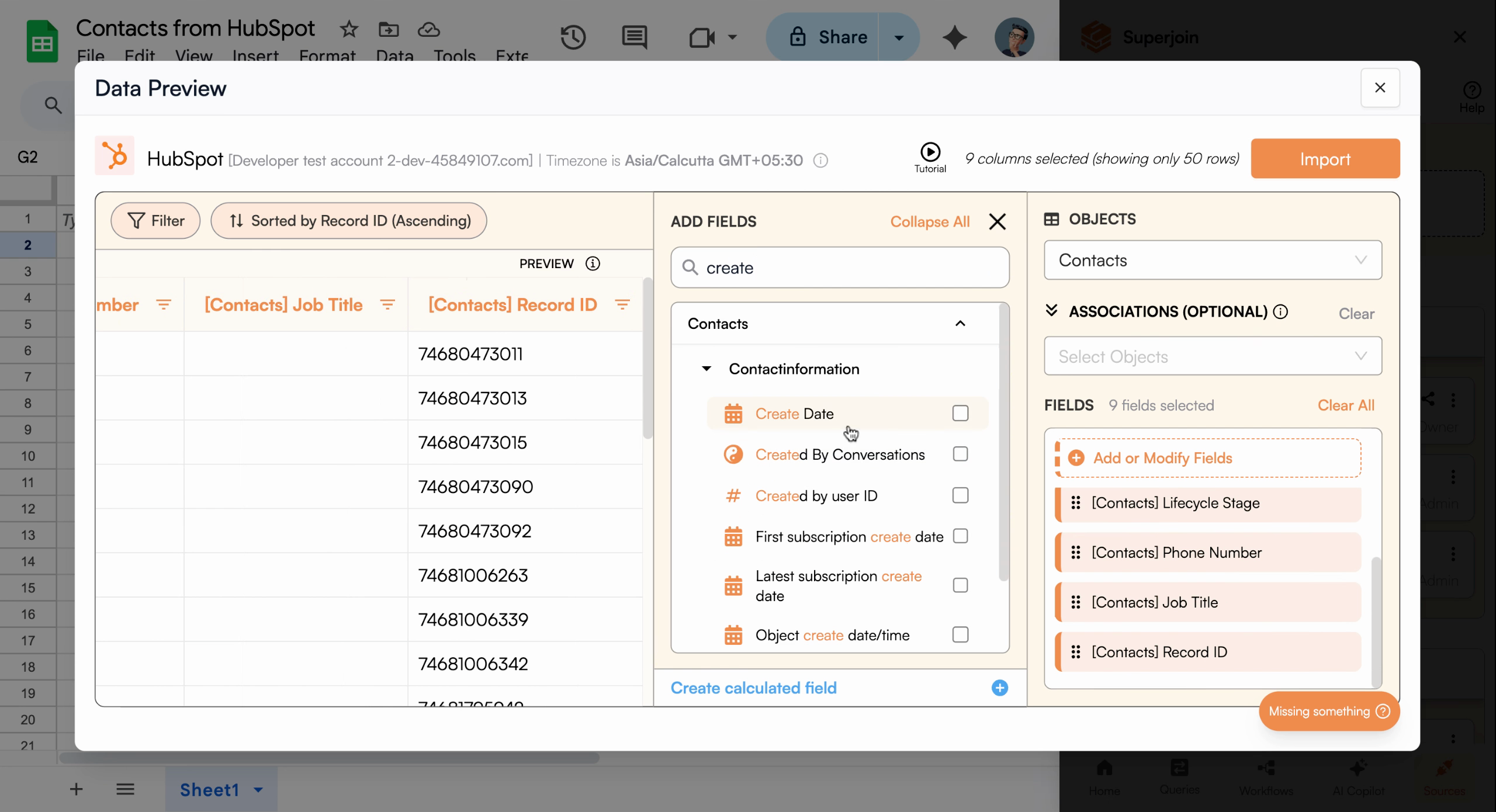
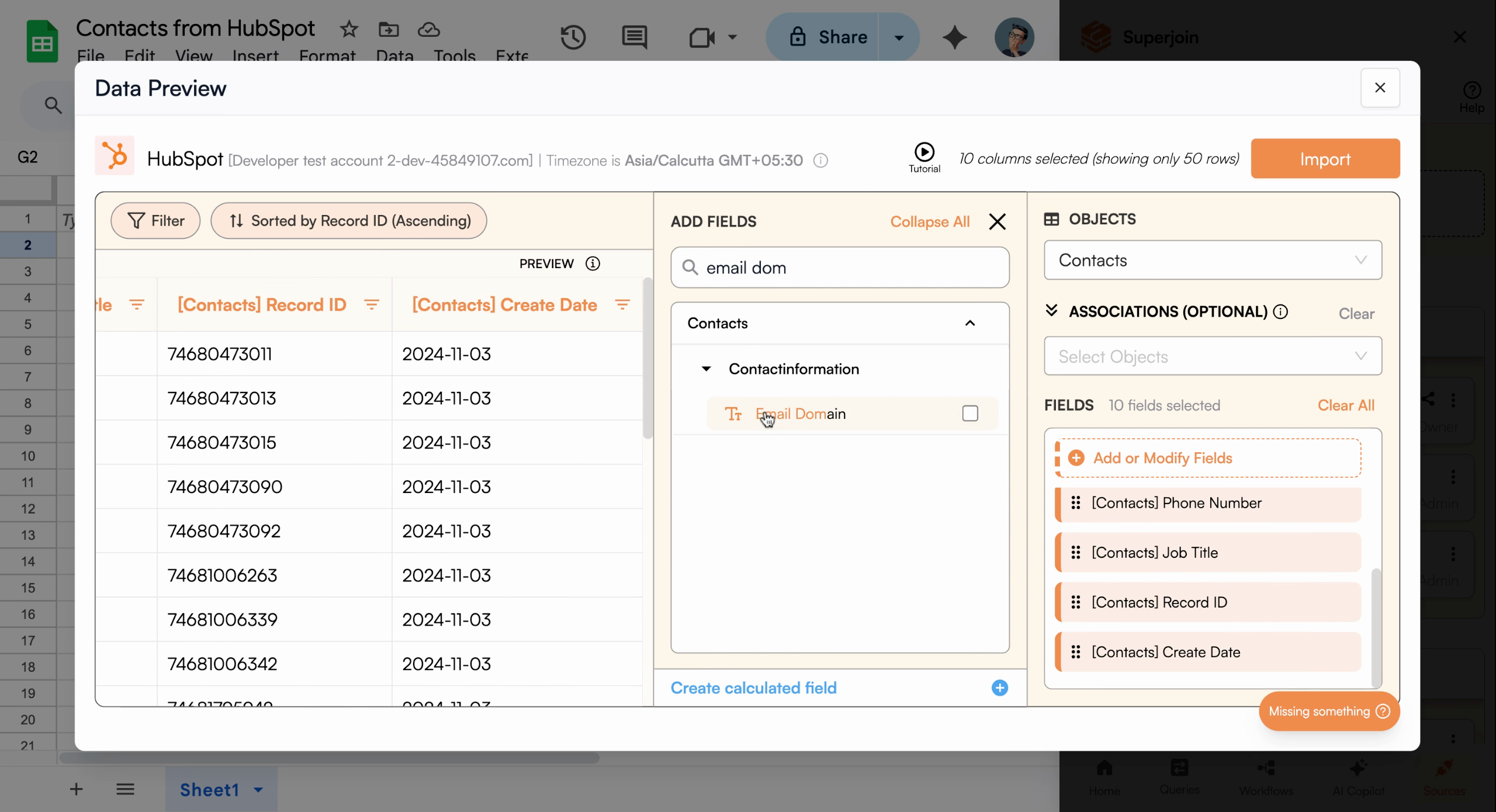
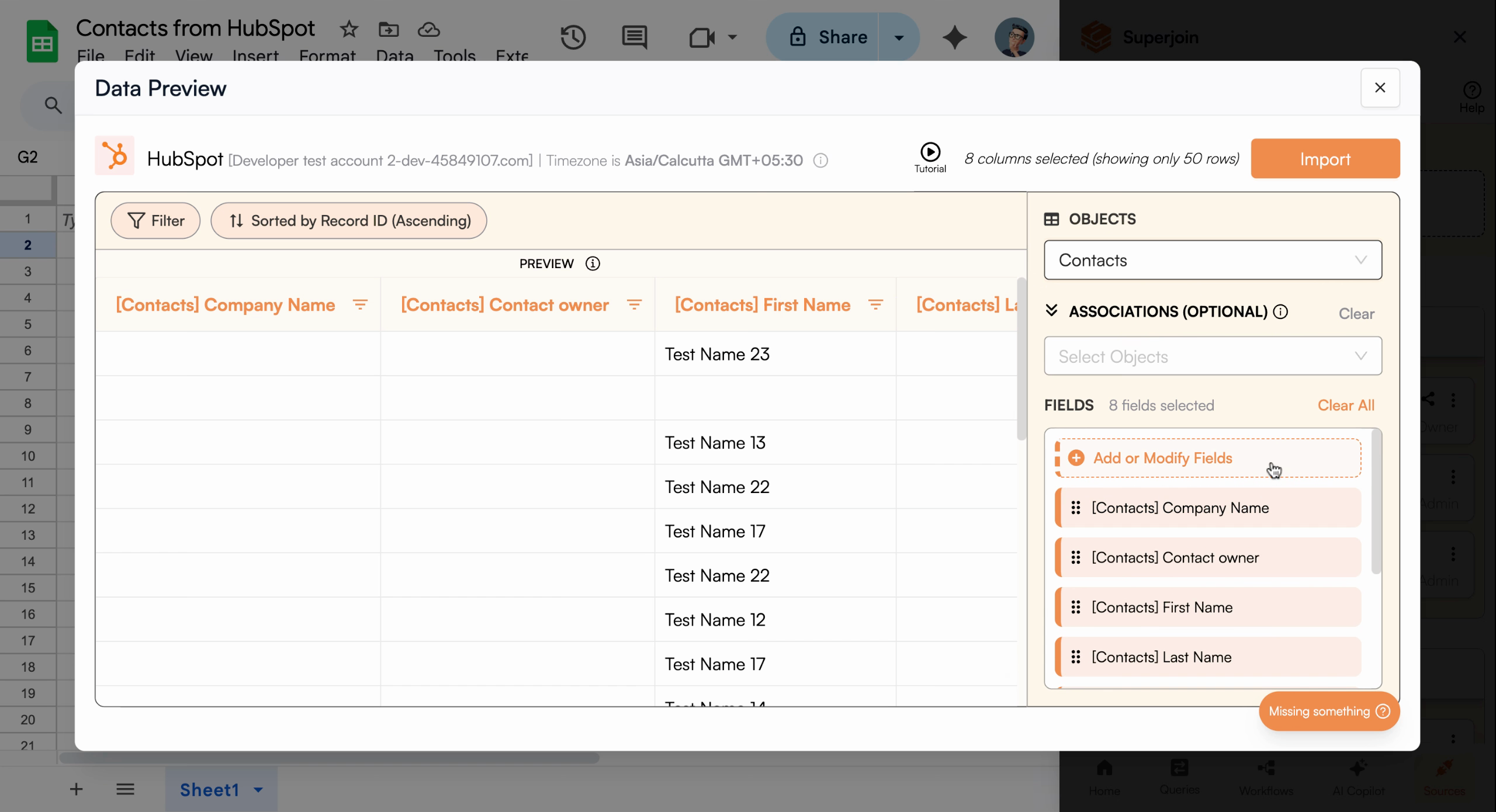
Next, add the specific columns you need. For this example, we'll select:

* Record ID
* Create Date
* Email Domain
<Frame caption="Add the columns you want to bring into your sheet—choose only what you need to keep things simple">
  <img src="https://usercontent.in.prod.clueso.io/6b101750-ec89-4e66-83bb-0b9079219f65/784c6119-c5df-4e17-a493-777cba102cd6/b56edd1d-4e3b-49ee-9321-5b0bb55ac8a8/images/6066f007-289f-4e71-8a0d-8d3c85dd95af.png" alt="Column selection interface showing available fields" />
</Frame>

<Frame>
  <img src="https://usercontent.in.prod.clueso.io/6b101750-ec89-4e66-83bb-0b9079219f65/784c6119-c5df-4e17-a493-777cba102cd6/b56edd1d-4e3b-49ee-9321-5b0bb55ac8a8/images/7db6e763-9498-46ce-b853-abc6e89df1f0.png" alt="Adding columns to import configuration" />
</Frame>

<Frame caption="Select each column required for your project">
  <img src="https://usercontent.in.prod.clueso.io/6b101750-ec89-4e66-83bb-0b9079219f65/784c6119-c5df-4e17-a493-777cba102cd6/b56edd1d-4e3b-49ee-9321-5b0bb55ac8a8/images/2add4c3e-e847-4370-a67c-cf2fa522875a.png" alt="Record ID column selected" />
</Frame>

<Frame>
  <img src="https://usercontent.in.prod.clueso.io/6b101750-ec89-4e66-83bb-0b9079219f65/784c6119-c5df-4e17-a493-777cba102cd6/b56edd1d-4e3b-49ee-9321-5b0bb55ac8a8/images/90b7edbf-5ab0-4980-b60c-13f03565ce67.png" alt="Create Date column selected" />
</Frame>

<Frame>
  <img src="https://usercontent.in.prod.clueso.io/6b101750-ec89-4e66-83bb-0b9079219f65/784c6119-c5df-4e17-a493-777cba102cd6/b56edd1d-4e3b-49ee-9321-5b0bb55ac8a8/images/e7a7b842-8817-49ec-ac1b-09ec81855689.png" alt="Email Domain column selected" />
</Frame>

<Frame>
  <img src="https://usercontent.in.prod.clueso.io/6b101750-ec89-4e66-83bb-0b9079219f65/784c6119-c5df-4e17-a493-777cba102cd6/b56edd1d-4e3b-49ee-9321-5b0bb55ac8a8/images/af7b30dc-44c1-455d-ad75-8adaca4c2b6e.png" alt="All selected columns displayed in preview" />
</Frame>

## Apply Filters (Optional)

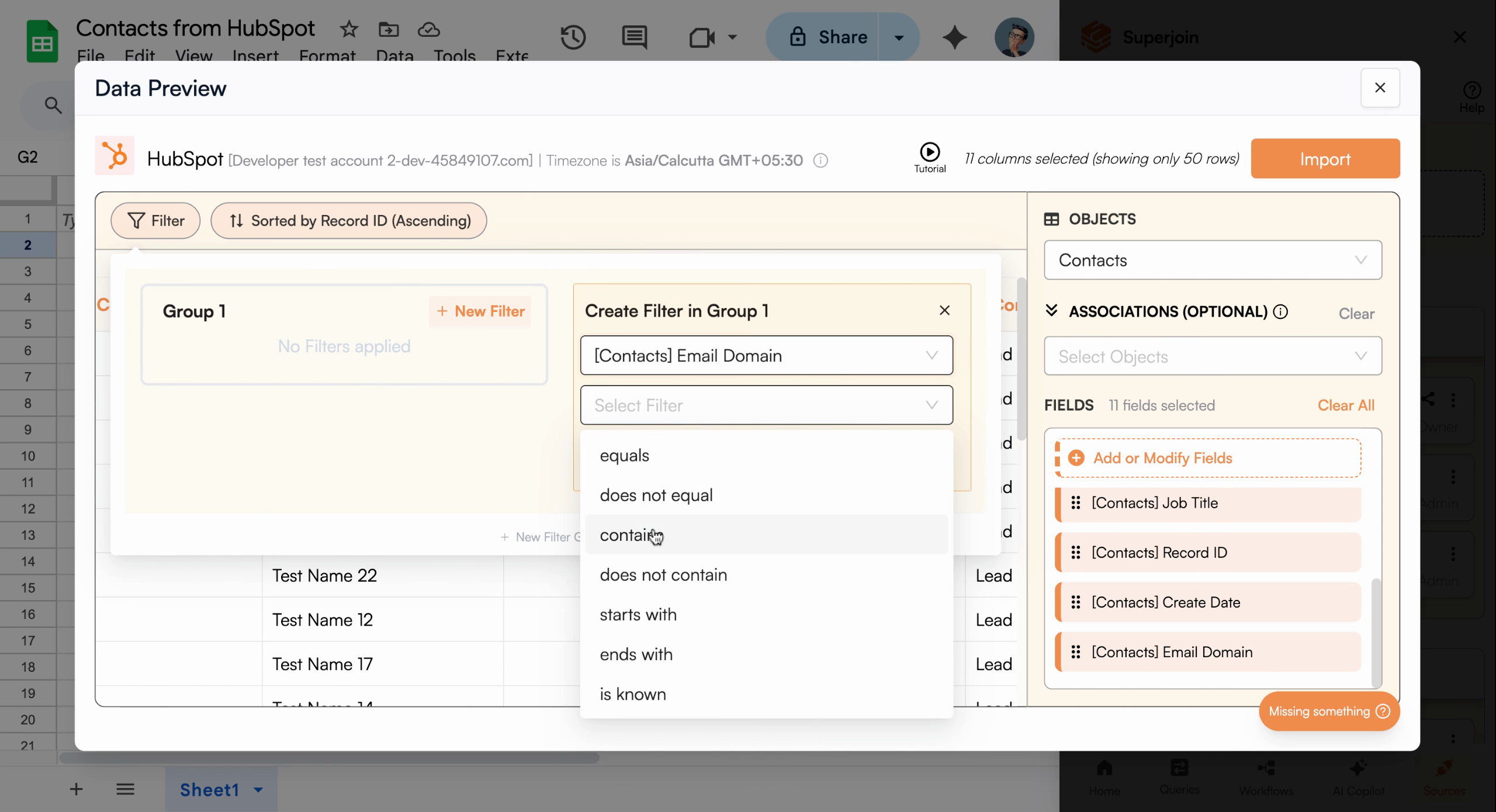
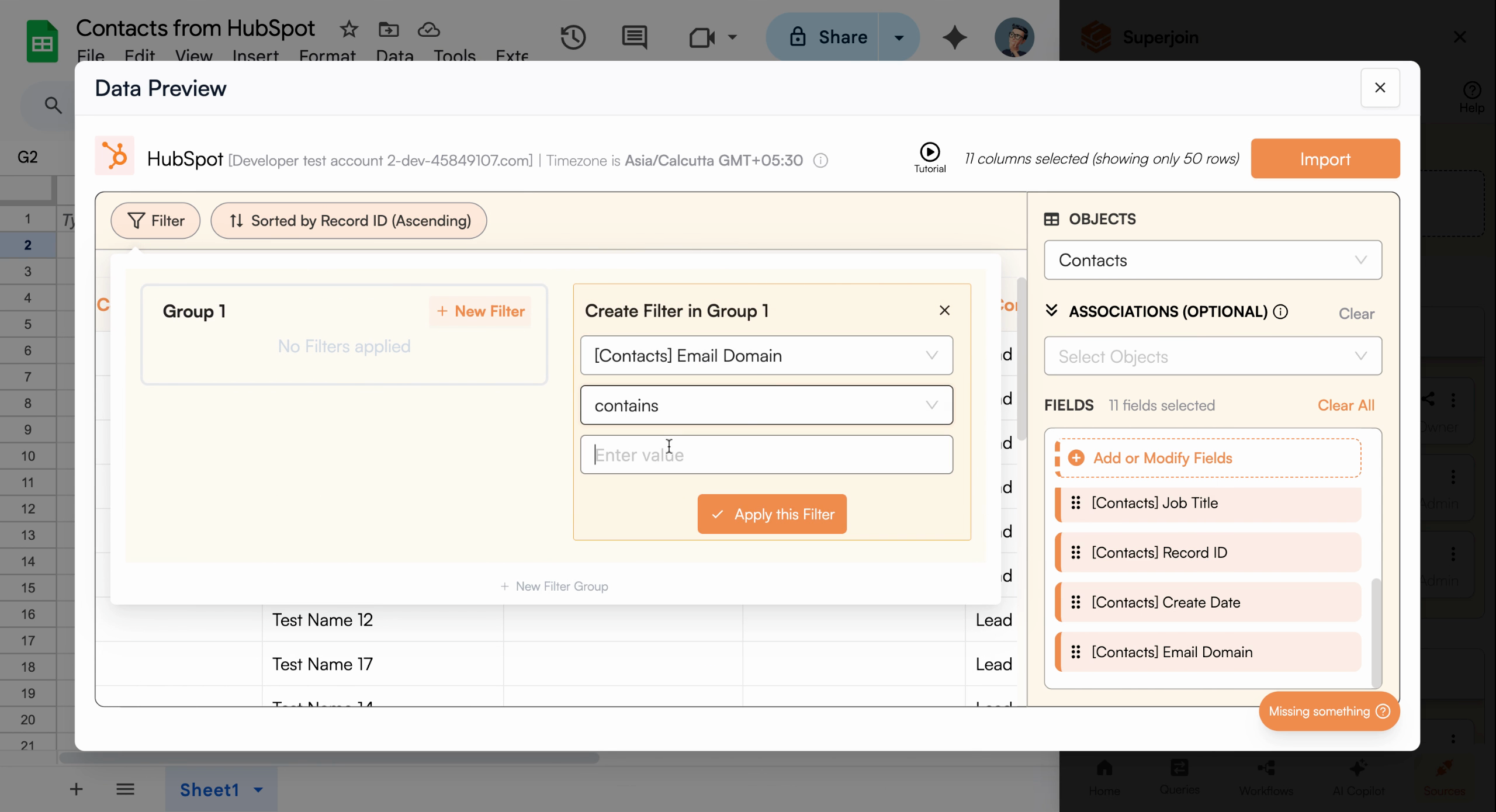
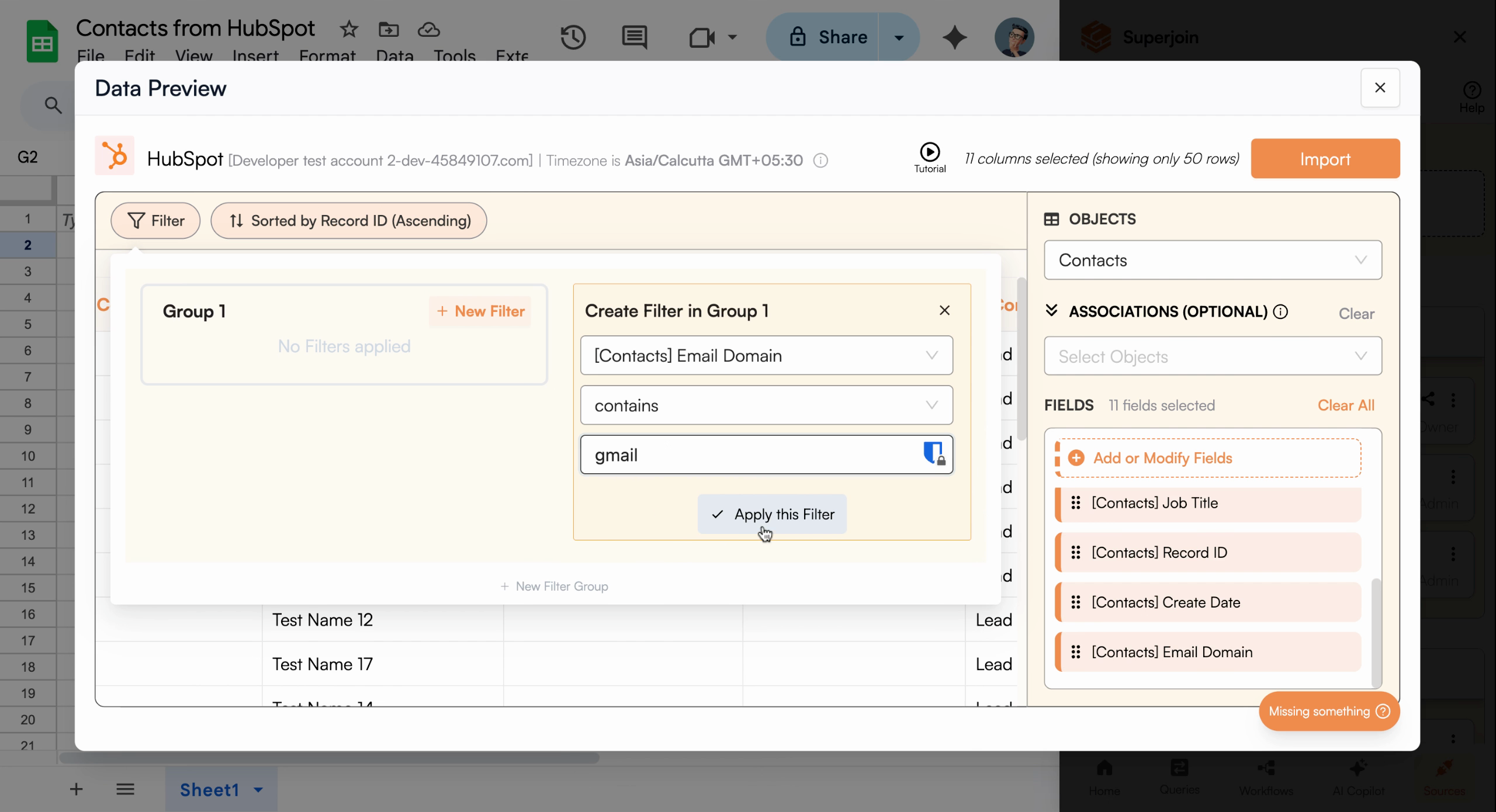
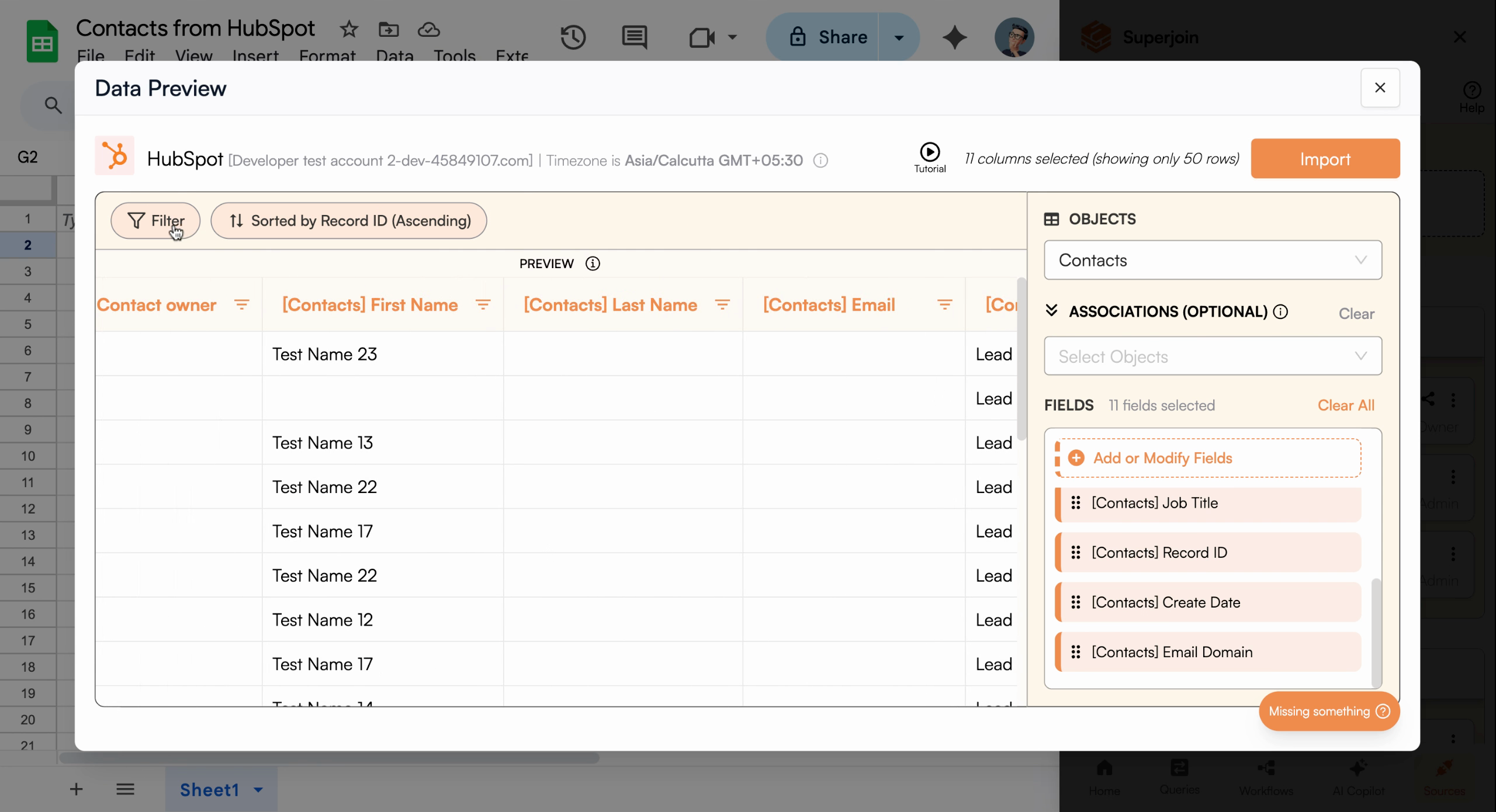
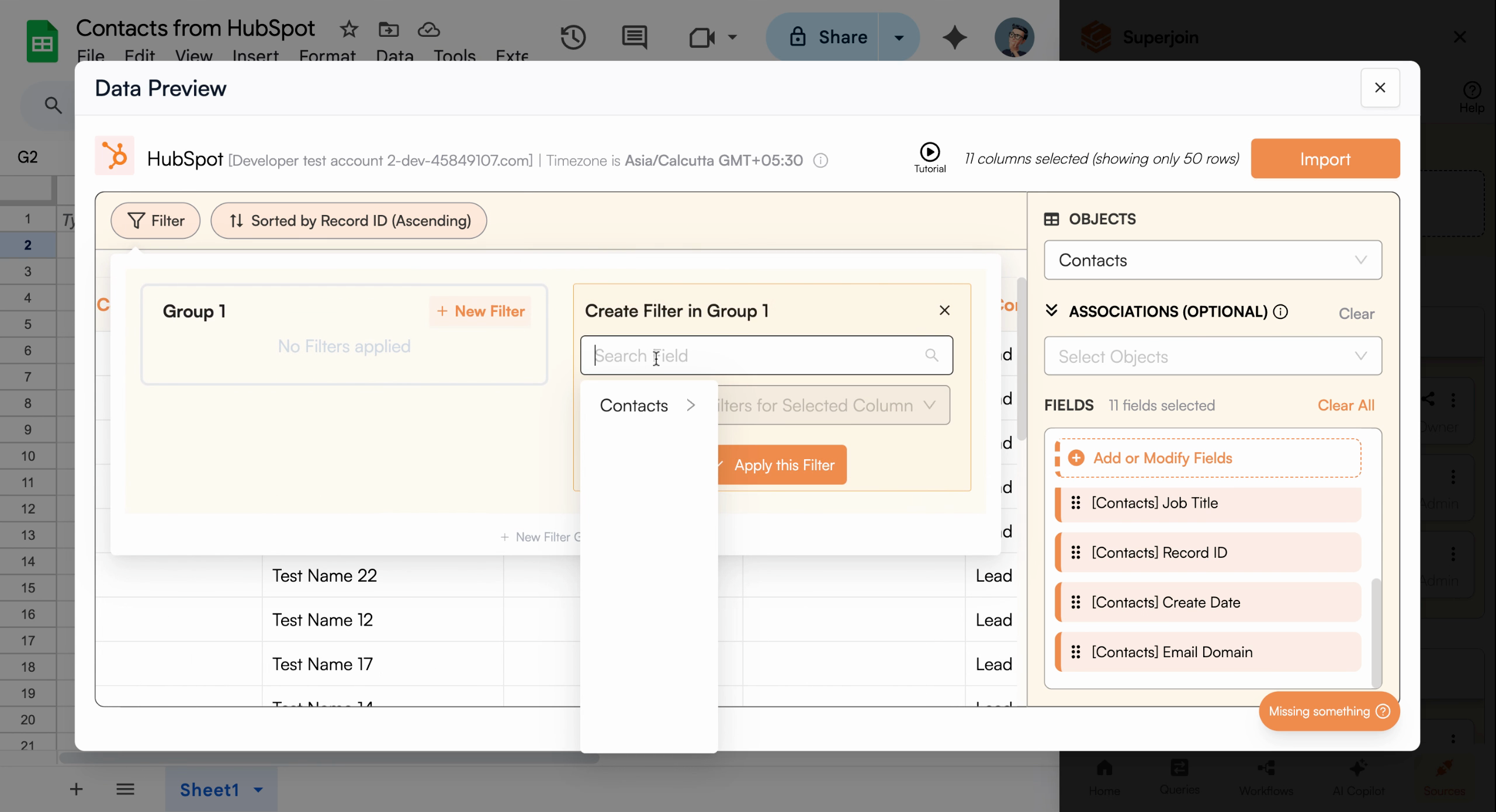
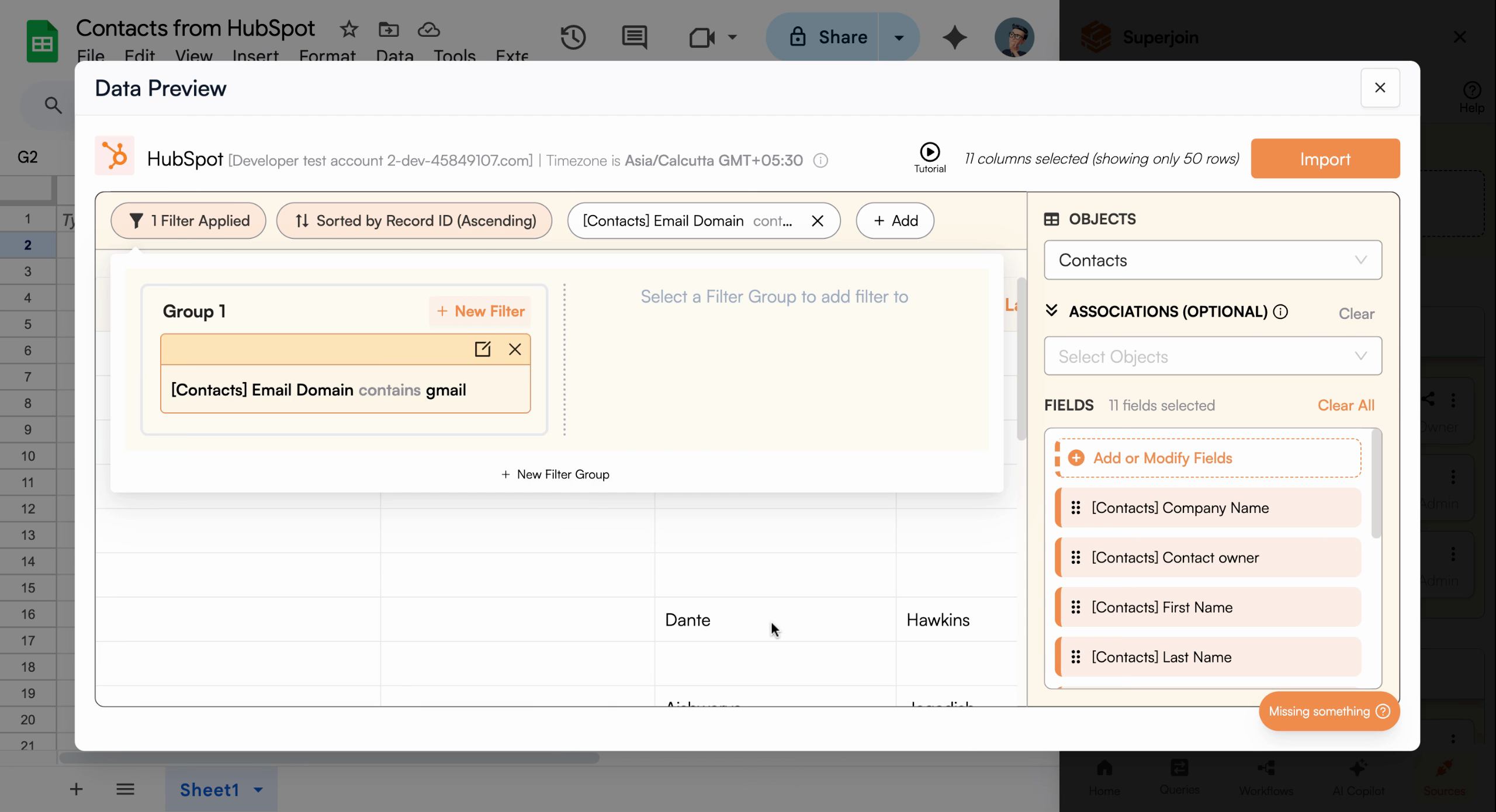
To import only a subset of your contacts, configure filters. For example, to import only contacts with Gmail email addresses, set a filter for the **email domain** field to include "Gmail."
<Frame caption="Use the filter tools to import only relevant contacts, like Gmail users">
  <img src="https://usercontent.in.prod.clueso.io/6b101750-ec89-4e66-83bb-0b9079219f65/784c6119-c5df-4e17-a493-777cba102cd6/b56edd1d-4e3b-49ee-9321-5b0bb55ac8a8/images/9ce928ba-ea4b-4d02-b2c4-9dd913d5873a.png" alt="Filter interface for email domain field" />
</Frame>

<Frame>
  <img src="https://usercontent.in.prod.clueso.io/6b101750-ec89-4e66-83bb-0b9079219f65/784c6119-c5df-4e17-a493-777cba102cd6/b56edd1d-4e3b-49ee-9321-5b0bb55ac8a8/images/71505043-219c-4ed5-9a50-f63901989c76.png" alt="Selecting filter field" />
</Frame>

<Frame>
  <img src="https://usercontent.in.prod.clueso.io/6b101750-ec89-4e66-83bb-0b9079219f65/784c6119-c5df-4e17-a493-777cba102cd6/b56edd1d-4e3b-49ee-9321-5b0bb55ac8a8/images/c9001681-715e-4c90-a4b8-574b3b4a5f39.png" alt="Choosing filter condition" />
</Frame>

<Frame>
  <img src="https://usercontent.in.prod.clueso.io/6b101750-ec89-4e66-83bb-0b9079219f65/784c6119-c5df-4e17-a493-777cba102cd6/b56edd1d-4e3b-49ee-9321-5b0bb55ac8a8/images/90a9e2e0-06c4-4d24-880f-ecb1175b4118.png" alt="Entering filter value Gmail" />
</Frame>

<Frame>
  <img src="https://usercontent.in.prod.clueso.io/6b101750-ec89-4e66-83bb-0b9079219f65/784c6119-c5df-4e17-a493-777cba102cd6/b56edd1d-4e3b-49ee-9321-5b0bb55ac8a8/images/6f359e94-9090-4506-bee5-17b016d73e72.png" alt="Filter applied showing Gmail contacts only" />
</Frame>

## Review and Import Your Data

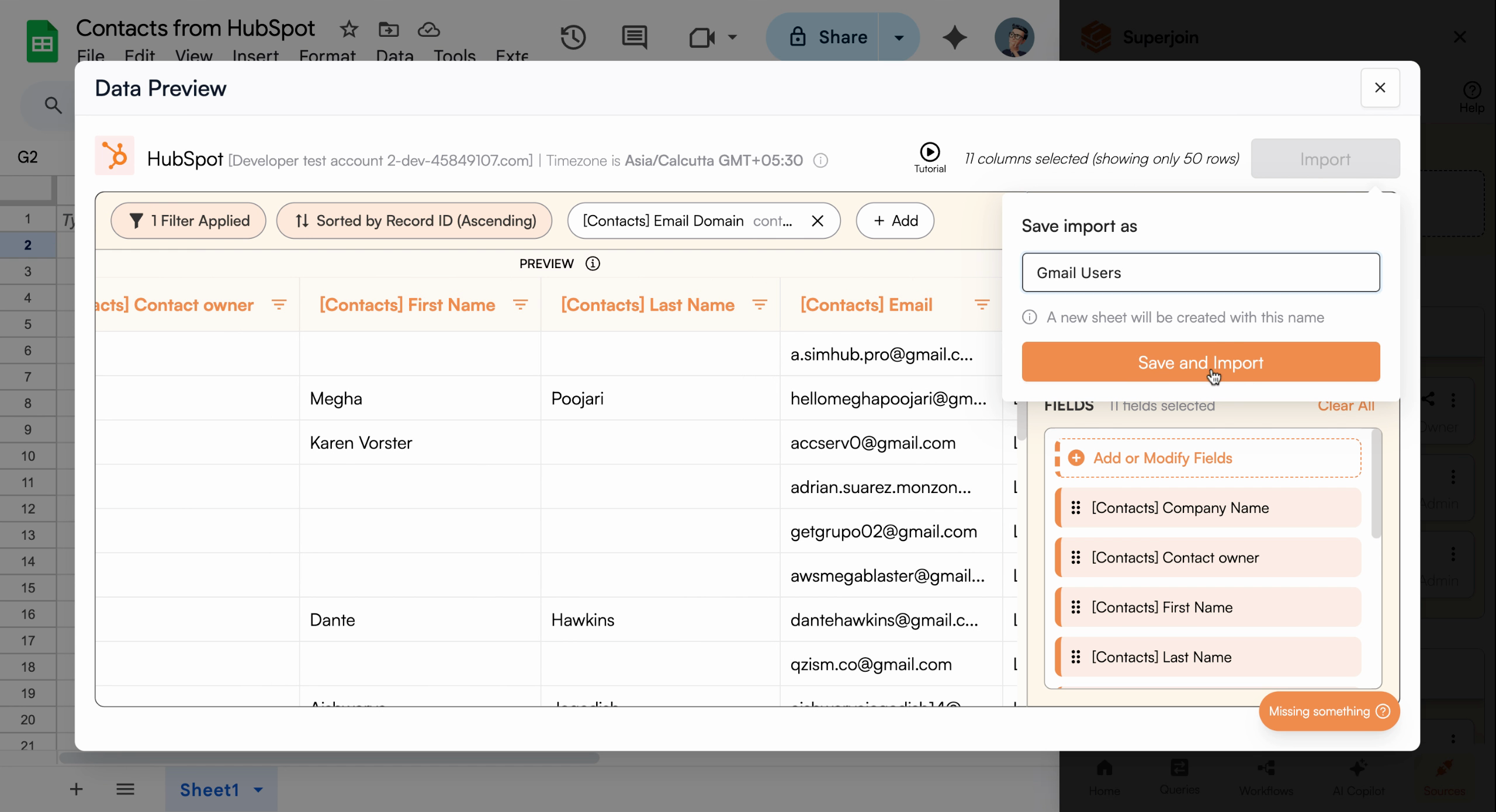
Review your selections in the data preview. When everything looks correct, click **Import**, enter a name for your sheet (e.g., "Gmail users"), and click **Save and Import**.
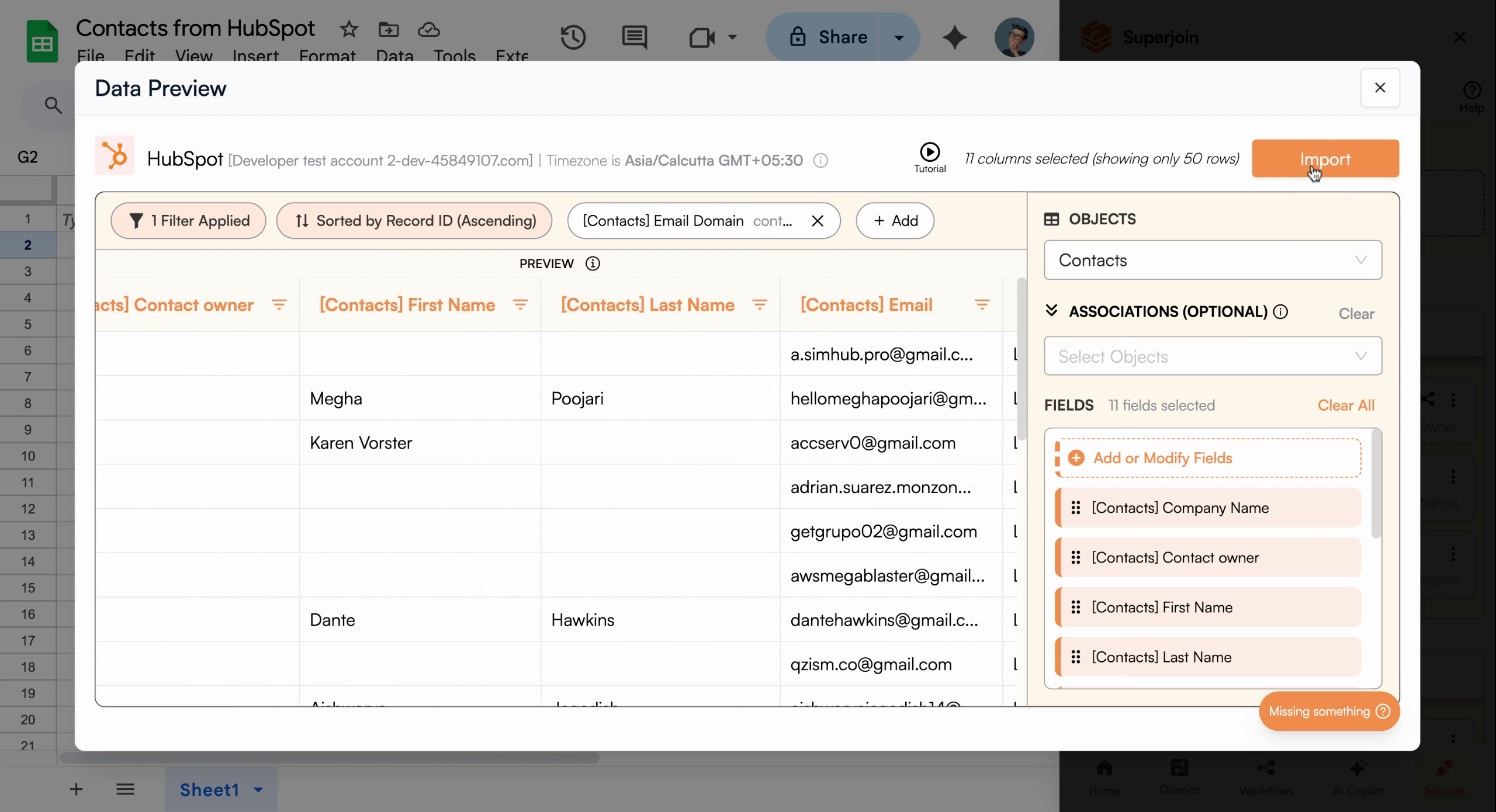
<Frame caption="Confirm your selections and start importing your contacts">
  <img src="https://usercontent.in.prod.clueso.io/6b101750-ec89-4e66-83bb-0b9079219f65/784c6119-c5df-4e17-a493-777cba102cd6/b56edd1d-4e3b-49ee-9321-5b0bb55ac8a8/images/f126ce2f-ae43-495d-9a01-667d06caeec0.png" alt="Data preview showing selected columns and filters" />
</Frame>

<Frame>
  <img src="https://usercontent.in.prod.clueso.io/6b101750-ec89-4e66-83bb-0b9079219f65/784c6119-c5df-4e17-a493-777cba102cd6/b56edd1d-4e3b-49ee-9321-5b0bb55ac8a8/images/21416e3c-152d-46a1-b37b-5c8efbc61b99.png" alt="Import button highlighted in preview modal" />
</Frame>

<Frame>
  <img src="https://usercontent.in.prod.clueso.io/6b101750-ec89-4e66-83bb-0b9079219f65/784c6119-c5df-4e17-a493-777cba102cd6/b56edd1d-4e3b-49ee-9321-5b0bb55ac8a8/images/b738c0bc-000c-4f33-872f-abb65905aace.png" alt="Sheet name input dialog showing Gmail users" />
</Frame>

<Tip>Click **Cancel** at any time if you need to abort the import process.</Tip>

## View Imported Data

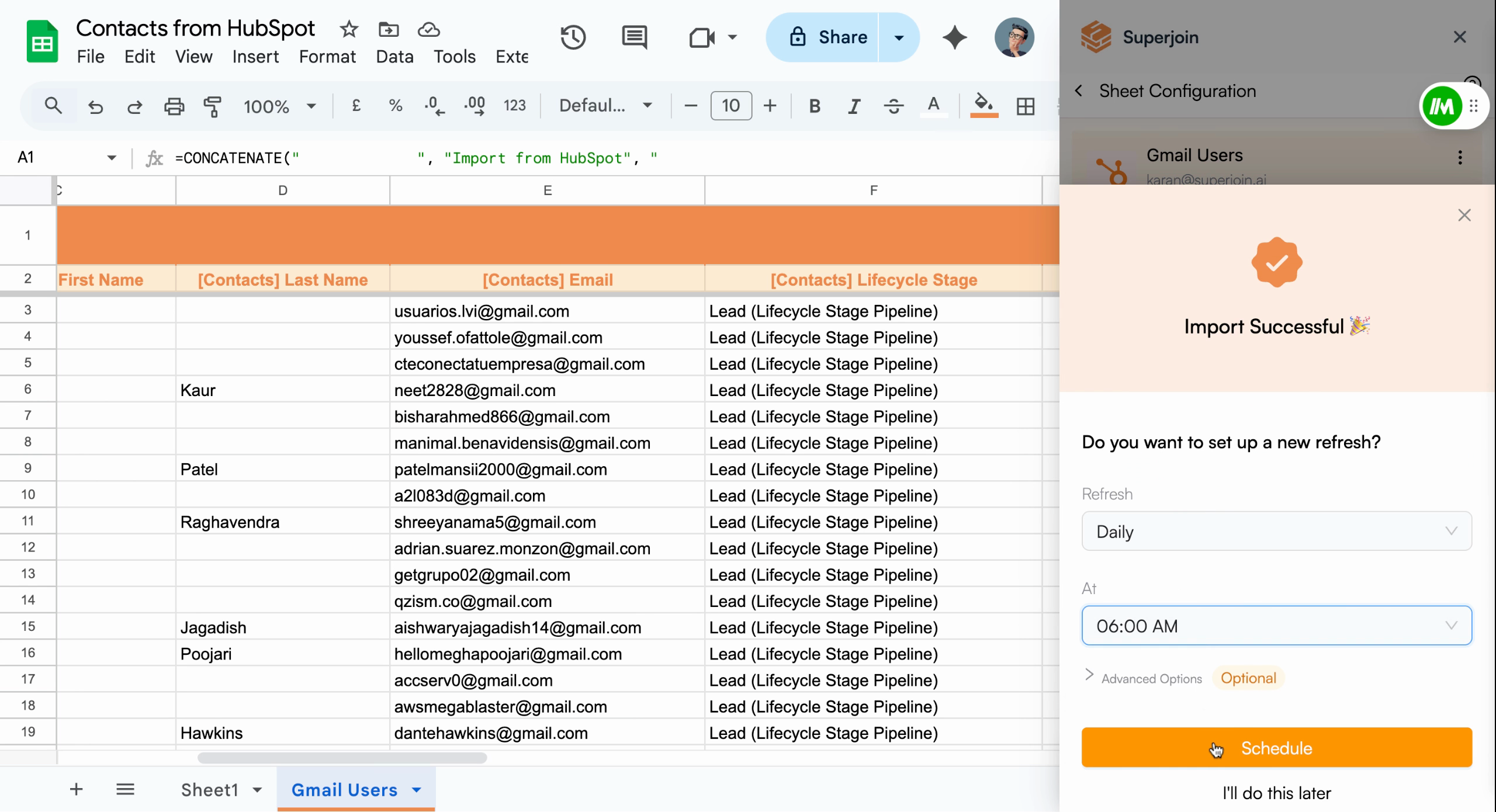
After the import completes, a new sheet containing your filtered HubSpot contact data will appear in your Google Sheets file, ready for analysis or follow-ups.
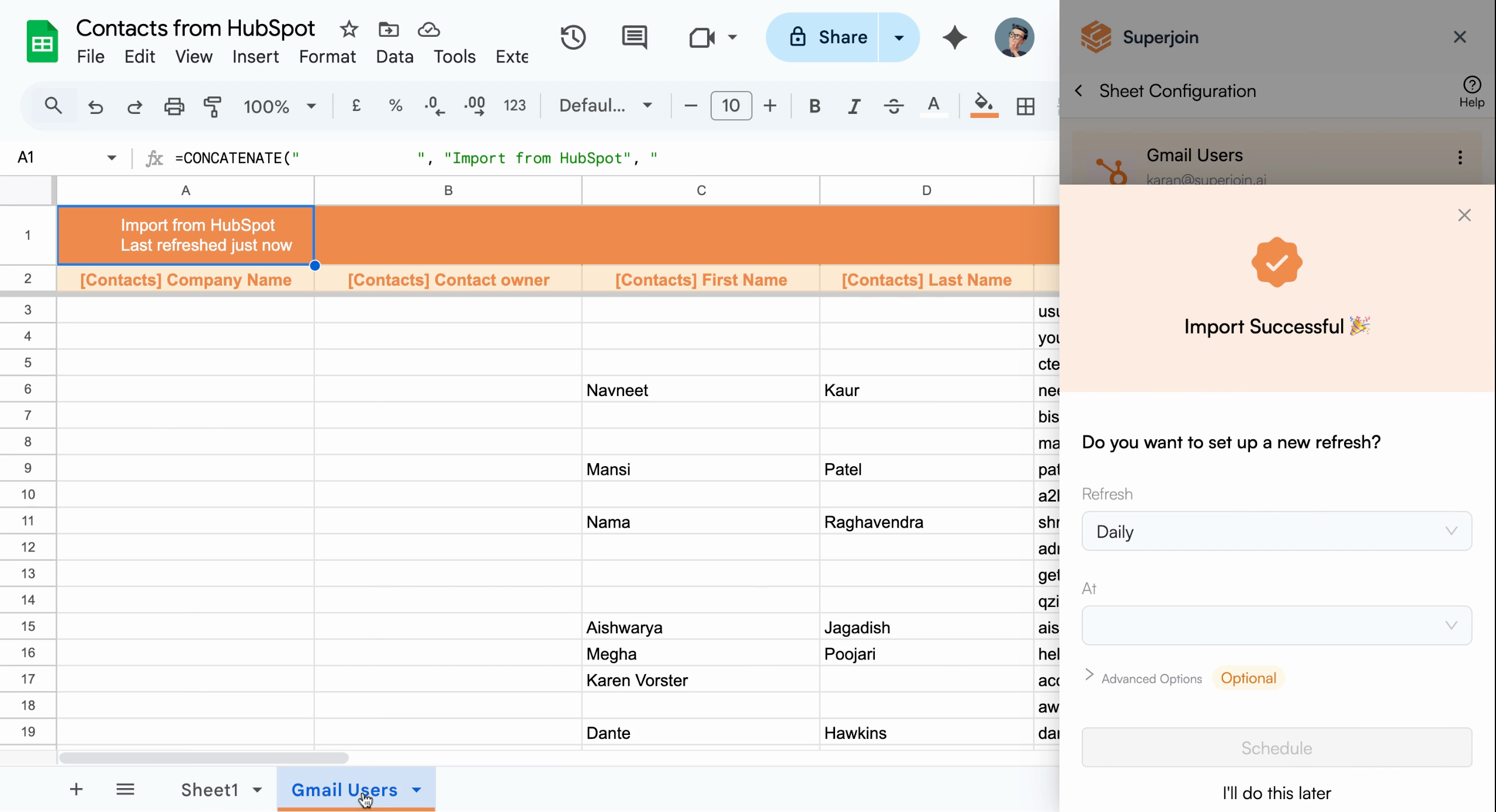
<Frame caption="Your Google Sheet now displays imported HubSpot contact data">
  <img src="https://usercontent.in.prod.clueso.io/6b101750-ec89-4e66-83bb-0b9079219f65/784c6119-c5df-4e17-a493-777cba102cd6/b56edd1d-4e3b-49ee-9321-5b0bb55ac8a8/images/0bfb788f-5a71-42f9-8e0a-5a42b5696708.png" alt="Google Sheet displaying imported HubSpot contacts with Record ID, Create Date, and Email Domain columns" />
</Frame>

<Check>
  Your HubSpot contacts are now successfully imported into Google Sheets.
</Check>

## Automate with Scheduling (Optional)

Set up automatic refresh to keep your contact list current. Configure the sheet to update hourly, daily, weekly, or monthly. For example, schedule daily updates at 6:00 AM by adjusting the scheduling settings and clicking **Schedule**.
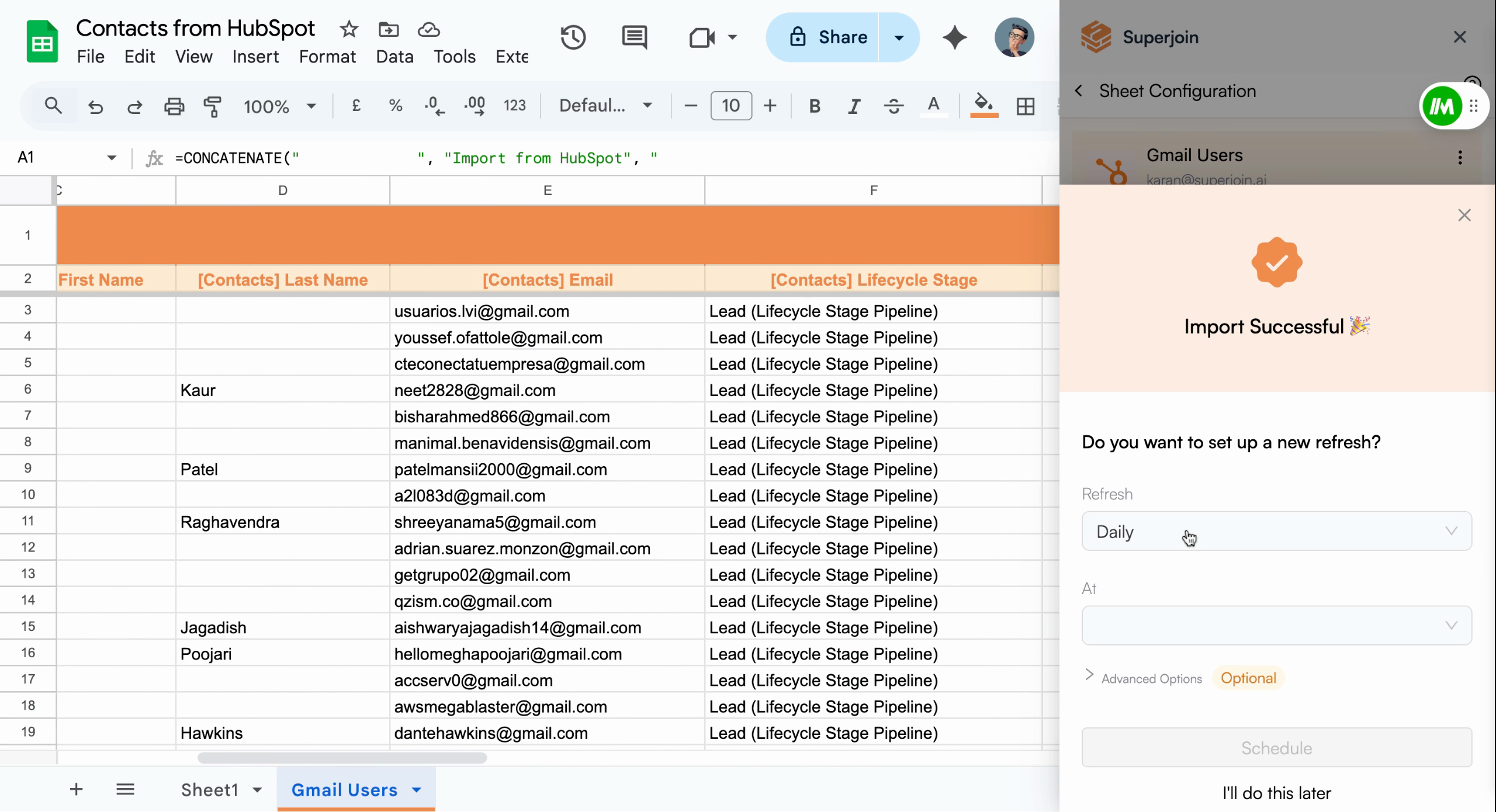
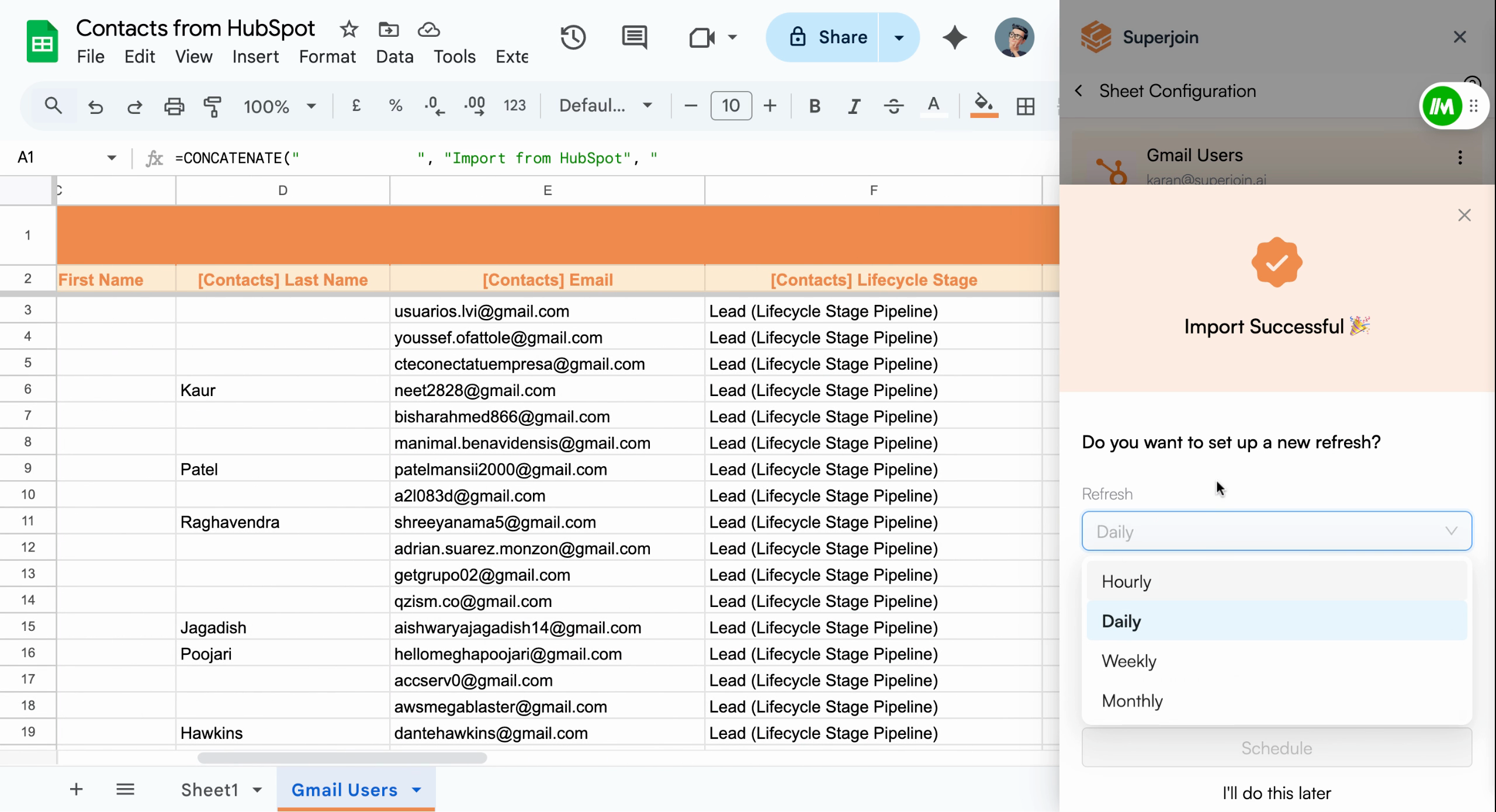
<Frame caption="Configure and enable auto-refresh according to your workflow needs">
  <img src="https://usercontent.in.prod.clueso.io/6b101750-ec89-4e66-83bb-0b9079219f65/784c6119-c5df-4e17-a493-777cba102cd6/b56edd1d-4e3b-49ee-9321-5b0bb55ac8a8/images/f19f1995-e1a3-411f-bc75-4b7ba8a54b9a.png" alt="Schedule refresh settings menu" />
</Frame>

<Frame>
  <img src="https://usercontent.in.prod.clueso.io/6b101750-ec89-4e66-83bb-0b9079219f65/784c6119-c5df-4e17-a493-777cba102cd6/b56edd1d-4e3b-49ee-9321-5b0bb55ac8a8/images/7c11de97-68f4-492d-9ff2-015bb637e991.png" alt="Refresh frequency options" />
</Frame>

<Frame>
  <img src="https://usercontent.in.prod.clueso.io/6b101750-ec89-4e66-83bb-0b9079219f65/784c6119-c5df-4e17-a493-777cba102cd6/b56edd1d-4e3b-49ee-9321-5b0bb55ac8a8/images/22c6a90d-7dc1-4efc-a2b2-70091cd9256a.png" alt="Schedule confirmation showing daily updates at 6 AM" />
</Frame>

<Info>
  Scheduled refreshes ensure your spreadsheet always reflects the latest data
  from HubSpot without manual intervention.
</Info>

## Next Steps

You've successfully imported your HubSpot contacts into Google Sheets and configured optional automation for effortless updates. Your team now has access to current data without manual imports.

<CardGroup cols={2}>
  <Card title="Connect More Sources" icon="plug" href="/integrations/summary">
    Integrate additional platforms like Salesforce or Stripe to centralize your
    data.
  </Card>

  <Card title="Explore Automation" icon="robot" href="/workflows/introduction">
    Discover Superjoin's workflow automation and reporting tools to boost
    productivity.
  </Card>
</CardGroup>