> ## Documentation Index
> Fetch the complete documentation index at: https://docs.superjoin.ai/llms.txt
> Use this file to discover all available pages before exploring further.
# Import Deals from HubSpot to Google Sheets
> Step-by-step guide to import deals from HubSpot into Google Sheets using Superjoin
This guide shows you how to import HubSpot deals into Google Sheets using Superjoin and set up automatic updates to keep your data fresh. This workflow is perfect for sales and operations teams who need real-time deal tracking without manual exports. You'll learn how to sync filtered HubSpot deal data into Sheets, bypass HubSpot's 10,000 record limit (import up to 200,000 records), and automate daily data refreshes for always up-to-date reports.
## Launch Superjoin in Google Sheets
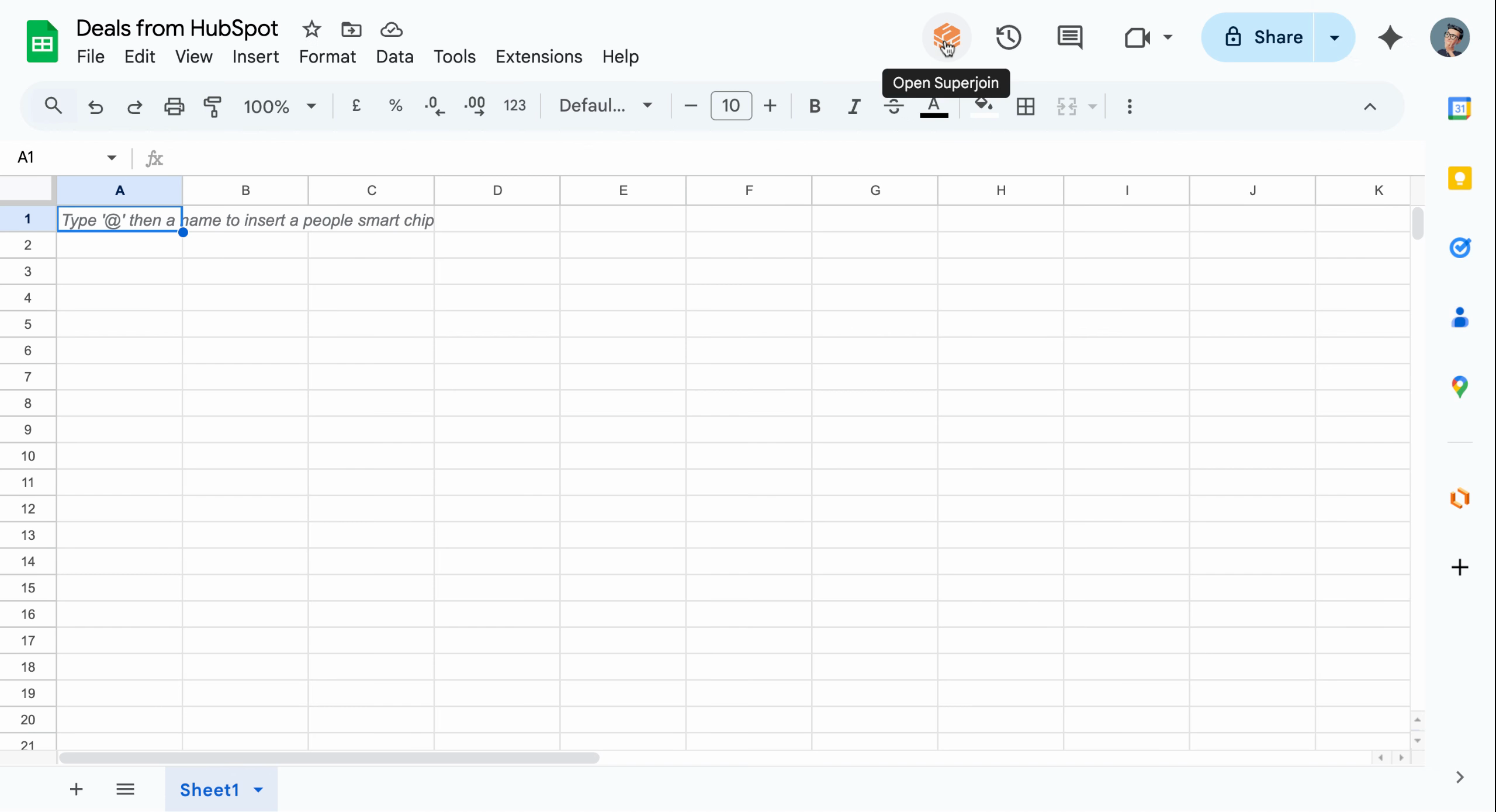
Open your Google Sheet and click the **Superjoin** button to launch the assistant sidebar. This is your starting point for all data workflows with Superjoin.
 ## Navigate to Sources and Choose HubSpot
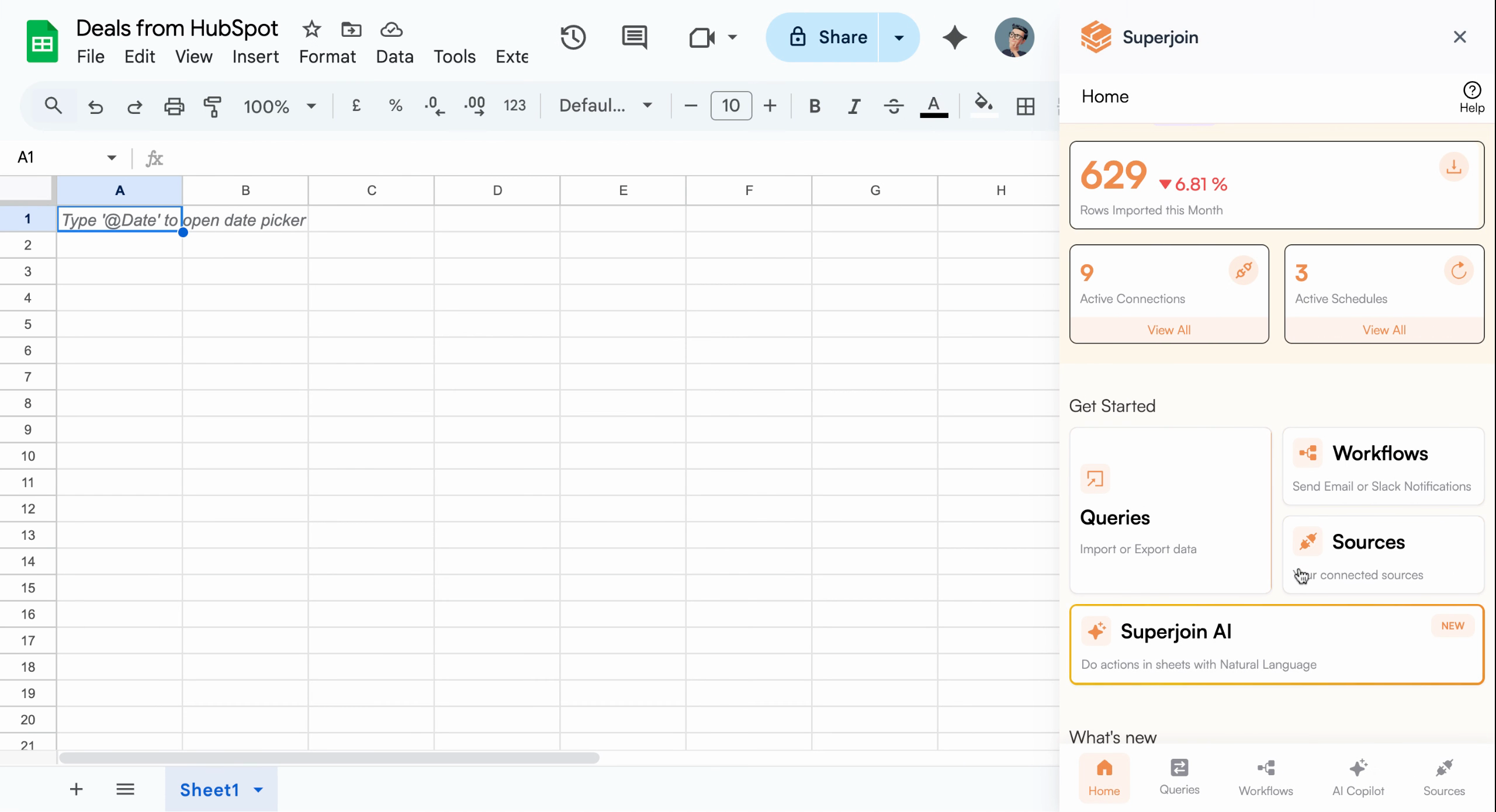
In the Superjoin sidebar, click the **Sources** section to view all available data connections. Locate your connected **HubSpot** account and click it to proceed.
## Navigate to Sources and Choose HubSpot
In the Superjoin sidebar, click the **Sources** section to view all available data connections. Locate your connected **HubSpot** account and click it to proceed.
 ## Open Data Preview
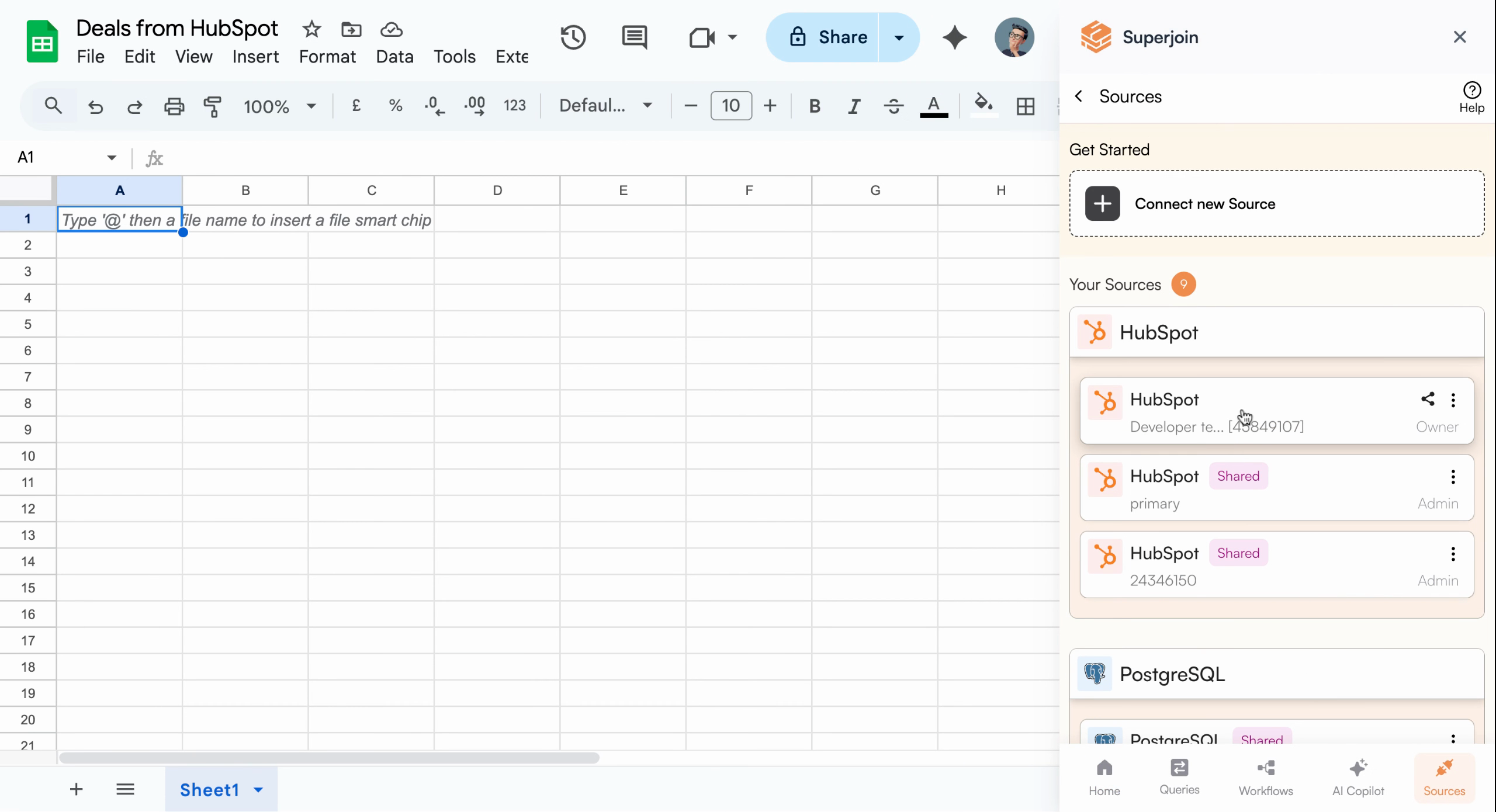
Click the **Import into Google Sheets** action to open the Data Preview screen, where you can review and configure your import.
## Open Data Preview
Click the **Import into Google Sheets** action to open the Data Preview screen, where you can review and configure your import.
 ## Select Objects and Review Preview
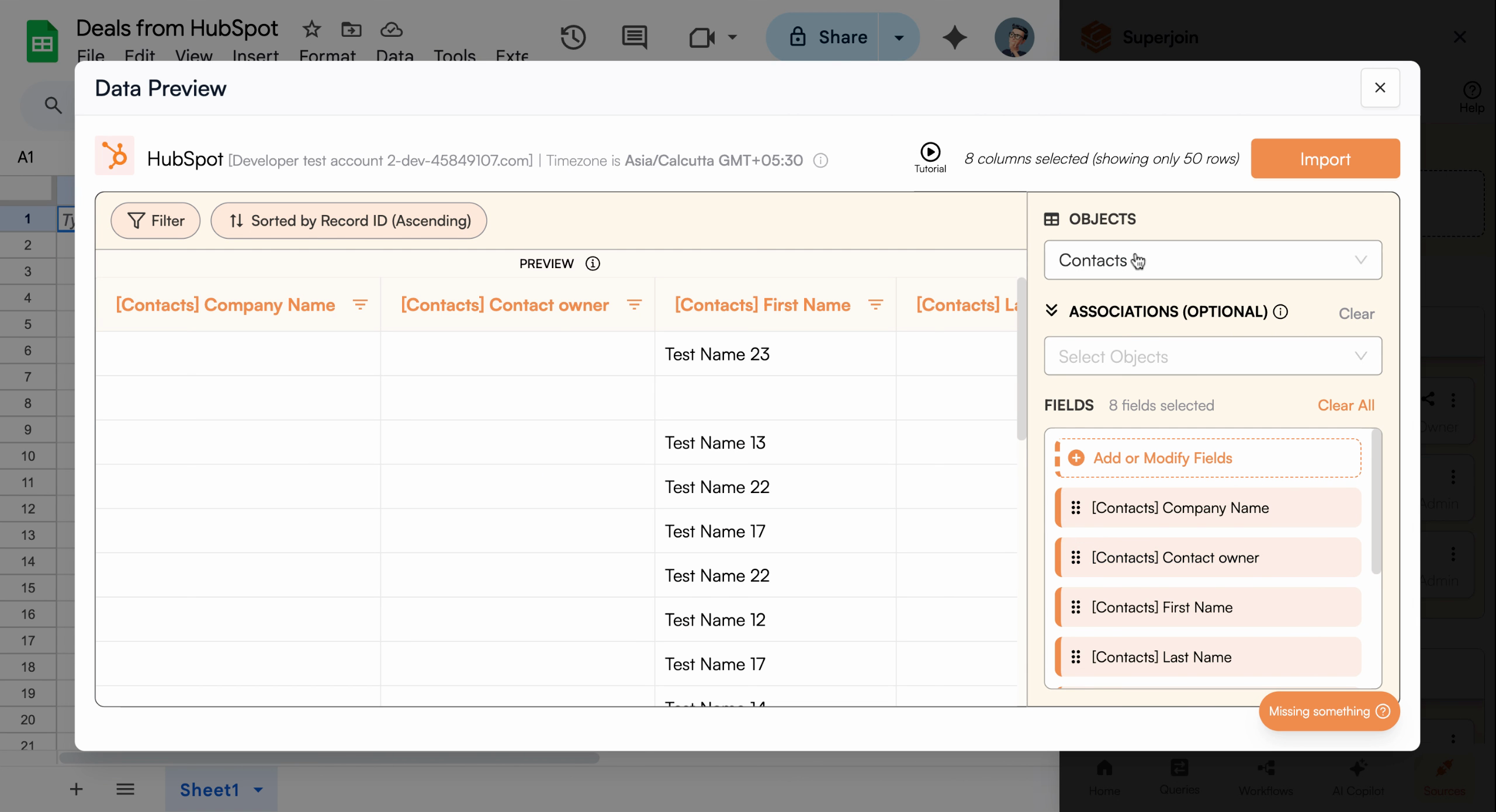
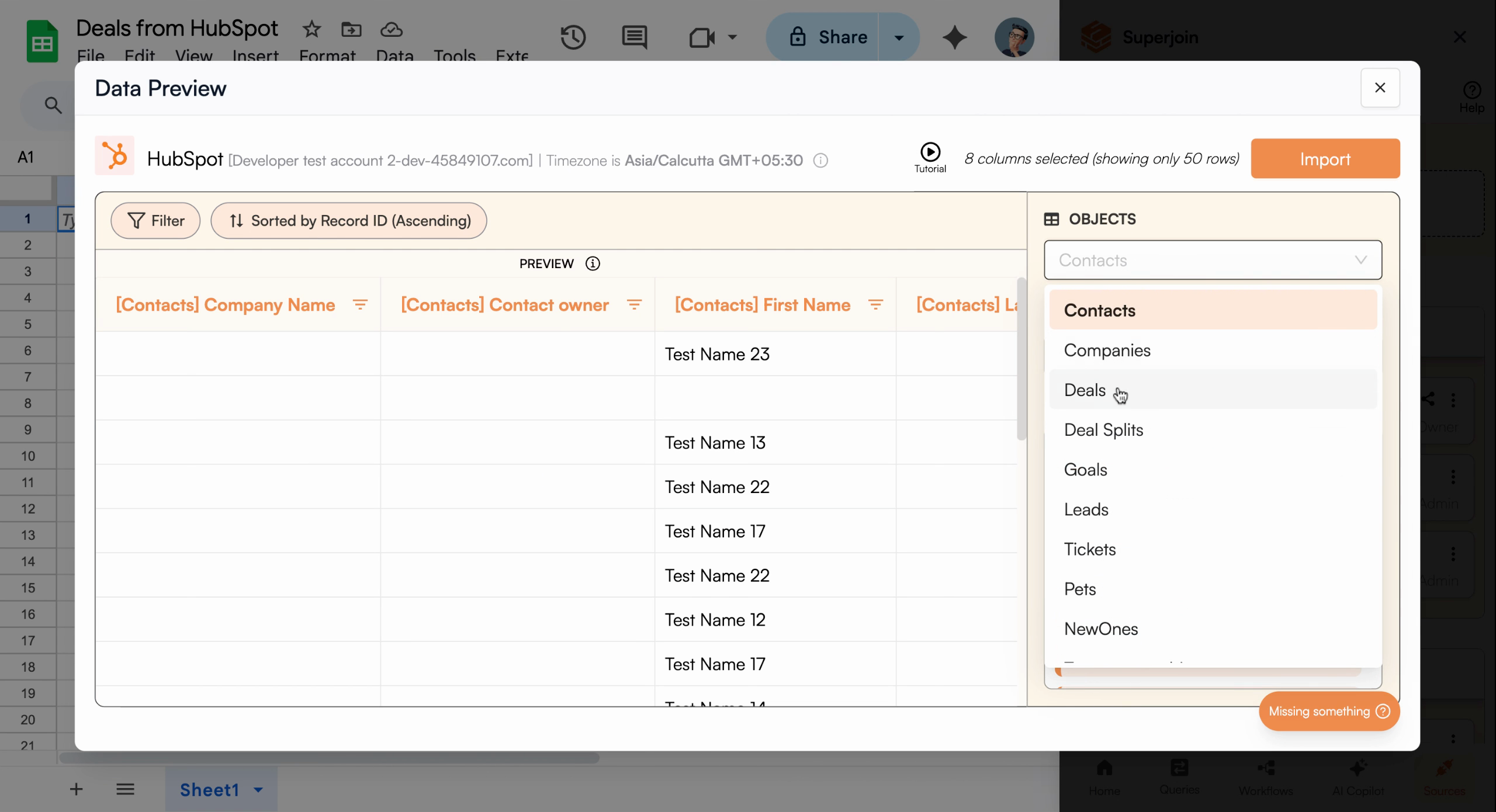
In the Data Preview, navigate to the **Objects** field and select **Deals**. Superjoin instantly displays a preview of your deals data so you can confirm what will be imported.
## Select Objects and Review Preview
In the Data Preview, navigate to the **Objects** field and select **Deals**. Superjoin instantly displays a preview of your deals data so you can confirm what will be imported.
 ## Filter Deals (Optional)
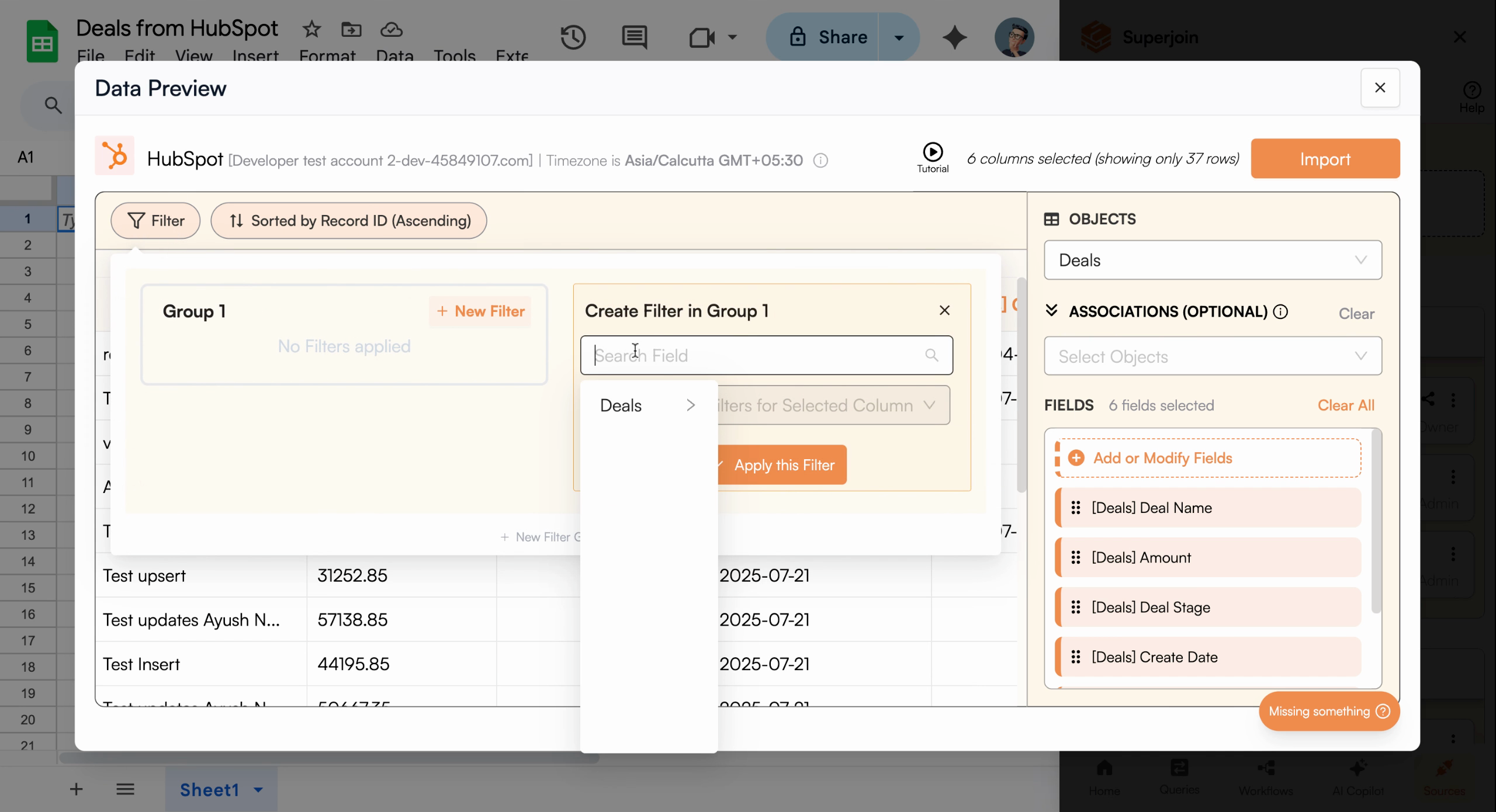
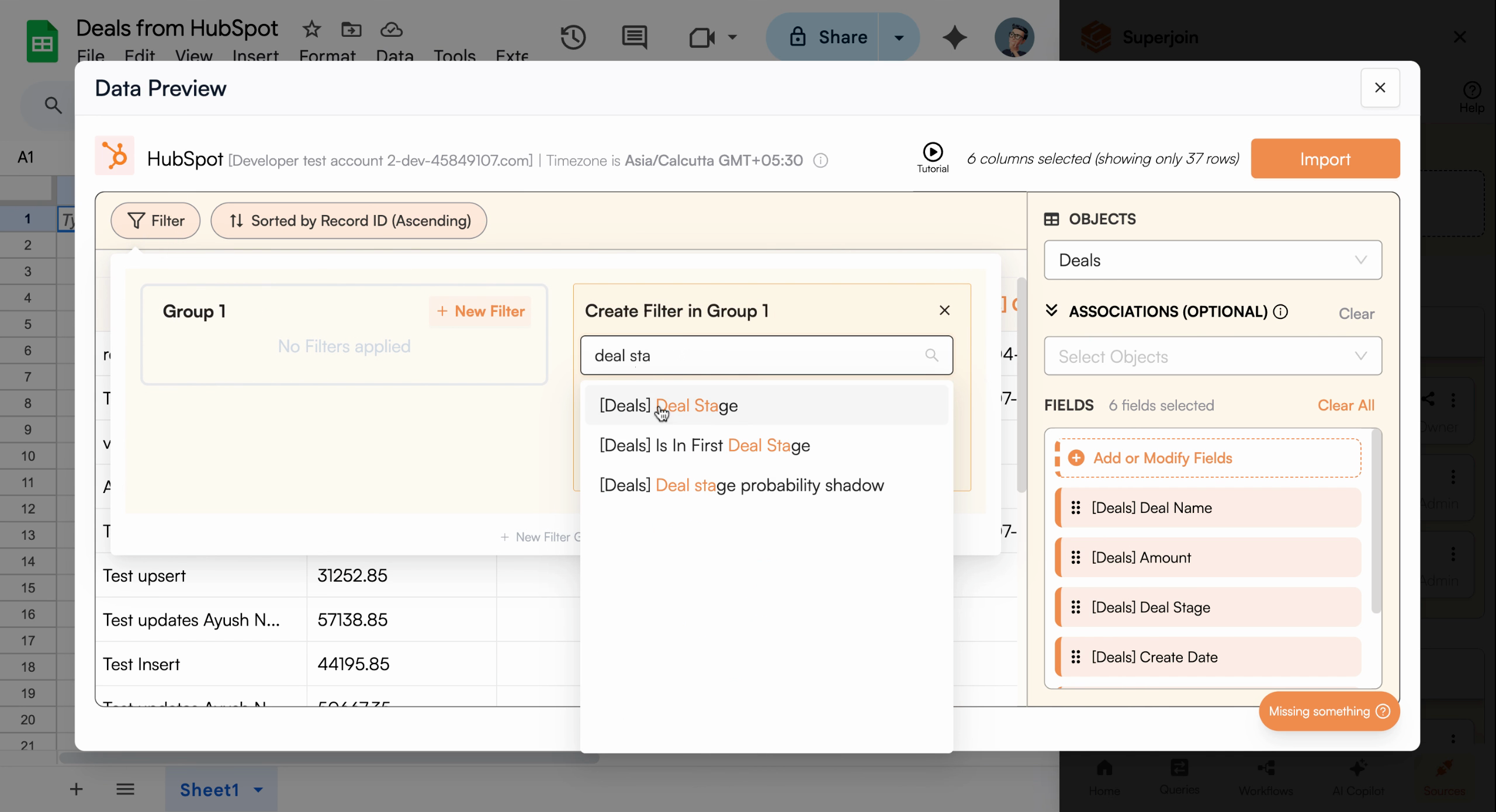
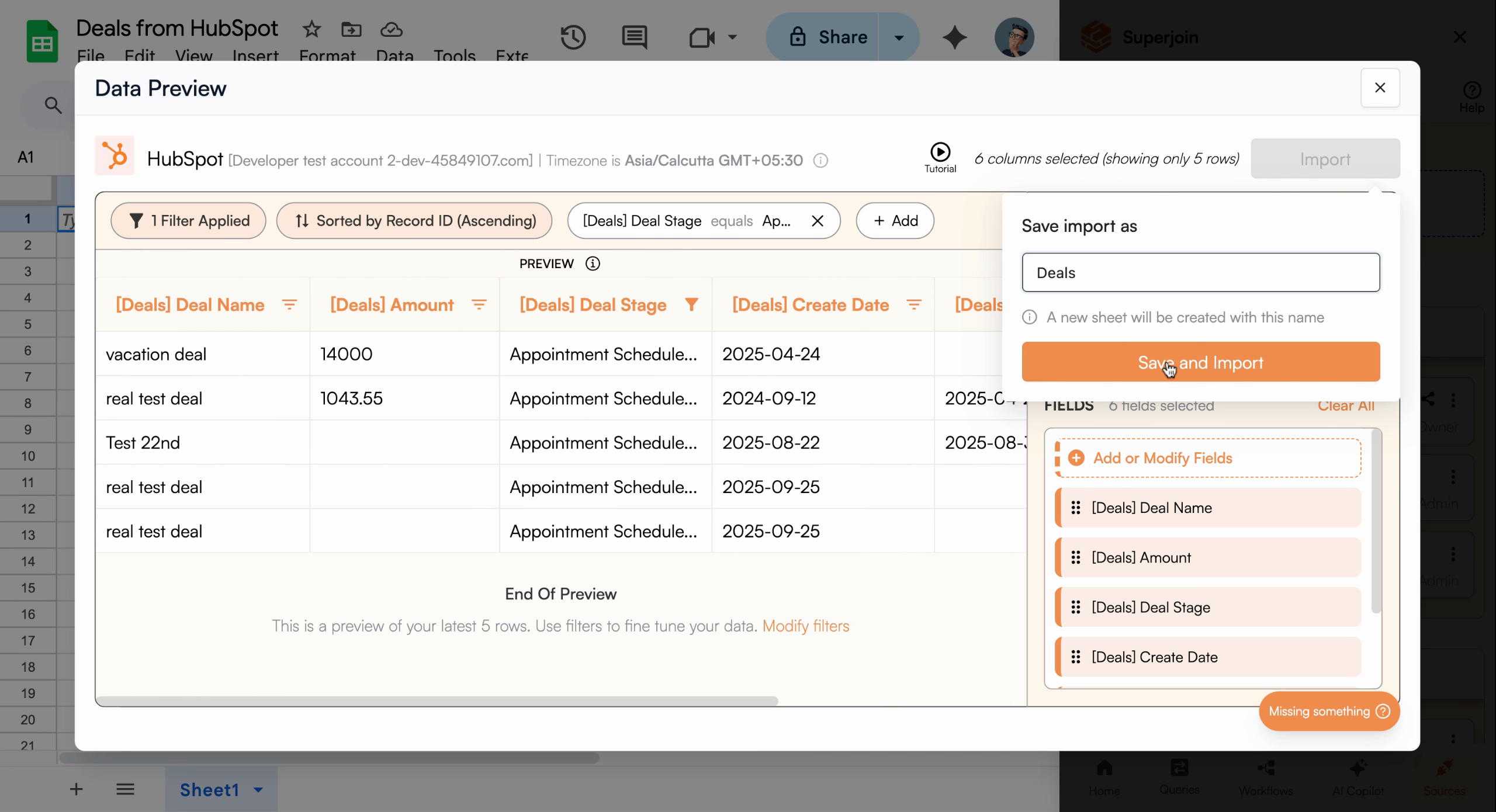
To refine your import, click **Filter**. For example, you may want only deals in a specific stage or pipeline. Choose your desired criteria—such as **Deal Stage** and set it to **Appointment scheduled** in the **Sales pipeline**—then apply your filter to ensure only relevant deals are imported.
## Filter Deals (Optional)
To refine your import, click **Filter**. For example, you may want only deals in a specific stage or pipeline. Choose your desired criteria—such as **Deal Stage** and set it to **Appointment scheduled** in the **Sales pipeline**—then apply your filter to ensure only relevant deals are imported.
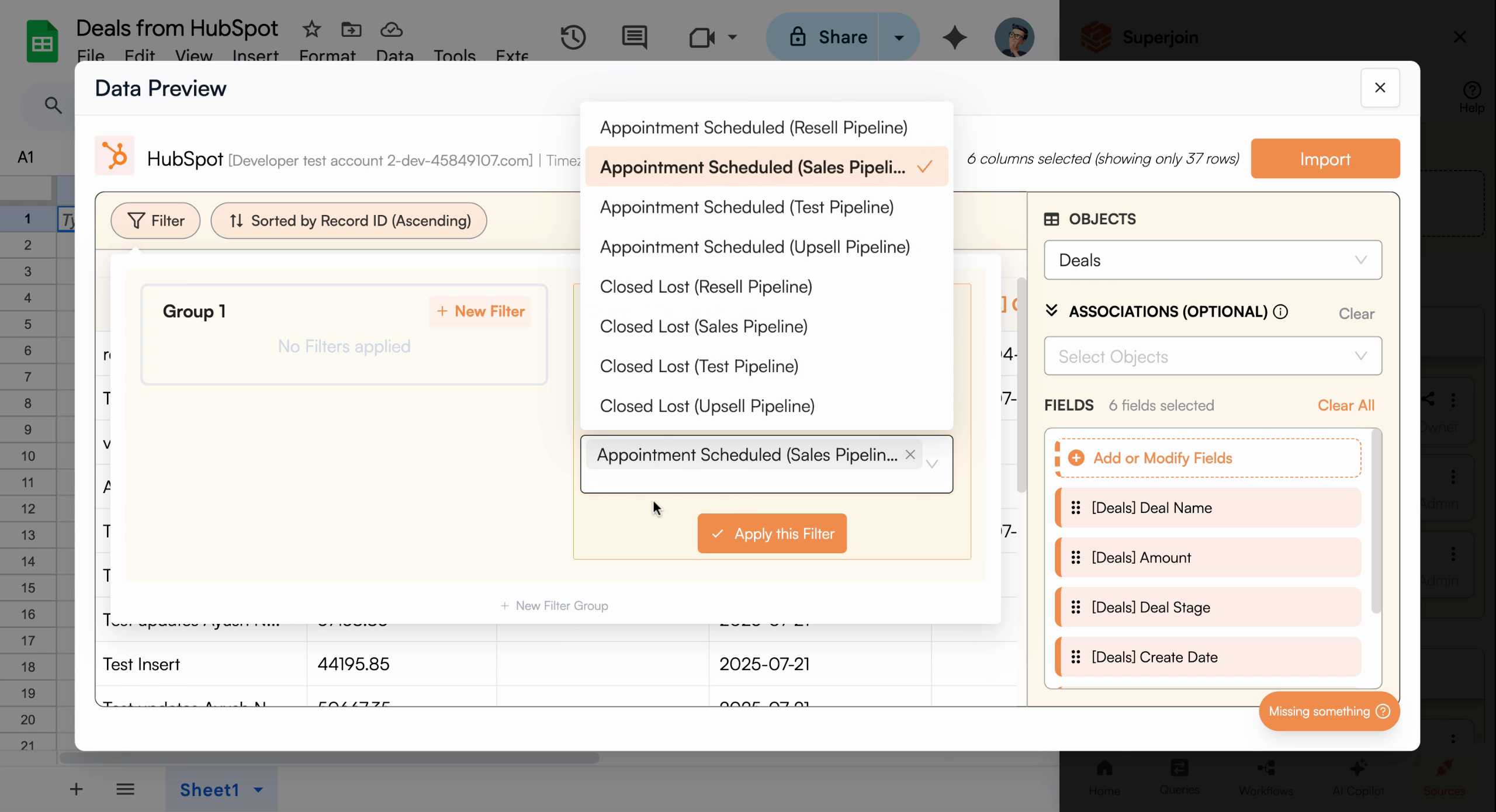
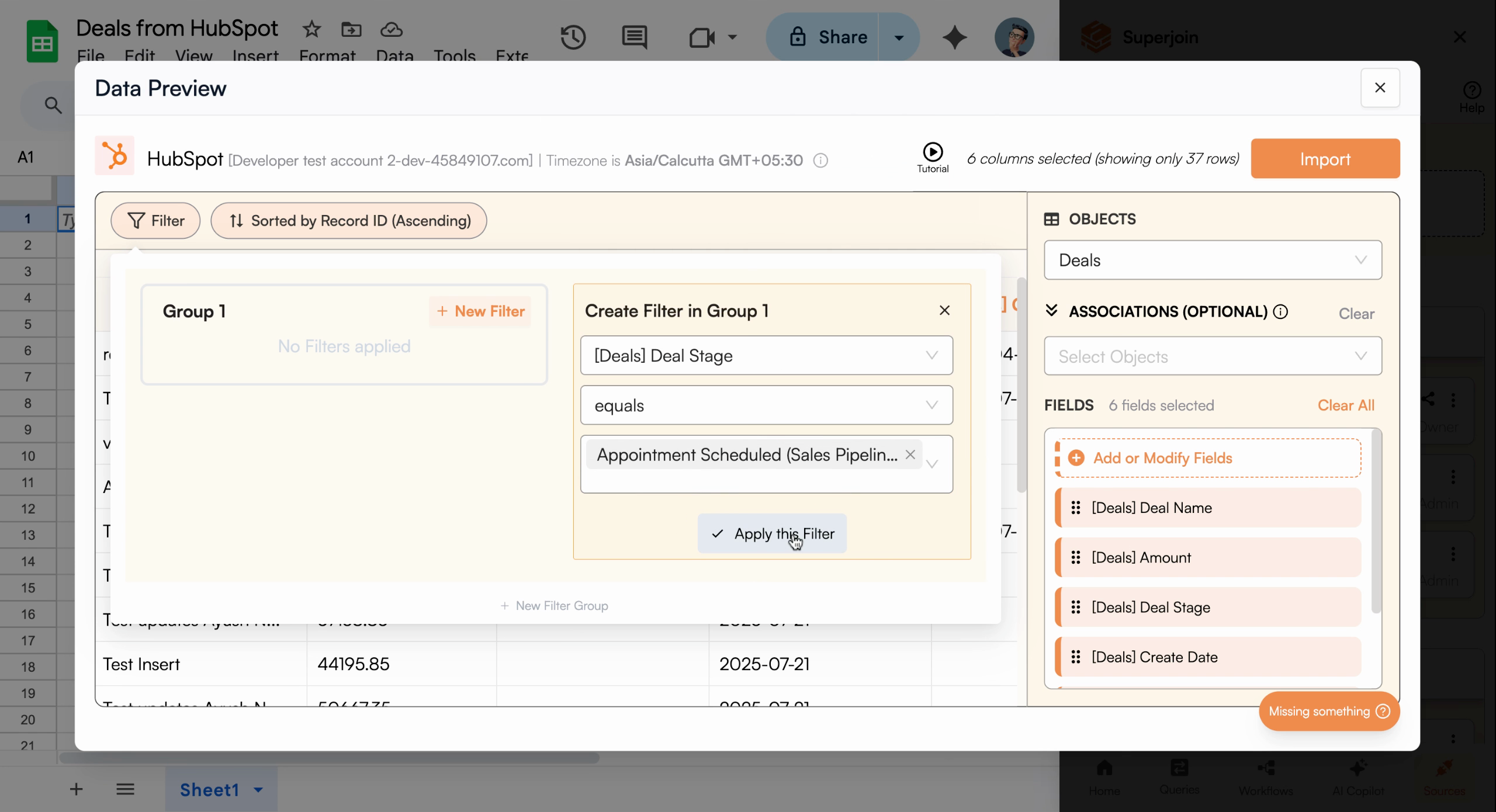
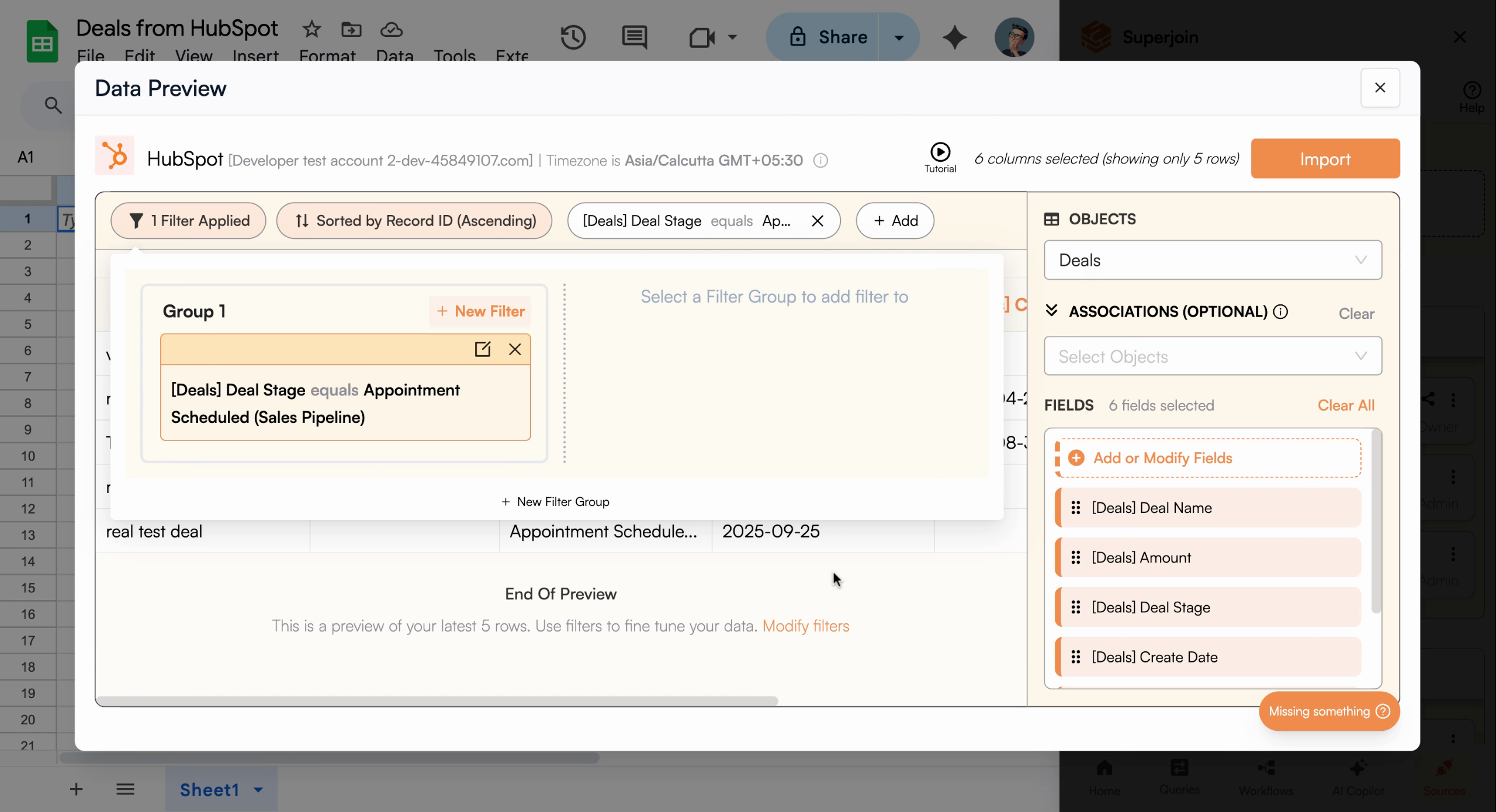 Filtering before import keeps your Sheets focused and actionable.
## Import Filtered Data
Once your filters are set, click **Import**. You'll be prompted to name your sheet—enter something intuitive (such as "Deals")—then click **Save and Import**. Superjoin will pull all matching deals from HubSpot and create a new tab in your Google Sheet.
Filtering before import keeps your Sheets focused and actionable.
## Import Filtered Data
Once your filters are set, click **Import**. You'll be prompted to name your sheet—enter something intuitive (such as "Deals")—then click **Save and Import**. Superjoin will pull all matching deals from HubSpot and create a new tab in your Google Sheet.
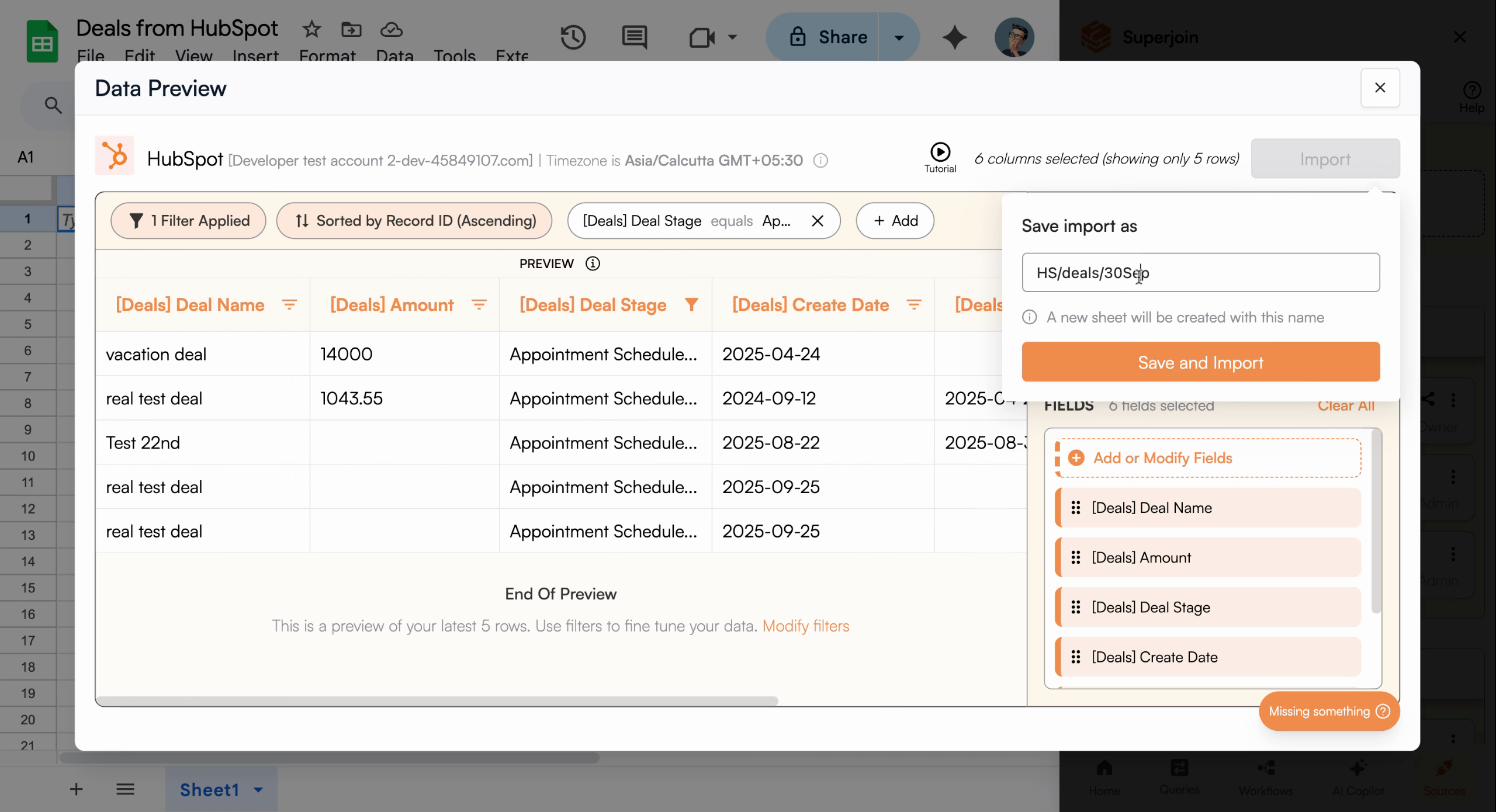
 Superjoin bypasses HubSpot's 10,000 record limit, allowing you to import up to
200,000 records at once.
Superjoin bypasses HubSpot's 10,000 record limit, allowing you to import up to
200,000 records at once.
 ## Automate Data Refresh with Scheduling
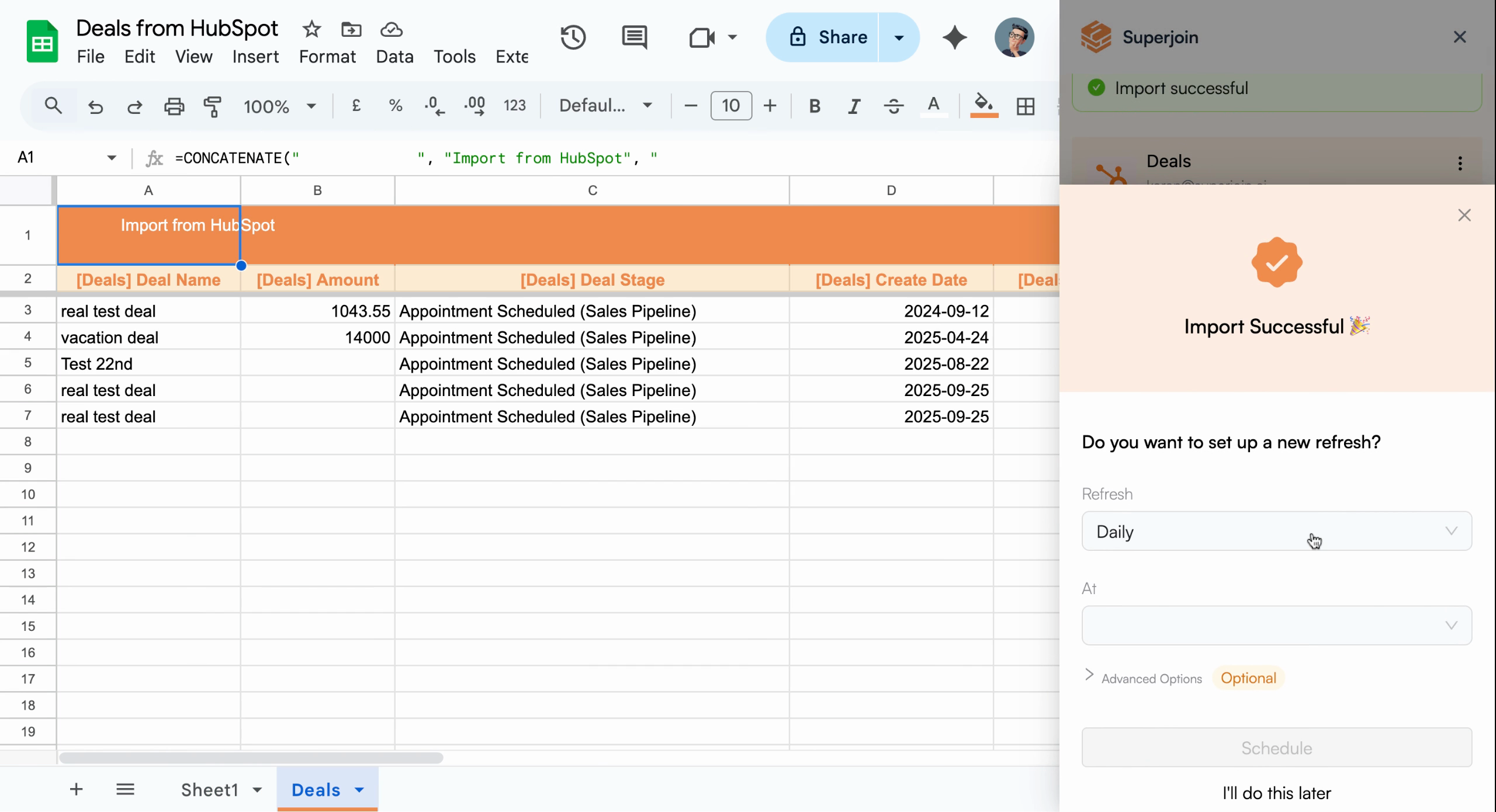
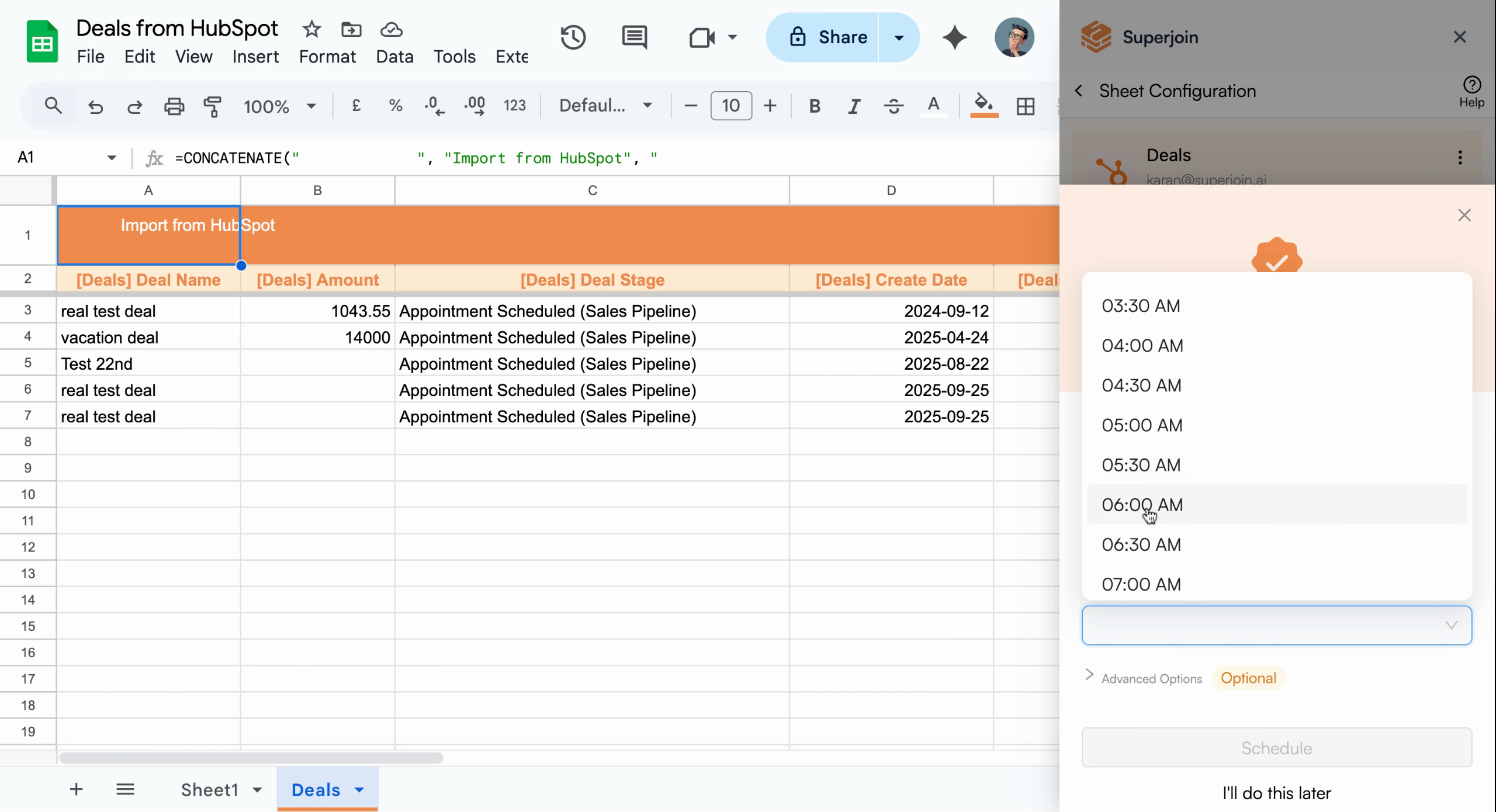
After import, you can automate refreshing your deal data on a schedule. Choose from hourly, daily, weekly, or monthly options. For example, to get updated deals every day at 6:00 AM, set your schedule to **daily** and select **6:00 AM**, then click **Schedule** to activate automation.
## Automate Data Refresh with Scheduling
After import, you can automate refreshing your deal data on a schedule. Choose from hourly, daily, weekly, or monthly options. For example, to get updated deals every day at 6:00 AM, set your schedule to **daily** and select **6:00 AM**, then click **Schedule** to activate automation.
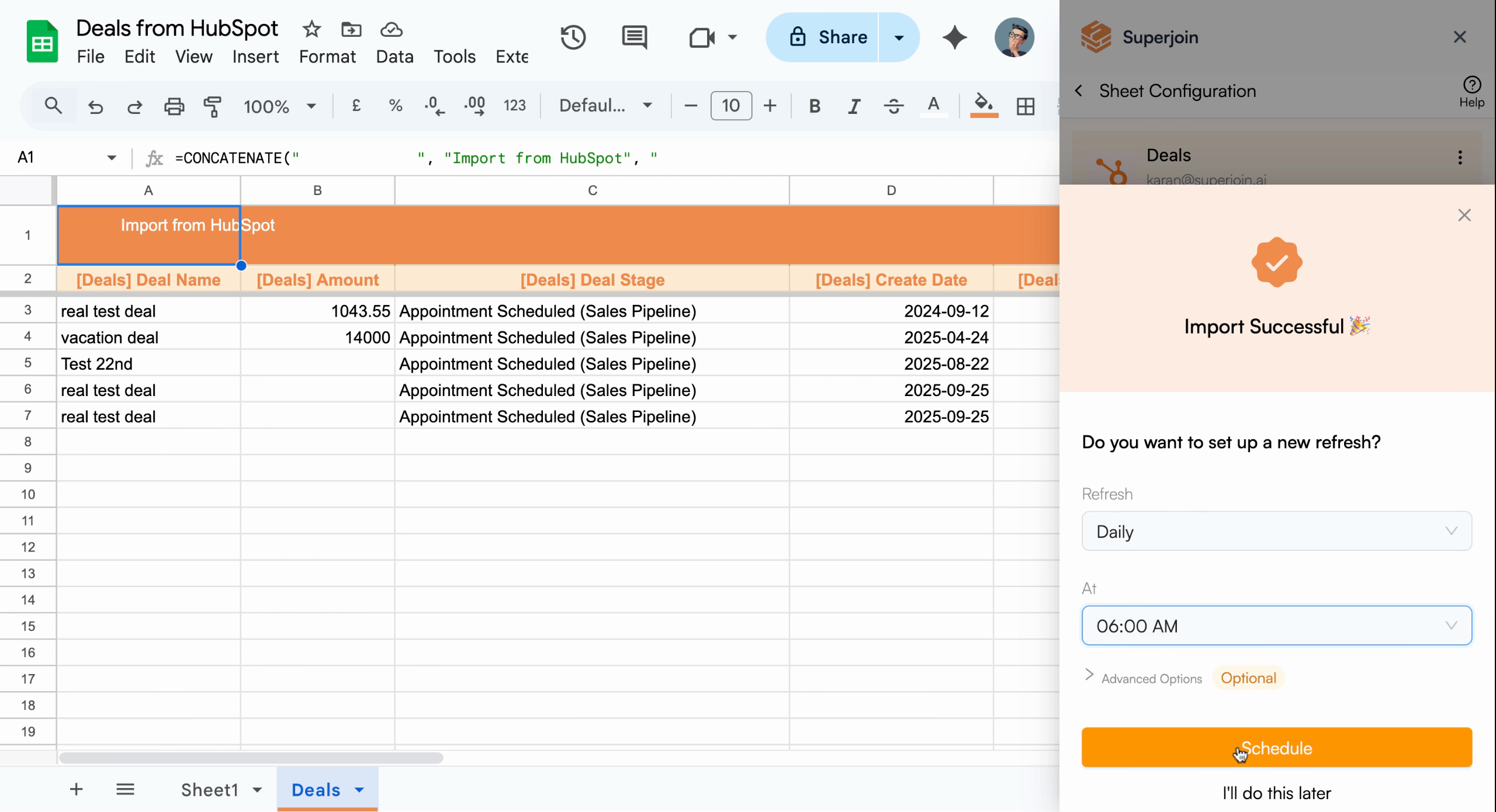 Your HubSpot deals are now synced to Google Sheets and will update
automatically every morning.
Your HubSpot deals are now synced to Google Sheets and will update
automatically every morning.