> ## Documentation Index
> Fetch the complete documentation index at: https://docs.superjoin.ai/llms.txt
> Use this file to discover all available pages before exploring further.
# Updating Contacts in HubSpot with Superjoin
> Step-by-step guide to update contacts from Google Sheets into HubSpot using Superjoin
Bulk update HubSpot contacts directly from Google Sheets with Superjoin. Ideal for marketing, sales, and ops teams to keep CRM data accurate—without manual entry.
## What you'll achieve
* Update existing HubSpot contacts by syncing data from your Google Sheet
* Automatically map and export fields, including Record IDs and emails
* Monitor row-by-row update results inside your spreadsheet
***
## Prerequisites
* Your sheet contains a unique identifier per contact: Record ID or email
* Superjoin is installed and connected to HubSpot
***
## Step-by-step
To update contacts, include at least the Record ID or email in your sheet. If you import via Superjoin, add the Record ID field for accurate matching.
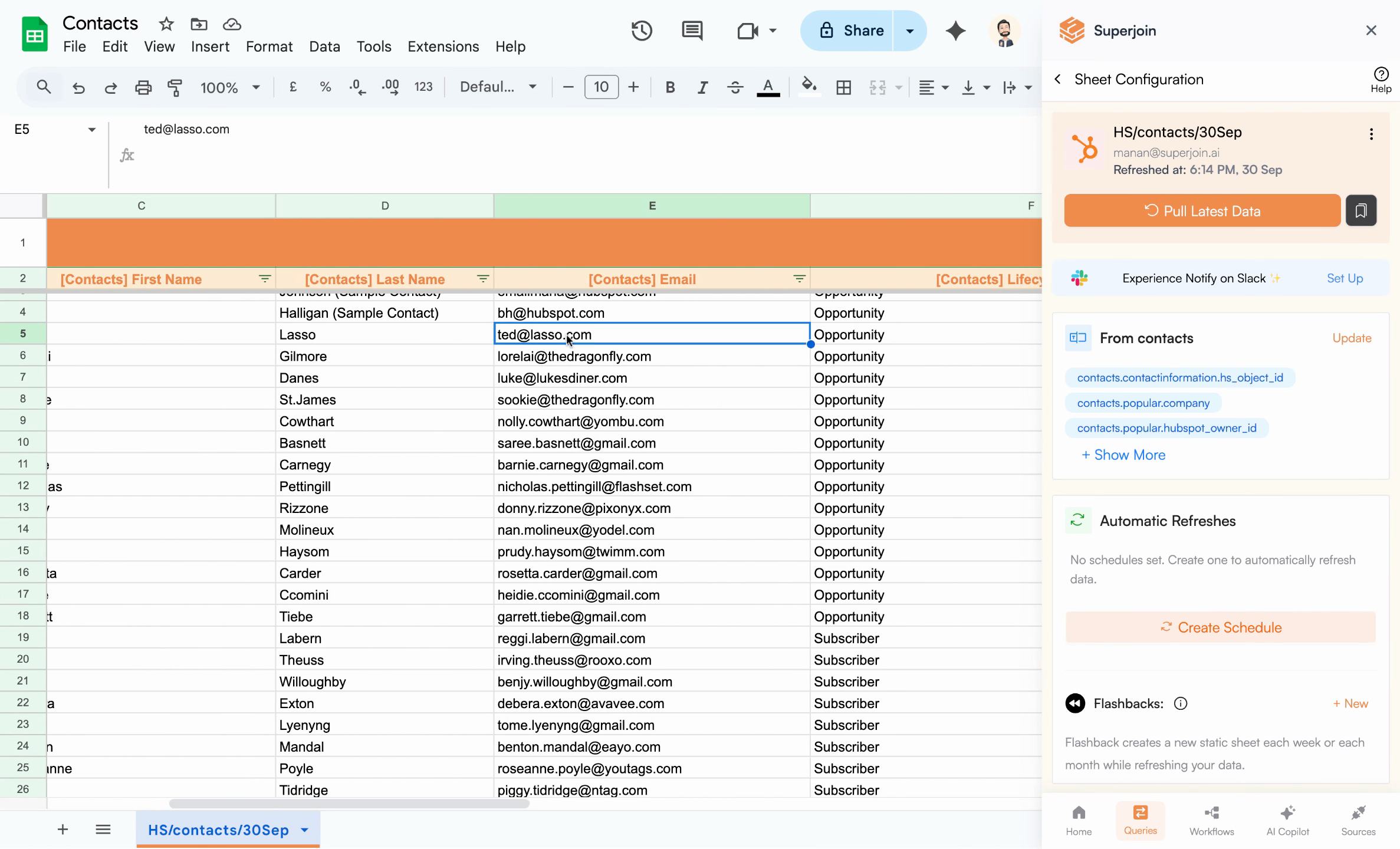 Include a column for Record ID or email in your Google Sheet
When importing from HubSpot, add Record ID in the data source dialog so Superjoin can uniquely identify contacts.
Create a query to export updates from your sheet to HubSpot.
Go to Queries in the Superjoin sidebar.
Include a column for Record ID or email in your Google Sheet
When importing from HubSpot, add Record ID in the data source dialog so Superjoin can uniquely identify contacts.
Create a query to export updates from your sheet to HubSpot.
Go to Queries in the Superjoin sidebar.
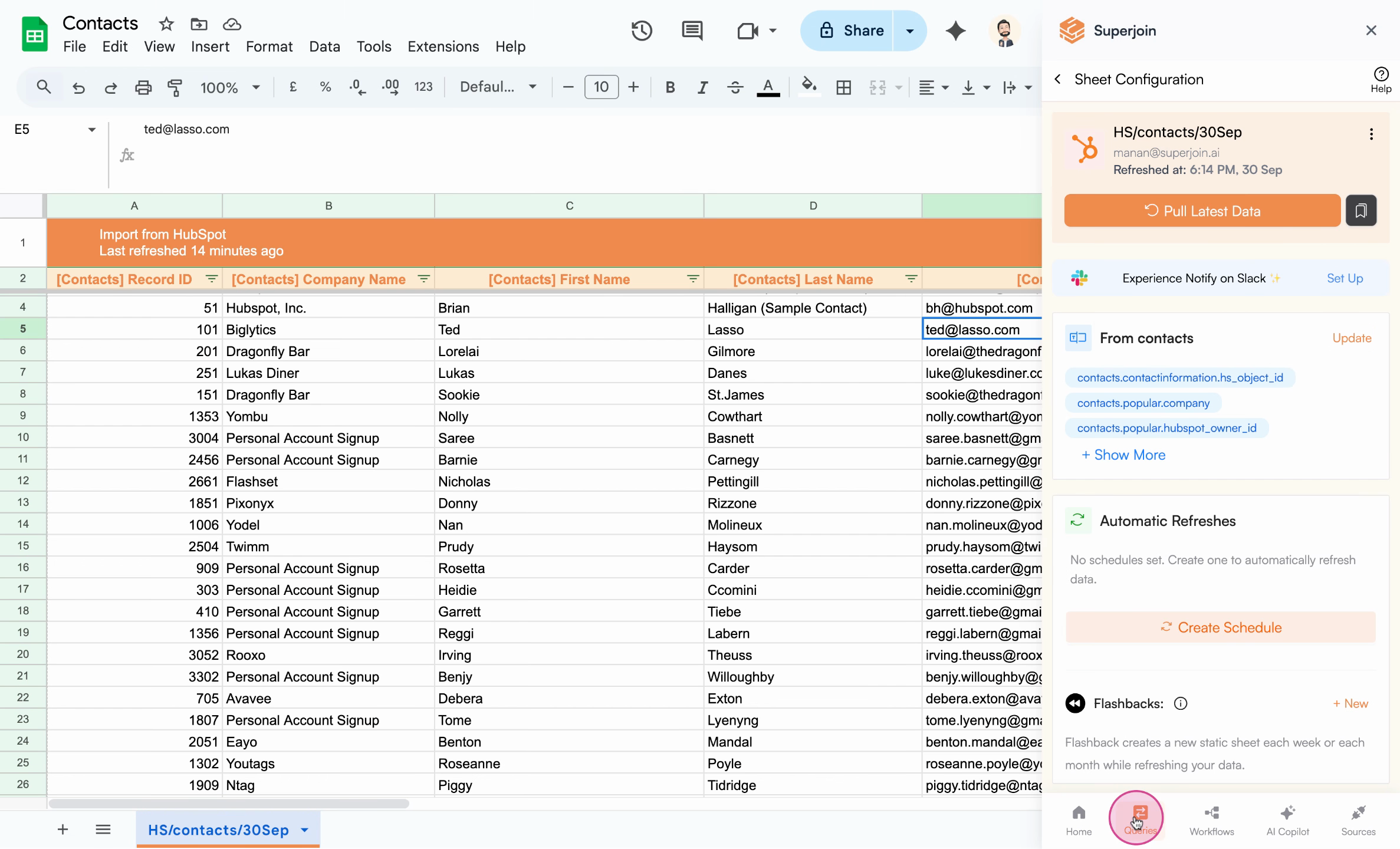 Open the Queries section from the sidebar
Click Create New Query to start a new export task.
Open the Queries section from the sidebar
Click Create New Query to start a new export task.
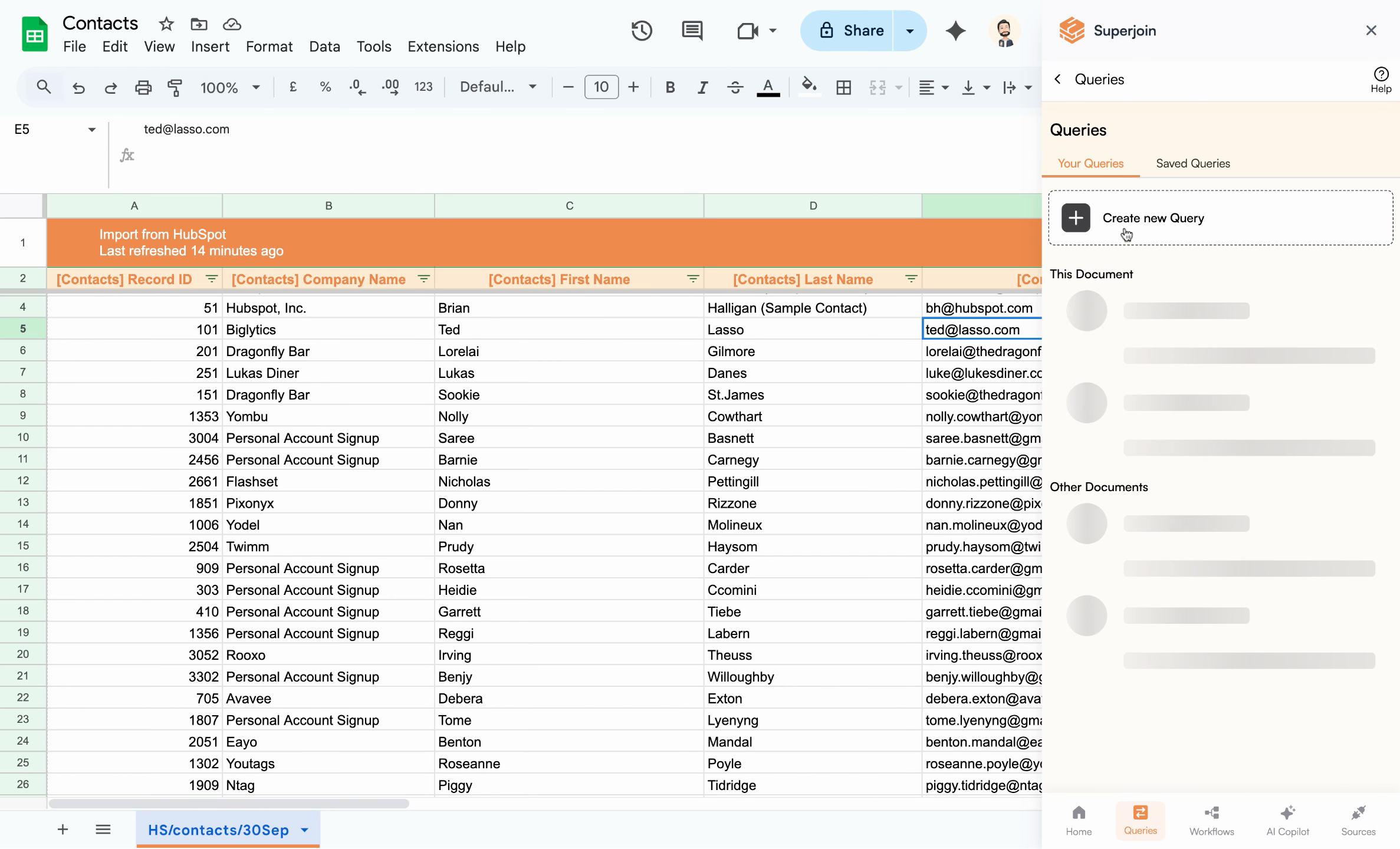 Start a new query for updating contact records
Select the Google Sheet containing your updated contact information.
Start a new query for updating contact records
Select the Google Sheet containing your updated contact information.
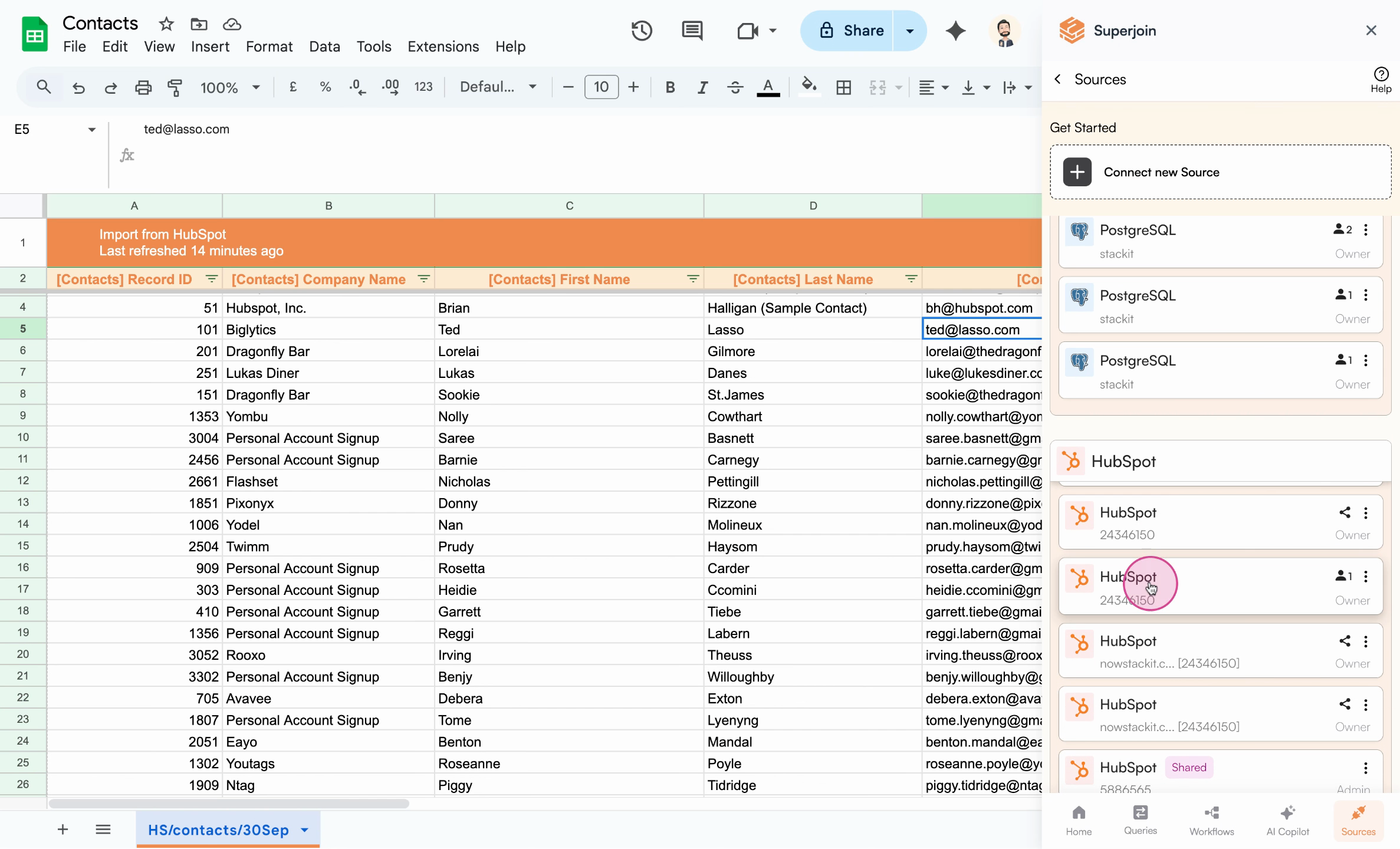 Select your source spreadsheet for contact updates
Click Export to HubSpot.
Select your source spreadsheet for contact updates
Click Export to HubSpot.
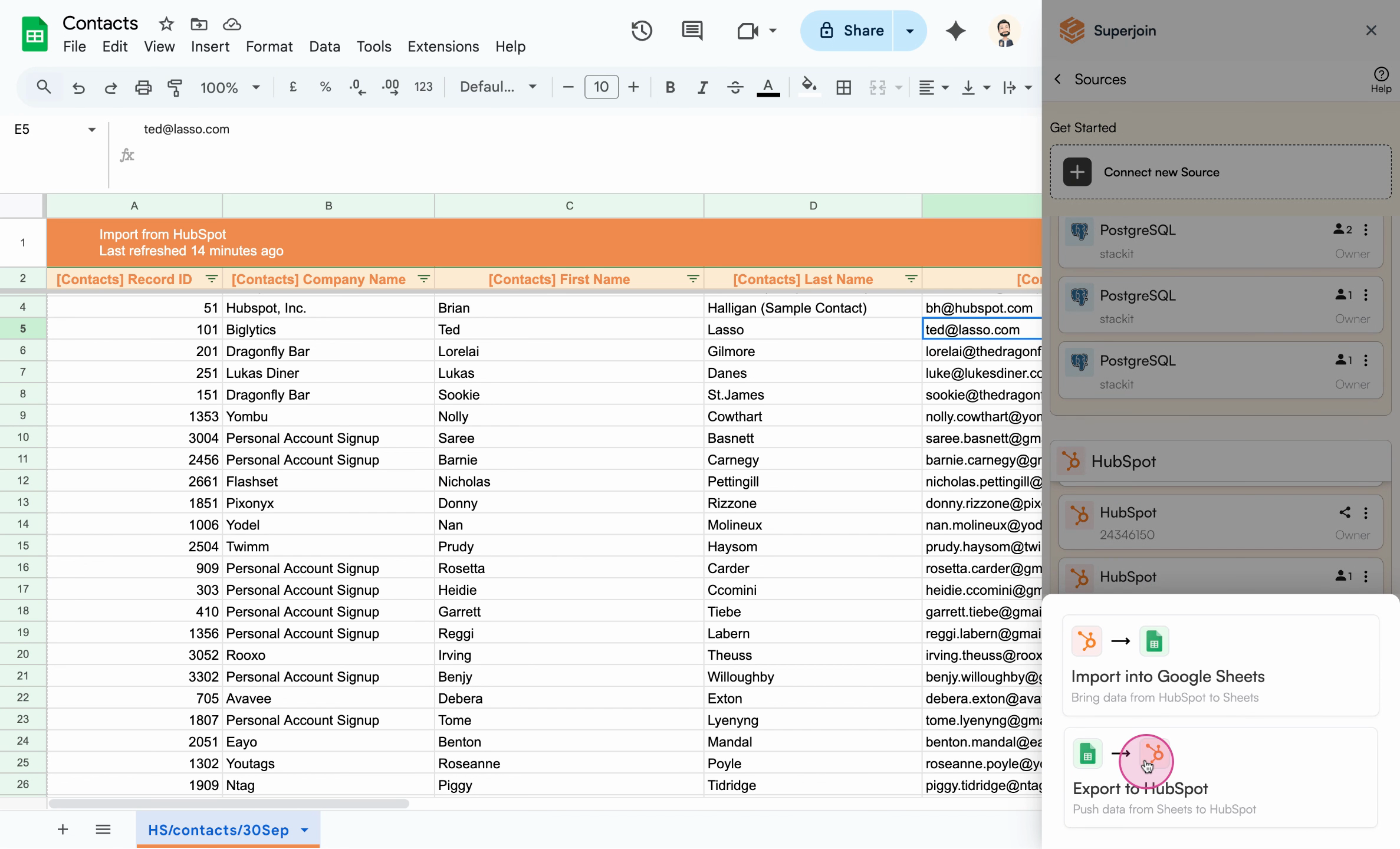 Initiate the export to HubSpot
The export wizard guides you through mapping fields and configuration.
If your sheet was imported via Superjoin, most fields map automatically (e.g., name, email, Record ID).
Initiate the export to HubSpot
The export wizard guides you through mapping fields and configuration.
If your sheet was imported via Superjoin, most fields map automatically (e.g., name, email, Record ID).
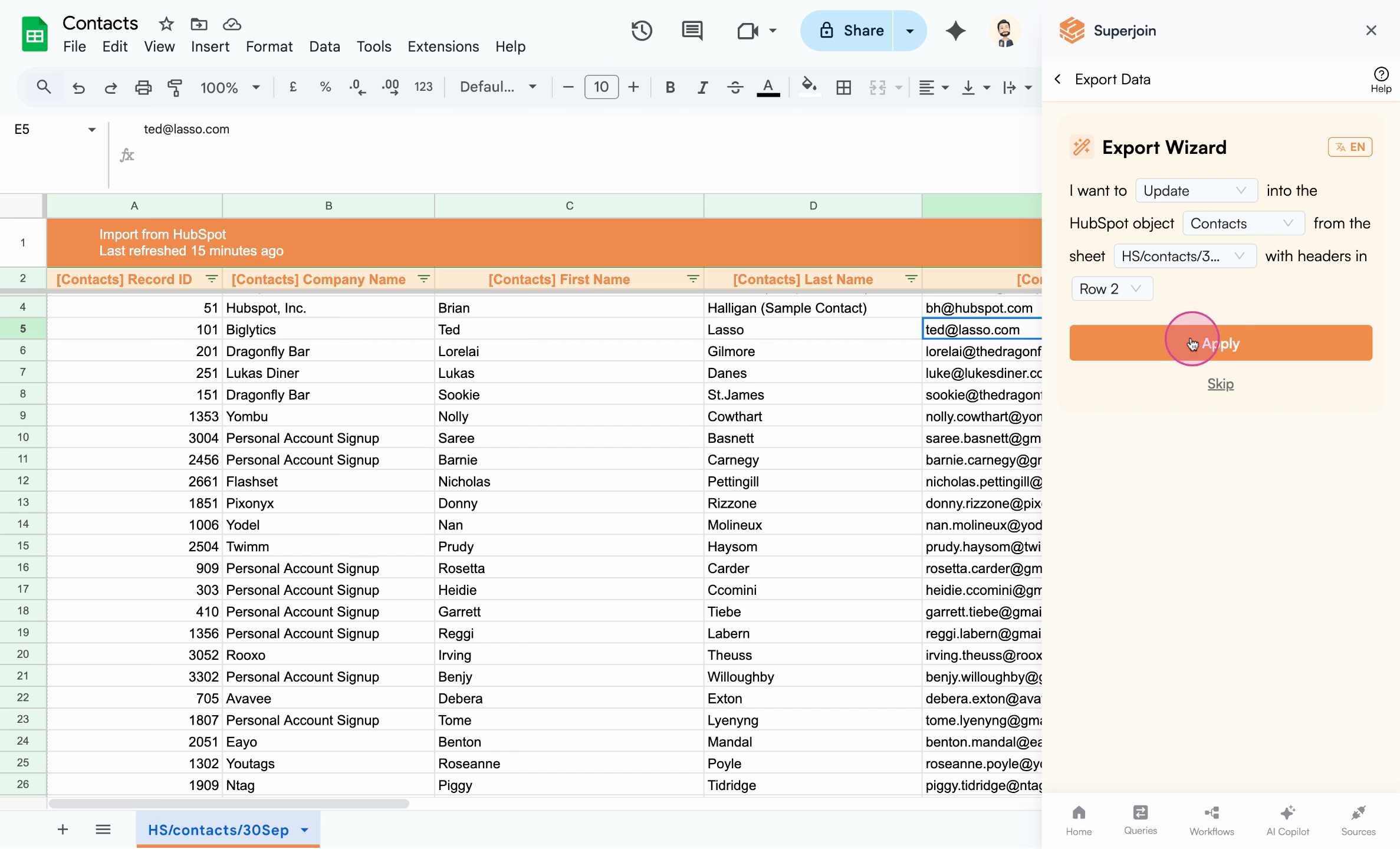 Review and verify mappings in the wizard
If you use a custom sheet (not imported via Superjoin), map each column to a HubSpot field manually.
Review and verify mappings in the wizard
If you use a custom sheet (not imported via Superjoin), map each column to a HubSpot field manually.
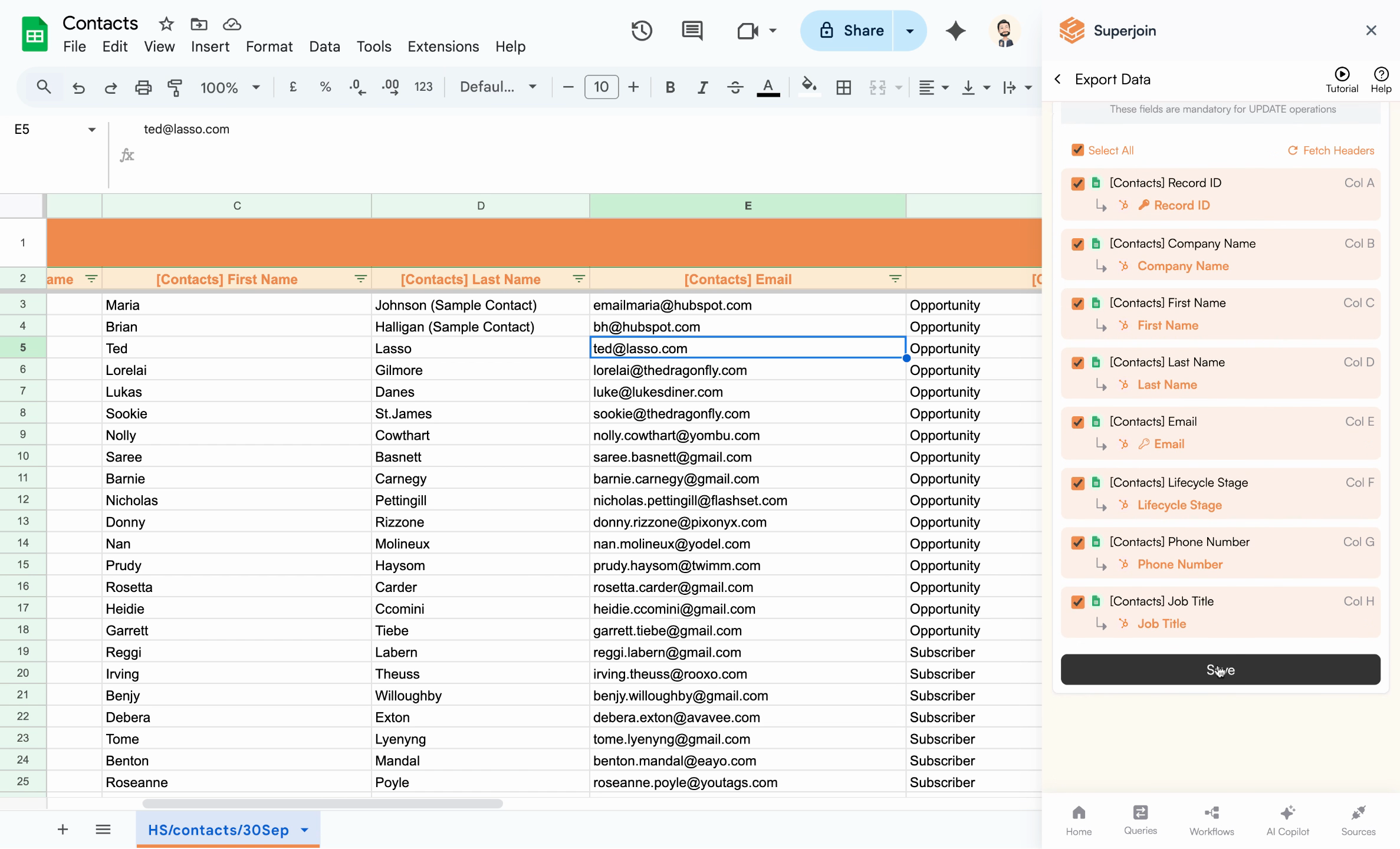 Save field mappings for the update process
Define result columns from the last column onward to capture row-by-row update info. Decide whether to export empty cells:
Save field mappings for the update process
Define result columns from the last column onward to capture row-by-row update info. Decide whether to export empty cells:
- Export empty cells: empty values overwrite existing values in HubSpot
- Ignore empty cells: recommended for partial updates
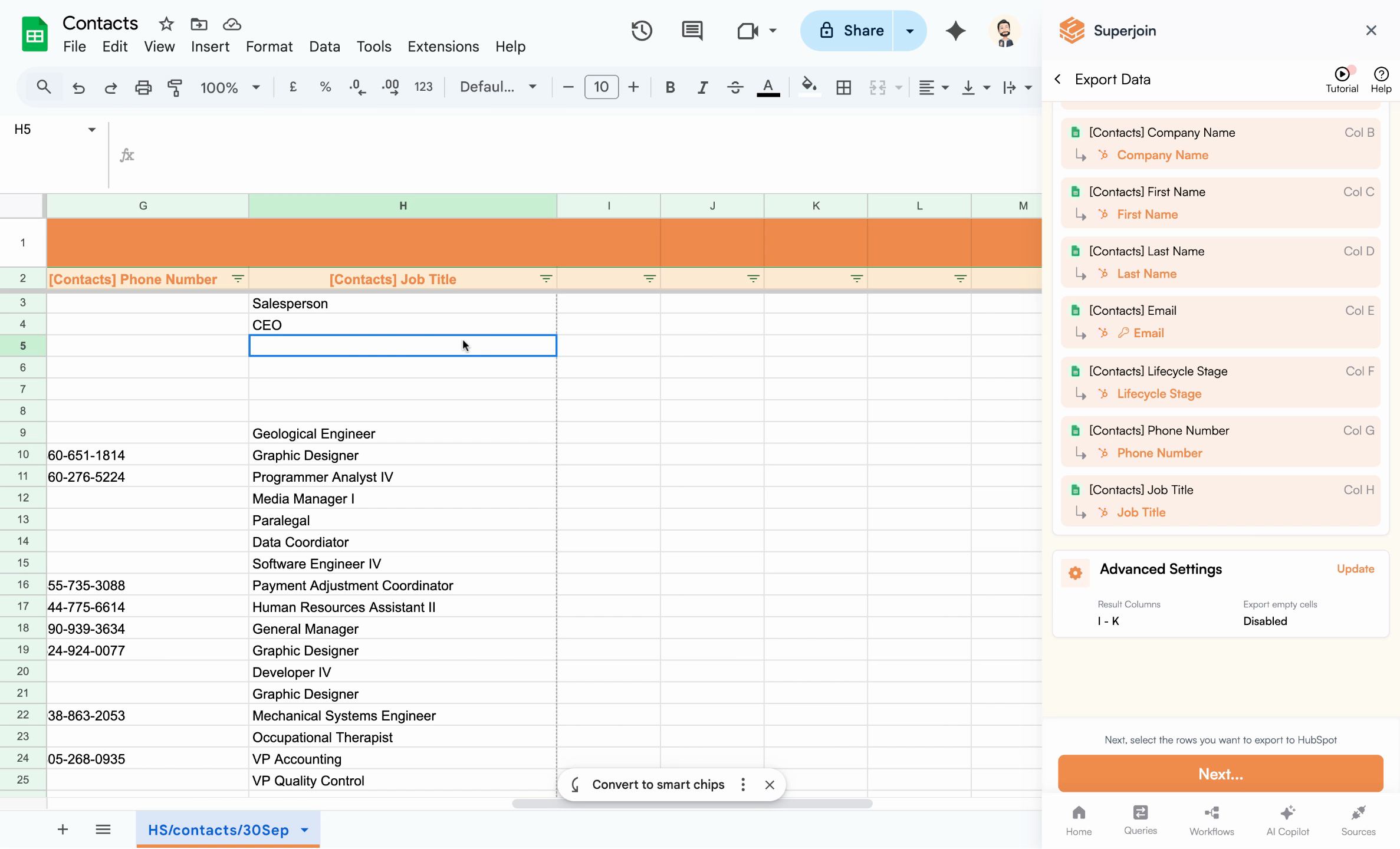 Control how empty cells are handled during export
Choose which rows to export or select the entire sheet. Exporting the full sheet also captures newly added rows automatically.
Control how empty cells are handled during export
Choose which rows to export or select the entire sheet. Exporting the full sheet also captures newly added rows automatically.
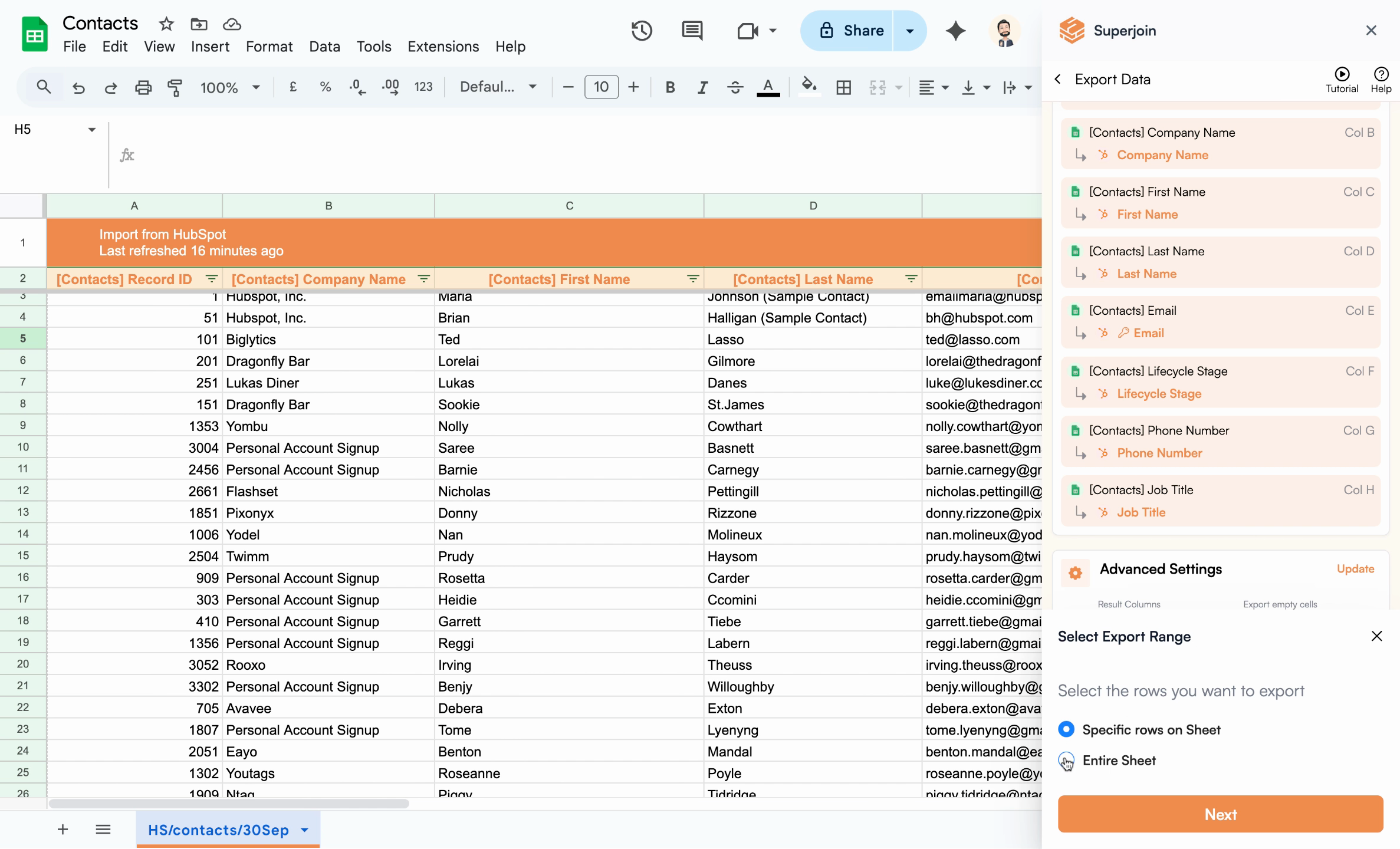 Select individual rows or the entire sheet
Click Next to proceed and confirm the row count (e.g., 407 rows).
Select individual rows or the entire sheet
Click Next to proceed and confirm the row count (e.g., 407 rows).
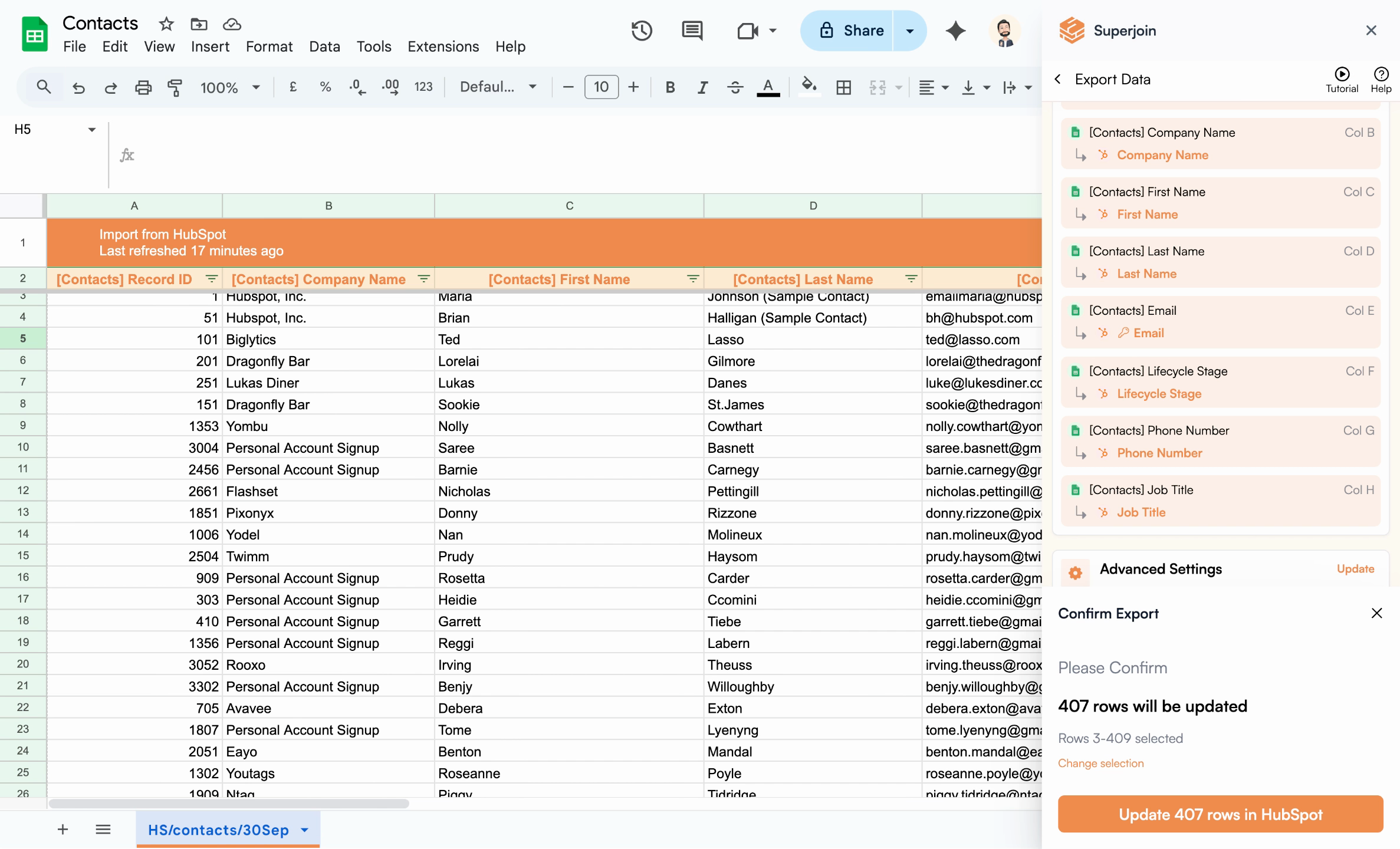 Status check before exporting rows to HubSpot
After the export runs, Superjoin adds result columns to your sheet showing row-by-row outcomes.
Status check before exporting rows to HubSpot
After the export runs, Superjoin adds result columns to your sheet showing row-by-row outcomes.
- Each row shows whether the associated HubSpot record was updated successfully
- The Record ID remains linked for instant navigation to the HubSpot contact
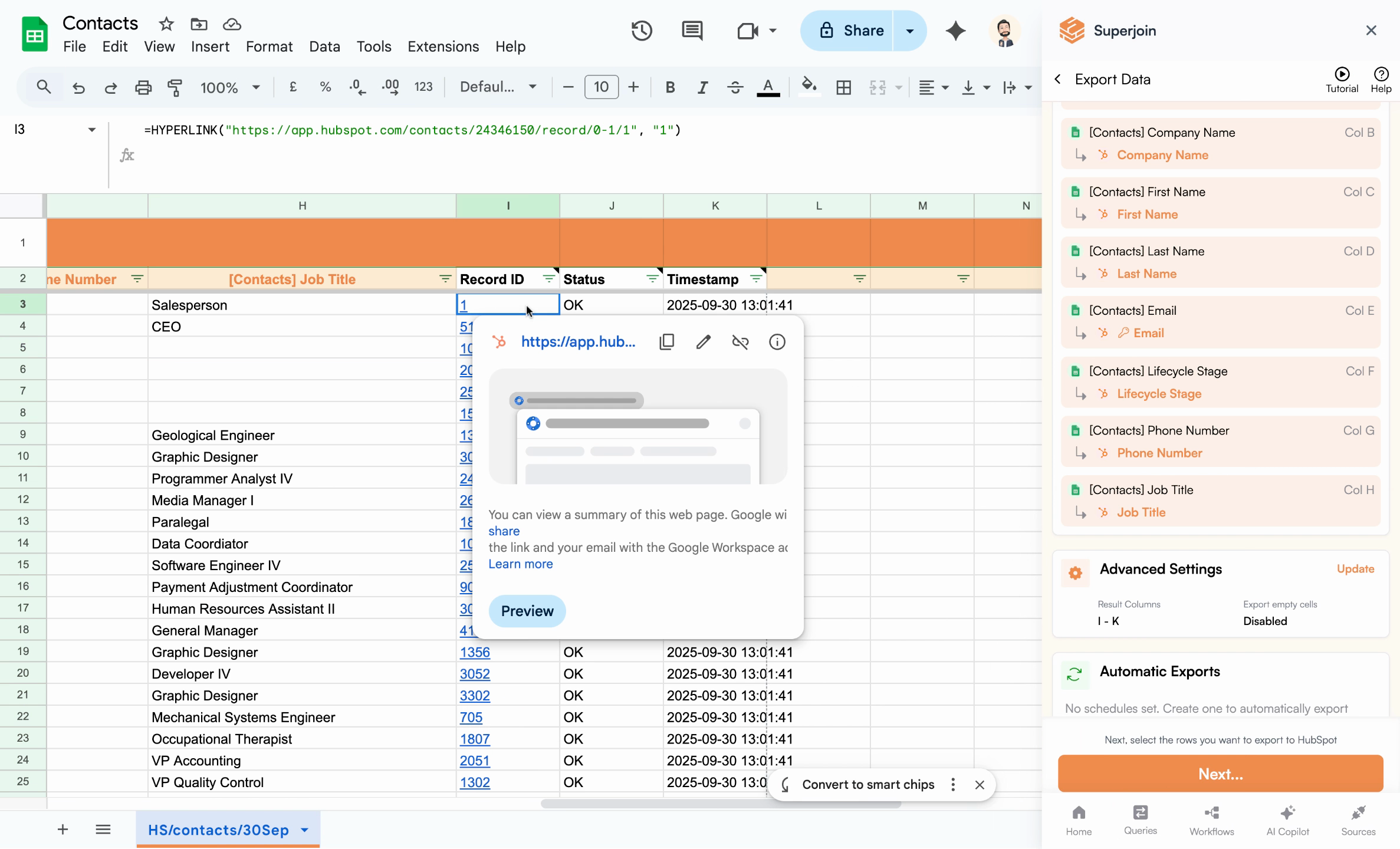 Results columns include outcome and direct HubSpot links
***
## What's next?
With contacts updated from Google Sheets, you have a fast, repeatable workflow for CRM maintenance. Next, try:
* Automating scheduled syncs for ongoing updates
* Connecting additional objects like Companies or Deals for broader data management
* Using Superjoin formulas for advanced data cleaning
You’re now equipped to keep HubSpot contact data up-to-date right from your spreadsheet—saving time and reducing manual errors.
Results columns include outcome and direct HubSpot links
***
## What's next?
With contacts updated from Google Sheets, you have a fast, repeatable workflow for CRM maintenance. Next, try:
* Automating scheduled syncs for ongoing updates
* Connecting additional objects like Companies or Deals for broader data management
* Using Superjoin formulas for advanced data cleaning
You’re now equipped to keep HubSpot contact data up-to-date right from your spreadsheet—saving time and reducing manual errors.