

Creating API Credentials in PayPal Developer Portal
To connect Superjoin with your PayPal account, you’ll need to create an application in the PayPal Developer Portal to obtain the necessary API credentials (Client ID and Secret). Follow these steps to set up your PayPal application:1
Sign in to PayPal Developer Dashboard
Visit the PayPal Developer Dashboard and sign in with your PayPal Business account.
You need a PayPal Business account to access the developer dashboard. If you don’t have one yet, you’ll need to create one first.
2
Navigate to My Apps & Credentials
Once logged in, click on the Apps & Credentials option in the dashboard menu.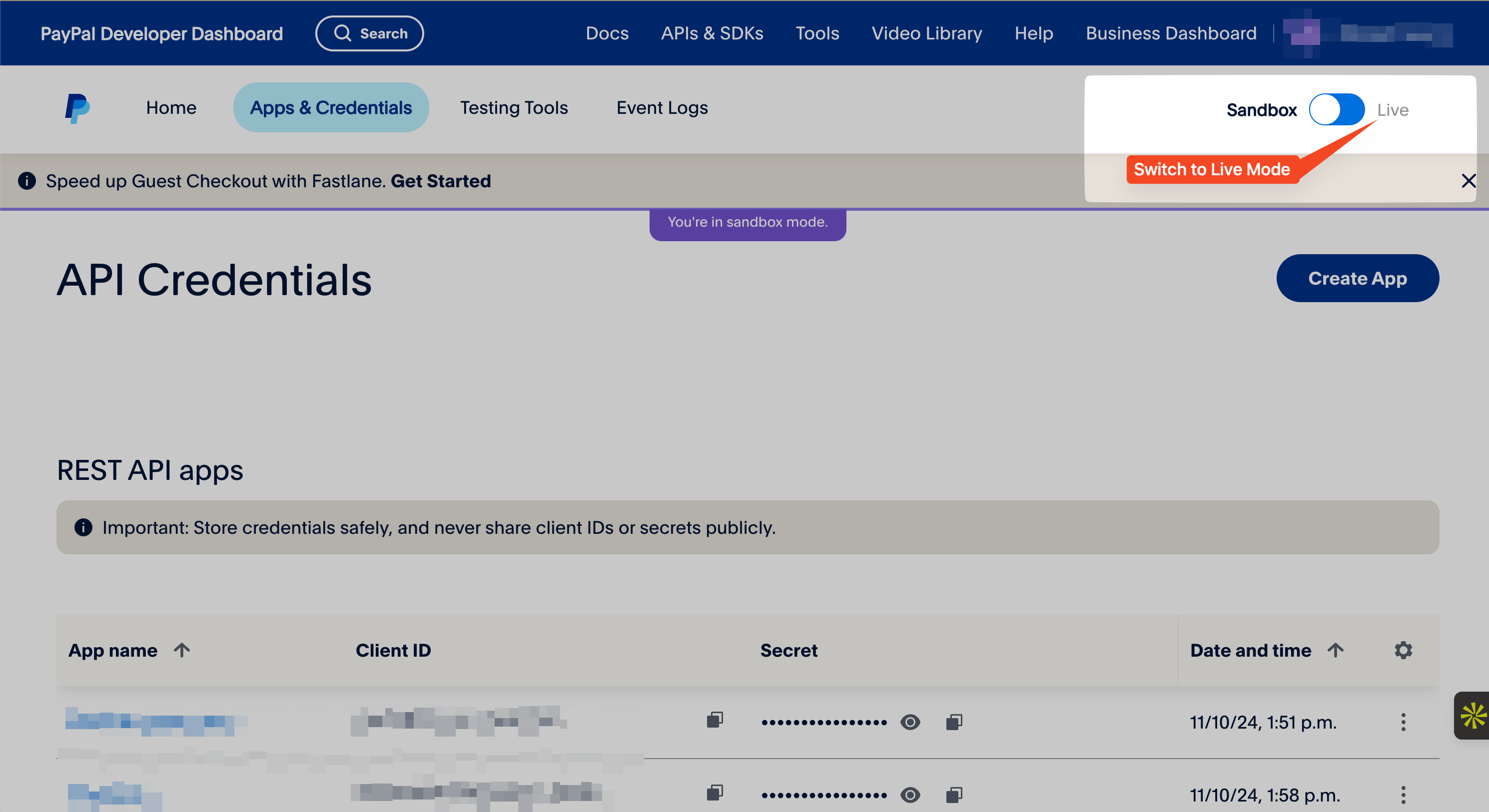
3
Create a New App
Under the “REST API apps” section, click on the Create App button.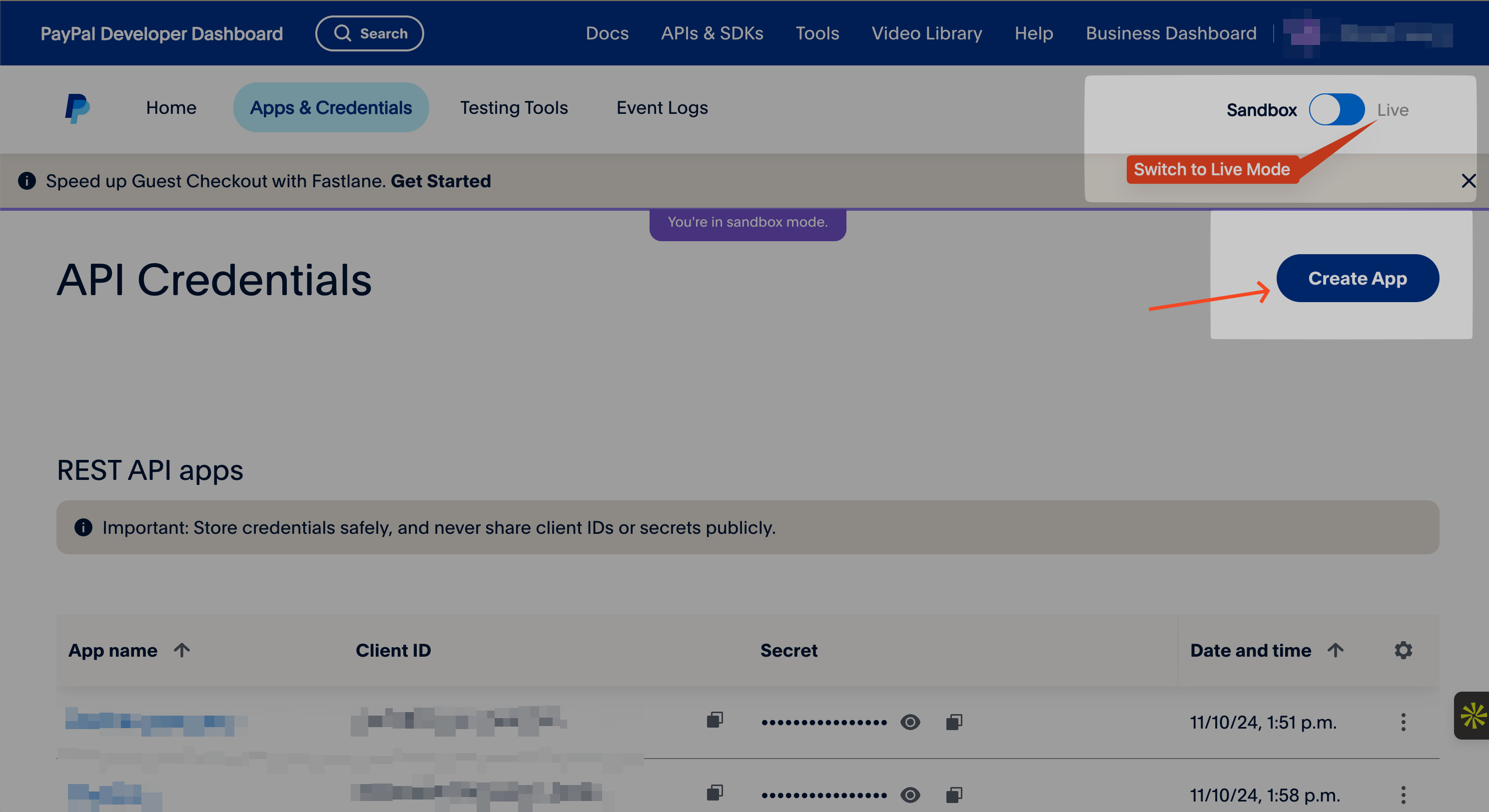
4
Configure Your App
Fill in the required details for your app: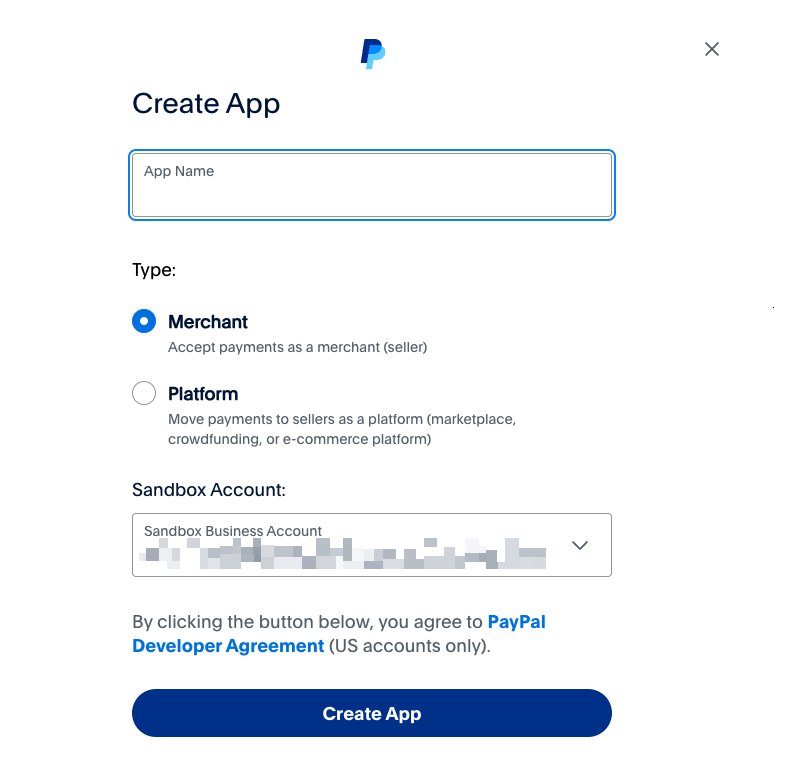
- App Name: Enter a descriptive name (e.g., “Superjoin Integration”)
- App Type: Select “Merchant”
- Business Account: Make sure your business account is selected
5
Get Your API Credentials
After creating the app, you’ll be taken to the app details page that displays your Client ID and Secret.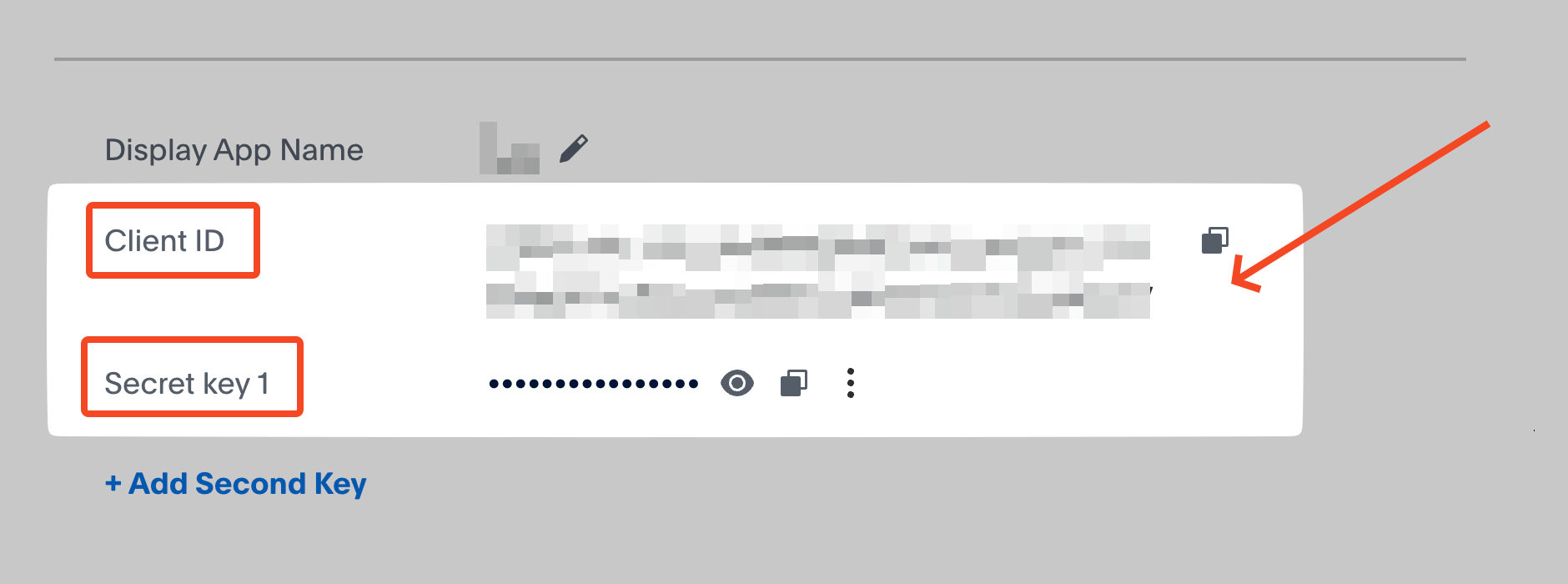
6
Set App Permissions
In the app details page, scroll down to the “Sandbox App Settings” and “Live App Settings” sections.Make sure the following permissions are enabled: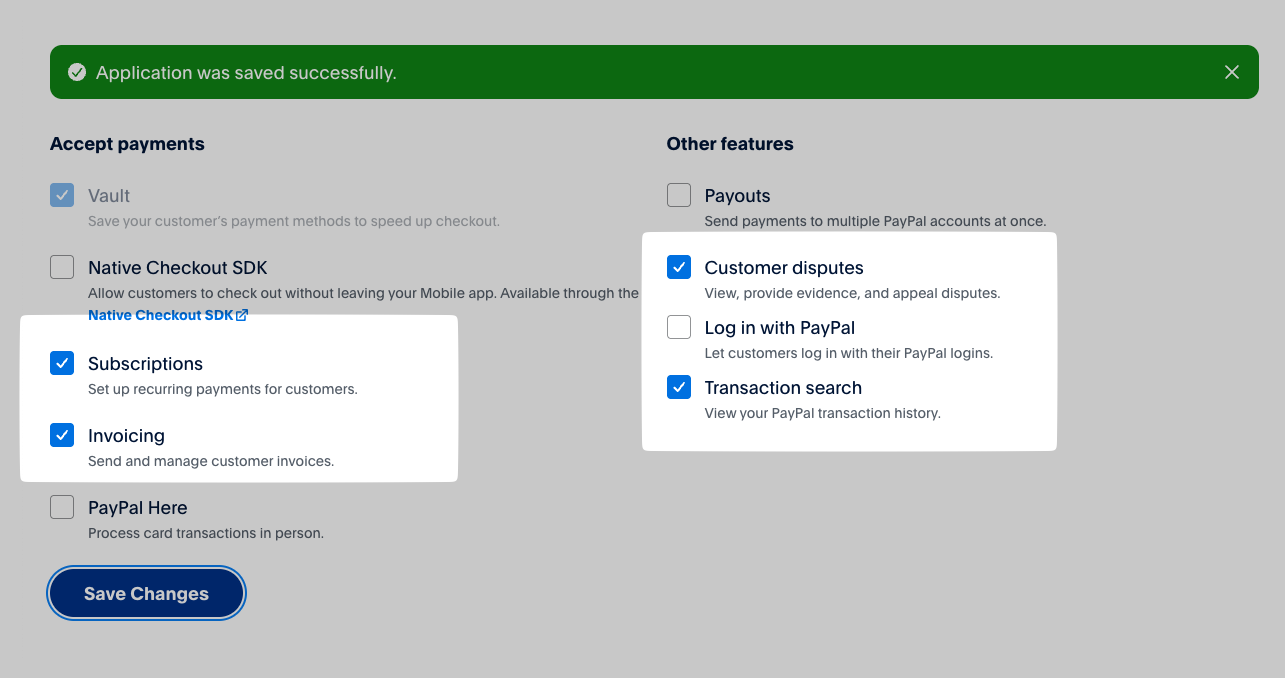
- Transaction Search: Needed to retrieve transaction data
- Payment Information: Required for payment details
- Invoicing: If you want to import invoice data
7
Switch to Live Mode
By default, your app is created in Sandbox (testing) mode. To use it with your real PayPal account:
- Switch from “Sandbox” to “Live” using the toggle at the top of the page
- Follow the same steps to create a live app
- Copy the live Client ID and Secret
8
Use Credentials in Superjoin
Now you can return to Superjoin and use the Client ID and Secret to connect your PayPal account:
- Enter the Client ID
- Enter the Client Secret
- Click “Connect” to complete the authentication
Store your credentials securely. Never share your Client Secret with anyone.
Troubleshooting
If you encounter any issues when creating your API credentials or connecting to Superjoin:- Make sure you’ve enabled all required permissions for your app
- Verify you’re using the correct credentials (Sandbox vs. Live)
- Check that your PayPal account is in good standing
- Ensure you’re using a PayPal Business account, not a personal account