

Step-by-step walkthrough: How to connect RDS to Google Sheets
1
Launch Superjoin
Once Superjoin is installed, navigate to the 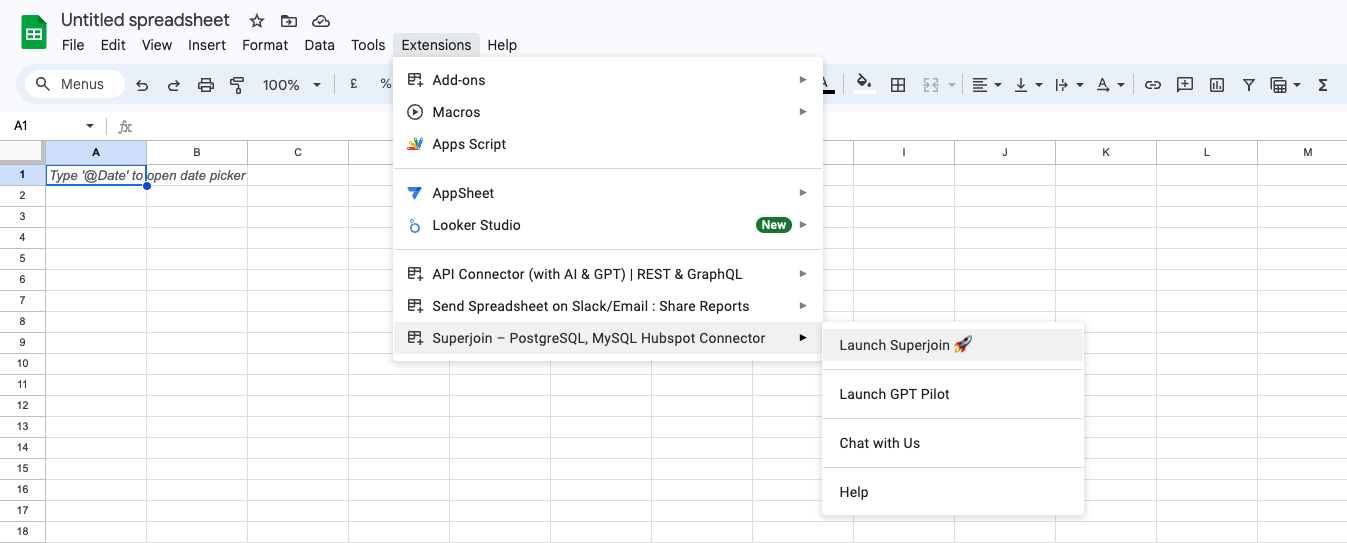
Extensions menu tab in Google Sheets. Launch Superjoin from here. You should now see Superjoin running as a side panel on the right side of your screen.2
Pick MySQL
Select MySQL (for RDS as well) from the list of available data sources.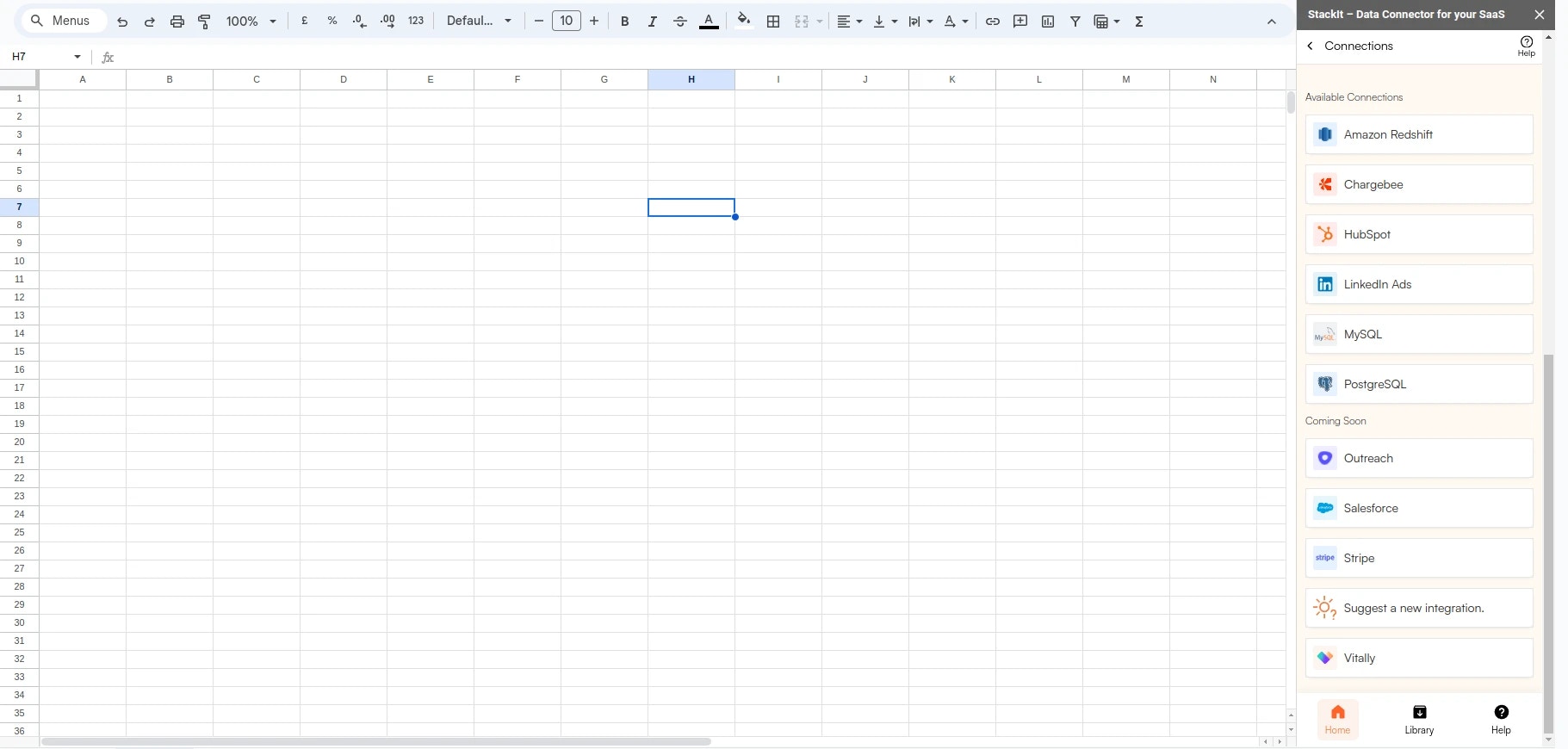
3
Connect your MySQL Database
Enter your connection credentials.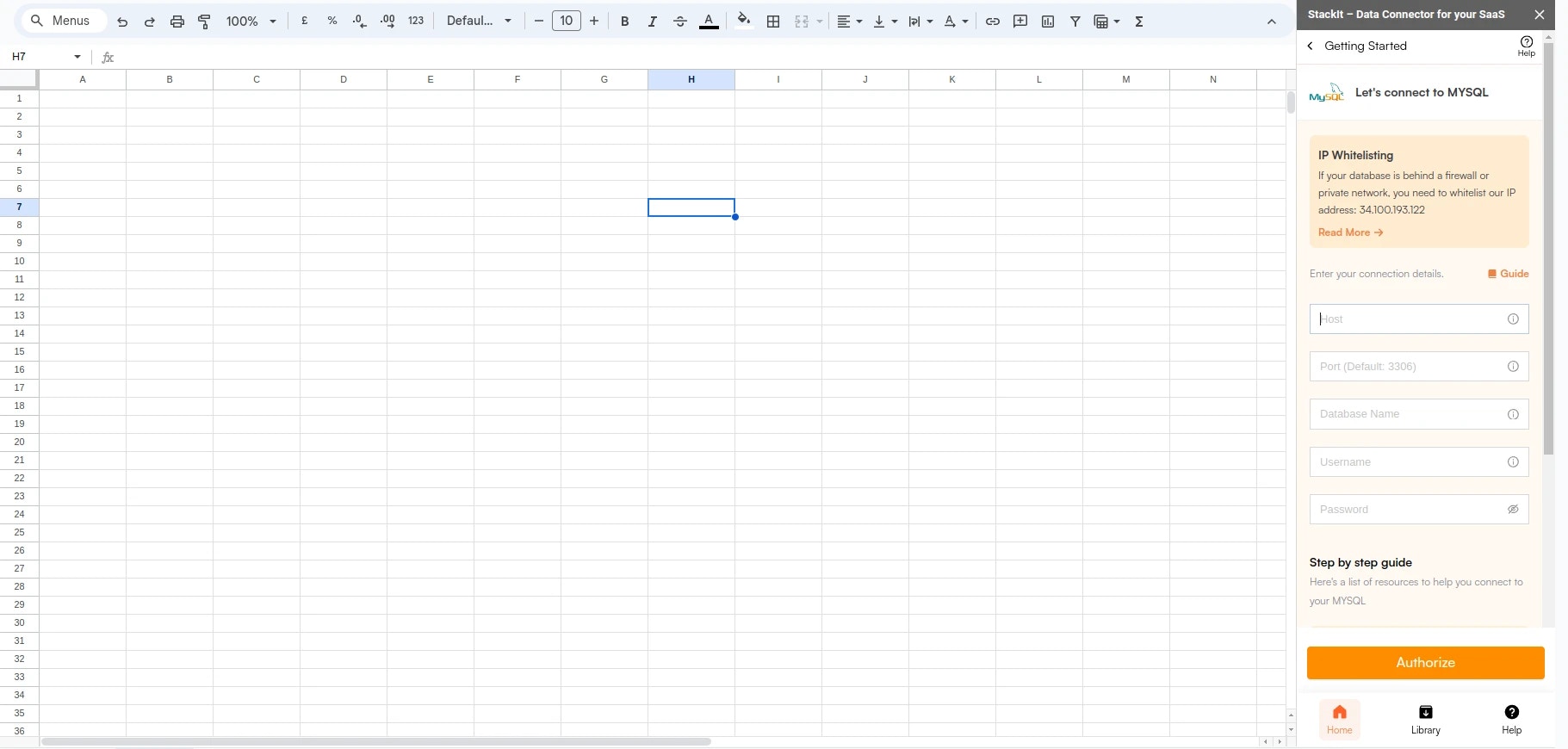
For using AWS RDS (Relational Database Service), you will typically gather the same types of credentials. However, the process may include some AWS-specific steps.
If you’re connecting to a PostgreSQL RDS instance which is running
PostgreSQL version 15 or higher, you must enable the enforce SSL toggle beflow the
password field.
4
Login to AWS
Log in to the AWS Management Console.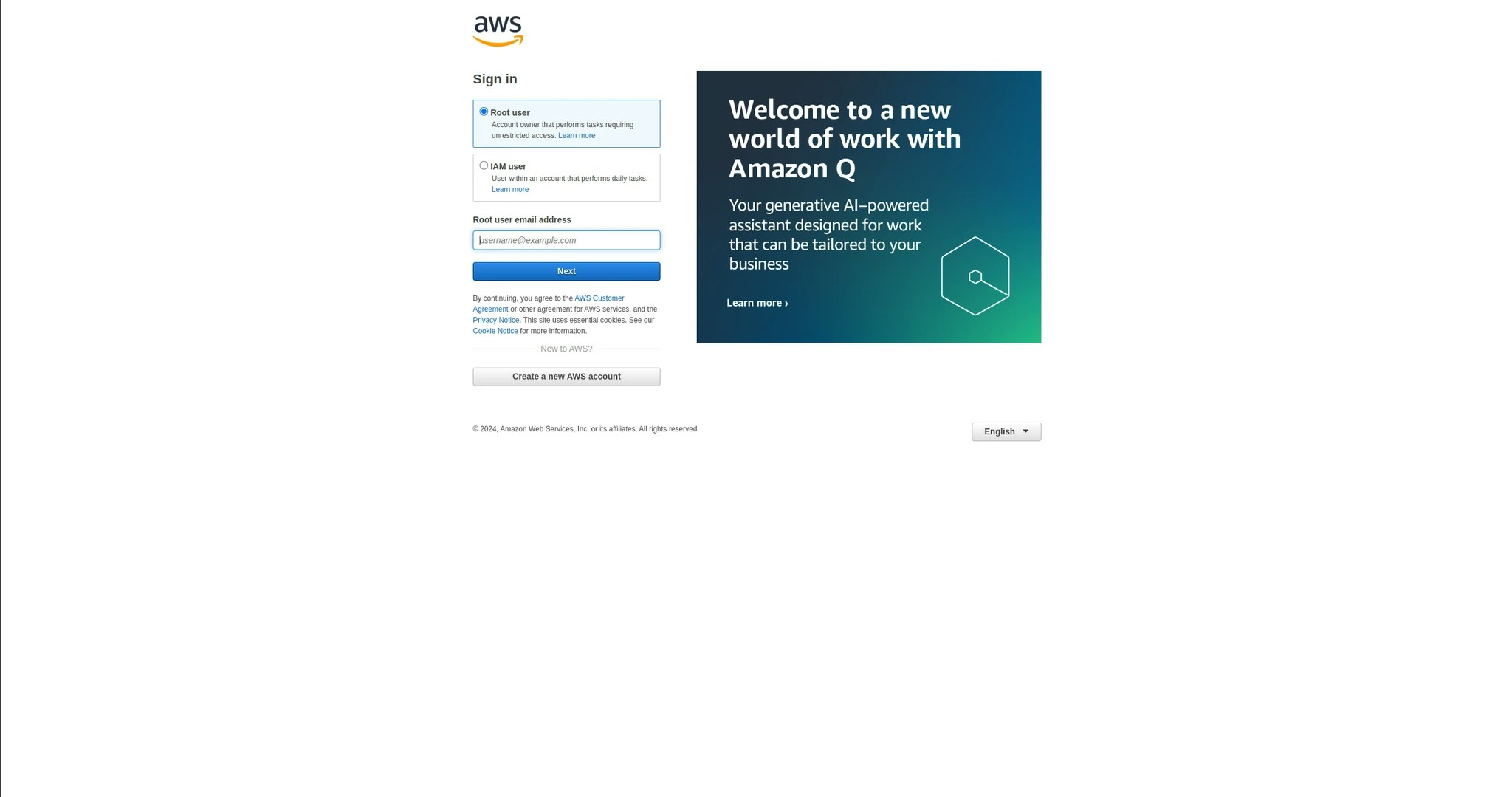
5
Navigate to RDS
Navigate to the RDS dashboard and select your database instance.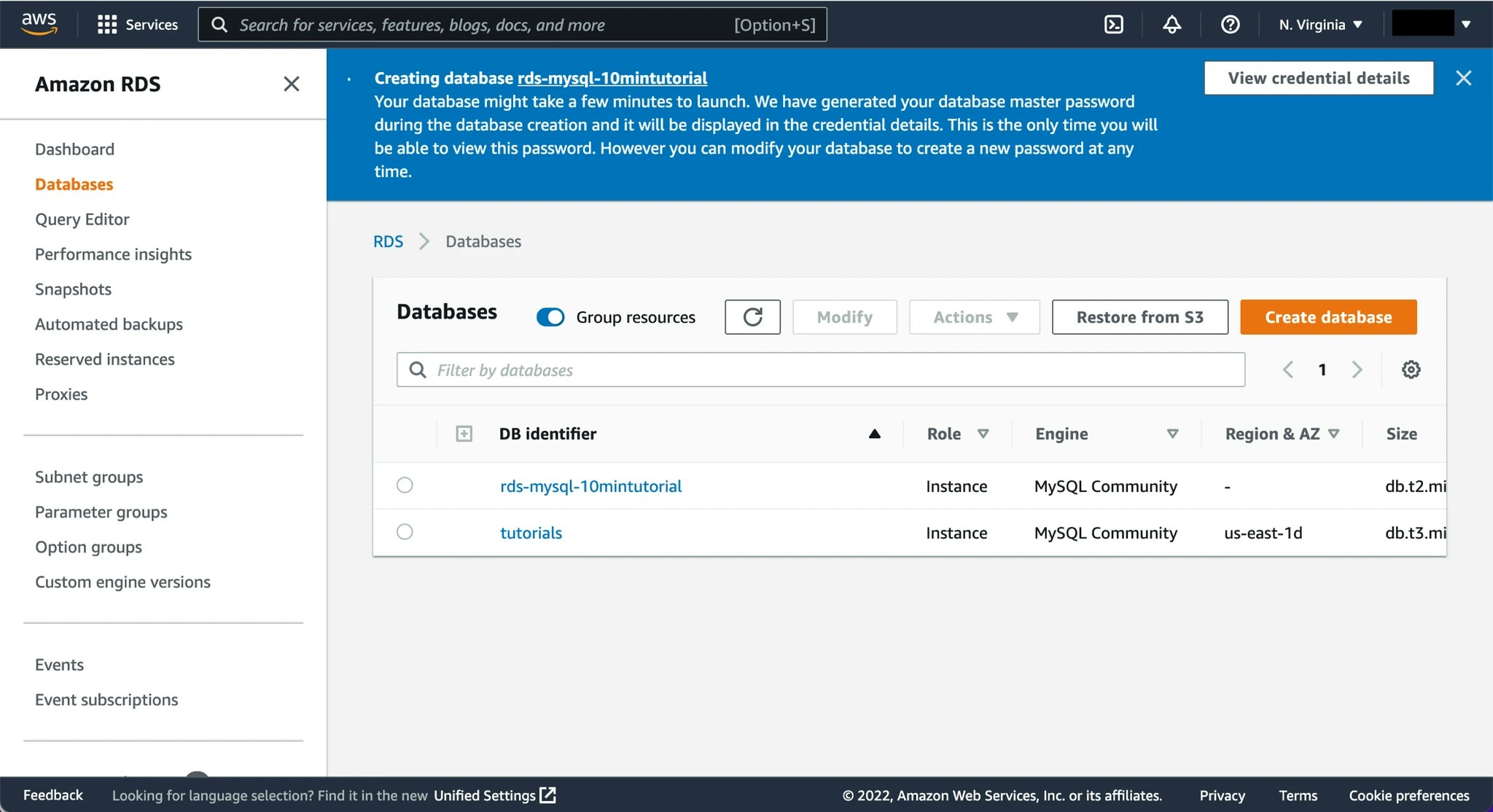
6
Identify endpoint (host) & port
Under the ‘Connectivity & Security’ section, find the ‘Endpoint’ and ‘Port’ information.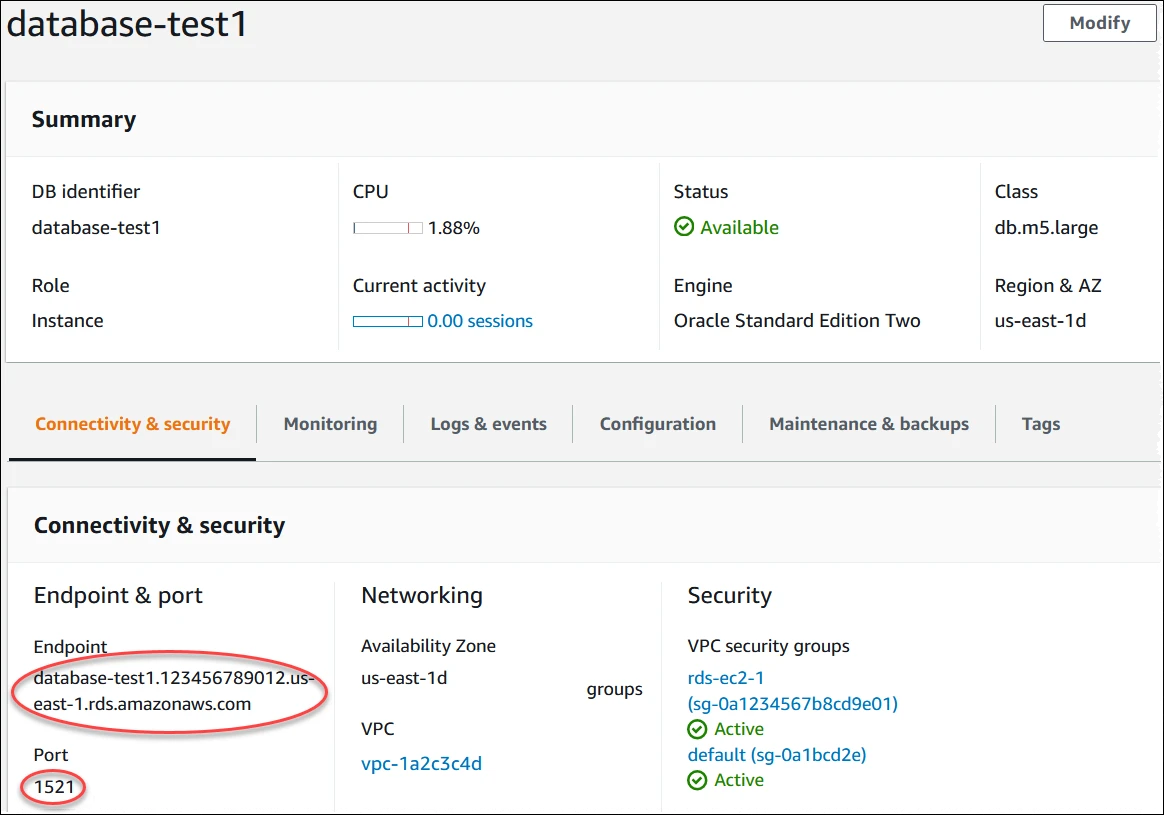
7
Connect to your RDS Database
Click “Authorize” to establish the connection. Superjoin will open the Data Preview upon successful creation, allowing you to start querying your database.