

Open the Superjoin Sidebar
Click the Superjoin icon to launch the sidebar in Google Sheets.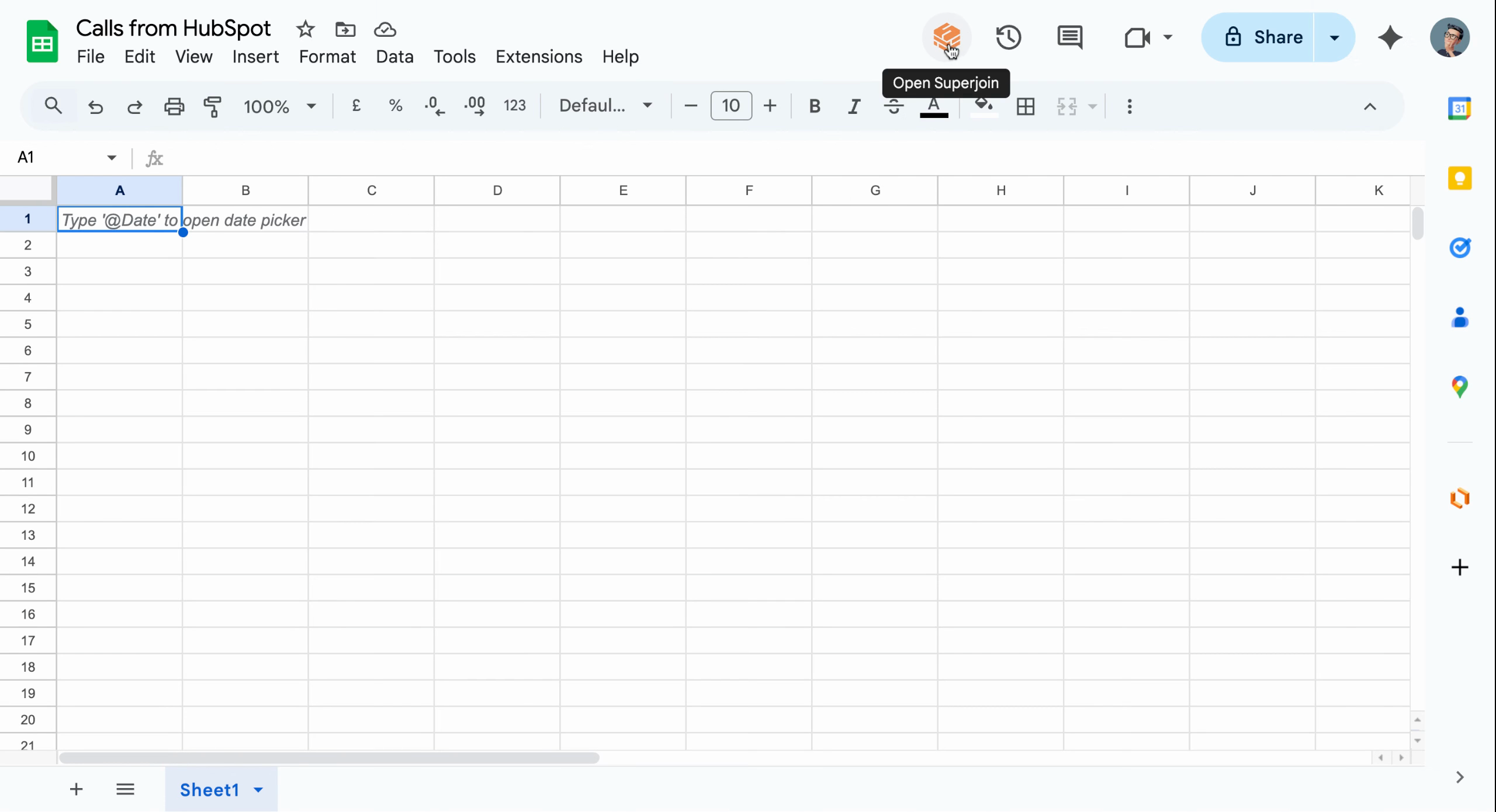
The Superjoin icon launches the sidebar directly inside Google Sheets
Access HubSpot in Sources
Navigate to the Sources section in the Superjoin sidebar and locate your connected HubSpot data source.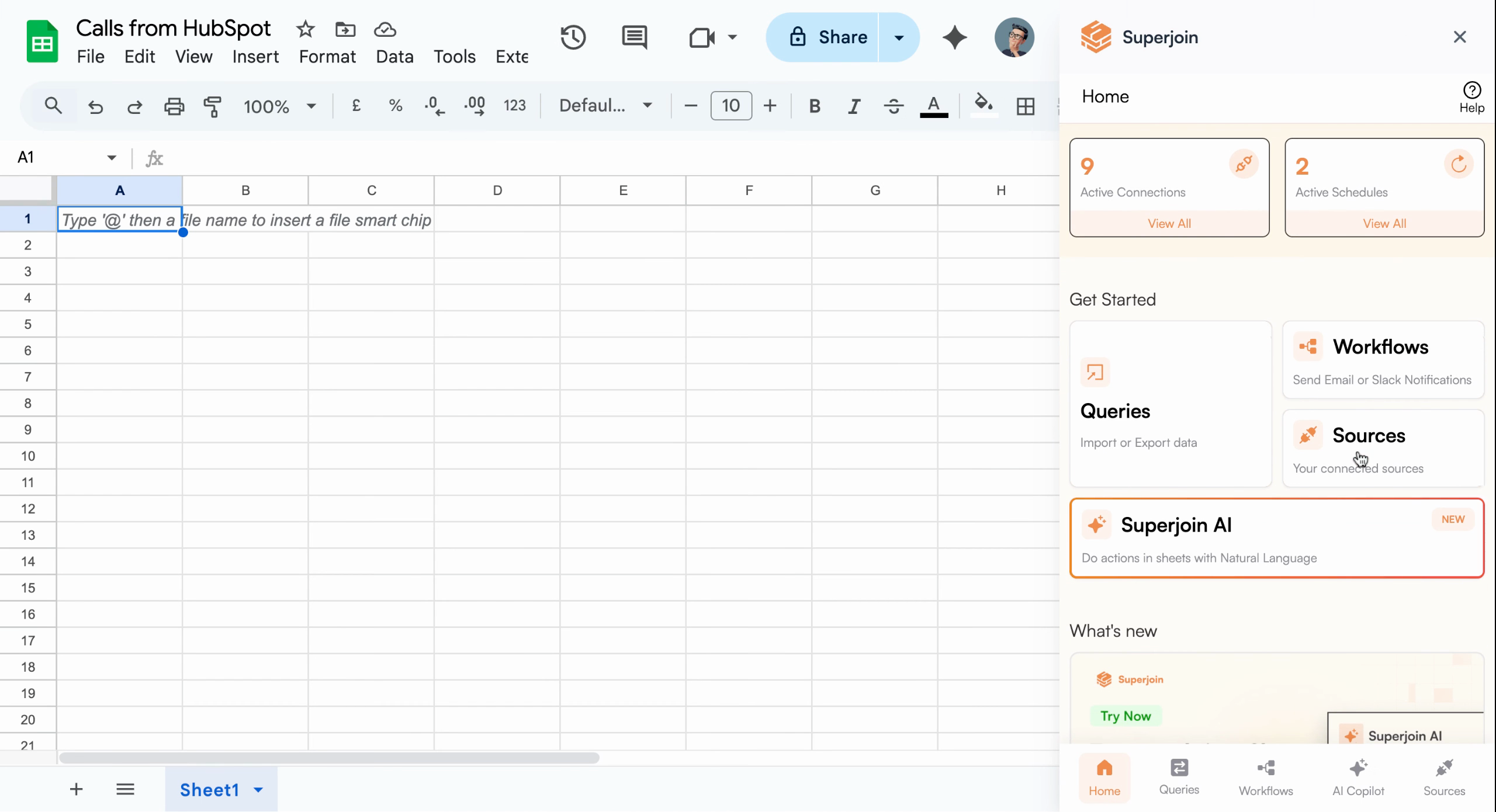
Connected HubSpot data source appears in the Sources section
Open Data Preview
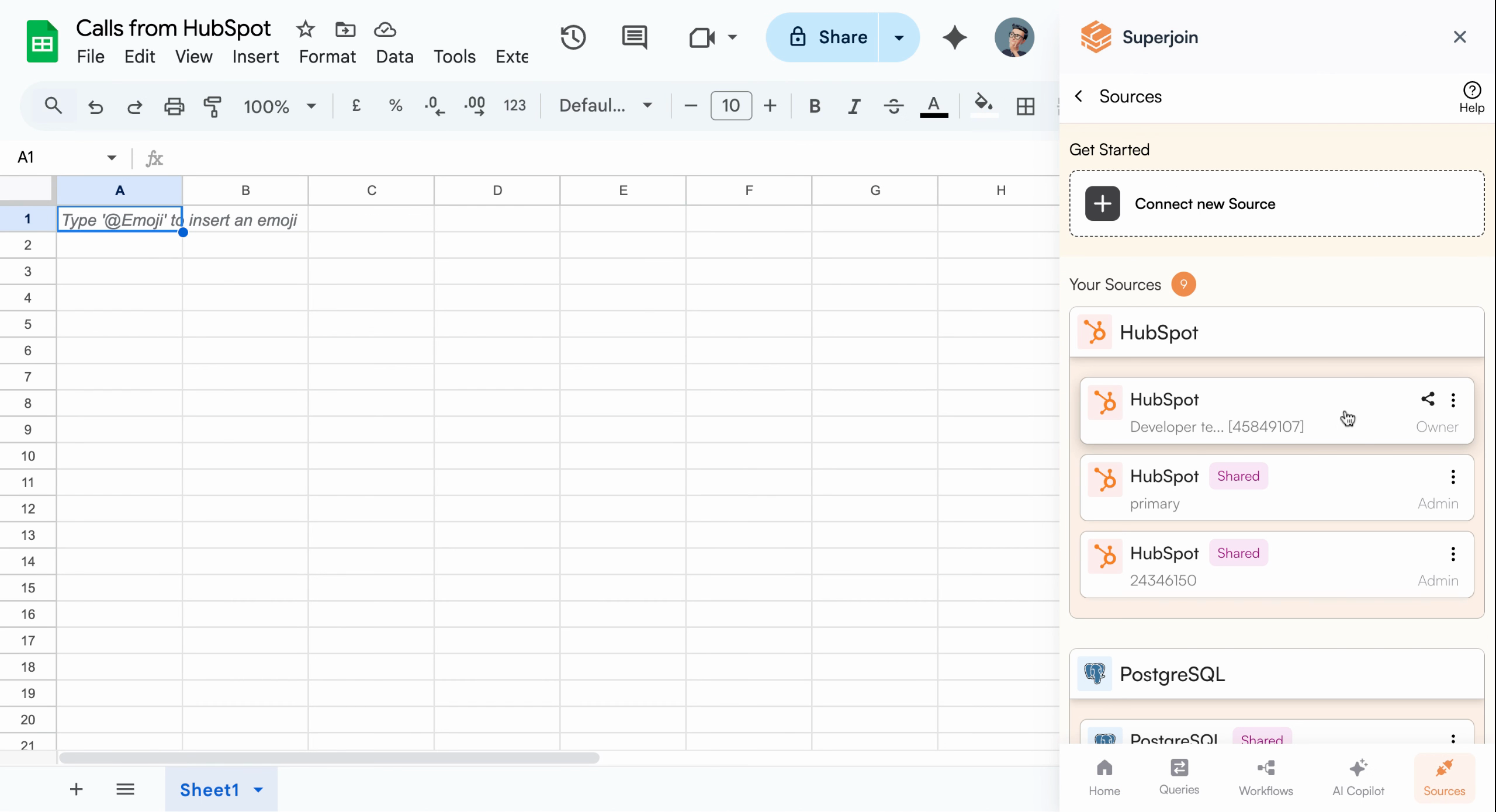
Click on your HubSpot source, then choose Import into Google Sheets.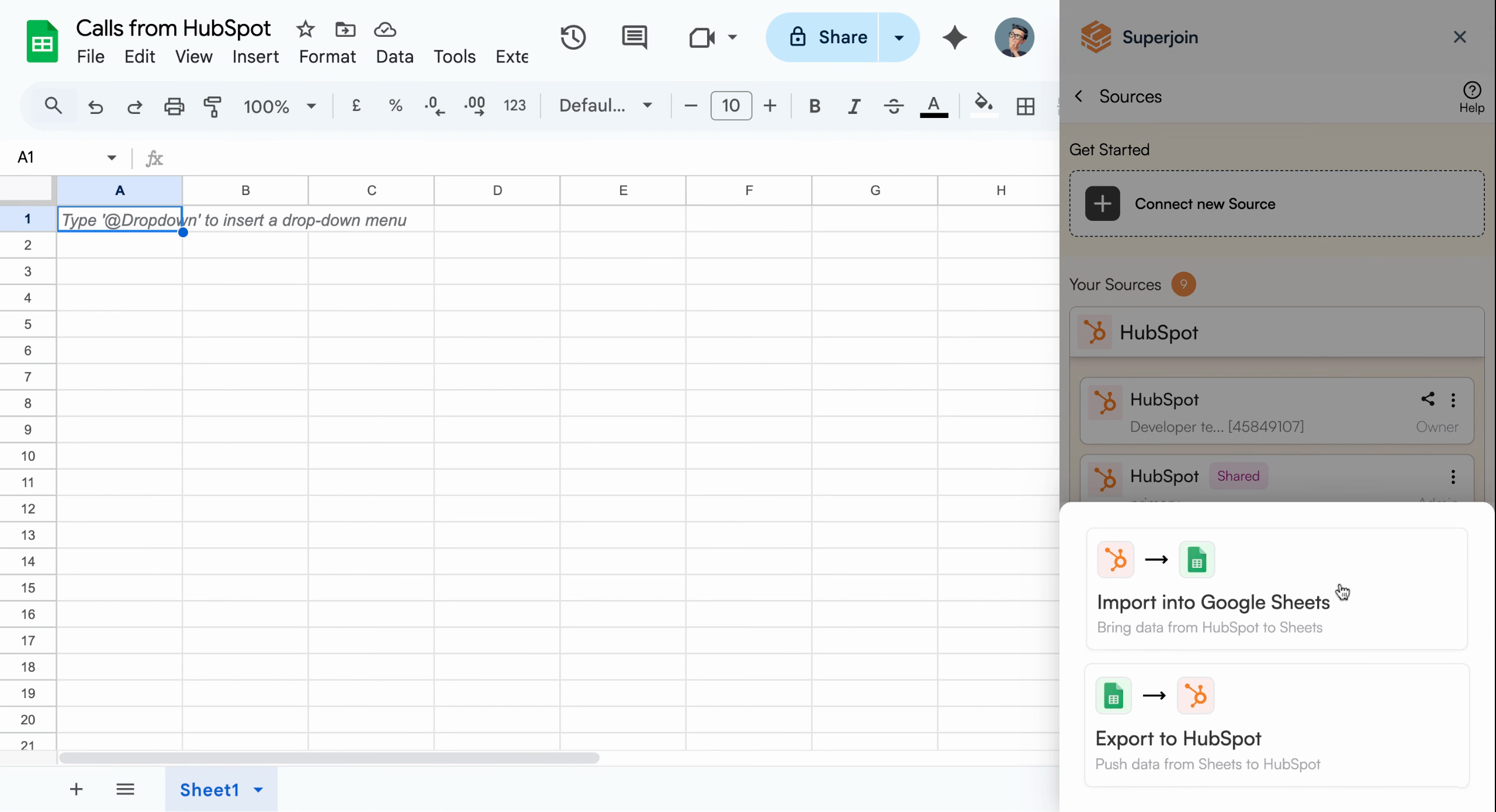
Select Import into Google Sheets to begin the import process
Preview and Select Data
The Data Preview modal will appear, allowing you to select which data to import. Under Objects, select Calls.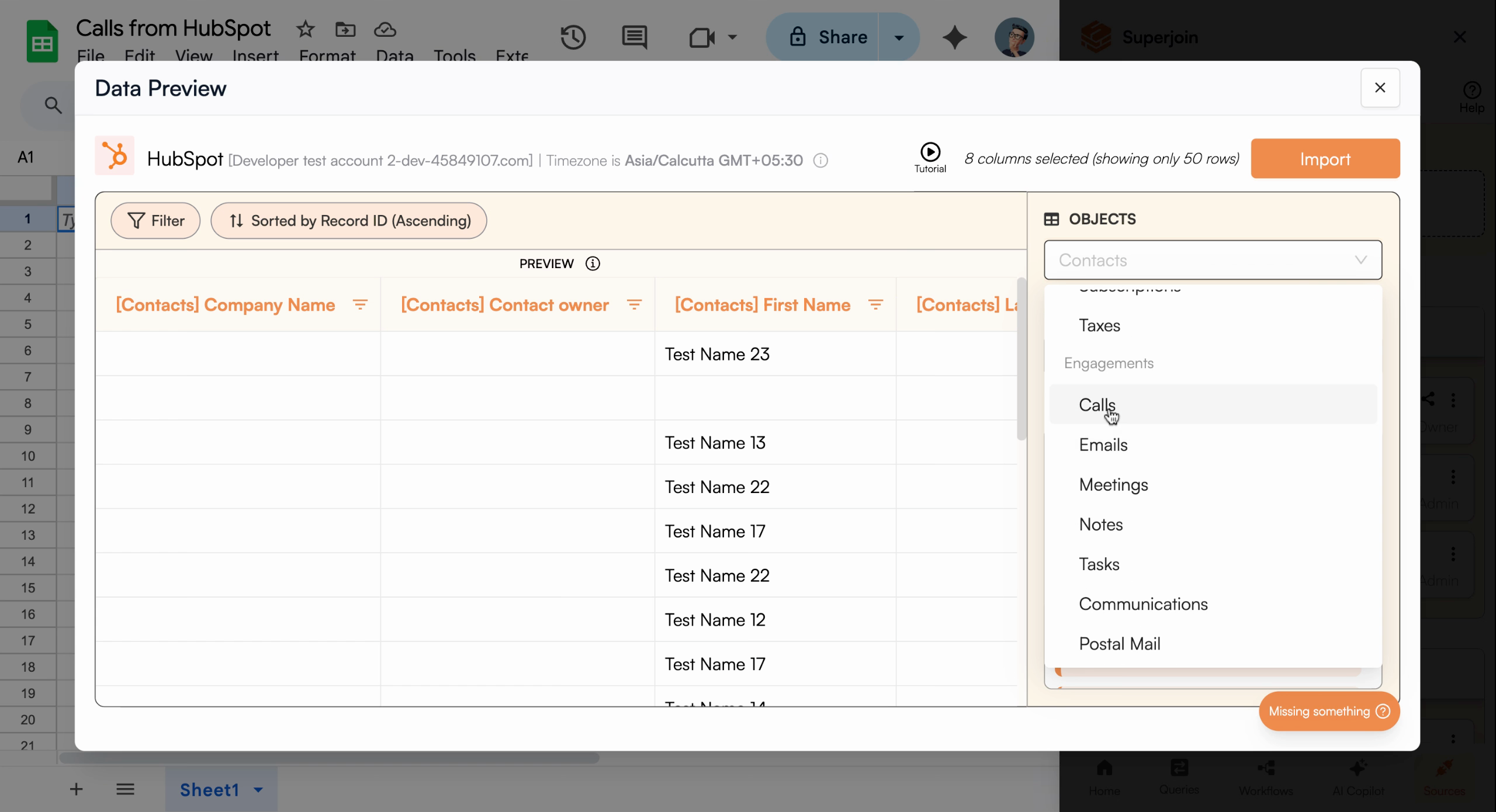
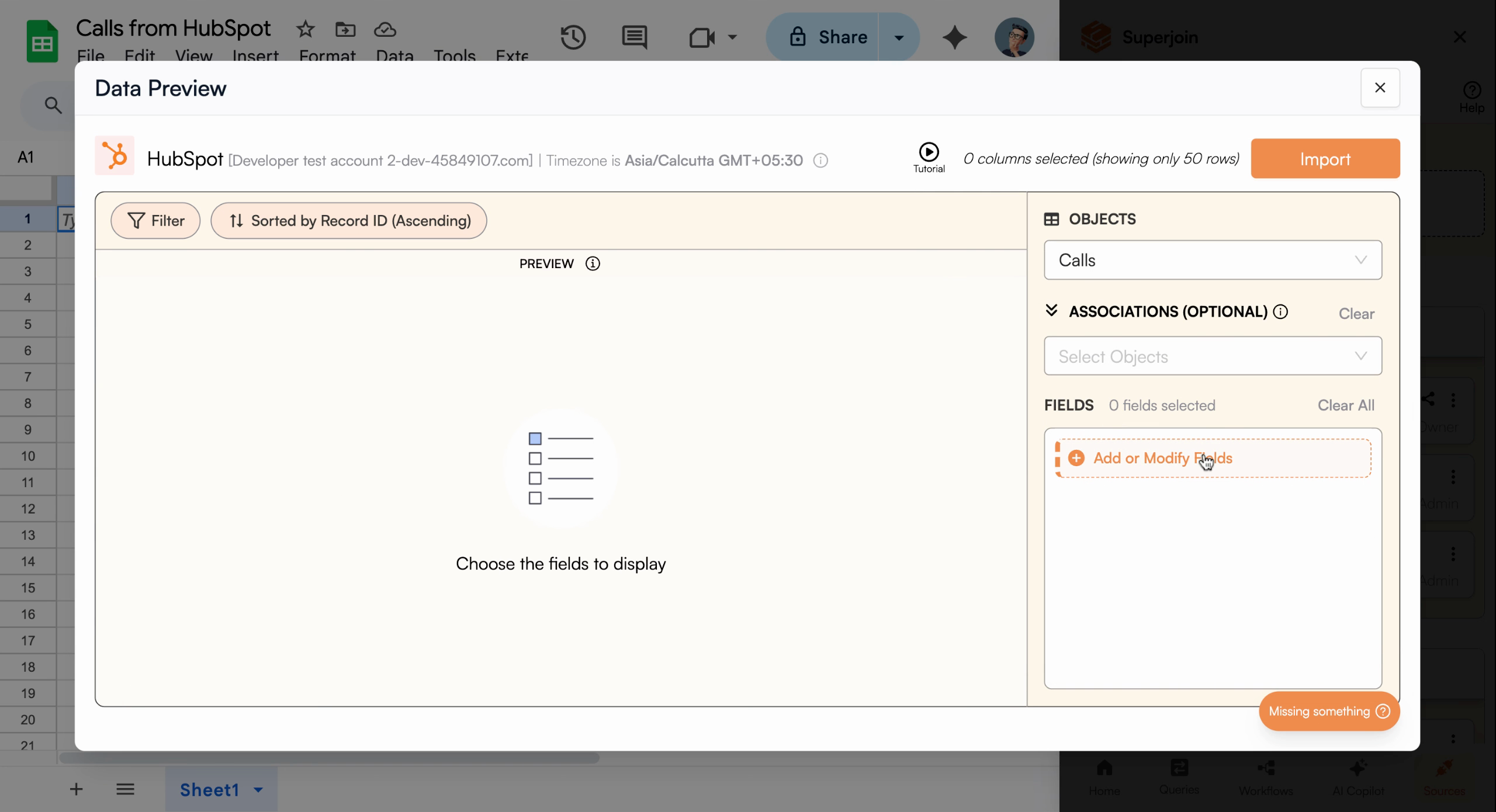
Select Calls from the object type list
Add or Modify Fields
Click Add or Modify fields. Select the desired fields to include in your import, such as:- Notes
- Activity date
- My call
- Location
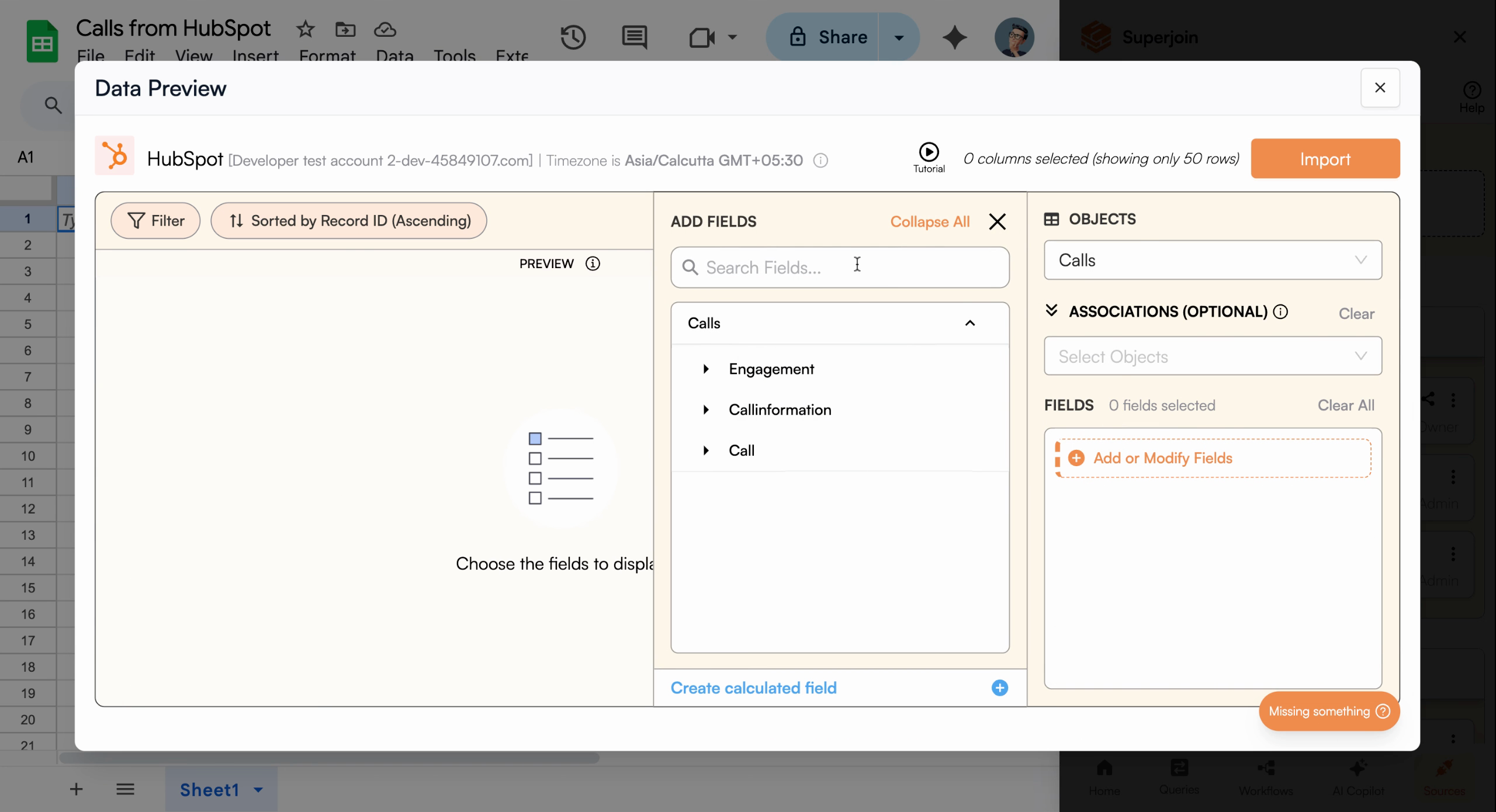
Access field modification options
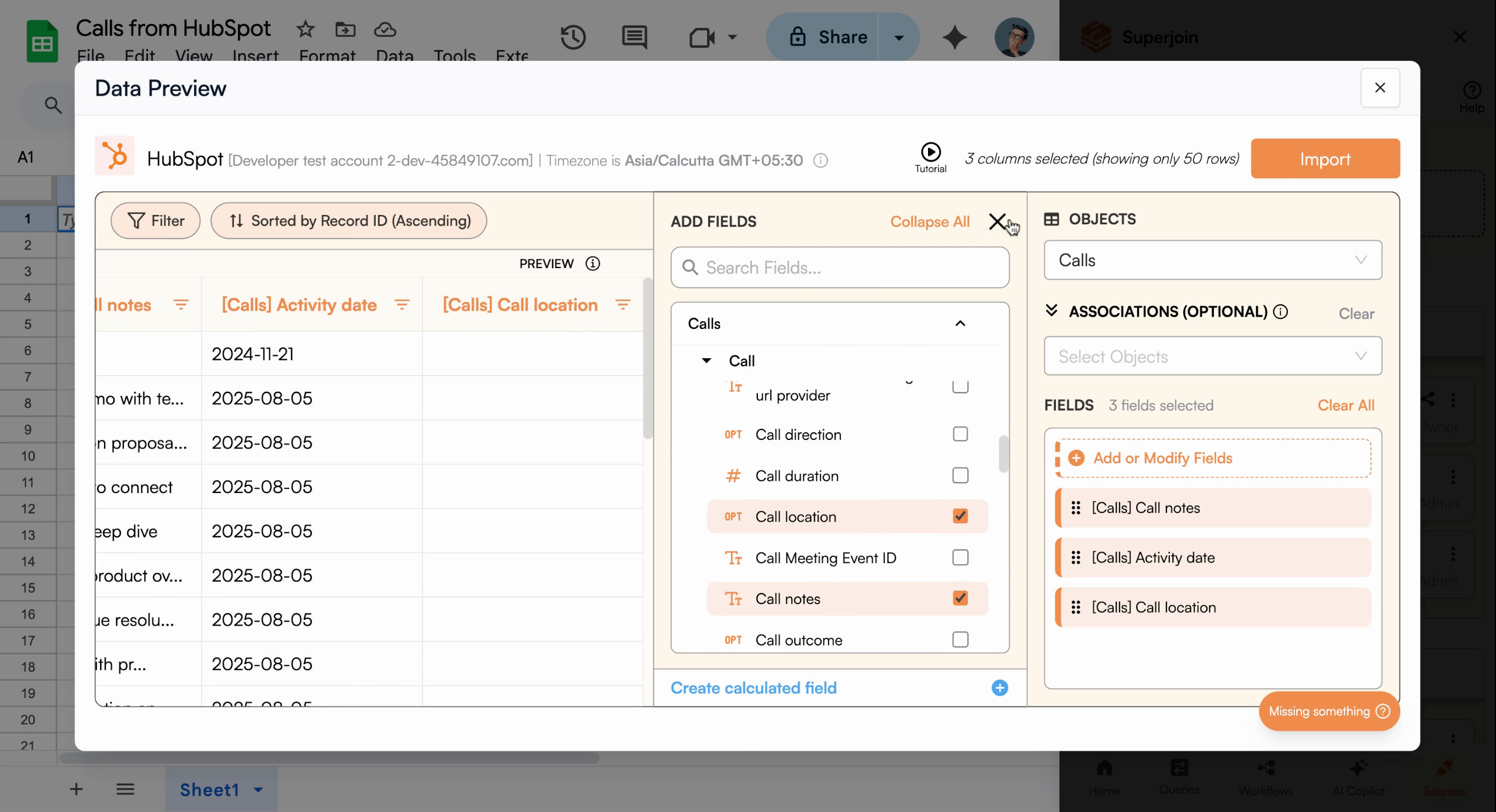
Apply Filters (Optional)
Click Add filters to refine your data. For example, to see only today’s calls, add a filter for activity date and set it to today. Click Apply Filter to update the preview.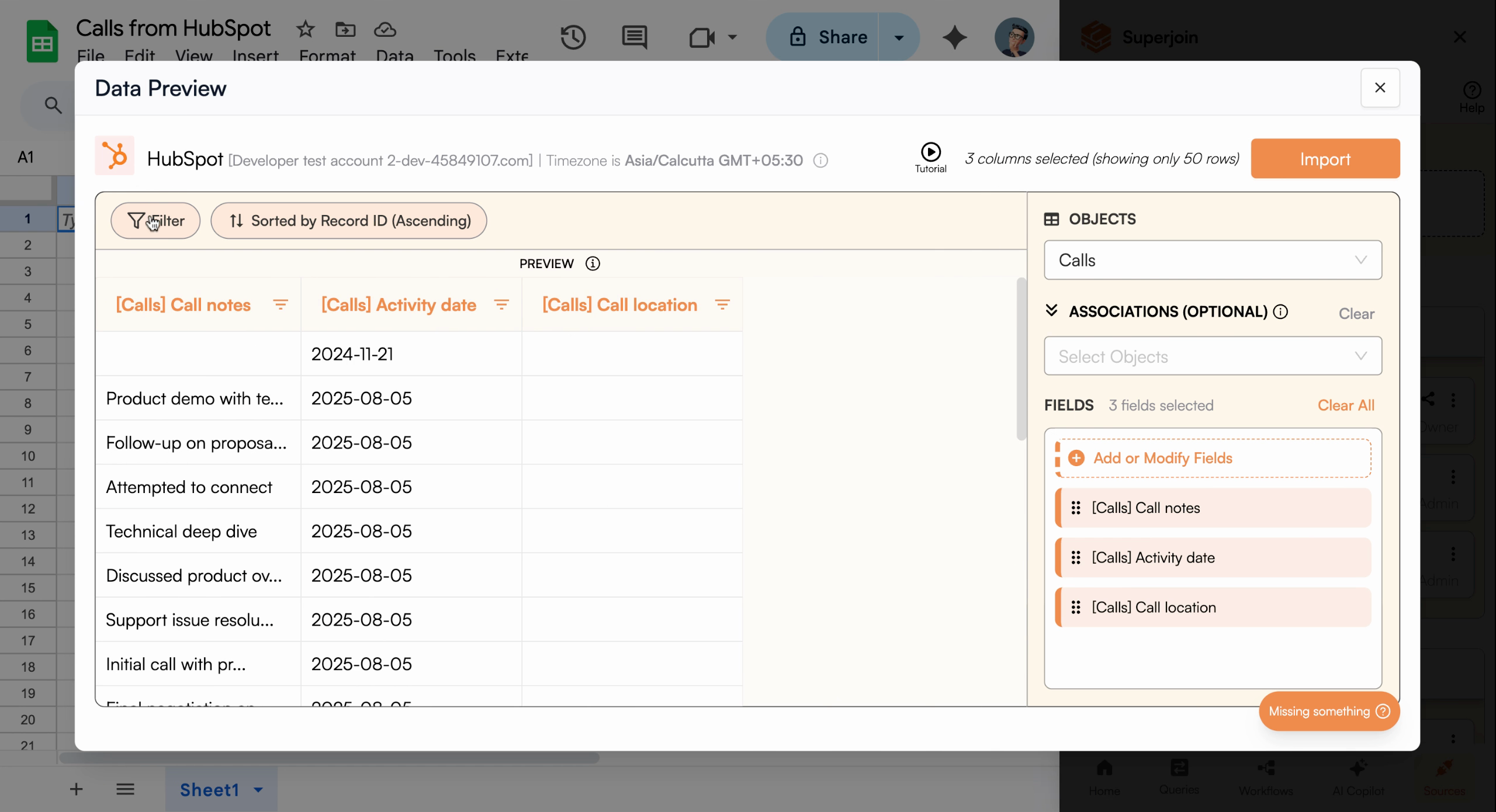
Add filters to narrow down your data
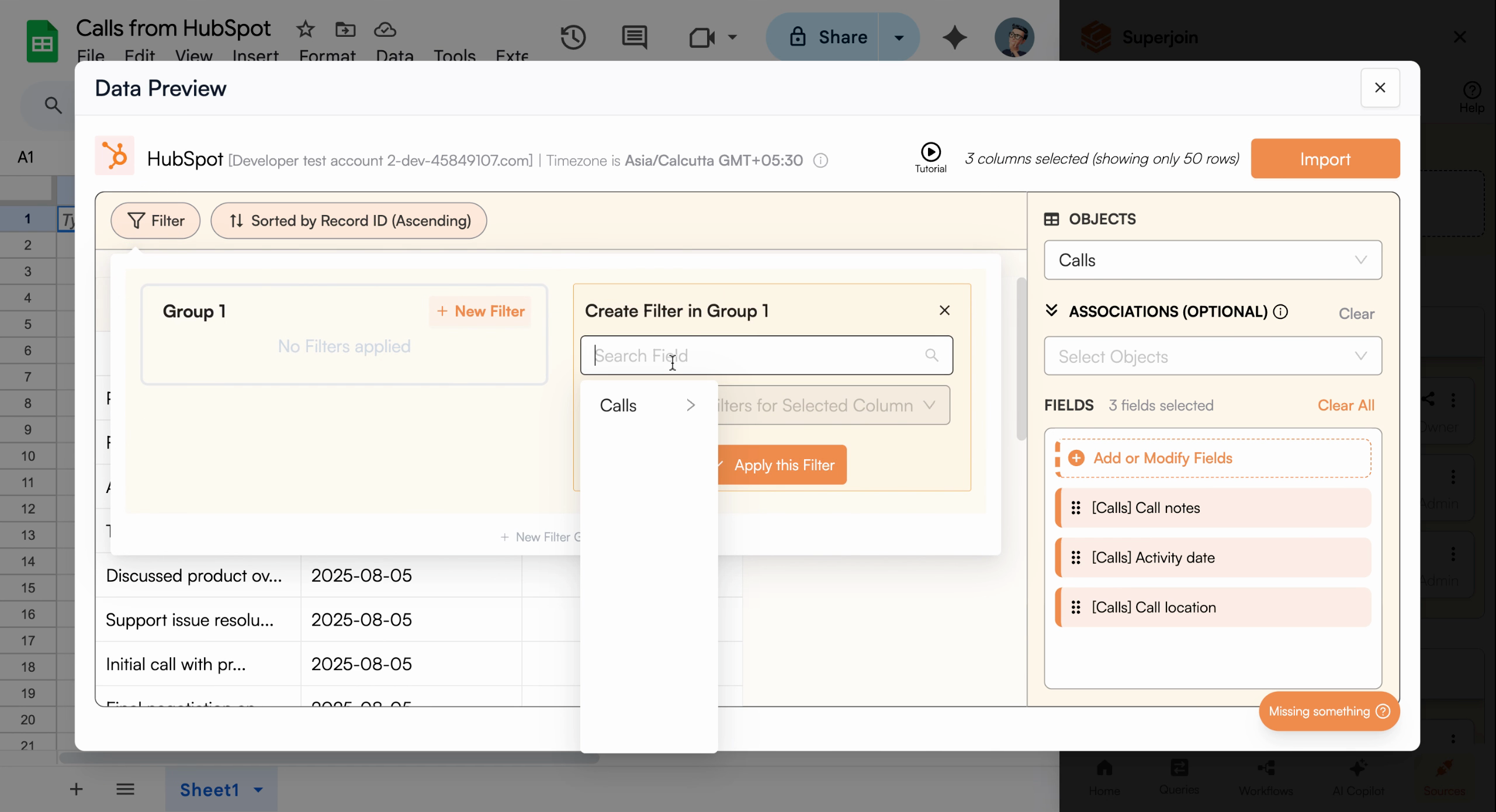
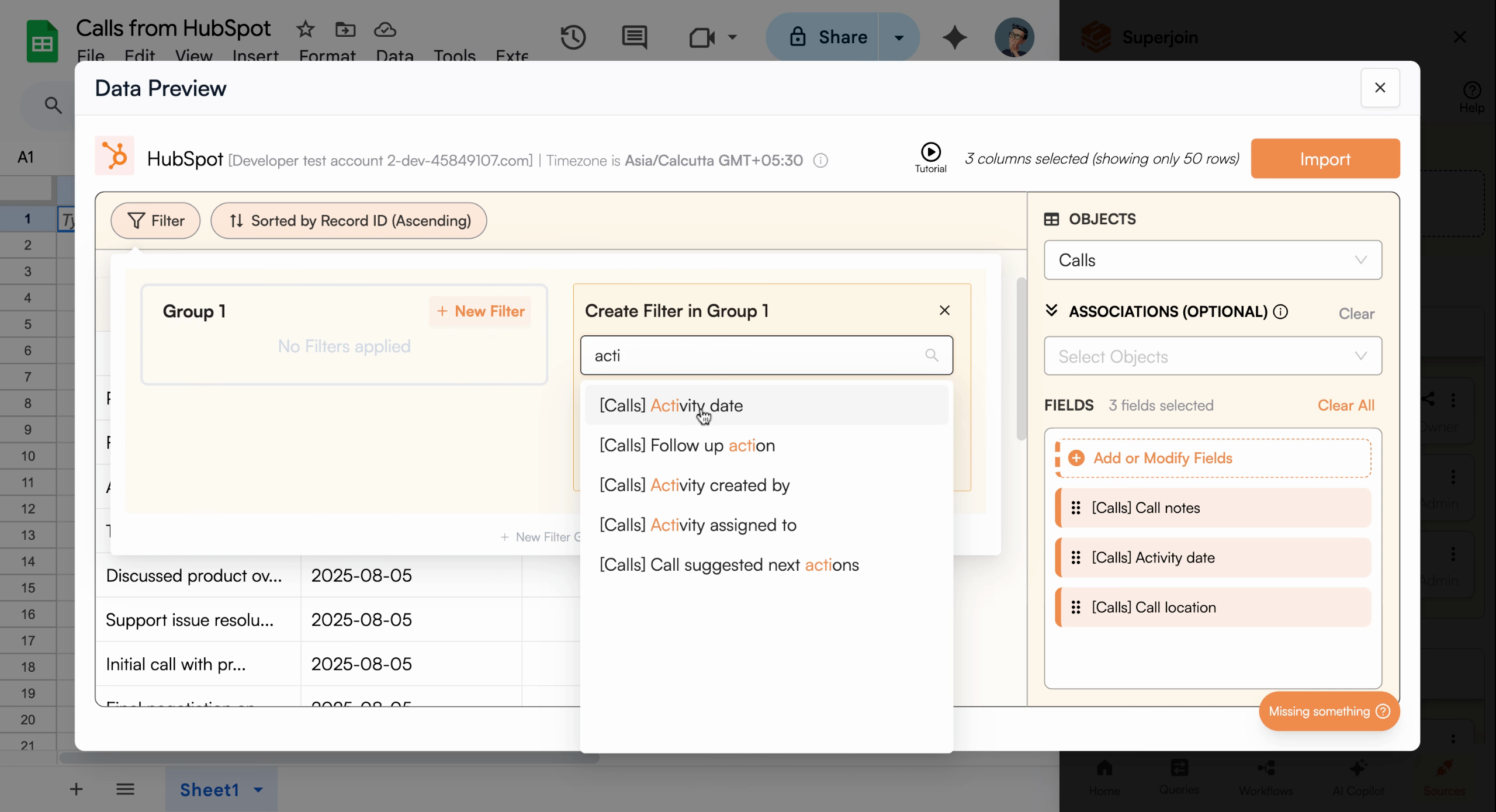
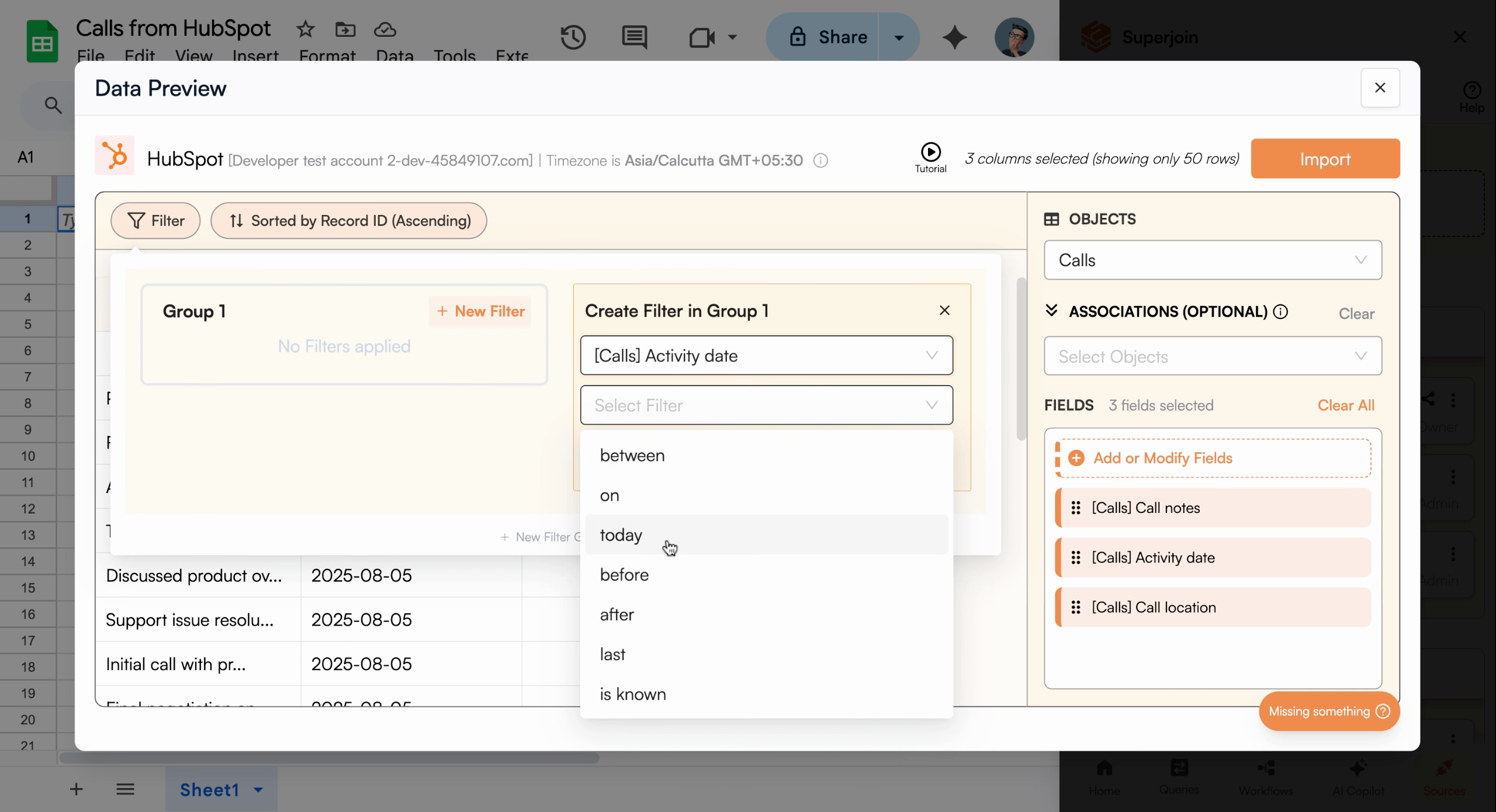
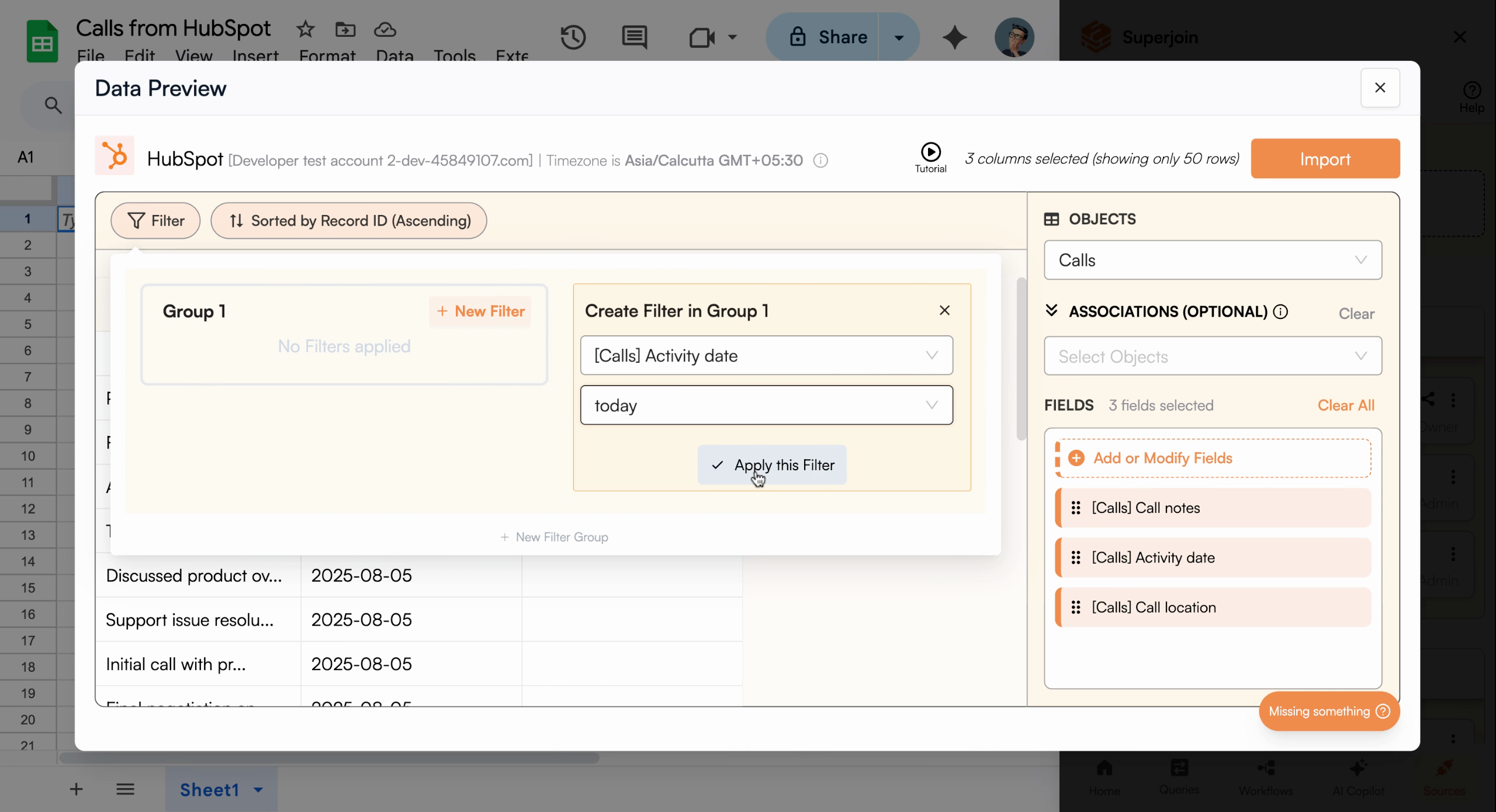
Filter applied showing only today's calls
Create and Name the Report
Once the data is filtered as desired, create a new report. Give your report a name, such as “Calls from today”, and click Import to bring the calls data into your sheet.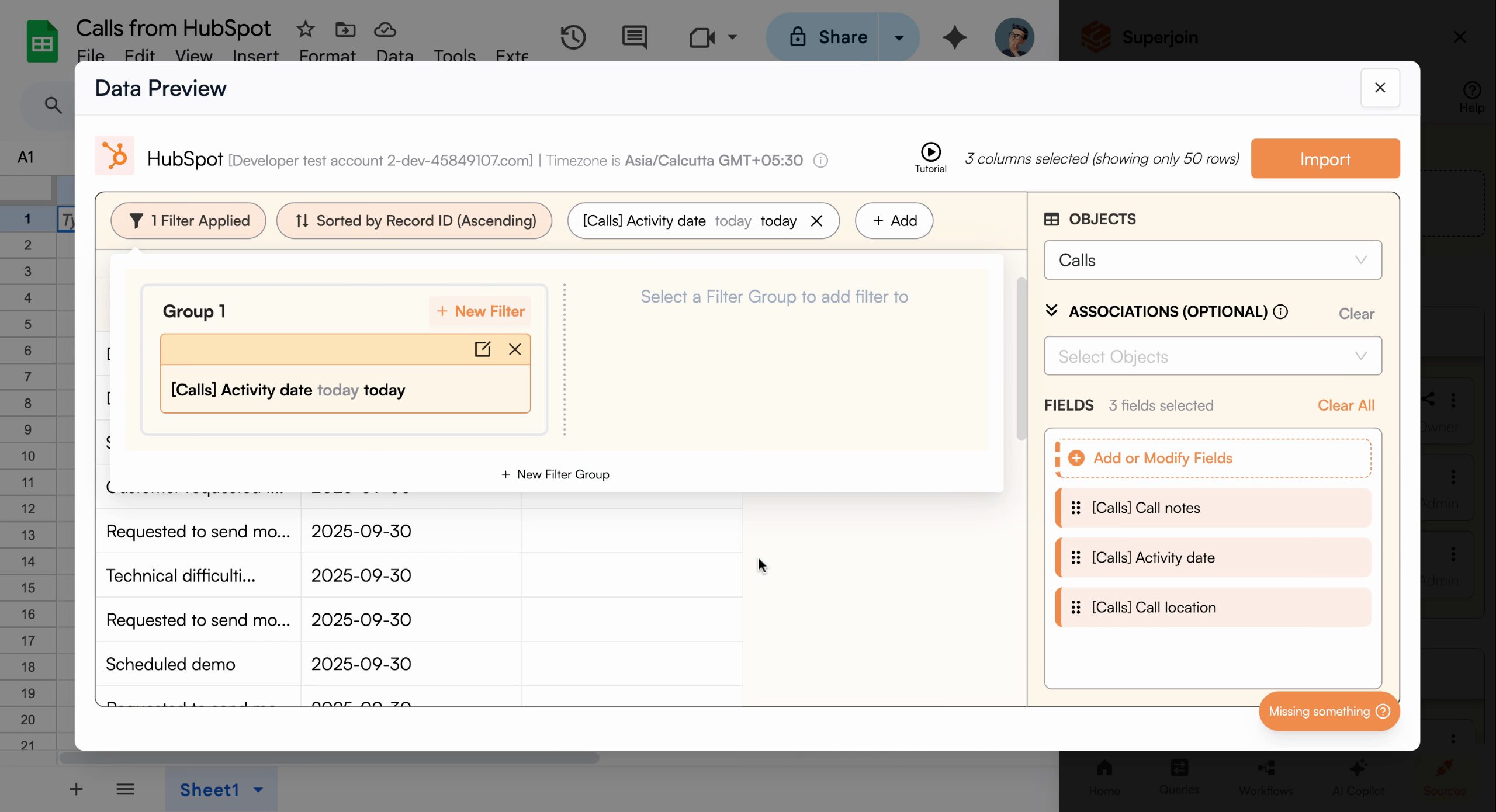
Review your configuration before importing
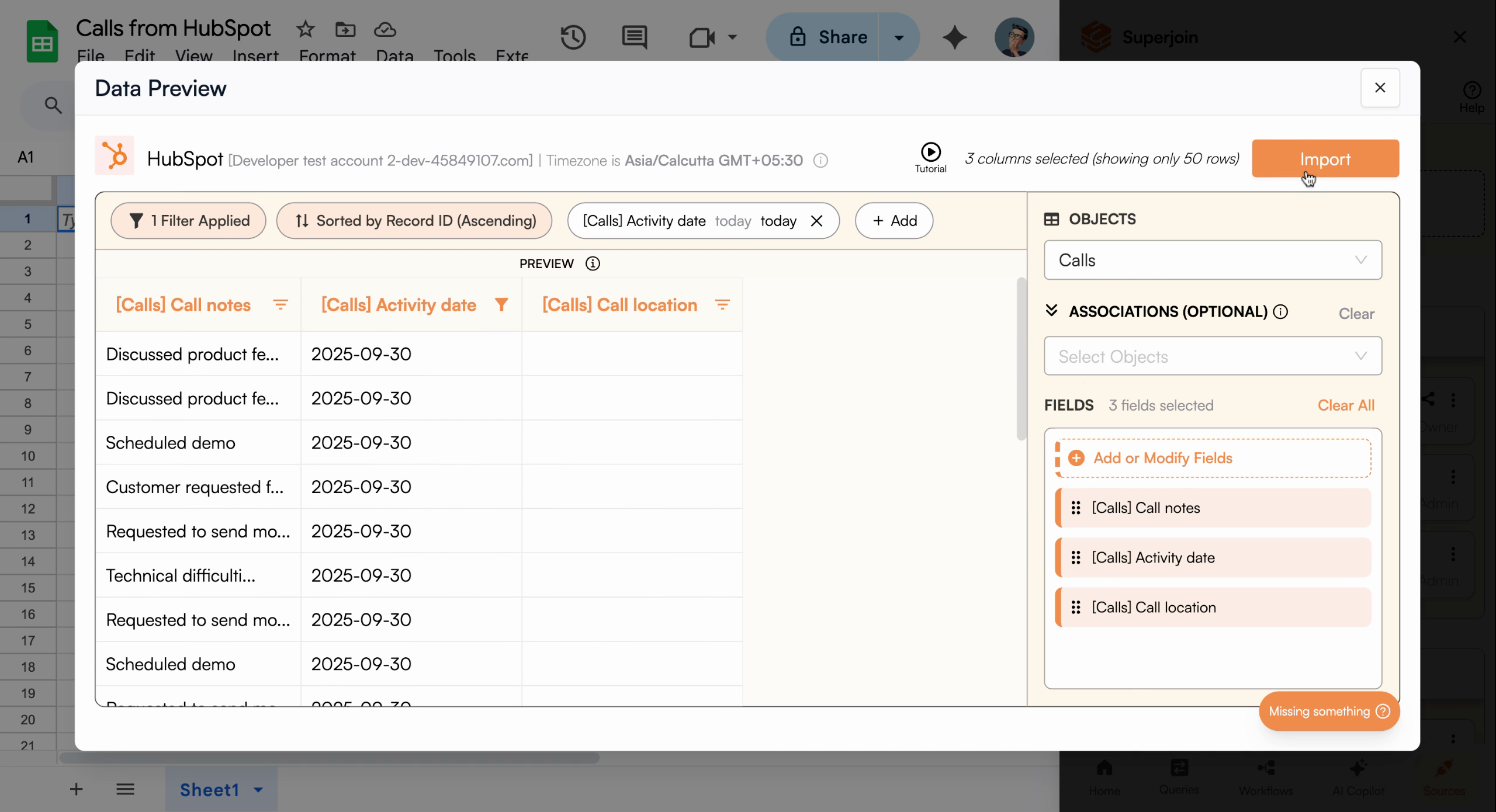
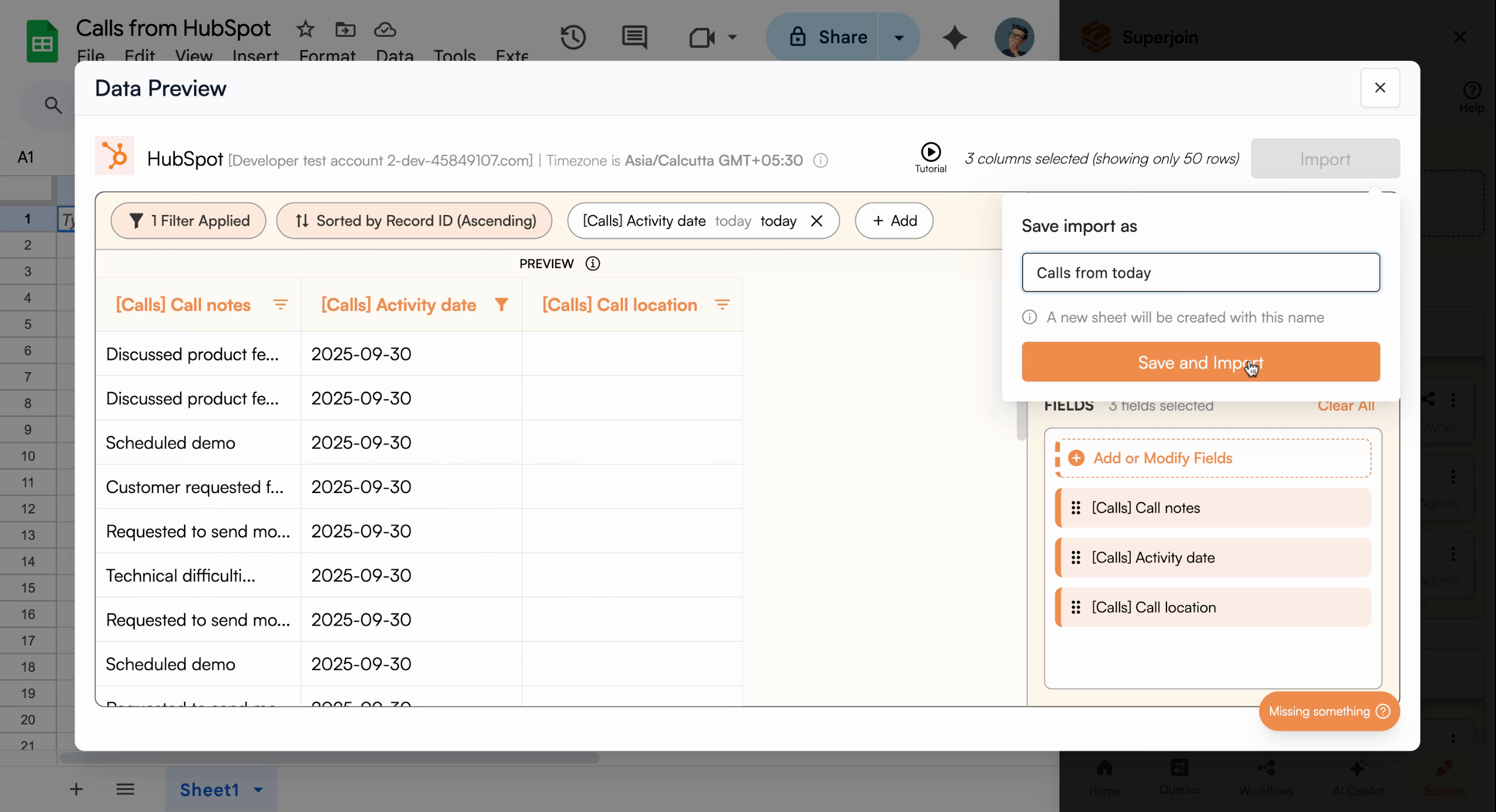
Name your report for easy identification
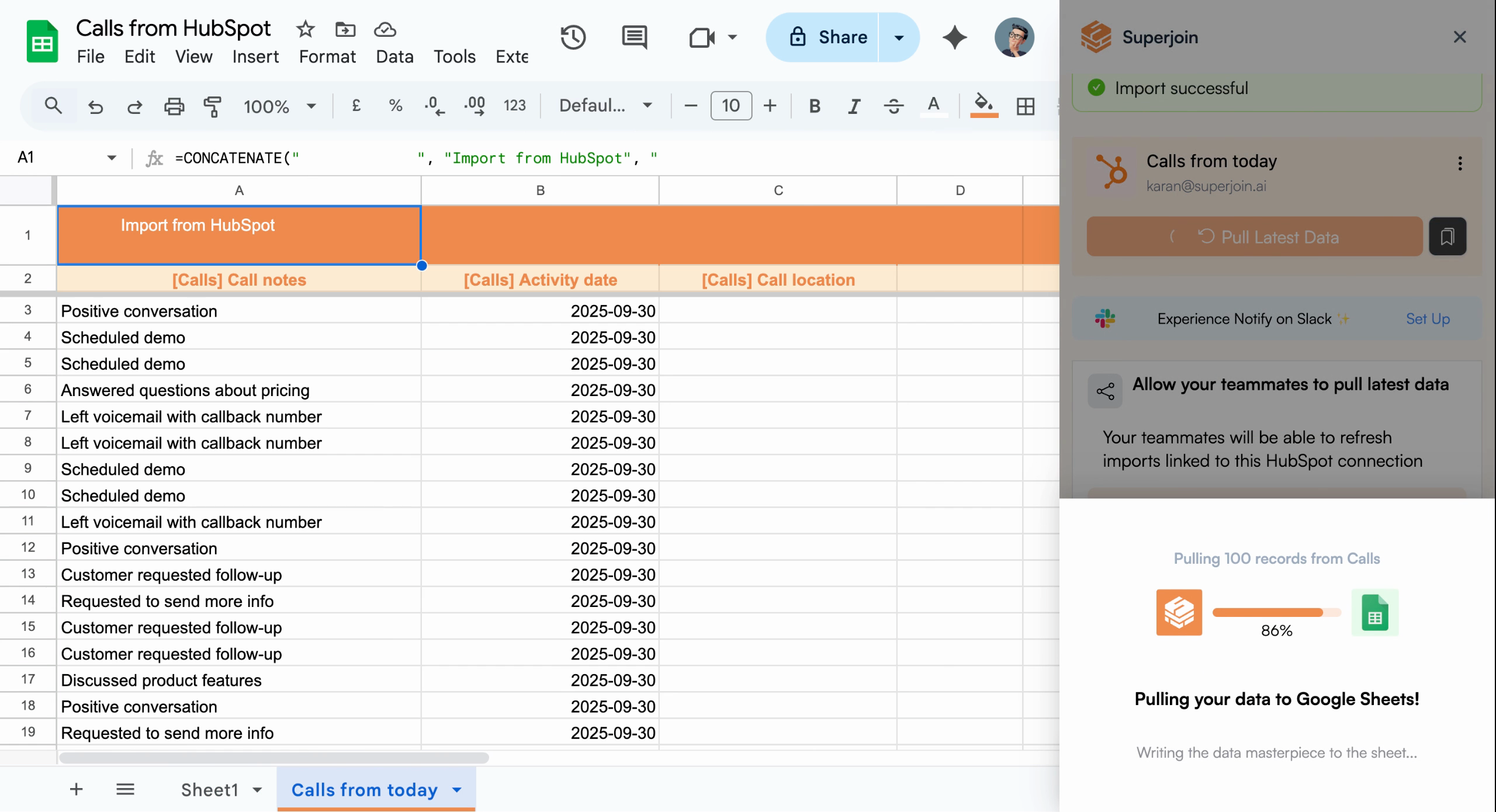
Automate Data Refresh (Optional)
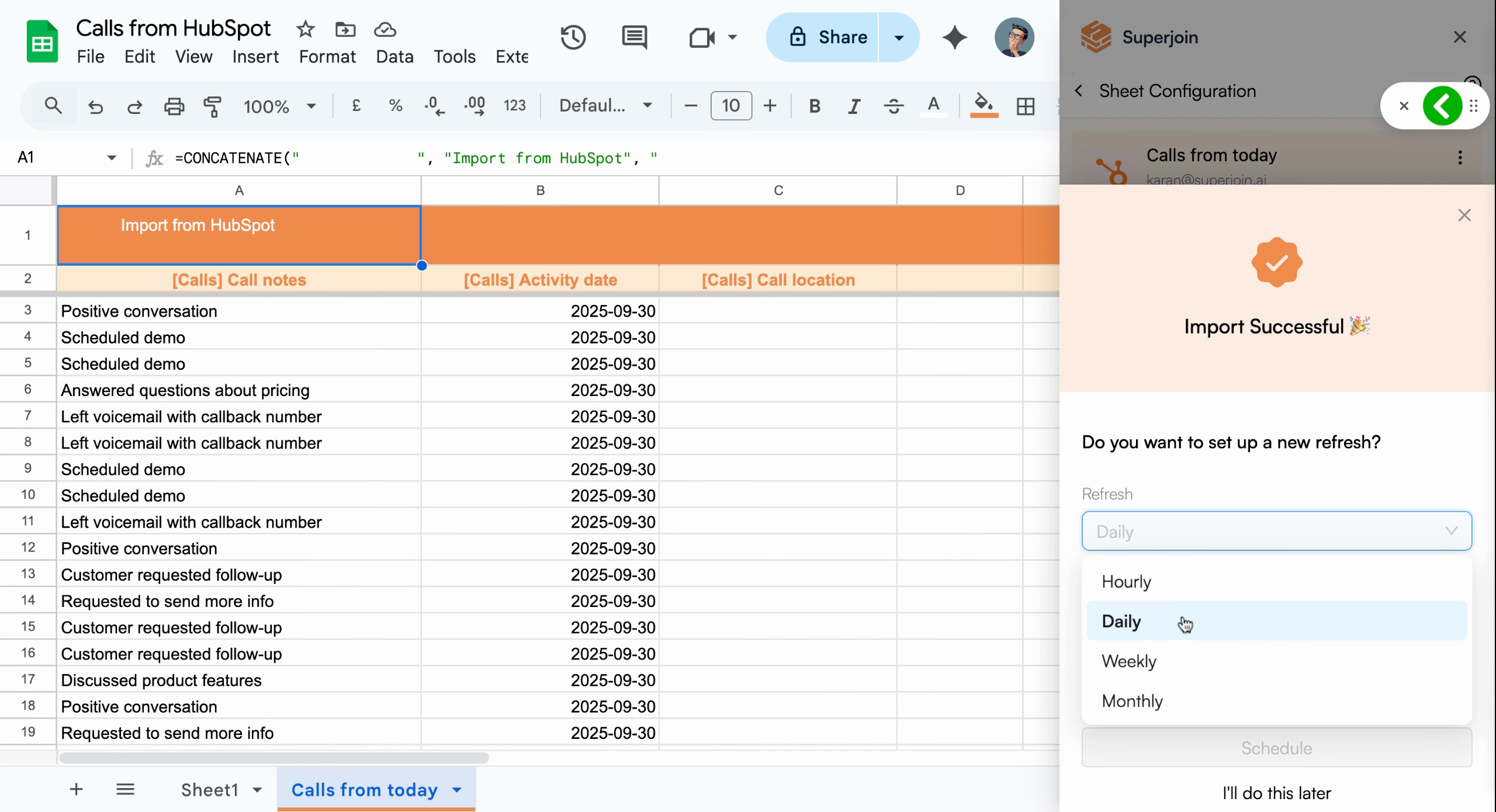
To regularly update your calls data, set a refresh schedule. Choose how often you want to update (for example, daily), the time (such as 6:00 AM), and click Schedule.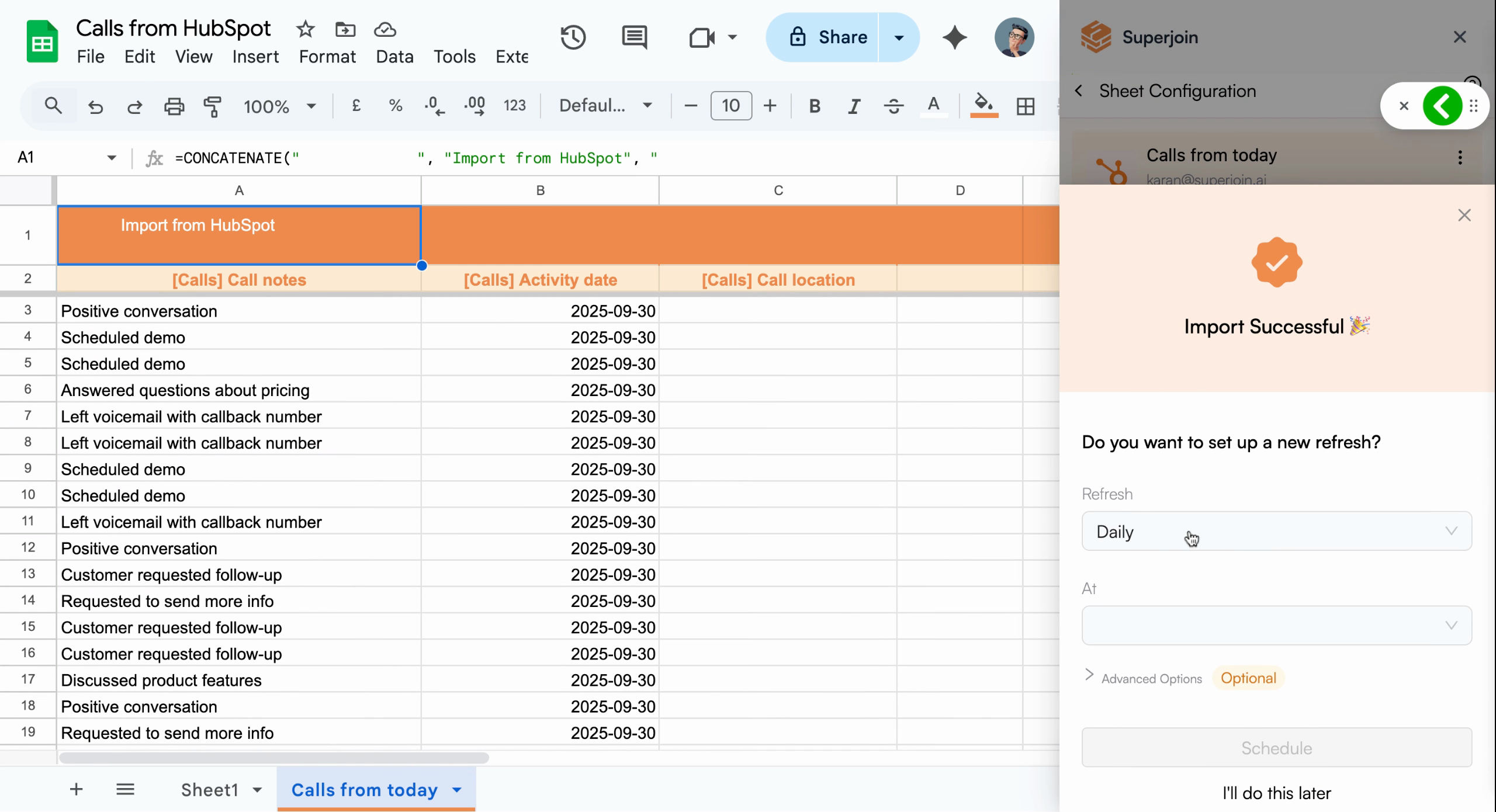
Configure automatic refresh schedule
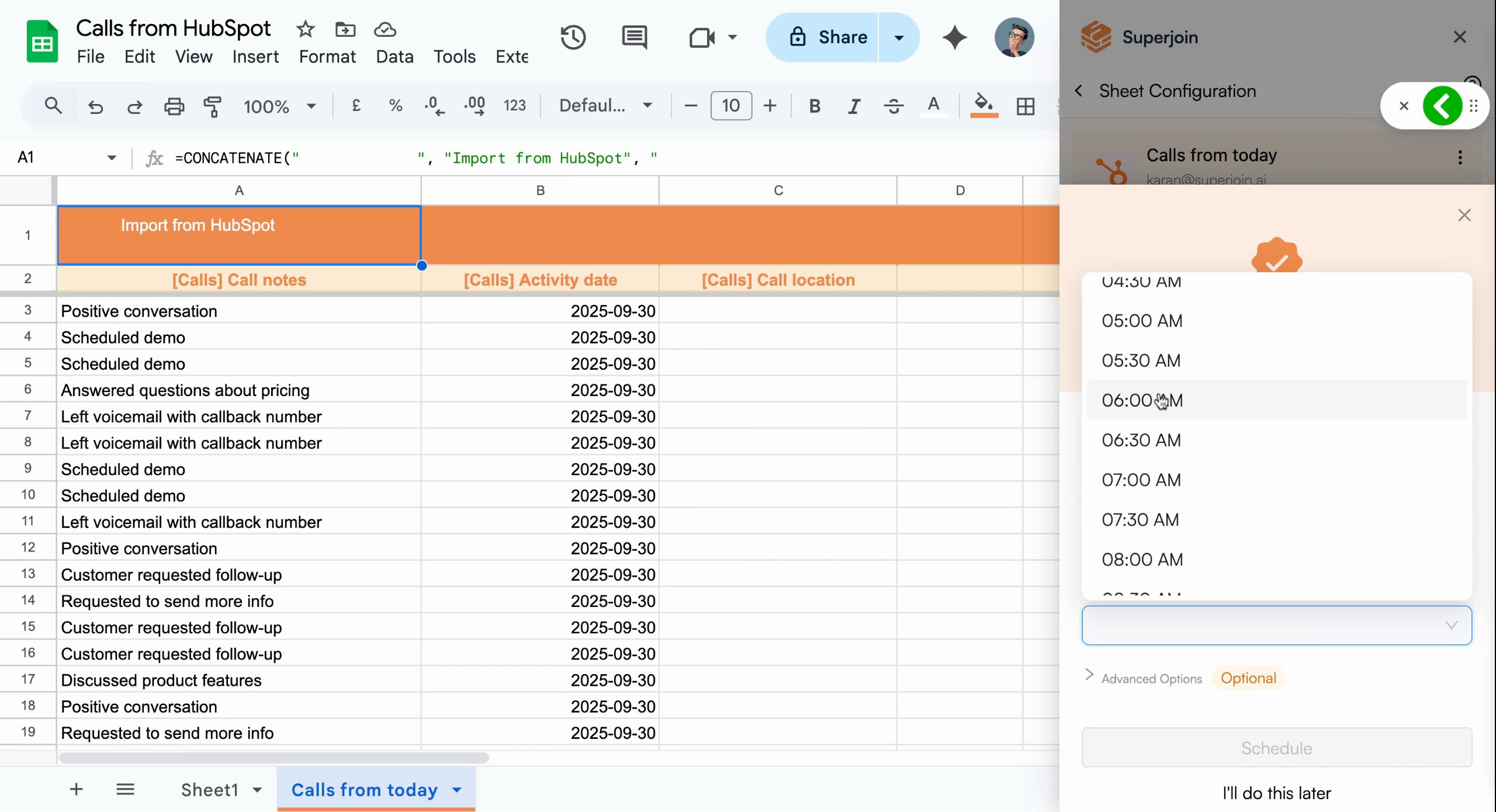
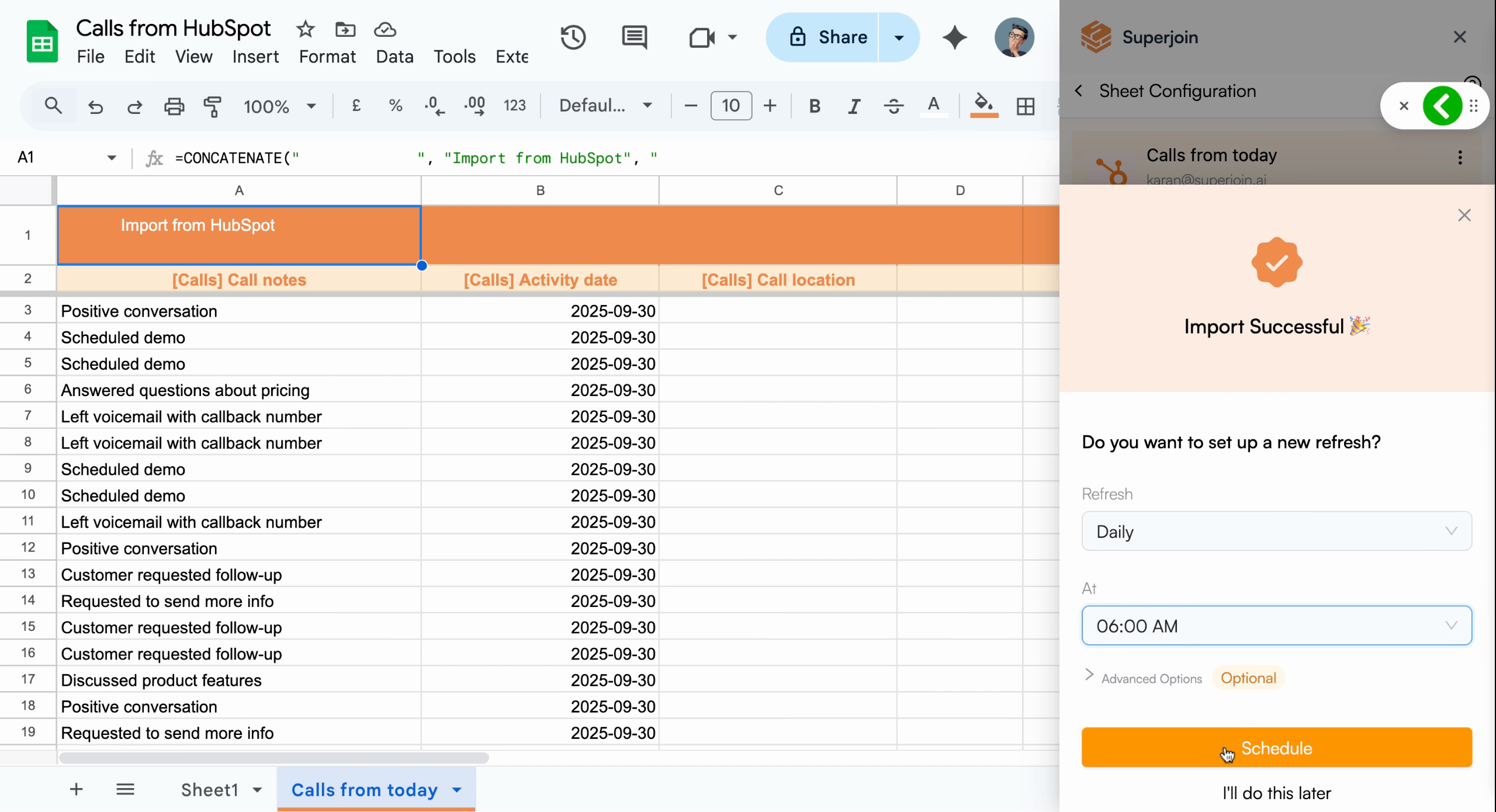
Schedule confirmed for daily updates
Scheduled refreshes ensure your team always has access to the latest call data
every morning without manual intervention.
Your HubSpot calls are now in Google Sheets and will update automatically.