

Launch Superjoin in Google Sheets
Open your Google Sheet and click the Superjoin button to launch the assistant sidebar. This is your starting point for all data workflows with Superjoin.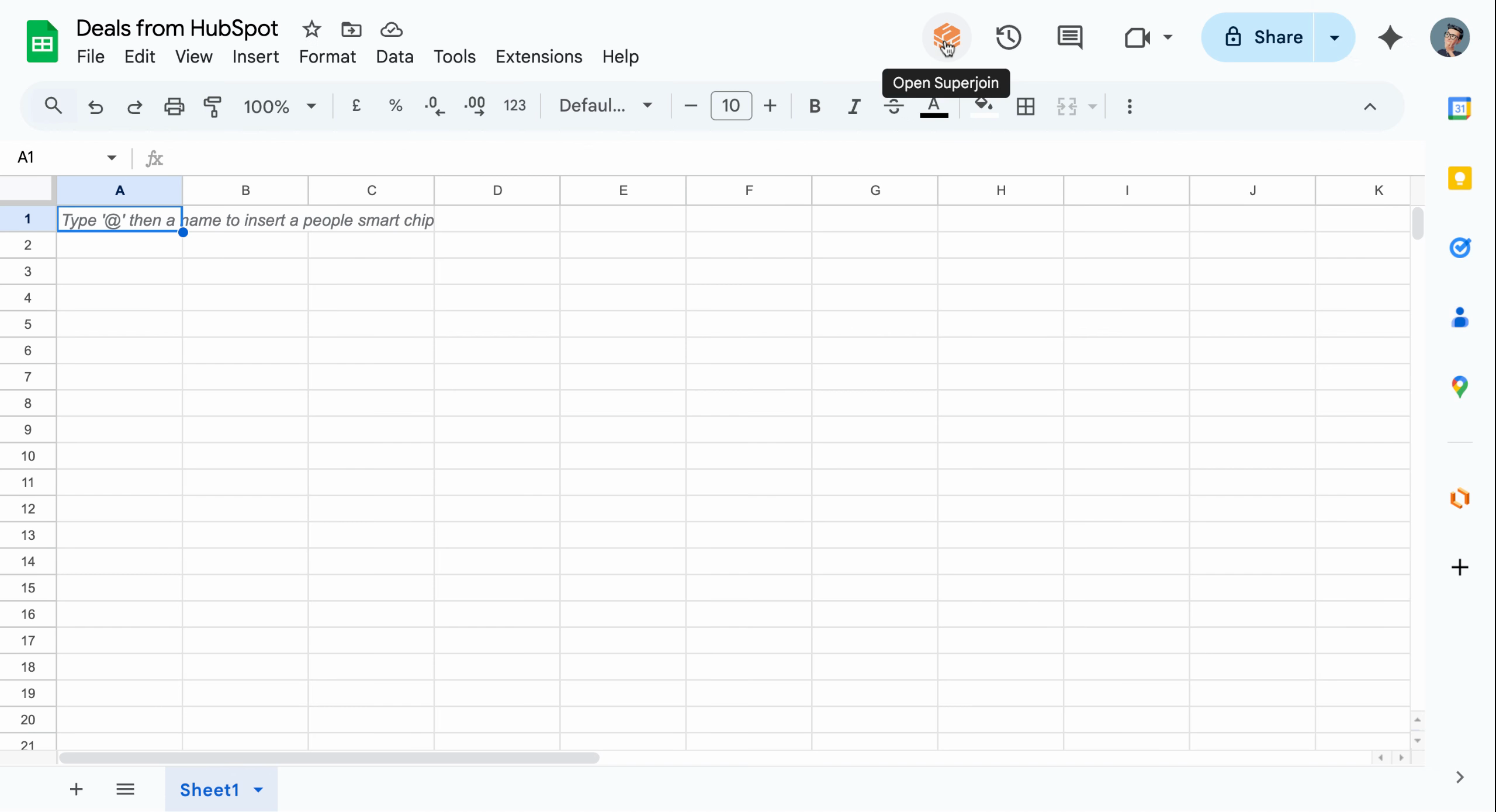
Click Superjoin to launch the sidebar in Google Sheets
Navigate to Sources and Choose HubSpot
In the Superjoin sidebar, click the Sources section to view all available data connections. Locate your connected HubSpot account and click it to proceed.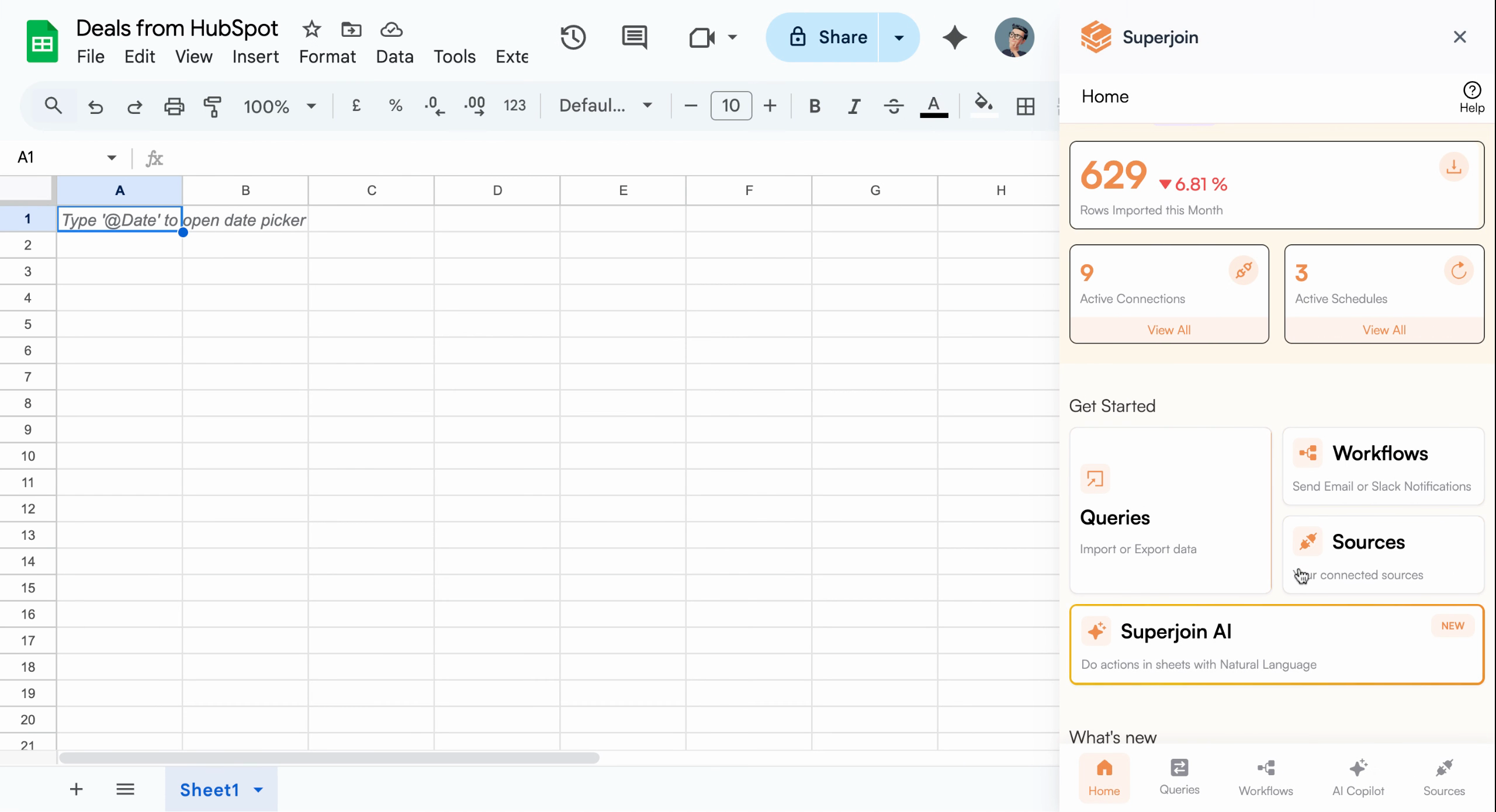
Sources section showing available data connections
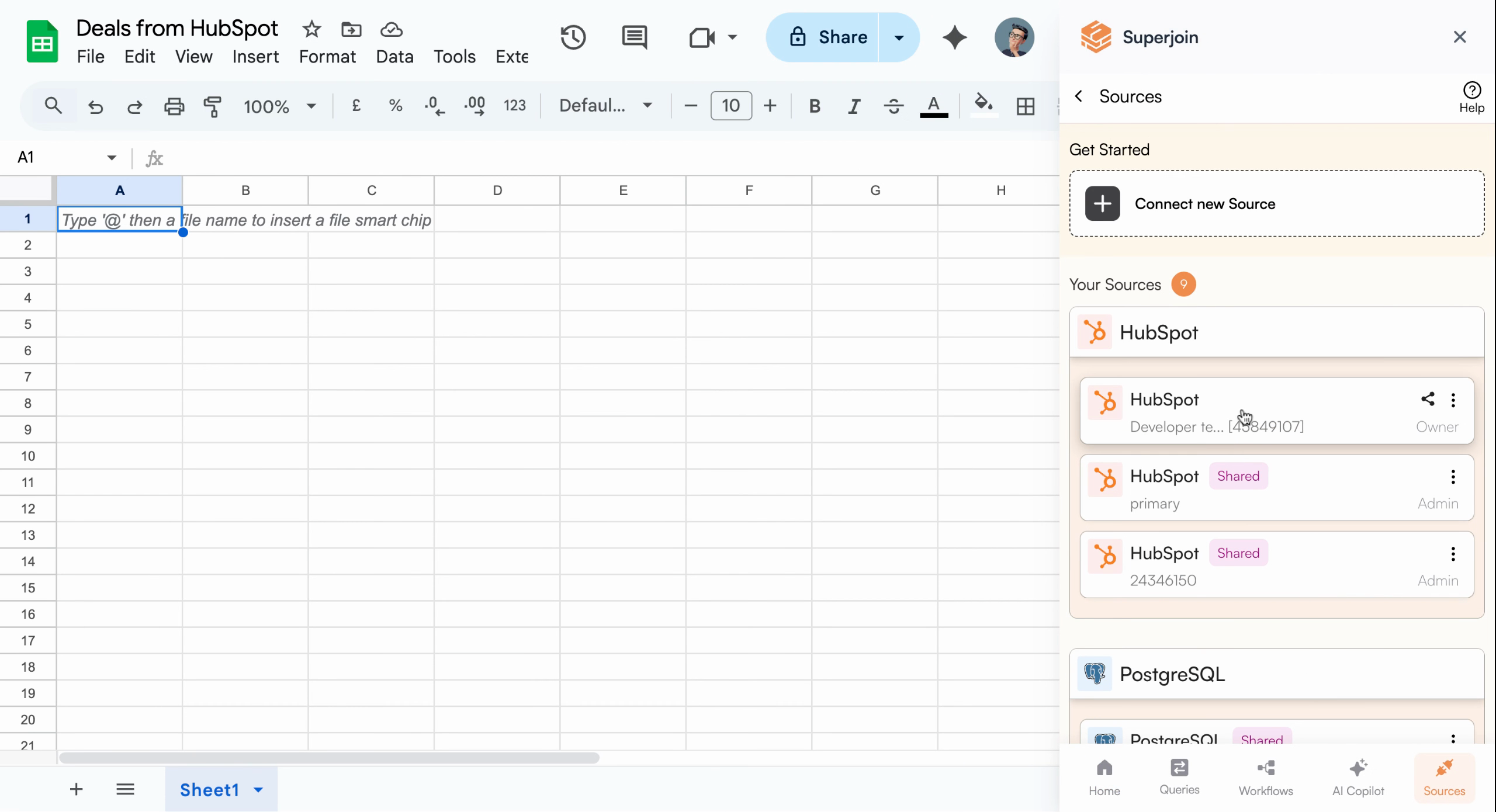
Select your connected HubSpot account
Open Data Preview
Click the Import into Google Sheets action to open the Data Preview screen, where you can review and configure your import.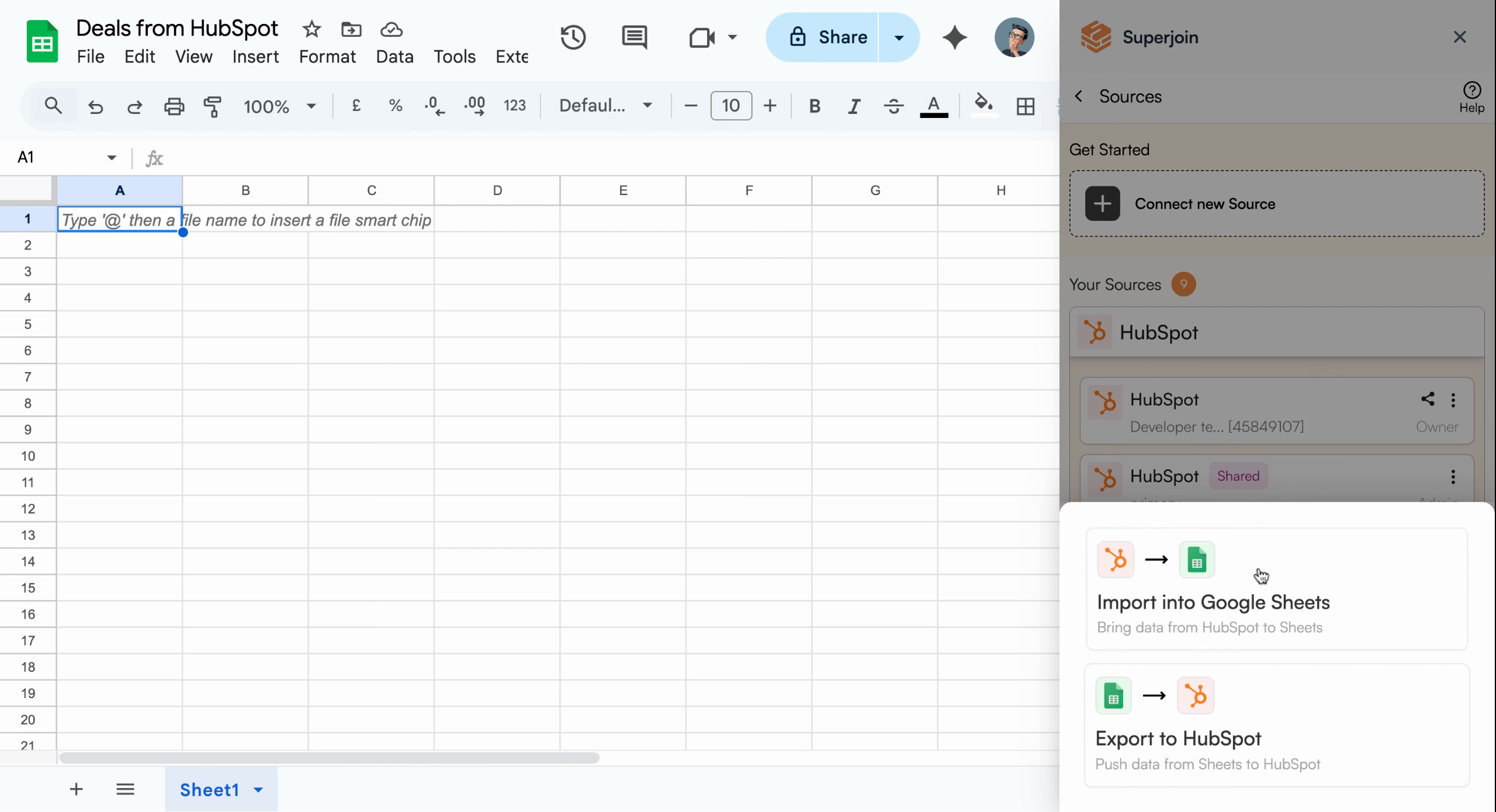
Import into Google Sheets option
Select Objects and Review Preview
In the Data Preview, navigate to the Objects field and select Deals. Superjoin instantly displays a preview of your deals data so you can confirm what will be imported.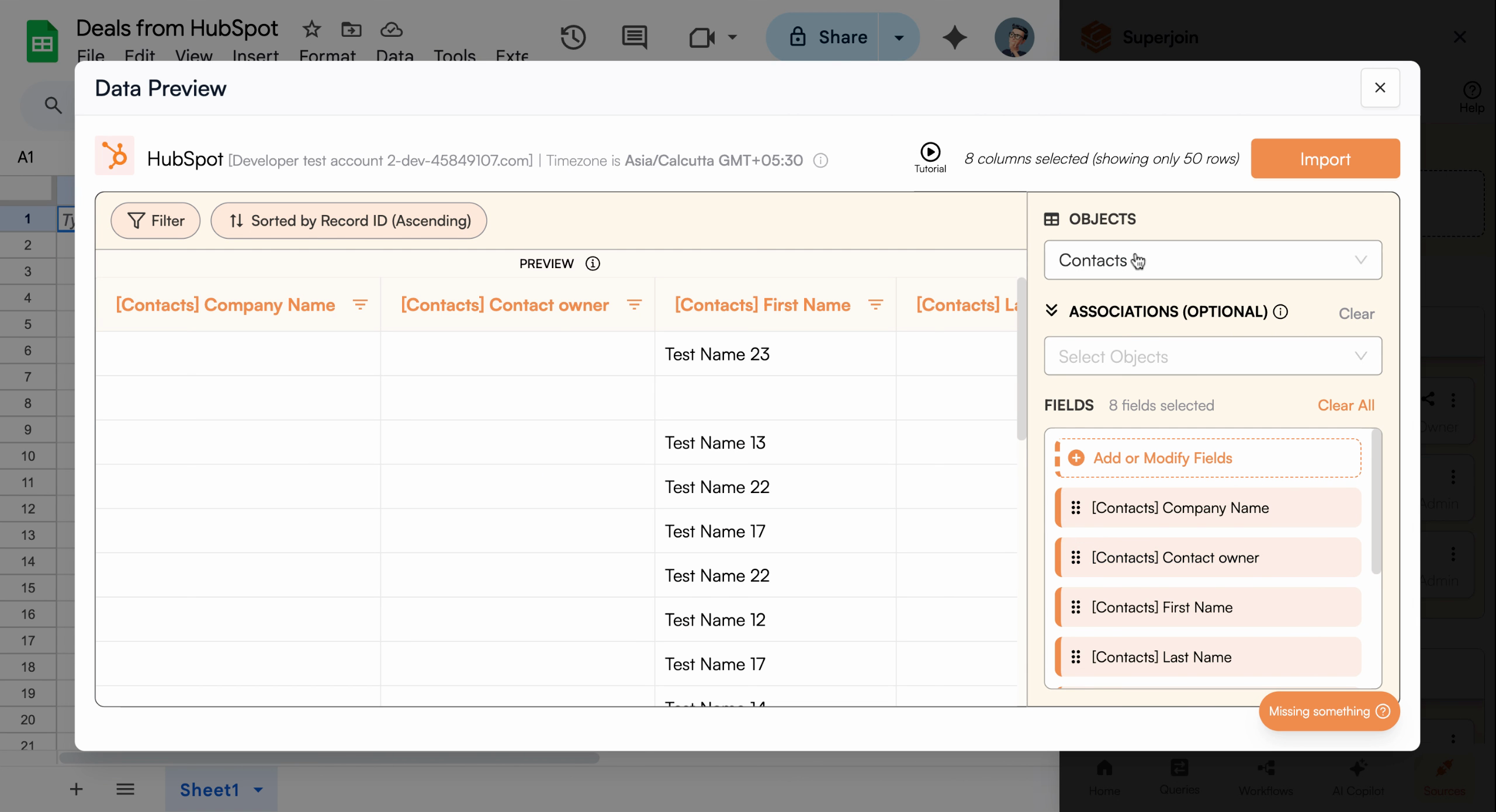
Object selection dropdown in Data Preview
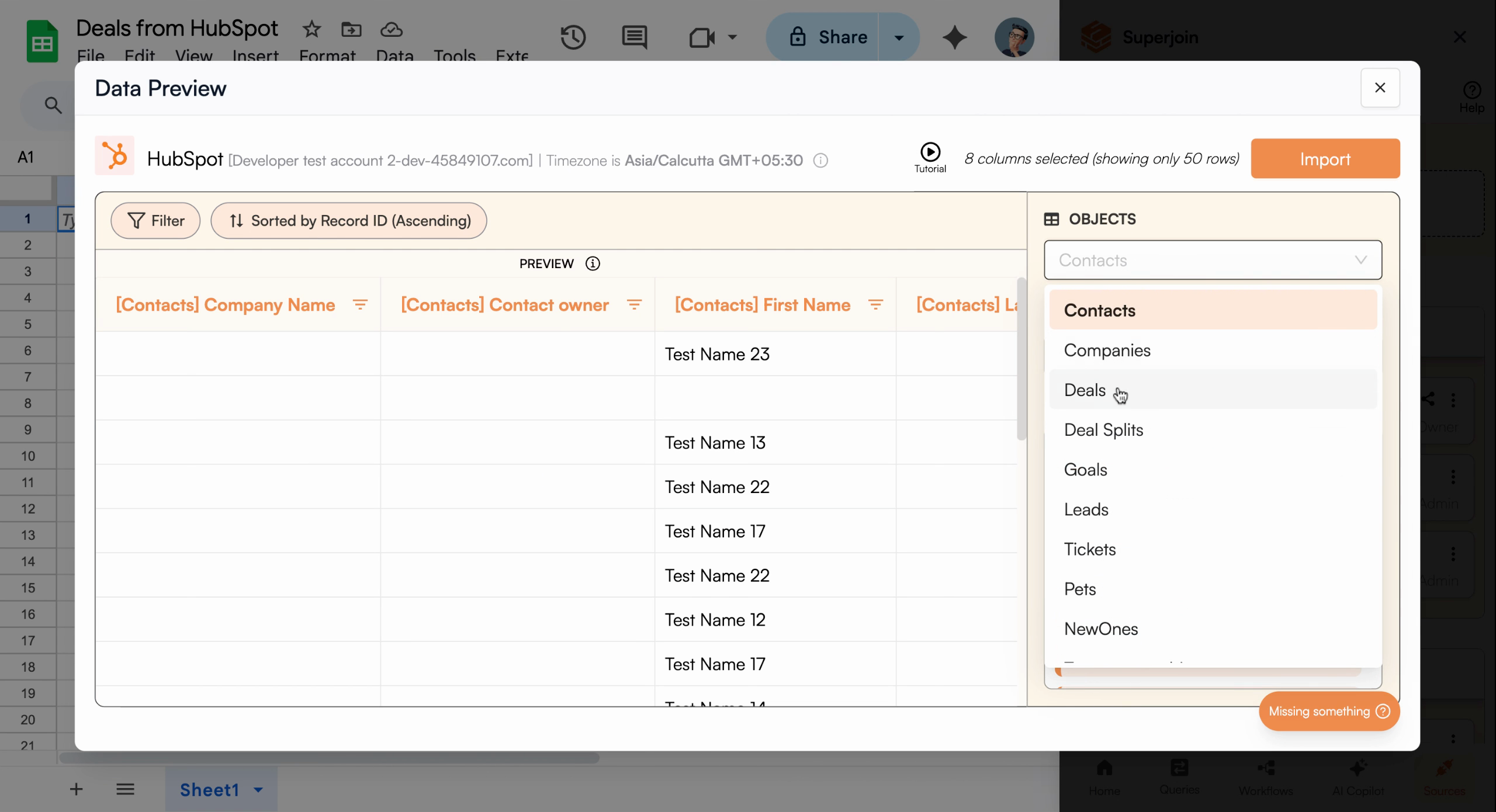
Deals object selected with data preview
Filter Deals (Optional)
To refine your import, click Filter. For example, you may want only deals in a specific stage or pipeline. Choose your desired criteria—such as Deal Stage and set it to Appointment scheduled in the Sales pipeline—then apply your filter to ensure only relevant deals are imported.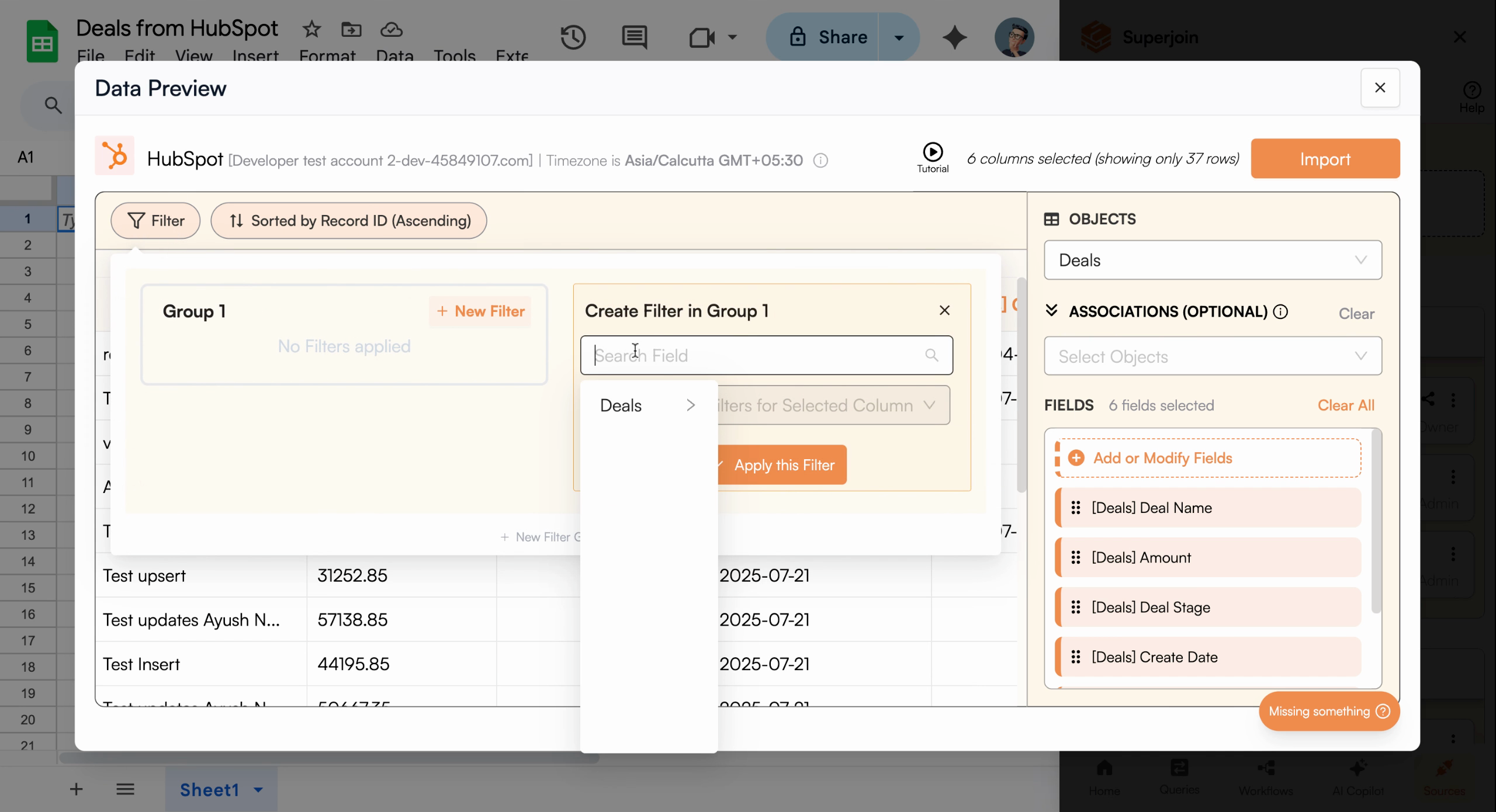
Add filter to refine your deal data
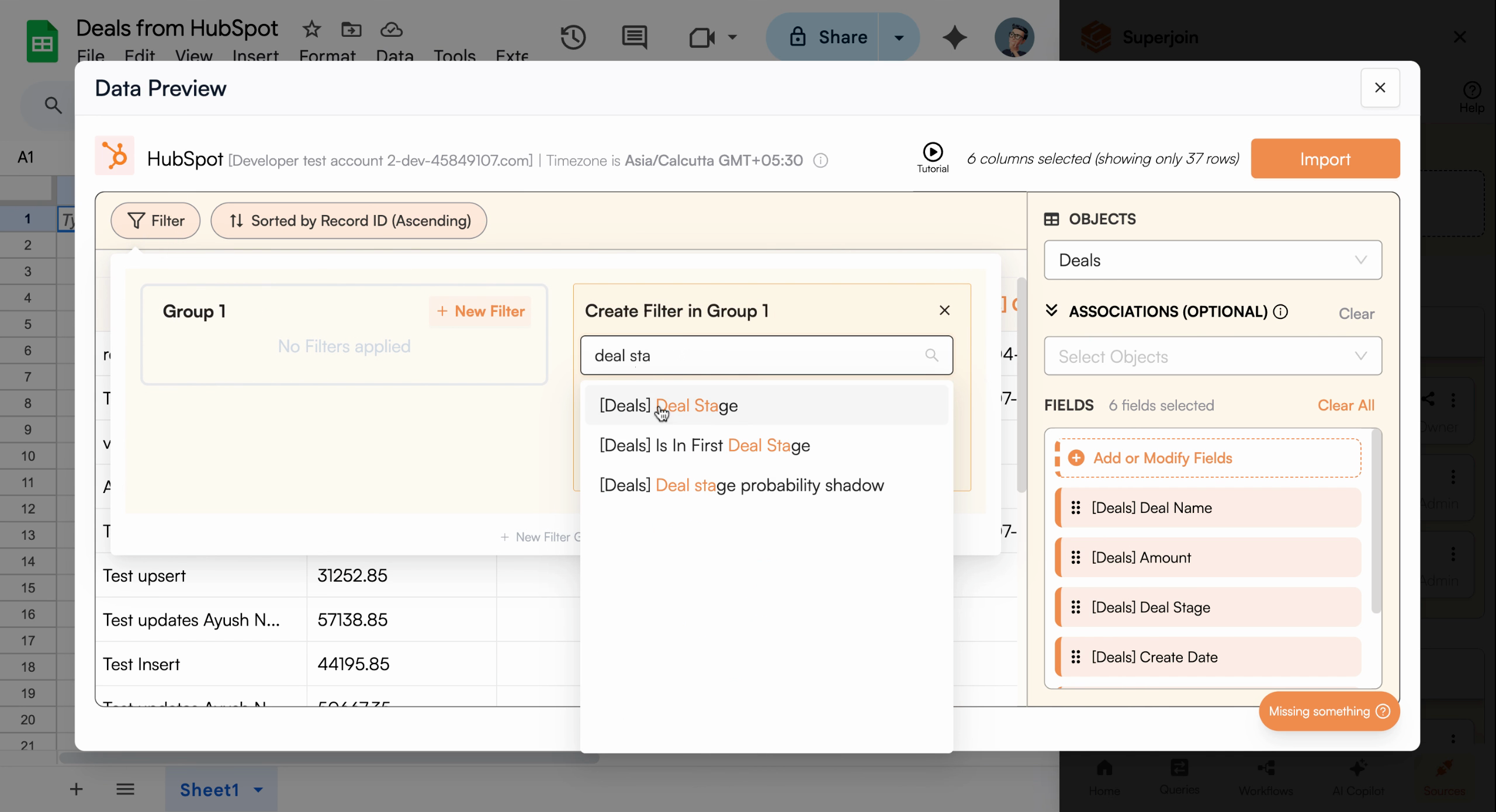
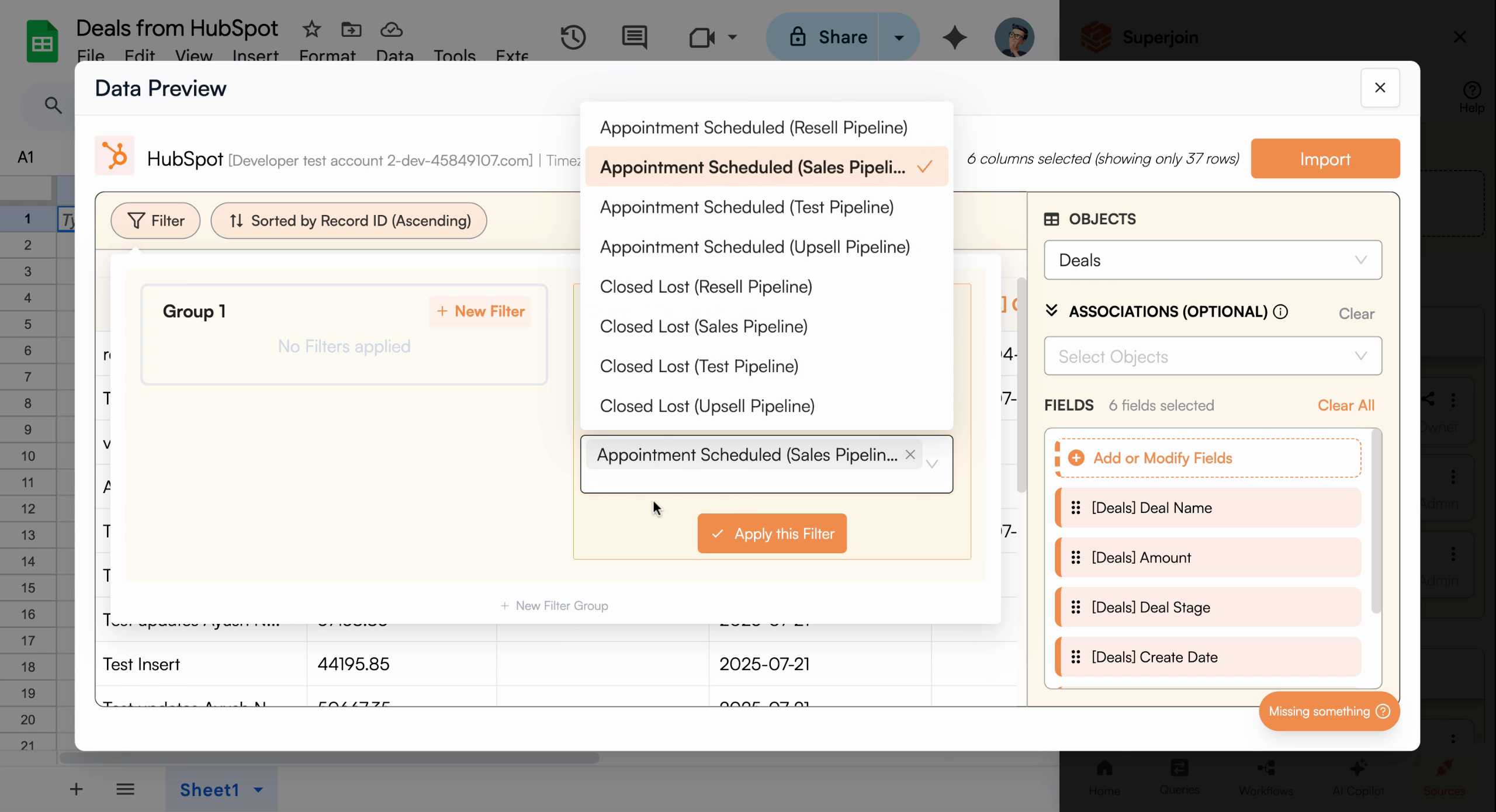
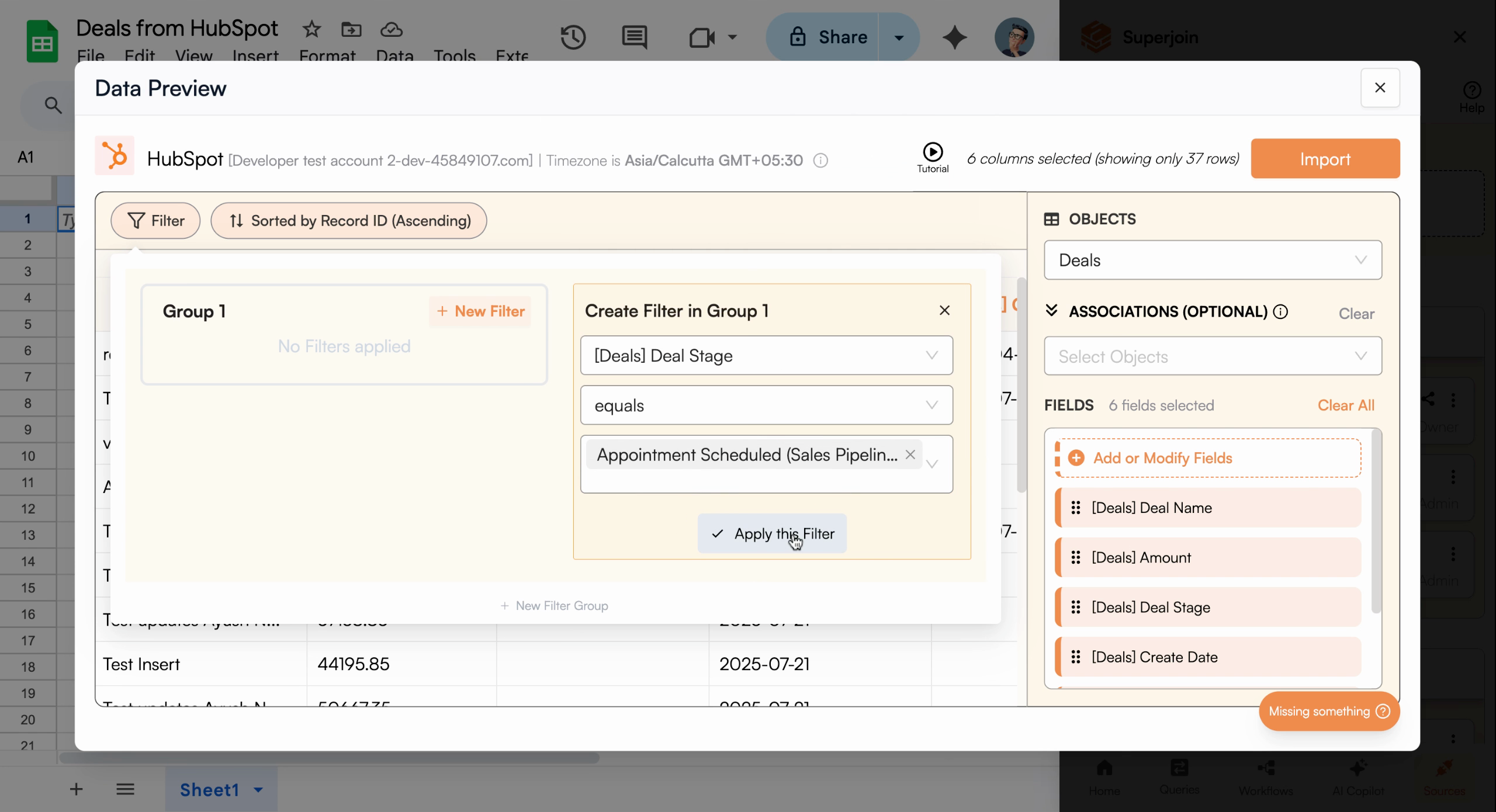
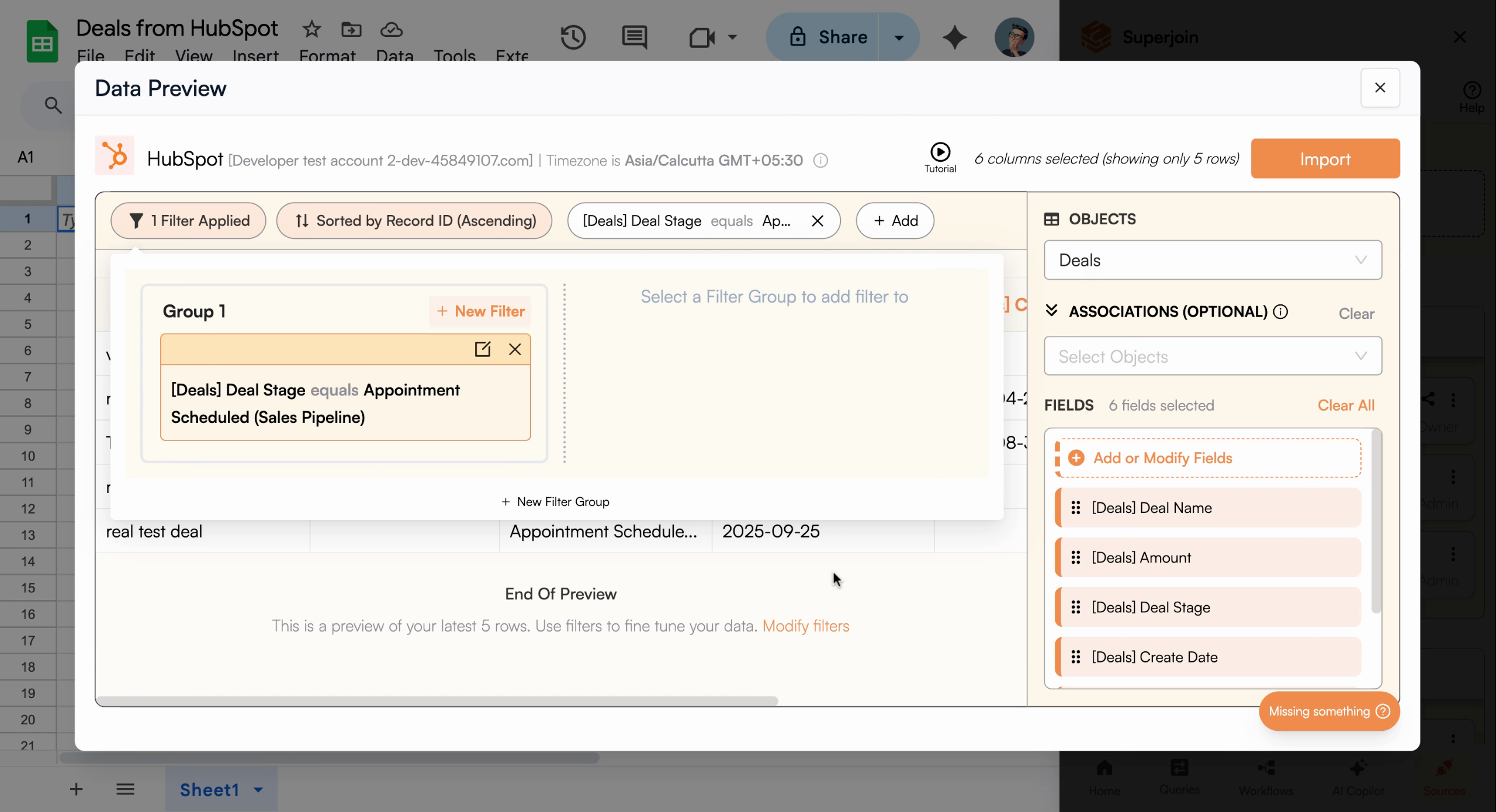
Filter applied showing only appointment scheduled deals
Import Filtered Data
Once your filters are set, click Import. You’ll be prompted to name your sheet—enter something intuitive (such as “Deals”)—then click Save and Import. Superjoin will pull all matching deals from HubSpot and create a new tab in your Google Sheet.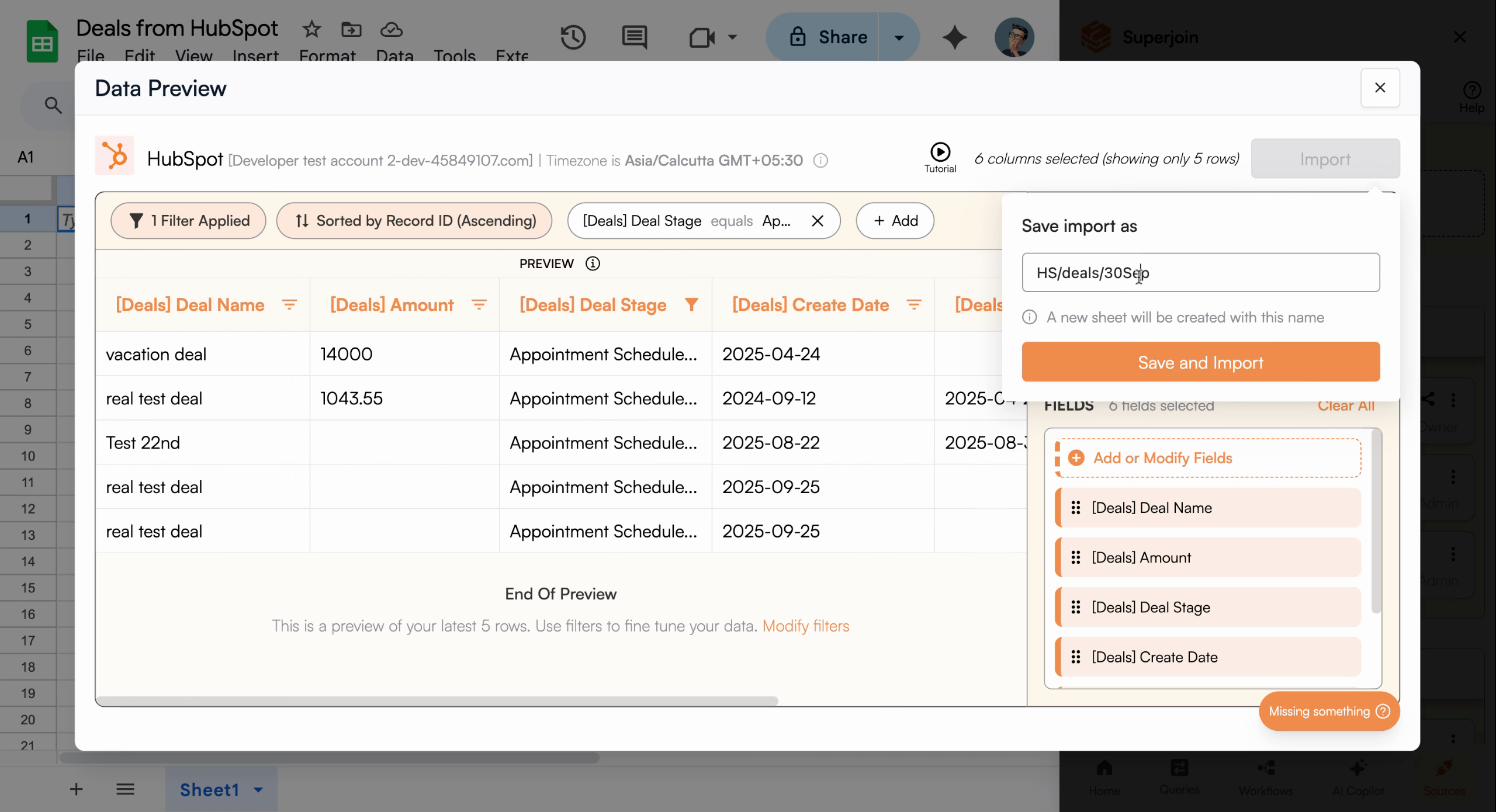
Review final configuration before importing
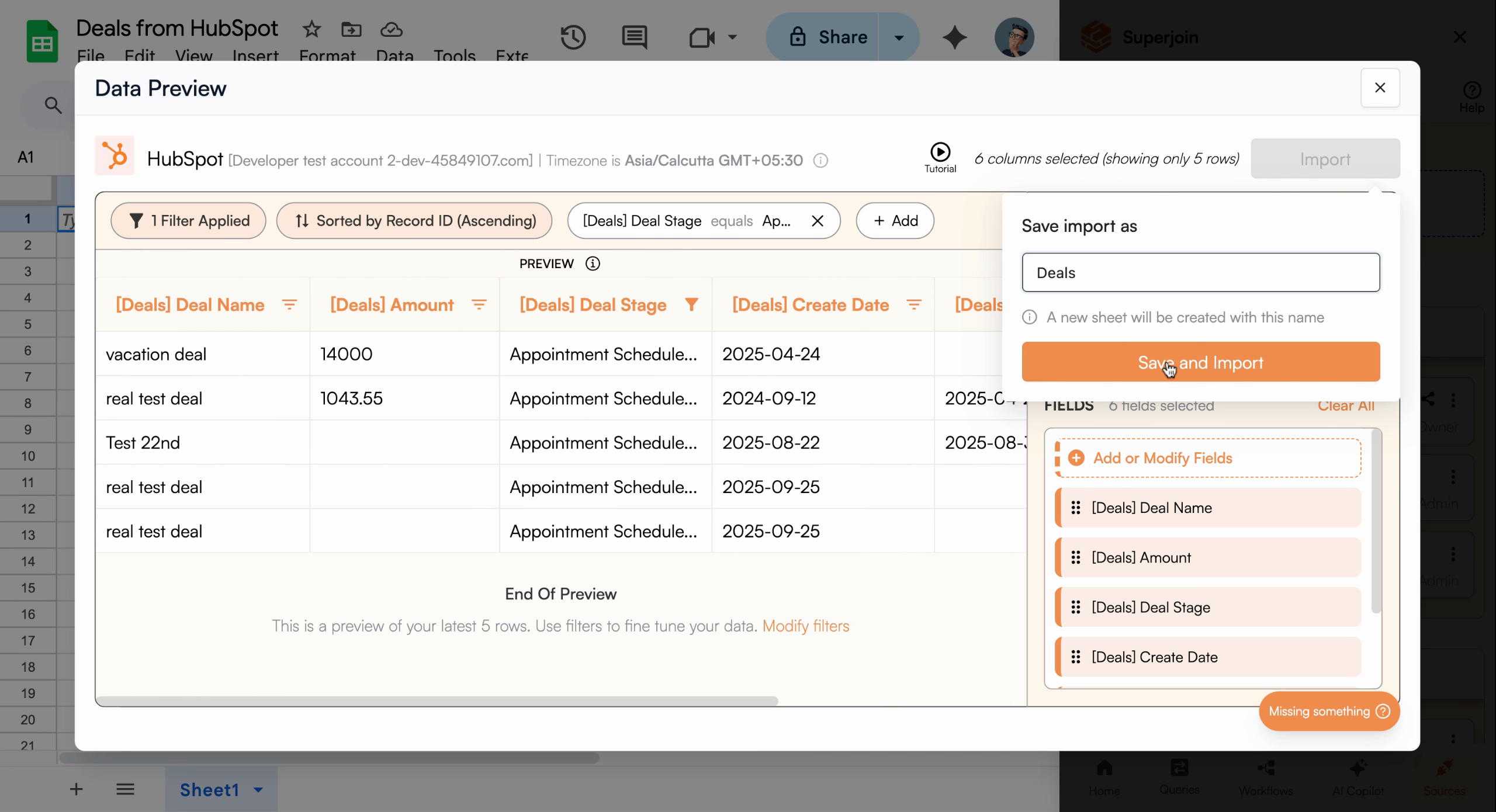
Name your sheet for easy identification
Superjoin bypasses HubSpot’s 10,000 record limit, allowing you to import up to
200,000 records at once.
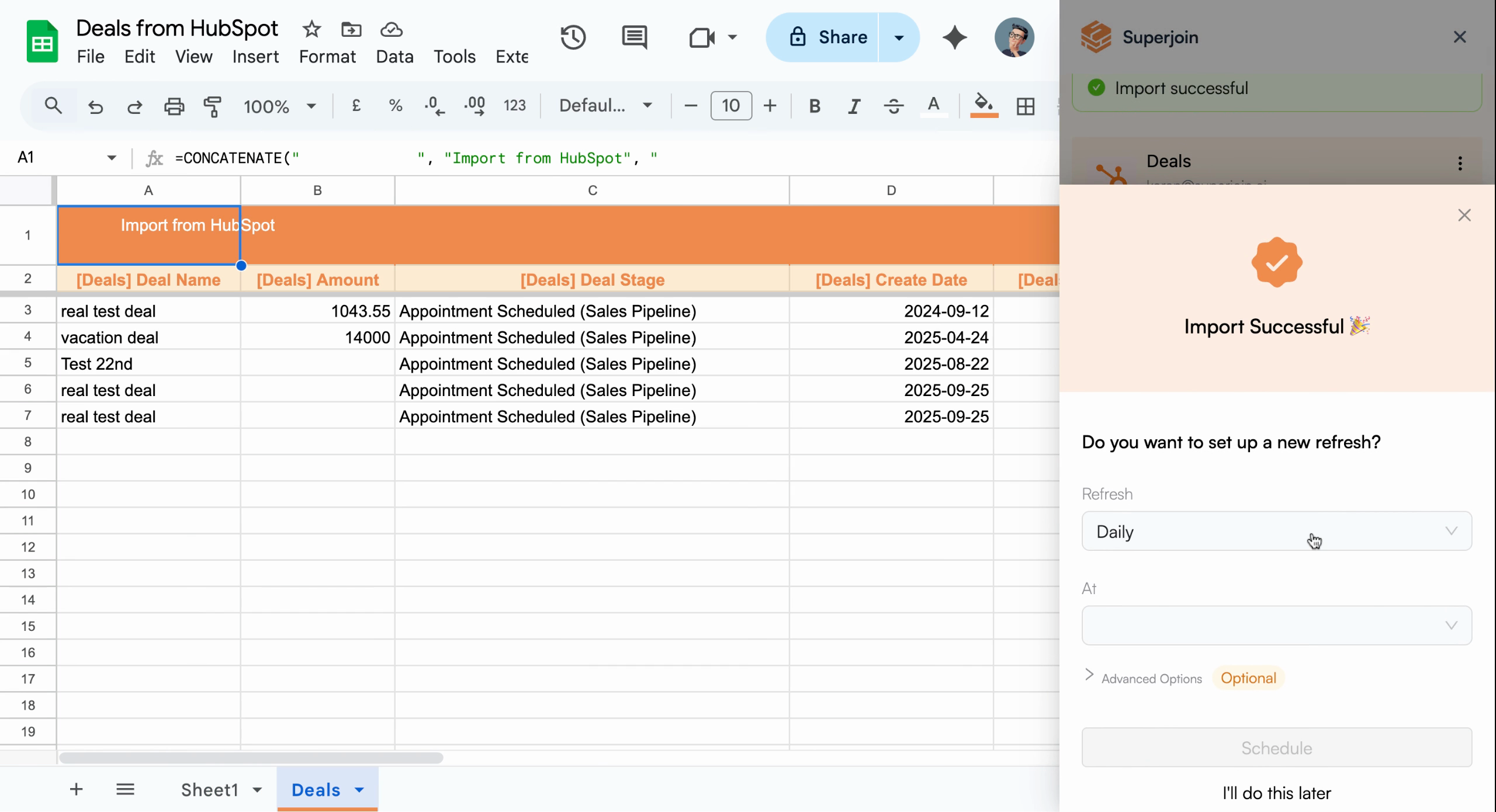
Import in progress showing deal data
Automate Data Refresh with Scheduling
After import, you can automate refreshing your deal data on a schedule. Choose from hourly, daily, weekly, or monthly options. For example, to get updated deals every day at 6:00 AM, set your schedule to daily and select 6:00 AM, then click Schedule to activate automation.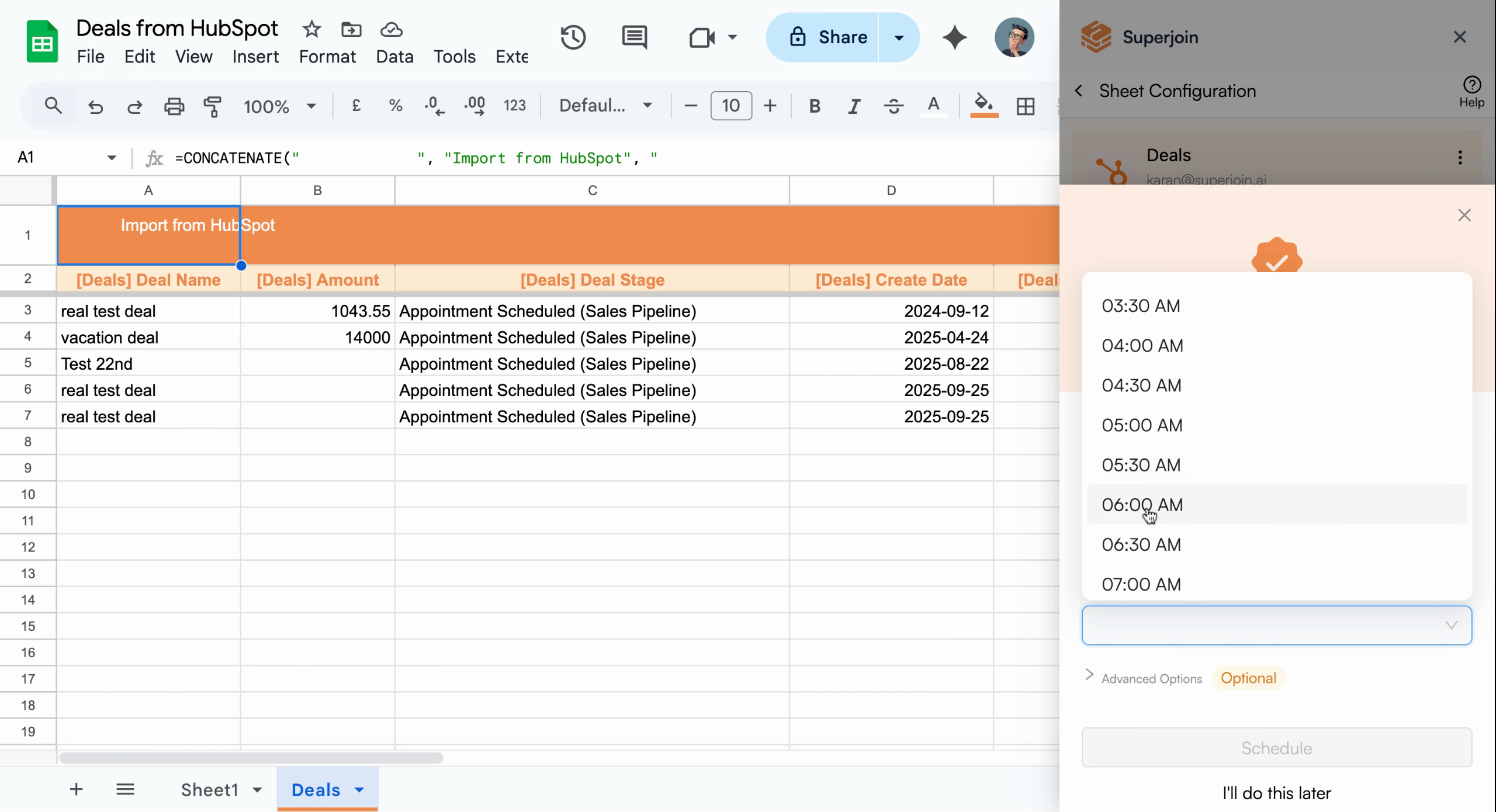
Configure automatic refresh schedule
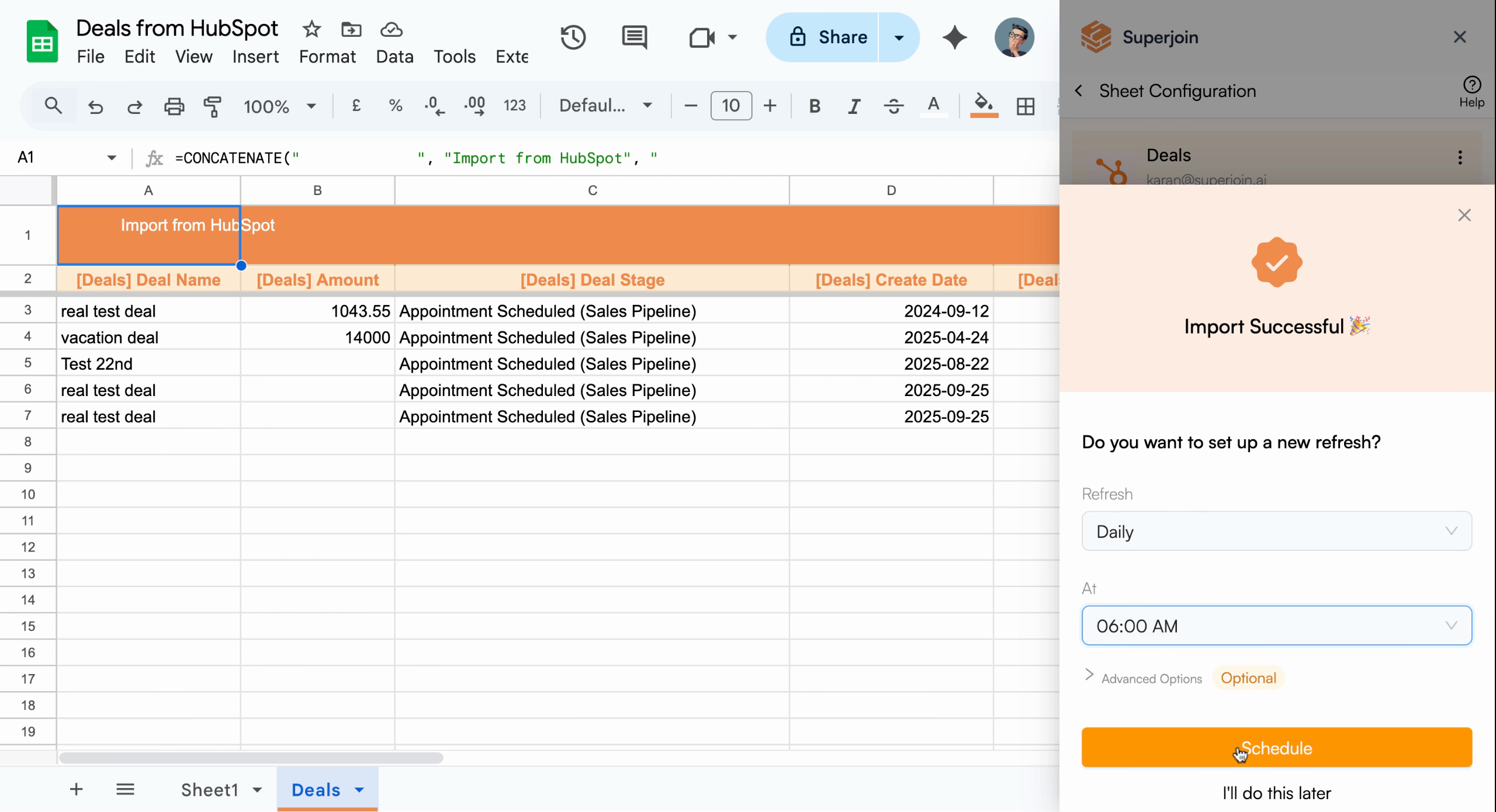
Schedule confirmed for daily updates at 6 AM
Your HubSpot deals are now synced to Google Sheets and will update
automatically every morning.