

Open Superjoin and Navigate to Sources
Start by opening the Superjoin add-on in your Google Sheets. In the sidebar, navigate to the Sources section where you manage all your data connections—like HubSpot, Salesforce, or Stripe.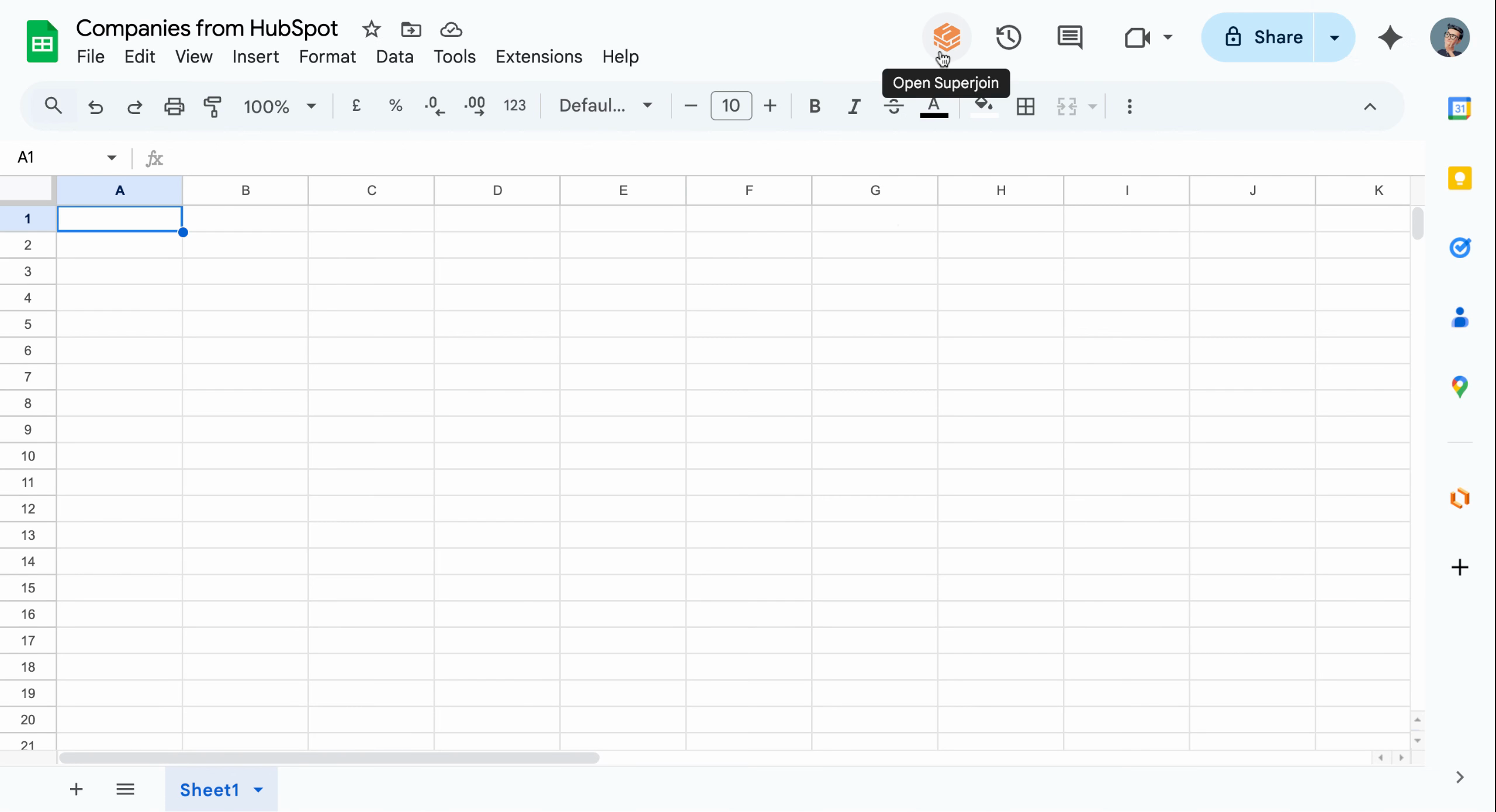
Launch Superjoin sidebar in Google Sheets
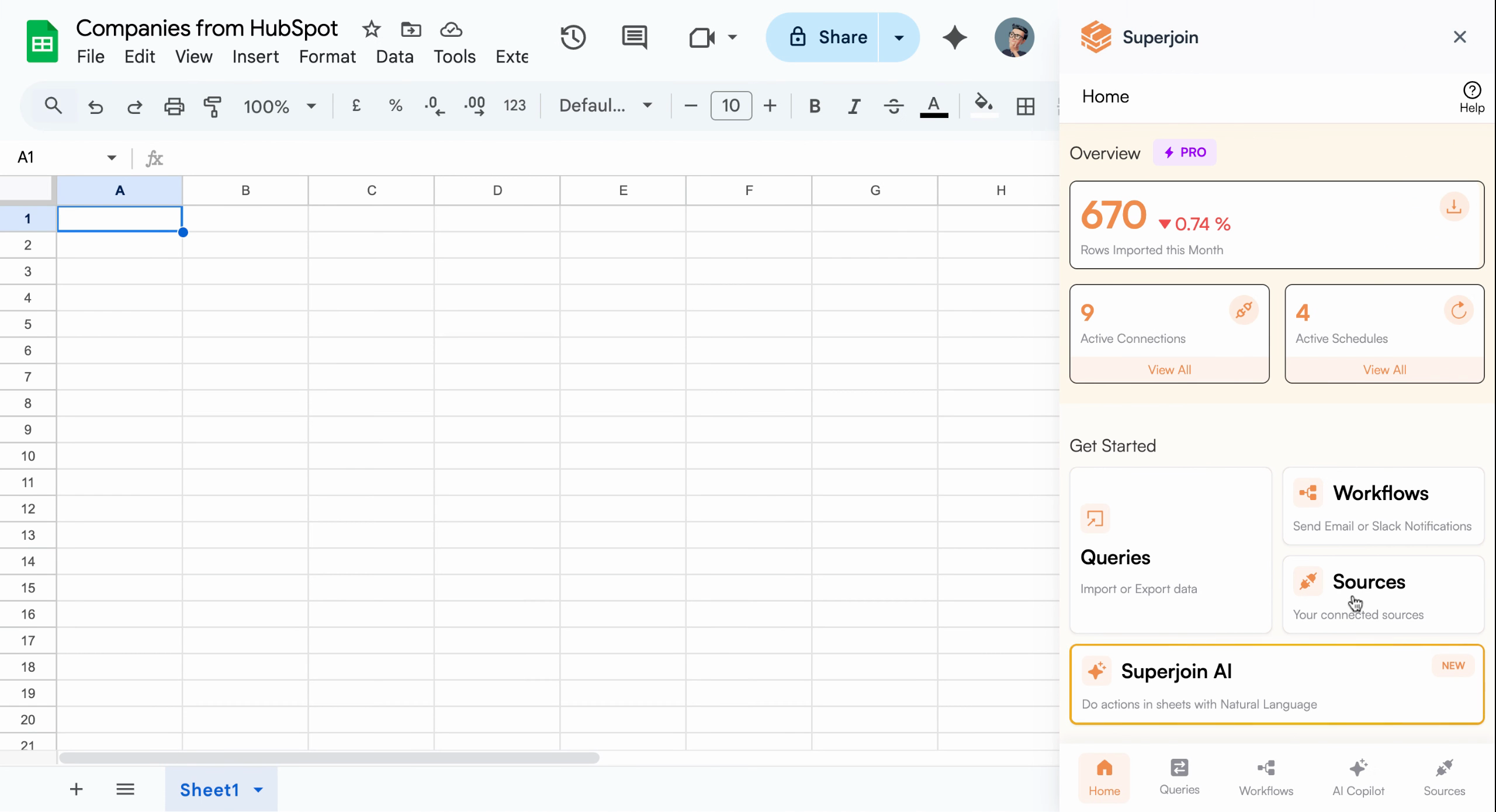
Sources section for managing data connections
Choose Your HubSpot Data Source
From the list of connected sources, select your active HubSpot connection. Once selected, click Import into Google Sheets to begin the data import process.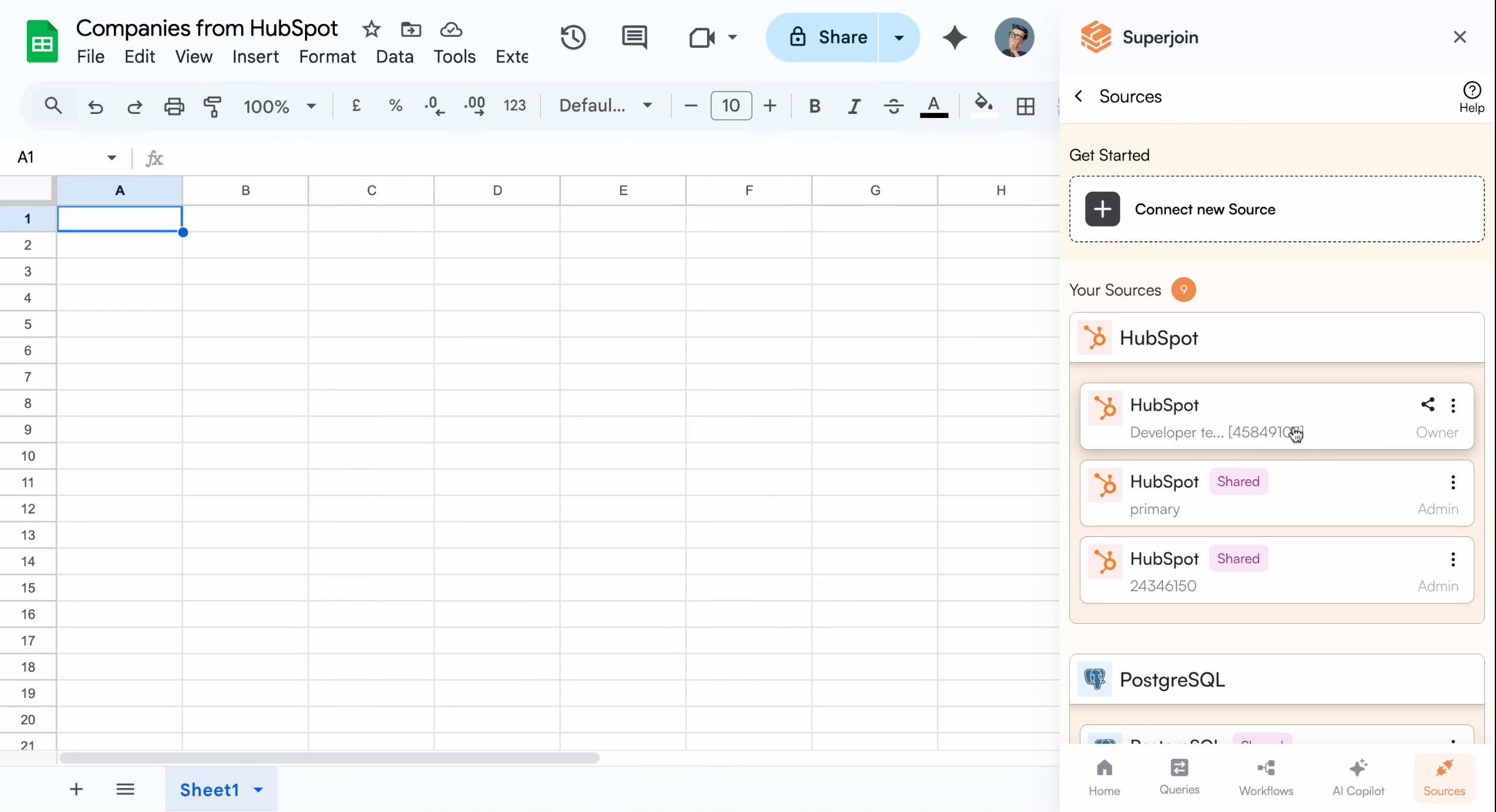
Select your connected HubSpot source
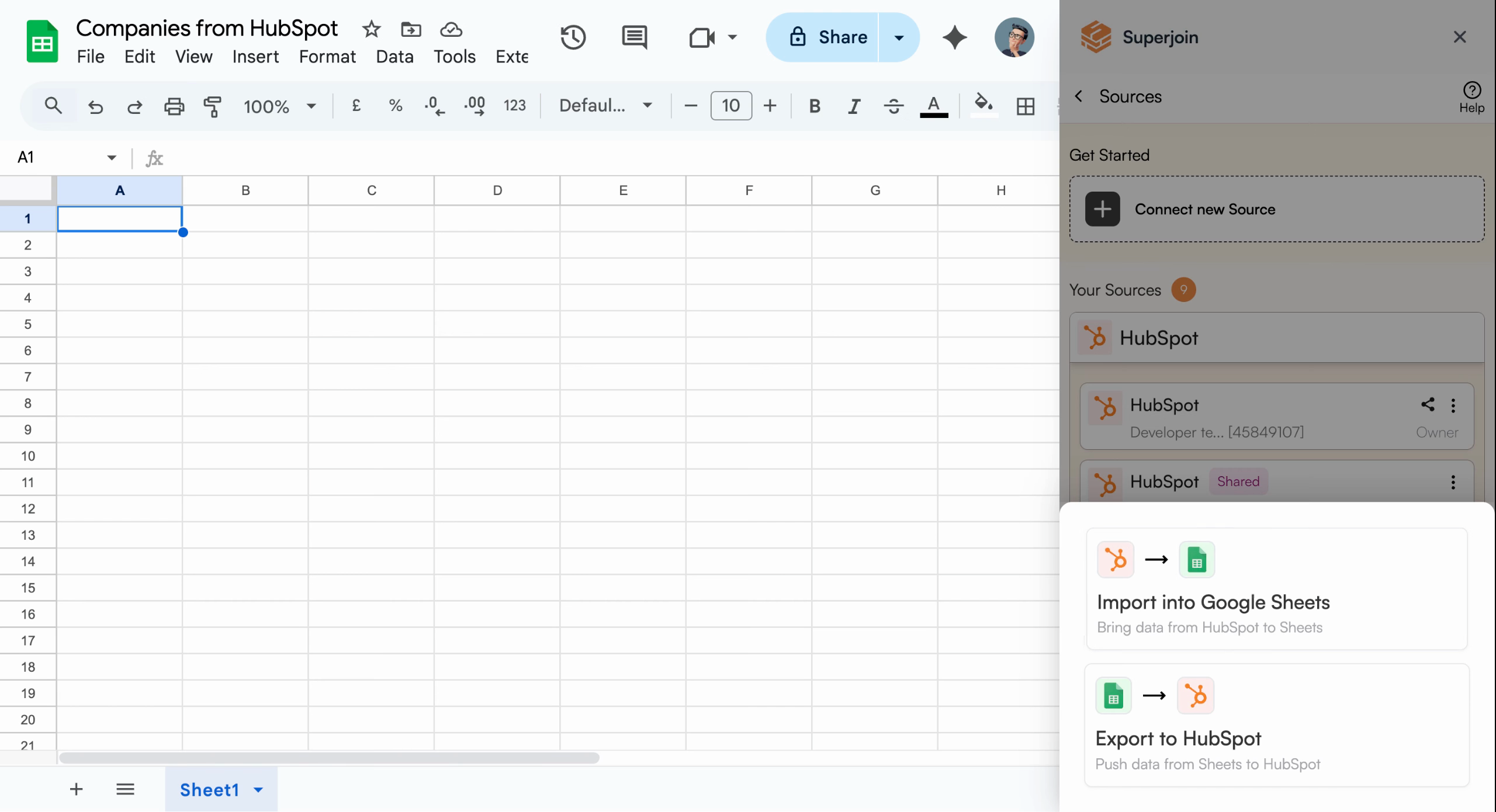
Click Import into Google Sheets to proceed
Preview and Configure Your Data
A Data Preview pane appears, allowing you to pick which data object you want, choose specific fields to import, and add filters to narrow down your results. Select the object Companies, then add the Record ID field to ensure you include unique identifiers for each company.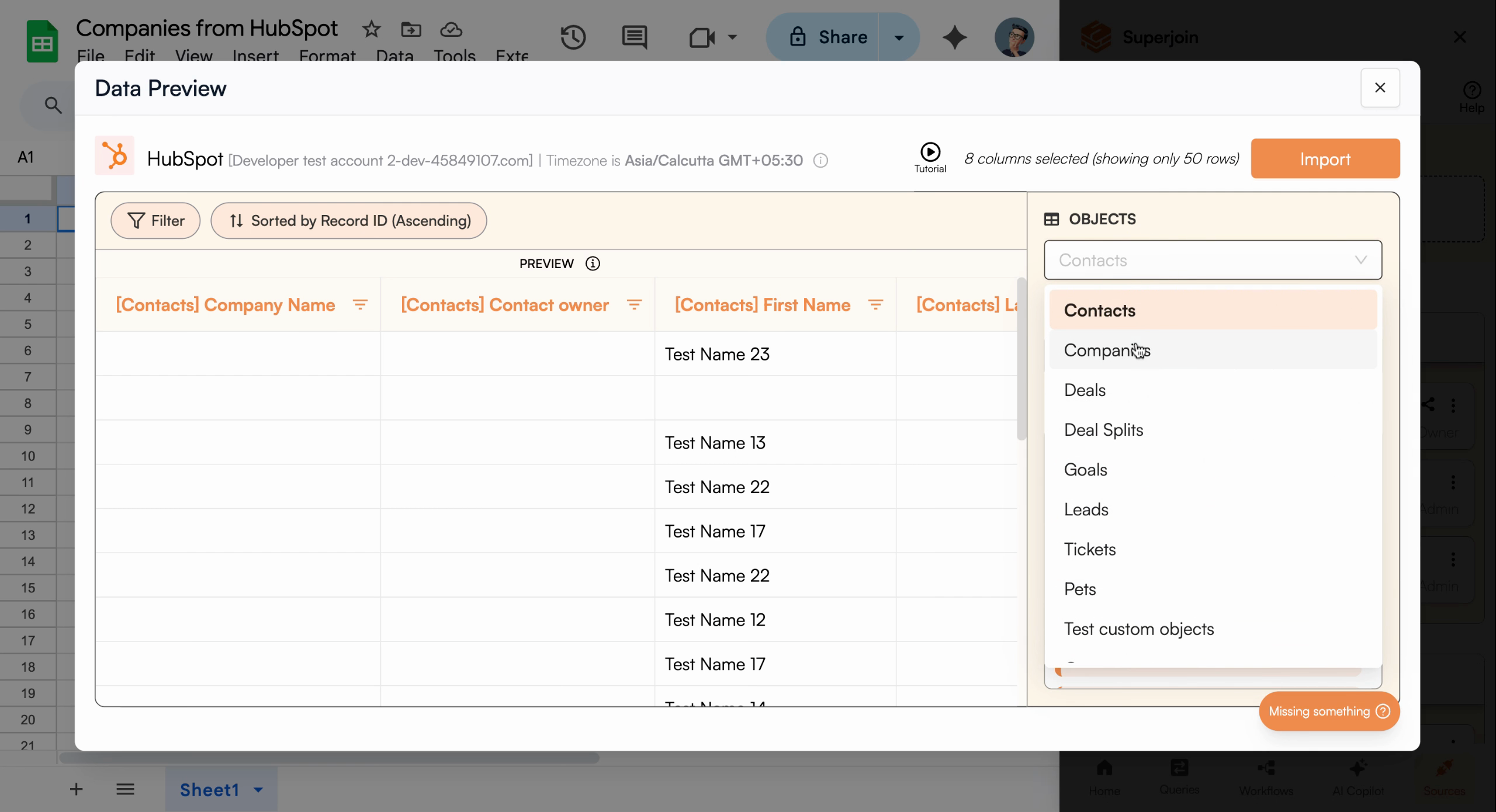
Select Companies as the object type
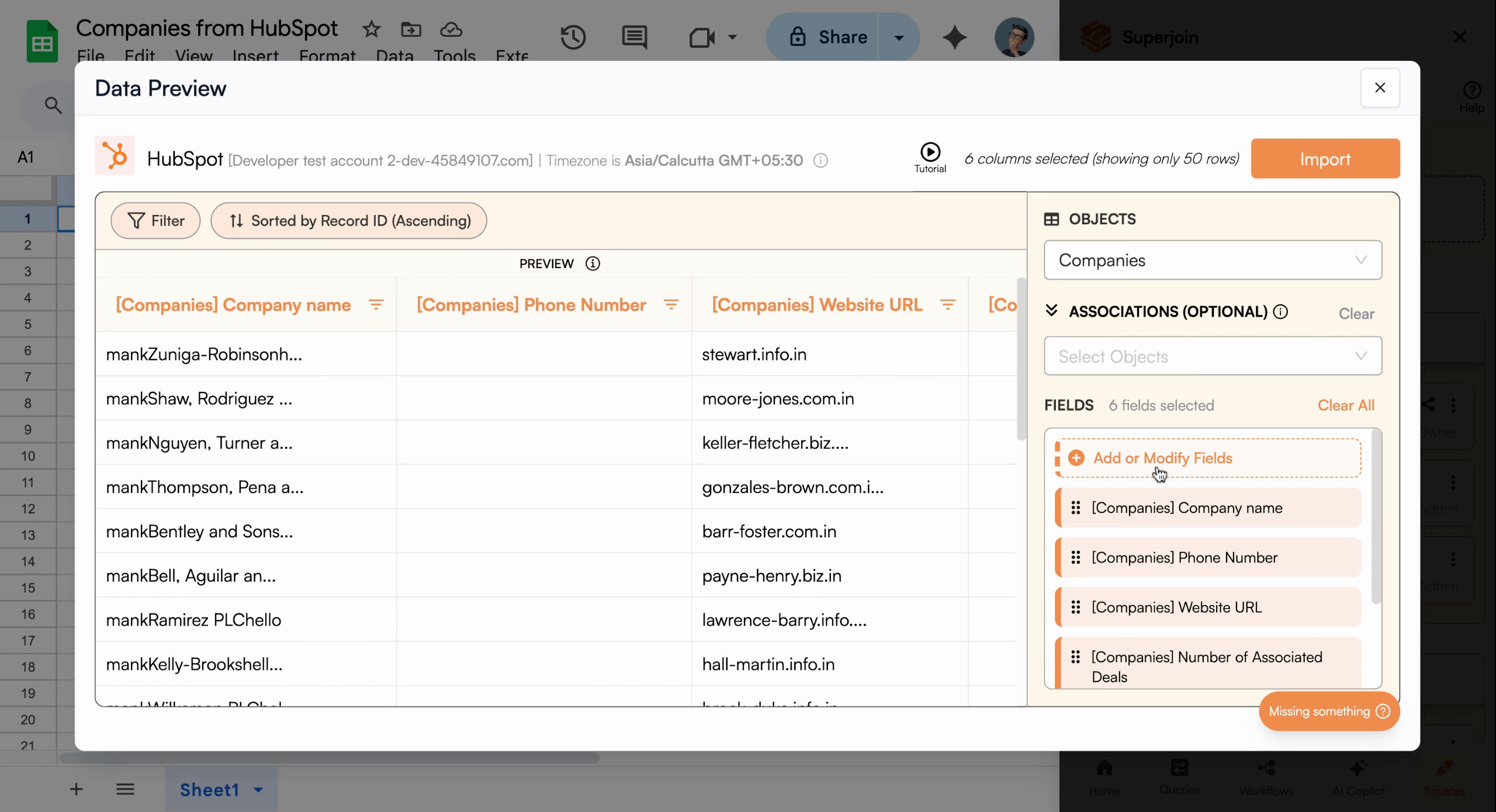
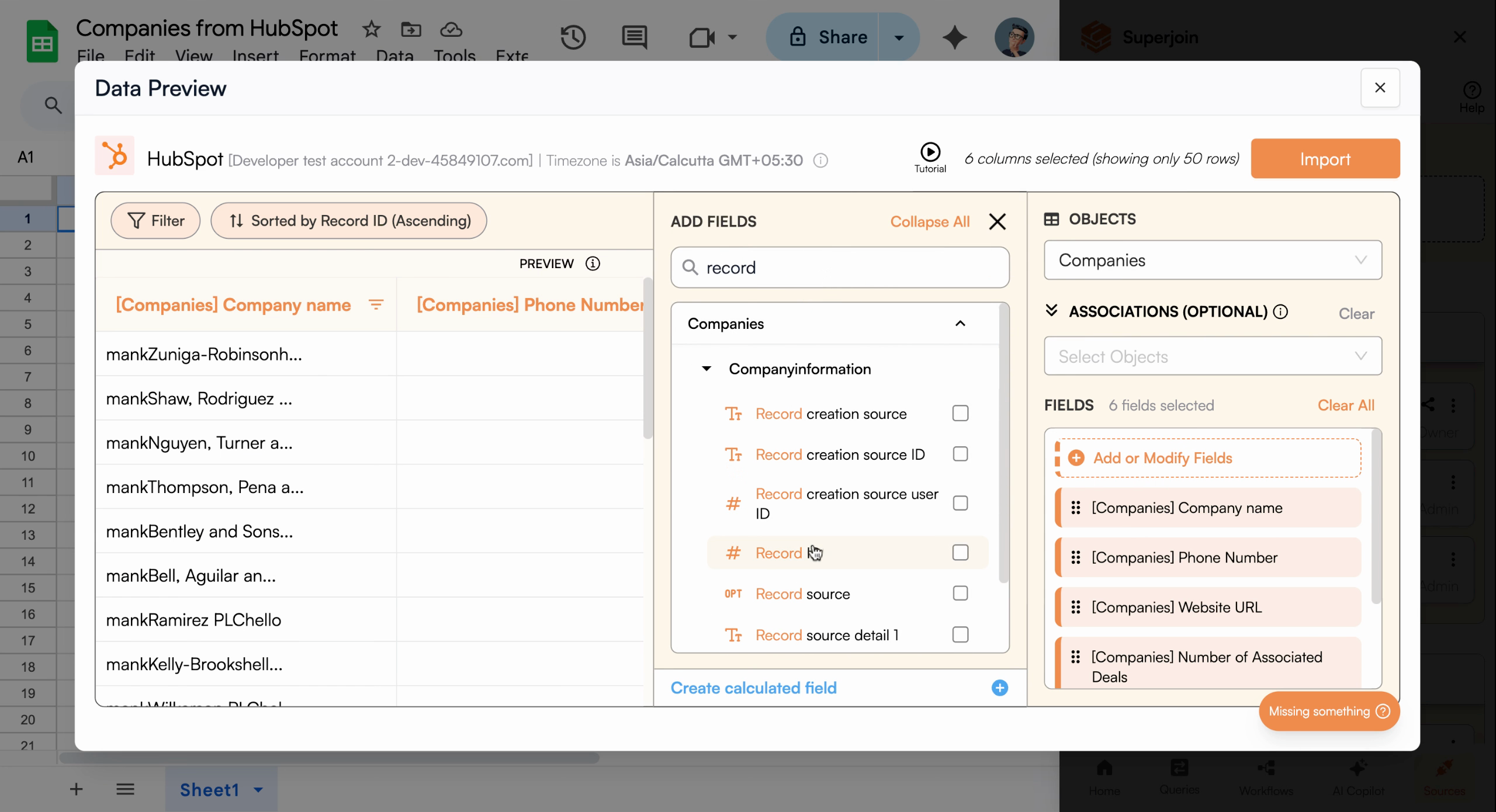
Record ID field added to import configuration
Apply Filters to Refine Your Import
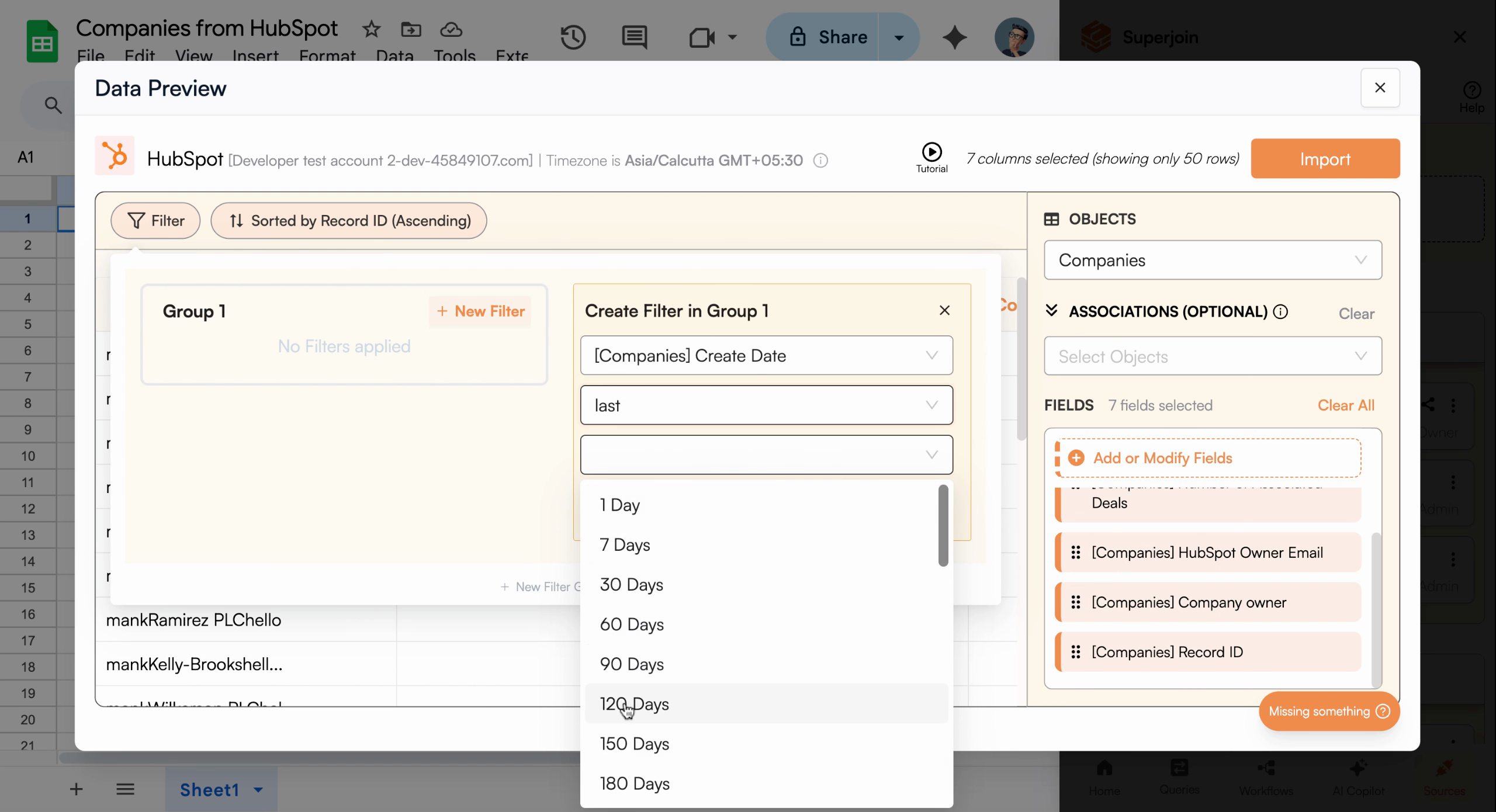
Switch to the Filter tab to set up custom filters. For example, you can import only companies added in the last 120 days by filtering on the Create date field with the condition “in the last 120 days.” Apply your filter to preview the exact rows Superjoin will import.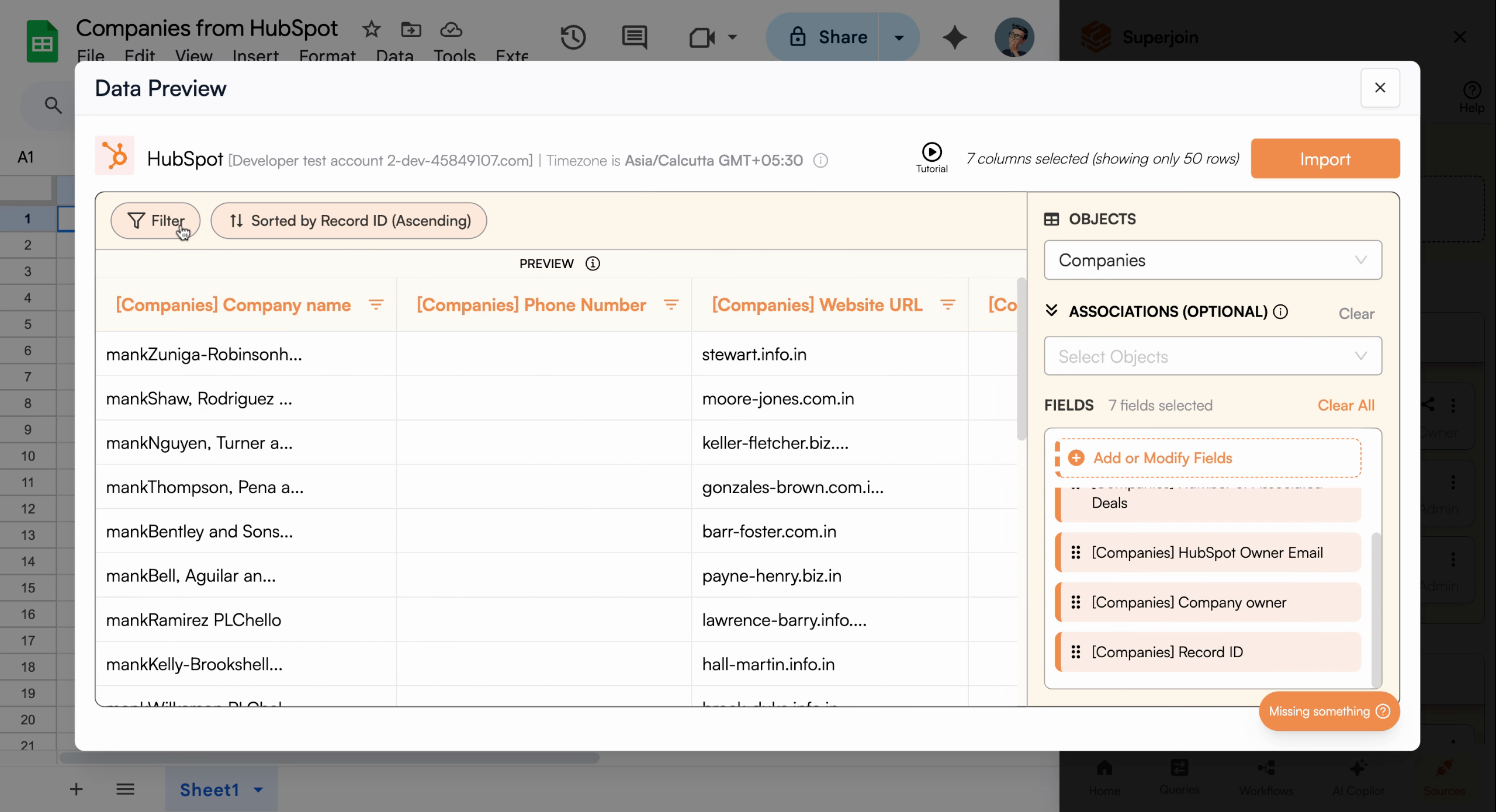
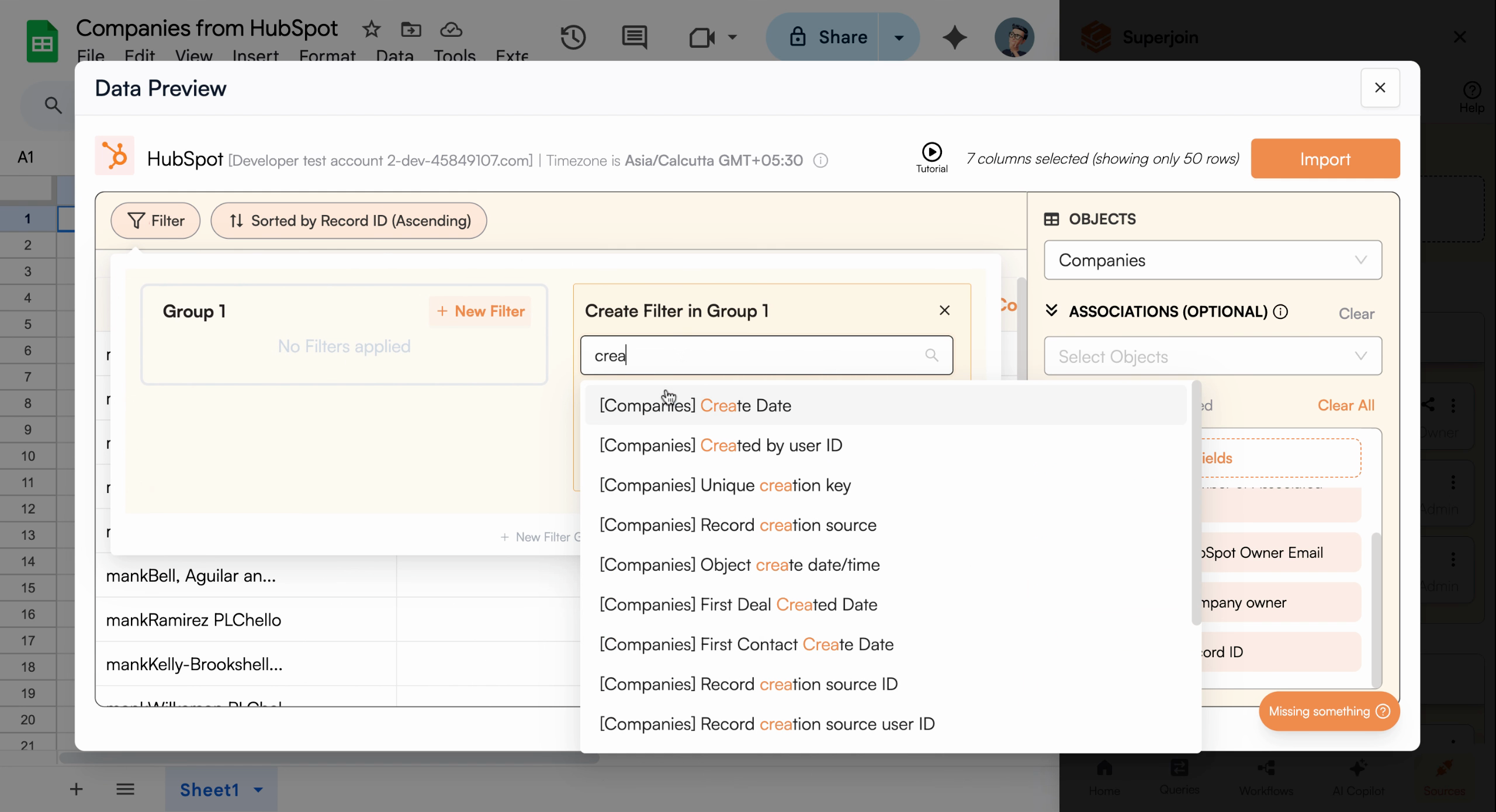
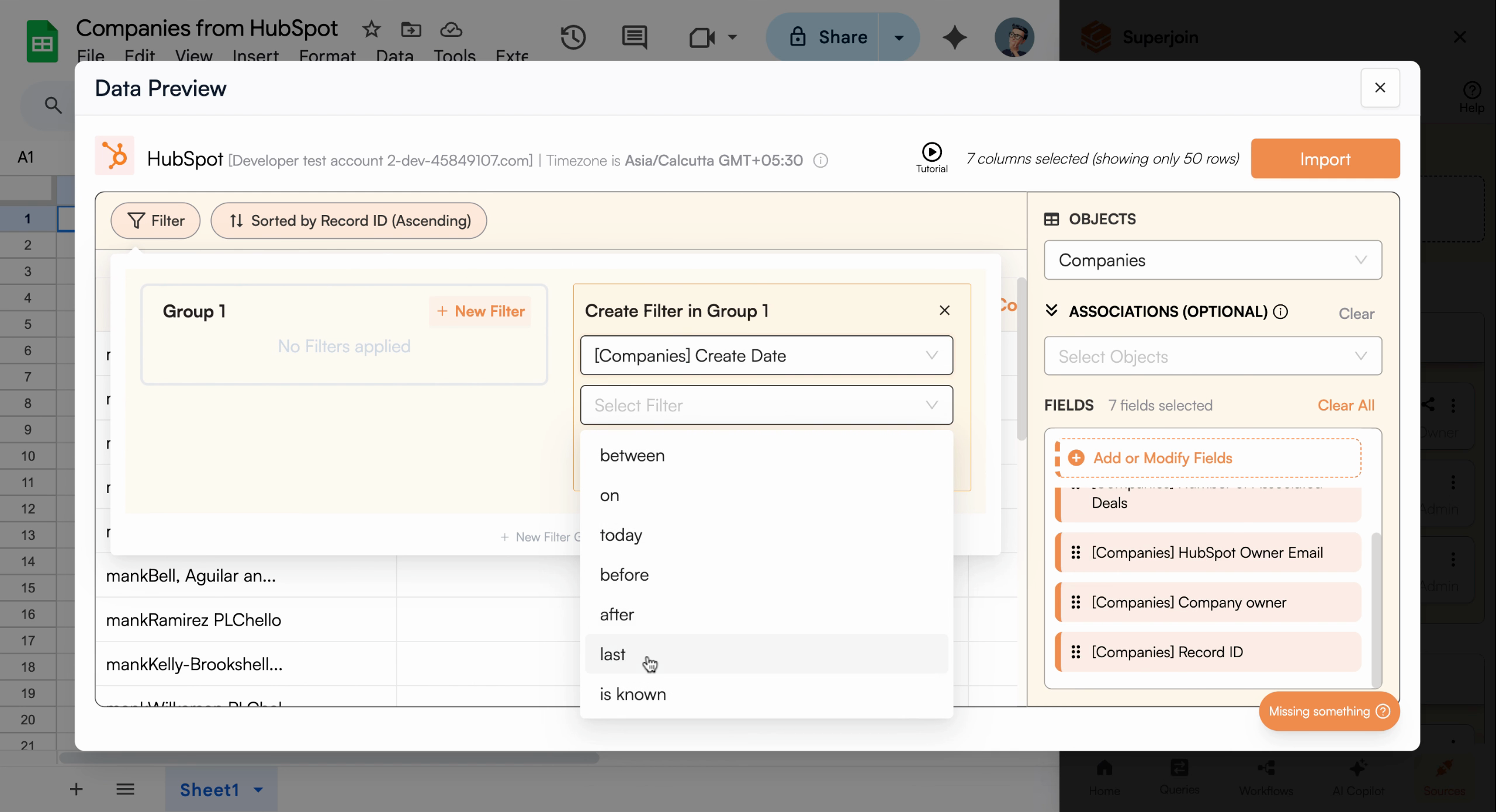
Filter configuration for last 120 days
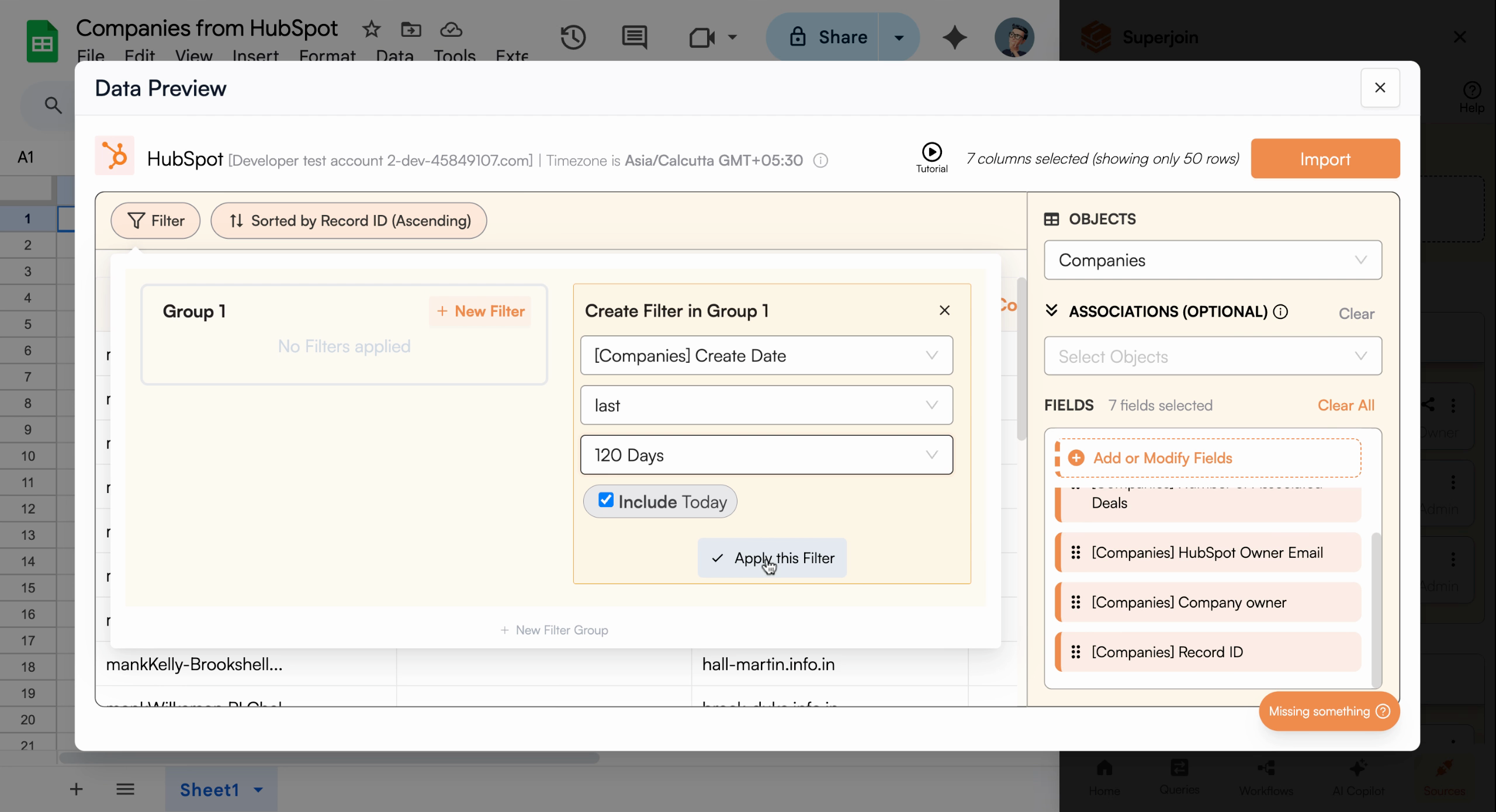
Filter applied showing filtered company data
Import and Name Your Data
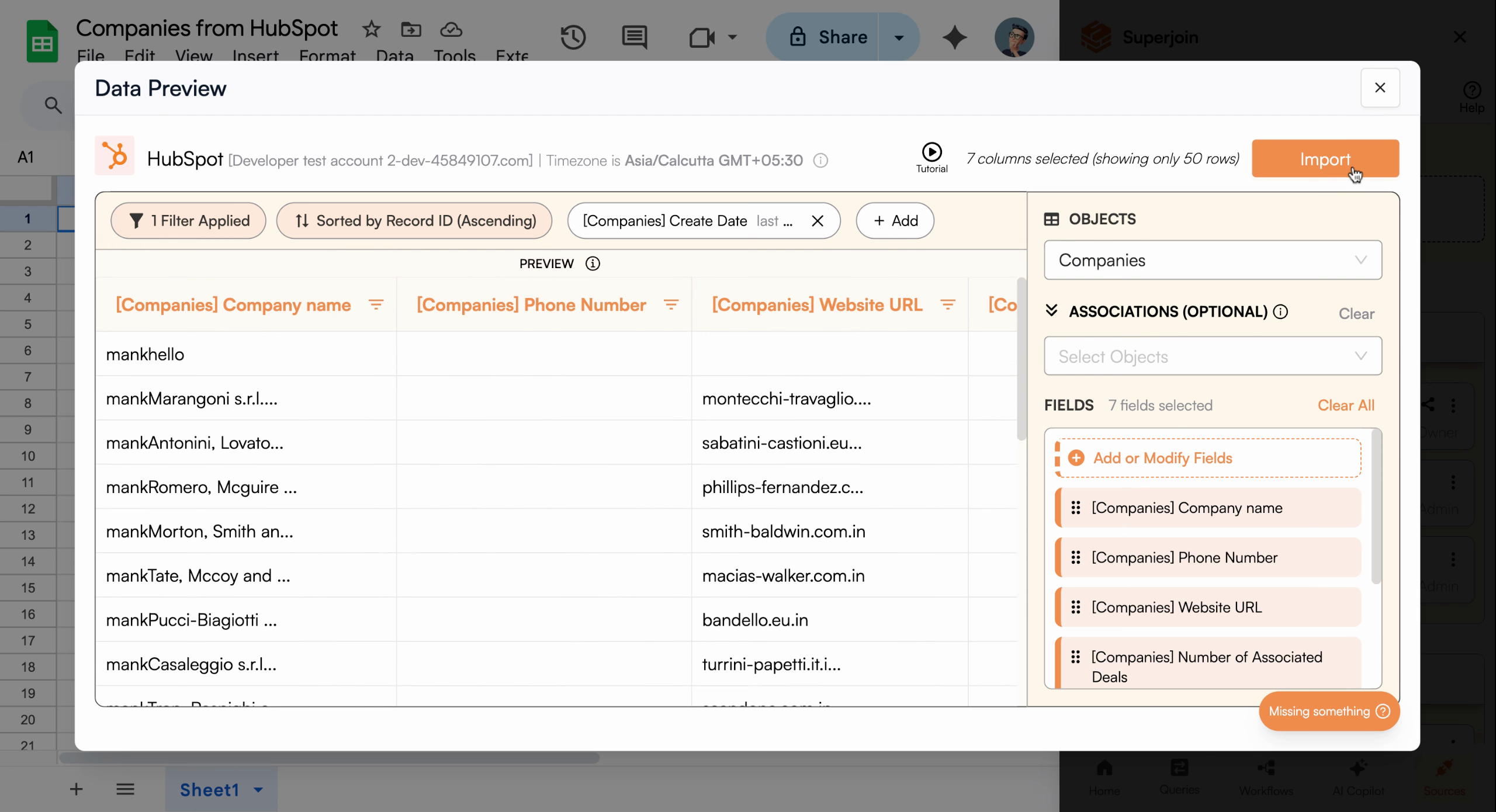
Click Import to start pulling the filtered companies data into your spreadsheet. Give the import a descriptive name, such as “companies last 120 days,” so you can easily identify it later.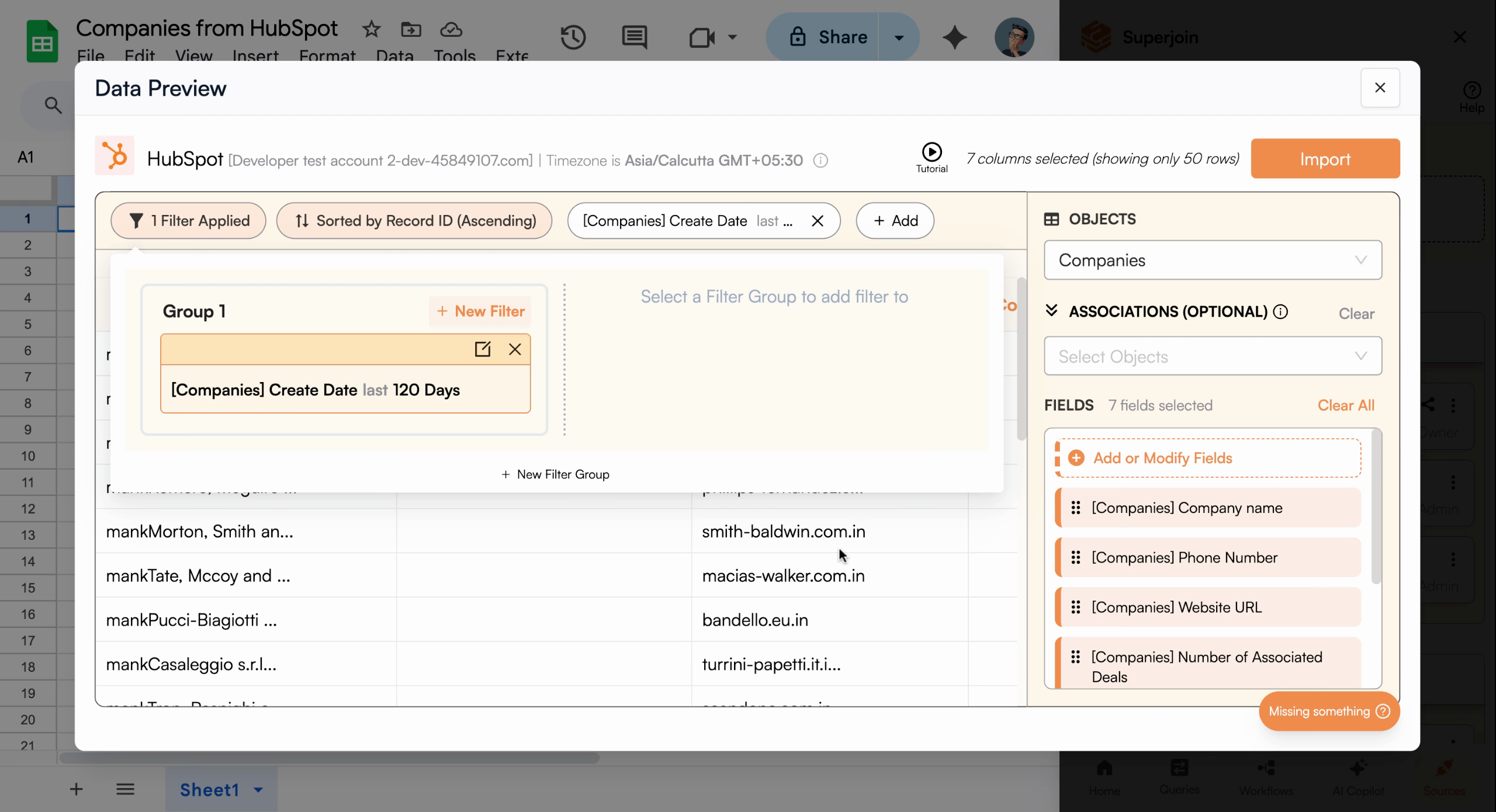
Review configuration before import
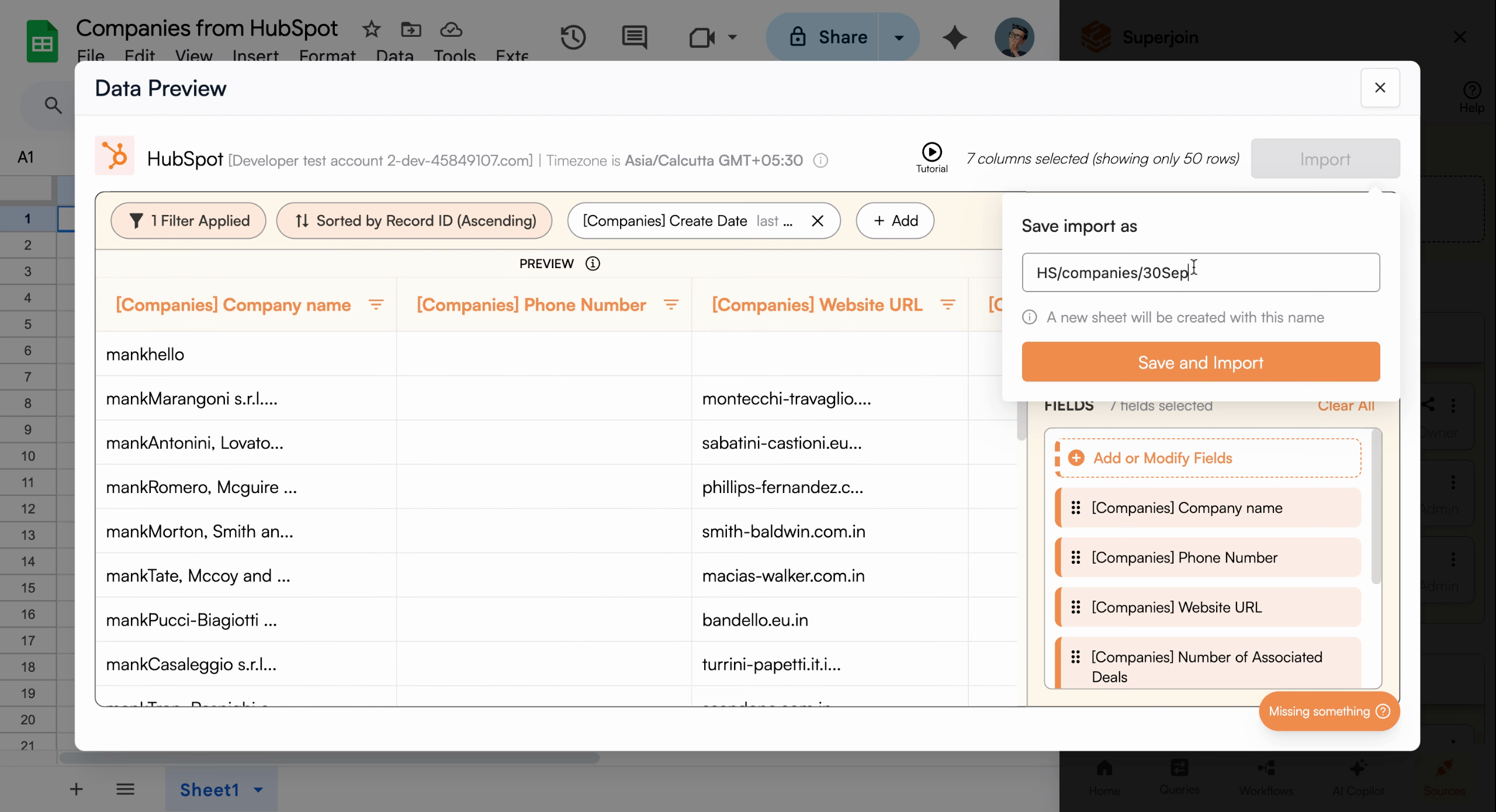
Name your import for easy identification
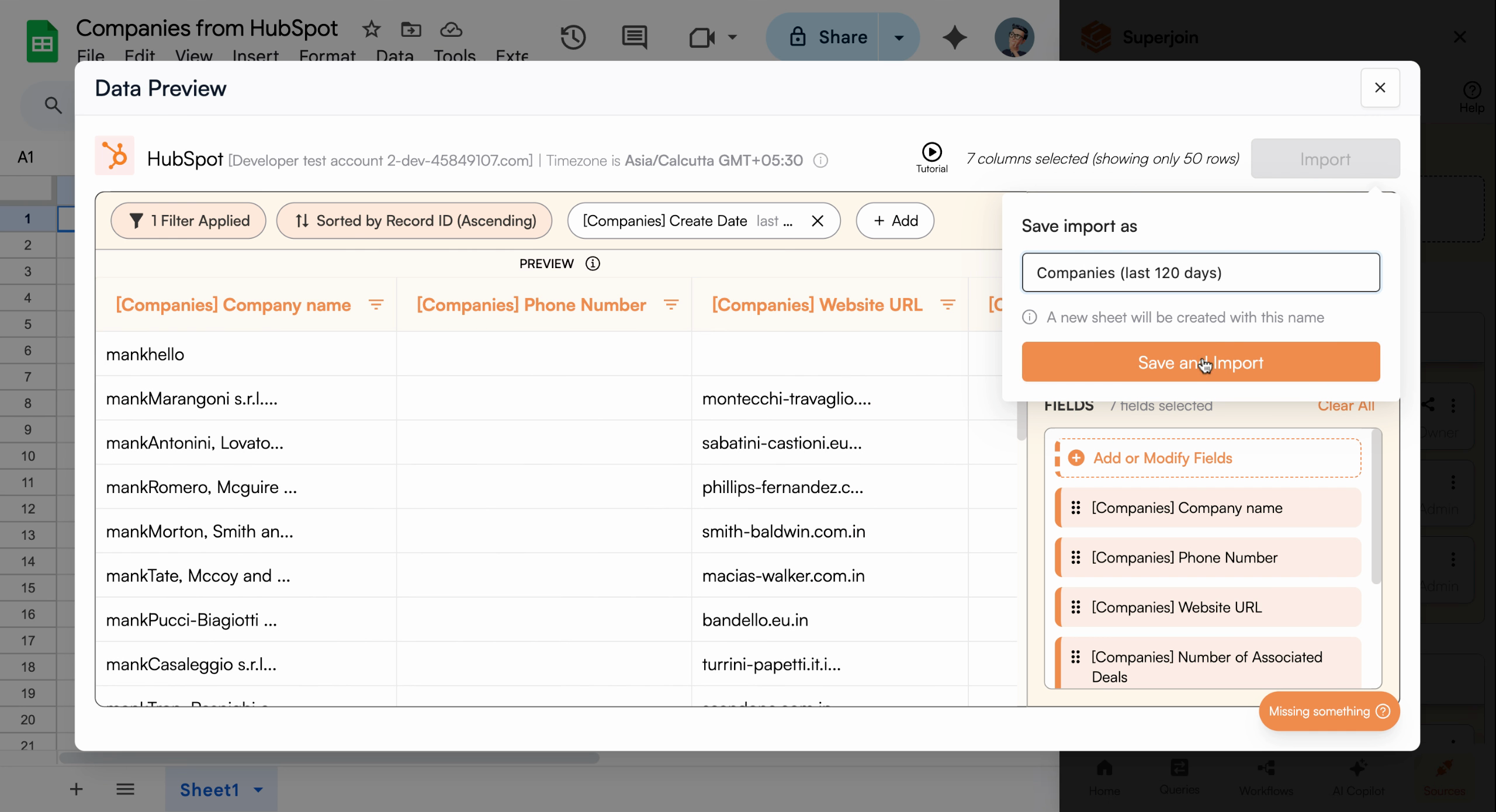
Save to begin import process
Superjoin bypasses HubSpot’s usual 10,000 record limit, allowing you to import
up to 200,000 company records at once.
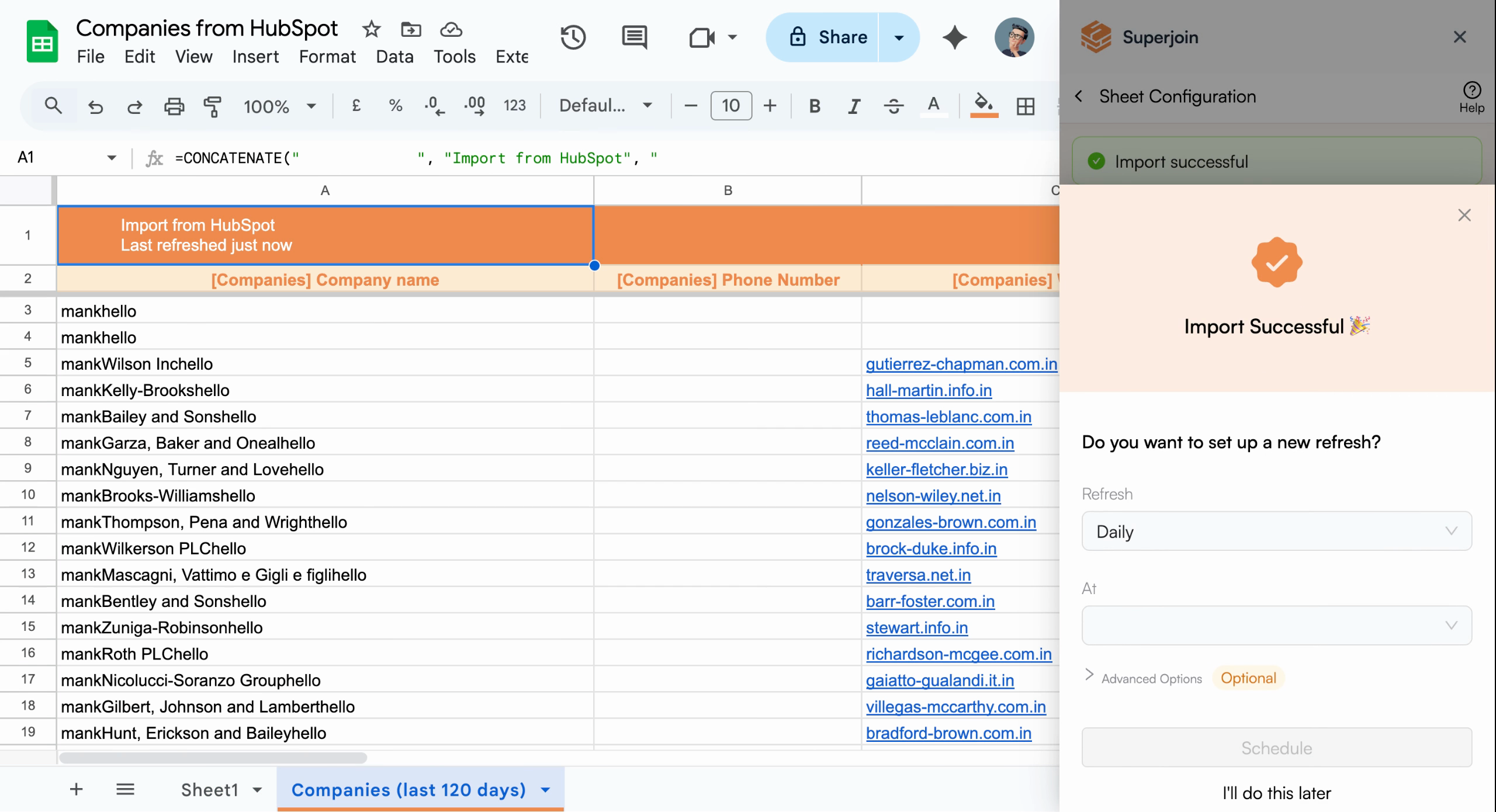
Import complete showing company data in Google Sheets
Set Up Automatic Refresh Scheduling
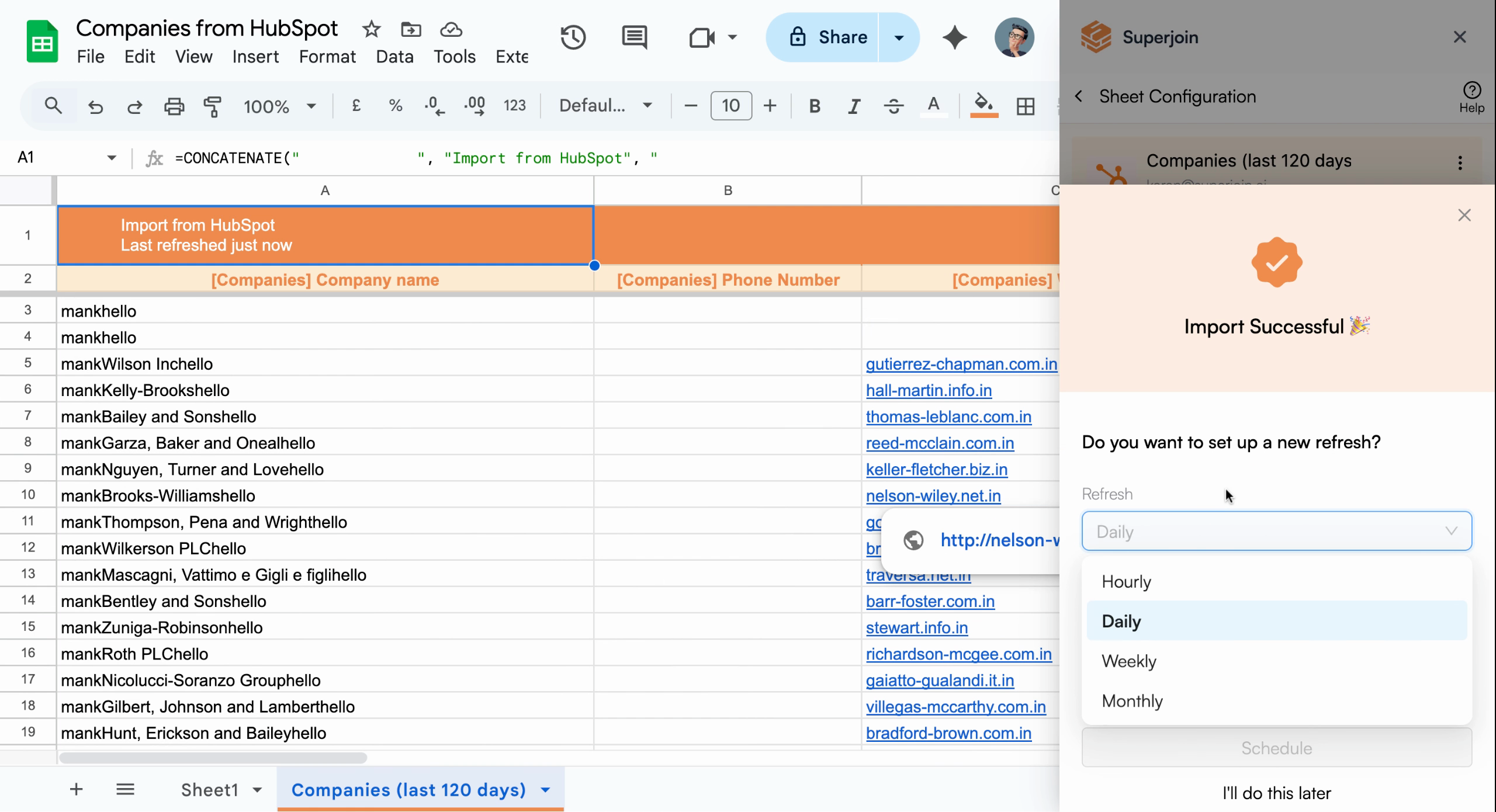
To keep your report constantly updated, use Superjoin’s scheduling feature. You can refresh data hourly, daily, weekly, or monthly depending on your needs. For example, to update your company report every day at 6:00 AM, select daily and choose 6:00 AM as the time, then click Schedule to activate auto-refresh.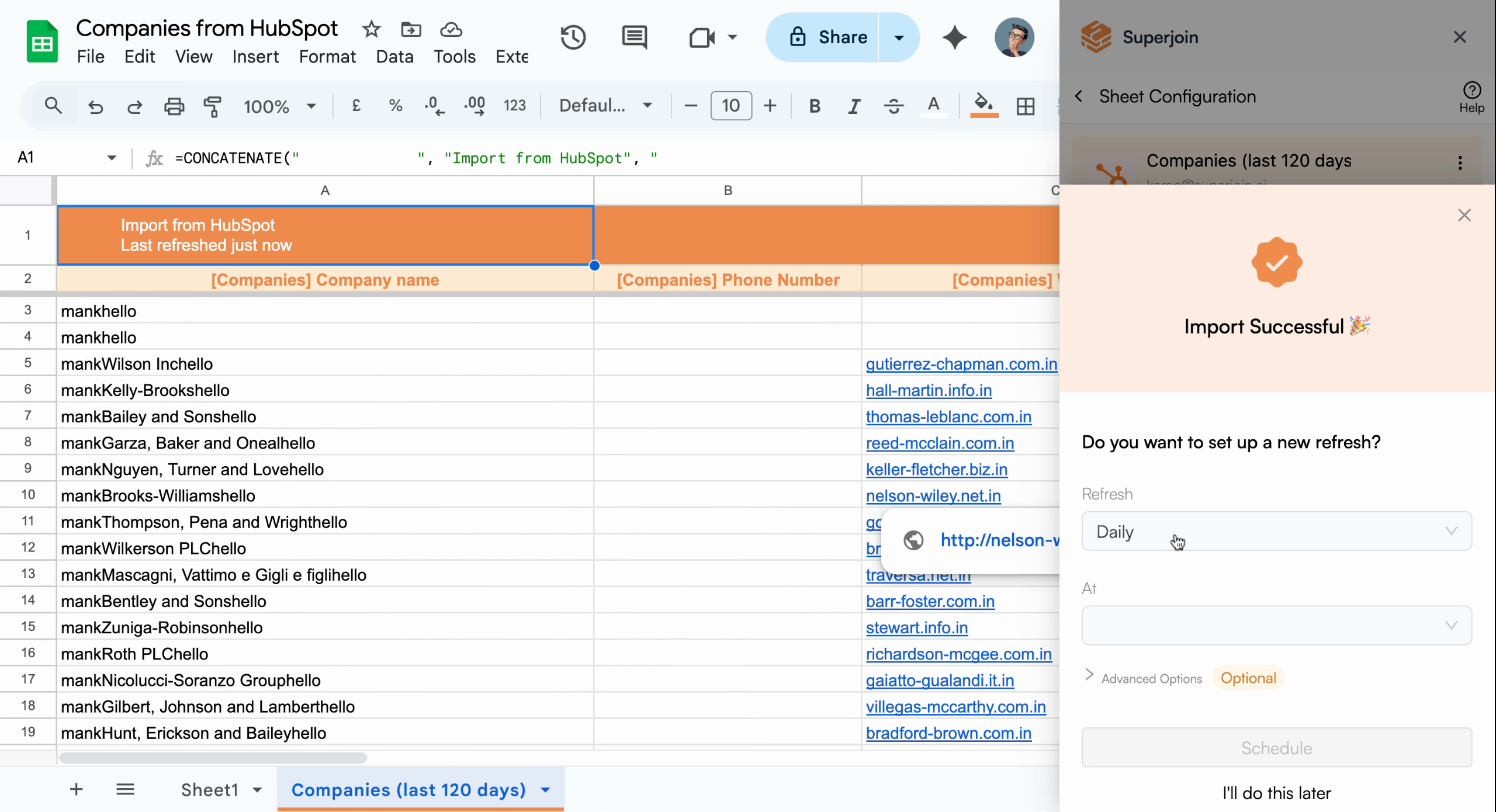
Configure automatic refresh schedule
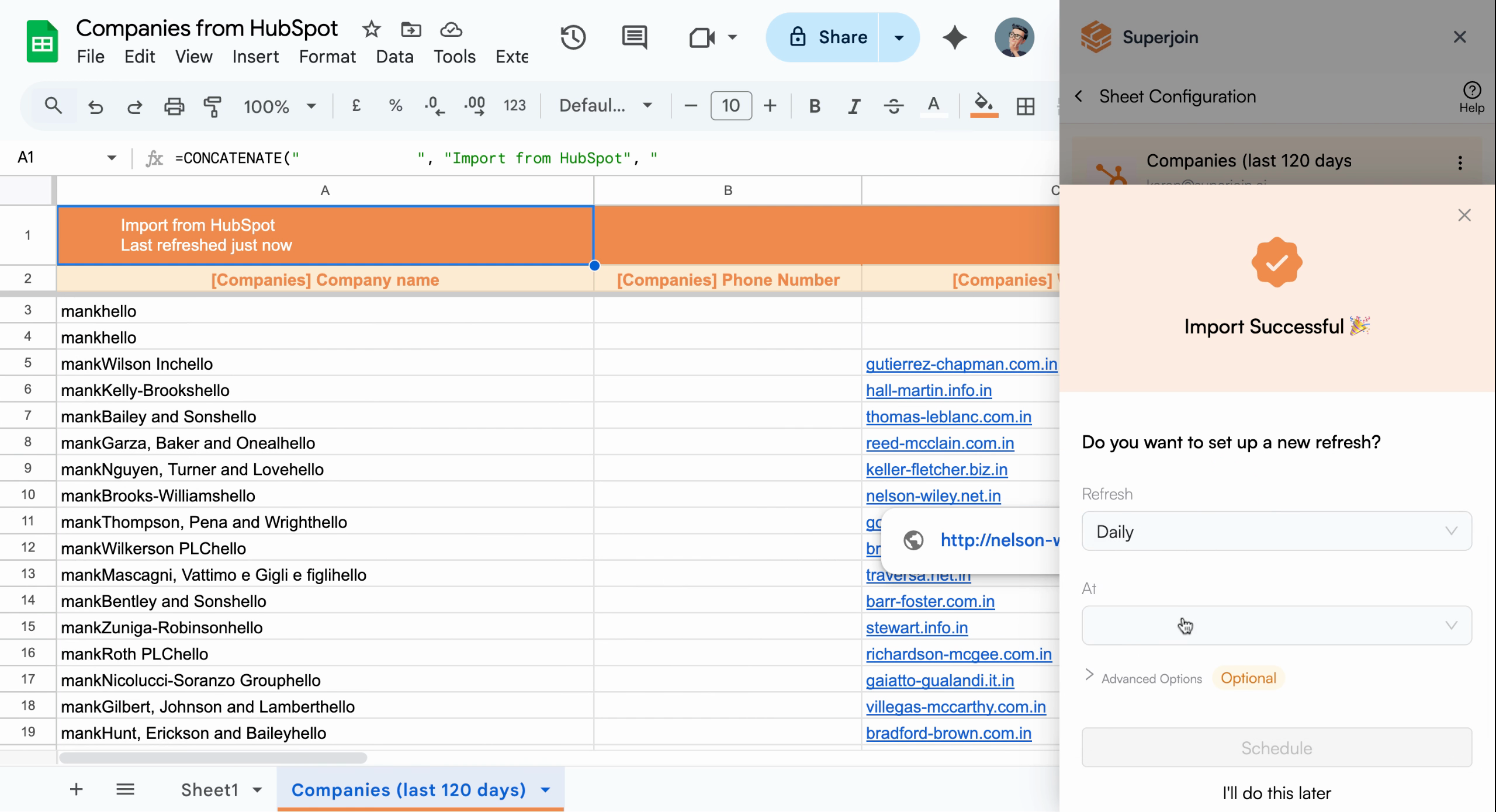
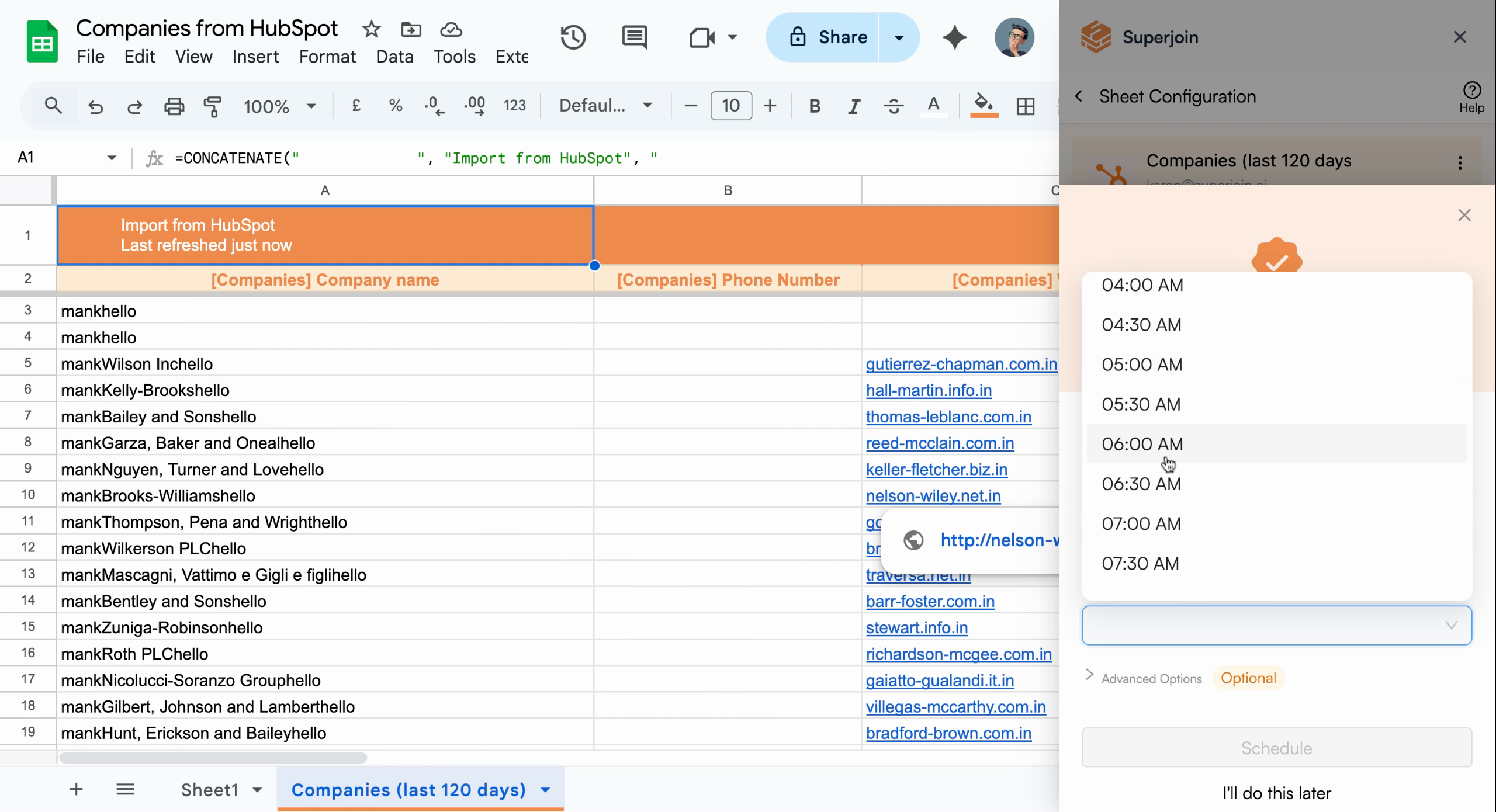
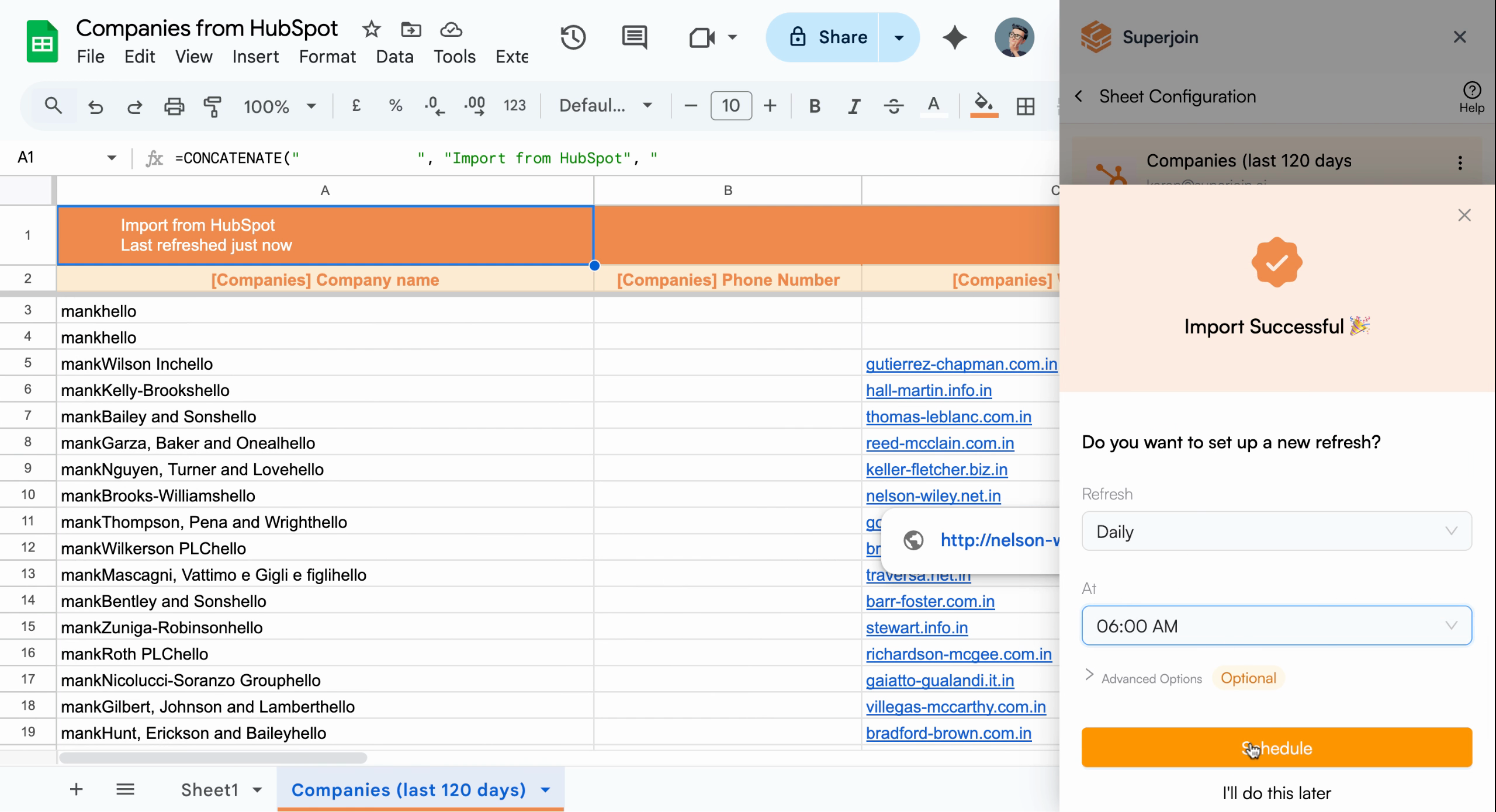
Schedule confirmed for daily updates at 6 AM
Your Google Sheet now has an always-current HubSpot Companies report, updated
automatically per your schedule.