- Google Sheets
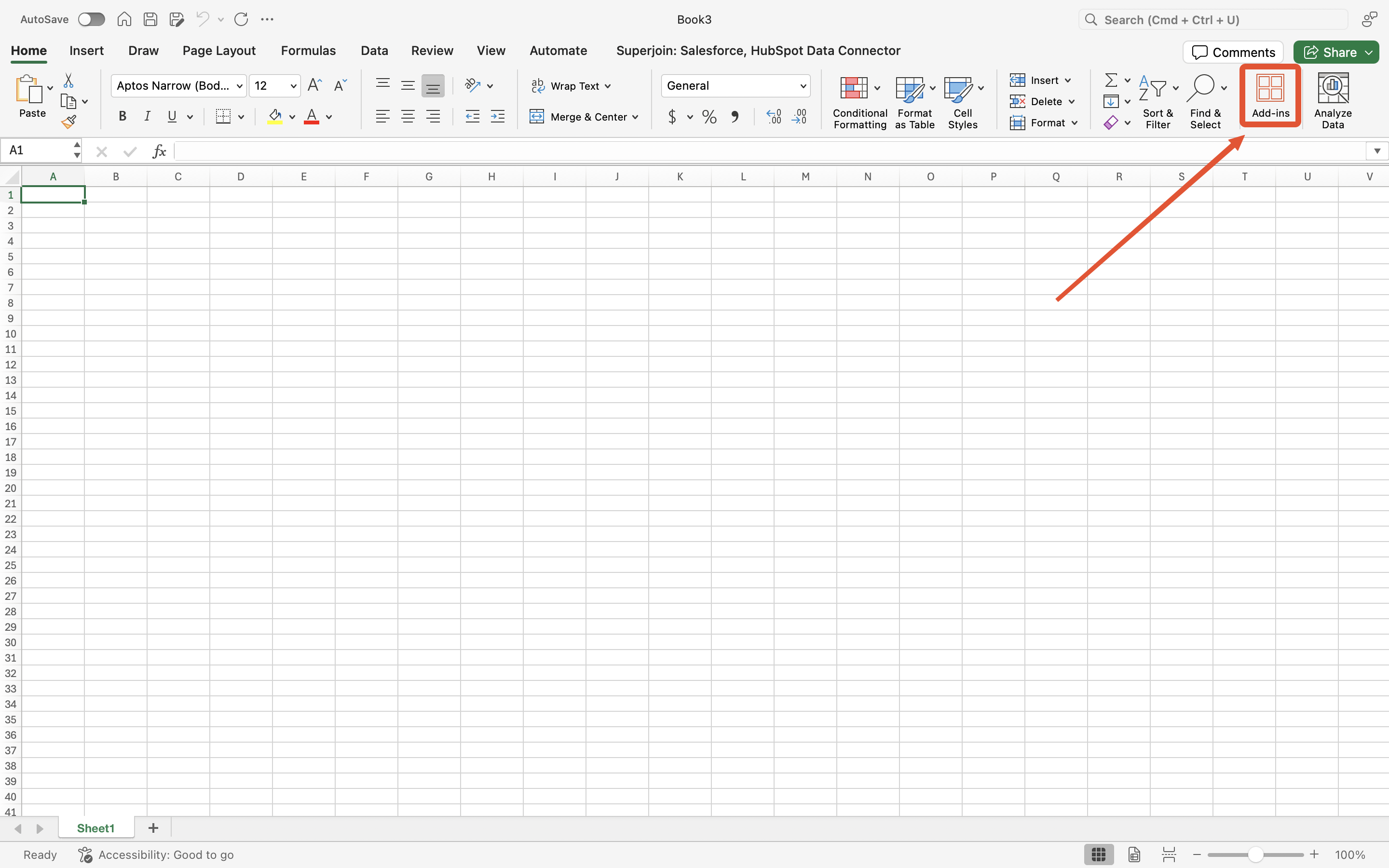
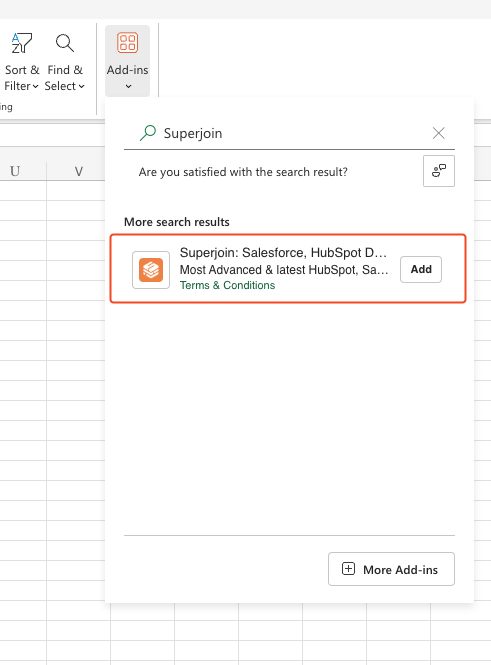
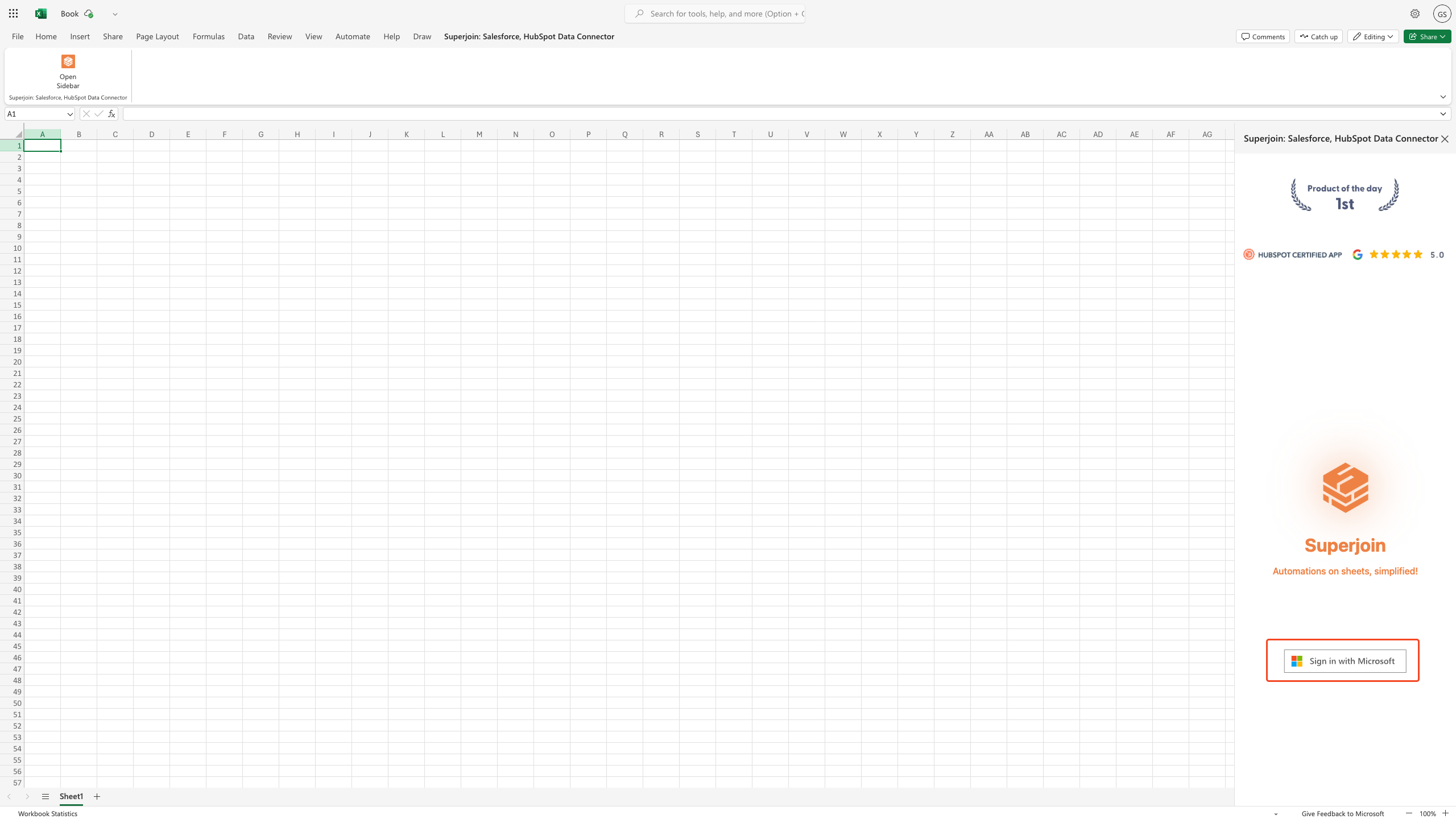
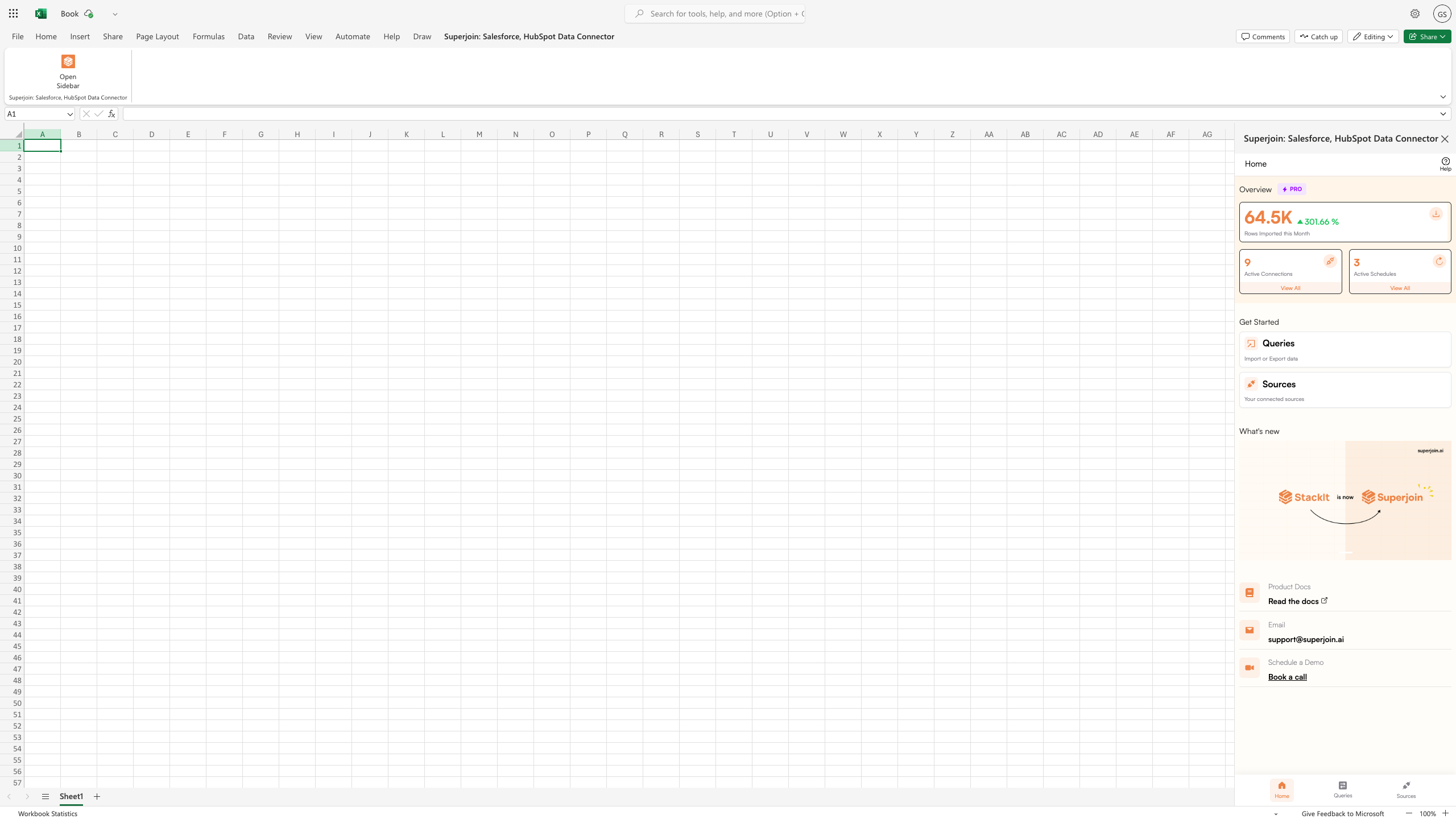
- Microsoft Excel
Quick and Easy Integration
We’ve meticulously organized the data points to ensure easy accessibility in a format you’re already familiar
with.
Preview your imports visually
Get a sneak peek of your data. Select columns, apply filters & limits as per
your need before importing.
Automatic Refreshes
Enjoy one-click refreshes or schedule regular updates to ensure your sheets
are always up to date.
Power of Google Sheets
Benefit from Google Sheets’ collaborative data analysis & other powerful
capabilities.
Step-by-step walkthrough: How to connect Attio to Google Sheets
1
Get Add-ons
Head over to 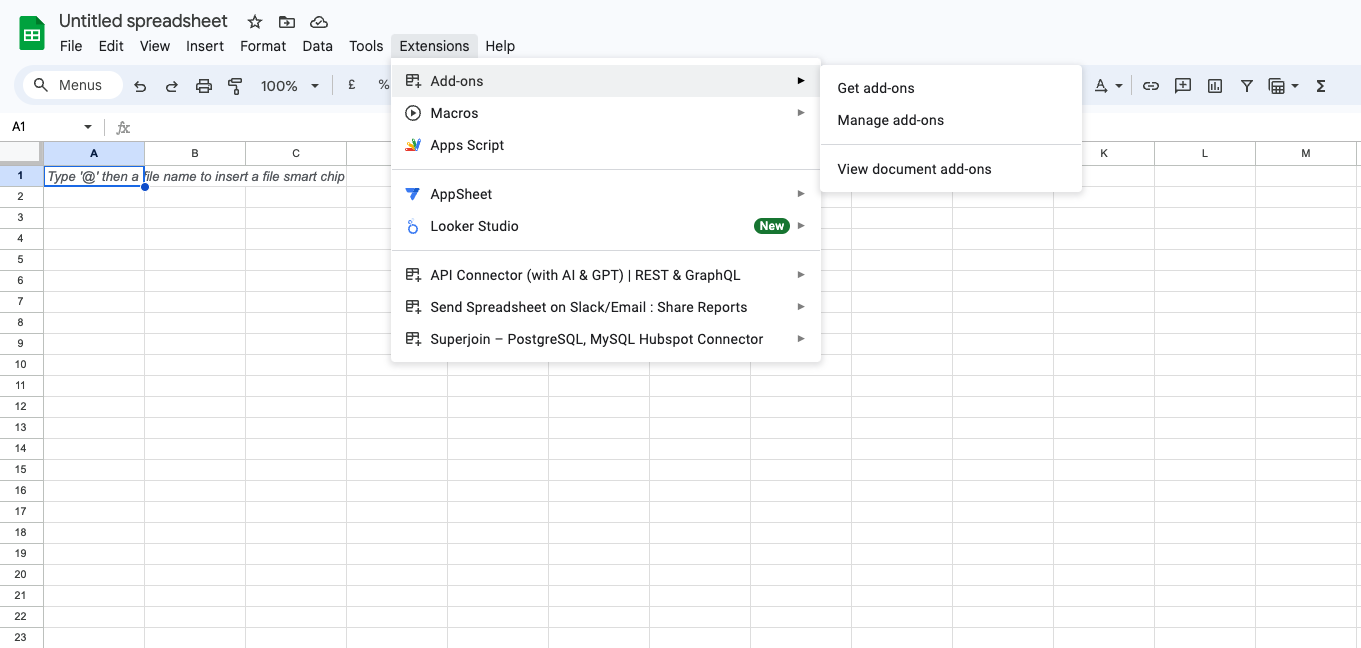
Extensions, select Add-ons and choose Get Add-ons. This action will redirect you to the
Google Workspace Marketplace.2
Search Superjoin
In the Google Workspace Marketplace pop-up window, search for “Superjoin”.
3
Click on Install
Click on the 
Install button to install Superjoin.
Note: For the best experience, install Superjoin where there’s only a single account logged in the
Chrome profile.
4
Launch Superjoin
Once installed, navigate back to the 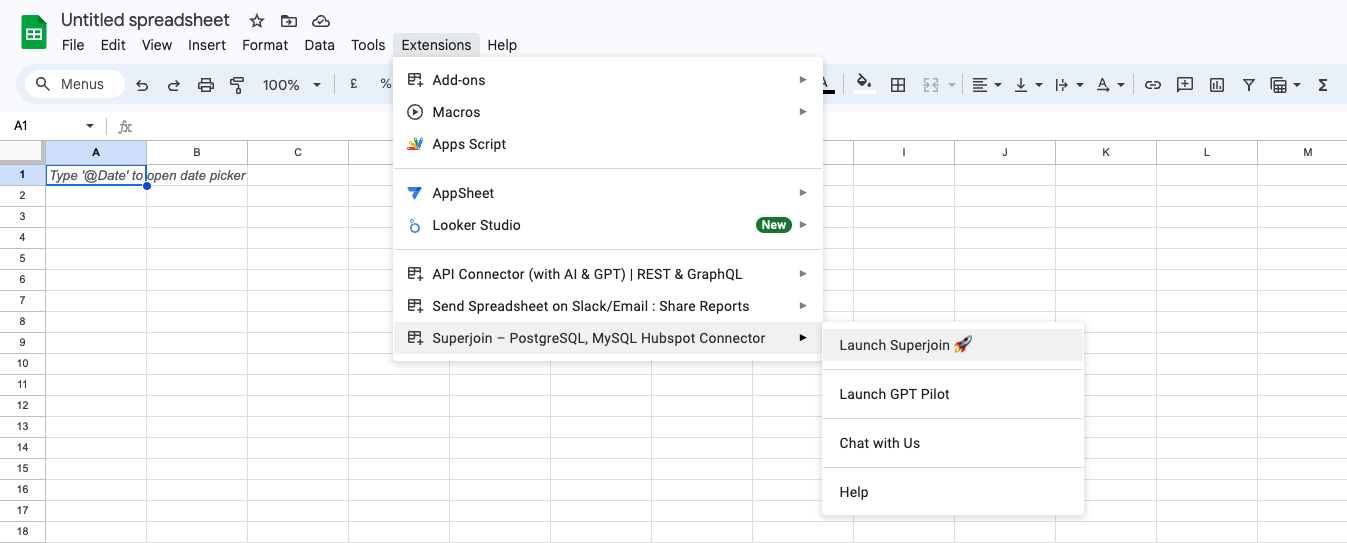
Extensions menu tab in Google Sheets. Launch Superjoin from here. You
should now see Superjoin running as a side panel on the right side of your screen.5
Connect a New Source
Navigate to 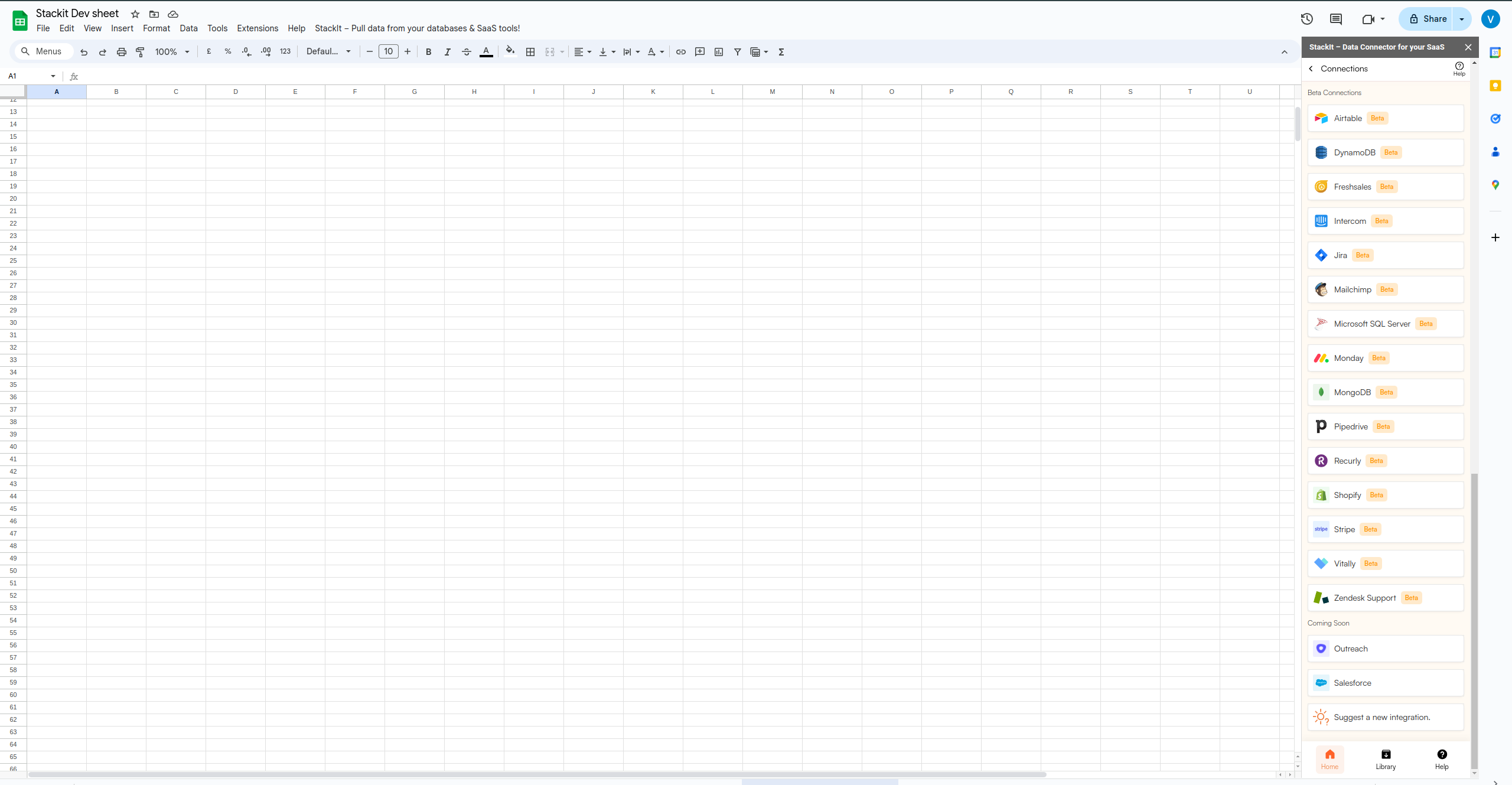
Sources, select Connect to a new source and search for Attio.6
Link Account
Click on the
Connect button and follow the on-screen instructions to authorize Superjoin to access your Attio workspace.7
Choose Workspace
In case you belong to multiple Attio workspaces, choose the one you want to import the data from.
8
Preview Data
After connecting your account, a data preview window will appear, allowing you to pick an
Object and apply
various Filters to refine your data.Once connected, head over to the card below for a detailed guide on importing your data.Import Data into Sheets
Step-by-step guide to import data from Attio to Google Sheets