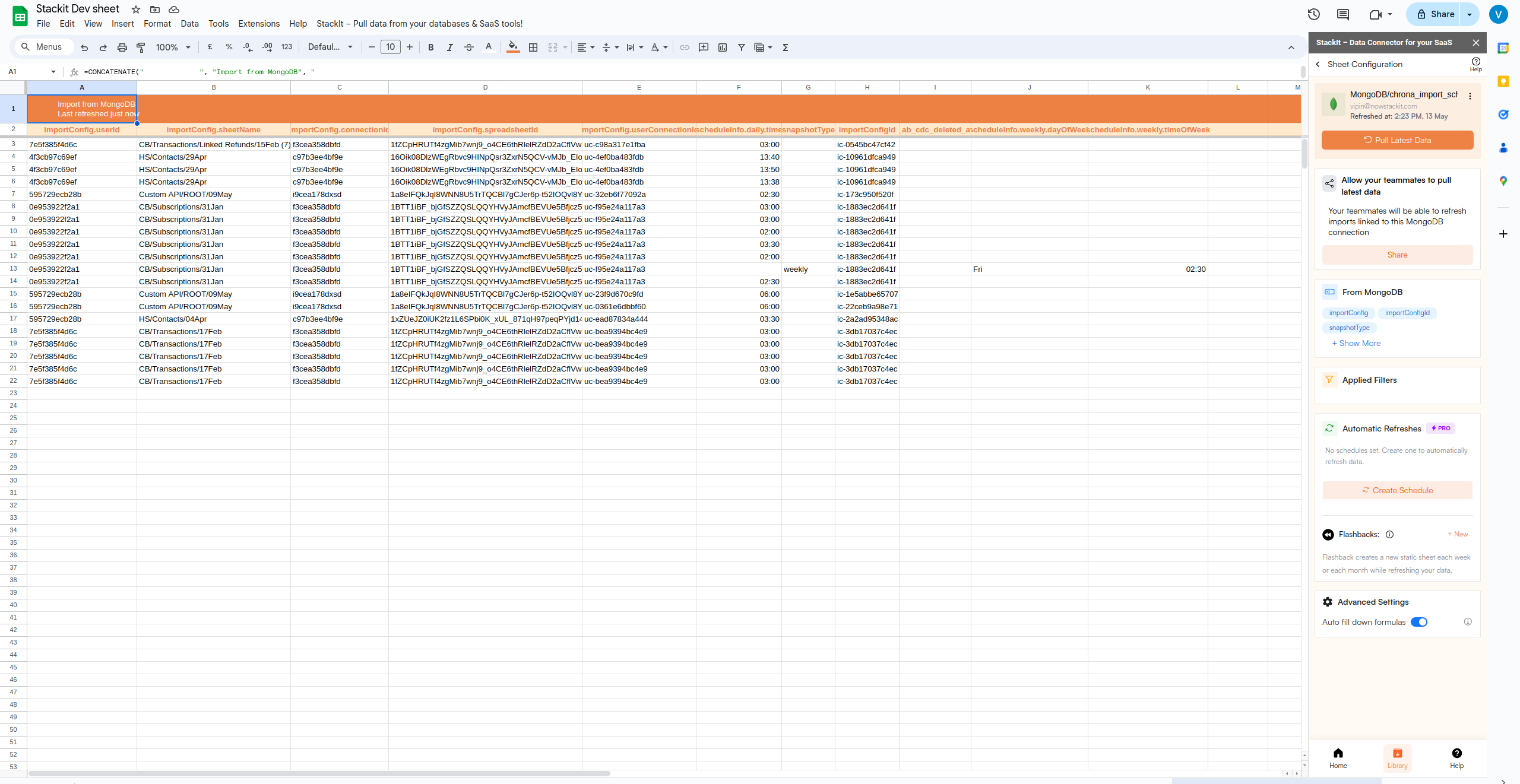
Why use Superjoin’s Google Sheets-MongoDB Integration?
Quick and Easy Integration
We’ve meticulously organized the data points to ensure easy accessibility in a format you’re already familiar with.
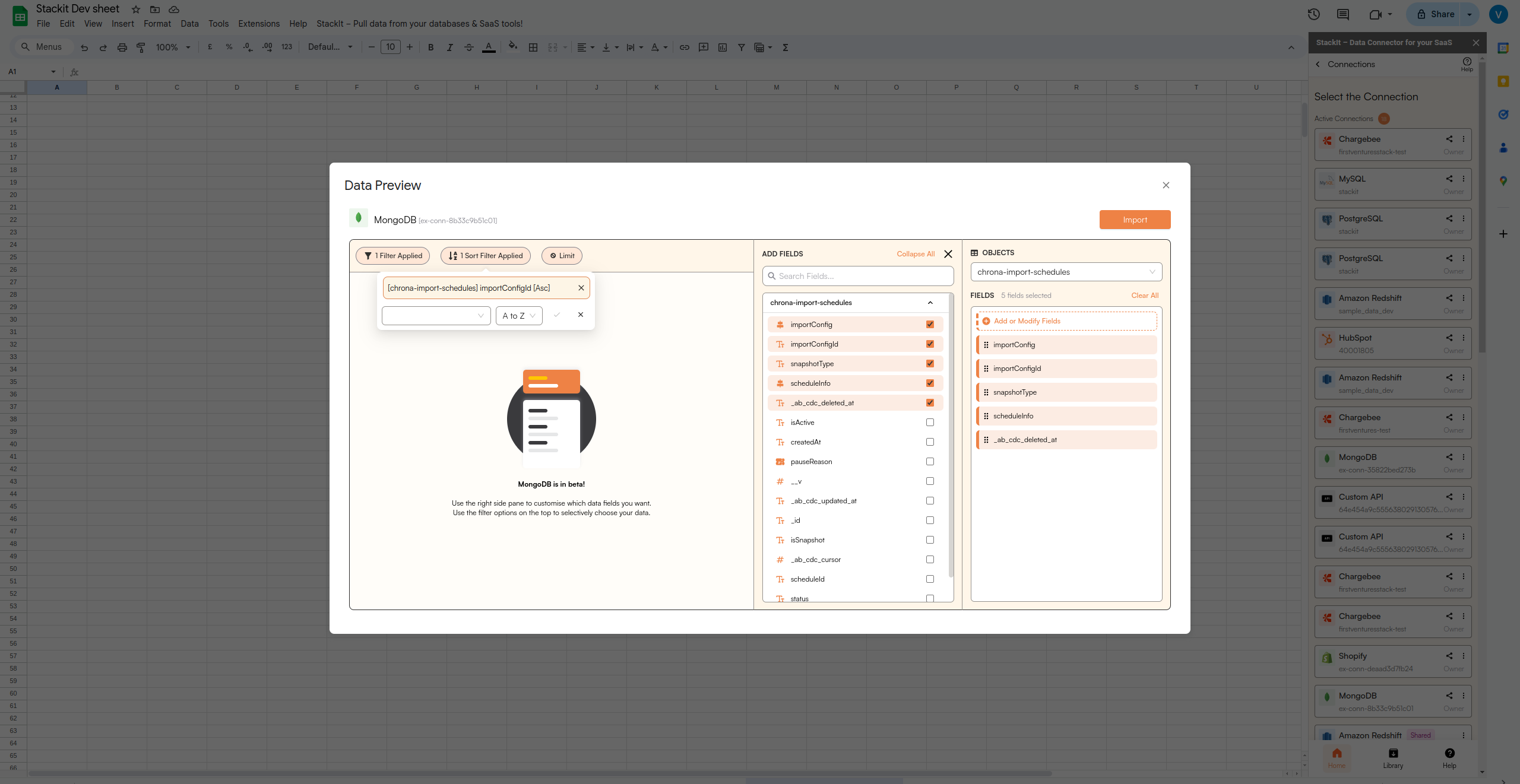
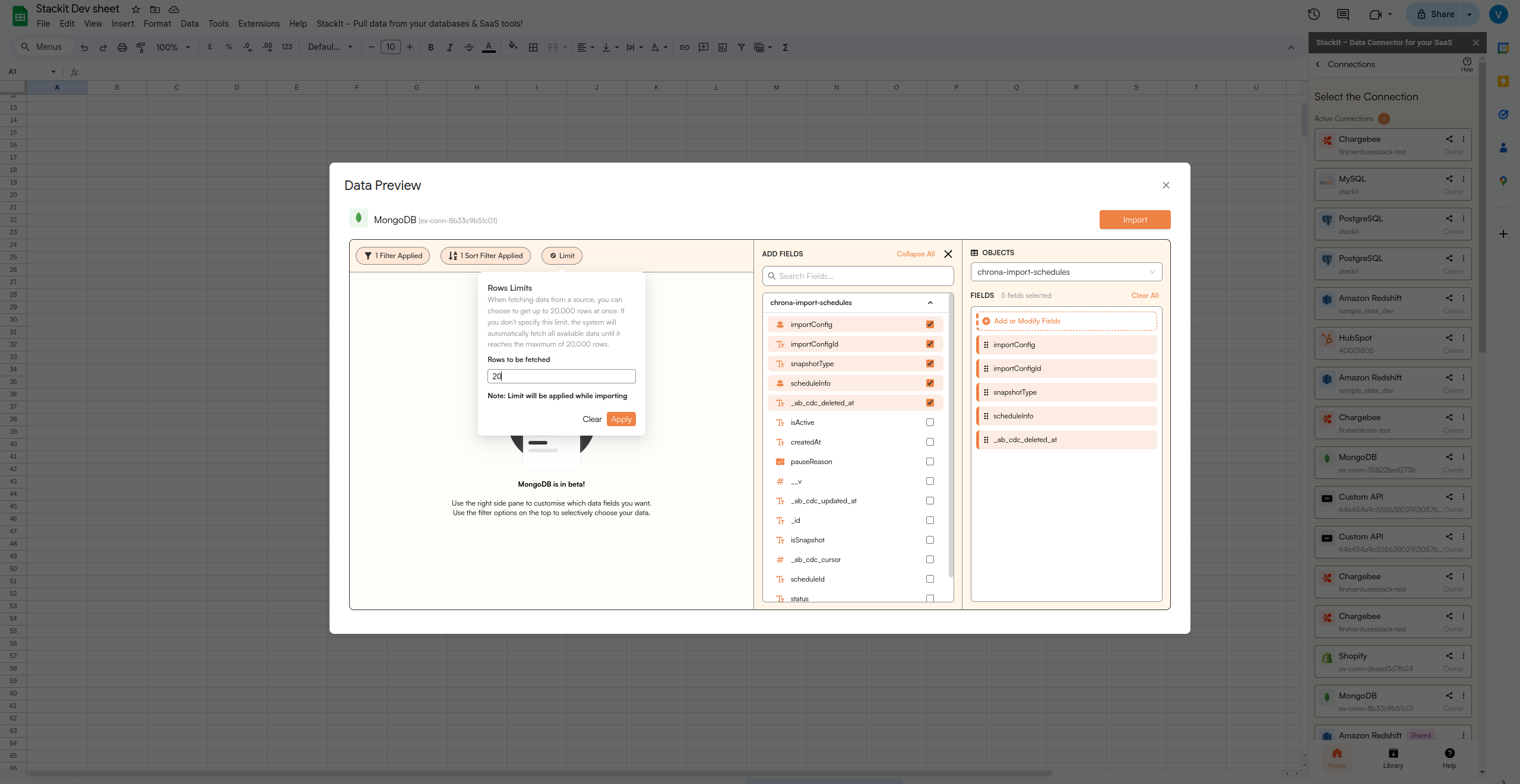
Preview your imports visually
Get a sneak peek of your data. Select columns, apply filters & limits as per your need before importing.
Automatic Refreshes
Enjoy one-click refreshes or schedule regular updates to ensure your sheets are always up to date.
Power of Google Sheets
Benefit from Google Sheets’ collaborative data analysis & other powerful capabilities.
Step-by-step walkthrough: How to connect MongoDB to Google Sheets.
Get Add-ons
Select 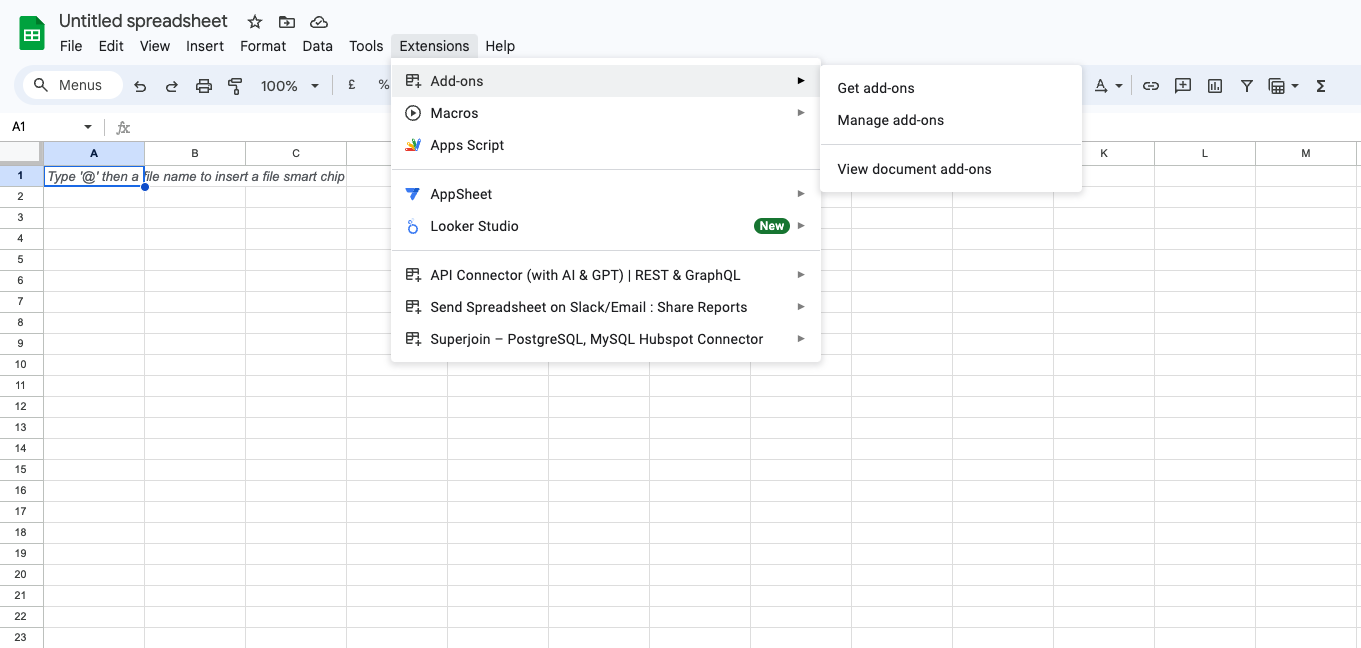
Add-ons and choose Get Add-ons. This action will redirect you to the Google Workspace Marketplace.Click on Install
Click on 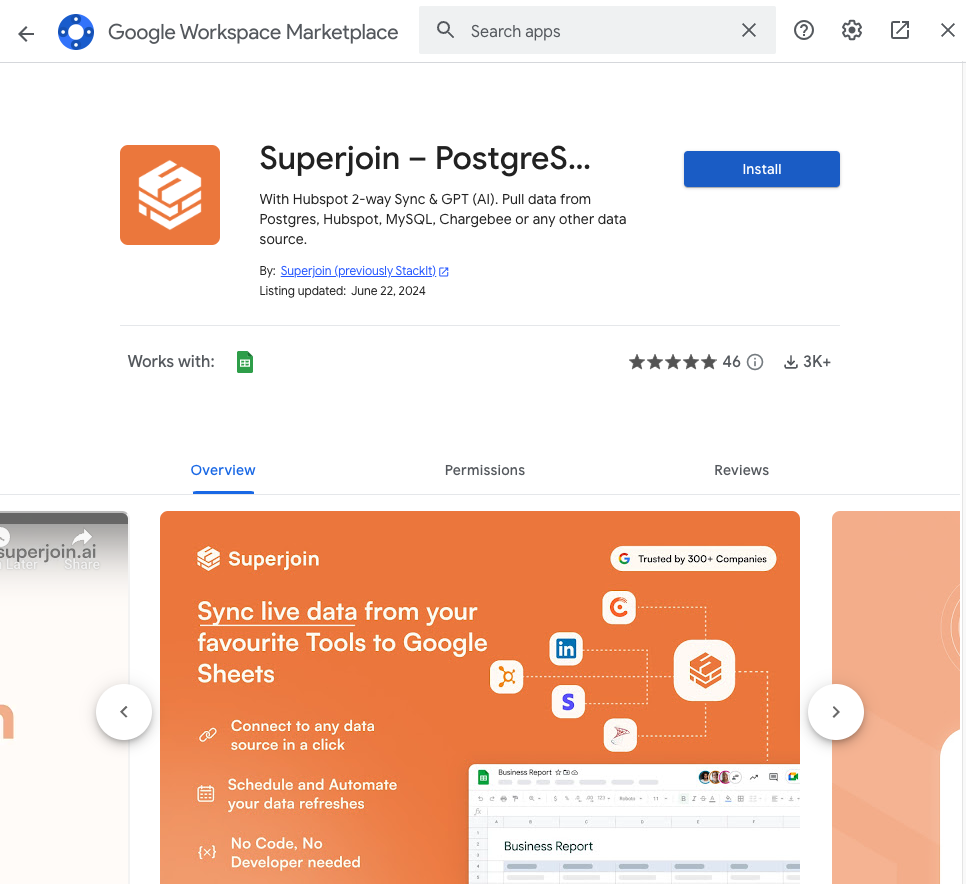
Extensions from the Google Sheets menu.
Note: For the best experience, install Superjoin where there’s only a single account is logged in the Chrome profile.
Launch Superjoin
Once installed, navigate back to the 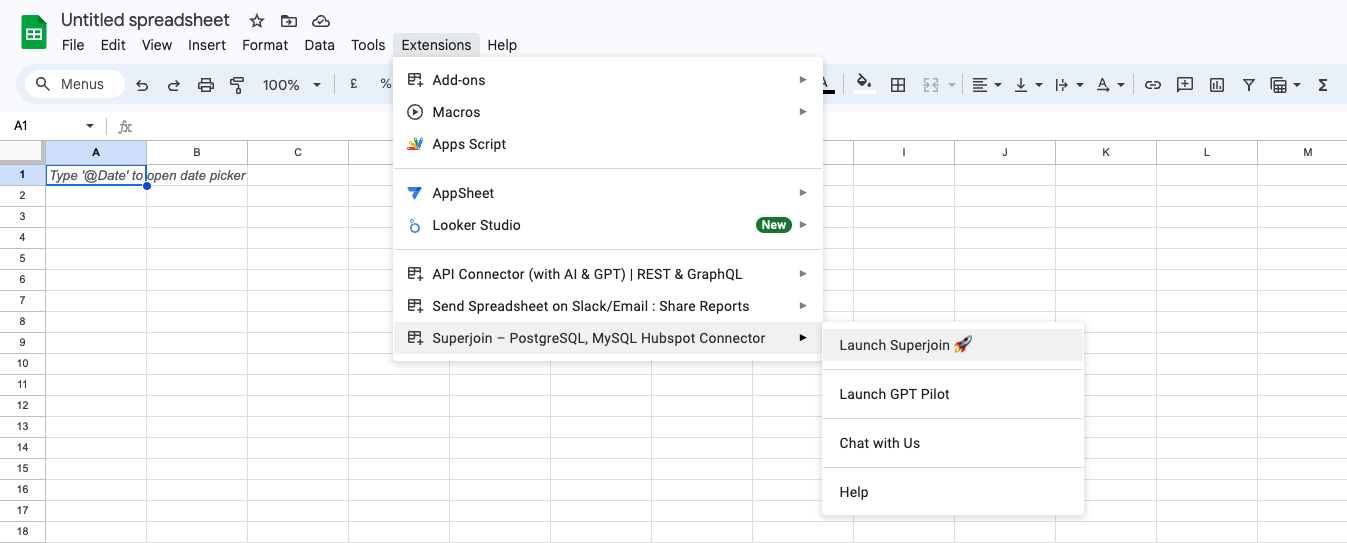
Extensions menu tab in Google Sheets. Launch Superjoin from here. You should now see Superjoin running as a side panel on the right side of your screen.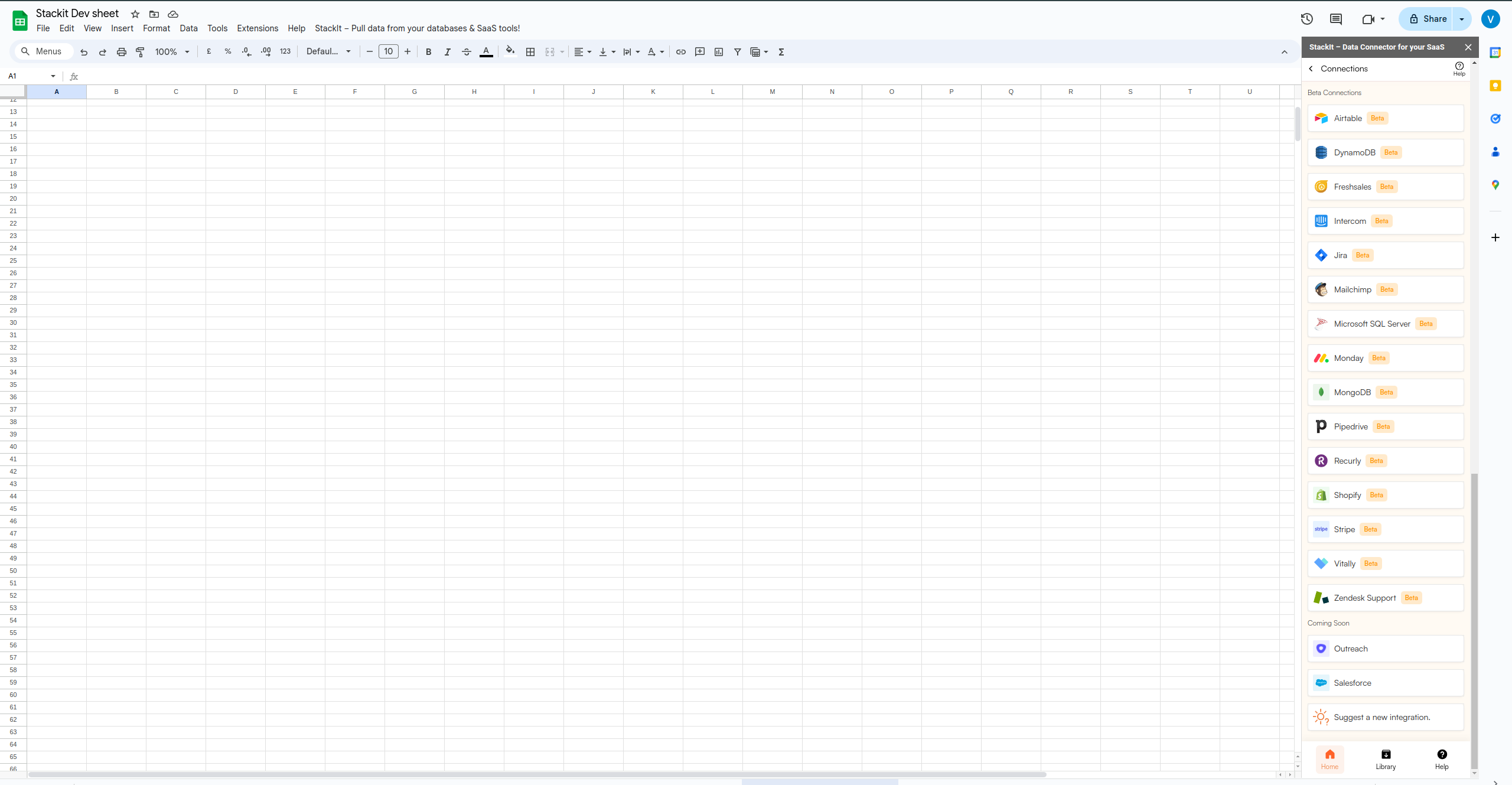
Connect your account
Connect your MongoDB account. Go through all the directions and prompts to connect your MongoDB account to Google Sheets.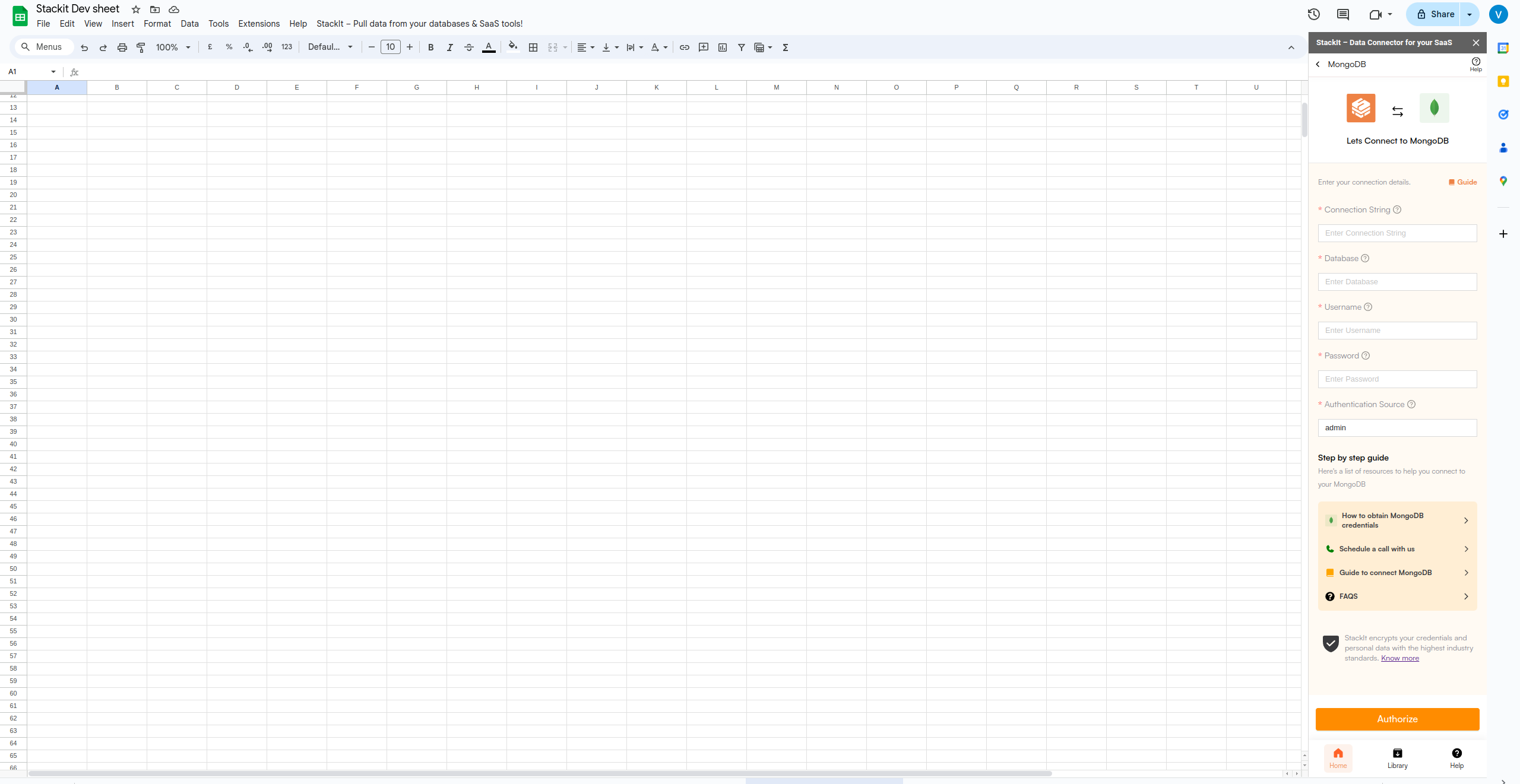
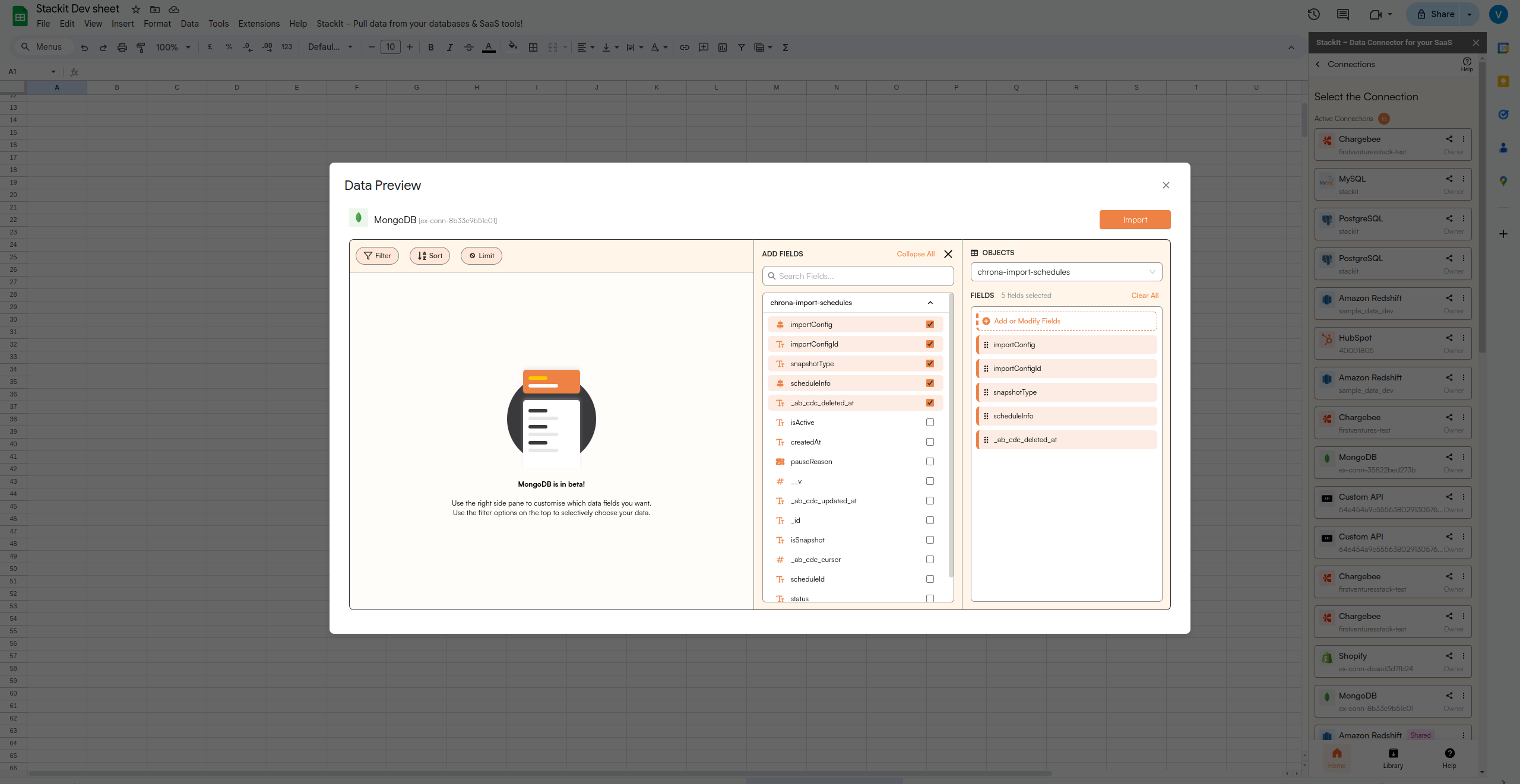
Select filters
Select the filters that you want to apply in order to filter down the data that you want to work on.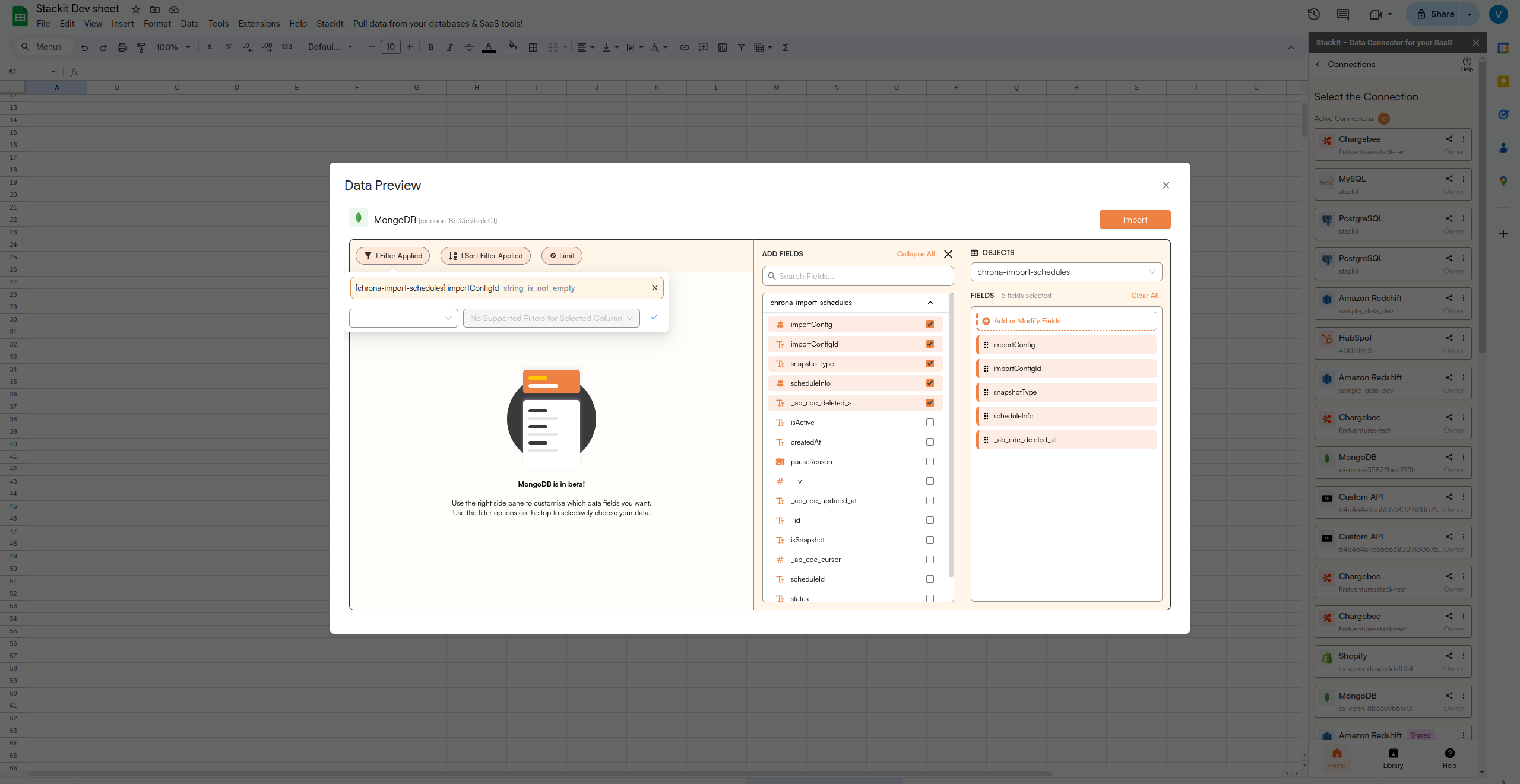
Click Import
Now simply click on the “import” button to bring this selected data into your Google Sheets.